Recover photos, messages, WhatsApp, and more — no backup
needed.
Recover photos, messages, WhatsApp, and more — no backup
needed.

 100% Security Verified | No Subscription Required | No Malware

 :
: 
 ChatGPT
 Perplexity
 Gemini
 Claude
 Grok
Grok
Important Pages documents can disappear after accidental deletion or system crashes. Many users struggle to find reliable recovery solutions before losing valuable files forever. Nonetheless, several proven methods exist to help you restore lost files.
Your deleted Pages files may still exist in recoverable locations on the device. So, this guide covers proven methods to learn how to recover Pages documents. It will also cover native Apple tools alongside data recovery solutions like Dr.Fone.
In this article
- Can Deleted Pages Documents Still Be Recovered?
- How Do I Recover Deleted Pages Documents?
- Method 1. Recover Deleted Pages Files from Trash or Recently Deleted
- Method 2. Recover Pages Documents Selectively Using Dr.Fone

- Method 3. Restore Deleted Pages Documents From iCloud.com
- Method 4. Restore Pages Files from Time Machine Backup
- Method 5. Restore an Earlier Version Using Pages "Revert To"
- How Can I Prevent Losing My Pages Documents in the Future?
- Conclusion
Part 1. Can Deleted Pages Documents Still Be Recovered?
They can still be recoverable, depending on the time of deletion. No matter what files you delete from Pages, they will automatically be sent to the "Trash" or "Recently Deleted." Those particular locations hold your deleted files for around 30 days before permanent removal happens.
In addition, you can have recoverable versions of files on iCloud Drive and Time Machine. Apple also enables you to roll back the Pages documents to previous versions without a complete rollback. Nonetheless, the success of recovery depends entirely on how much time has already passed.
Part 2. How Do I Recover Deleted Pages Documents?
Recovering deleted Pages documents is easier than most users expect with the right method. The table below compares all available recovery methods to help you choose the best option.
| Recovery Method | Selective Recovery | Requires Full Restore | Best For |
|---|---|---|---|
| Trash/Recently Deleted | Yes | No | Recently deleted files have not yet been emptied. |
| Dr.Fone – Data Recovery (iOS) | Yes | No | Selective and deep recovery without available backups. |
| iCloud.com Restore | Yes | No | Files deleted offline before changes are completely synced. |
| Time Machine | Yes | No | Full system or folder-level backup restoration. |
| Revert To | Yes | No | Recovering earlier saved versions of existing Pages files. |




The following recovery methods explain each solution with simple steps for Apple users:
Method 1. Recover Deleted Pages Files from Trash or Recently Deleted
These specific folders offer immediate file recovery options. On a Mac, deleted items sit securely within the Trash folder. Similarly, iOS devices store missing files inside the Recently Deleted section when syncing is enabled. As long as 30 days have not passed, restoration takes seconds. Thus, go through the given guide to find out how to recover Pages documents:
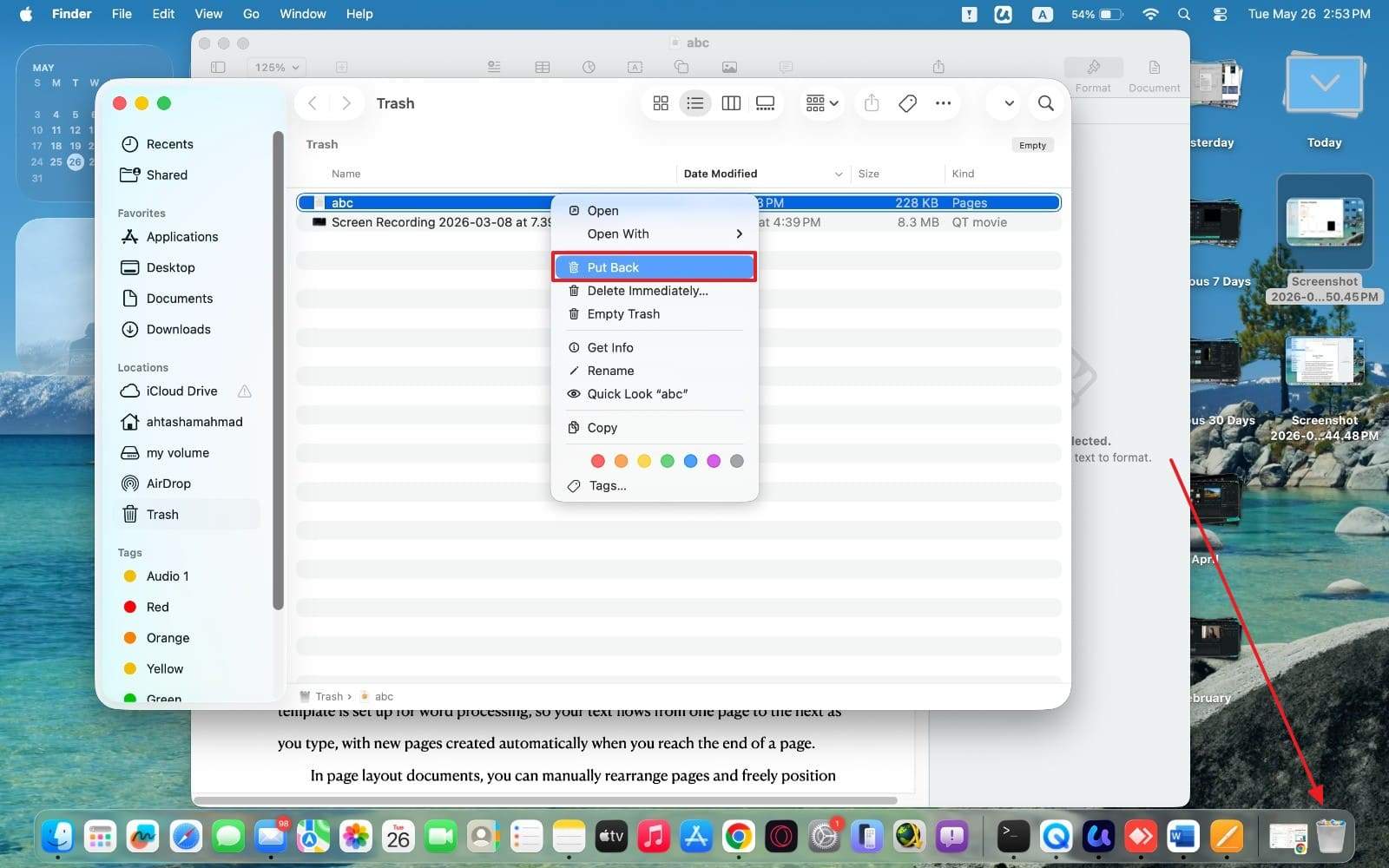
Recover Pages File from Trash on Mac
Instructions. To initiate, click the "Trash" bin to run it and locate the deleted Pages file. After that, you need to right-click the file and opt for the "Put Back" option.
Restore Files from Recently Deleted on iPhone
-
Step 1
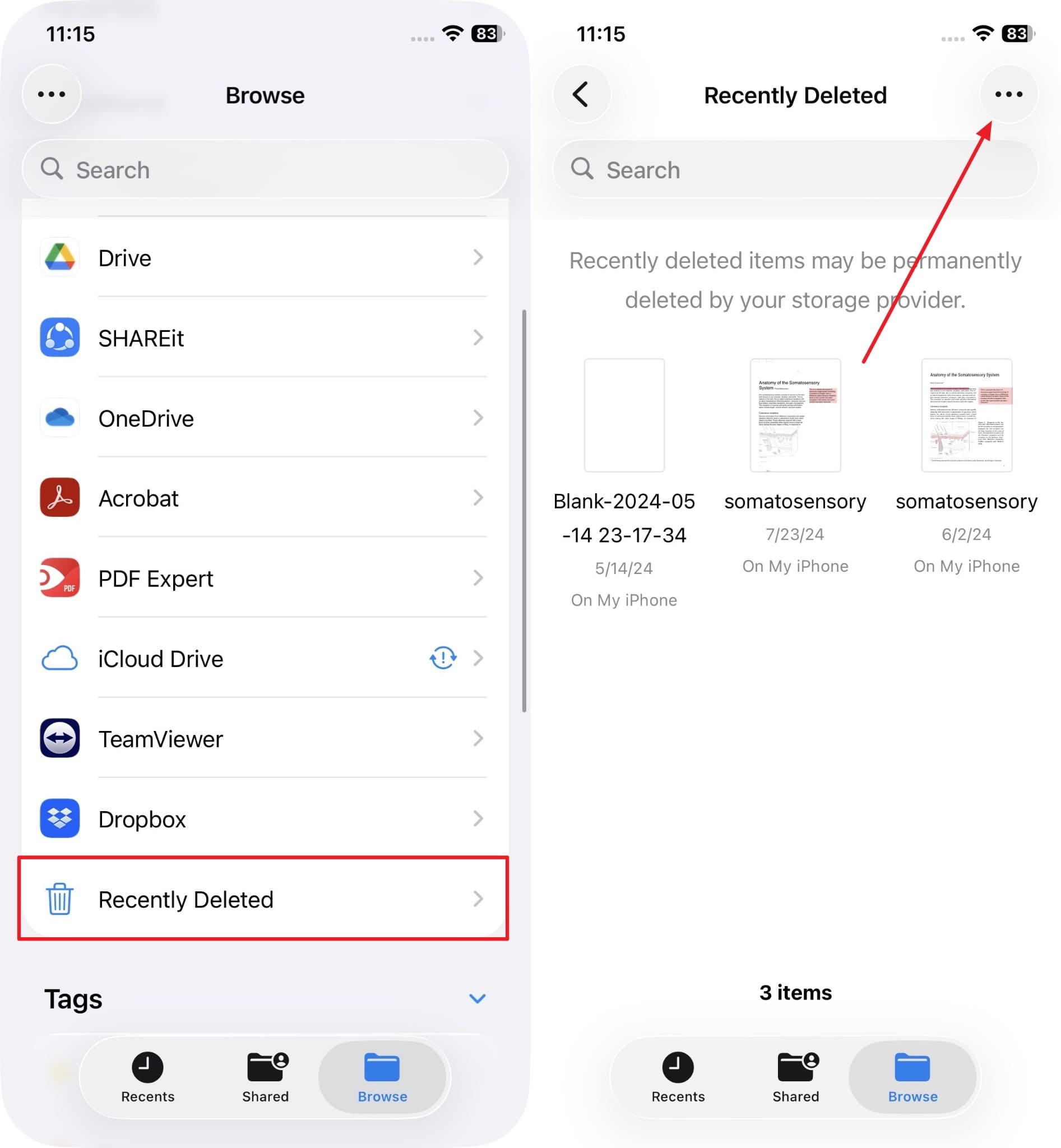
As you access the "Files" app, find and tap the "Recently Deleted" folder. Once you see the deleted Pages files, tap the "Three Dots" icon.
-
Step 2
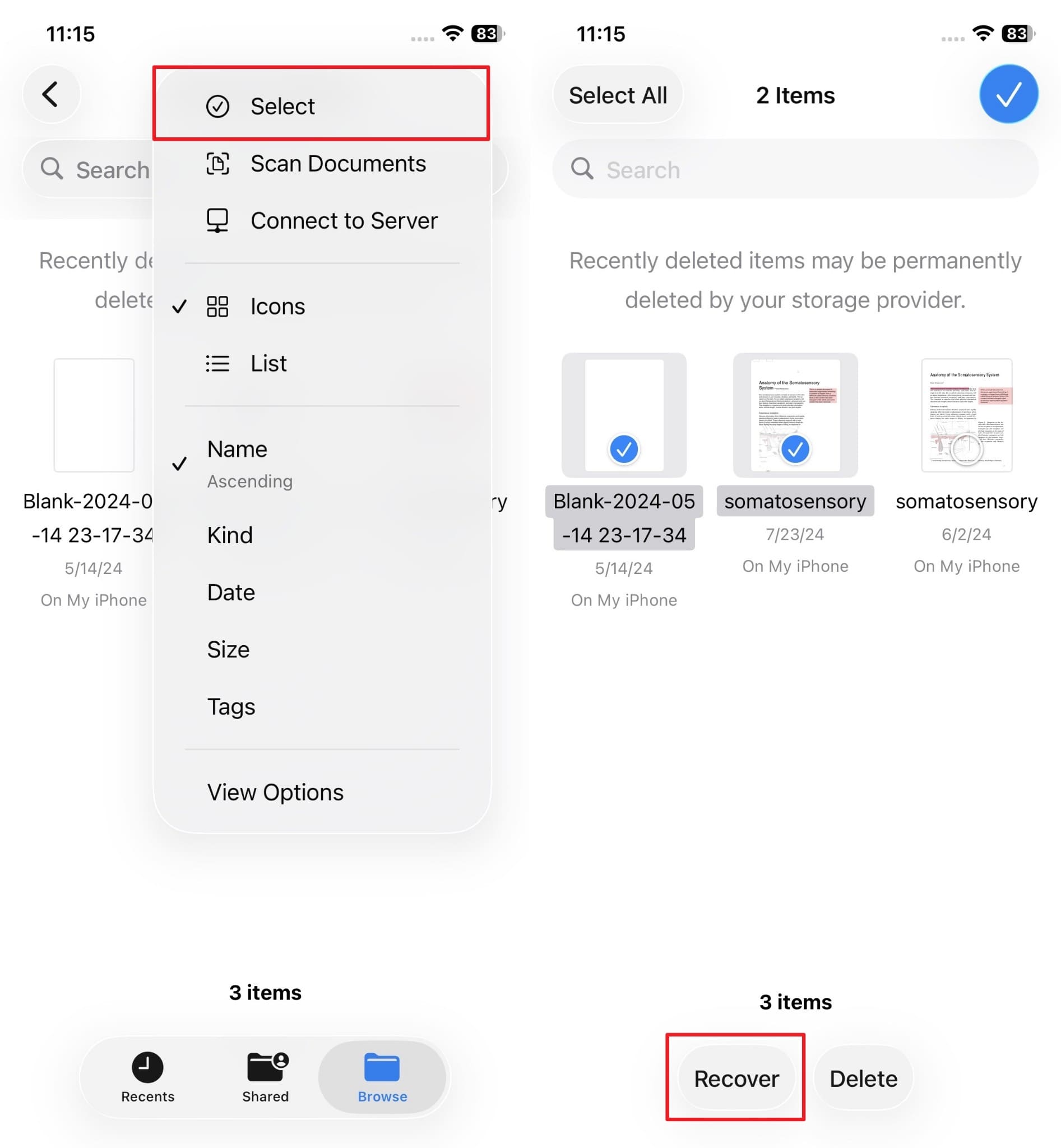
Press the "Select" option to choose the deleted Pages files and tap "Recover."
Method 2. Recover Pages Documents Selectively Using Dr.Fone
When standard trash retention windows expire, users face critical file access emergencies. Overwriting risks make immediate extraction essential to prevent permanent document loss. To address this challenge, utilizing software like Dr.Fone - Data Recovery may provide a solution. Dr.Fone supports recovering multiple data types, including photos, messages, contacts, WhatsApp, and more. While learning how to recover Pages documents, you can also recover other iWork documents from iCloud drive, like Numbers and Keynote files.
This program supports the latest iOS and iPadOS 26 devices across all recovery scenarios. Before accessing iCloud data, it uses two-factor authentication to verify your identity. A visual progress bar keeps you informed throughout the entire downloading and scanning process. Alongside this, you can restore recovered Pages files directly to your iOS device with one click.
 Recovers data after deletion, crashes, or device damage.
- Supports photos, messages, contacts, WhatsApp, and more.
- Supports all major iPhone, iPad, and iPod models.
- Preview and recover only what you need.

Guide to Recover Pages Documents Selectively Using Dr.Fone
-
Step 1Run the Tool to Recover Pages Documents
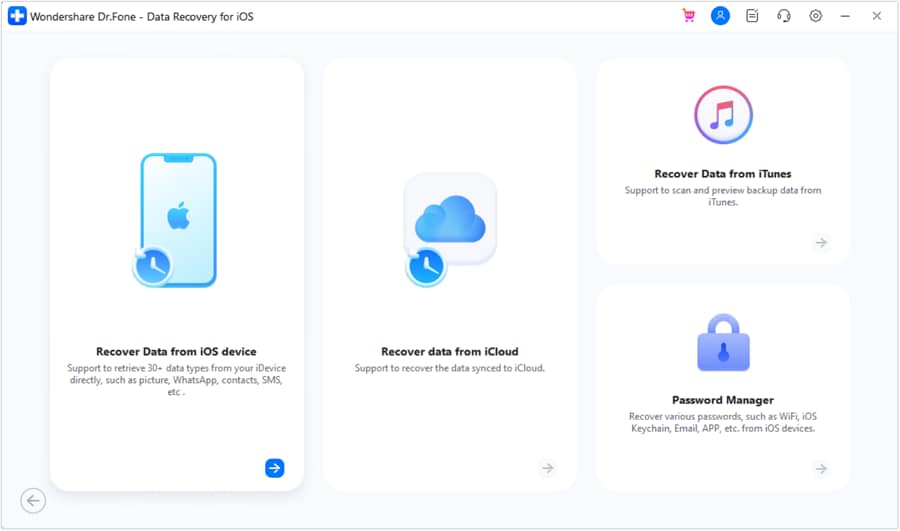
Access the "Data Recovery" feature upon heading to the "Toolbox" tab. Select "iOS" and continue with the "Recover Personal Data" option.
-
Step 2Access the iCloud Account to Choose Pages
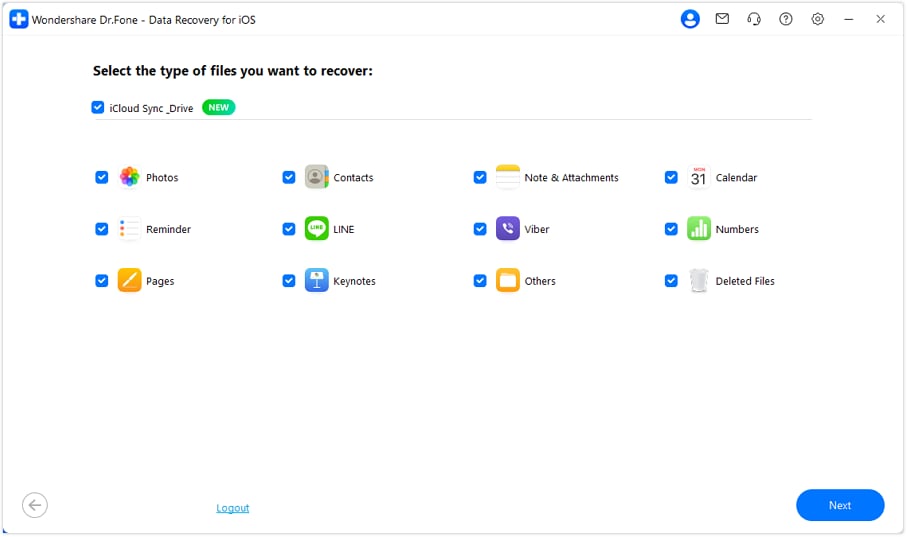
Subsequently, sign in to your iCloud account to proceed with the recovery process. After logging in, choose "Pages" as your file category and click "Next" to continue.
-
Step 3Restore the Deleted Pages File to your Device
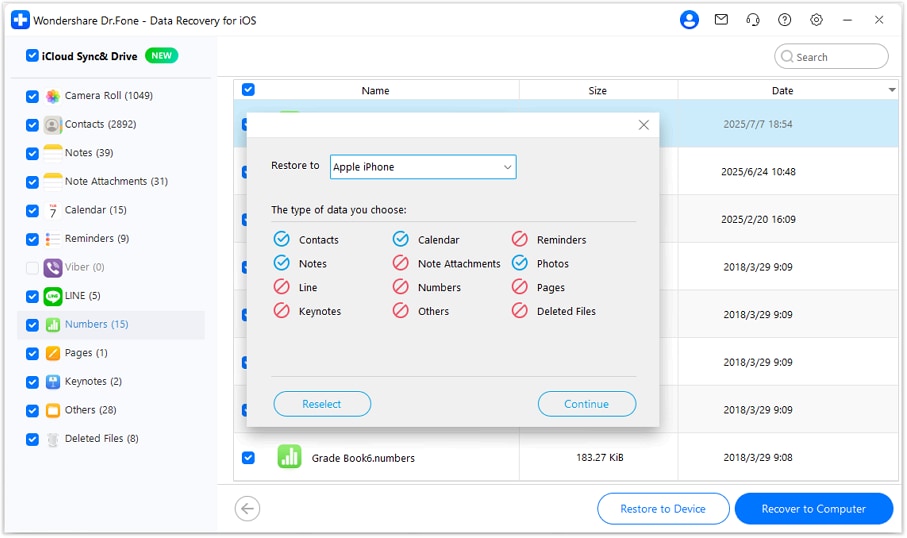
You will then need to enter the 2FA code sent to your Apple device to verify your identity. Then connect your iPhone to the computer to select the Pages files you want and click "Restore to Device." Finally, choose your connected device in the "Restore To" option and press "Continue."
Method 3. Restore Deleted Pages Documents From iCloud.com
Sometimes, you mistakenly delete a Pages file while your device is completely offline. That deletion command never reaches Apple's servers due to the absent network connection. This means your deleted Pages file is likely still in the cloud storage. That's why you should check it on another phone to get the files your device can't display. Adhere to these steps to learn how to recover Pages documents online:
-
Step 1
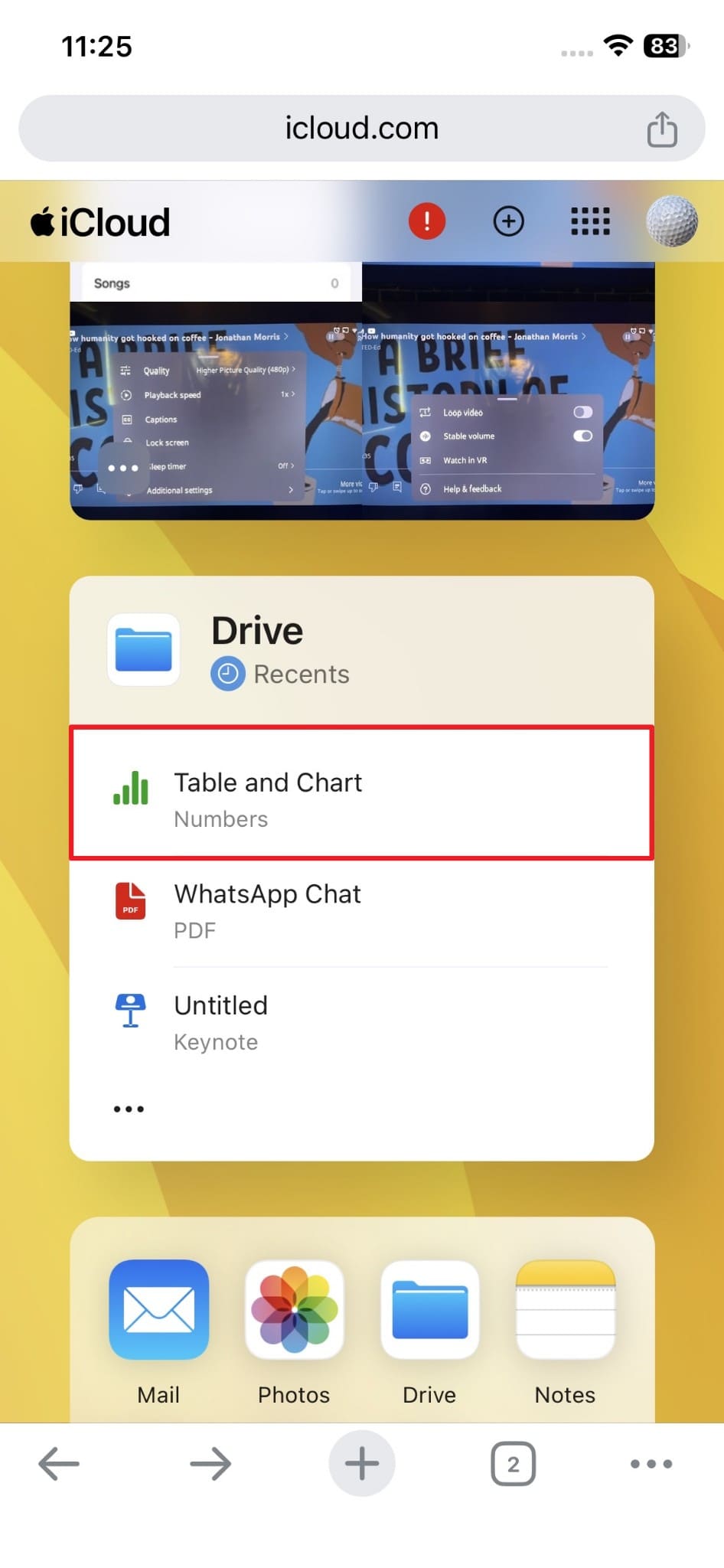
You need to locate the file you want to restore upon signing in to your iCloud account.
-
Step 2
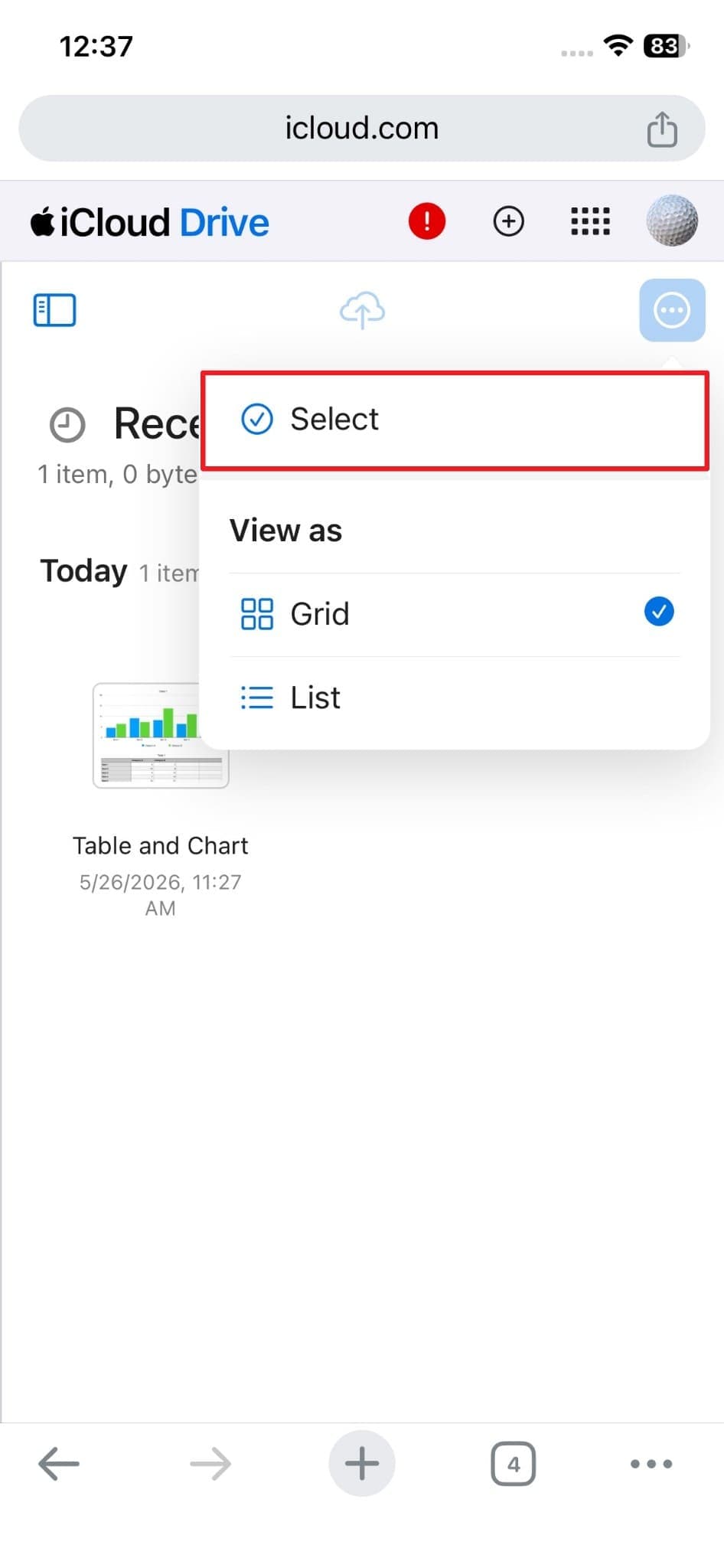
From the following display, review the Pages file and tap "Three Dots" and choose "Select."
-
Step 3
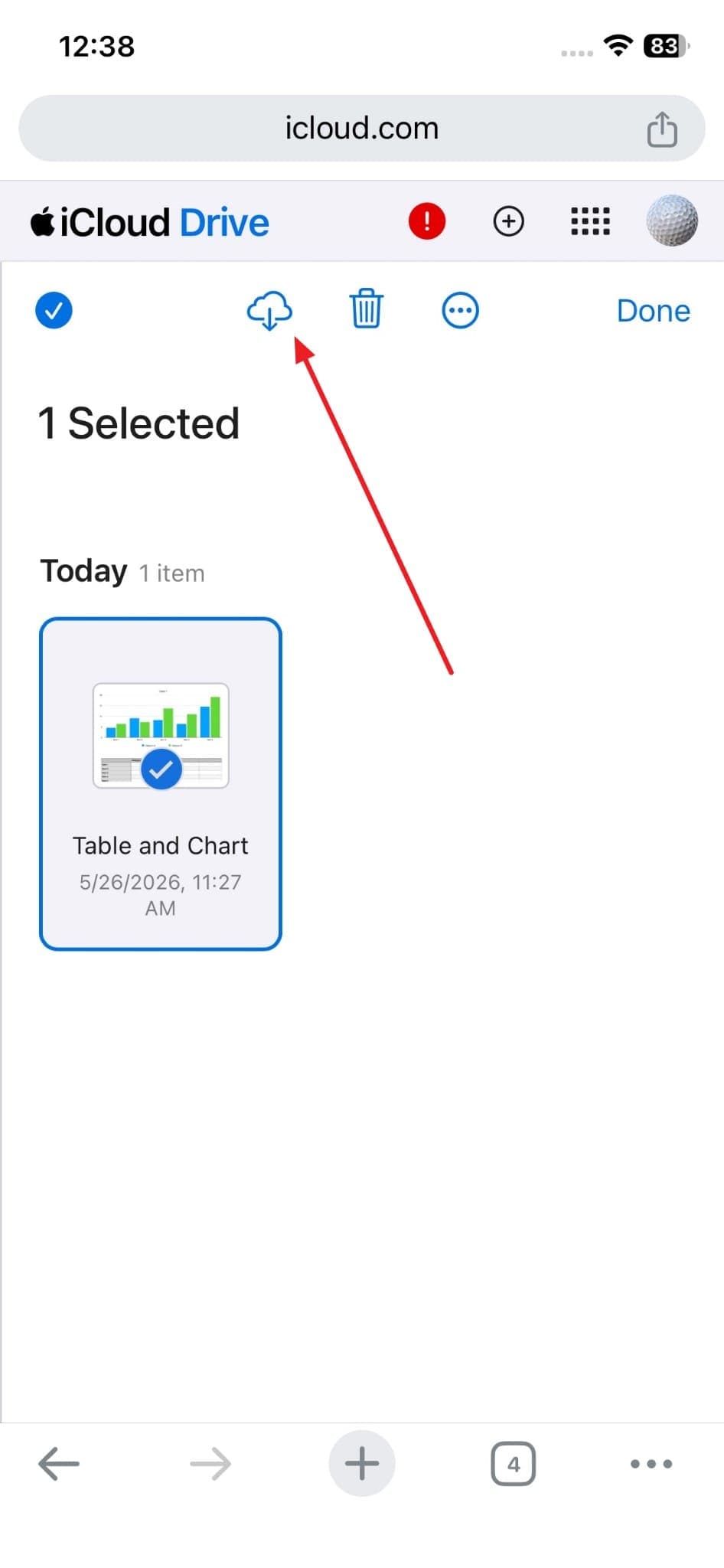
Choose the Pages files that were deleted, then tap the "Download" icon.
Method 4. Restore Pages Files from Time Machine Backup
It is a native backup tool designed exclusively for Mac users. This automatically creates daily and weekly snapshots of your entire Mac system when enabled. If a Pages file was deleted, Time Machine may have captured it before the deletion occurred. According to Apple Discussion, Time Machine can restore files without affecting current files. While learning how to recover Pages documents, review the following steps:
-
Step 1
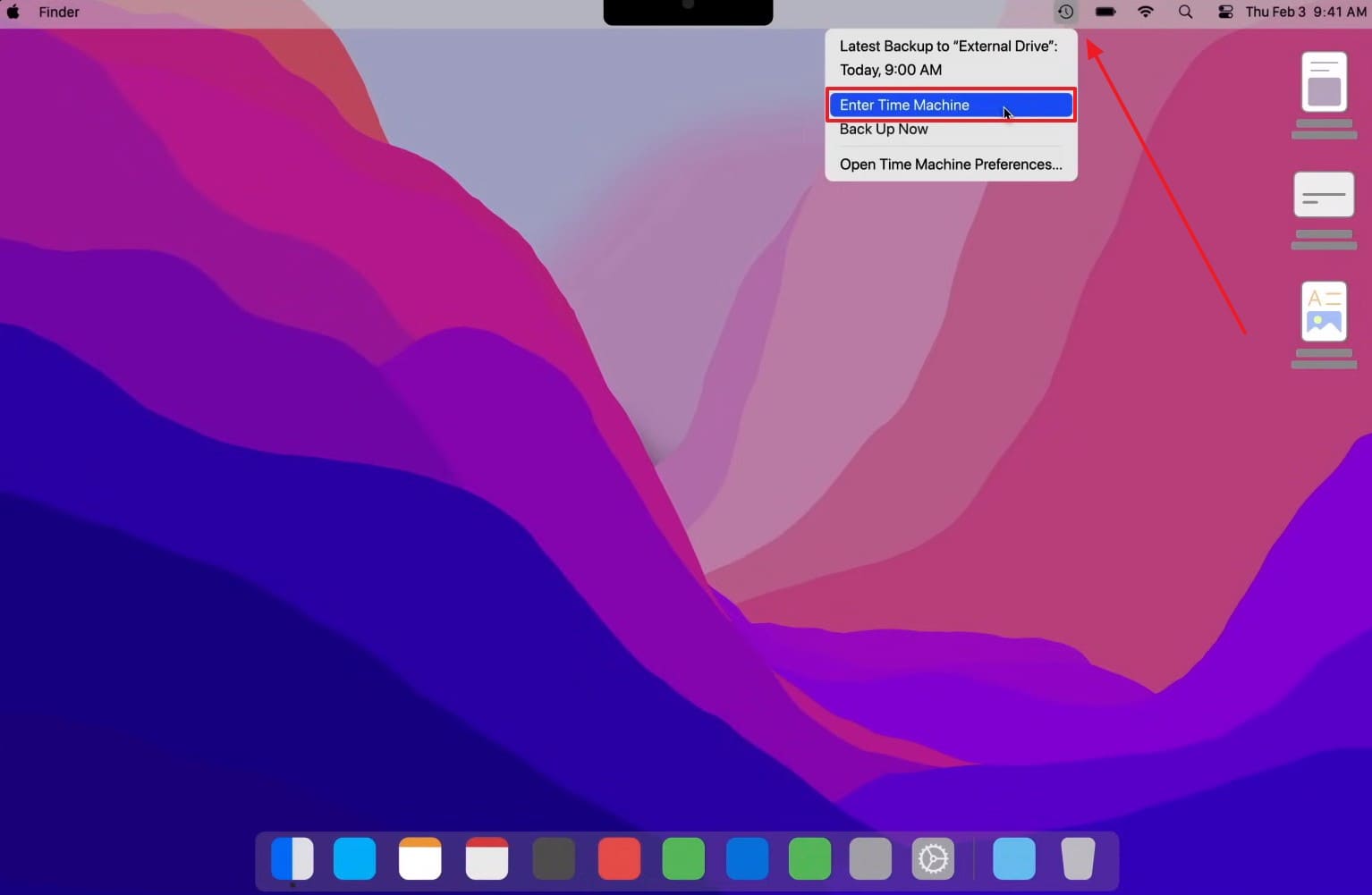
Step 1. You need to click the "Time Machine" icon and opt for the "Enter Time Machine" option.
-
Step 2
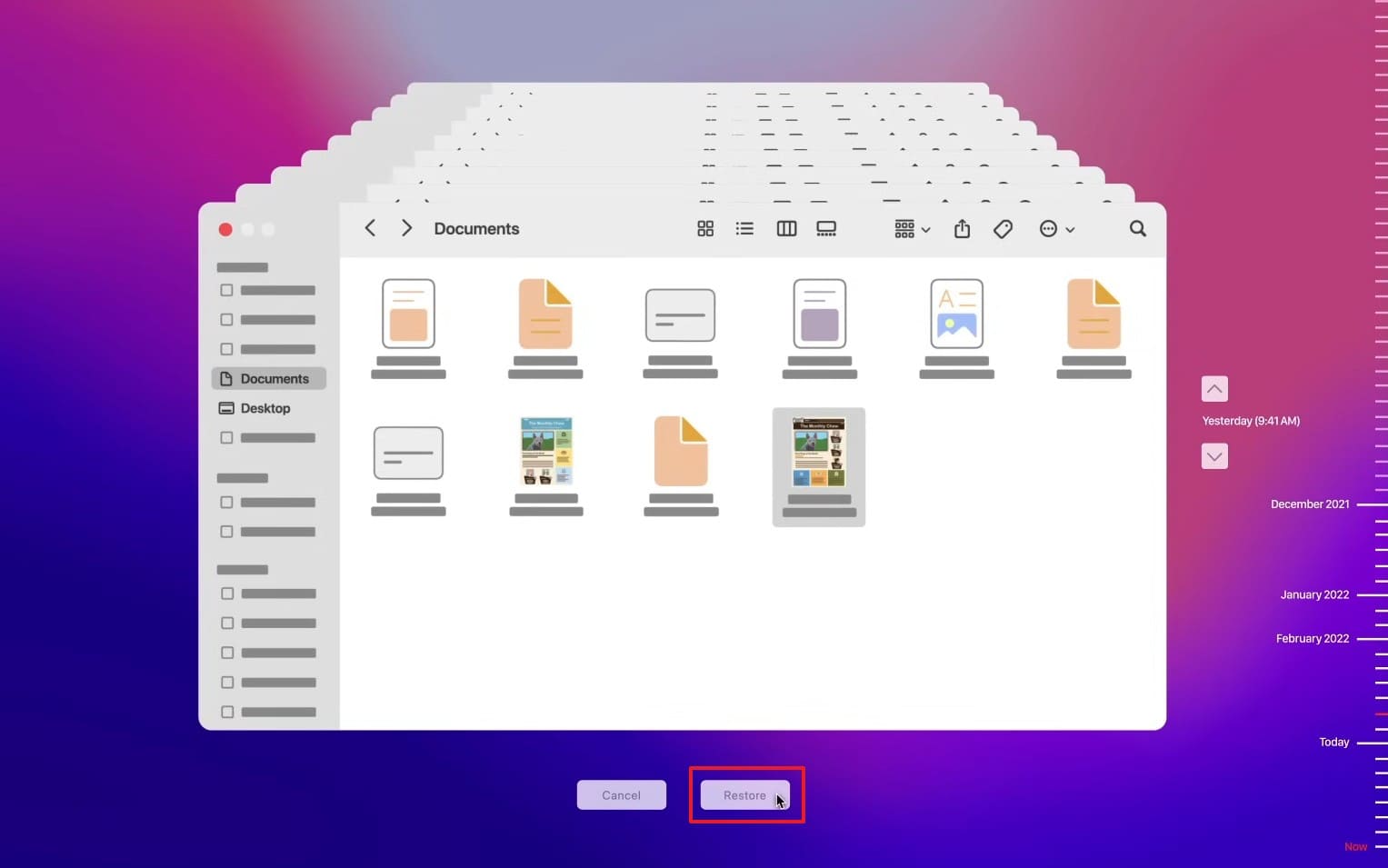
From the available backup, find your deleted Pages files to choose them and click the "Restore" button.
Method 5. Restore an Earlier Version Using Pages "Revert To"
Sometimes, you do not need to recover a completely missing file document. Instead, you might want to replace undesirable edits within an existing project. The integrated Revert To function allows you to browse past saved configurations. This feature keeps historical versions accessible right inside the local text editor. Hence, you need to follow the given guide to restore the earlier version of your Pages file without hassle:
-
Step 1
When you run the "Pages" app, choose the file you want to restore to its previous version.

-
Step 2
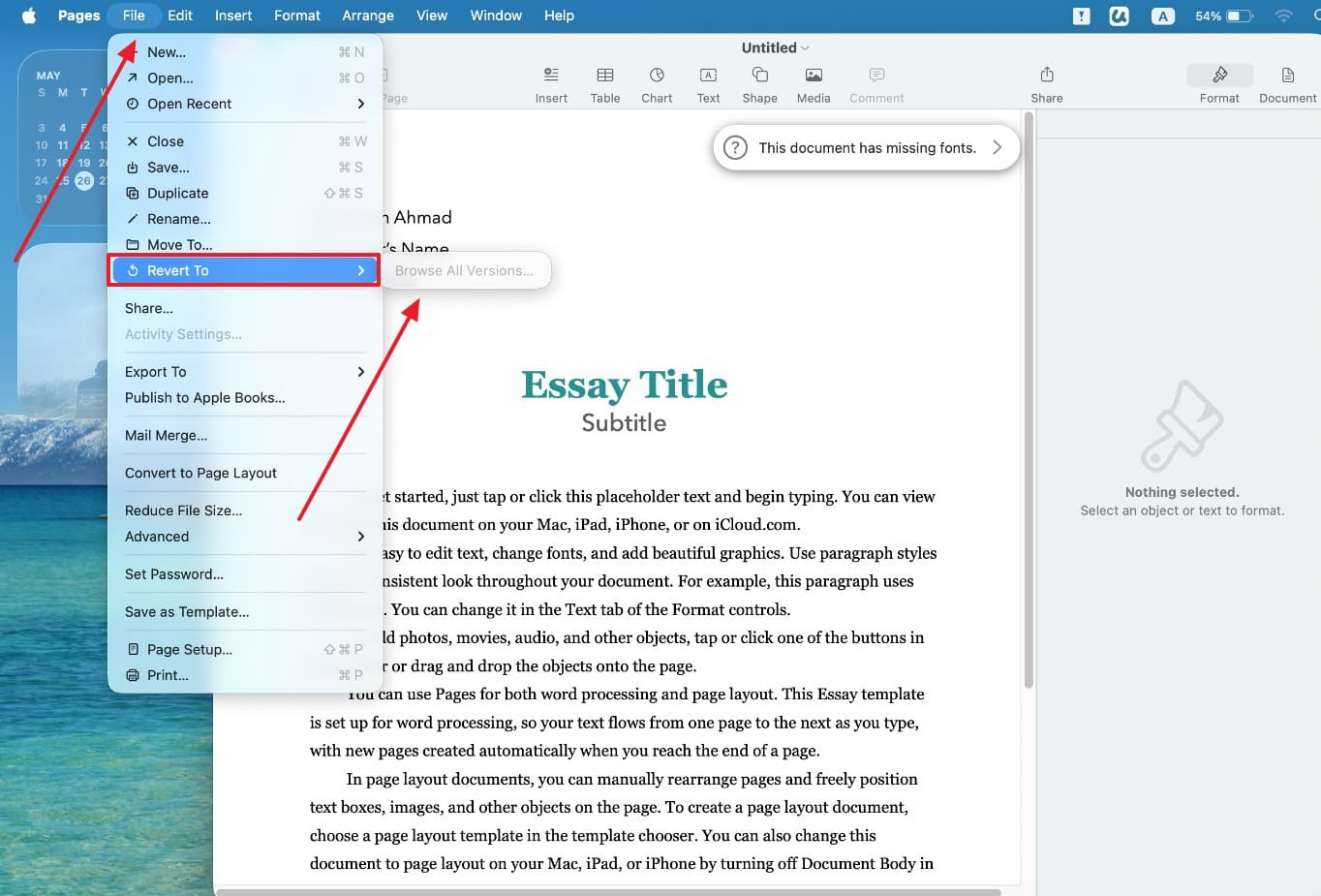
As you open the file, expand the "File" menu and navigate to the "Revert To" option. Going ahead, click "Browse All Versions" to choose your desired one and opt for "Restore."
Part 3. How Can I Prevent Losing My Pages Documents in the Future?
Proactive storage habits also minimize the need to learn how to recover Pages documents. For this reason, these 5 practical habits will help you protect your Pages files going forward:
1. Turn On and Test Time Machine Backups
Time Machine remains the most reliable built-in backup solution available exclusively for Mac users. Many users enable Time Machine once but never actually verify whether it is working. An untested backup gives you false confidence until the moment you actually need recovery. Without an external drive connected, it may stop creating new backups without warning. So, take guidance from the following guide to turn on this specific option:
-
Step 1
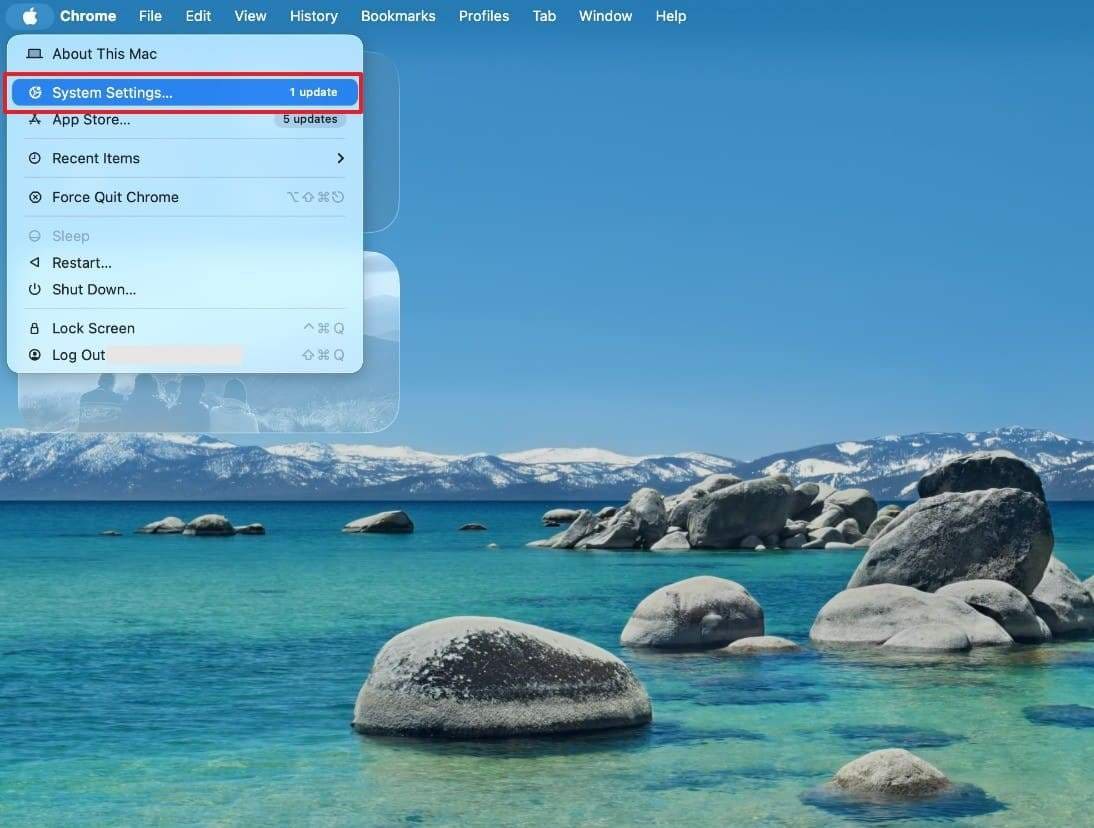
Upon attaching the external drive, navigate to the "System Settings" as you press the "Apple" menu.
-
Step 2
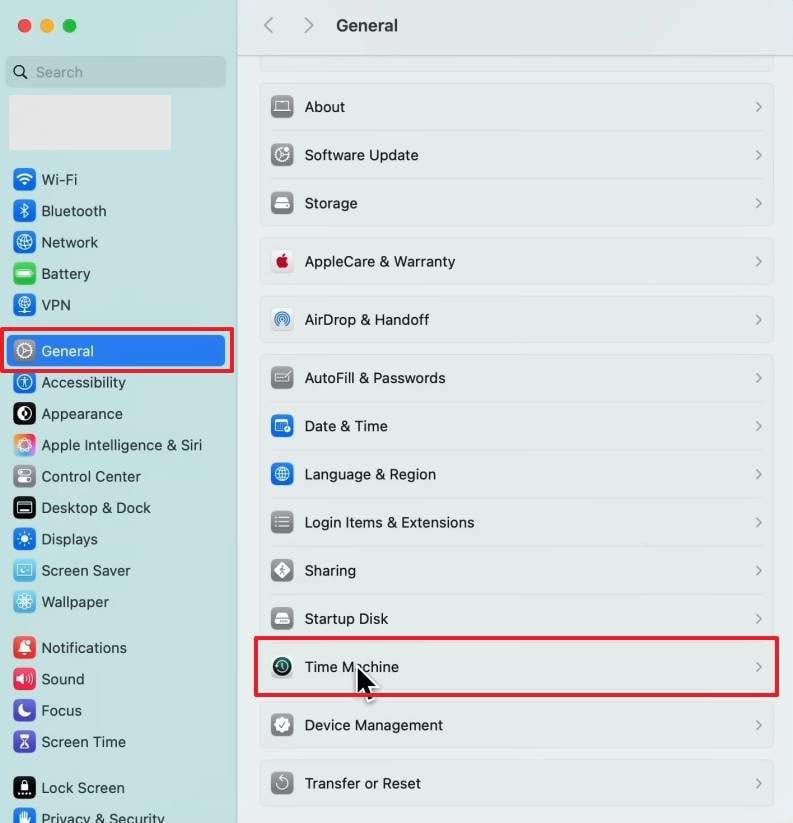
At a later time, go to the "General" tab and scroll down to "Time Machine."
-
Step 3
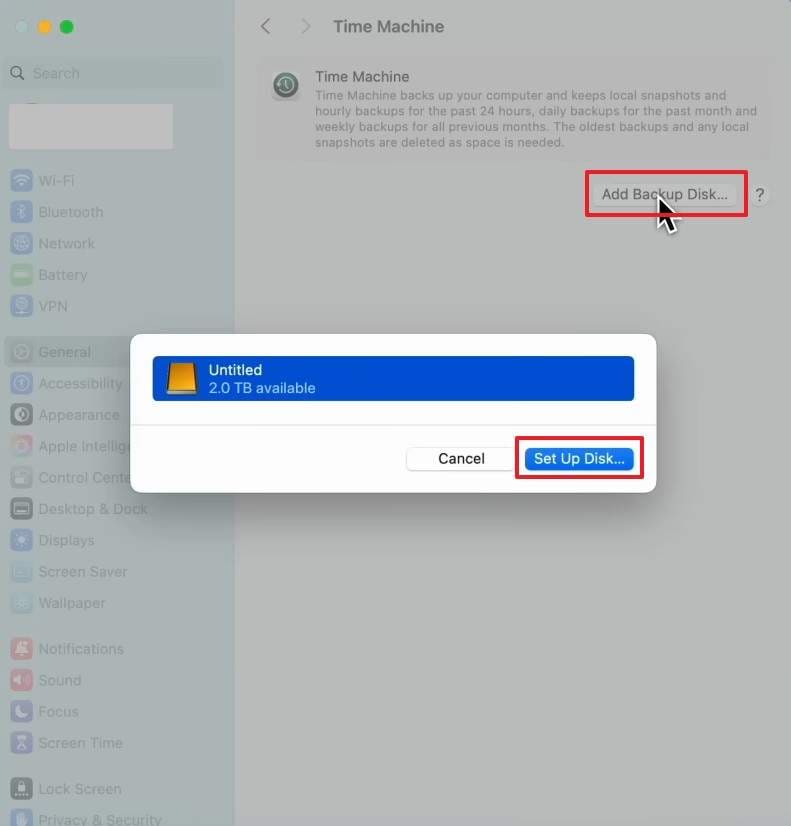
Following this, you need to click the "Add Backup Disk" button. Then, choose your connected drive and press the "Set Up Disk…" button.
-
Step 4
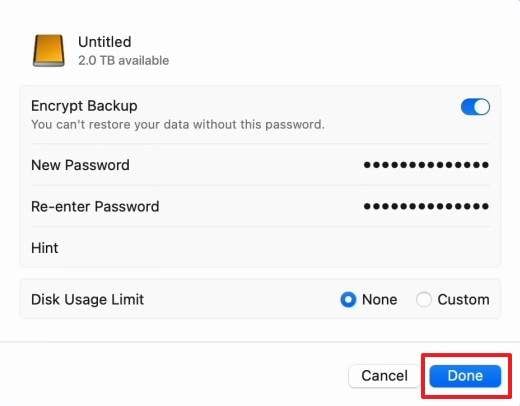
Going ahead, you can enable the "Encrypt Backup" toggle to set a password and press "Done."
2. Save to iCloud Drive and Keep "Optimize Mac Storage" in Mind
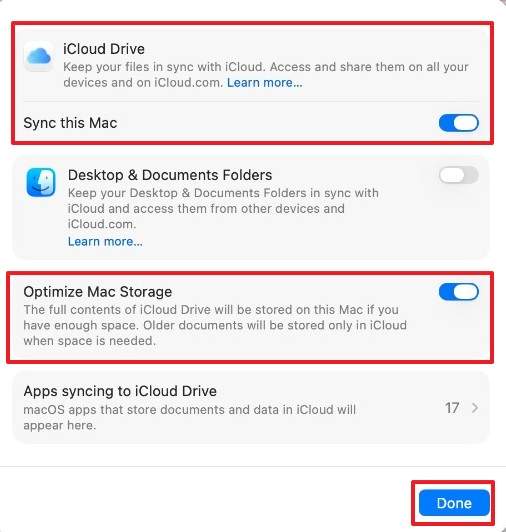
Saving Pages documents directly to the cloud drive keeps them accessible across all your devices. Yet, your device has an "Optimize Mac Storage" setting that automatically removes local file copies. This means your Pages file may appear present but only exists on Apple servers.
If you go offline, that file becomes inaccessible until your internet connection returns. Anyhow, follow these steps to configure iCloud Drive storage settings on your device correctly:
-
Step 1
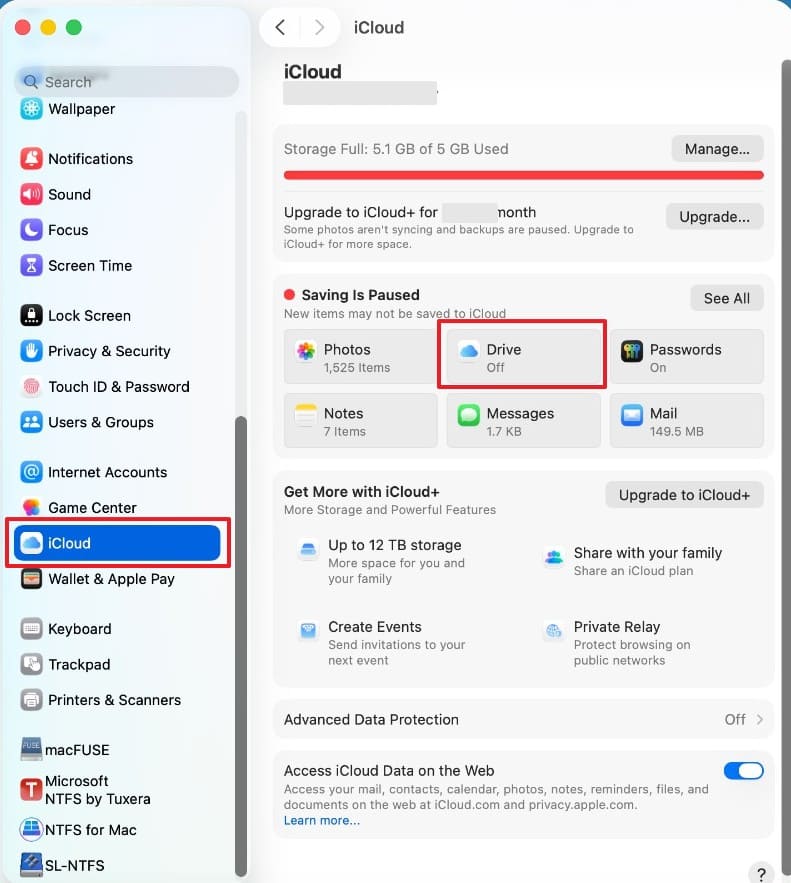
As you navigate to the "System Settings," scroll down to access the "iCloud" section. After that, you need to click the "Drive" option to enable it.
-
Step 2
Following this, turn on both the "iCloud Drive" and "Optimize Mac Storage" toggles.
3. Use Clear File Names and Folders for Important Projects
Generic names such as "Document1" or "Final New" should also be avoided. Thus, give each significant Pages project a descriptive file name and folder. Clear labels make files easier to locate during recovery. They also reduce confusion when checking backups or version histories. For example, you can name files by client or topic. This structure helps when searching for lost documents quickly.
4. Get in the Habit of Manual Saves (Command + S) While Editing
Pages has an auto-save feature, but it does not always trigger at the right moment. A sudden system crash or power failure can interrupt auto-save before it completes. Many users lose hours of work simply because they rely on automatic saving alone.
Here, manual saving using "Command + S" ensures your latest edits are captured every time. This simple habit reduces how often you need to learn how to recover Pages documents.
5. Store Important Pages Files in Multiple Locations
Having only one place for the Pages files to be stored means it has one point of failure. In case that location fails, your entire file is gone without any backup. Thus, saving copies across iCloud Drive or an external drive reduces this risk. You can even use Google Drive or Dropbox as an additional storage space. That particular option actually serves drafts and final versions better.
Conclusion
To sum up, deleted Pages documents are not always gone from your device. This guide covered every available option for learning how to recover Pages documents. The sooner you act after deletion, the higher your chances of successful file recovery. Tele Data Select also reports that 35% of businesses that faced data disruptions last year could not recover lost data.
When native Apple methods fail, tools like Dr.Fone - Data Recovery have a reliable recovery solution. Moreover, experts even suggest using preventive measures such as manual saves and multiple storage locations to protect your work.
FAQs
-
Will recovering a Pages document from Time Machine affect my other current files?
Time Machine allows you to restore single files without having to restore the entire system. You go to the backup date and restore just the desired Pages file. This selective approach means that other documents and settings that you have will not be affected. -
How long does Time Machine keep backup copies of deleted Pages documents?
It keeps hourly backups for 24 hours and daily backups for the past month. Weekly backups are also retained for as long as your external backup drive has available space. Older backups are automatically deleted only when the drive runs out of storage space. -
What should I avoid after mistakenly deleting a Pages document?
Avoid downloading large files because overwritten storage sectors reduce successful recovery possibilities. Installing applications may also overwrite deleted Pages document data stored internally. Thus, immediate recovery attempts always provide higher success rates than delayed restoration efforts. -
Can I recover a Pages document that was permanently deleted from Trash on Mac?
Once you empty the Trash, the file is no longer accessible through any native Mac tool. Time Machine remains your best native option if it captured the file before the Trash was emptied. For deeper recovery beyond Time Machine, tools such as Dr.Fone can search backups for that deleted file.
 Add Wondershare Dr.Fone as a preferred source on Google