How to Remove Google FRP Lock on SONY Phones?
If your SONY phone is stuck on the Google verification screen after a factory reset, you may not be able to access the device normally. This usually happens when Factory Reset Protection is triggered and the phone asks for the previously synced Google account.
Wondershare Dr.Fone – Screen Unlock (Android) provides a guided way to remove Google FRP lock on supported SONY phones. It helps you start the FRP removal workflow on a computer and complete the required actions by following the on-screen instructions step by step.
Follow the guide below to remove FRP lock on your SONY phone. Before you begin, make sure you are using the latest version of Wondershare Dr.Fone and keep your device connected to the computer throughout the process.
Supported Devices:
- SONY: Most of SONY models (phones and tablets) and system versions, including the latest Android 16, are supported.
Manage Your Phone Wherever You Go
🔔 Disclaimer:
Dr.Fone is purposefully designed to remove the lock, restoring your device to its full potential. This software is intended exclusively for personal use. Any form of misuse, including but not limited to using Dr.Fone for commercial or illegal purposes, is strictly prohibited.
Step-by-Step Guide to Bypass FRP on SONY Phones
Launch Wondershare Dr.Fone on your computer and connect your SONY smartphone with a USB cable. On the main screen, go to Toolbox > Screen Unlock to open the unlocking toolkit in a new window.

On the next screen, choose Android to continue.

Then select Remove Google FRP Lock from the available options to start the Google account verification removal process.

From the supported brand list, choose SONY and click Start to continue.

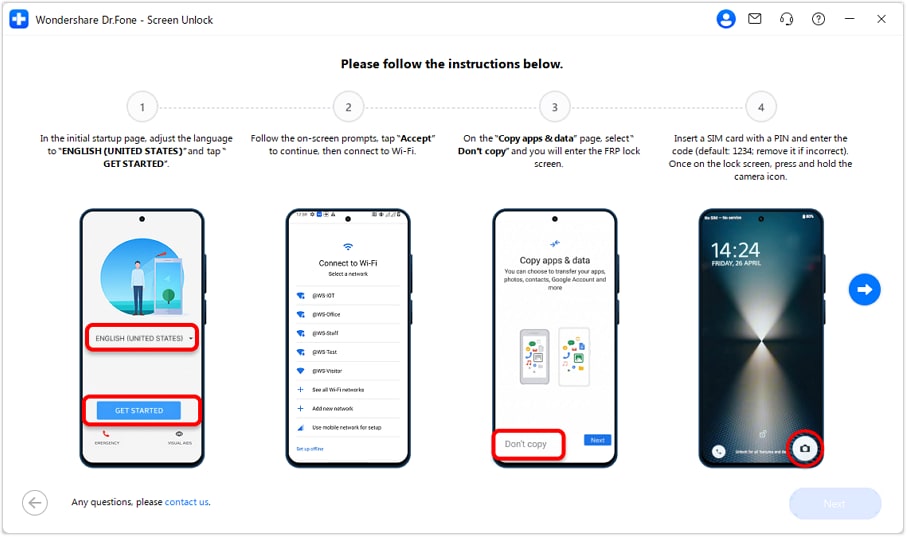
After the setup begins, Dr.Fone will show the exact actions required on your SONY phone. Follow the instructions in the displayed order and complete each operation on the device carefully.
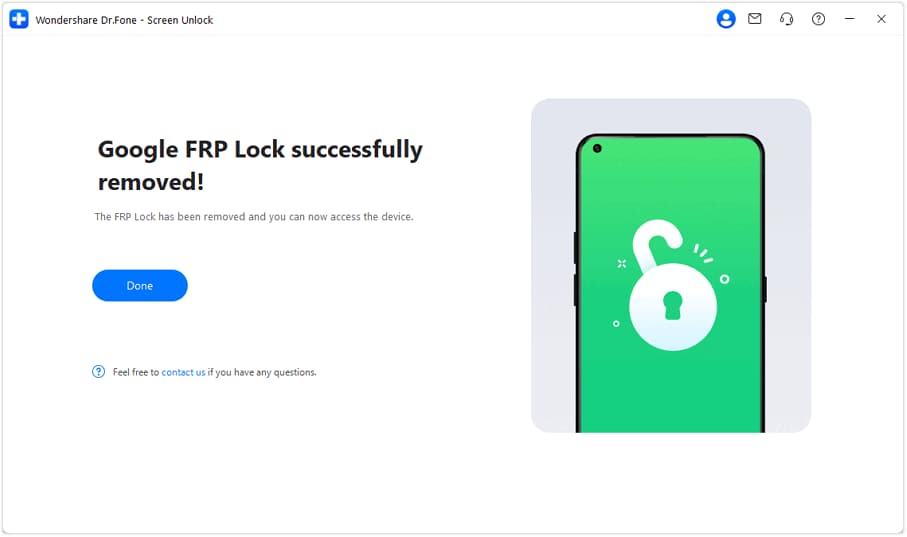
When the process is finished, Dr.Fone will display a confirmation message on the screen. This means the Google FRP lock has been removed successfully from the SONY phone.
WHAT YOU'LL NEED
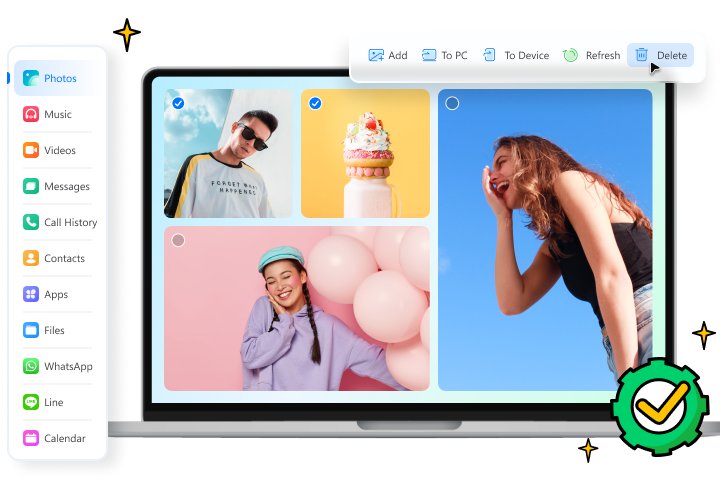
Dr.Fone provides a complete set of tools for solving all iOS/Android phone problems.
Need help?
You might find the answer to your question in the FAQ or additional information below:
FAQs
 What does FRP lock mean on a SONY phone?Can Dr.Fone remove Google FRP lock from all SONY phones?What should I do if my SONY phone is not detected by Dr.Fone?Do I need to operate on the SONY phone during FRP removal?What happens after the FRP lock is removed successfully?