How To Disable Call Recording Sound on iPhone/iPad?
If you want to disable the call recording sound on your iPhone or iPad, using the right guided tool can make the process much easier. Instead of trying unsupported manual methods, you can follow a structured workflow to complete the setup step by step.
Wondershare Dr.Fone provides a guided solution through Dr.Fone - Screen Unlock (iOS). It helps you handle the process on your computer with clear on-screen instructions, making the whole operation more straightforward, efficient, and easier to follow.
Follow the guide below to disable call recording sound successfully.
Manage Your Phone Wherever You Go
🔔 Disclaimer:
Dr.Fone is purposefully designed to remove the lock, restoring your device to its full potential. This software is intended exclusively for personal use. Any form of misuse, including but not limited to using Dr.Fone for commercial or illegal purposes, is strictly prohibited.
Step-by-Step Guide to Disable Call Recording Sound on iPhone/iPad
Supported Devices: Available for iPhone and iPad running iOS/iPadOS 18.6 - 18.7.2 and iOS/iPadOS 26.0 - 26.1
Download and install the latest version of Wondershare Dr.Fone on your computer. After installation, launch the program to begin.

* Dr.Fone Mac version still has the old interface, but it does not affect the use of Dr.Fone function, we will update it as soon as possible.
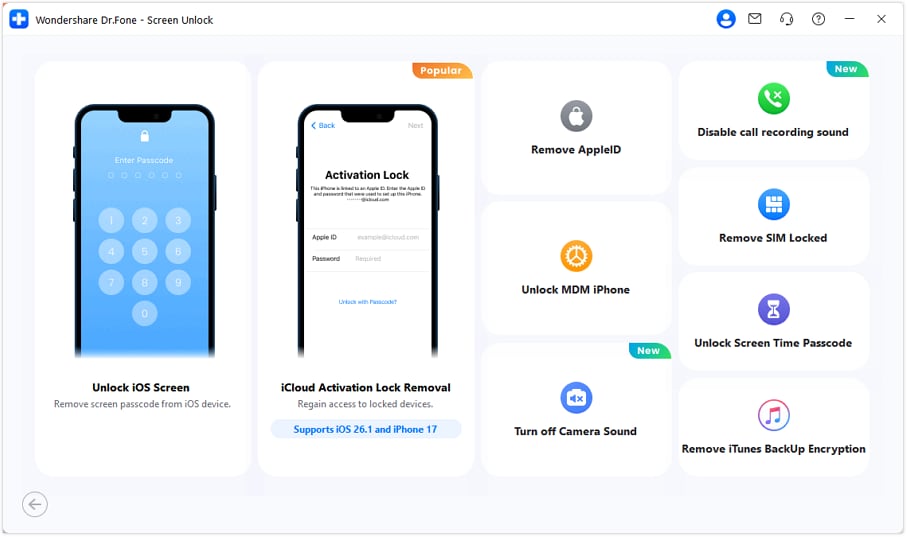
Continue to Toolbox > Screen Unlock > iOS in Wondershare Dr.Fone to access the tool for Disable Call Recording Sound.
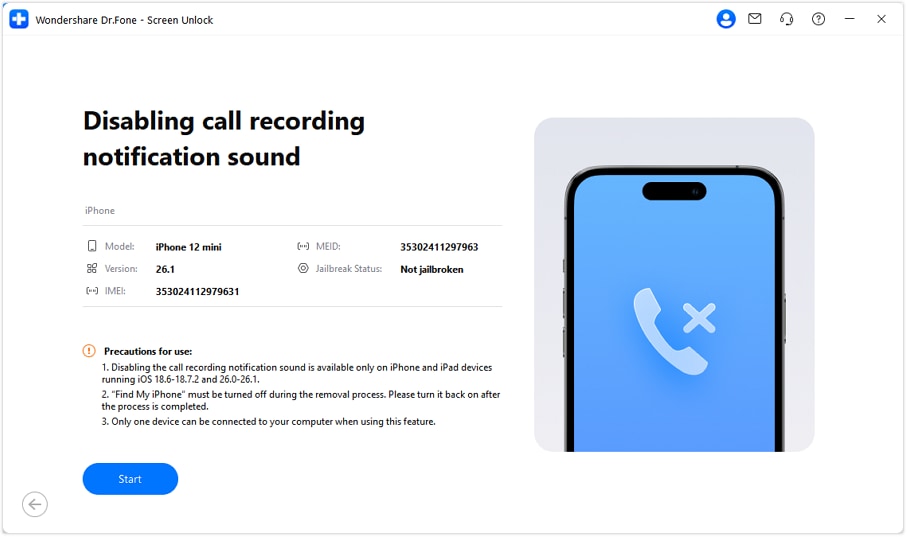
Connect your iOS device to the computer. Once the device information appears on the screen, click Start to launch the Disable Call Recording Sound process.
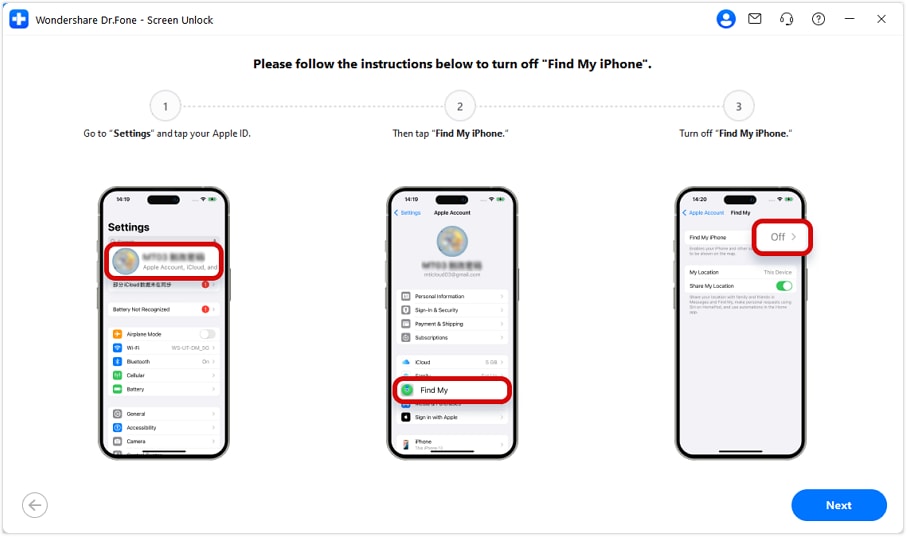
Follow the on-screen instructions in Dr.Fone. Open Settings on your device, find the Find My iPhone feature, and turn it off. After that, click Next in the program.
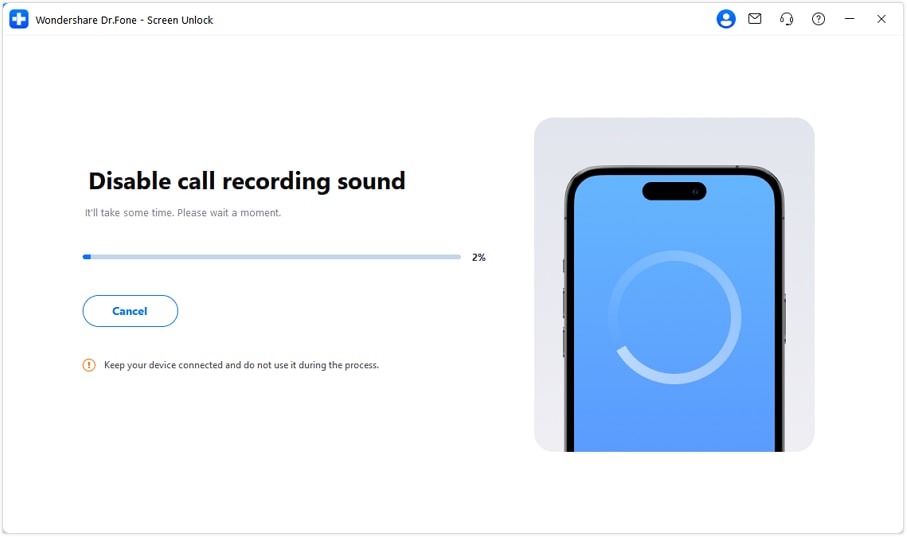
Dr.Fone will now enter the Disable Call Recording Sound processing stage. Keep your device connected during the entire operation to avoid interruption.
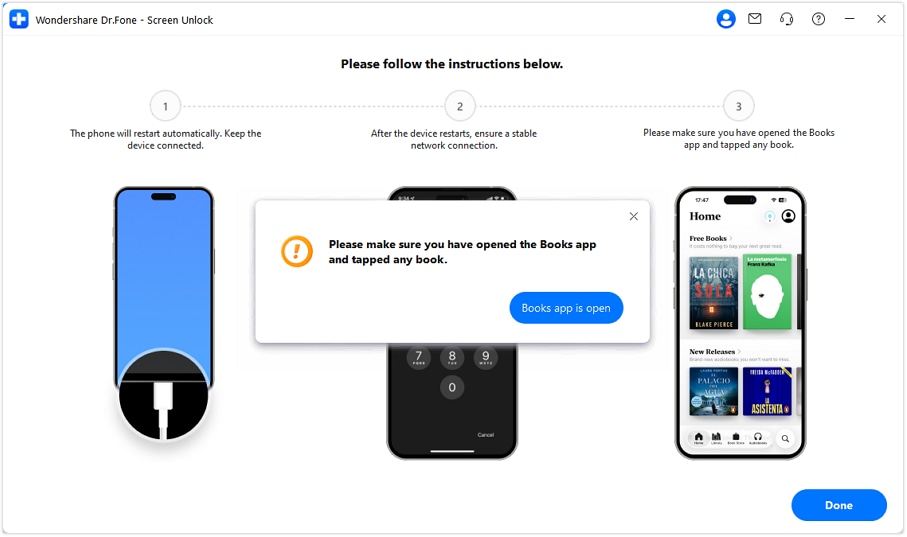
Continue to follow the on-screen instructions. After completing the required device settings, open the Books app and tap any book to open it.
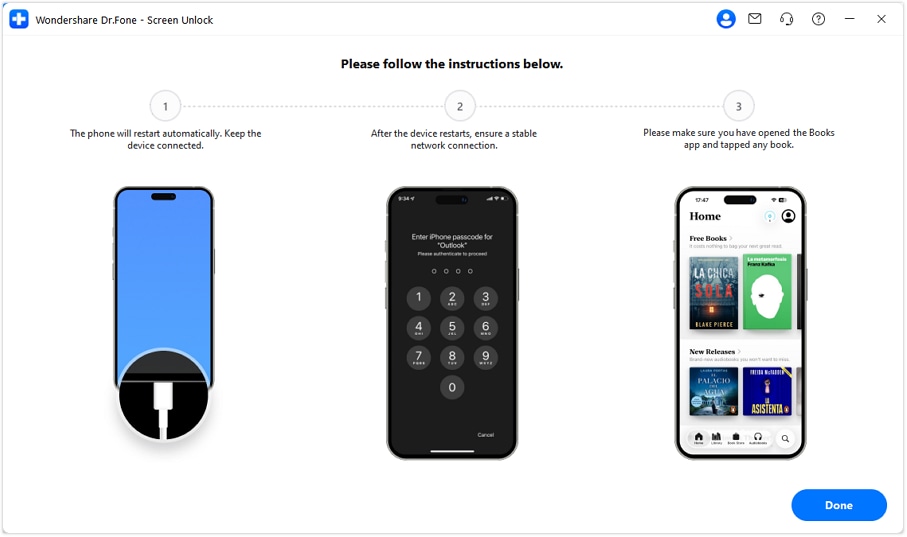
Make sure the Books app remains open and that a book is opened successfully. Then click Done to continue.
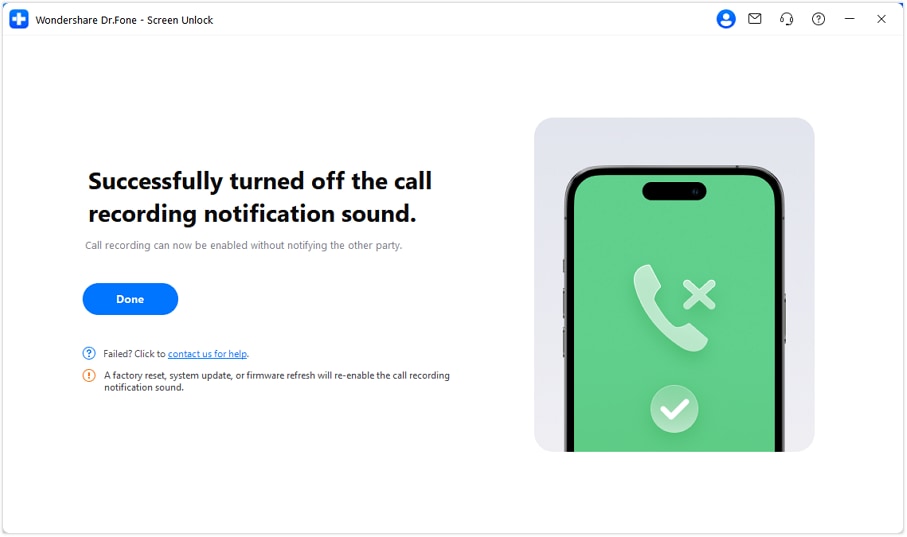
Disable Call Recording Sound has now been successfully turned off. Click Done to finish the entire process.
WHAT YOU'LL NEED
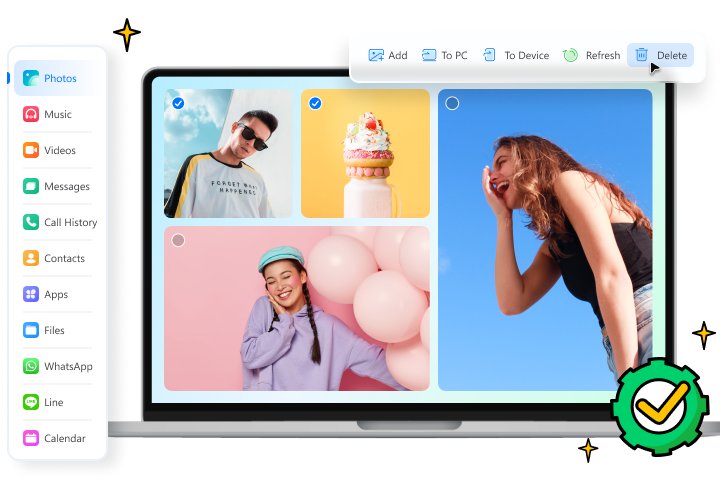
Dr.Fone provides a complete set of tools for solving all iOS/Android phone problems.
Need help?
You might find the answer to your question in the FAQ or additional information below:
FAQs
 Can I disable call recording sound on iPhone directly in Settings?What should I do if Dr.Fone does not recognize my iPhone or iPad? Can I disable the call recording sound on iPhone without jailbreaking?Will disabling call recording sound affect normal calling, recording quality, or system audio?What should I do if Disable Call Recording Sound gets stuck or fails during setup?