How To Turn Off Camera Sound on iPhone/iPad?
In some situations, users may want to take photos more discreetly and reduce interruptions caused by the camera shutter sound. With Dr.Fone - Screen Unlock (iOS), you can follow a guided, step-by-step process to turn off the camera sound on your iPhone or iPad safely and efficiently.
Dr.Fone provides an intuitive workflow with clear on-screen instructions, helping you complete the setup smoothly on your computer and iOS device. Before you begin, make sure you are using the latest version of Dr.Fone and keep your iPhone or iPad connected throughout the entire process.
For detailed instructions, follow the guide below.
Manage Your Phone Wherever You Go
🔔 Disclaimer:
Dr.Fone is purposefully designed to remove the lock, restoring your device to its full potential. This software is intended exclusively for personal use. Any form of misuse, including but not limited to using Dr.Fone for commercial or illegal purposes, is strictly prohibited.
Step-by-Step Guide to Turn Off Camera Sound on iPhone/iPad
Supported Devices: Available for iPhone and iPad running iOS/iPadOS 16.0 - 26.1
Download and install the latest version of Wondershare Dr.Fone on your computer and launch it.

* Dr.Fone Mac version still has the old interface, but it does not affect the use of Dr.Fone function, we will update it as soon as possible.
Continue to Toolbox > Screen Unlock > iOS to initiate the tool for Turning off Camera Sound.
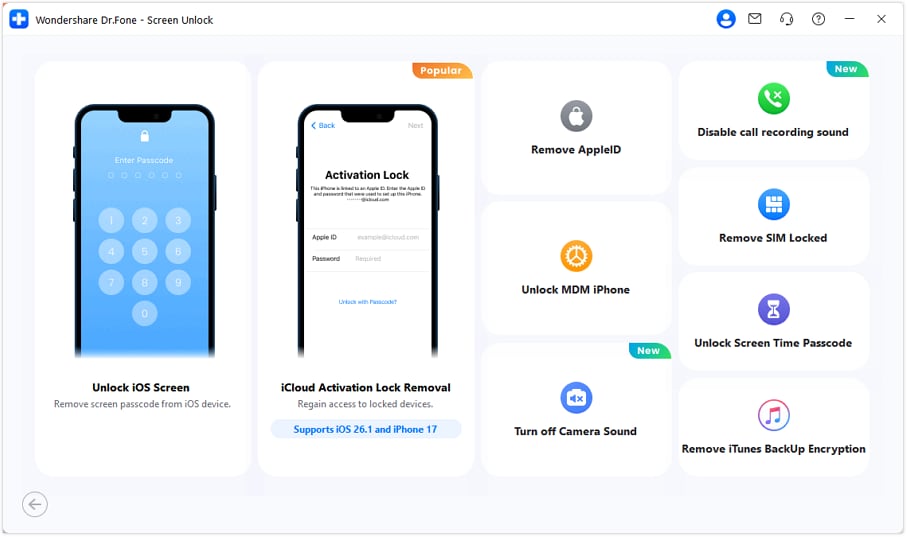
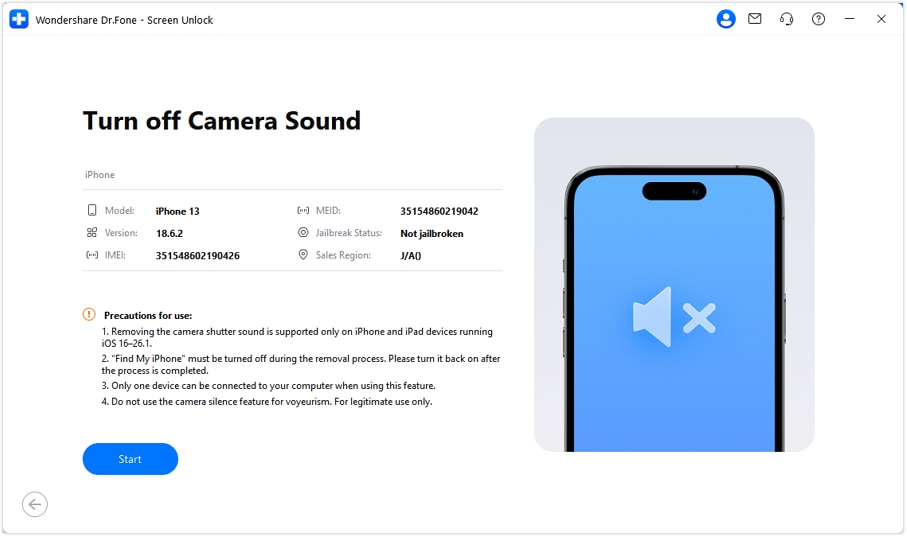
Connect your iOS device to the computer. Once the tool detects your device, detailed device information will be displayed on the screen. Confirm the information and click Start to begin the process.
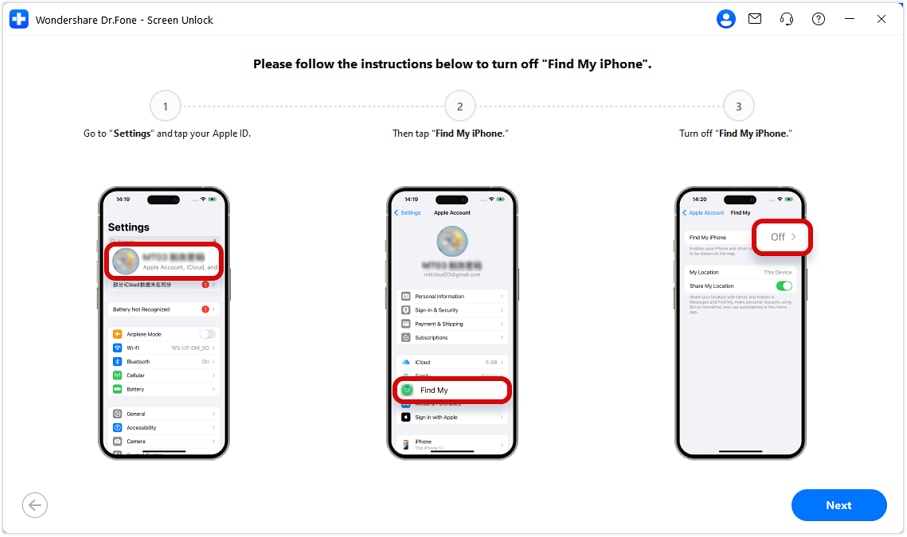
Follow the instructions displayed on the screen. Go to Settings on your device, locate the Find My iPhone feature, and turn it off. Once completed, click Next to continue.
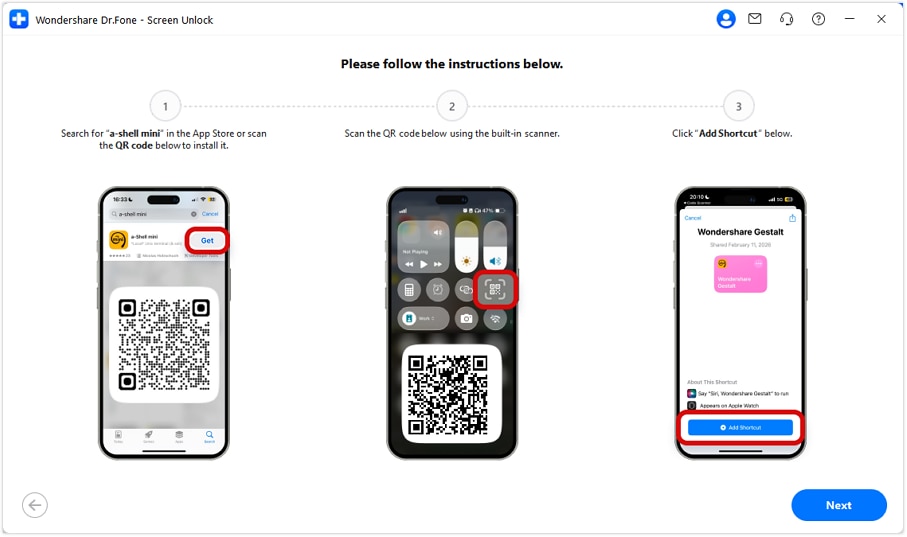
Follow the on-screen instructions to proceed. Search for "a-shell mini" in the App Store, or scan the displayed QR code to access it directly. Then use the built-in scanner to scan the QR code shown in the middle of the interface and tap Add Shortcut. After the shortcut is added successfully, click Next.
If the required app has not been installed yet, a pop-up reminder will appear asking you to complete the installation first. Once the app is installed, click Next to move on.
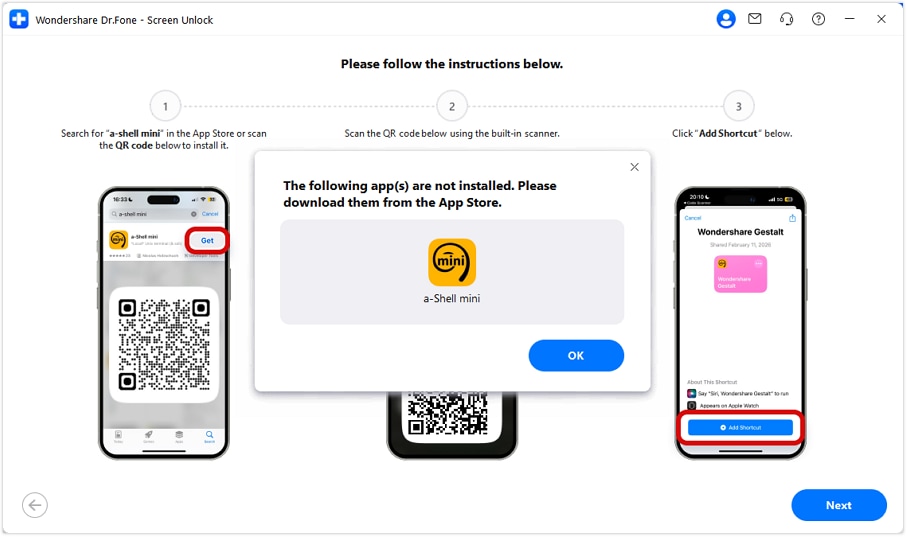
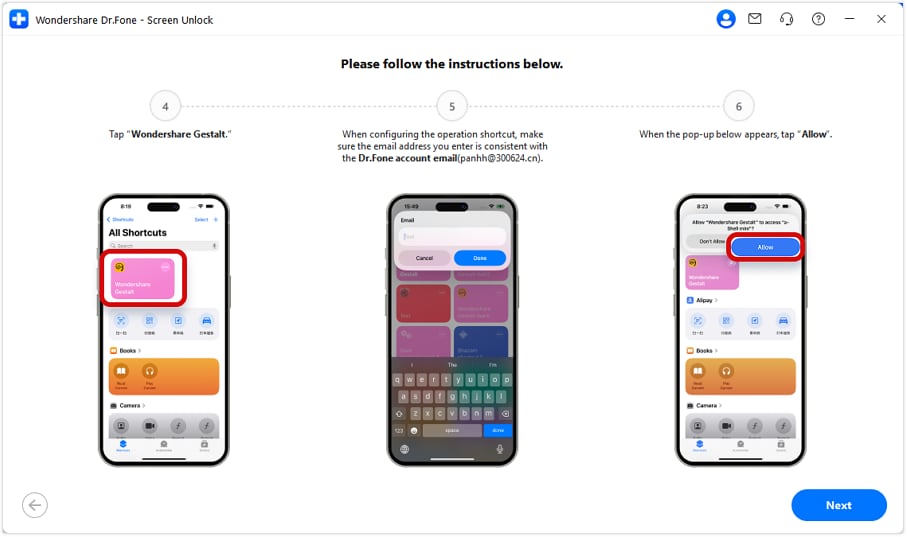
Open Shortcuts and tap Wondershare Gestalt. Make sure the email address entered matches the email address associated with your Dr.Fone product. When the permission prompt appears, tap Allow to continue.
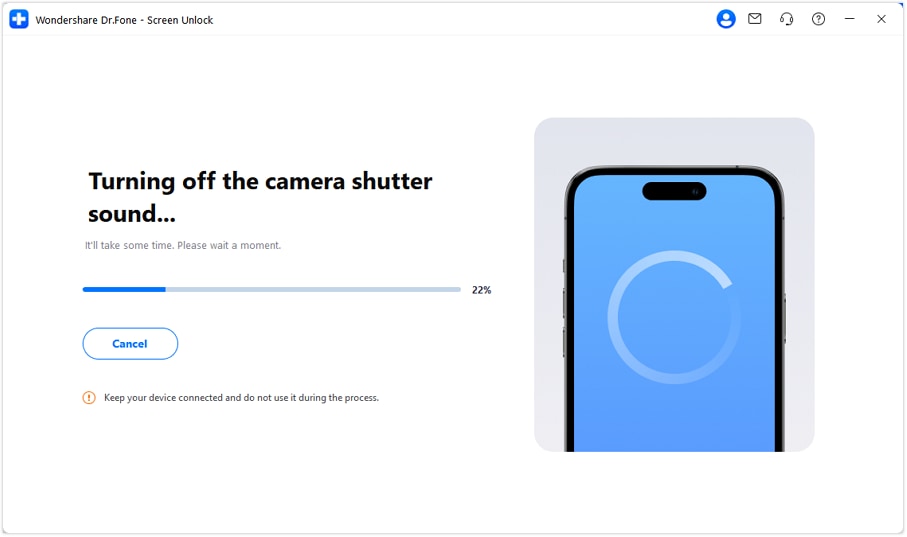
The tool will now proceed to the camera sound turning off process. Please keep your device connected during the entire procedure to ensure everything runs smoothly.
Next, follow the instructions shown on the screen while keeping the device connected. After completing the required device settings, open the Books app and select any book to open.
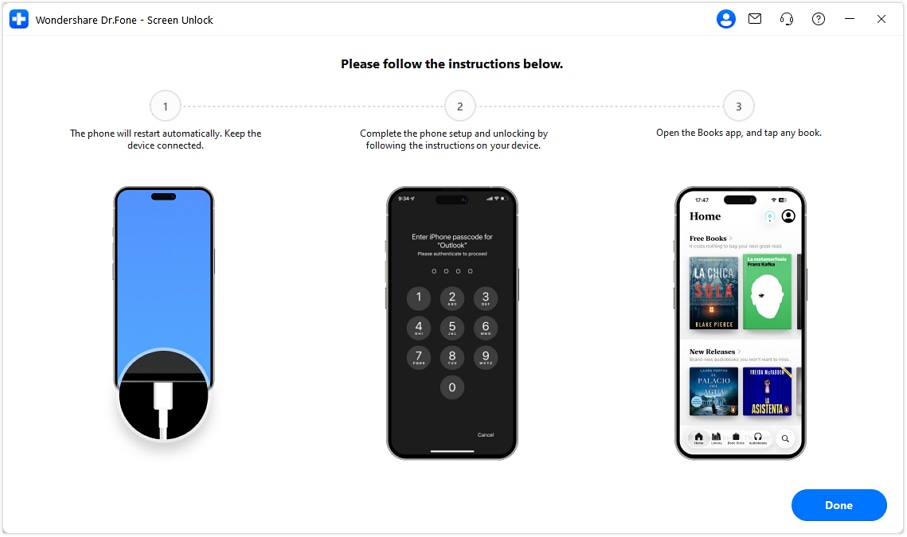
Please make sure the Books app remains open and that any book is opened successfully. Then click Done to proceed to the next step.
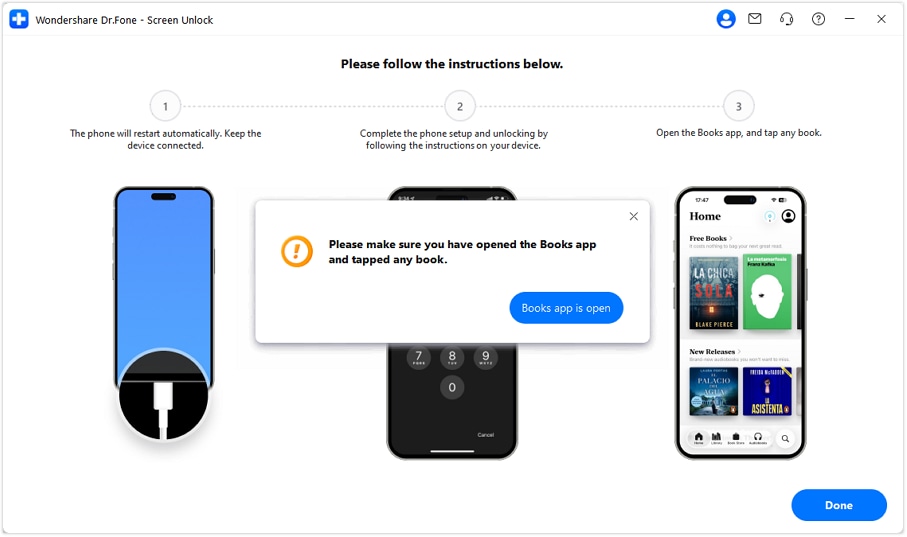
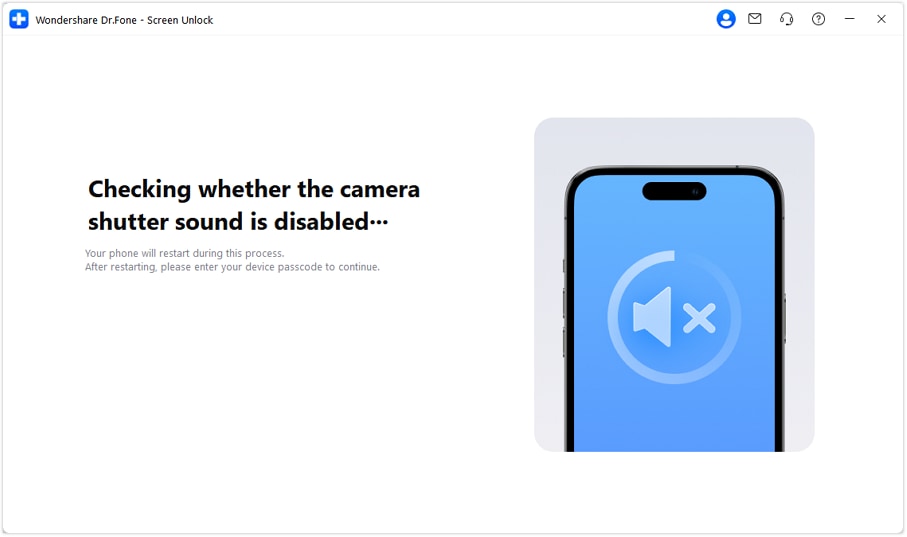
During the checking process, your device will reboot automatically. After the reboot, unlock the device by entering your passcode so the process can continue.
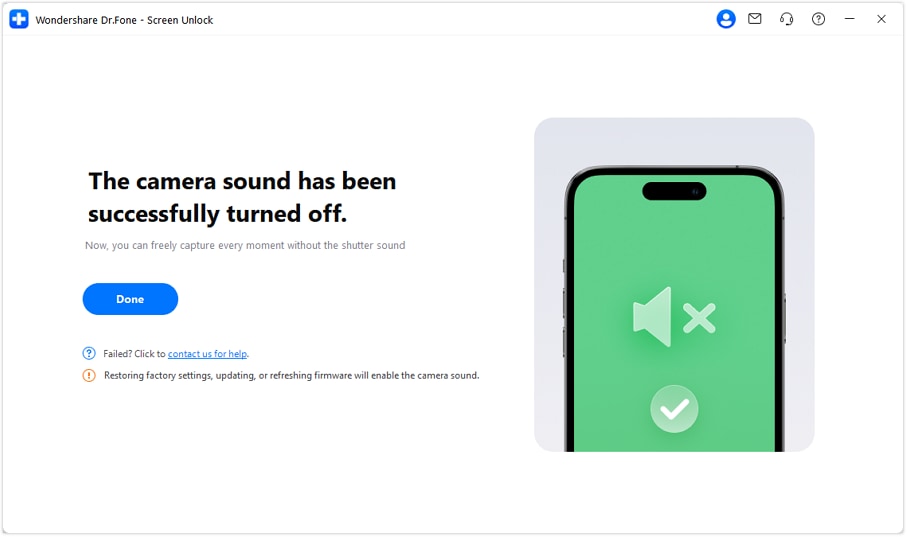
The camera shutter sound has now been turned off successfully. Click Done to complete the whole process.
WHAT YOU'LL NEED
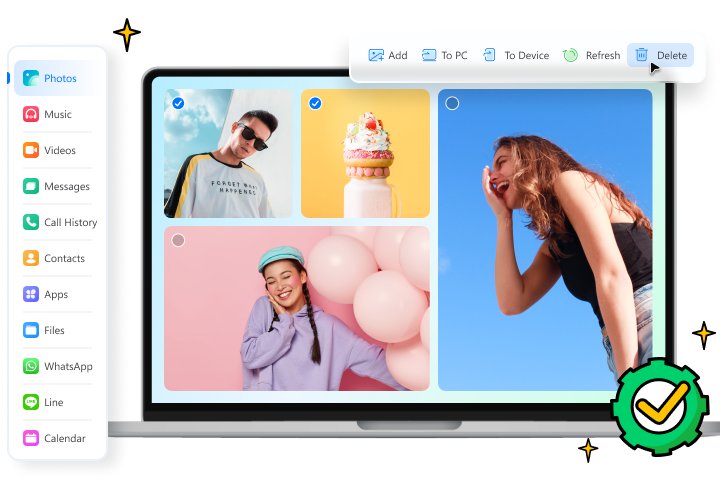
Dr.Fone provides a complete set of tools for solving all iOS/Android phone problems.
Need help?
You might find the answer to your question in the FAQ or additional information below:
FAQs
 Can I turn off camera sound on both iPhone and iPad?Why can't I mute the camera shutter sound on iPhone directly? What devices and system versions support this feature?Is it safe to turn off camera sound with Dr.Fone?What should I do if the process stops or my device restarts?