
The World's 1st Certified Android Data Recovery Software
Recover supported photos, messages, WhatsApp data, and files from a recognized Android device, Google Drive backup, or supported broken phone. Preview available data before recovery.
-
Scan & Preview for Free: See what can be recovered before you buy.
-
Recover from 3 Sources: Phone storage, Google Drive, or supported broken phones.
-
WhatsApp & Business Recovery: Includes supported View Once media.
-
14+ File Types, 6,000+ Models: Recover photos, videos, contacts, and more.
-
No Root Needed: Recover via Google Drive or supported broken phones.
-
Recover Only What You Need: Preview and save selected files to your computer.
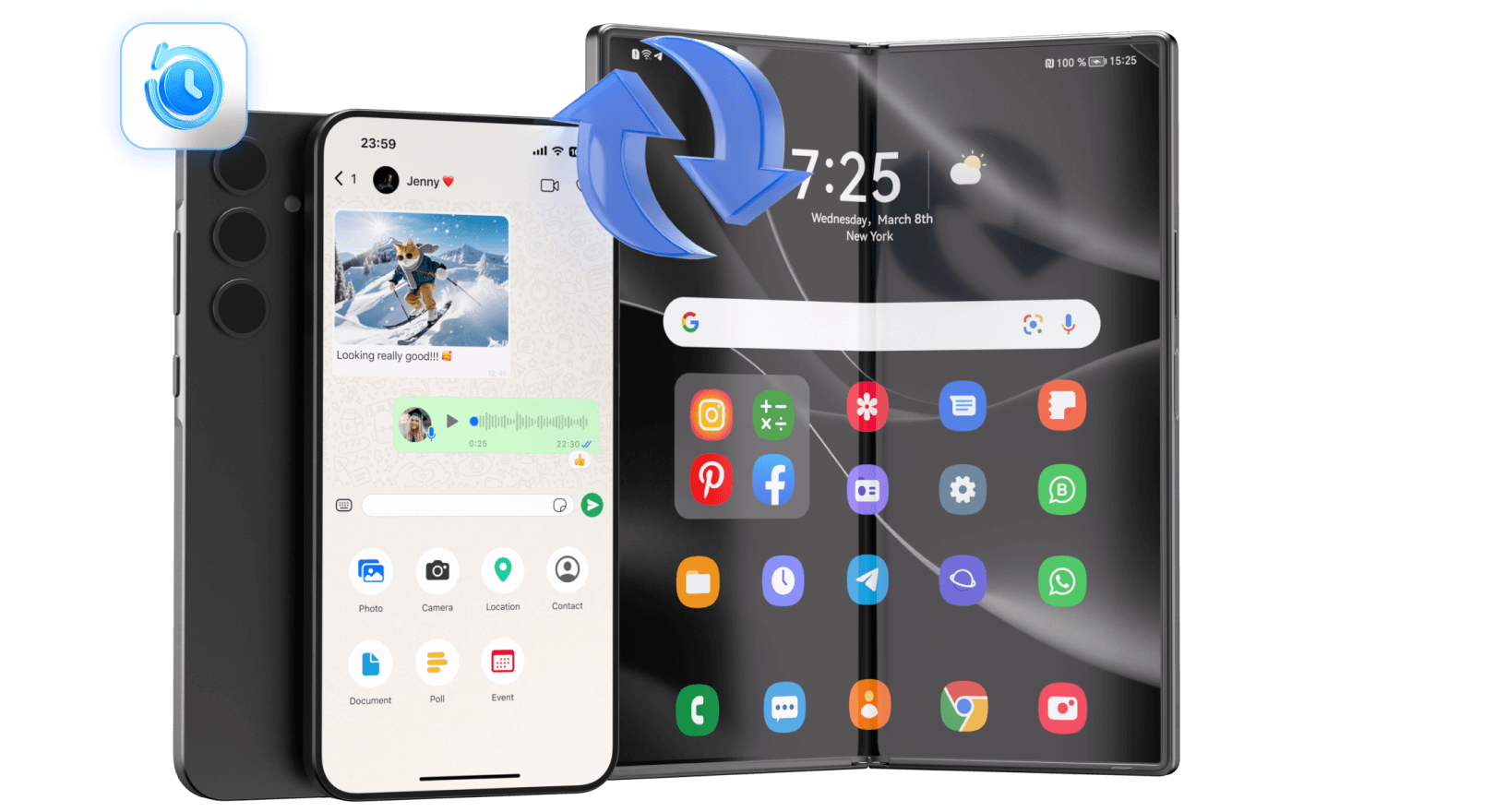
Supports 6,000+ Android Devices
Dr.Fone supports 6,000+ compatible Android devices from brands including Samsung, Xiaomi, Huawei, OPPO, vivo, LG, Motorola, OnePlus, Google, Honor, Sony, and more.
Scan and preview supported file types before recovery. Feature availability varies by device model, Android version, data type, and recovery mode.


















Where Recovery Begins
Recover Android Data Across Files, Loss Scenarios, and Sources
Recover supported Android data selectively based on what was lost, how it was lost, and where a usable recovery source remains.
Recover Supported Android File Types
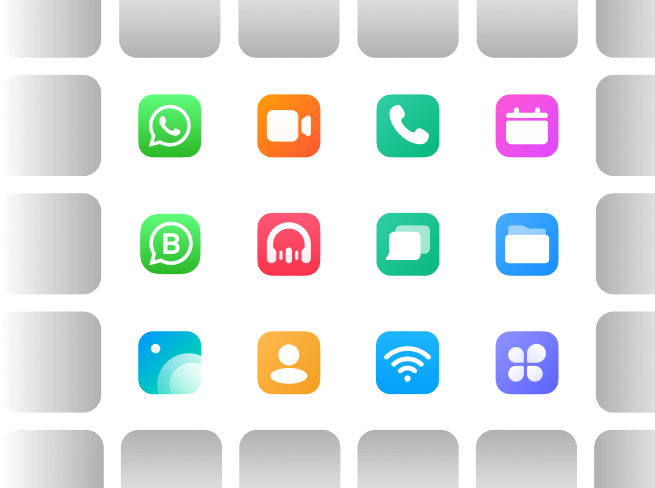
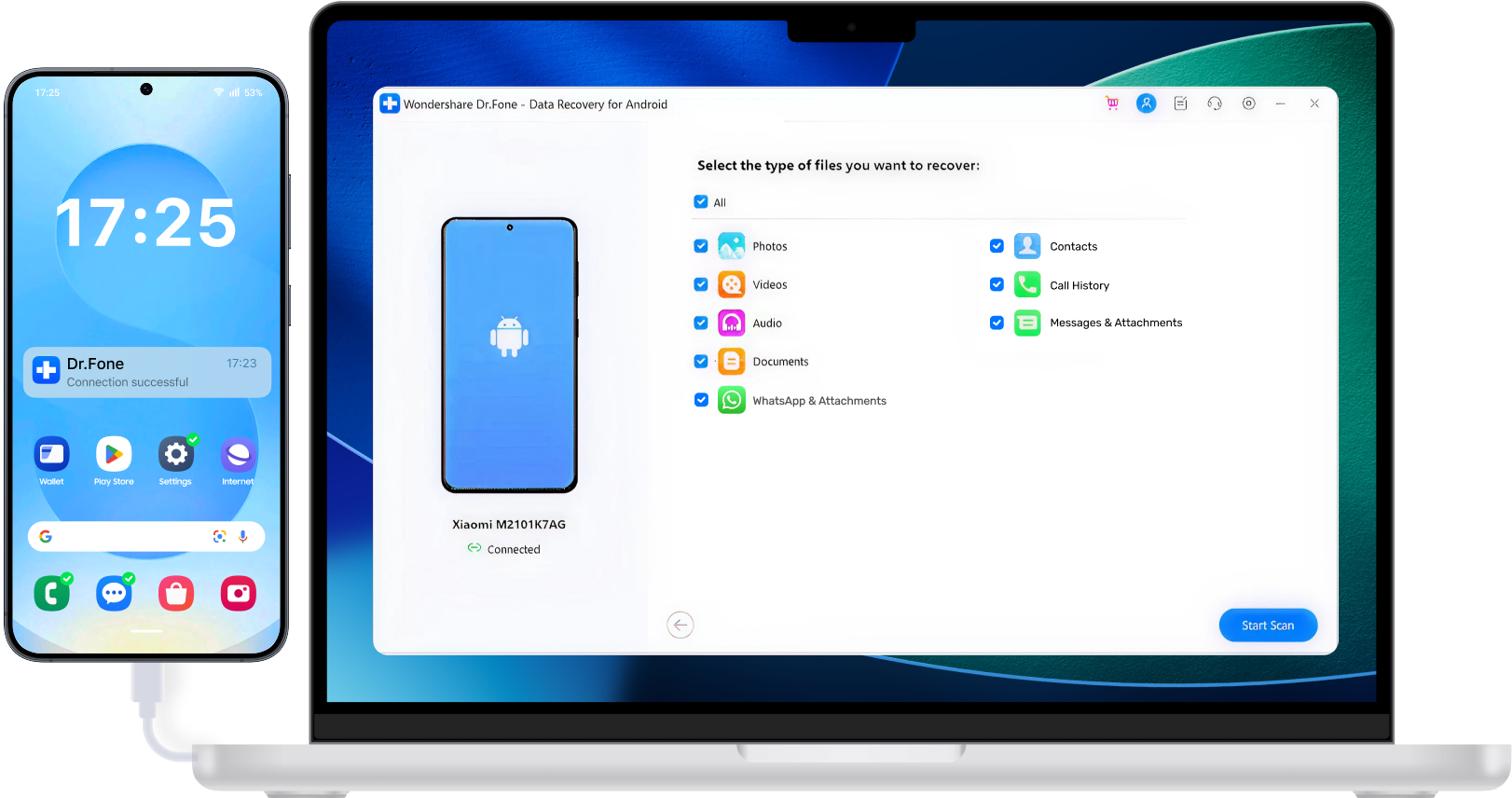
No worries — your lost files are still recoverable. Dr.Fone Android Data Recovery software effortlessly recovers Android files, including contacts, text messages, photos, WhatsApp messages with attachments, audio, videos, call history, and documents. Restore deleted files directly to your Android device or save them to your computer.


Recover Data Across Common Android Loss Scenarios
Dr.Fone provides different recovery workflows for accidental deletion, system errors, failed updates, broken screens, unavailable backups, and other supported data-loss scenarios.
- Accidental Deletion
- System Crash or OS Error
- Rooting or ROM Flashing
- Device Lost or Stolen
- Water Damage
- Visible Screen, Broken Touch
- Black or Totally Broken Screen
- Backup Synchronization Failure
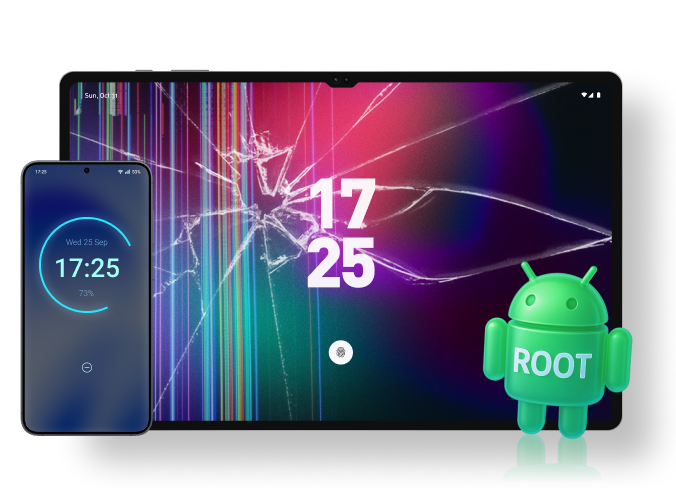
Preview and Recover Only What You Need
Select the file types you want to scan, preview available results, and recover only the items you need. Scan time and available results vary by device storage, file type, and recovery mode.
Follow these simple steps:
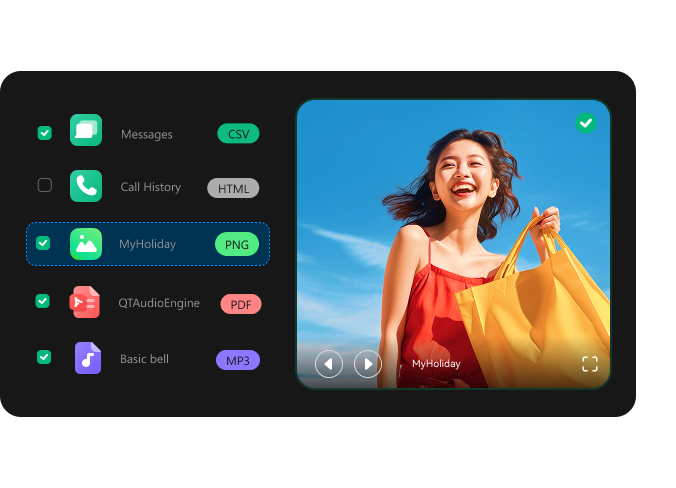
Limits, Lifted
Recover Android Data — Even in the Toughest Situations
Recover supported WhatsApp data, Google Drive backup data, and files
from compatible broken-phone scenarios using the recovery mode that matches your situation.
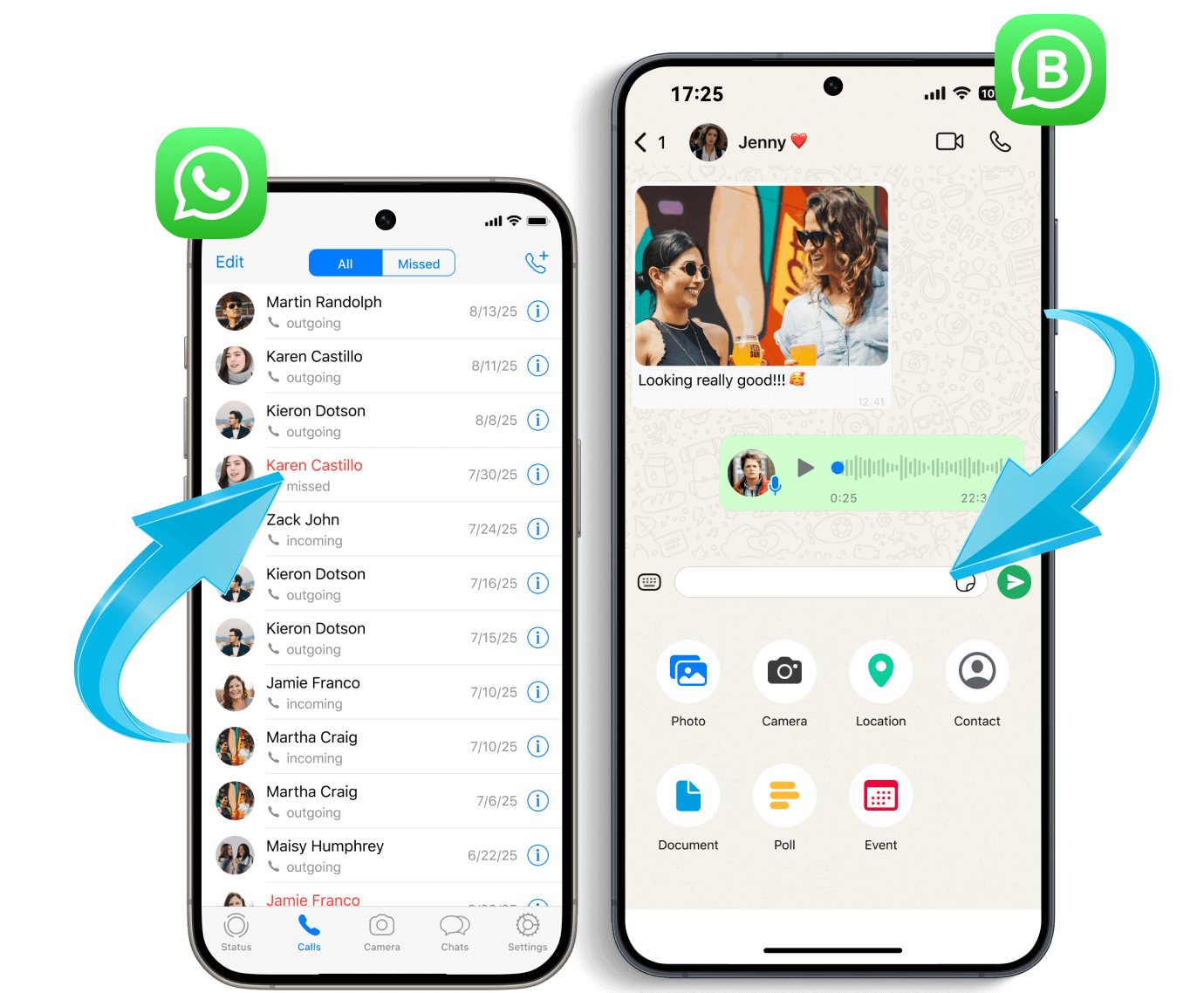
Recover WhatsApp and WhatsApp Business
Data from Supported Sources
HOT
Dr.Fone can recover supported WhatsApp and WhatsApp Business data through an available device scan, Google Drive backup, previous Dr.Fone backup, or supported broken-phone workflow. Available chats, attachments, and media depend on the selected source and whether the data still exists.
Flexible Recovery & Export
- Recover supported WhatsApp data from an available device or backup source.
- Preview chats and attachments before export.
- Export supported messages to HTML or CSV.
- Save available media and documents in their supported original formats.
Save Supported WhatsApp “View Once” Media When It Is Opened NEW
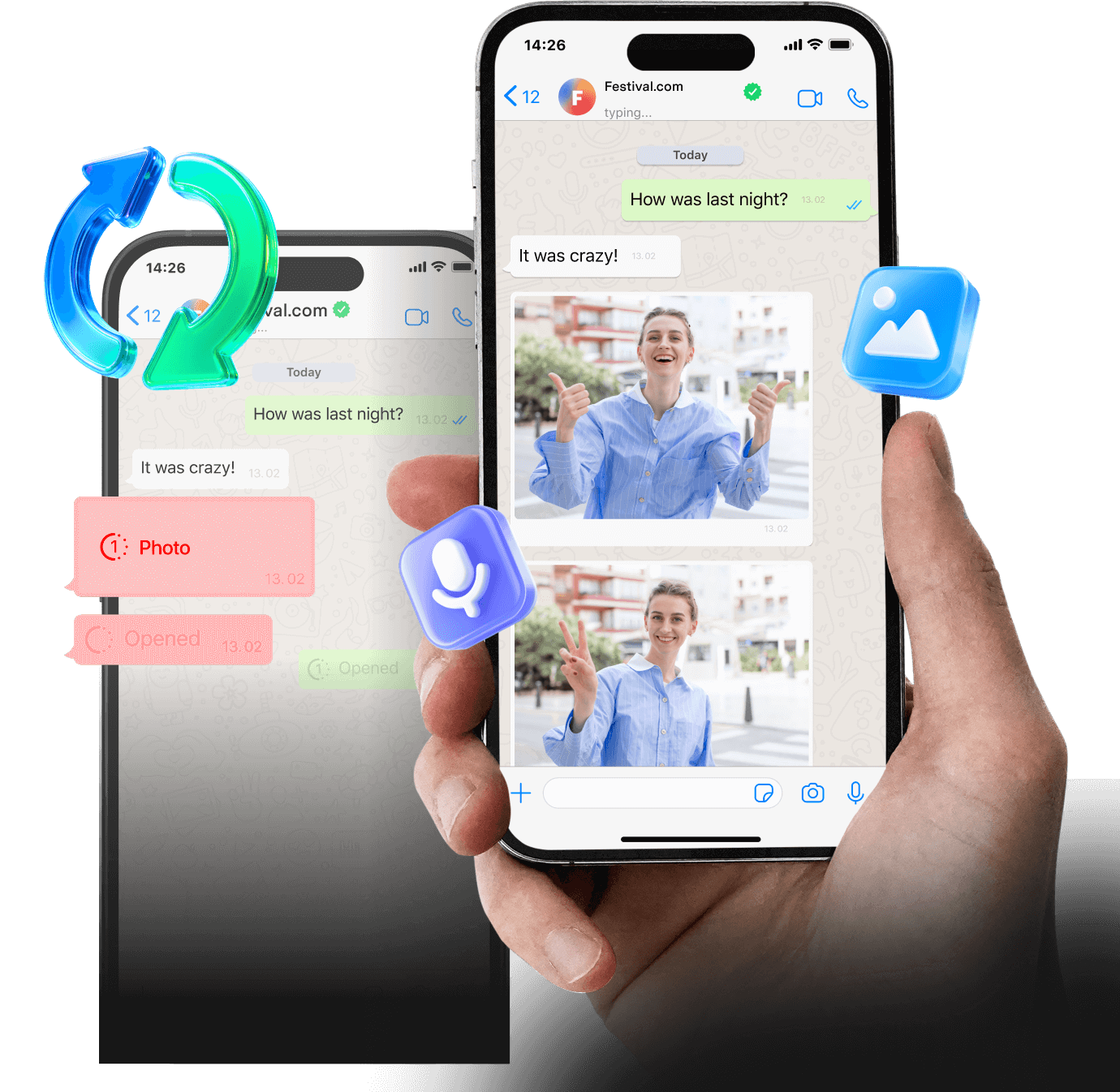
Never lose a 'View Once' again. With Dr.Fone's powerful WhatsApp media saver, you can instantly recover WhatsApp disappearing photos, videos, and voice messages. Keep them safe, private, and always accessible on your Android device—even after they vanish from private or group chats.
Why You’ll Love It
- Capture supported View Once photos, videos, and voice messages when they are opened.
- Preview saved media and export it to local storage.
- Complete the required account connection and permission setup.
- Availability varies by Android version, device restrictions, and WhatsApp updates.
Extract and Restore Selected Data
from Google Drive Backups
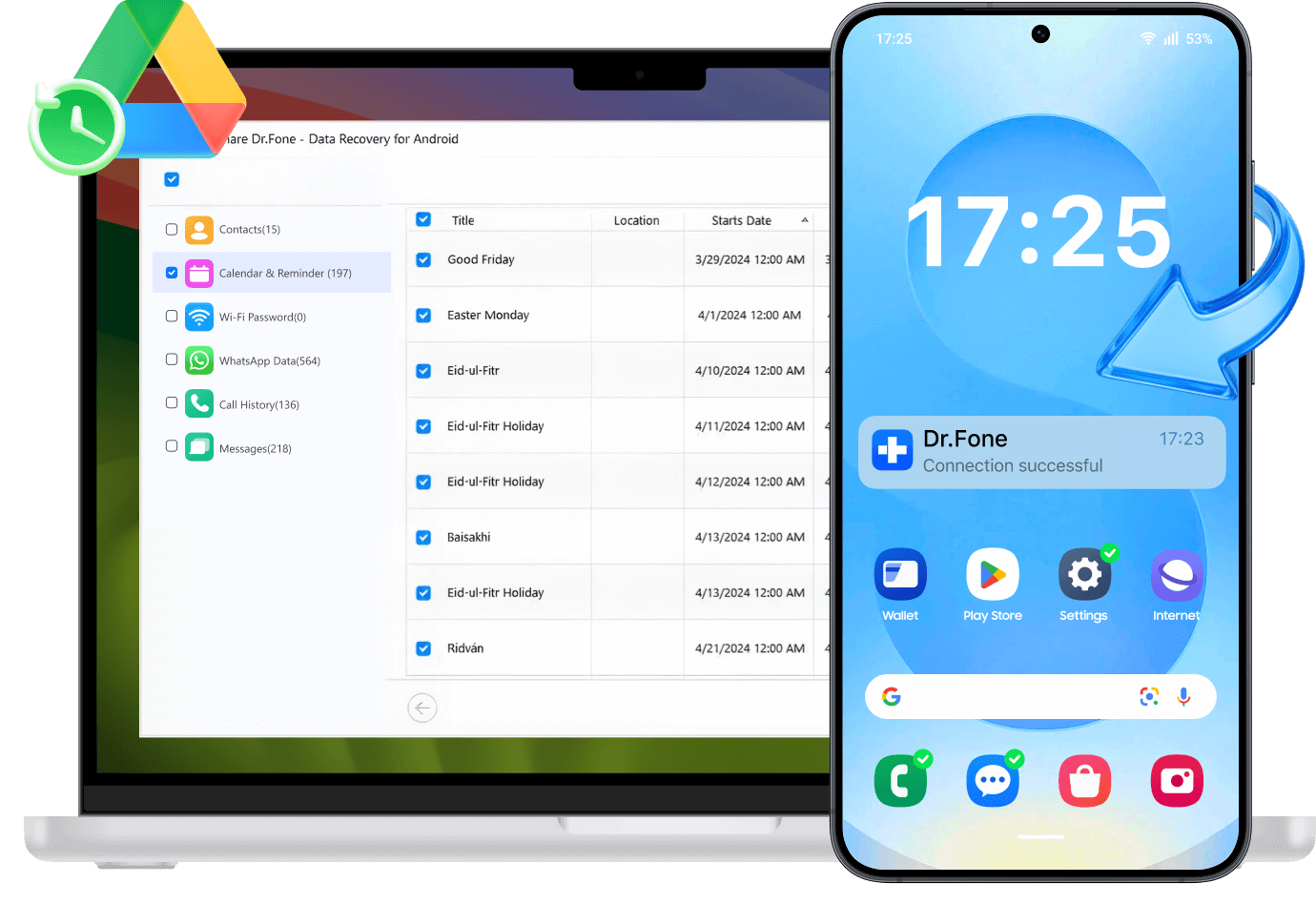
Sign in to an authorized Google account, select an available backup, preview supported contacts, messages, call history, calendars, WhatsApp data, and other available content, and recover only the items you need.
Smart Access & Recovery
- View and filter supported data from an available Google Drive backup.
- Selectively recover contacts, messages, call logs, calendars, and other available data.
- Preview supported WhatsApp and system backup content before recovery.
- Recover selected data without performing a full-device factory reset.
Recover Data from Supported Broken Android Phones
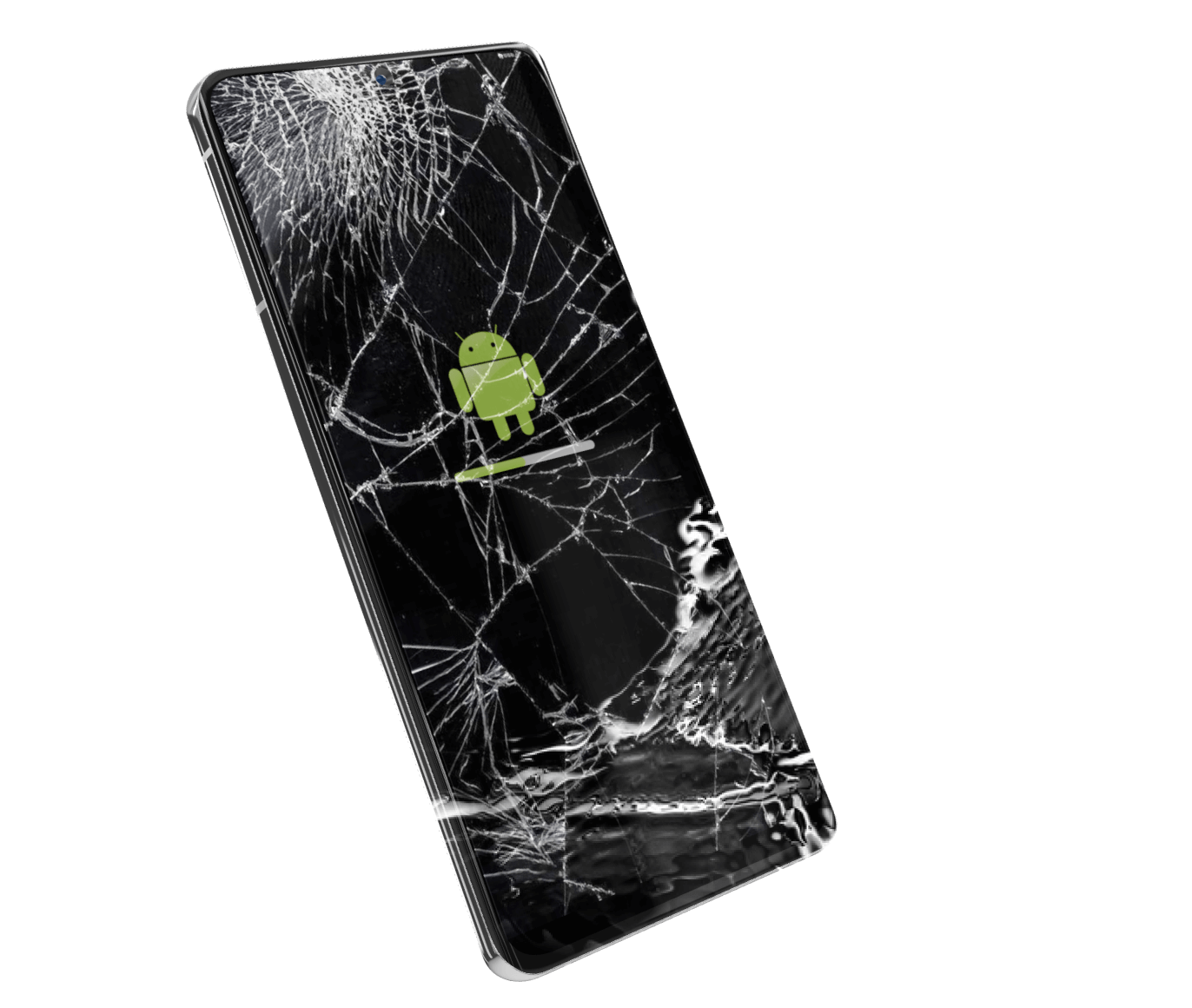
Dr.Fone now proudly supports ALL Android phone brands—from Samsung, Xiaomi, OPPO, to Vivo and beyond. As a result, whether your phone's screen is cracked but visibly working, or completely black and unresponsive, we have a dedicated broken Android data recovery solution. You can even gain full control of your broken phone from your PC, allowing you to manage messages, apps, and transfer data with your mouse and keyboard. The best part? No root required, no USB debugging is needed; just fast, selective recovery in 3 simple steps.
Supported Scenarios
- Cracked screen with visible display but unresponsive touch. (All Brands)
- Unresponsive touch screen or inaccessible phone. (Older Samsung Only)
- Android phone with broken screen, it's all black. (Older Samsung Only)
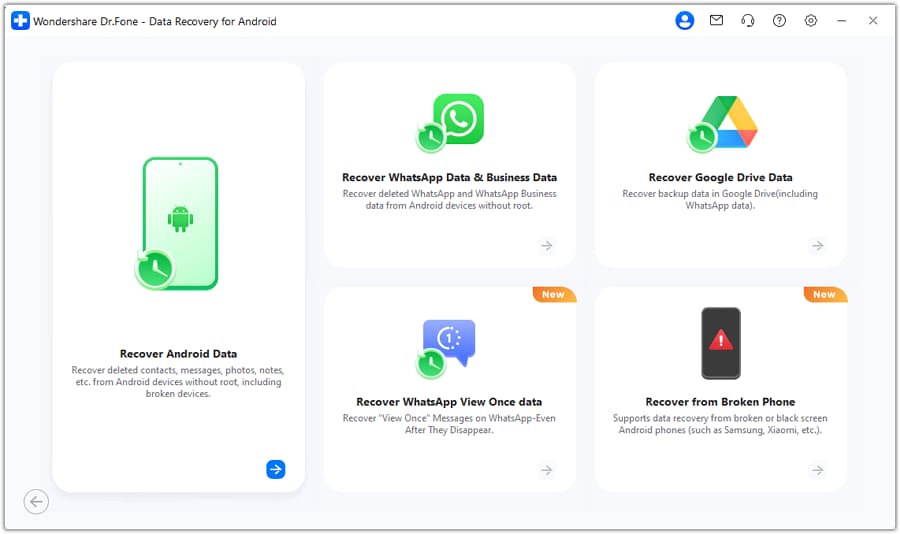
3 Modes to Recover Data from Android
Recover deleted Android data, including photos, messages, and WhatsApp, from internal storage, Google Drive backups, or broken devices quickly and securely.
Recover Android Data from Internal Storage
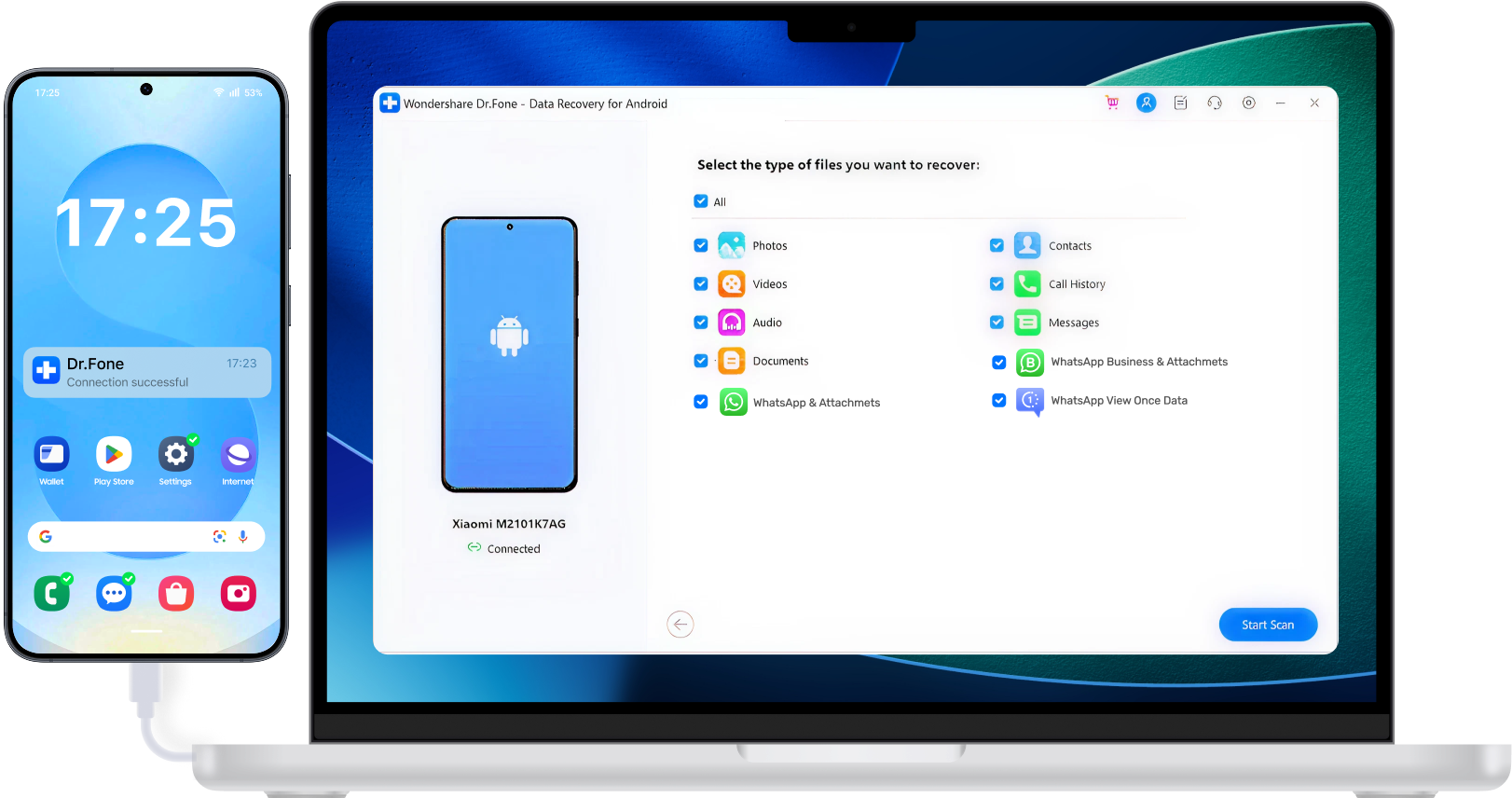
Connect your Android to your PC instantly and let the software start an in-depth scan. All deleted files will be shown in minutes. If your phone is not detected, check the USB cable, File Transfer mode, and this Android USB debugging guide.
Recover Backup Data from Google Drive
Have you backed up Android data in Google Drive? It can extract Android data, including WhatsApp, from Google Drive backups easily.
Recover Data from Broken Android
When Android is broken, the highest priority is to rescue data from it. It's a simple connect-scan-recover process.
3 Modes to Recover Data from Android
Recover data directly from your iPhone, iPad, or iPod touch with a fast and stable connection, or extract what you need from iTunes or iCloud backup. All done safely and selectively.
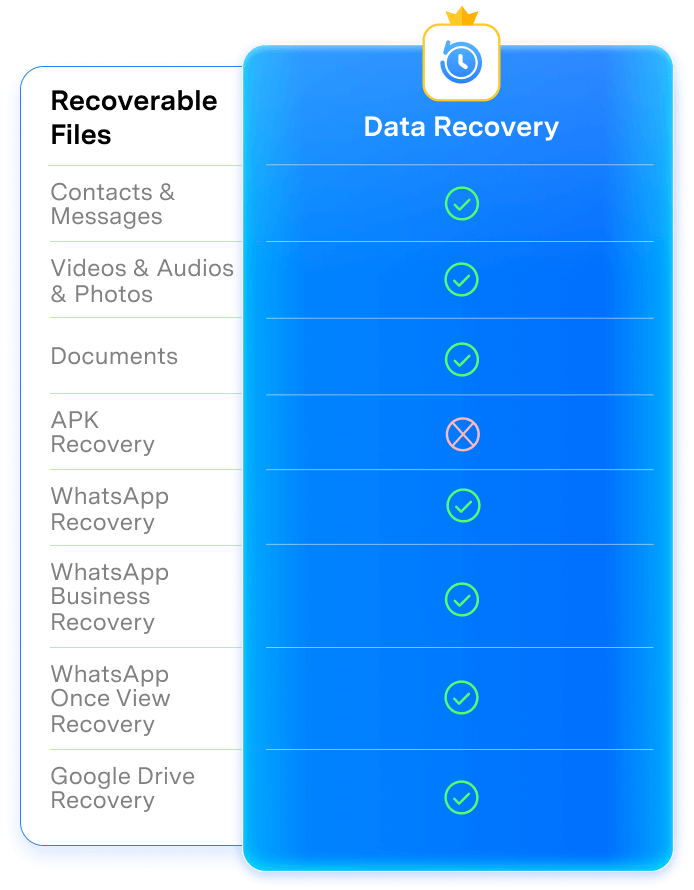
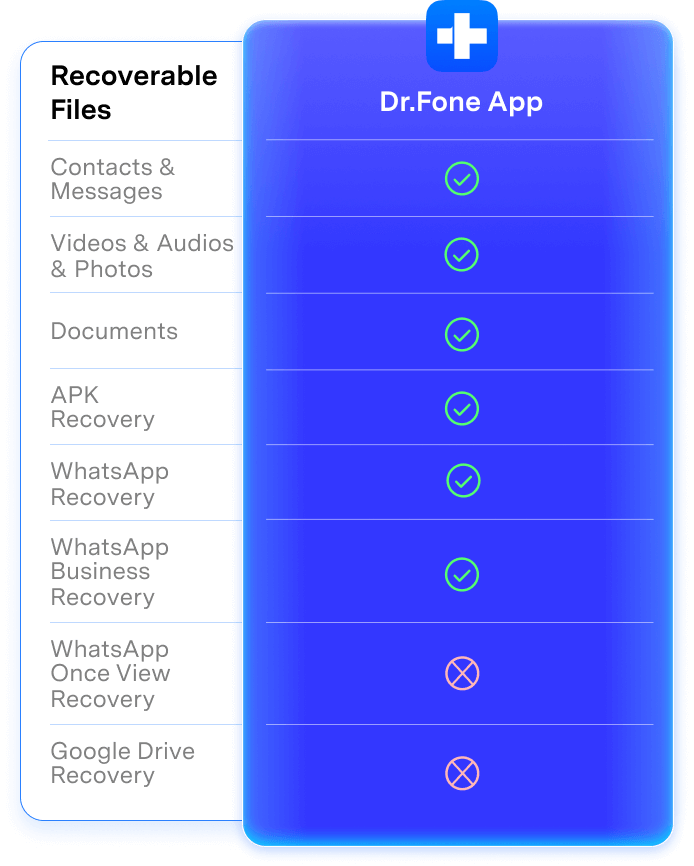
Android Data Recovery: Software vs. App
Dr.Fone makes Android data recovery easy — whether you use desktop software or a mobile app.
Compare the features and choose the recovery solution that works best for you.
| Recoverable Files | Dr.Fone Android Data Recovery Software (PC/Mac) | Dr.Fone App for Android |
|---|---|---|
| Contacts & Messages |

|
|
| Photos, Videos & Audio |
|
|
| Documents (including PDFs) |
|
|
| APK Files |
|
|
| WhatsApp Chats |
|
|
| WhatsApp Business Chats |
|
|
| WhatsApp View Once Messages |
|

|
| Google Drive Data |
|
|



|

| Dr.Fone Android Data Recovery Software (PC/Mac) |
|---|
|
|
|
|
|
|
|
|
|
|
|
|
|
|
|
|
Why Choose Dr.Fone?


System Repair by Wondershare Dr.Fone is an excellent alternative to iTunes for fixing iOS issues. It resolves many problems by reinstalling the latest package, which doesn't wipe out your iPhone's data.

With its new powerful desktop and online solution, Wondershare Dr.Fone offers a complete mobile device solution for Android and iOS devices, with useful how-to guides and technical fixes for a wide variety of mobile issues.

Wondershare's Dr.Fone offers iPhone and iPad users a full software suite that goes beyond the iOS management that's possible with iTunes/Finder in macOS. Features include data recovery, erasing/restoring all or just parts of your data, system repair, restoring social media apps, getting around your device's lock screen, and more.

If your iPhone is not responding or turning on, then this is probably one of the best tools to fix it. The tool guarantees that during the recovery process, none of your data will be lost.

Dr.Fone can help you with your smartphone in many ways. It can recover deleted data, back up and transfer files, unlock screens, repair your OS, switch between different types of smartphones, transfer WhatsApp chats between iOS and Android, and more.

Dr.Fone is a comprehensive software suite developed by Wondershare that addresses a wide range of needs for smartphone and computer users. When transferring data between Android devices, Dr.Fone offers a mix of ease, efficiency, and security, making it a preferred choice for many.
System Repair by Wondershare Dr.Fone is an excellent alternative to iTunes for fixing iOS issues. It resolves many problems by re-installing the latest package, which doesn't wipe out your iPhone's data.
With its new powerful desktop and online solution, Wondershare Dr.Fone offers a complete mobile device solution for Android and iOS devices, with useful how-to guides and technical fixes for a wide variety of mobile issues.
Wondershare's Dr.Fone offers iPhone and iPad users a full software suite that goes beyond the iOS management that's possible with iTunes/Finder in macOS. Features include data recovery, erasing/restoring all or just parts of your data, system repair, restoring social media apps, getting around your device's lock screen, and more.
If your iPhone is not responding or turning on, then this is probably one of the best tools to fix it. The tool guarantees that during the recovery process, none of your data will be lost.
Dr.Fone can help you with your smartphone in many ways. It can recover deleted data, back up and transfer files, unlock screens, repair your OS, switch between different types of smartphones, transfer WhatsApp chats between iOS and Android, and more.
Dr.Fone is a comprehensive software suite developed by Wondershare that addresses a wide range of needs for smartphone and computer users. When transferring data between Android devices, Dr.Fone offers a mix of ease, efficiency, and security, making it a preferred choice for many.


3 Simple Steps to Recover Android Data
Step 1:
Connect your Android device to your PC and select the "Recover Android Data" module in Dr.Fone.
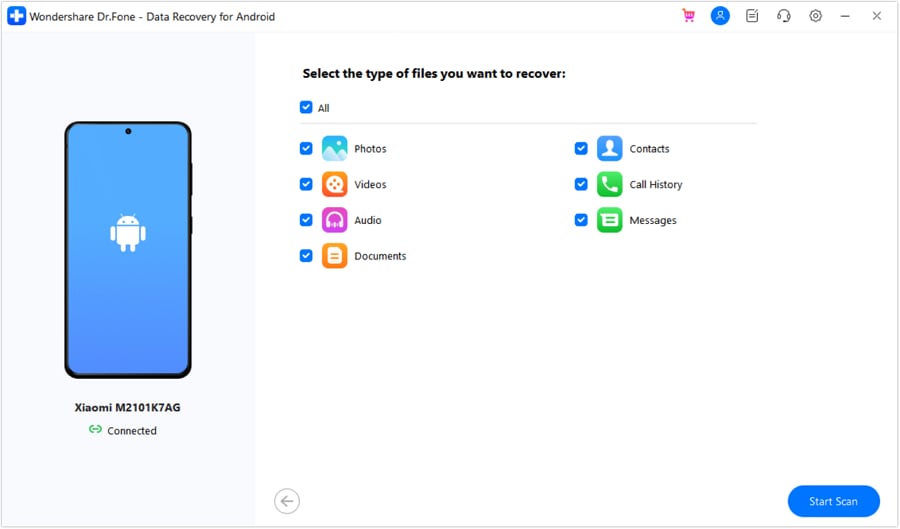
Step 2:
Choose the file types to recover and click "Start Scan" to find deleted data.
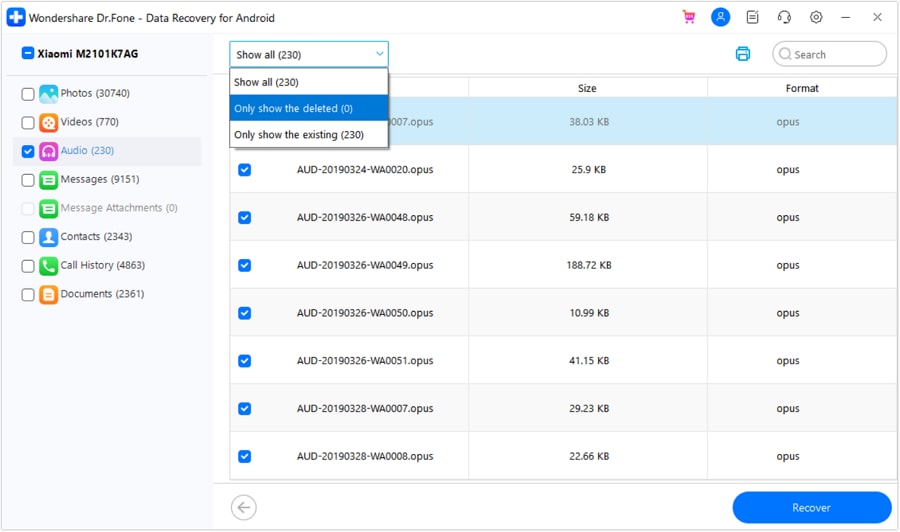
Step 3:
Preview all recoverable files, select exactly what you need, and click "Recover" to save them.
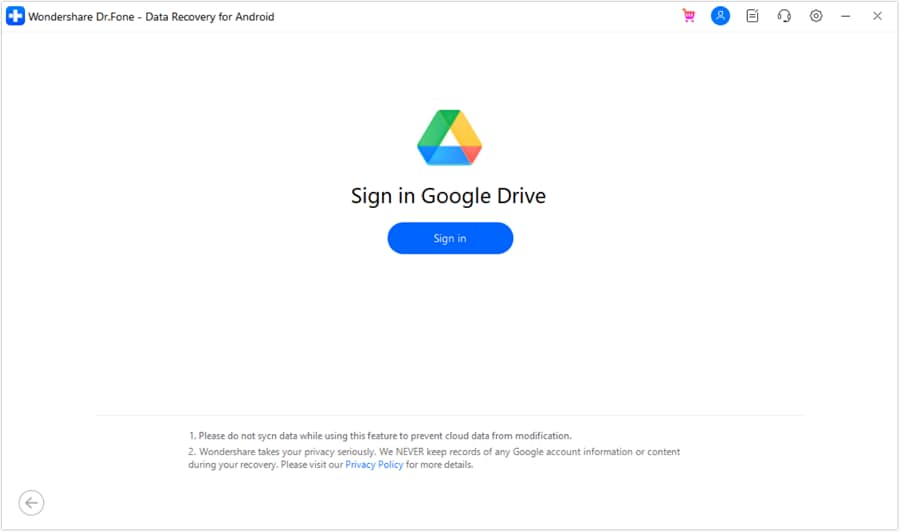
Step 1:
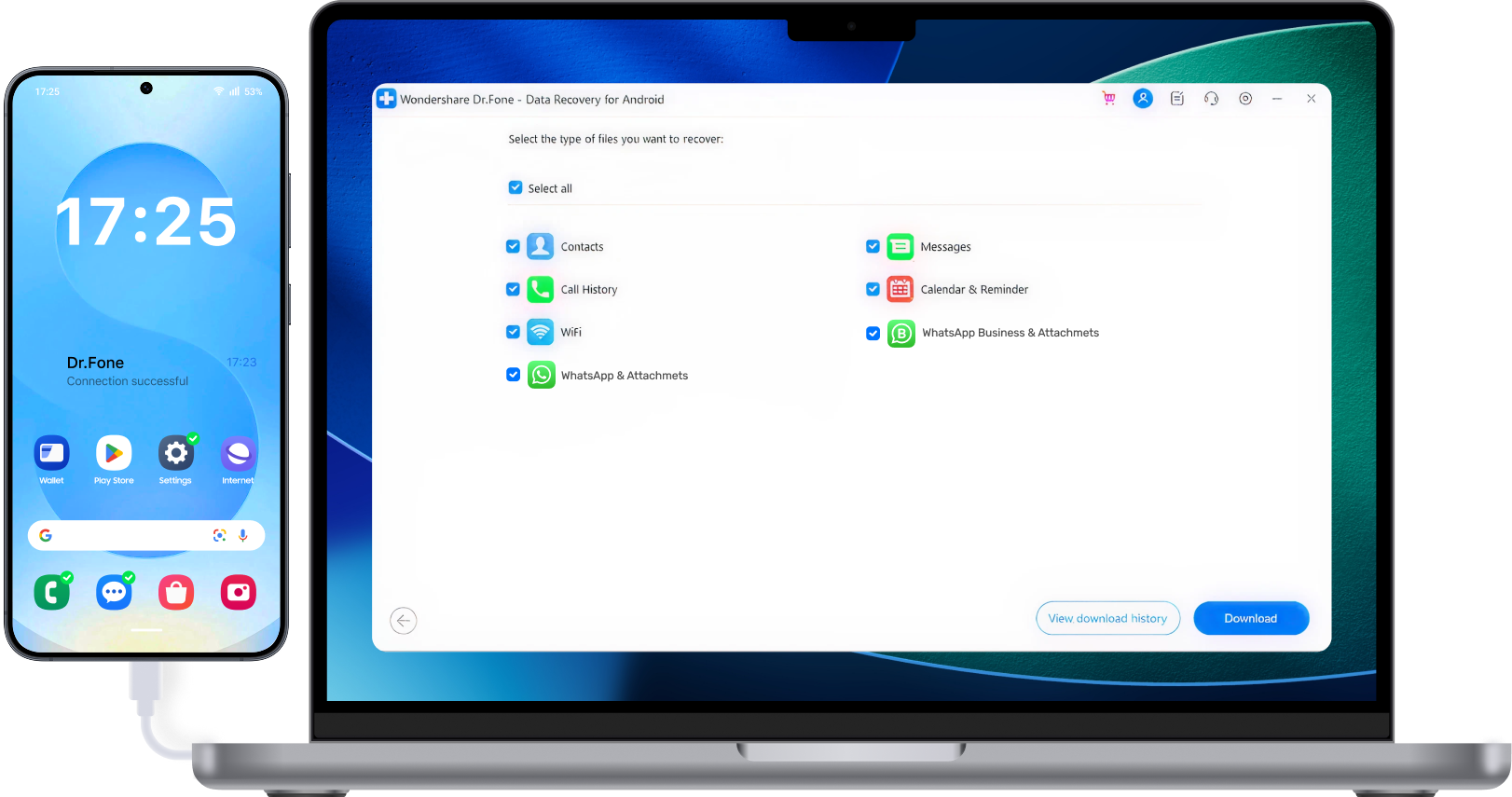
Choose "Recover from Google Drive" and securely sign in to your Google account holding the backup.
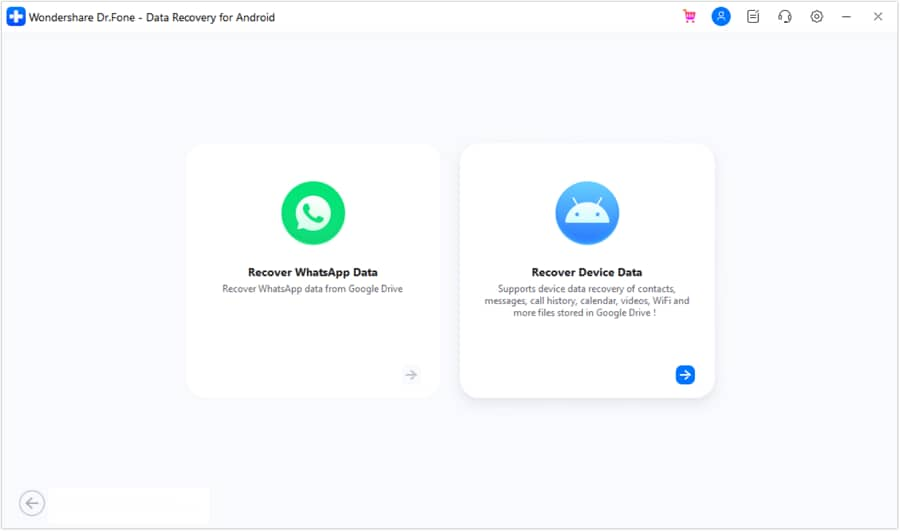
Step 2:
Select the correct backup file (including Google Drive WhatsApp backups), download for extraction.
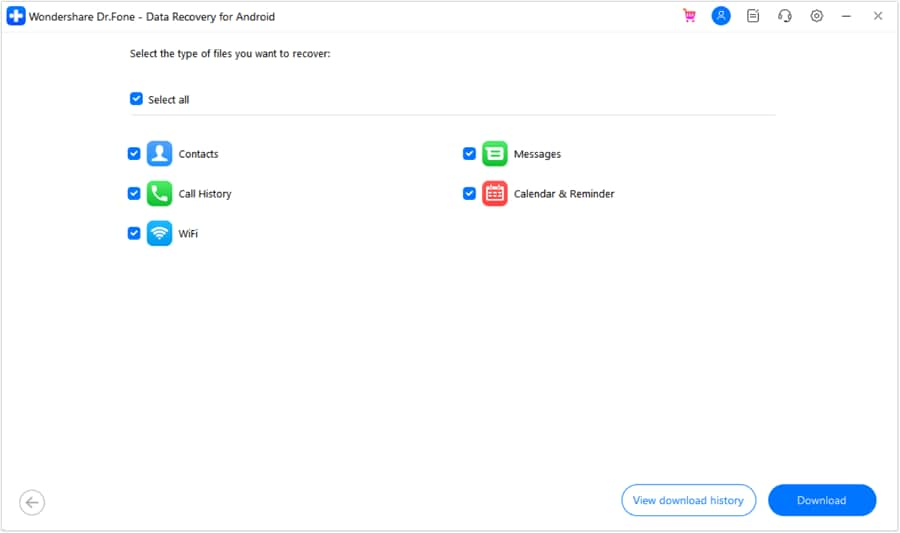
Step 3:
Preview all backup data and select the specific items you want to restore.
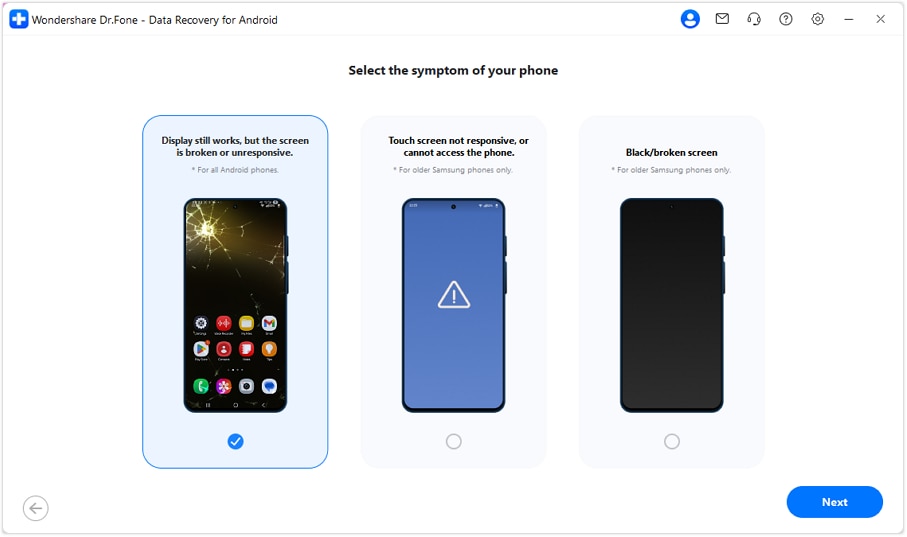
Step 1:
Connect Android, select "Recover from Broken Phone", even if screen is broken or unresponsive.
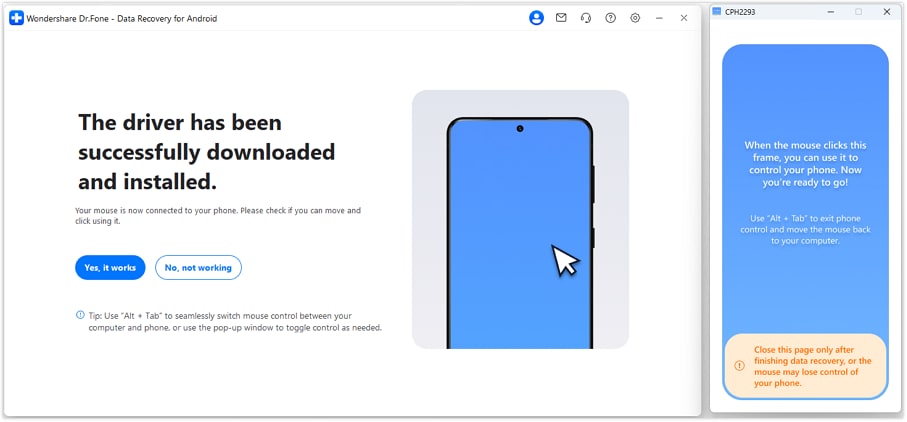
Step 2:
Then you can control your broken Android from PC, bypassing touch screen via Dr.Fone.
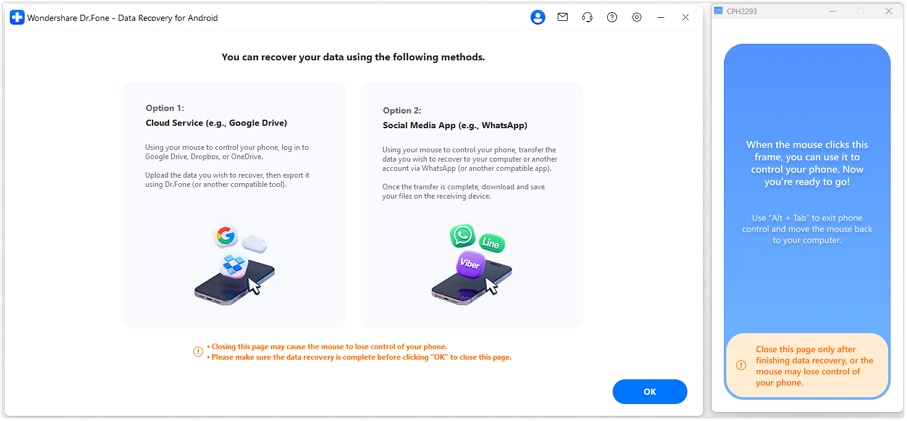
Step 3:
Use your mouse to unlock the screen, run a full "Data Recovery" scan, and safely extract all your files.
Dr.Fone - Data Recovery (Android) Technical Specifications

Processor
1 GHz or faster (Intel or AMD)

Hard Disk Space
7 GB of available hard disk space

RAM
1 GB of free RAM (2 GB or higher recommended)

Supported OS
Android 5.0 or later

Operating System
- Windows 11, 10, 8.1, 8, 7
- macOS 10.13 or later
Processor
Hard Disk Space
RAM
Supported OS
Operating System
- macOS 10.13 or later
Android Data Recovery – FAQs
You can attempt to recover deleted photos by scanning your Android device, previewing recoverable items, and exporting the selected results to your computer. Recovery results depend on your device model, Android version, and whether the deleted data has been overwritten.
Before you start:
- Stop using the phone as much as possible after deletion to reduce the chance of overwriting deleted data.
- Use a stable USB data cable and approve any on-device prompts (for example, “Allow access” or USB debugging authorization) when they appear.
To recover deleted photos from an Android phone’s internal storage, follow the steps below.
- Step 1. Launch Dr.Fone and select Data Recovery. Connect your Android phone to the computer using a USB cable.
- Step 2. Select Photos from the supported file types, then choose the available scan mode shown in the program.
- Step 3. Wait for the scan to complete. Scanning time varies based on storage size and file types.
- Step 4. Preview the results and recover the photos you need.
Limits to be aware of:
- If deleted photos have already been overwritten by new data, recovery may not be possible.
- On some devices, recovering deleted items from internal storage may require elevated access (for example, root-level access).
Dr.Fone - Data Recovery (Android) offers a trial mode that lets you connect your device, run a scan, and preview recoverable data before purchasing.
To export/recover data to your computer, a paid license is typically required (availability can vary by recovery mode and device). For pricing details, see the pricing page.
It depends on the damage type and whether the phone can still communicate over USB. In general, broken Android data recovery is more feasible for “broken screen” scenarios than for “no power / not detected” scenarios.
Common scenarios:
- Cracked screen and the phone powers on, but touch is unresponsive: This scenario is supported by Dr.Fone across major Android brands (including Samsung, Xiaomi, OPPO, and vivo). If the device can be detected by the computer, you can proceed with recovery using the on-screen guidance.
- Black screen and the device is unresponsive: Dr.Fone supports recovery for this severe damage scenario on specific older Samsung models only, due to hardware access constraints.
- Completely dead (no power / not detected): Software-only recovery is often not feasible. See the phone is completely dead.
If you can connect the device, Dr.Fone will guide you through the available recovery mode(s) for your situation.
No. Dr.Fone’s Android recovery workflows are designed to work without rooting your device. Depending on your situation, Dr.Fone can recover data by scanning available sources on the device, extracting from Google Drive backups, or rescuing data from broken-phone scenarios—without requiring root access.
Important:Recovery results still depend on factors such as Android storage protections, device condition, and whether the deleted data has been overwritten. To maximize recovery chances, stop using the phone after data loss and avoid actions that could erase data (for example, a factory reset or risky system modifications).
Hot Topics

The Highest Success Rate in Android Data Recovery
Get back lost files, photos, and messages—safely and easily.