 Recover photos, messages, WhatsApp, and more — no backup
needed.
Recover photos, messages, WhatsApp, and more — no backup
needed.

 100% Security Verified | No Subscription Required | No Malware

 :
: 
 ChatGPT
 Perplexity
 Gemini
 Claude
 Grok
Grok
Running a successful enterprise in 2026 means staying seamlessly connected with your customer base at all times. A critical platform for this daily communication is WhatsApp Business, which plays a massive role in managing operations, addressing client queries, and securing sales. Yet, when important whatsapp business messages, detailed client portfolios, or complex transaction records suddenly disappear due to unexpected errors, it can create a massive amount of operational stress.
Many business owners often assume that restoring this sensitive information is technically overwhelming or permanently impossible. Fortunately, effective whatsapp business data recovery is entirely achievable with the right techniques. Regardless of the scenario that caused the data loss, there are workable, proven solutions available to help you get your business communications back on track. This comprehensive guide will explore the most reliable methods, ensuring you understand exactly how to restore whatsapp records easily and securely.
In this article
- Part 1. What Are the Reasons To Restore WhatsApp Business Data
- Part 2. How To Recover WhatsApp Business Data Without Backup
- Part 3. How To Restore WhatsApp Business Data via Local Backup [Android]
- Part 4. How To Restore WhatsApp Business Data Using Cloud Backup
- Pro Tip: How To Use Notification History To Recover WhatsApp Business Data
- Conclusion
Part 1. What Are the Reasons To Restore WhatsApp Business Data
There is little doubt that the sudden loss of vital business content can rapidly turn into a logistical nightmare. That is particularly true when it halts your ongoing communication with valuable customers. To stay adequately prepared and prevent major service disruptions, it is highly beneficial to understand why initiating a whatsapp business delete message recovery protocol is so critical. Below are some of the most common reasons business owners find themselves needing to explore immediate restoration options.
- Accidental Deletion: Frequently, essential chat threads or important document files get erased entirely by mistake during routine storage cleanup or device synchronization. Rapidly restoring your data ensures that critical client information or pending order details are not lost permanently.
- Factory Reset Execution: Your smartphone may periodically need to be restored to its original factory configuration to resolve persistent software crashes. In such disruptive situations, restoring from a backup is absolutely essential to get the WhatsApp Business data functioning properly after the device reset.
- Application Crashes or System Errors: The application infrastructure of this vital business messaging platform can sometimes malfunction unexpectedly due to operating system updates, internal bugs, or severe storage limitations. When corruption happens, recovering data allows your team to quickly return to normal business activities without skipping a beat.
- Switching to a New Handset: As you prepare to seamlessly migrate your operations to a new, upgraded mobile device, there is an inherent risk of leaving pivotal communications behind. Implementing proper data migration ensures that all your active chats, client contacts, and shared multimedia files transfer smoothly.
- Emerging Cybersecurity Threats: From targeted viruses and malicious malware to external hacking attempts, numerous digital factors can corrupt, isolate, or delete WhatsApp Business data. Proactively recovering your information not only reinstates lost content but significantly fortifies your ongoing business continuity framework.
Part 2. How To Recover WhatsApp Business Data Without Backup
New: Recover Deleted WhatsApp Business Messages on Android with Advanced Recovery
Need WhatsApp Business data recovery without a backup? The new Advanced Recovery mode in Dr.Fone - Data Recovery (Android) expands its Deleted Social App Data Recovery capabilities to WhatsApp Business. On a supported Android phone, it scans the app's data directly for recoverable deleted conversations and attachments. Preview the available customer chats, shared files, and media, then select what you need to save to your computer.
Recover the business conversations and files that matter: Check for recoverable individual and group chats, starred messages, photos, videos, voice messages, audio files, and documents. For example, you can review a customer conversation or look for an available order attachment without exporting every item listed in the results.
Check compatibility before starting: Advanced Recovery for WhatsApp Business runs in the Windows desktop software and supports Android devices across brands running Android 9–13. Huawei devices running Android 12–13 are currently not supported. The Mac version does not currently support WhatsApp Business data recovery. The broader 6000+ Android device figure in the product box does not describe the compatibility of this specific recovery mode.
Only messages and files found by the scan can be selected for recovery. Advanced Recovery saves the selected data to your computer and does not restore it directly into WhatsApp Business on your phone. If you also use regular WhatsApp, scan it separately using its own recovery option.
Use the Windows download to try WhatsApp Business Advanced Recovery, or read the official WhatsApp Business Advanced Recovery guide for the complete walkthrough.




How to Recover Deleted WhatsApp Business Chats and Attachments on Android
Prepare a compatible Android phone, a Windows computer, and a USB cable. Follow these four steps to check for recoverable deleted WhatsApp Business messages and save the available results.
-
Step 1 Select WhatsApp Business and Choose Advanced Recovery
Launch Wondershare Dr.Fone on your Windows computer and open Toolbox > Data Recovery. Select Android > Recover WhatsApp Business Data. Choose the Business option for the app that contains your customer conversations.
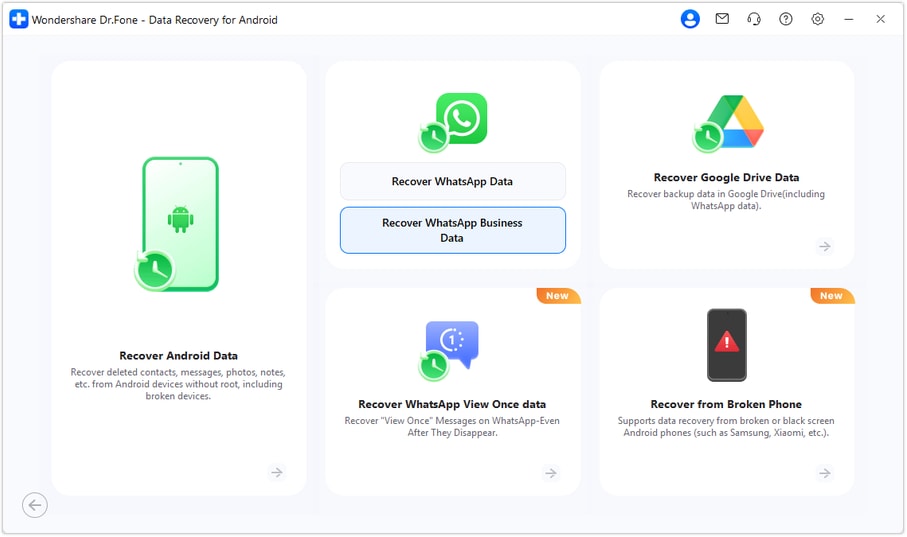
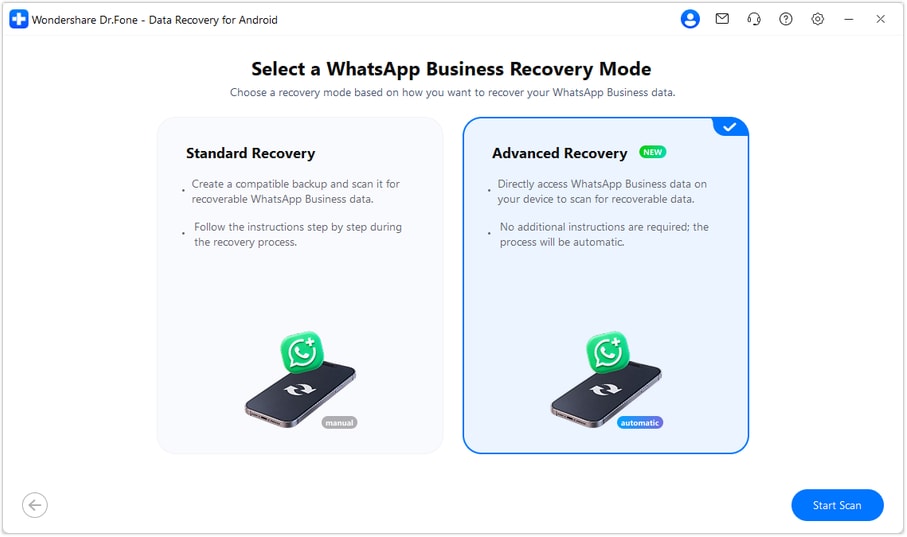
On the next screen, choose Advanced Recovery and click Start Scan. Connect your Android phone by USB when prompted and follow the on-screen connection instructions until Dr.Fone detects it.
-
Step 2 Scan the WhatsApp Business Data on Your Phone
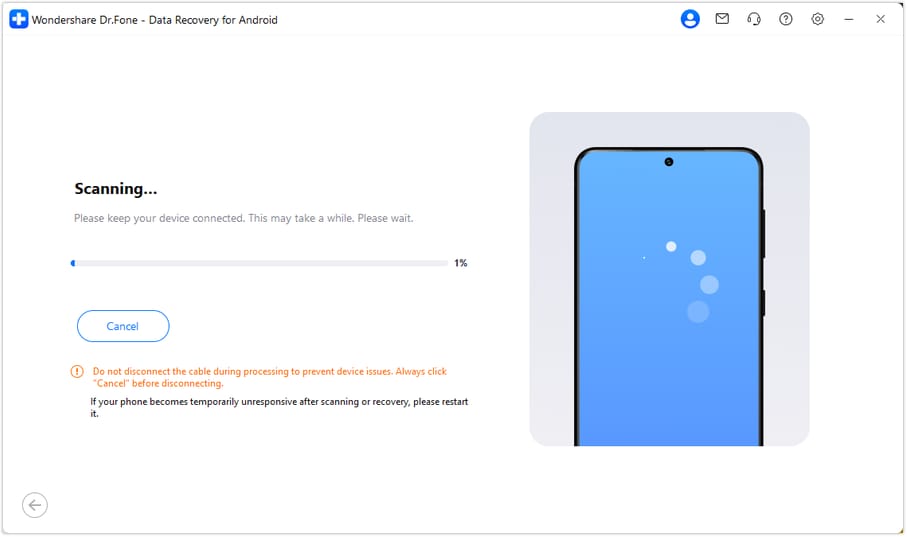
Dr.Fone automatically scans the WhatsApp Business data on your connected Android device. Keep the phone connected while the scan runs. If you need to stop, click Cancel before disconnecting the USB cable. If the phone becomes temporarily unresponsive after scanning or recovery, restart it as instructed on the screen.
-
Step 3 Preview Recoverable Business Messages, Photos, Videos, and Audio
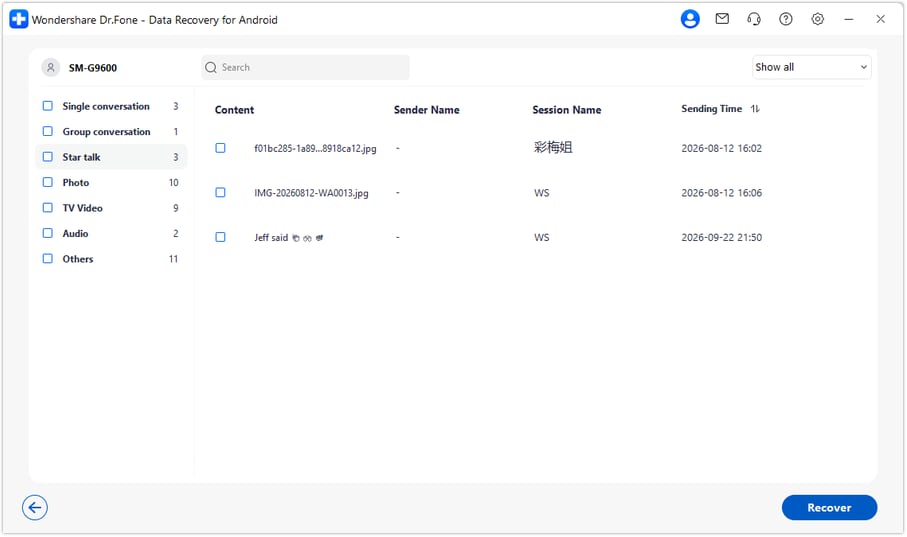
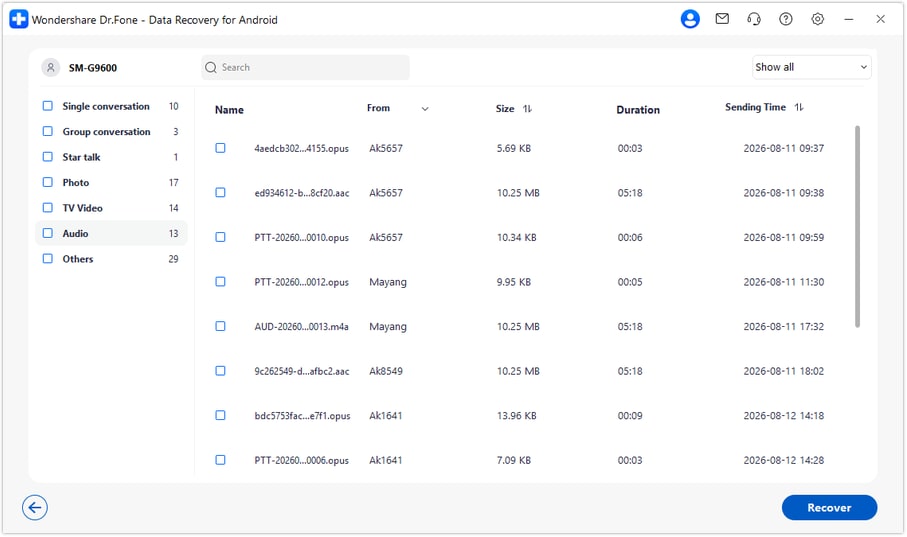
When scanning finishes, review the WhatsApp Business categories in the results. Use the search box or results filter where available to find the conversations and files you need. Select only the available items you want to recover.
Customer conversations and starred messages: Open an individual chat, group chat, or starred-message category to review the records found by the scan. Check the conversation and its available attachments before making your selection.
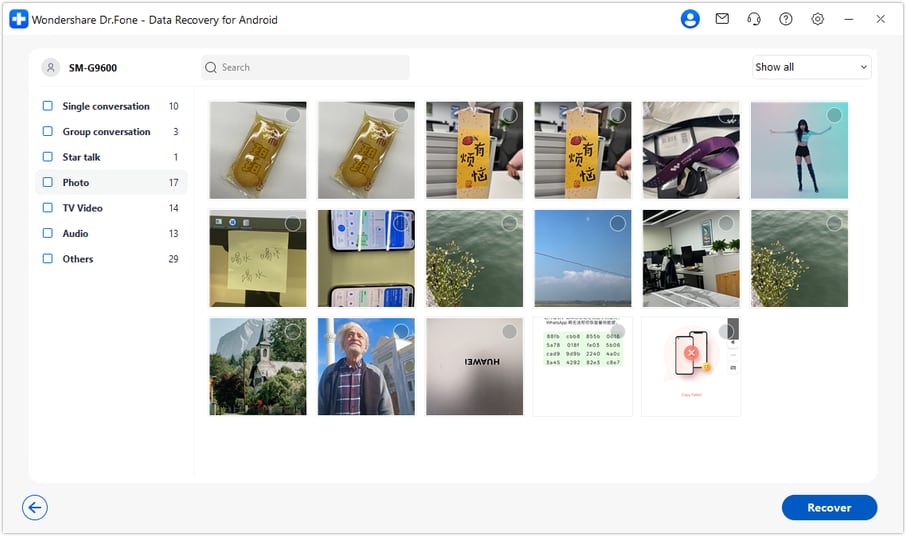
WhatsApp Business photos: Choose Photo in the sidebar to review the available images. Select the photos you need, such as an image shared in a customer conversation.
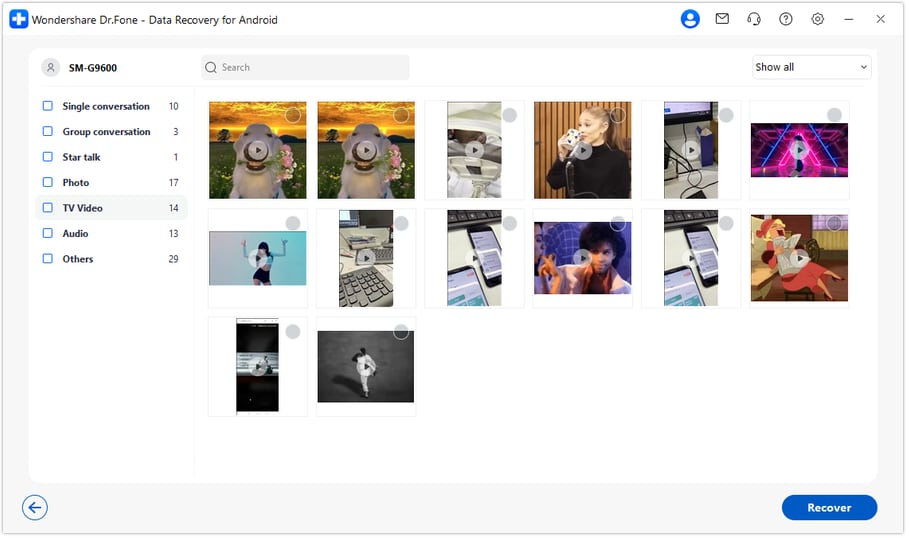
WhatsApp Business videos: Open the video category to preview the available clips and select the videos you want to keep.
Voice messages and audio files: Choose Audio to review the available recordings. Details such as sender, file name, duration, and sending time can help identify a customer voice message or another recording you need.
-
Step 4 Recover Selected WhatsApp Business Data to Your Computer
Click Recover after selecting the messages and files you need. Follow the prompts to choose a folder on your computer and save the selected results. The recovered copy is stored on the computer; it is not imported directly back into WhatsApp Business on your phone.
Ready to check for your deleted customer chats? Use Dr.Fone on Windows to scan a supported Android 9–13 phone, preview the available WhatsApp Business data, and recover the selected results to your computer. Huawei devices running Android 12–13 are excluded.
Standard Recovery: Existing Guided WhatsApp Business Recovery Workflow
The original introduction and tutorial below describe the guided recovery workflow involving backup and app setup. For the new direct device scan, follow the WhatsApp Business Advanced Recovery steps above. Preserve any existing backup that may contain the deleted conversation before changing backup settings or reinstalling the app.
Finding yourself stranded without an existing backup file can initially feel like hitting a frustrating dead end, but there is absolutely no need to panic. Even if you haven't diligently saved your daily conversations anywhere on the cloud, there are powerful third-party solutions designed to aid you. Rather than stressing over missing client conversations or essential media, you can take immediate action with Dr.Fone - Data Recovery (Android) to accurately recover deleted data from android devices and get back to managing your business instantly.
Engineered entirely with user accessibility in mind, this powerful utility helps professionals efficiently perform whatsapp data recovery without backup, bypassing the need for complex technical experience. It streamlines the entire restoration pipeline by deeply scanning your internal storage hardware and safely bringing back what matters most. Furthermore, it comprehensively supports almost all modern Android architectures, thoroughly restoring text messages, high-resolution images, corporate videos, and attached documents.
 Scan Android phones and tablets directly.
- Preview and recover only what you want.
- Supports WhatsApp, photos, videos, contacts, and more.
- Works with 6000+ Android devices.

Quick Tutorial on How To Recover WhatsApp Business Data Without Backup
This dedicated software acts as a secure bridge, ensuring your sensitive corporate data stays completely protected throughout the extraction without any privacy leaks. Adhere to these exact procedural steps to achieve a seamless whatsapp business recovery:
-
Step 1 Launch the Data Recovery Module to Commence the Operation
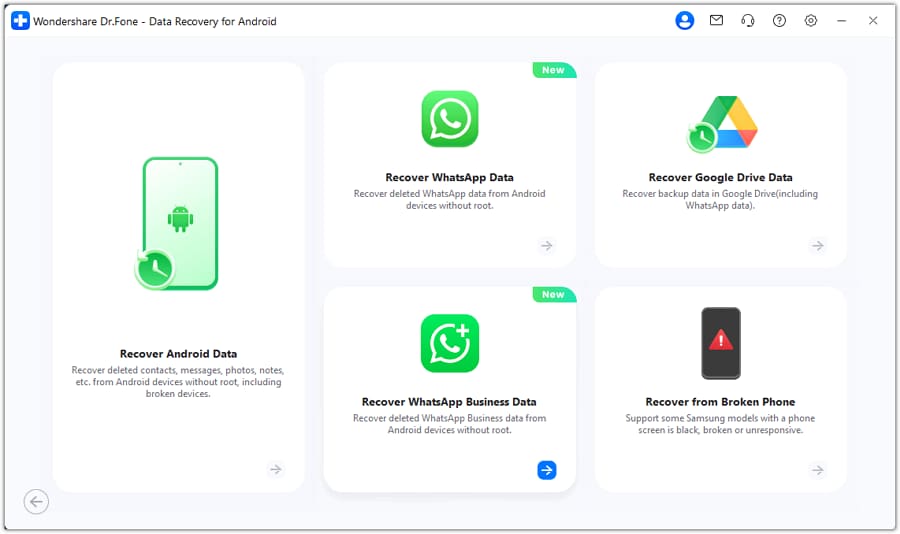
Initiate the process by launching the Dr.Fone client on your desktop workstation and navigating to the central "Toolbox" interface to select "Data Recovery." Next, explicitly specify "Android" as your primary mobile operating system, and confidently click on "Recover WhatsApp Business Data" to advance to the connection protocol.
-
Step 2 Follow On-Screen Instructions to Configure the Initial Environment
Ensuring your Android smartphone is firmly plugged in via a secure USB cable, press the "Next" button to permit the program to establish a secure local temporary environment. Meticulously follow the dynamically provided screen prompts to create a structural bridge. Once finished, hit "Next" on the monitor and authorize the reinstallation of the customized scanning application.
-
Step 3 Complete the Security Loop and Commence the Deep Device Scan
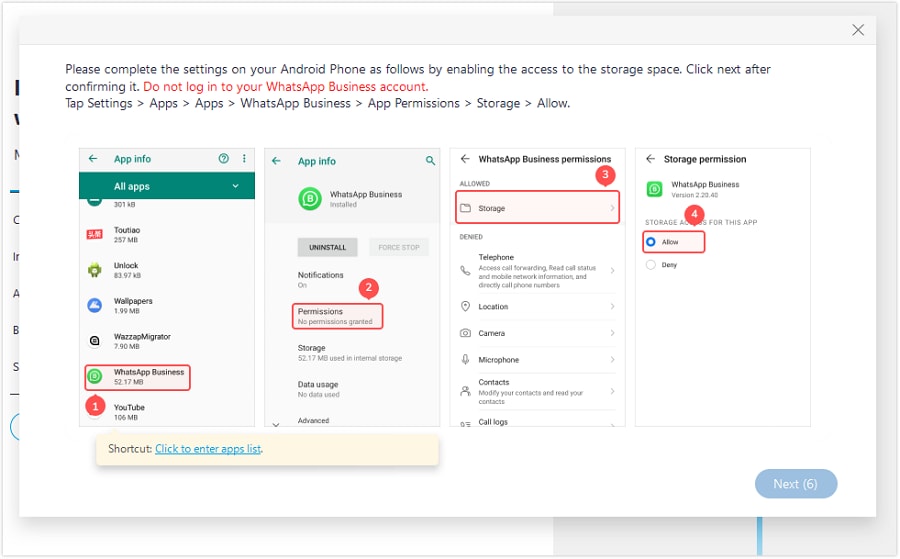
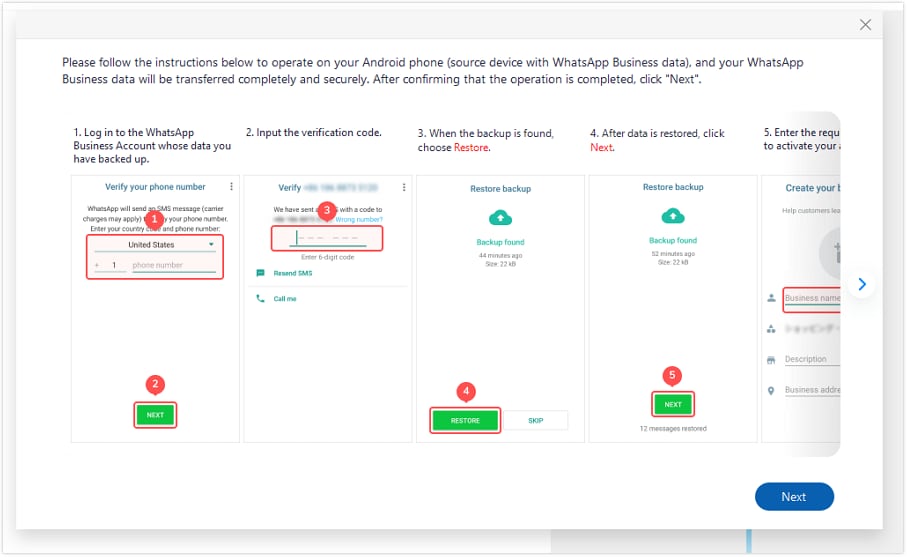
Immediately after, navigate directly into "Apps" within your Android mobile settings to locate the WhatsApp Business profile, and intentionally select "Allow" for the "Storage" parameter under "Permissions." Proceed to launch the app, log in cautiously using your registered business phone number, and instantly tap "Restore" when the system prompts you. Consequently, click "Next" on the computer client to command the software to relentlessly scan your mobile's deeply embedded sectors for the missing content.
-
Step 4 Safely View, Filter, and Export the Retrieved Business Records
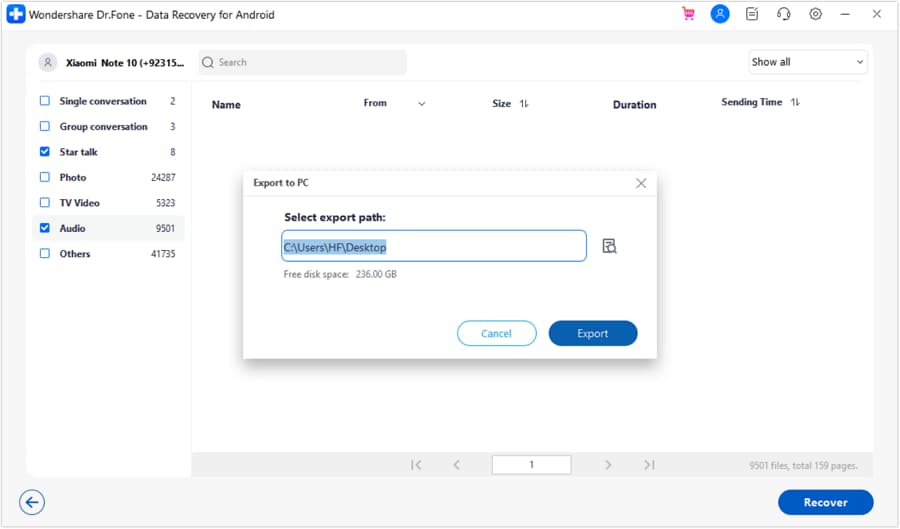
As the sophisticated recovery software neatly displays an organized catalog of all successfully retrieved data—including text threads, corporate graphics, MP4 videos, and audio memos—carefully mark the specific checkboxes corresponding to the items you desperately want back. Conclude the operation by clicking the pivotal "Recover" icon, specify your preferred secure local desktop directory, and hit "Export" to securely save your vital business communication history forever.
Part 3. How To Restore WhatsApp Business Data via Local Backup [Android]
While utilizing a professional desktop program remains an exceptionally robust option, your smartphone OS contains secondary fallback mechanisms you should heavily explore. Often, you can accomplish efficient whatsapp business data recovery by simply accessing the automated localized backup already residing deep within your Android file system. By opting for this integrated local backup route, you can seamlessly restore all isolated private conversations, sprawling customer group chats, and associated media payloads—ranging seamlessly from compressed JPEGs and marketing videos to vital voice memos.
This localized method is notably powerful; it can even accurately reinstate personalized custom emojis, saved stickers, and chronological call logs. Resorting to these native sequential steps becomes immensely advantageous when your data hasn't properly synchronized to an online Google Drive server, but your local device still securely houses an encrypted daily archive:
-
Step 1 Access the Hidden Application Directory
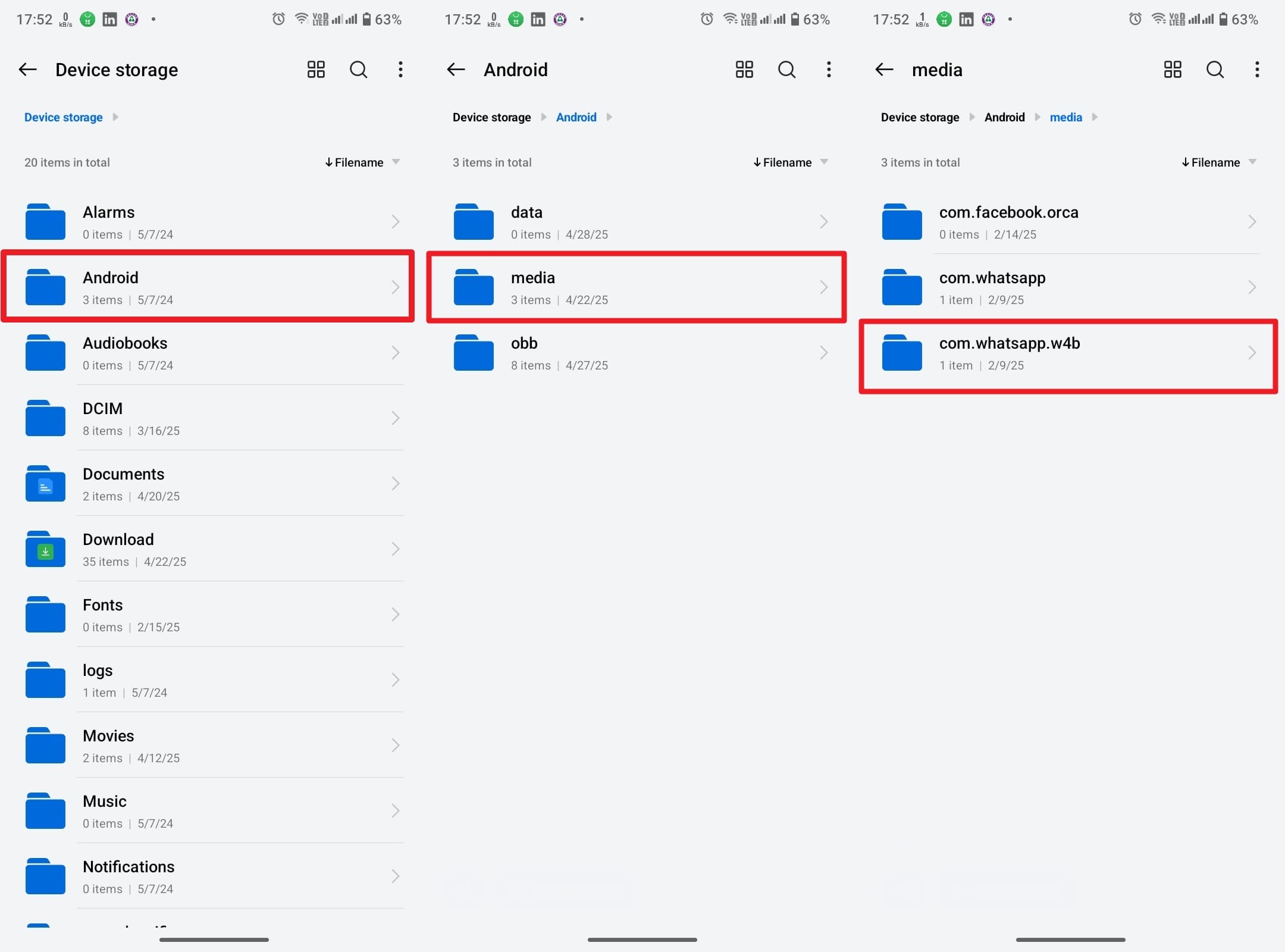
Launch the native "File Manager" or "My Files" application installed on your Android operating system and systematically navigate directly into the root "Android" directory. From here, deliberately tap the "Media" folder and proceed further into the specific "com.whatsapp.w4b" digital container.
-
Step 2 Locate the Correct Encrypted Database
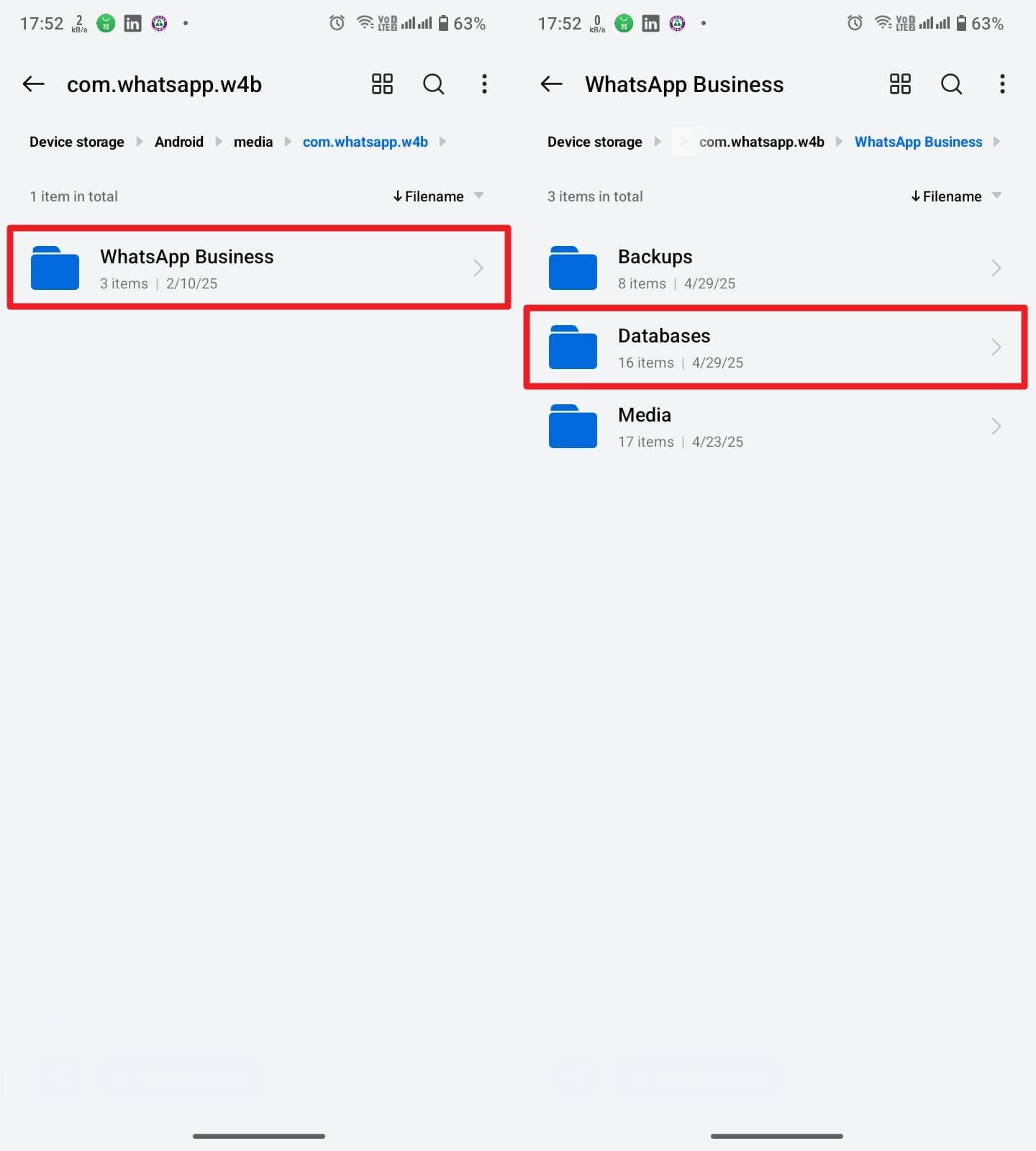
Upon entering the container, locate and physically open the designated "WhatsApp Business" sub-directory to accurately access the encrypted "Databases" repository. Scan the list meticulously for the most recent backup file you urgently desire to restore, which is invariably named following the standard convention "msgstore-YYYY-MM-DD.db.crypt14".
-
Step 3 Prepare the Database File for Immediate Restoration
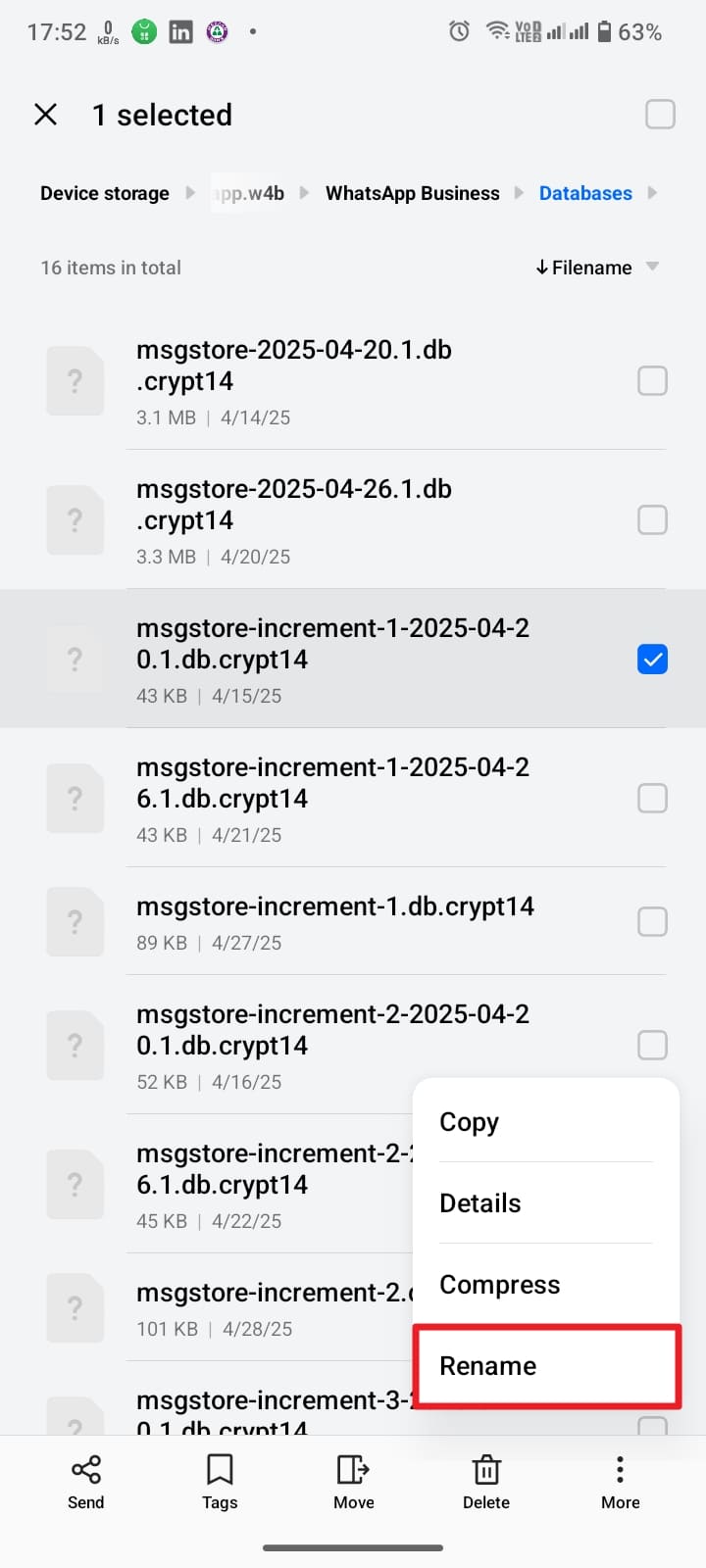
Moving meticulously forward, select the chosen chronological file and forcefully rename it precisely to "msgstore.db.crypt14" to successfully trick the application into recognizing it as the primary restore point. Upon completion of the renaming, completely uninstall the existing WhatsApp Business app from your corrupted device, then securely redownload a fresh iteration directly via the verified Google Play Store.
-
Step 4 Reinstall and Verify Your Business Identity
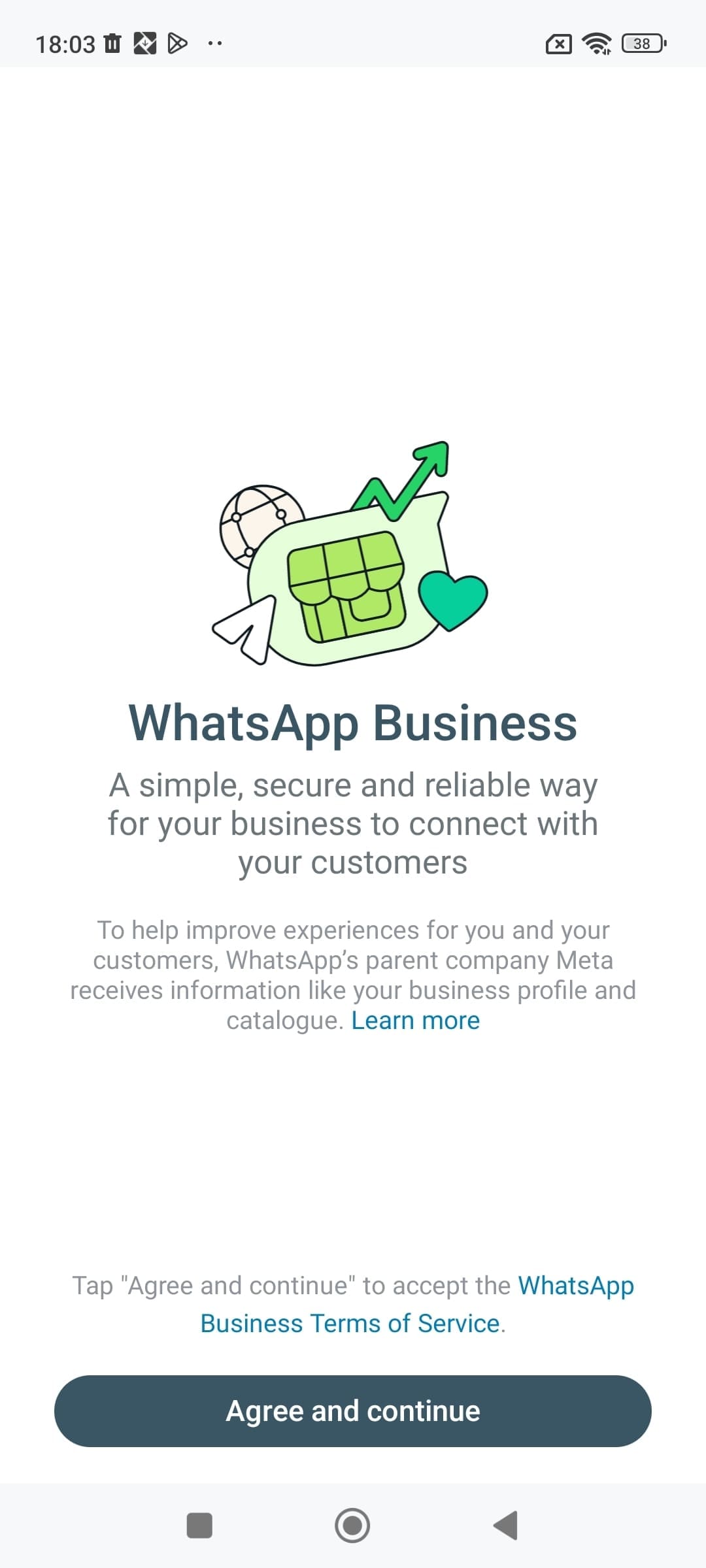
Once the pristine installation completes, launch the interface to formally agree to the standard terms of service, and consciously grant all necessary hardware permissions requested by the system. During the critical initialization setup, accurately verify your registered corporate mobile number utilizing the SMS-delivered authentication code to securely authenticate your account.
-
Step 5 Trigger the Final Data Retrieval Process
Shortly afterward, the sophisticated application infrastructure will scan your local files, autonomously detecting the renamed backup file, and immediately queue it for loading. At this decisive juncture, definitively tap the prominent "Restore" button when the visual prompt emerges to finalize the retrieval of your comprehensive local history.

Part 4. How To Restore WhatsApp Business Data Using Cloud Backup
In various modern scenarios, strictly relying on local internal storage backups might simply not suffice—especially if the actual device suffered catastrophic physical damage. This reality is particularly relevant for premium iOS users, where unrestricted local file system navigation is not natively supported. Under these restrictive circumstances, migrating to a remote cloud backup invariably becomes the safest and most streamlined option available. The platform natively permits corporate users to seamlessly synchronize their invaluable chat data directly to Google Drive on standard Androids, and to secure iCloud vaults on Apple iOS devices.
Executing an online cloud restoration successfully allows you to effortlessly retrieve all one-on-one dialogues, expansive community threads, heavily utilized digital product catalogs, embedded PDF contracts, and intricate application settings. By following a highly straightforward sequence of commands, anyone can quickly grasp how to recover whatsapp business chat histories globally without unnecessary delays.
1. Step-by-Step for Android Users via Google Drive
-
Step 1 Validate the Active Google Account Linkage
Crucially ensure that the replacement mobile hardware—or your freshly reset smartphone—is actively linked to the exact identical Google account where the original synchronization was performed. Furthermore, briefly inspect the "Chat backup" internal settings prior to wiping anything, to physically confirm the precise timestamp of the last successful Drive upload.

-
Step 2 Remove and Re-Download the Core Application
Following this critical validation, completely purge the WhatsApp Business client from your Android's application registry by holding down its launcher icon and decisively tapping "Uninstall." Once the deletion registers, proceed directly to the official Play Store ecosystem to freshly reinstall the untouched, updated version.

-
Step 3 Complete the Secure Number Verification Routine
As you progress forward, seamlessly open the application, acknowledge the updated terms and conditions, and authorize all system-level background permissions required for optimal functionality. Subsequently, authenticate your registered business cellular number by precisely inputting the dynamically generated 6-digit confirmation code delivered via standard SMS.

-
Step 4 Execute the Cloud Download and Finalize Setup
Immediately after successful authentication, the intelligent application framework will ping Google servers and automatically locate the remote backup tethered to your integrated Google Drive profile. When the unmistakable green screen appears, confidently tap the "Restore" interactive button to command the massive downloading of your corporate chats and media attachments.

2. Step-by-Step for iPhone Users via Apple iCloud
-
Step 1 Ensure Apple iCloud Connectivity is Operational
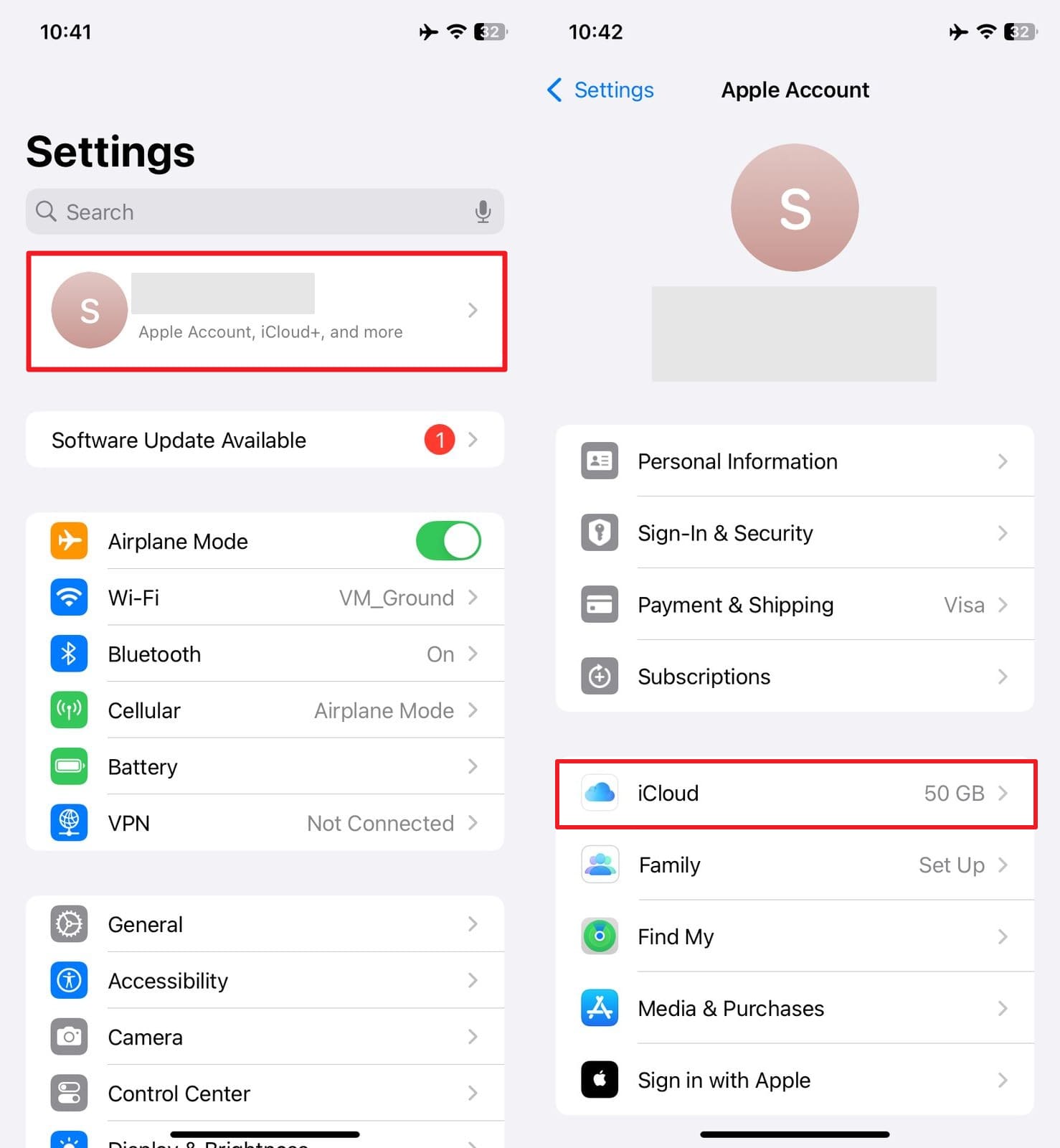
Commence this essential task by launching the native iOS "Settings" module and gently tapping your personalized Apple ID banner prominently displayed at the absolute top of the screen. Afterward, navigate into the "iCloud" parameters and definitively verify that the primary synchronization toggle next to it is brightly switched to the "on" state.
-
Step 2 Authenticate App-Specific Cloud Permissions
Next, carefully scroll down the loaded list to locate "WhatsApp Business" nestled under the "Apps Using iCloud" heading, ensuring its dedicated permission switch remains securely enabled. Following this, open the actual messaging client, navigate toward the embedded "Chat Backup" sub-menu within the settings, and verify precisely when the last secure server upload occurred.

-
Step 3 Safely Remove the Compromised Application
After positively verifying the integrity of your cloud snapshot, return seamlessly to the dynamic iOS home screen, securely pressing and holding the designated "WhatsApp Business" interactive icon. From the resulting contextual pop-up menu, sequentially tap "Remove App," deliberately choose "Delete App," and finalize the removal by decisively hitting "Delete" on the final warning prompt.

-
Step 4 Reacquire the Clean App from the Official App Store
Subsequently, proactively navigate to the secure Apple App Store, initiate a fresh download sequence, and swiftly launch the pristine application to formally consent to the required user agreements. Progressing logically, permit all critically necessary system permissions—including Contacts and Notifications—and accurately input your official business cellular number.

-
Step 5 Pull the Archived Data Safely from the iCloud Server
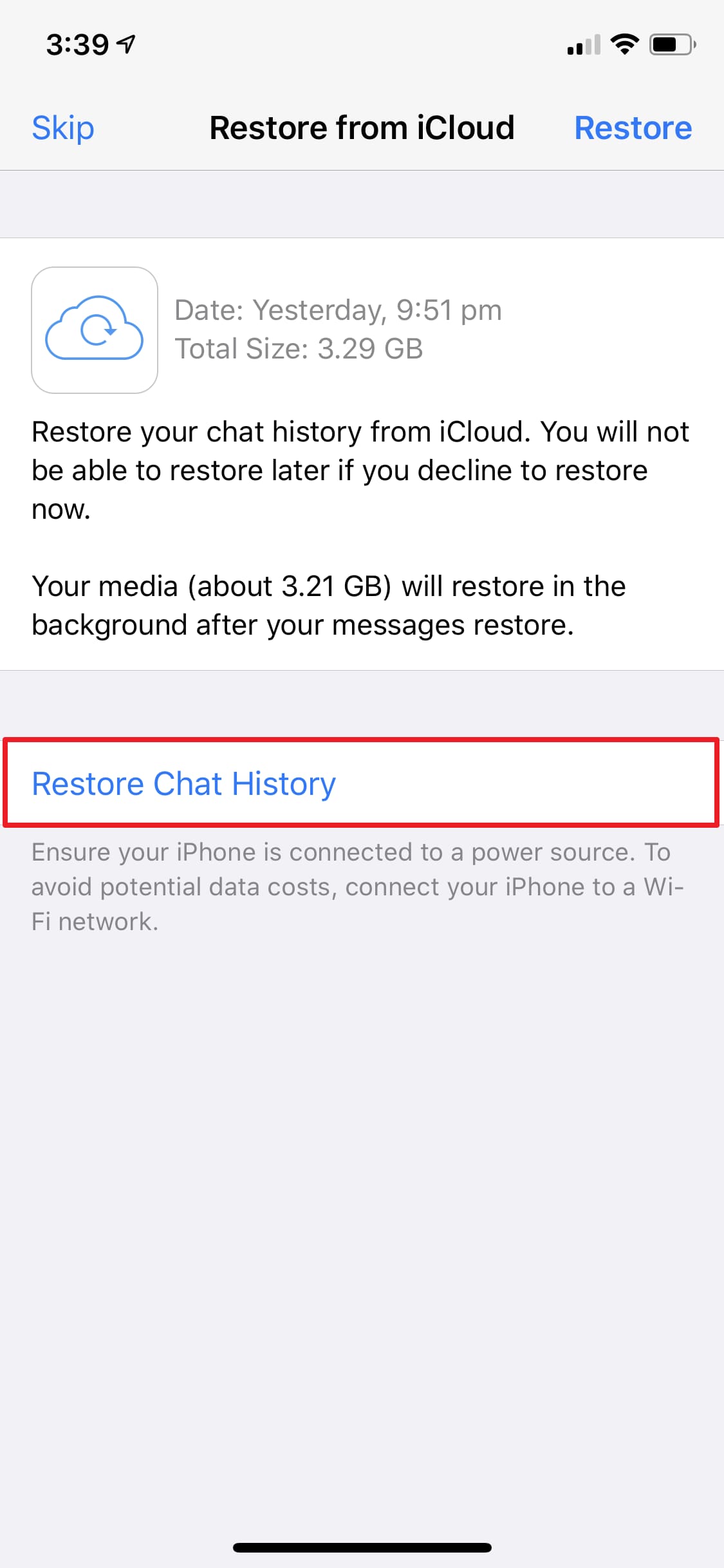
Moving carefully forward, rapidly utilize the unique verification passcode to securely confirm your localized login sequence. At this exact moment, WhatsApp Business will automatically interrogate the Apple server, seamlessly locating and displaying the encrypted snapshot safely saved on iCloud. Finally, tap the crucial "Restore Chat History" button exactly when prompted, patiently waiting for the progressive recovery bar to hit 100%.
Pro Tip: How To Use Notification History To Recover WhatsApp Business Data
At critical times, the absolute simplest OS-level workarounds can frequently serve as the most highly effective strategies to miraculously solve your sudden corporate dilemmas. This holds especially true when you find yourself caught in a restrictive pinch and demonstrably lack any verified backup ready for deployment. The native Android notification history log running silently in the background on your modern smartphone can potentially permit you to extract at least a partial cache of lost text strings—provided you are exceptionally quick to act. Consider utilizing these rapid consecutive steps for executing a quick whatsapp data recovery without backup, exclusively targeting chats that briefly generated a system alert banner:
-
Step 1 Navigate to Advanced System Notification Logs
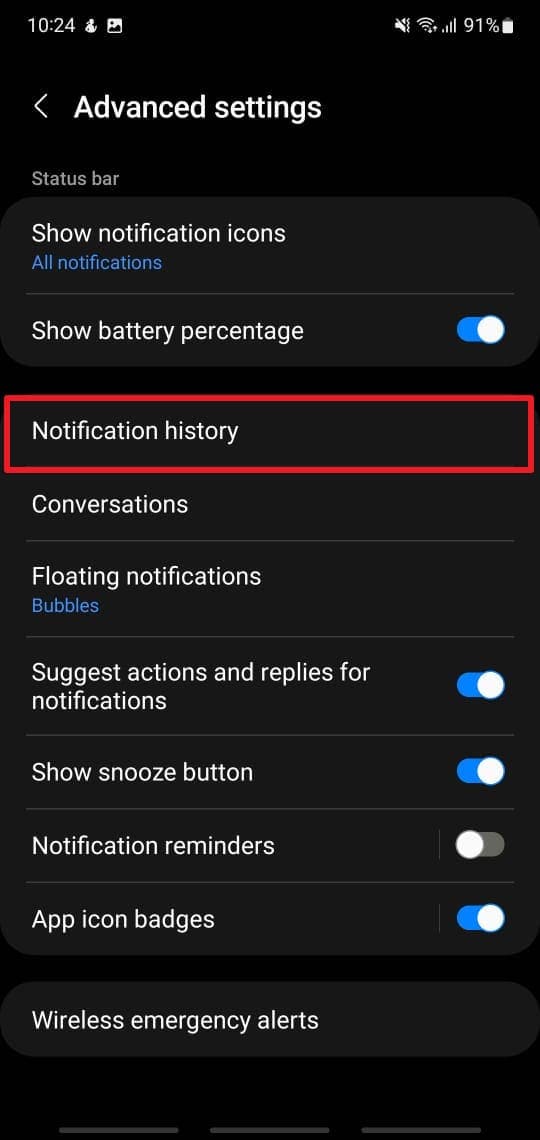
On your active Android handset, securely open the primary "Settings" gear application and progressively scroll down to tap on the generalized "Notifications" control panel. Deep within this central section, carefully locate and deliberately select the embedded "Advanced Settings" (or similarly named configuration tier) to proceed to the hidden logs.

-
Step 2 Interrogate the Notification History for Deleted Text
From here, successfully access the heavily guarded "Notification History" segment on your device interface to instantly reveal a chronological breakdown of all recent incoming alerts and banners. Patiently scan through this comprehensive list, actively searching for the WhatsApp Business icon indicator, and directly read the captured strings of text to instantly find the critical information you are desperately trying to retrieve.
Conclusion
For Android business users without a usable backup, Advanced Recovery for WhatsApp Business provides a direct device scan on supported Android 9–13 phones using Windows. Preview recoverable customer messages and shared attachments, then save the selected items to your computer. Check compatibility first, including the Huawei Android 12–13 exclusion.
No matter how meticulously cautious an entrepreneur attempts to be, the unexpected erasure of immensely important WhatsApp Business assets is an alarming event that can potentially happen to anyone, at any time. The myriad of possible triggers ranges wildly from accidental finger taps on a touch screen to deliberately migrating operations to a radically new flagship mobile device. However, as comprehensively outlined in this guide, there are multiple highly reliable methodologies strategically available to reclaim your valuable information—even in the absence of a proactive, pre-established backup architecture. From native local file extraction to seamlessly integrated cloud-based frameworks, and even cleverly leveraging hidden notification histories, every distinct method possesses its own unique strategic advantage depending heavily on your exact crisis scenario.
Among all these diverse technological approaches, deploying a dedicated third-party restoration utility invariably makes the overarching whatsapp business data recovery process substantially faster, safer, and far less stressful for non-technical users. That is precisely where the robust framework of Dr.Fone - Data Recovery (Android) truly manages to stand out from the crowd. Armed with unparalleled deep-scanning abilities, impenetrable privacy layers, and a historically proven success rate globally, it remains the absolute smartest recovery investment for proactive business owners aiming to safeguard their corporate livelihood.
FAQ
-
1. Can I integrate WhatsApp Business with my CRM system?
The robust WhatsApp Business API definitively allows direct integration with various high-tier CRM platforms with exceptional ease. It primarily enables expanding businesses to successfully centralize and manage heavy customer interactions far more efficiently. This advanced integration intelligently helps track ongoing conversations and seamlessly maintain long-term customer records effortlessly. Just remember that the advanced API utilizes a structured pay-per-message pricing model, unlike the standard free mobile application. -
2. How do I formally verify my business on WhatsApp?
You can easily execute that verification pipeline, provided you rigorously meet the platform's officially specified legal and commercial requirements. To officially verify your brand, you must meticulously complete the unified Facebook Business Manager verification process first. Once administratively verified through Facebook, you can confidently apply for the WhatsApp Business API and simultaneously request the highly coveted green checkmark badge to visibly signify a fully authenticated business profile to consumers. -
3. What are Message Templates in WhatsApp Business?
For most medium-to-large scale businesses, individually typing out custom replies to every repetitive customer query can become an immense operational bottleneck. Message Templates are specifically pre-approved, structured text messages that companies can leverage to automatically initiate standard conversations with a large volume of customers. They are incredibly useful for reliably sending automated notifications such as appointment reminders, precise shipping updates, or verified payment confirmations at scale. -
4. Can I truly recover deleted data from Android without backup?
Yes, it is entirely possible to restore deleted files and conversations from an Android device even if no local or cloud backup was previously created. When data is "deleted," it merely becomes hidden within the system's memory architecture until new data overwrites it. By acting rapidly and utilizing professional extraction utilities like Dr.Fone - Data Recovery (Android), you can successfully scan the deep physical storage sectors and securely restore those invisible files back to your active directory. -
5. Can Advanced Recovery recover deleted WhatsApp Business messages without a backup?
On a supported Android phone, Advanced Recovery scans WhatsApp Business data directly for recoverable deleted chats and attachments. A usable Google Drive or local backup is not required to check what the device scan can find. Preview the available results and select the items you need. Recovery depends on the data found by the scan and is not guaranteed for every deleted message. -
6. Which devices support WhatsApp Business Advanced Recovery?
This mode runs in Dr.Fone for Windows and supports Android devices across brands running Android 9–13. Huawei devices running Android 12–13 are currently not supported. The Mac version does not currently support WhatsApp Business data recovery. See the official WhatsApp Business recovery guide for the workflow. -
7. Where are recovered WhatsApp Business chats and attachments saved?
Advanced Recovery saves selected recoverable WhatsApp Business messages and attachments to a folder on your computer. Available attachment categories include photos, videos, voice messages, audio files, and documents. It does not restore the selected results directly into WhatsApp Business on your Android phone.
 Add Wondershare Dr.Fone as a preferred source on Google



