
Forgot Ubuntu Password? 5 Fast Methods to Reset Your Ubuntu Login

Oct 22, 2026 • Filed to: Password Recovery Solutions • Proven solutions
 TL;DR:
You can bypass a forgotten Ubuntu password directly from your machine by accessing the GRUB bootloader to open a root shell, allowing you to establish new login credentials without reinstalling the operating system.
● For standard desktops, physical servers, or VirtualBox VMs, press the Shift or ESC key during startup to access the GRUB menu, navigate to Recovery Mode to drop to a root shell prompt, and run the `passwd` command.
● If GRUB is inaccessible, boot the system using an Ubuntu Live USB (compatible with versions 16.04-24.04) to mount the root partition and apply changes via `chroot`, or use `wsl -d Ubuntu -u root` in PowerShell for Windows Subsystem for Linux setups.
● Forcing a password reset via root access will permanently lock you out of any home folders encrypted with eCryptfs, as those directories strictly require the original password to decrypt.
Ask AI for a summary
 ChatGPT
 Perplexity
 Gemini
 Claude
 Grok
Grok
Many users forget their Ubuntu passcode after a long break from their system or a GRUB settings shift, so you are not alone here. Therefore, Ubuntu offers smart solutions that reset access in minutes without stress. From the recovery mode, root shell access, and TTY consoles, various methods exist to reset if you just forgot my Ubuntu password.
Therefore, this guide walks you through 5 fast methods that open your system again without confusion. Also, to be on the safe side, get to know how you can manage and save your iPhone passwords in CSV format with a versatile tool.

Part 1. How to Reset Ubuntu Password (Primary Methods)
How do I reset the password when I forgot my Ubuntu password? This is a query asked by many Linux users and Ubuntu enthusiasts. Therefore, review the 2 listed methods and get to know how to perform them seamlessly via detailed steps:
Method 1: Reset Ubuntu Password via Recovery Mode
Reset the passcode via Recovery Mode, a solution that offers direct access through the GRUB menu. Plus, this method works on most setups, like single boot, dual boot, VMs, and takes a few commands to reach the reboot prompt. Since it is built into Ubuntu, you do not need a fresh install or any extra tools. Besides, the entire process runs locally because it uses the built-in GRUB and Recovery Mode, as shown:
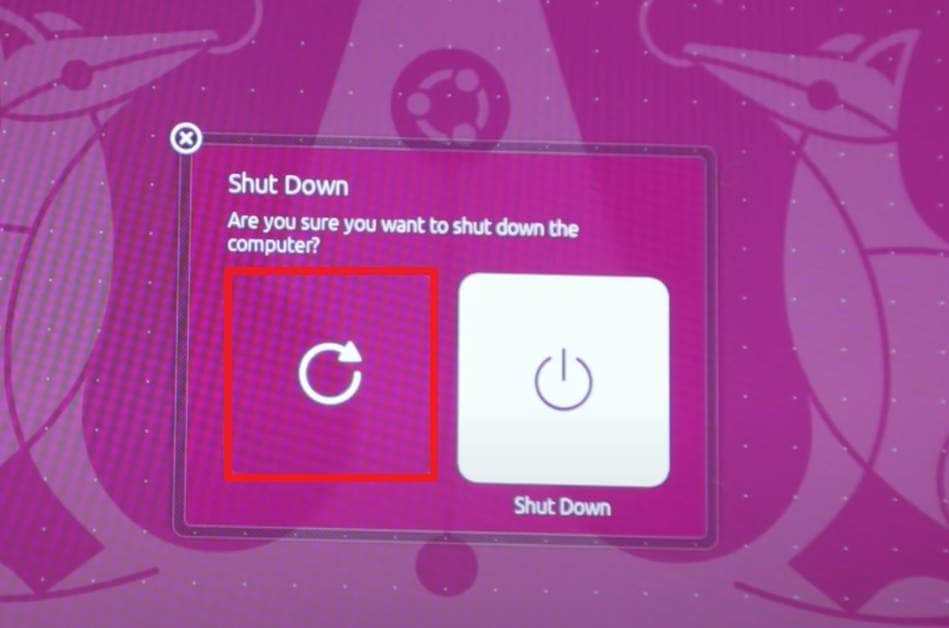
- Step 1. To learn how to reset Ubuntu password, reboot the laptop or virtual machine. Then, press the Shift key on BIOS systems or the ESC key on some UEFI systems until the GRUB menu appears.
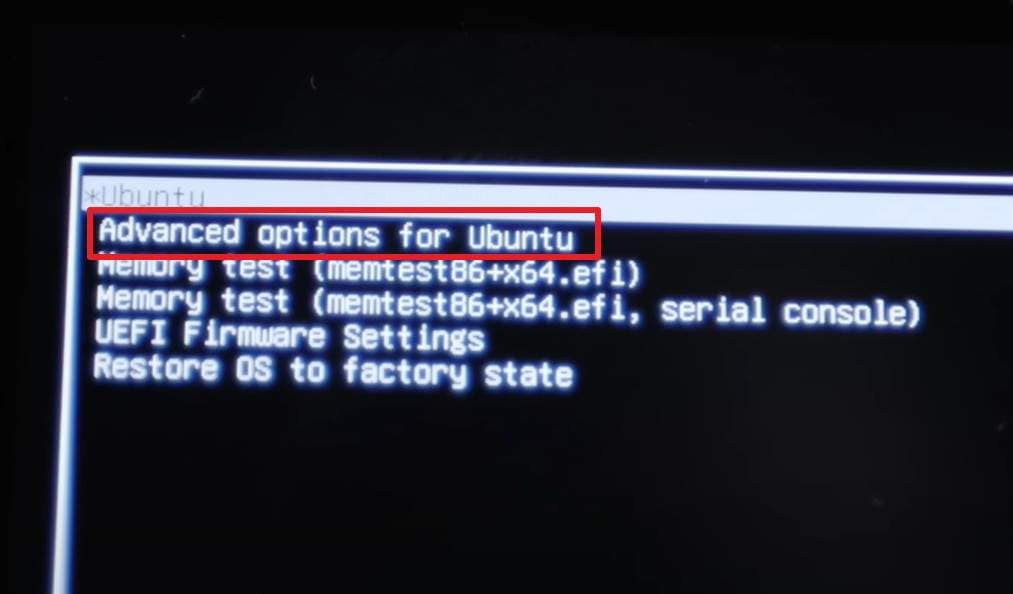
- Step 2. On the menu, select "Advanced Options for Ubuntu," then choose "Recovery Mode" on the new interface.
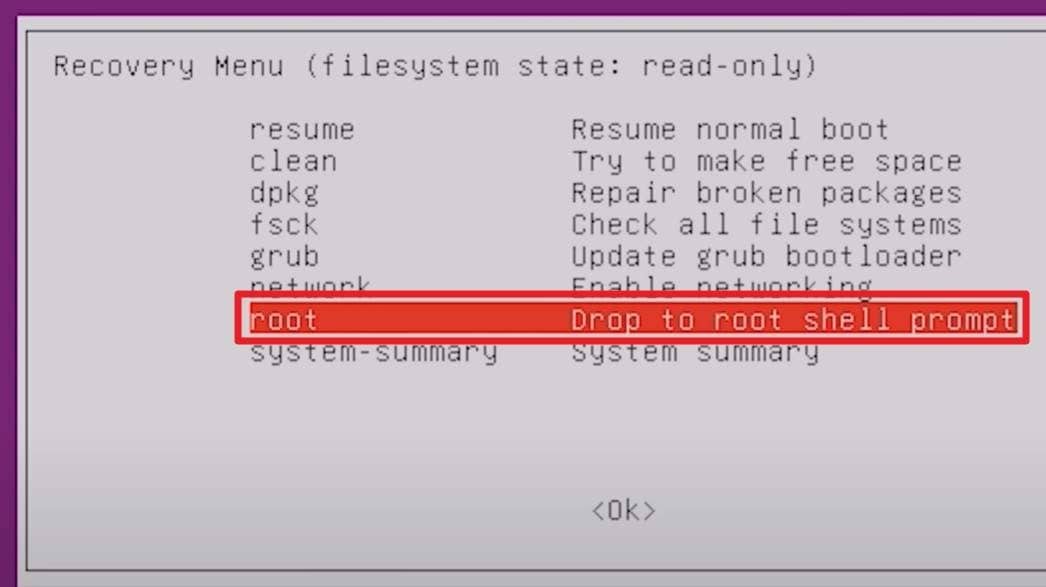
- Step 3. Within the recovery menu, opt for the "Root - Drop to Root Shell Prompt" option and press "Enter" for maintenance.
- Step 4. Now, run the "passwd" command with your username, for example: passwd "your_username" and replace your_username with your actual Ubuntu login name.

- Step 5. When you locate the "New Password:" option, enter the new passcode, press the "Enter" key, and retype the passcode to confirm.
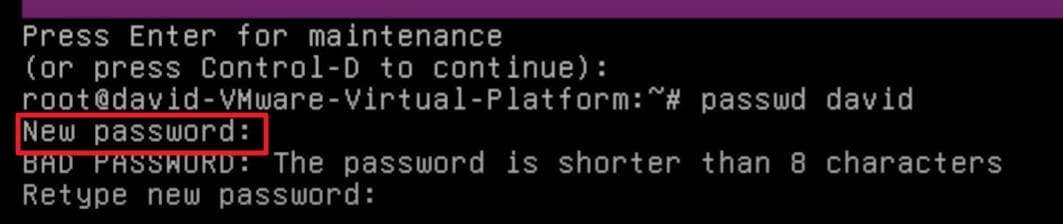
- Step 6. Now that the password has been updated successfully, type "Reboot" or "Exit," then choose the standard "Boot/Resume" option from the menu to restart.
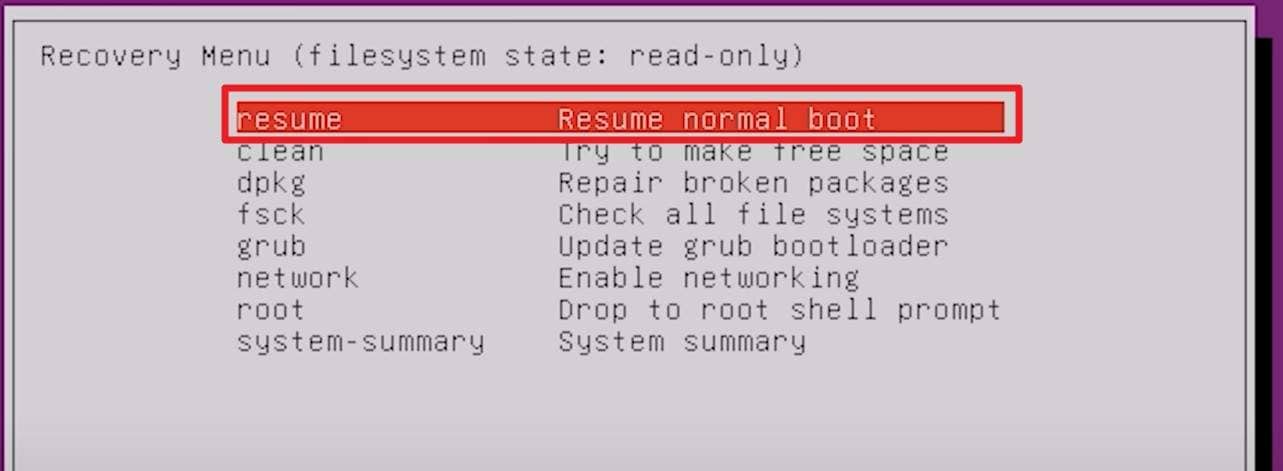
Method 2: Reset Password by Editing GRUB Parameters
Where It Usually Works:
- Desktop and laptop PCs that run Linux with GRUB as the default bootloader (BIOS or UEFI).
- Physical servers and cloud servers, where you can open a console and view or edit the GRUB menu.
- Linux virtual machines on hypervisors like VMware, KVM, VirtualBox, Hyper-V, Proxmox, or TrueNAS that show the GRUB boot screen.
Those who forgot Ubuntu user password can reset it by editing the GRUB boot settings, which gives a fast way to reach a root shell. You only need physical access to the device or a console view in a virtual machine. Hence, you do not need a USB drive, a rescue CD, or a fresh install, since the system uses its own bootloader and kernel to give you access, as illustrated below:
- Step 1. First of all, restart the system and press the key of the system (Shift or ESC) when the system starts. At this point, you need to highlight the default Ubuntu boot option by using the arrow keys and the "e" key to edit the boot commands.
- Step 2. Now, find the line that starts with "Linux" and navigate to the end of the line to replace "ro quiet splash $vt_handoff" with "rw quiet splash $vt_handoff init=/bin/bash." This tells the system to boot into a root shell with read-write permissions.
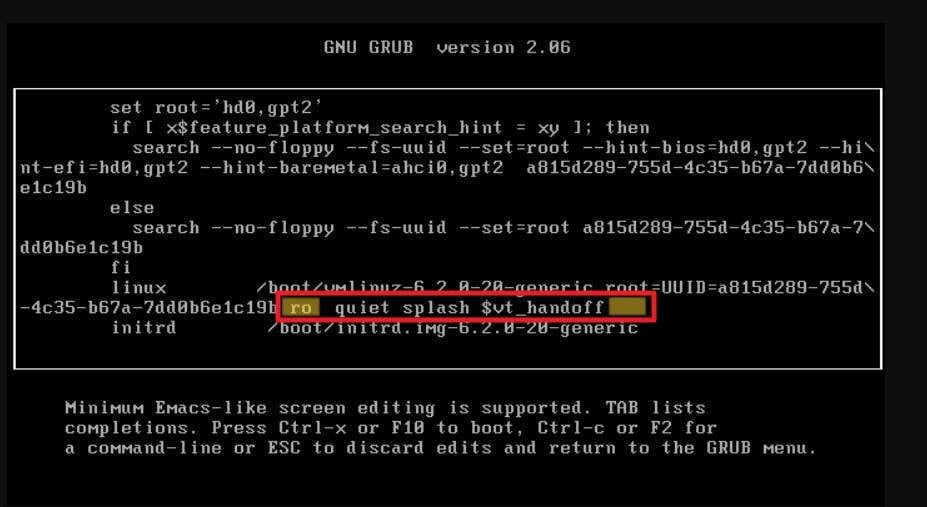
- Step 3. After that, hit the "Ctrl + X" or "F10" to boot into the root shell, and you should land in a root shell prompt (#). The filesystem should already be mounted as read-write "(rw)" due to the previous step, which can verify this with the command "mount | grep -w /." Now, to reset the passcode, type the "passwd" command followed by your "username," and if you forgot your username, type "ls /home."

- Step 4. On the prompt, enter "passwd username" and in place of username, input your real name. Next, enter the pass code and reenter it one more time to validate, but Linux will not show the letters on the screen due to security reasons.
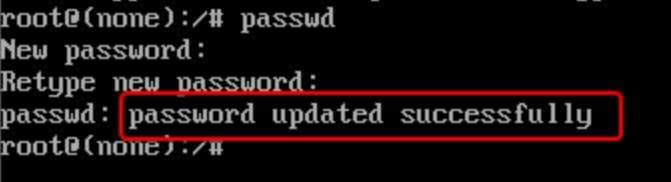
- Step 5. Now that you have reset the password, exit the root shell by typing "exit" and then reboot the system with the command "exec /sbin/init" or "reboot -f."
Pro Tip. Secure Your iPhone Credentials with Dr.Fone - Password Manager (iOS)
Though you know how to recover password Ubuntu via many ways, what if you are unable to manage any password on iPhones, and resetting seems hectic? In that case, Dr.Fone - Password Manager lets you recover lost passcodes with a quick Scan. The tool is designed to locate passwords saved on your iPhone/iPad for Wi-Fi networks, apps, websites, email accounts, Apple ID, and more.
Additionally, users can view and copy the saved passcodes, which the tool categorizes for easy access. Plus, one can export the credentials in CSV format and save them in password managers. In terms of usage, this iPhone password manager offers simple, guided steps for beginners and professionals, with the option to access Scan History later.

Dr.Fone - Password Manager (iOS)
Key Features of Dr.Fone- Password Manager
- Unlock and manage various passcodes, PINs, Face IDs, Apple ID, WhatsApp password reset, and touch ID without limitations.
- To find your password on an iOS device, it effectively functions without harming or leaking your information.
- Ease your job by finding any strong password across various platforms to manage multiple email accounts.
- The installation of Dr.Fone on your device won't take much space without any disturbing ads.


[Detailed Guide] Manage iOS Passcode with Dr.Fone - Password Manager (iOS)
While learning how to change Ubuntu password, Dr.Fone offers you an easy way to manage iOS passcode via the listed guide:
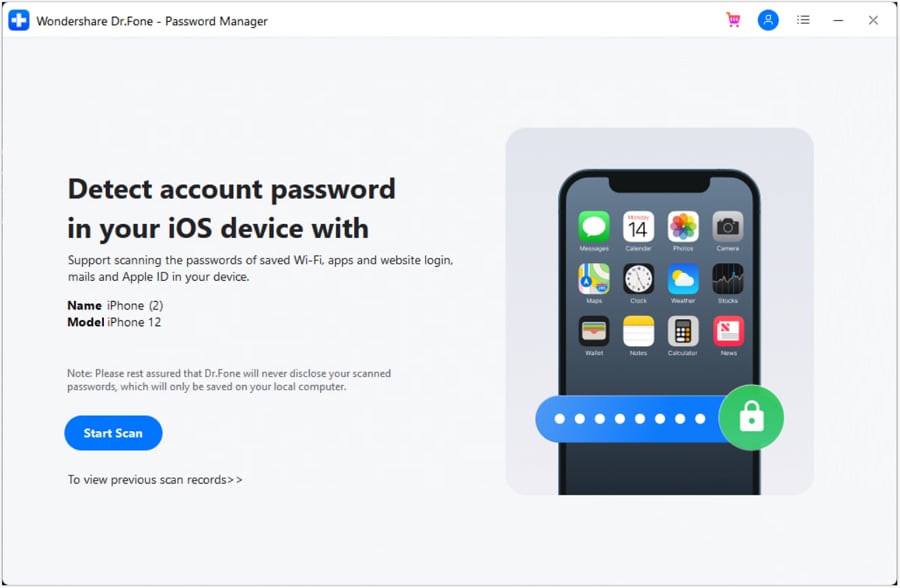
- Step 1. Access the Password Manager to Start the Scan
Connect your iPhone using the official USB cable and open the Password Manager tool from the Toolbox. Here, press "Start Scan" and enter the backup passcode, which will be removed after the scan.
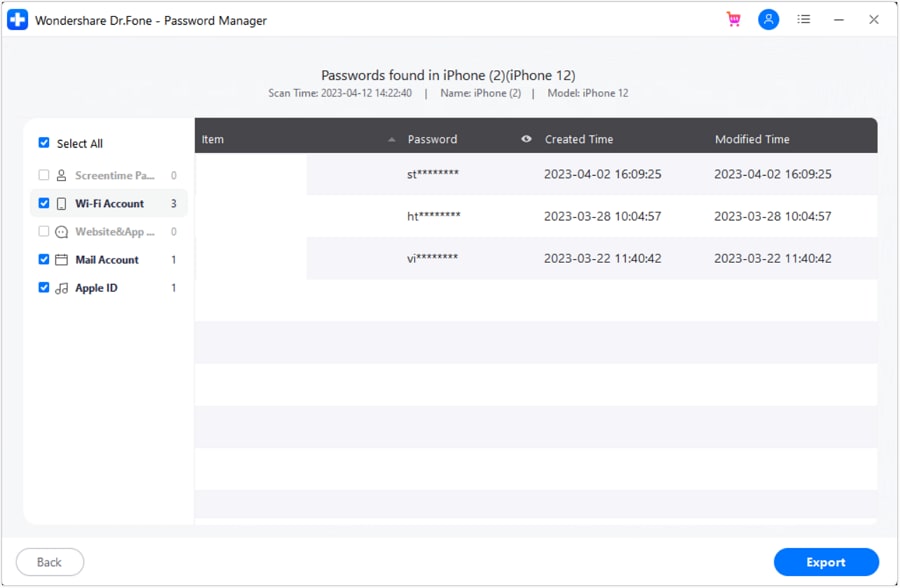
- Step 2. Locate the Password to Export & Save
After pressing the "OK" button once the tool fetches the passcodes, choose the desired one and click the "Export" button to save it in CSV format.
 safe & secure
Part 2. Alternative Password Reset Methods for Special Environments
When dealing with the Ubuntu password recovery, some systems may not allow standard GRUB or Recovery Mode access. Therefore, alternative methods like using a live USB, chroot environment, or network-based recovery become necessary. To know about them and how to perform, review the listed details for guidance:
Method 3: Using Live USB
Where It Works:
- PCs and laptops from Dell, HP, and Lenovo that can boot from a Ubuntu USB.
- Ubuntu versions 16.04-24.04 and derivatives like Kubuntu, Xubuntu, and Linux Mint.
- Physical machines and VMs supporting USB boot: VirtualBox, VMware, KVM, Hyper-V, cloud providers.
When you use a Live USB to reset an Ubuntu password, you start the computer from a USB drive with a temporary Ubuntu system. From there, you mount your installed system's disk and change the password. Thus, this method does not depend on the installed bootloader, so it works even if GRUB is broken, hidden, or locked. Plus, it lowers the risk of mistakes since you do not touch GRUB or kernel settings, as guided:
- Step 1. Before you start, have an Ubuntu Live USB like 18.04, 20.04, 22.04, 24.04, and a machine that can boot from USB. Ensure it has an encrypted Ubuntu installation whose password you
At this point, access the BIOS/UEFI boot menu by pressing the "F12 or F10, or ESC" keys to boot from the USB drive. On the menu, select the "Try or Install Ubuntu" option to pick the "Try Ubuntu" option to open a temporary desktop/live environment.
- Step 2. Open the "Terminal" in Live session and list disks and partitions to find your Ubuntu root partition. For example, with: sudo fdisk -l or lsblk (look for an ext4 partition of the right size, such as /dev/sda2 or /dev/nvme0n1p3).

- Step 3. Now search for the "Disks" and create a mount point, mount that partition, and enter the given commands:
sudo mkdir /mnt/myroot
sudo mount /dev/sdXY /mnt/myroot
Note: Replace /dev/sdXY with your actual device, e.g., /dev/sda2.

- Step 4. After that, change root into the installed system and type the listed command:
sudo chroot /mnt/myroot
You are now working in your installed Ubuntu as root, so any commands change the real system, not the live USB.

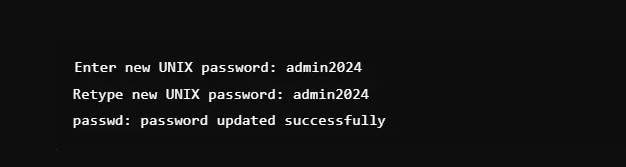
- Step 5. In the chroot shell, run "passwd username" and replace username with your actual Ubuntu login name. After that, enter the passcode when asked until it says the password was updated successfully. Once done, type "exit" and reboot your system.
Method 4: In WSL
WSL can also be tried by those interested in learning how to change password in Ubuntu. It is compatible with any distro of Ubuntu installed via the Microsoft Store in WSL 1 or 2, such as Ubuntu 18.04, 20.04, 22.04, and 24.04. Besides, it supports Windows 10 and Windows 11 when WSL is installed, and the distro is regular.
Therefore, it will allow you to regain sudo or admin privileges in WSL without reinstallation of the distribution and without the need to lose files and/or settings. It is all done within a basic high-elevated PowerShell or CMD window, as seen below:
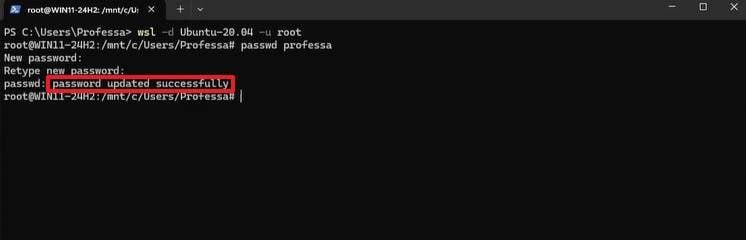
- Step 1. Launch Windows PowerShell or Command Prompt and type "wsl -d Ubuntu -u root" or "wsl -d Ubuntu-20.04 -u root." You should now see something like "root@DESKTOP-...:/#", which means you are logged into Ubuntu as the root user.
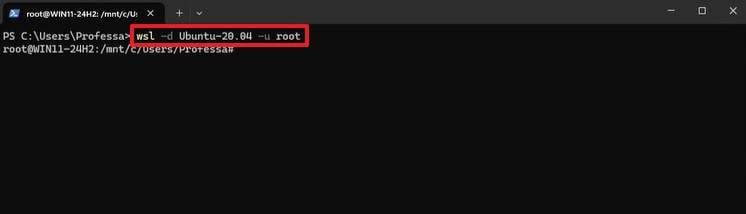
- Step 2. After that, type "passwd yourusername" and replace yourusername with the name from "/home/" Type your new password twice; you should see a message saying "password updated successfully" on the display.
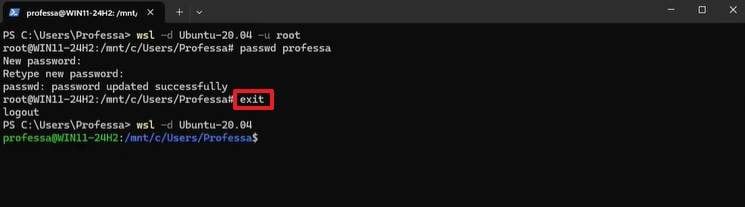
- Step 3. After that, type "exit" to exit the root shell and restart the WSL using your regular user account. If needed, use "wsl -d distribution_name" and test your reset password by running "sudo fdisk -l."
Method 5: On VirtualBox
To learn how to reset password in Ubuntu, VirtualBox helps you regain access to a locked VM, for example, when you forget the login password. The method uses GRUB or recovery mode from the VM console. It works almost the same as on a physical machine, but VirtualBox makes it easier to see the GRUB menu and control the boot process, as shown:
Note: This method works on Ubuntu desktops and servers installed as guests in VirtualBox on Windows, macOS, or Linux hosts, including Ubuntu 18.04, 20.04, 22.04, and 24.04.
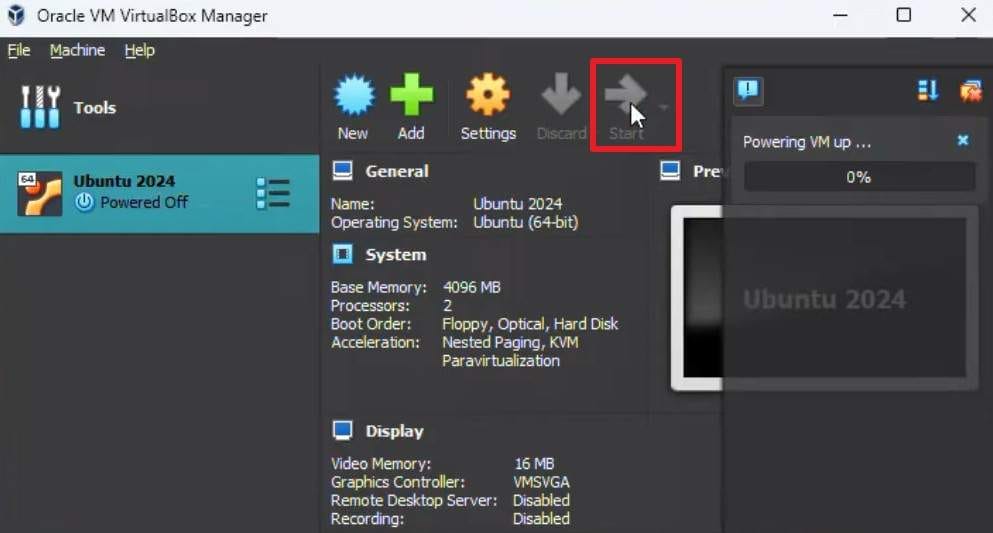
- Step 1. Launch Oracle VirtualBox and open your existing Ubuntu virtual machine. After that, press the "Start" button on the main interface to boot the VM.
- Step 2. Now, expand the "Machine" menu, select the "Power Off" icon, and reboot the VM.
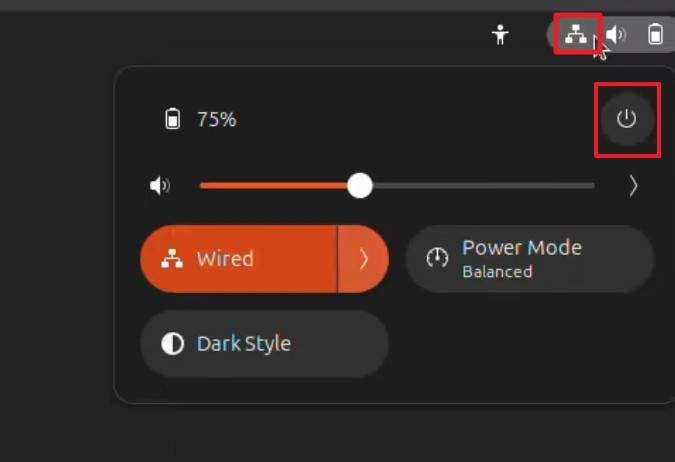
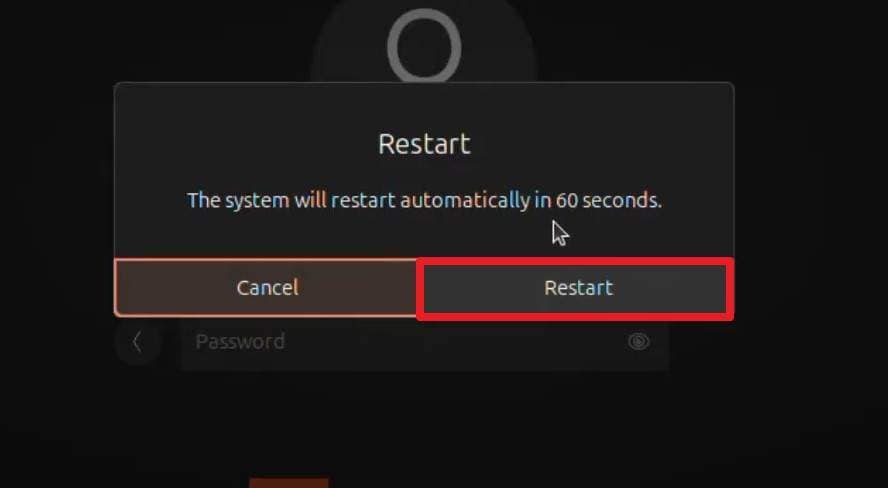
- Step 3. On the confirmation pop-up menu, choose the "Restart" option to commence.
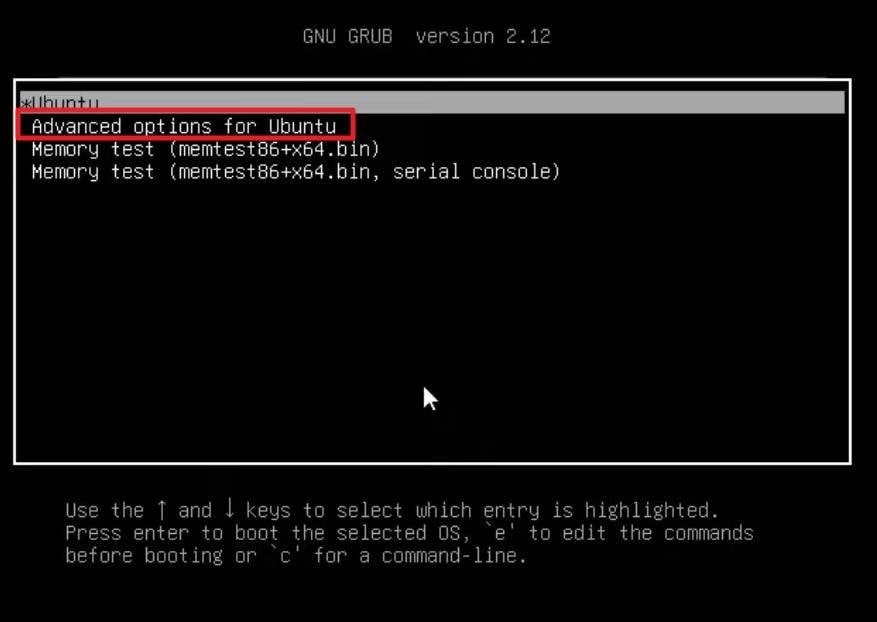
- Step 4. Hold down the "Shift" or "ESC" key during the system reboot until the GRUB menu appears. There, choose the "Advanced Option for Ubuntu" option and pick the option that ends with "Recovery Mode" on the new interface.
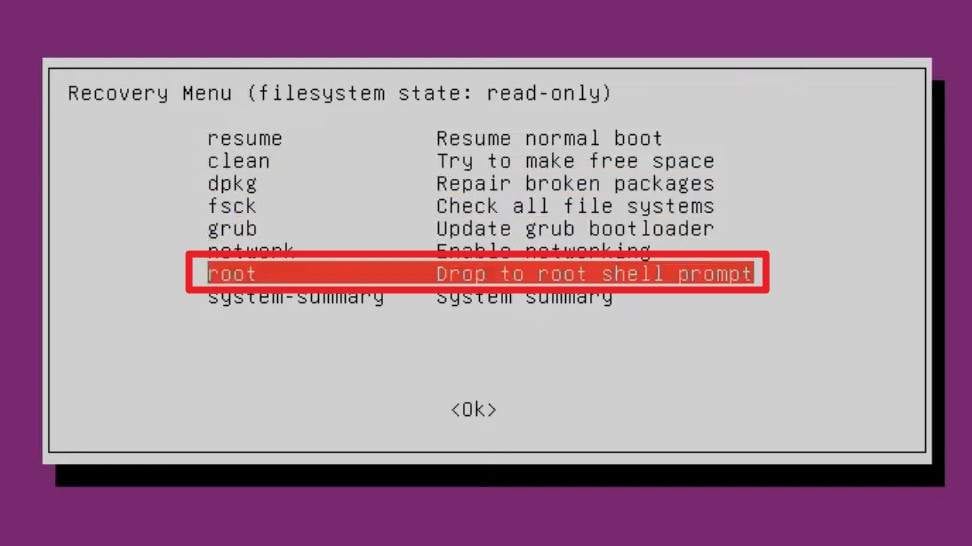
- Step 5. This will boot your virtual machine into recovery mode and navigate you to the "Recovery Menu." There, choose the "Root - Drop to Root Shell Prompt" option and press the "Enter" key.
- Step 6. Press the "Enter" button again for maintenance, then run the command "mount -o remount,rw /" and press "Enter" again.
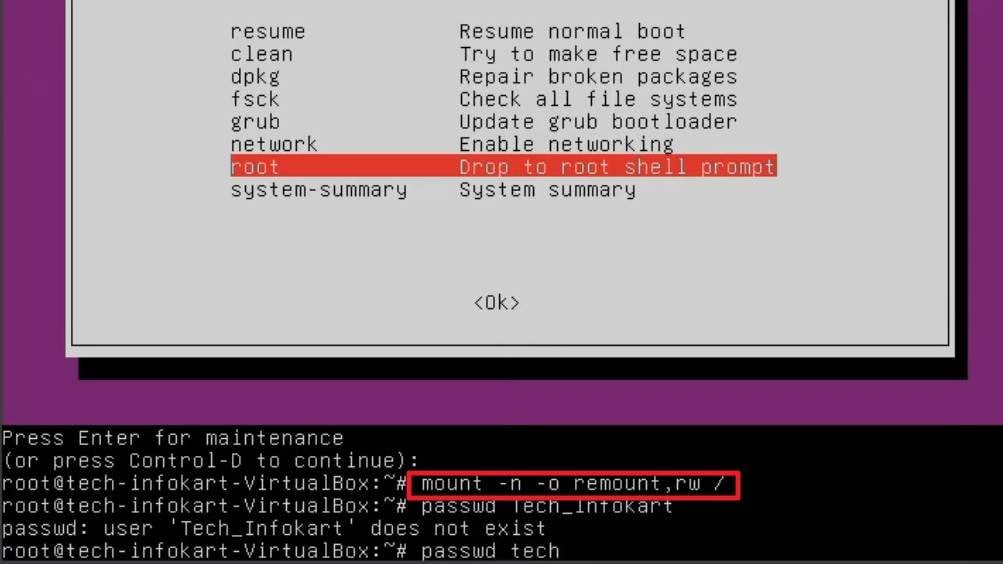
- Step 7. If you know the username, type "passwd username," replace "username" with your actual user, and press the "Enter" key.
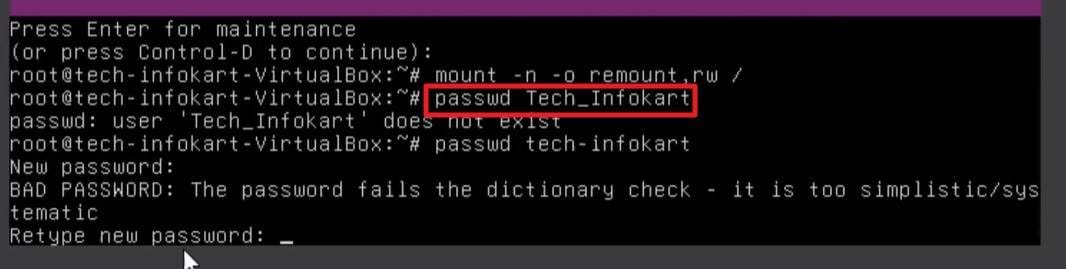
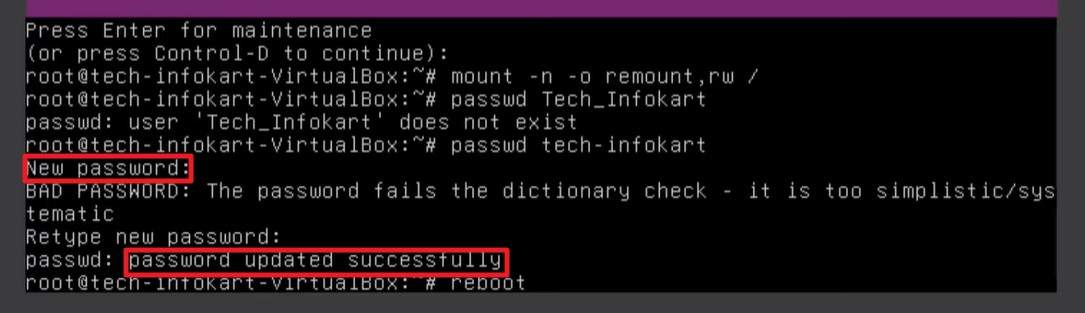
- Step 8. Type the new password twice when prompted, and no characters will appear as you type. So, retype the passcode, and you will see a message indicating the password was updated successfully.
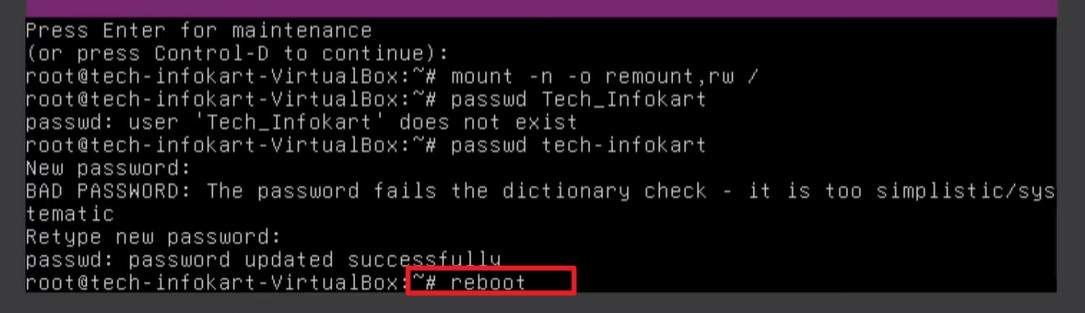
- Step 9. Now, type "reboot" and press the "Enter" key, and let the Ubuntu boot normally and log in with the new password at the VM login screen.
Part 3. Best Practices to Avoid Forgetting Your Ubuntu Password
"I forgot Ubuntu password" several times, but you can avoid this recurring issue by following the listed tips and keeping your system access smooth.
|
Tip |
What To Do |
Why It Helps |
| Use a Passphrase | Combine several simple words plus numbers, like a short sentence. | Easier to remember than a random string but still strong. |
| Avoid Reusing Passwords | Don't use the same password used for email, social apps, or Windows. | Limits damage if one account is hacked. |
| Write It in a Safe Place | Store it in a locked notebook or a secure password manager. | Gives you a backup if you forget. |
| Create a Password Hint | Use a hint only you understand, not the actual password. | Helps you recall the password without exposing it. |
| Practice Typing It | Log in several times after setting it, slowly and carefully. | Builds muscle memory, reducing the chances of forgetting. |
Conclusion
To wrap up, for those who forgot Ubuntu password and want to reset it using safe methods, this guide lists 5 solutions. So, review the listed ways, along with the steps, and learn how you can manage iOS passwords too with Dr.Fone Password Manager iOS. This ensures you keep all your device passwords organized, secure, and easy to recover whenever needed.
safe & secureFAQs
 1. Will resetting the password affect encrypted folders? 2. How often should I update or back up passwords? 3. Do I need technical skills to reset Ubuntu passwords?
Password Manager
- App Password
- 1. Change Instagram Password
- 2. Find Facebook Password
- 3. Find Snapchat Password
- 4. Find Tiktok Password
- 5. Find Twitter Account
- 6. Find Instagram Password
- 7. Recover Facebook Password
- 8. Recover WhatsApp Password
- 9. Recover Instagram Password
- 10. Recover Microsoft Account
- 11. Recover iCloud Password
- Mail Account
- 1. Find Lost Gmail Password
- 2. Find Hotmail Password
- 3. Find Email Password on iPhone
- 4. Find Outlook Password
- 5. Reset Gmail Password
- 6. Recover iCloud Email Password
- Website Login
- 1. Manage Chrome Password
- 2. Import Passwords to Chrome
- 3. Manage Google Password
- 4. View Saved Passwords on Browser
- 5. Reset Yahoo Password
- Other iPhone Problems
- 1. Recover Apple ID
- 2. Recover Screen Time Passcode
- 3. Find Passwords On Android
- 4. Best Password Managers
- 5. Reset Password on Win 10
- 6. View Saved Browser Passwords
- 7. See Saved Passwords on iPhone
- 8. Access Saved Passwords on iPhone
- 9. Find iPhone Password
- 10. Fix 'Passcode Requirement' Pops
- 11. Crack Excel/Word/PPT Password
- ● Manage/transfer/recover data
- ● Unlock screen/activate/FRP lock
- ● Fix most iOS and Android issues
- Manage Now Manage Now


 > How-to > Password Recovery Solutions > Forgot Ubuntu Password? 5 Fast Methods to Reset Your Ubuntu Login
Selena Lee
chief Editor
Generally rated4.5(105participated)