
TikTok No Sound? How to Fix TikTok Audio Issues on iPhone & Android

Sep 24, 2026 • Filed to: Phone Repair Solutions • Proven solutions
 TL;DR:
Fixing the TikTok no sound issue requires disabling device-level Do Not Disturb modes, toggling off the "Open TikTok in Mute" playback preference, and verifying that the audio track is not restricted by platform copyright policies.
● To clear corrupted playback data, Android users can utilize the specific "Clear Cache" function within their app management settings, whereas iPhone users must completely delete and reinstall the application to remove hidden caches.
● If external videos play normally but your personal uploads are completely silent, you must manually grant microphone access in the OS settings to allow TikTok to capture voice and background sound during recording.
● For persistent system-level audio failures, Dr.Fone - System Repair can download device-specific firmware to fix the issue, offering compatibility with the latest iOS 26, iPadOS 26, and iPhone 17 Series, while requiring Android users to input the code "000000" to authorize the repair.
Ask AI for a summary
 ChatGPT
 Perplexity
 Gemini
 Claude
 Grok
Grok
Many users report that TikTok fails to play any sound, and this issue can occur on both iPhone and Android devices. Regardless of the cause, it can be frustrating and can hinder the facility from watching or creating content. Therefore, knowing why the no sound on TikTok issue occurs and whether the app or device issue is the root cause is vital.
To that end, this guide explains all aspects in detail to help you tackle the sound issue using Android- and iOS-specific fixes. In addition, learn how tools like Dr.Fone can be the best choice to resolve the system audio glitches in real-time.
 safe & secure
4,624,541 people have downloaded it

Part 1. Why Is There No Sound on TikTok?
TikTok no sound means that the video plays, but no audio is heard. This can happen if your device or app volume is too low or muted. In addition, TikTok sometimes mutes videos for copyright or policy reasons. Other times, the soundtrack is missing or corrupted due to app glitches or a lack of microphone access.
No Sound on TikTok Video: Common Reasons
To know the detailed causes for the no sound on TikTok video issue, review the listed table for clarity:
| Category | Common Reason | What It Means In Practice |
|---|---|---|
| Device Sound | Phone volume/mute or silent switch on | Video plays, but system audio is turned down/muted |
| Output Destination | Bluetooth/headphones issue | Sound is going to another device, not speakers |
| App Volume/Settings | In‑app volume is low or muted | TikTok's own audio slider is at zero |
| App/Cache Problems | Bug, outdated app, or corrupted cache | Audio track fails to load or play correctly |
| Recording Issue | Mic permission off / mic not working | The video was recorded without any sound captured |
| Copyright/Policy Limits | TikTok muted the audio for copyright or region | The video is intentionally posted with sound removed |
| Creator Choice | Uploaded as silent or music volume set to 0 | Clip has no audio by design |
Part 2. Quick Fixes for TikTok No Sound (Works on Both iPhone & Android)
When the TikTok has no sound, review the 5 listed ways that you can seamlessly try on Android and iOS:
Fix 1. Turn Up Media Volume and Unmute Device
If the issue is because of volume or mute settings, not TikTok's bug, unmute the device and turn up the media volume. Since the process works on both devices, you can use the physical buttons to restore sound immediately. In addition, it helps confirm if the other app also has no sound; the problem may relate to the device speakers or the system.
Fix 2. Check TikTok's In‑App Volume
Even after checking the device volume, if you still get no sound on TikTok, inspect the in-app volume. There is a chance that the app may mute or lower the sound even if the phone volume is high. Hence, verifying this separates the phone volume issues from TikTok's controls, indicating whether the problem lies with the app or the system, as guided:
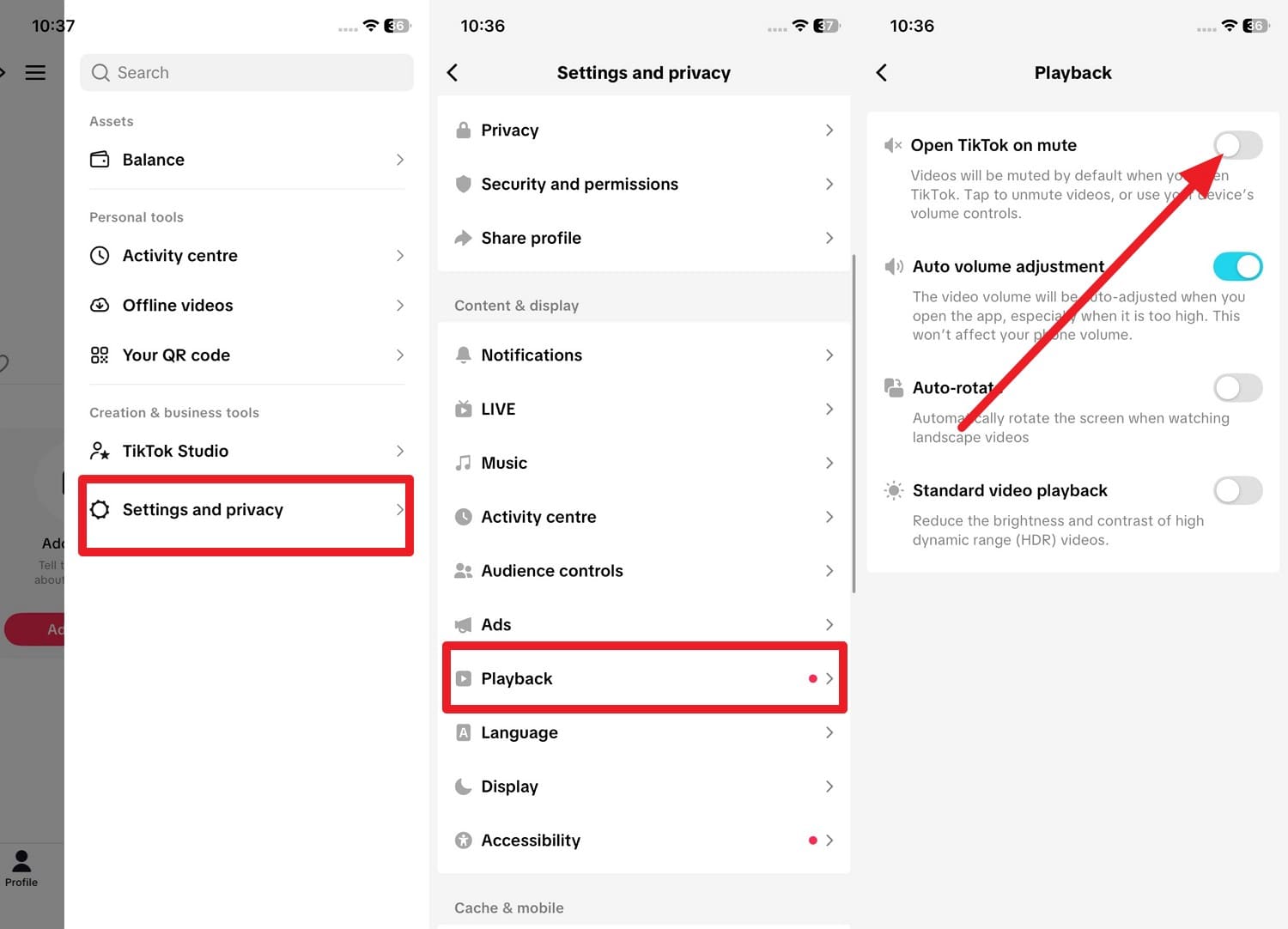
Instructions: Go to the "Profile" section and press the "Hamburger" icon to choose "Settings and Privacy." After that, locate the "Playback" option in the Content & Display section. Then toggle off the "Open TikTok in Mute" option so that videos no longer start muted by default.
Fix 3. Restart TikTok and Your Phone
When you get no sound on a TikTok video, try restarting the app and the phone. A restart can clear temporary OS-level glitches on Android and iOS that may block sound across the app. In addition, as you close and reopen the app, it refreshes its sections, reloads the feed, and restores audio playback. Plus, a quick restart is safer than clearing data or reinstalling the app, and often restores sound in seconds.
Restart TikTok [Android & iOS]
For Android
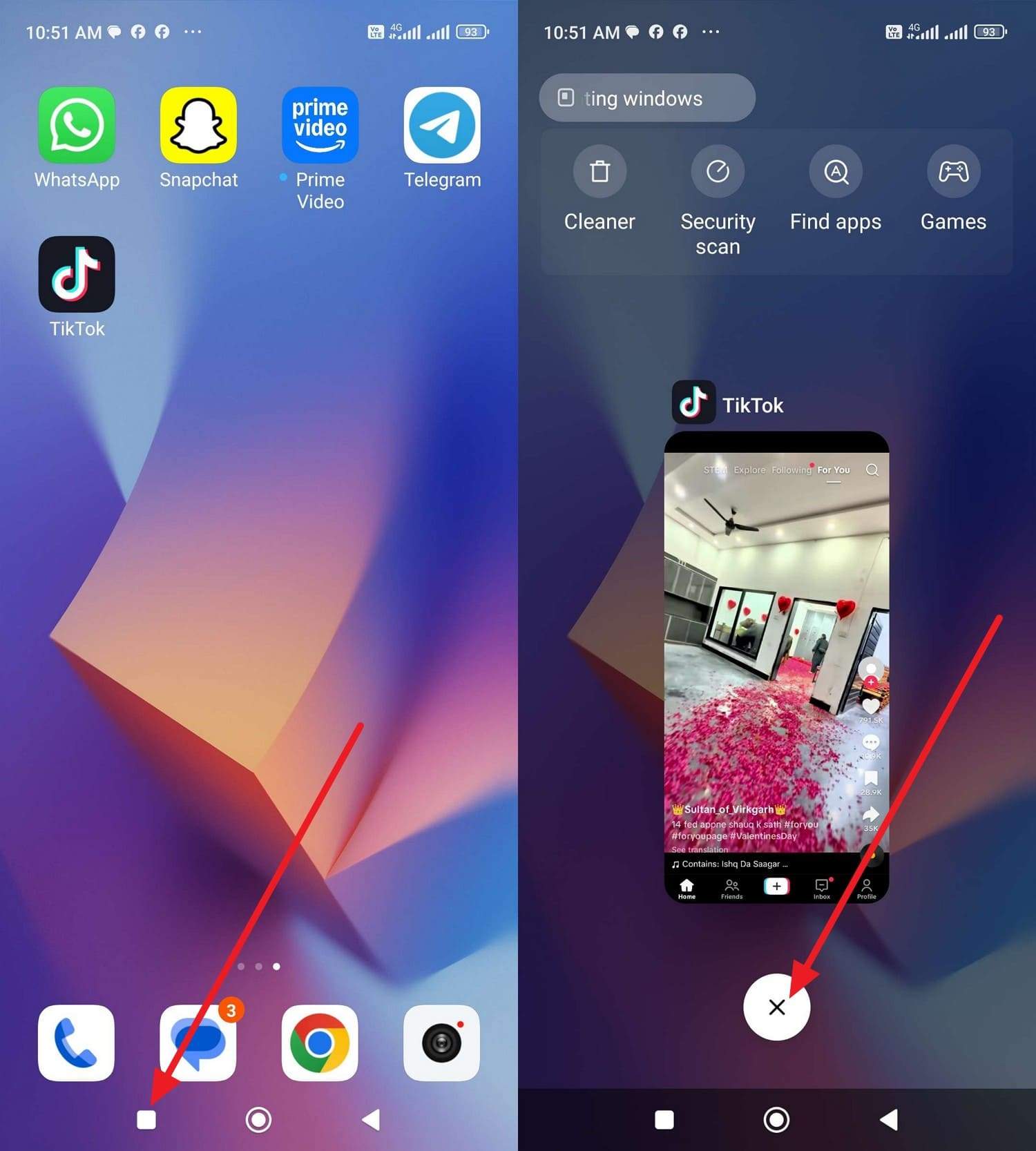
Instructions: Tap the "Box" icon on the home screen, then locate the TikTok app card in the "Recent Apps" interface. Select the "X" icon or swipe right to close it, open TikTok again, and see if TikTok still has no audio.
For iPhone
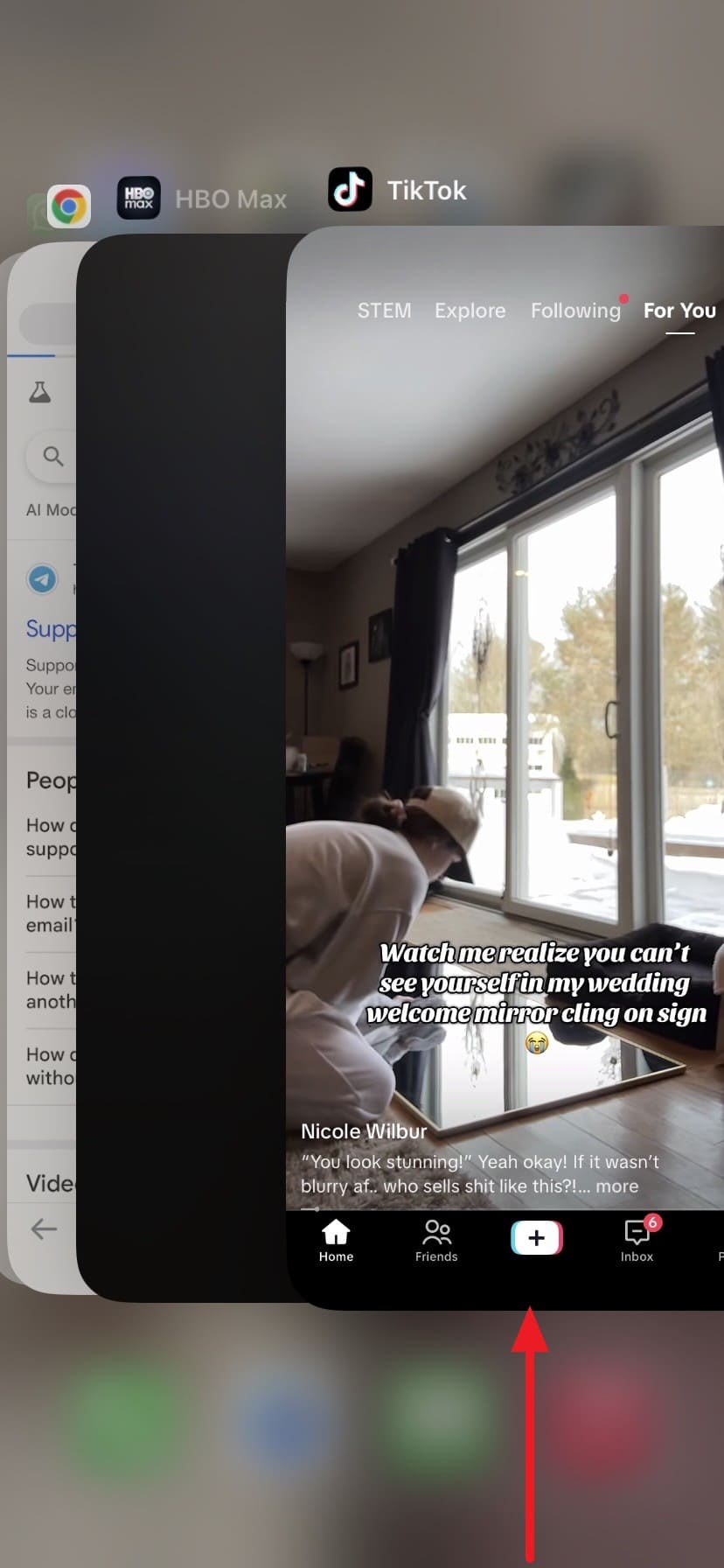
Instructions: Swipe up to head to the App Switcher and "Swipe Up" on the TikTok to close it. Reopen it and see if the no sound issue persists.
Restart Phone [Android & iOS]
For Android
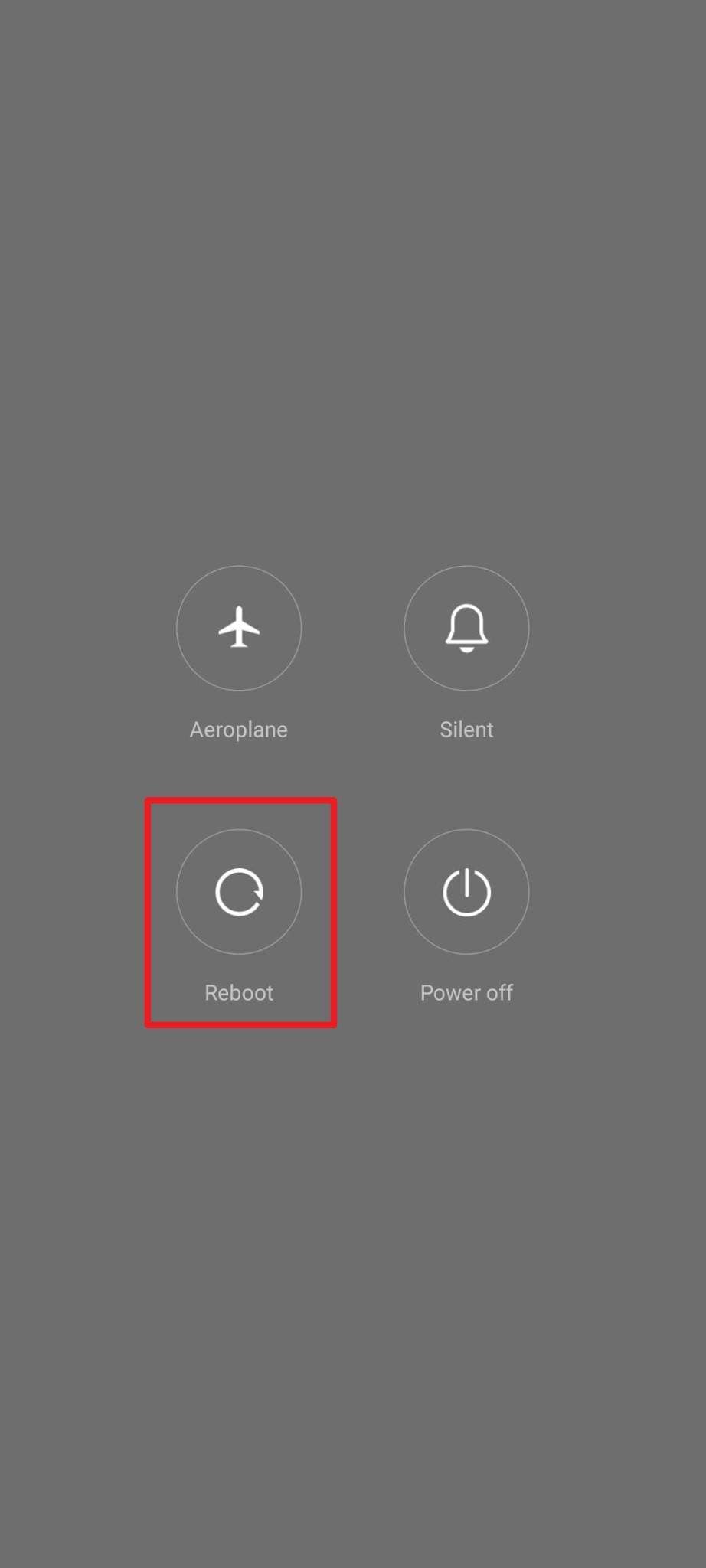
Instructions: Hold the "Power + Volume Up" button and tap the "Reboot" option when it appears to restart.
For iPhone
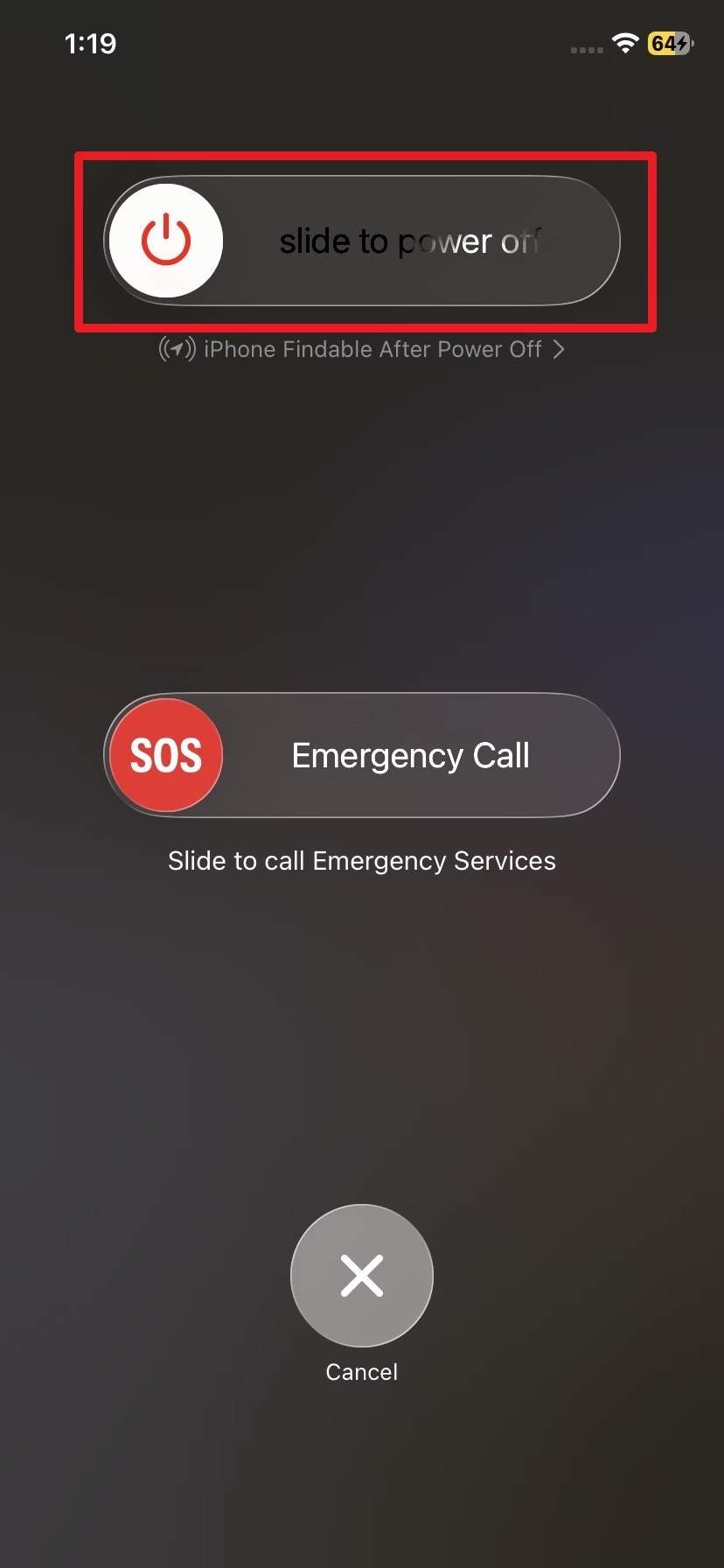
Instructions: Choose to press the "Volume + Volume Up" button and slide the "Slide to Power Off" slider to restart iOS.
Part 3. How to Fix TikTok No Sound on iPhone
Other than trying the quick fixes on both Android and iOS, try the given iOS-specific issues for the no sound on TikTok video issue:
Fix 1. Disable Focus / Do Not Disturb
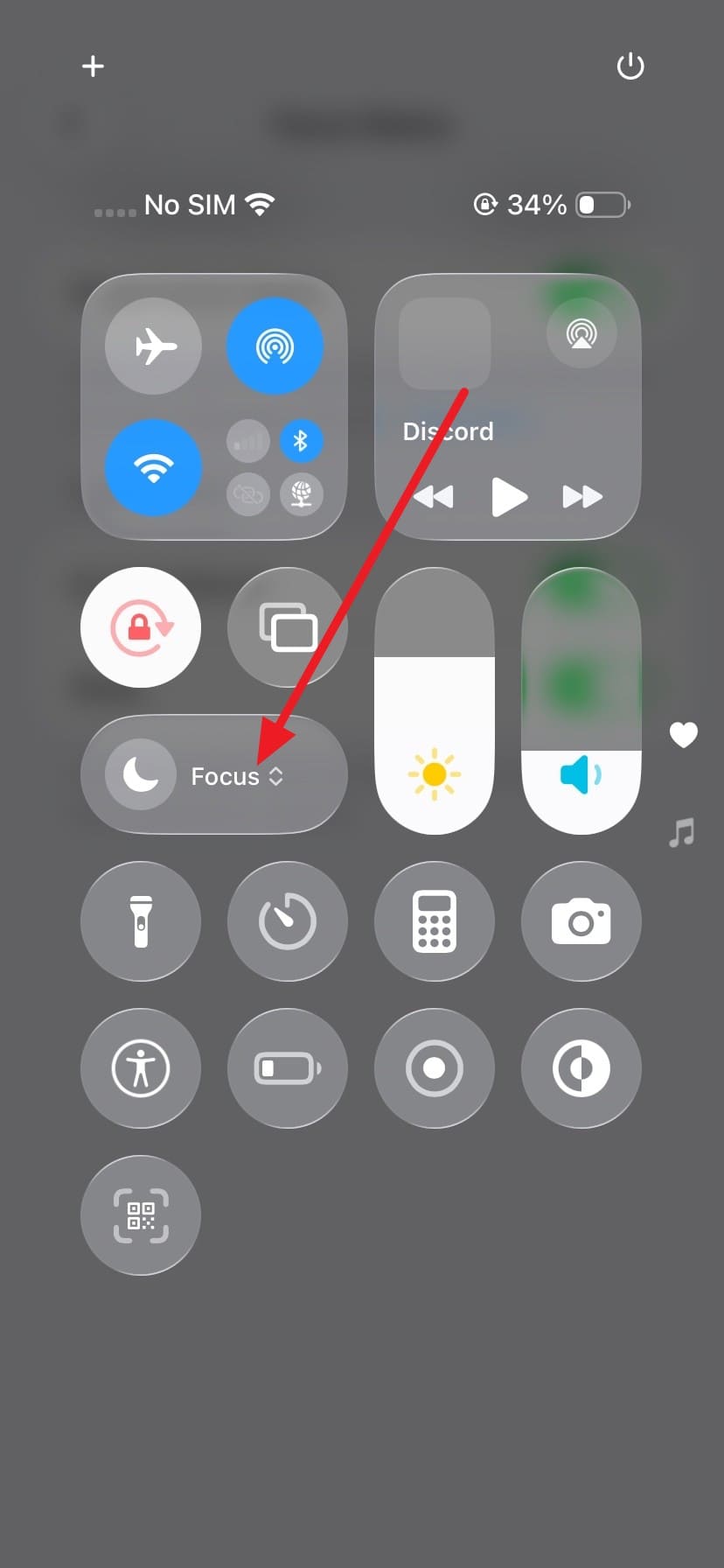
Trying this fix can resolve the no-sound issue when these modes silence the app and limit TikTok audio. As you turn them off, TikTok plays at full volume and treats its sound as normal media. Furthermore, turning off the focus mode via the listed steps ensures TikTok audio works reliably and removes system interference, so videos play with normal volume every time:
Instructions: In the Control Center, press the "Moon" icon to disable Focus mode if it is enabled.
Fix 2. Enable Microphone for TikTok
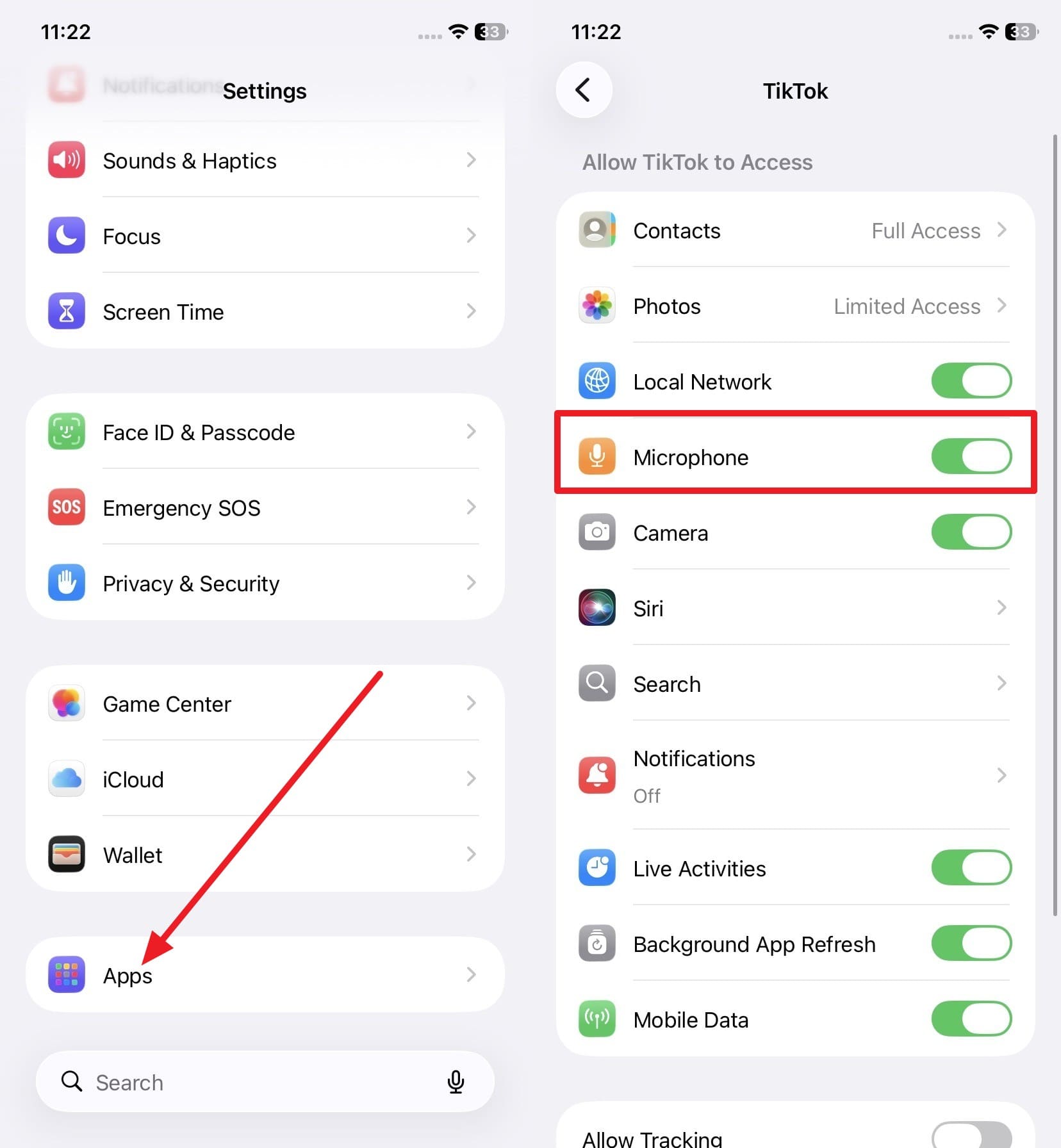
When TikTok has no sound on an iPhone, enabling the microphone is essential for your own videos. If the permission is off, TikTok cannot record voice, original sound, or live audio. Once disabled, it will let new videos include your voice and background audio. Moreover, this also fixes cases where other people's videos play fine, but your uploads are silent, and are guided ahead:
Instructions: Choose TikTok from the "Apps" settings and toggle on the "Microphone" option.
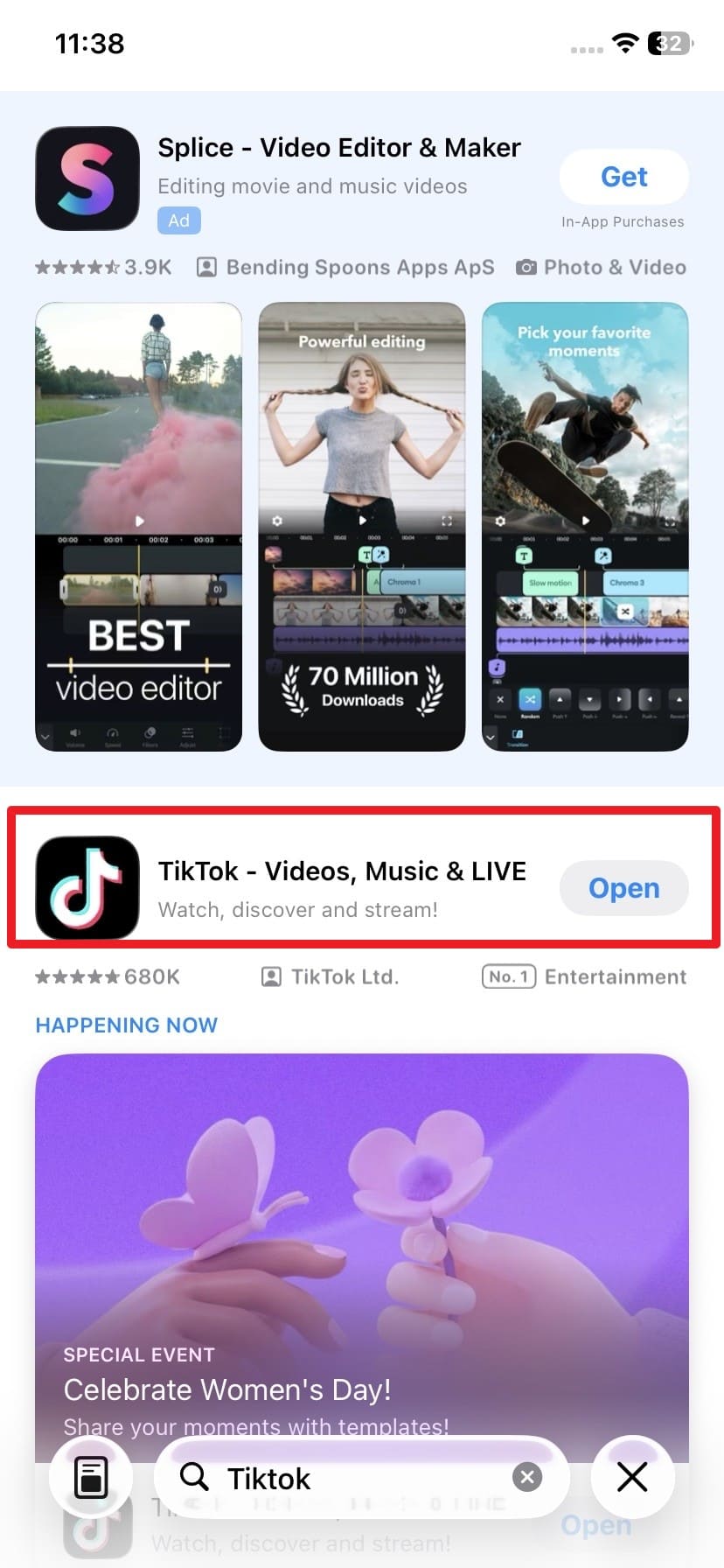
Fix 3. Update TikTok to the Latest Version
An updated TikTok app version can also resolve the no sound on TikTok issue, as older versions may have bugs or compatibility issues. Hence, updates fix glitches where audio doesn't play, cut out, or sync incorrectly. They also ensure the app works with the newest iOS audio system and replaces corrupted files, once updated via the mentioned steps:
Instructions: As you search for TikTok in the App Store, tap "Update" if it's available.
Fix 4. Reinstall TikTok
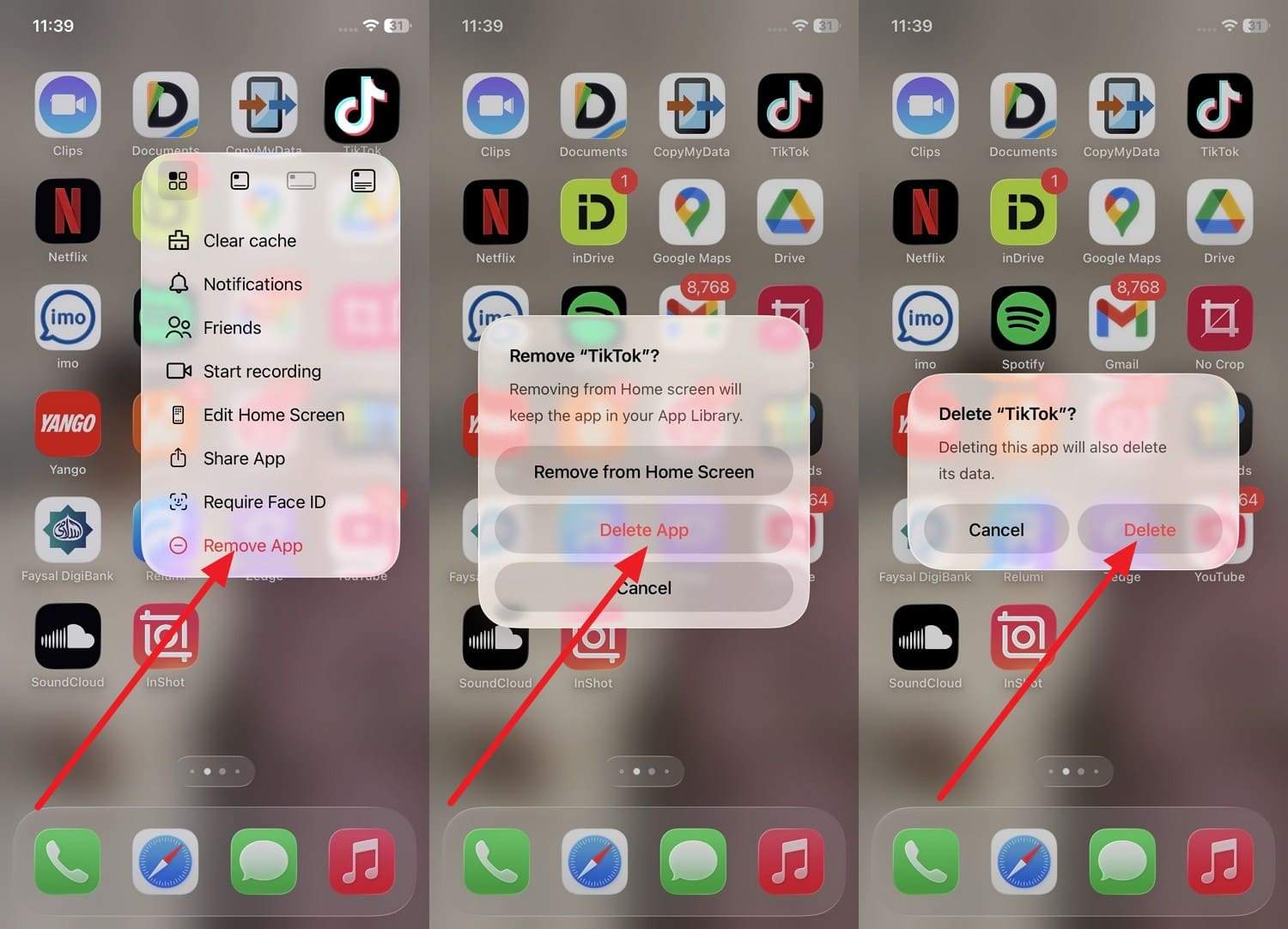
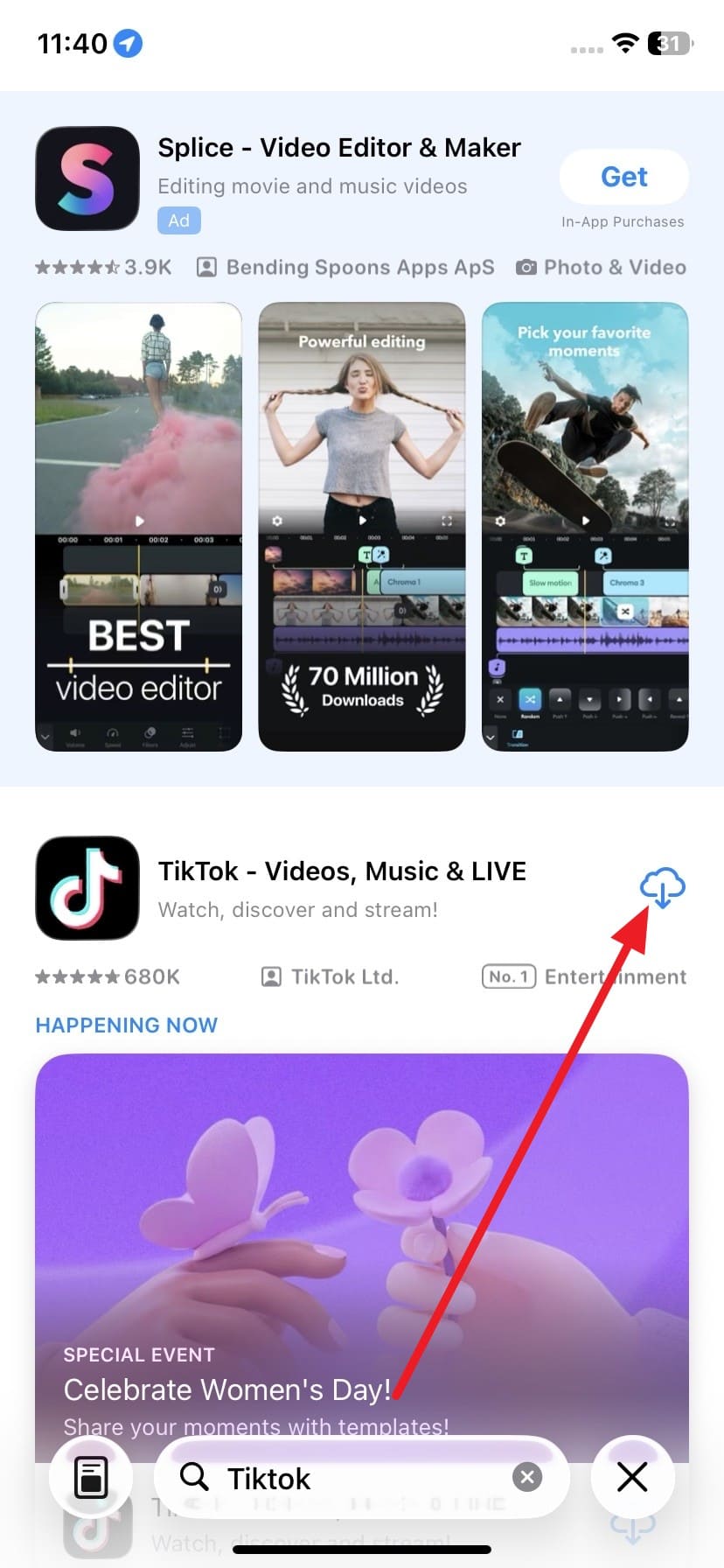
This solution can also give the app a fresh start; deleting it removes corrupted files that may block audio and clears hidden caches or misconfigured settings. Plus, it also ensures you get the latest app version with all audio bug fixes and iOS compatibility updates. So, to resolve the TikTok no audio issue, here is how you can reinstall the TikTok app:
- Step 1. Long-press the TikTok app to choose the "Remove App > Delete App > Delete" option.
- Step 2. Press the "Cloud" icon on the App Store and reinstall TikTok.
Part 4. How to Fix TikTok No Sound on Android
If you encounter no sound on the TikTok video while using Android, the following 5 solutions can help you resolve the problem quickly.
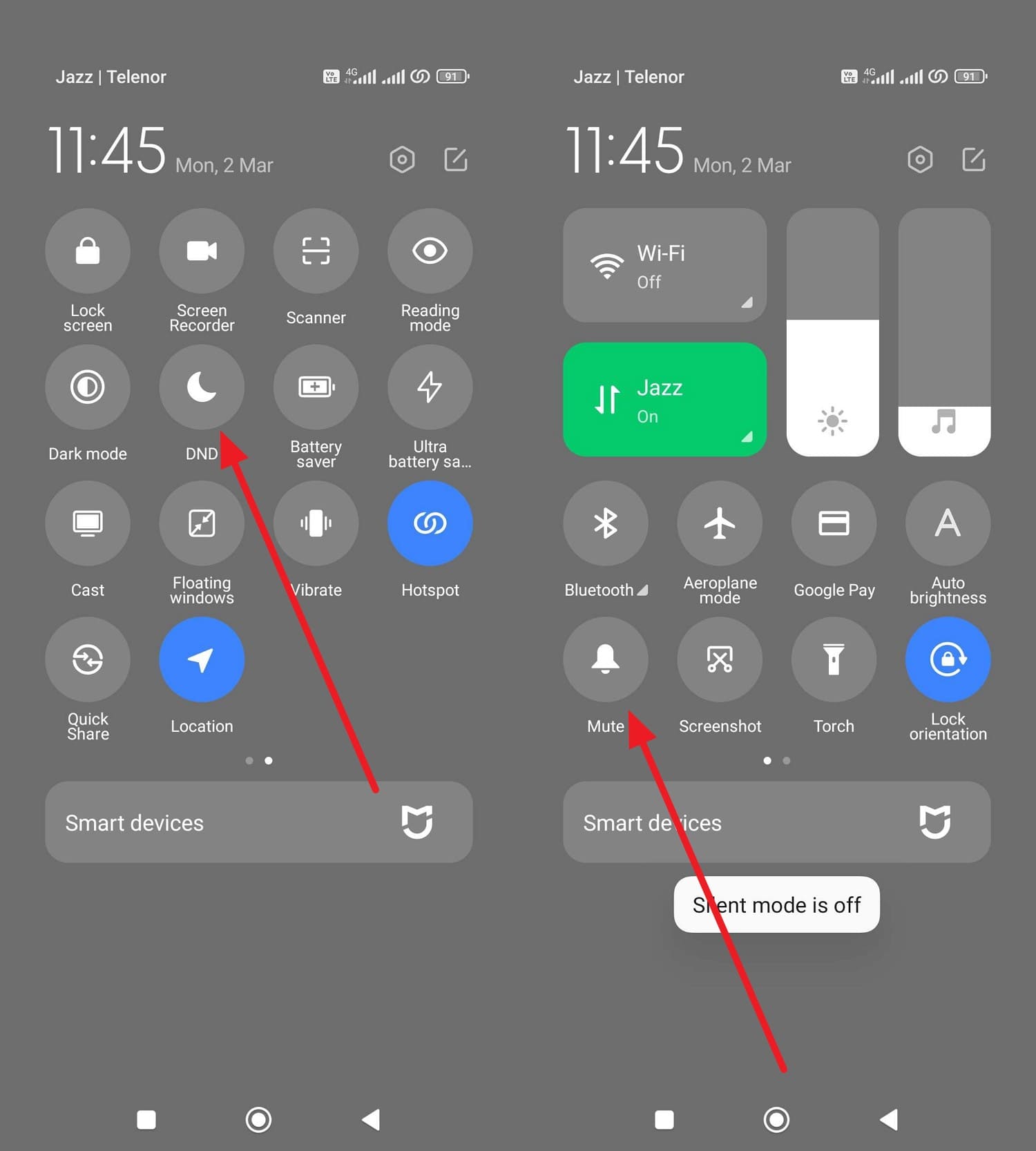
Fix 1. Turn Off Do Not Disturb / Sound Modes
As you turn off Do Not Disturb (DND) and similar sound modes, it can fix the TikTok no audio problem. Accidental or scheduled DND activation can cause random silences, so turning it off restores consistent audio. So, follow the listed guide and learn how to do so in a few taps:
Instructions: As you swipe down to the Control Center, disable the "Mute" and "DND" modes.
Fix 2: Clear TikTok Cache
Know that corrupted audio snippets or playback data can stop videos from playing sound properly. So, clear the cache to fix in-app glitches so that TikTok can rebuild fresh files without affecting your account, drafts, or videos. Plus, a smaller cache helps videos load faster and keeps audios in sync, as demonstrated:
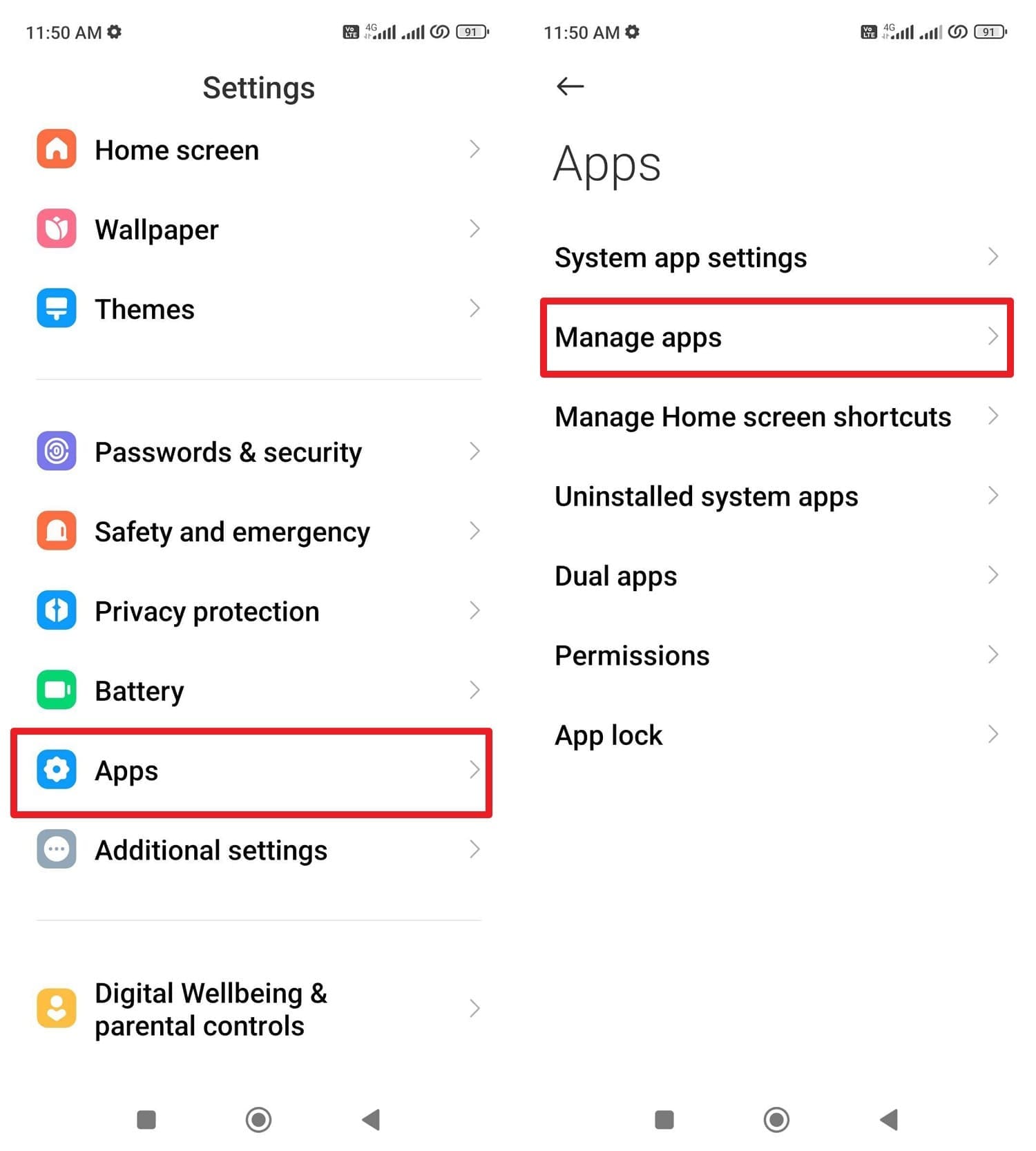
- Step 1. Locate the "Apps" option in the settings and press on the "Manage Apps" option to choose TikTok from the list.
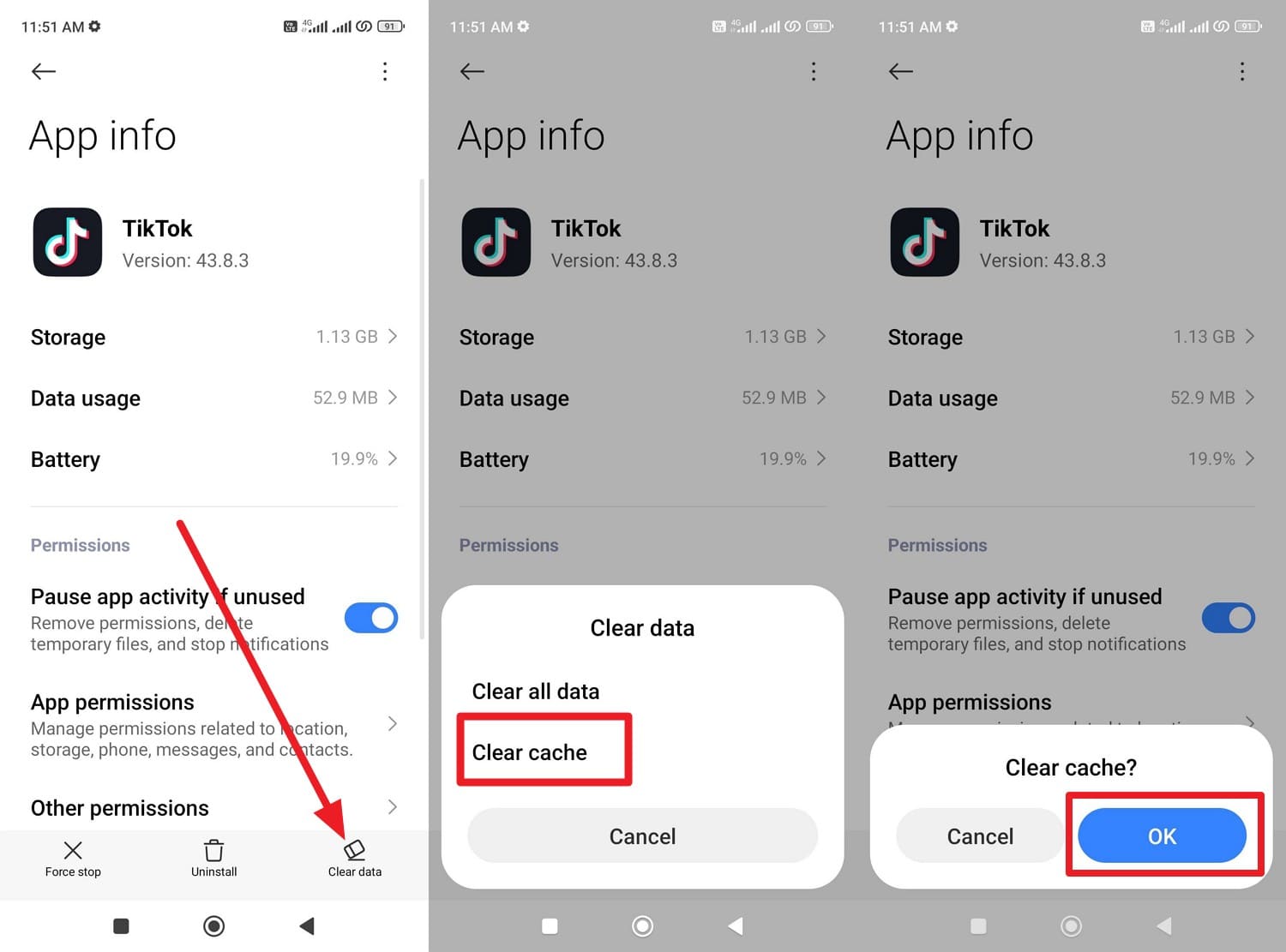
- Step 2. On the App Info interface, select the "Clear Data" option, choose "Clear Cache," and press "Ok" to confirm.
Fix 3: Allow Microphone in Android App Permissions
For the constant TikTok no-sound issue, check the microphone permissions when your own recordings are silent. With mic access, you can restore speech, background sound, and live audio. Since Android requires explicit consent for mic use, granting this via the mentioned steps keeps the app compliant and functional:
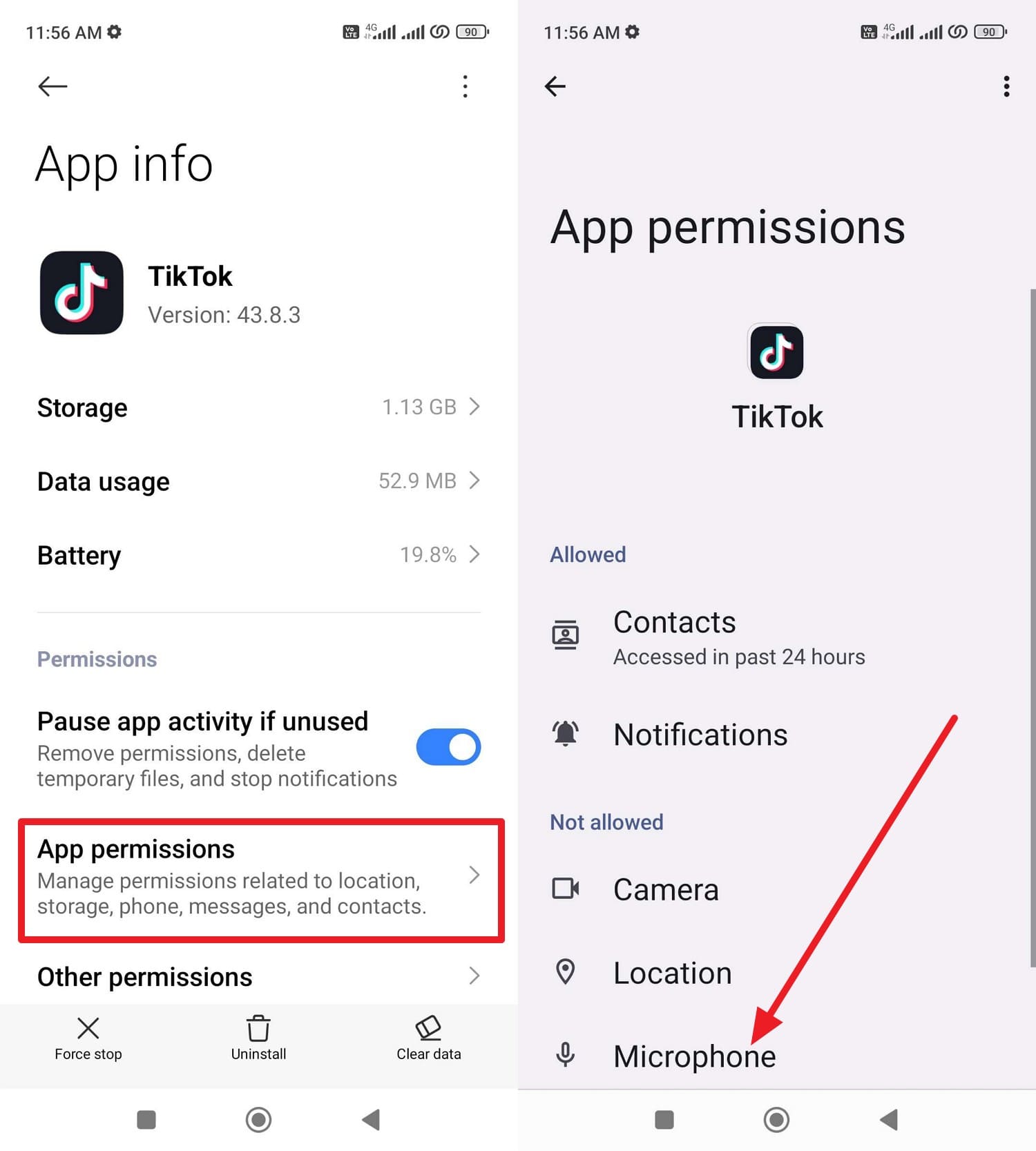
- Step 1. Within the "App Info" interface, locate the "App Permissions" option and press on the "Microphone" permissions.
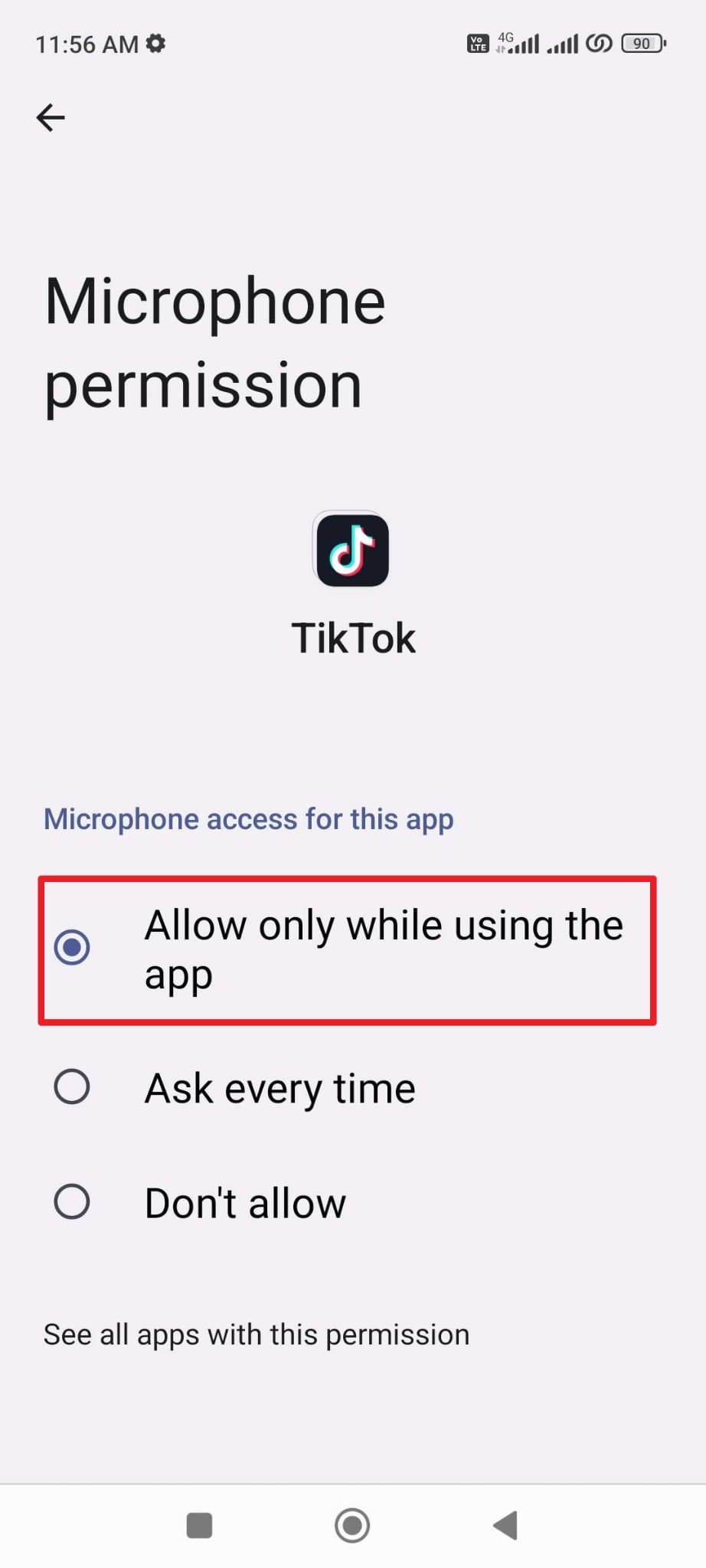
- Step 2. On the new interface, set these permissions to "Allow Only While Using the App."
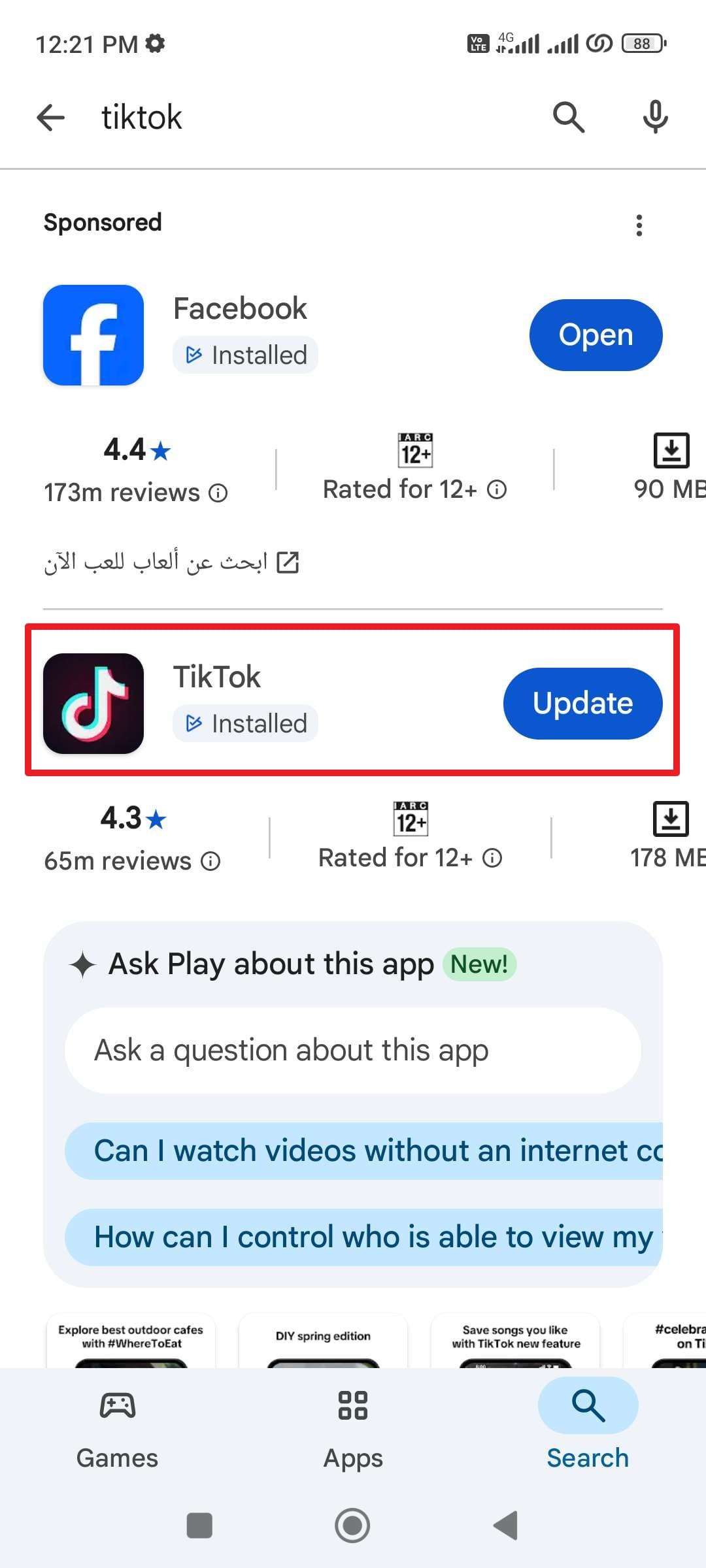
Fix 4: Update Your TikTok App
If you still get no sound on a TikTok video, update the app when the older one contains bugs or compatibility issues. The newer version will restore compatibility with the latest Android changes and replace damaged app components with fresh, working files. So, the basic steps to update TikTok via the Google Play Store are mentioned further:
Instructions: Upon searching for "TikTok," press the "Update" option if it's there.
Fix 5: Reinstall the TikTok App
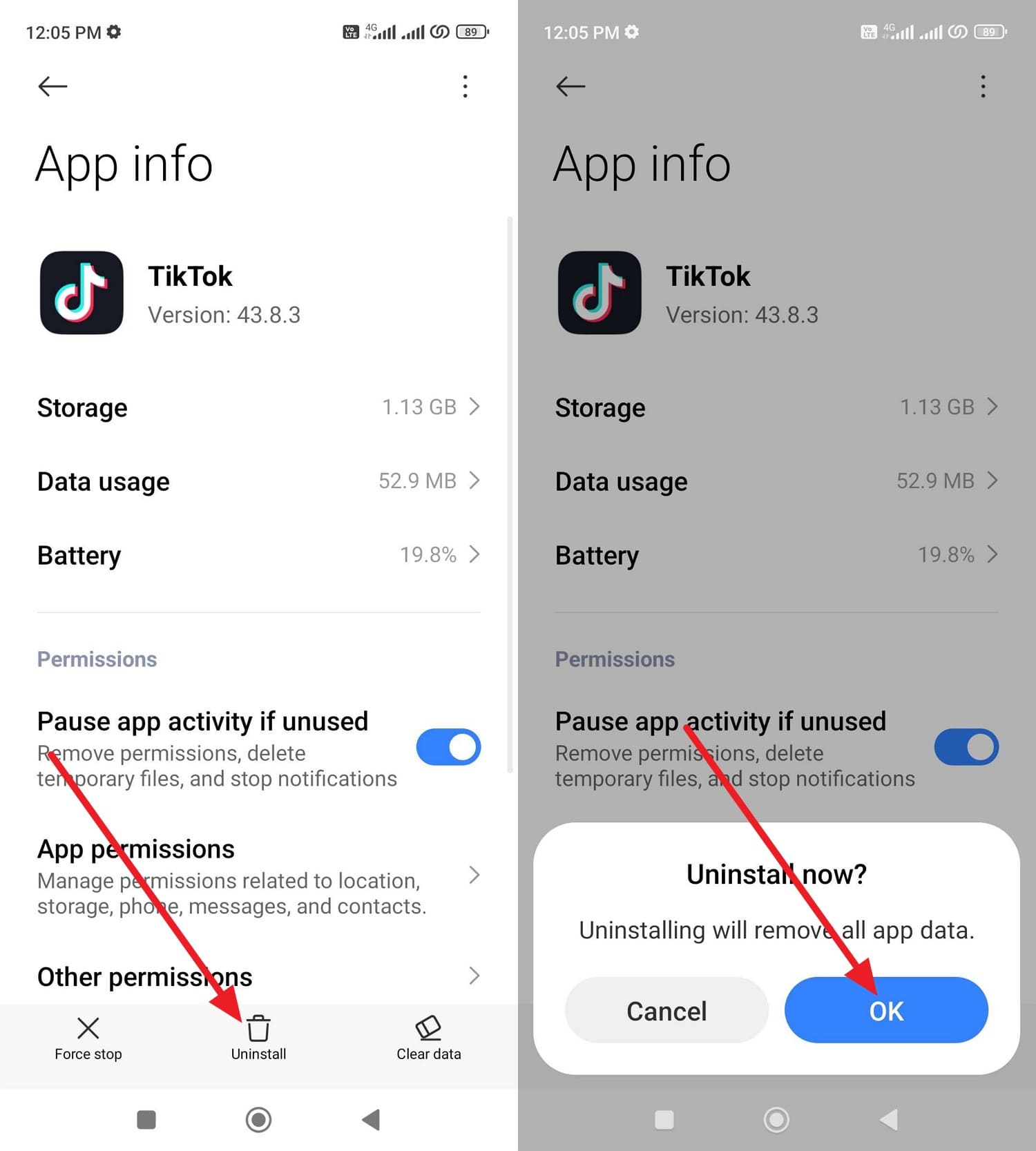
As a last resort to resolve the TikTok no audio problem on Android, reinstall the app. A fresh install ensures you have the latest version with all audio bug fixes and compatibility updates. So, if the sound works after install via the mentioned steps, the issue was app-related, not your device or speakers:
Instructions: In the App Info settings, pick the "Uninstall" button and press "Ok" to delete TikTok. Once done, search in the Google Play Store and press "Install" to reinstall the TikTok app.
Part 5. Advanced Fix: Repair System Audio Glitches
If the TikTok no sound issue is caused by deeper iOS/Android system glitches instead of simple app or volume settings, Dr.Fone - System Repair can help. Designed for Android and iOS, this tool can repair 150+ iOS system issues and let Android users repair Samsung, Xiaomi, or other brands, with a 100% success rate. So, without needing any skills, you can also access the Download Mode on Android without paying hefty charges.
As for iOS, you can upgrade or downgrade the iOS version if manual update via settings isn't possible to fix the sound glitches. In addition, access to Recover Mode is free on the latest supported iOS 26/iPadOS 26 and iPhone 17 Series. Overall, the tool needs no learning curve, and fixes sound glitches related to TikTok in 3 simple steps, making it a beginner-friendly solution.

Dr.Fone - System Repair (Android)
Repair Android System Errors without Any Trouble.
- Fix your Android to normal, no skills required.
- Fix various Android system issues, stuck in boot loop, black screen, or won't turn on, looping on start, etc.
- The high success rate in resolving Android system issues.
- Compatible with a wide range of Android devices and OS versions
- User-friendly interface with easy-to-follow steps.


Guide to Fix the Android System Sound Glitches via Dr.Fone
To know how Dr.Fone can help with the TikTok no audio issue by repairing audio system glitches, review the 3 listed steps in detail:
- Step 1. Choose the System Repair Tool for Android
- Step 2. Access the Download Mode and Install the Firmware
- Step 3. Type the Code & Confirm to Fix Sound Glitches
After connecting the device to the tool, select System Repair Tool for "Android," then under the "Android Repair" section tap "Repair Now."

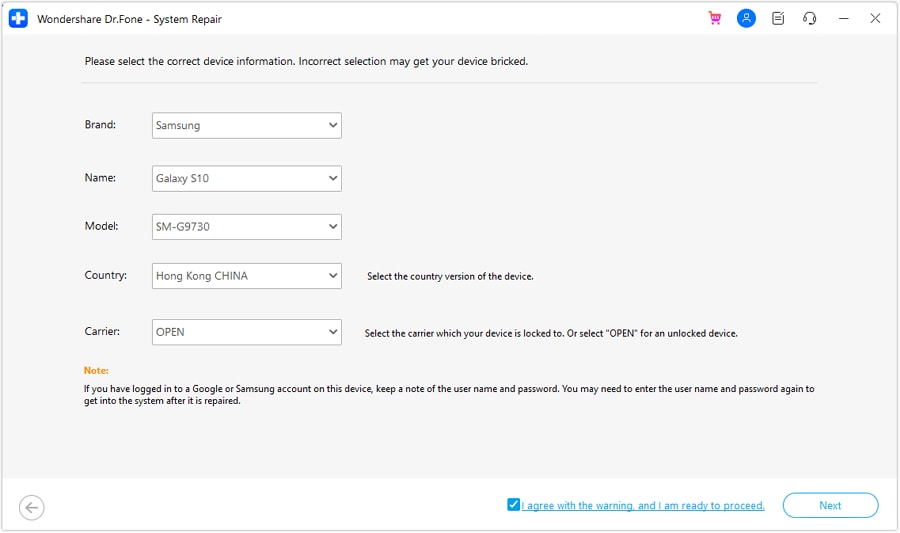
Choose the Android model on the new interface, review the list of issues this tool will resolve, and press "Start." After that, choose the country, carrier, and other details, then agree to the terms and tap the "Next" button.
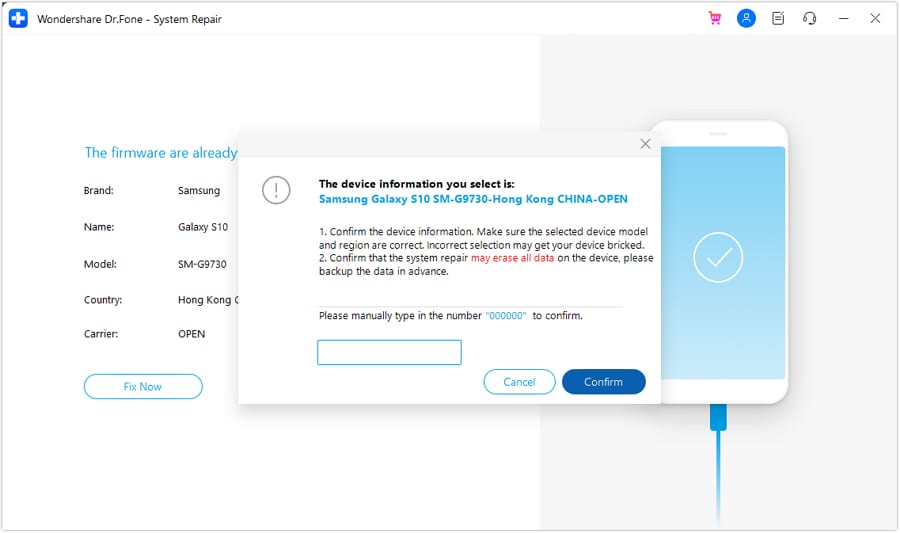
Now, access Download Mode for your device type and let Dr.Fone download the corresponding firmware. Once done, choose the "Fix Now" button, type "000000" in the popup, and wait for the tool to fix the audio glitches.
safe & secure4,624,541 people have downloaded it
Conclusion
To sum up, when you try to create or watch content, facing the no sound on TikTok issue is quite common. So, this article has explained why this happens and how to fix it on Android and iOS via basic and advanced ways. However, if the system audio glitch affects the TikTok sound, Dr.Fone - System Repair is a recommended choice to fix iOS and Android system issues with a 100% success rate.
safe & secure4,624,541 people have downloaded it
FAQs
 1.
Will "no sound" affect video views or engagement?2.
Can TikTok remove the sound from my video after posting?3.
Can other apps cause TikTok to lose sound?
1.
Will "no sound" affect video views or engagement?2.
Can TikTok remove the sound from my video after posting?3.
Can other apps cause TikTok to lose sound?


Android Tips
- Android How-Tos
- 1. Get Out of Android Odin Mode
- 2. Android Keyboard Settings
- 3. Get the Most Memory of Android
- 4. Partition SD Card for Android
- 5. How to Get Snap Score
- 6. Exit Android Factory Mode
- 7. Play MP4 files on Android
- 8. Play WMV on Android Phone
- 9. Reboot your Android Phone
- 10. Turn off Safe Mode on Android
- Android Password Find
- 1. Find Passwords Stored On Android
- 2. See Wi-Fi Password on Android
- 3. Show Wi-Fi Password on Android
- Broken Android Manage
- Data Manage
- 1. Top 3 Android Notification Manager
- 2. Edit Contacts on Android
- 3. Import Contacts from CSV File
- 4. Remove Facebook from Android
- 5. Transfer Phone Contacts to SIM
- 6. Unlock Android with Solid Explorer
- 7. Text from Android to Computer
- 8. Manage Audio on Android Device
- 9. Change System Fonts on Android
- 10. View HEIC File on Android
- Android Tricks
- ● Manage/transfer/recover data
- ● Unlock screen/activate/FRP lock
- ● Fix most iOS and Android issues
- Free Download Free Download Free Download


 > How-to > Phone Repair Solutions > TikTok No Sound? How to Fix TikTok Audio Issues on iPhone & Android
Sandra
staff Editor
Generally rated4.5(105participated)