
Redmi 6/6A/6 Pro Stuck in Recovery Mode: Quick Fix Guide

Sep 24, 2026 • Filed to: Phone Repair Solutions • Proven solutions
 TL;DR:
To fix a Redmi 6, 6A, or 6 Pro stuck in Recovery Mode, immediately perform a force restart by holding the Power button (or Power and Volume Down together) for 10 to 15 seconds to safely reload the operating system without losing user data.
● If the device remains stuck, use the Dr.Fone - System Repair tool to automatically detect and install the correct Xiaomi firmware package without requiring root access or manual flashing skills.
● For deep system corruption, flash an official Fastboot ROM (.tgz) via the Mi Flash Tool on a Windows PC, ensuring the phone has at least 50% battery and specifically selecting the "Clean All" option to avoid locking the bootloader on modified devices.
● As a final manual troubleshooting step before visiting a service center, select "Wipe All Data" from the MIUI recovery screen, which requires 40 to 50% battery and permanently erases all internal storage while leaving the SD card intact.
Ask AI for a summary
 ChatGPT
 Perplexity
 Gemini
 Claude
 Grok
Grok
A Redmi that refuses to move past Recovery Mode can turn a normal day into a small panic. The phone responds to nothing more than just that menu, and there are only a few options presented on the screen. Nevertheless, this problem does not commonly imply that the phone is dead and, through the proper process, the phone is soon back to standard.
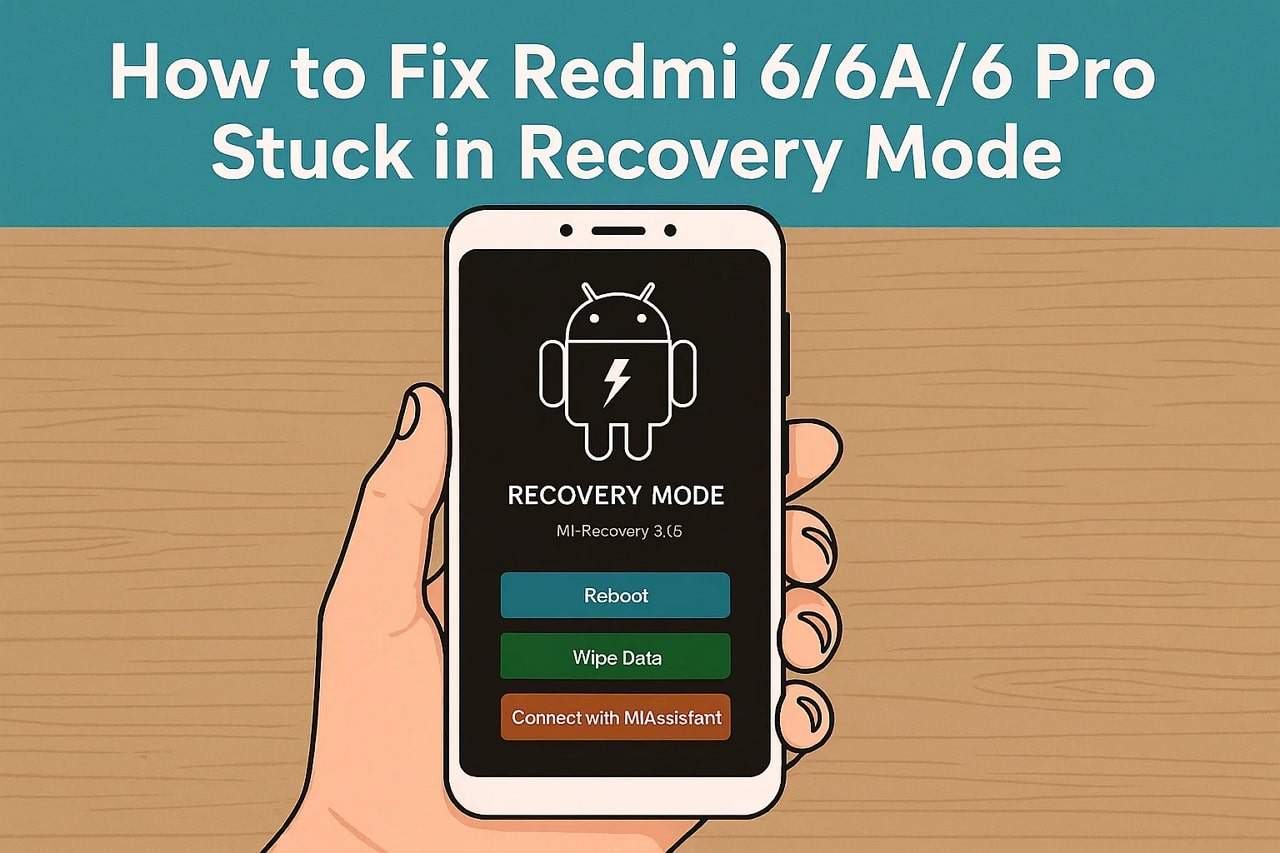
So, if you have a Redmi 6A or Redmi 6 Pro stuck in recovery issue, this guide walks you through quick fixes. Adhere to this guide and see how a stuck Redmi turns into a fully working one again.
- Part 1. Why Your Redmi 6 Pro Gets Stuck in Recovery
- Part 2. How to Resolve Redmi 6/6A/6 Pro Stuck in Recovery Mode - 5 Ways to Try!
- Solution 1: Force Restart Redmi
- Solution 2: Fix Redmi Stuck on Recovery Mode with a Professional Tool | Dr.Fone - System Repair

- Solution 3: Update Firmware in Fastboot Mode Using Mi Flash Tool
- Solution 4: Factory Reset (Wipe All Data)
- Solution 5: Visit the Service Center/Technician
- Part 3. Prevent Redmi 6 & 6A from Getting Stuck in Recovery Again
Part 1. Why Your Redmi 6 Pro Gets Stuck in Recovery
To deal with the Redmi 6A stuck recovery issue, know why this issue occurs in the first place via the listed reasons:
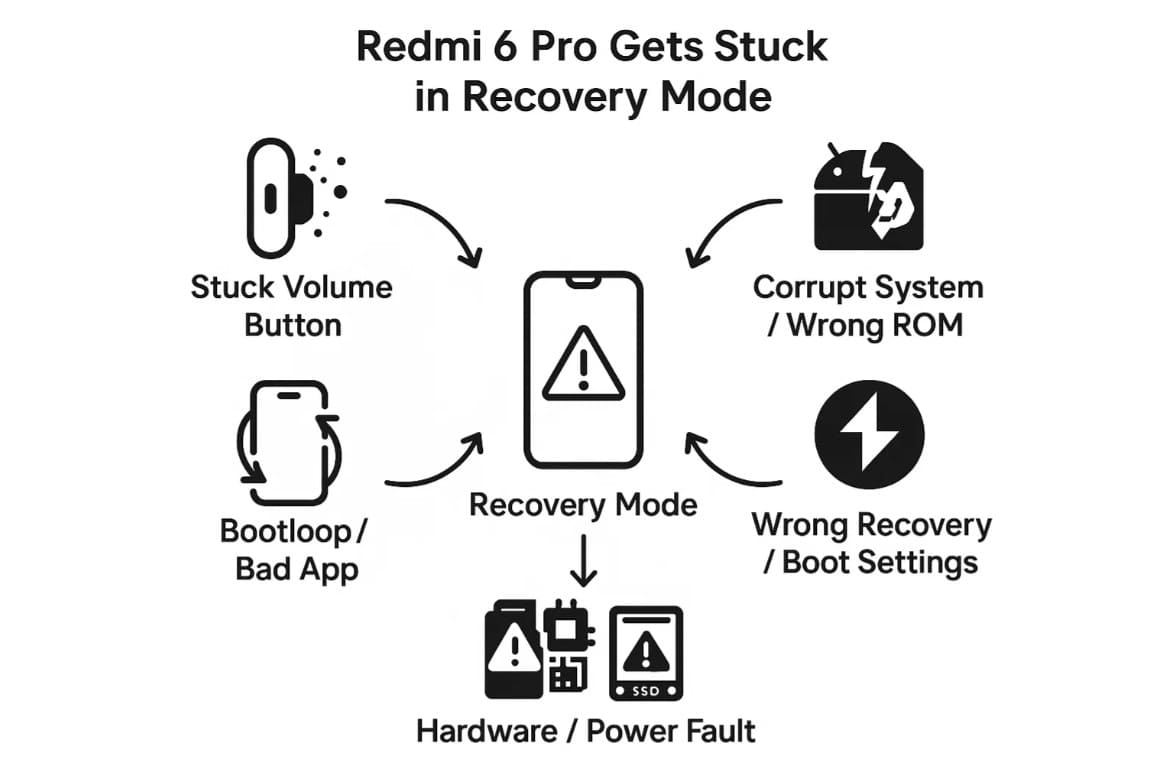
- Stuck or Faulty Volume Button: On Xiaomi phones, Power + Volume Up at startup opens Recovery Mode. So, if the Volume Up key stays pressed due to dust, damage, or a stuck part, the phone enters Recovery Mode on every restart.
- Corrupt System or Wrong Rom: Know that when a system update fails or stops midway, Android cannot load, and the phone then reboots into Recovery mode for safety. A wrong ROM file or a half-done flash on the Redmi 6 Pro often pushes the device into a recovery loop because the main system files no longer work.
- Bootloop After a Software Crash or Bad App: A severe crash, a harmful app, or malware may corrupt key system files. Thus, Android then fails to start, and the device returns to Recovery as a fallback. Many Redmi 6 and 6 Pro users say the phone freezes and then only moves between the logo and Recovery again and again because of this problem.
- Wrong Recovery or Boot Settings: A half-done TWRP install, or any change to the boot partition, may leave the phone pointing to Recovery instead of the main system. Some Xiaomi models also show a "Recovery Boot Loop" after a failed flash or a rollback protection attempt, so each restart goes straight to MIUI Recovery.
- Other Hardware or Power Faults: Faults in storage, the motherboard, or other internal parts may block the system partition from loading. Plus, the bootloader then switches to Recovery because it cannot find Android. Besides, very low or unstable battery power during startup can also cause the phone to stop at Recovery Mode until power becomes stable.

Part 2. How to Resolve Redmi 6/6A/6 Pro Stuck in Recovery Mode - 5 Ways to Try!
Those who question how to resolve the Redmi stuck on recovery mode issue, adhere to the 5 listed ways with a detailed guide:
Solution 1: Force Restart Redmi
This solution clears small system faults and often allows the phone to boot normally again without any loss of data. This step does not erase anything; it only forces Android to load the system from zero. Additionally, it breaks any temporary loop that pushed the phone into recovery by mistake and reloads all system services that may have crashed, once performed via the given guide:
Simple Force Restart
Instructions: Hold the "Power" button for 10 to 15 seconds until the screen turns black and you feel vibration or the Redmi logo. Let go of the button and wait, and if the system is fine, the phone may load into Android instead of going back to recovery.
If the Power Button Alone Fails
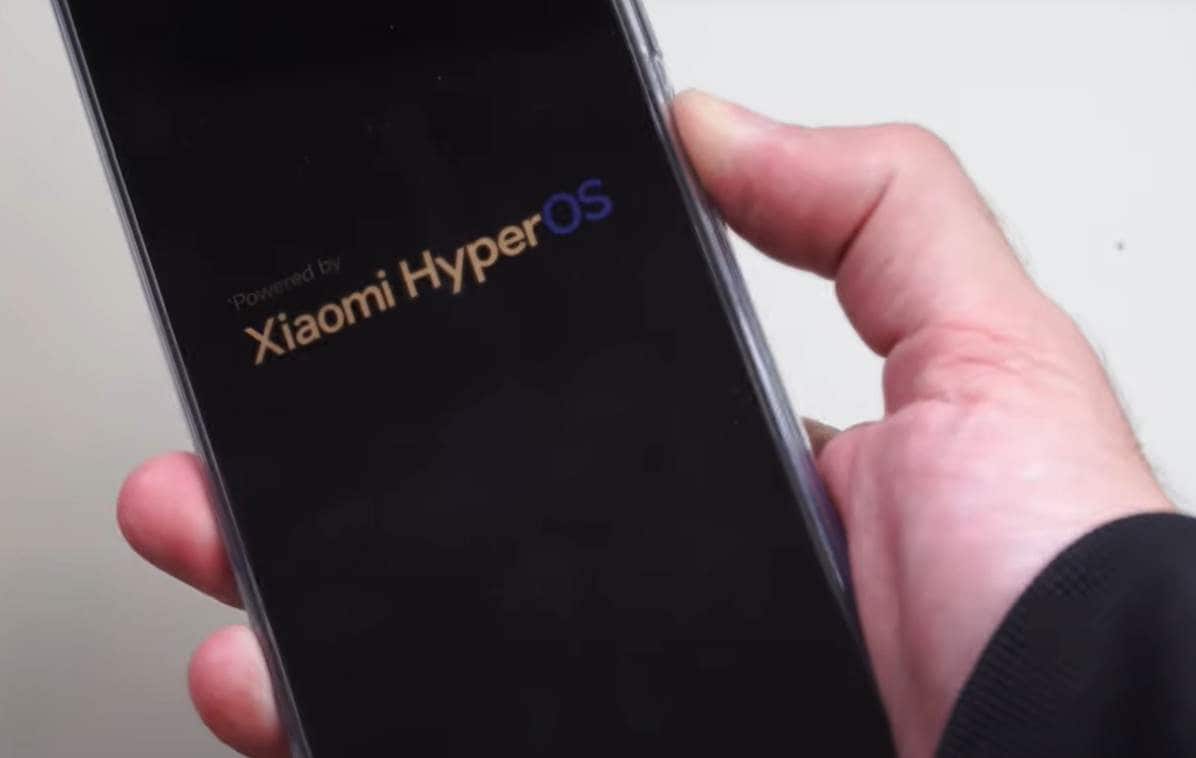
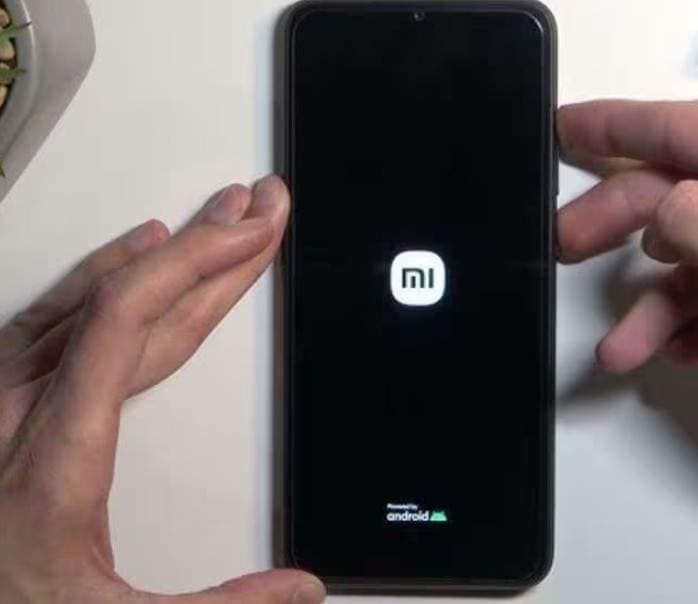
Instructions: From the recovery screen, press and hold the "Power" and "Volume Down" buttons together for 10 to 15 seconds. Let go when the screen turns off and the Redmi/MI logo appears. Wait to see if it enters the system; if it goes back to recovery again, the issue is deeper, and you may need a factory reset or a full flash.
Solution 2: Fix Redmi Stuck on Recovery Mode with a Professional Tool | Dr.Fone - System Repair
When common ways can't resolve the Redmi 6A stuck recovery issue, rely on Xiaomi system tools like Dr.Fone - System Repair, which specializes in Xiaomi system repair with data preservation. No matter if your Redmi keeps restarting, shows a black screen, or gets stuck on the MIUI logo, the tool can deal with any issue in real-time while keeping your data safe. The tool works with the Xiaomi system repair workflow and detects compatible firmware to recover the devices. Unlike other tools, it requires no root access, no complicated manual flashing setups, and no learning curve—making it ideal for all types of users who want a seamless recovery experience.
The tools need no root access and guarantee to preserve data integrity during the process. Unlike other tools, it also reduces the need for complicated manual flashing tools and requires no learning curve for Redmi/POCO firmware recovery. Since it's ideal for all types of users, they can choose the firmware package that suits them and install it in 3 simple steps.

Dr.Fone - System Repair (Android)
Repair Android System Errors without Any Trouble.
- Fix your Android to normal, no skills required.
- Fix various Android system issues, stuck in boot loop, black screen, or won't turn on, looping on start, etc.
- The high success rate in resolving Android system issues.
- Compatible with a wide range of Android devices and OS versions
- User-friendly interface with easy-to-follow steps.


Guide to Fix the Redmi Stuck in Recovery Mode with Dr.Fone
Since you know how seamless the usage of Dr.Fone is, adhere to the given guide and learn how it resolves the Redmi 6 or Redmi 6 Pro stuck recovery problem:
- Step 1. Opt for the Xiaomi Repair Tool & Choose the Given Brand
Select the "Repair Now" button in the "Android Repair" tool, then choose Xiaomi, Redmi, or POCO when prompted, and press the "Start" button.

- Step 2. Reviews & Start to Download the Relevant Firmware
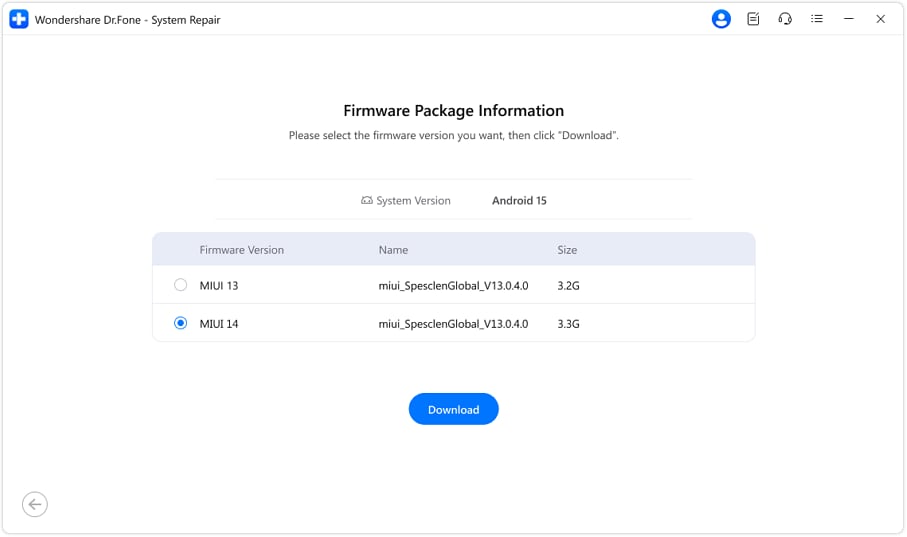
The tool will automatically search for and present the firmware packages, select the correct one, and click the "Download" button.
- Step 3. Press Fix Now & Wait Until the Tool Repairs Redmi
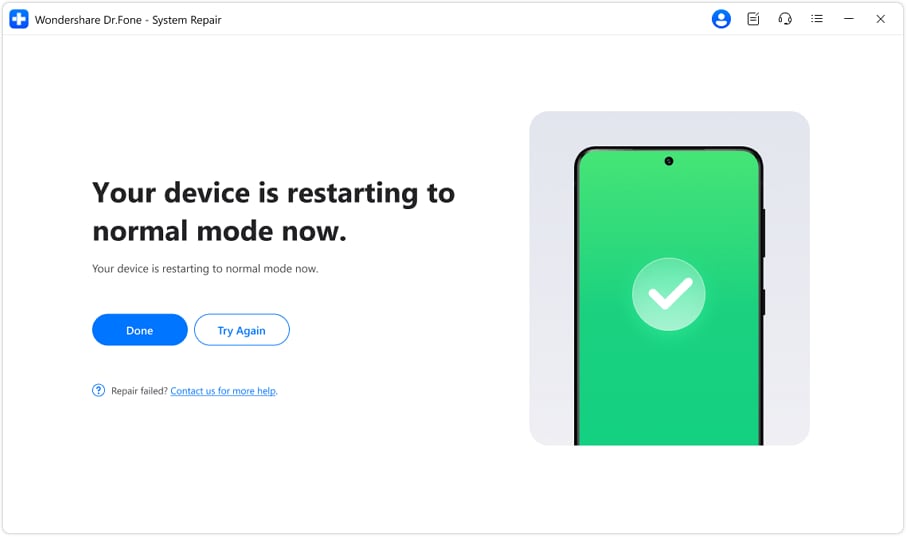
After the installation ends, review the given details and press the "Fix Now" button. During that time, avoid disconnecting your Redmi smartphone, and once it ends, click the "Done" button to conclude.
 safe & secure
4,624,541 people have downloaded it
Solution 3: Update Firmware in Fastboot Mode Using Mi Flash Tool
To deal with the Redmi 6A recovery mode problem, you can also use Dr.Fone's free Fastboot Mode tools to enter or exit Fastboot without manual setup. For advanced users who prefer manual flashing with Mi Flash Tool, here's how to flash firmware in Fastboot mode:
Before You Start:
- Have a Windows PC, a good USB cable, and at least 50% battery.
- Install Mi Flash Tool on the PC.
- Download the correct Fastboot ROM (tgz) for Redmi 6/6A/6 Pro and extract it twice until the "images" folder appears.
- Step 1. Turn off the phone completely, and if it keeps rebooting, wait until it powers off. After that, press the "Volume Down + Power" button together until the Fastboot screen appears. Now, connect the phone to the PC via a USB cable, then open the Mi Flash Tool as an administrator.

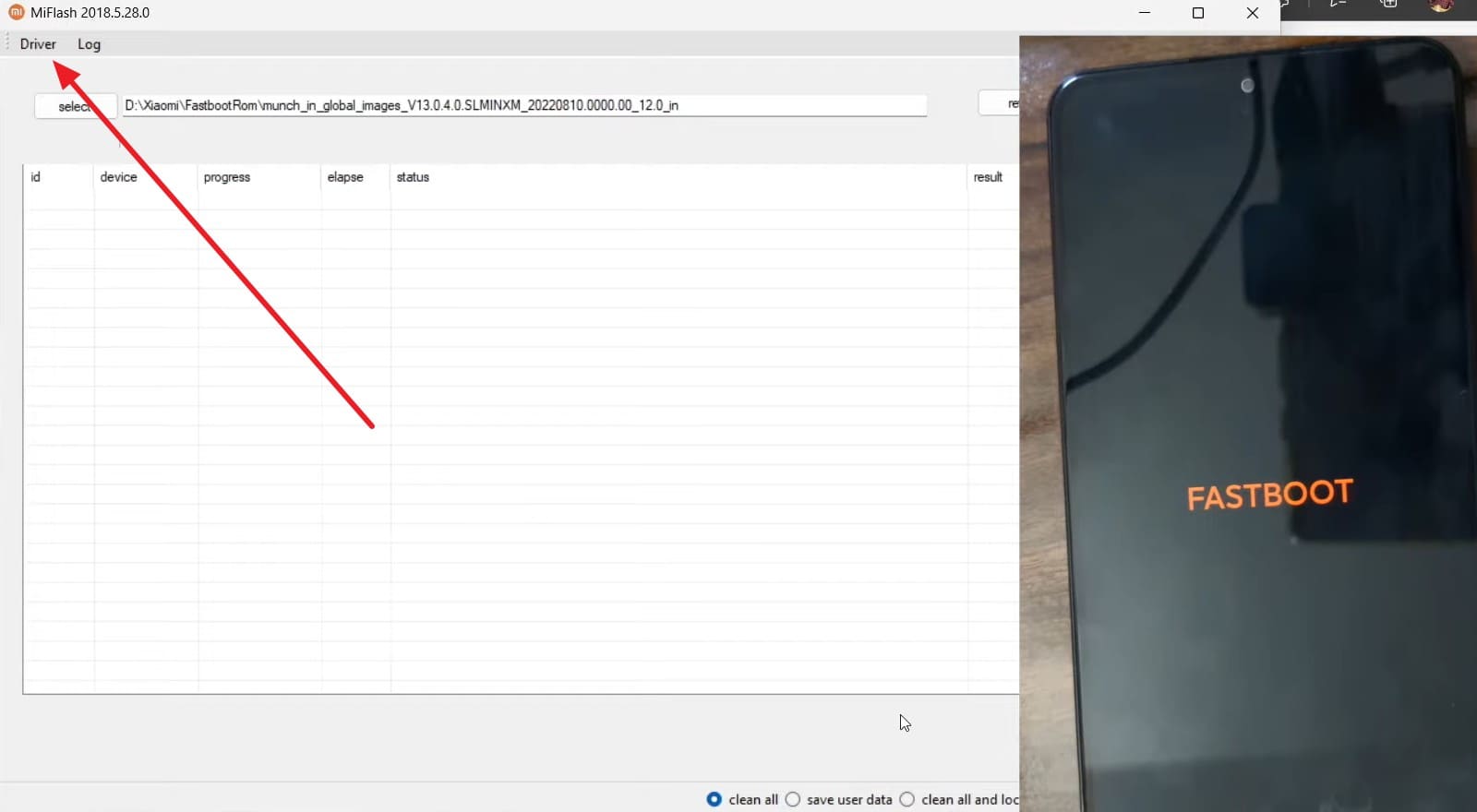
- Step 2. As the tool launches, head to the "Driver" tab and choose the "Install" button to install the listed drivers.
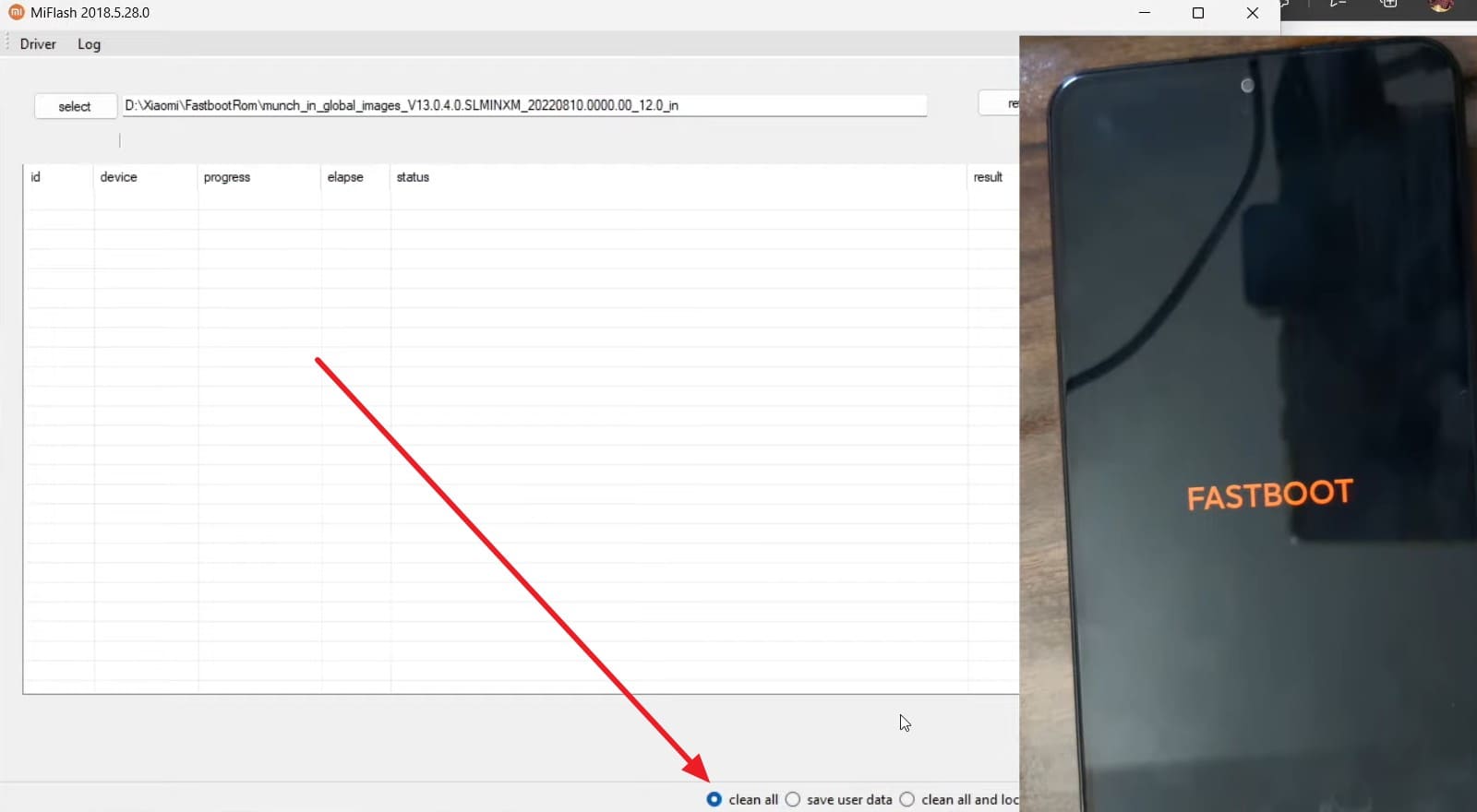
- Step 3. After the installation, relaunch the tool and pick the "Clean All" option at the bottom so the phone resets fully without locking the bootloader. Do not choose "Clean all and Lock" if the device has any modifications.
- Step 4. Once done, hit the "Refresh" button, and the device ID should appear in the Mi Flash list. Now, choose the "Select" button and browse to the extracted Fastboot ROM main folder and pick the "Ok" button.
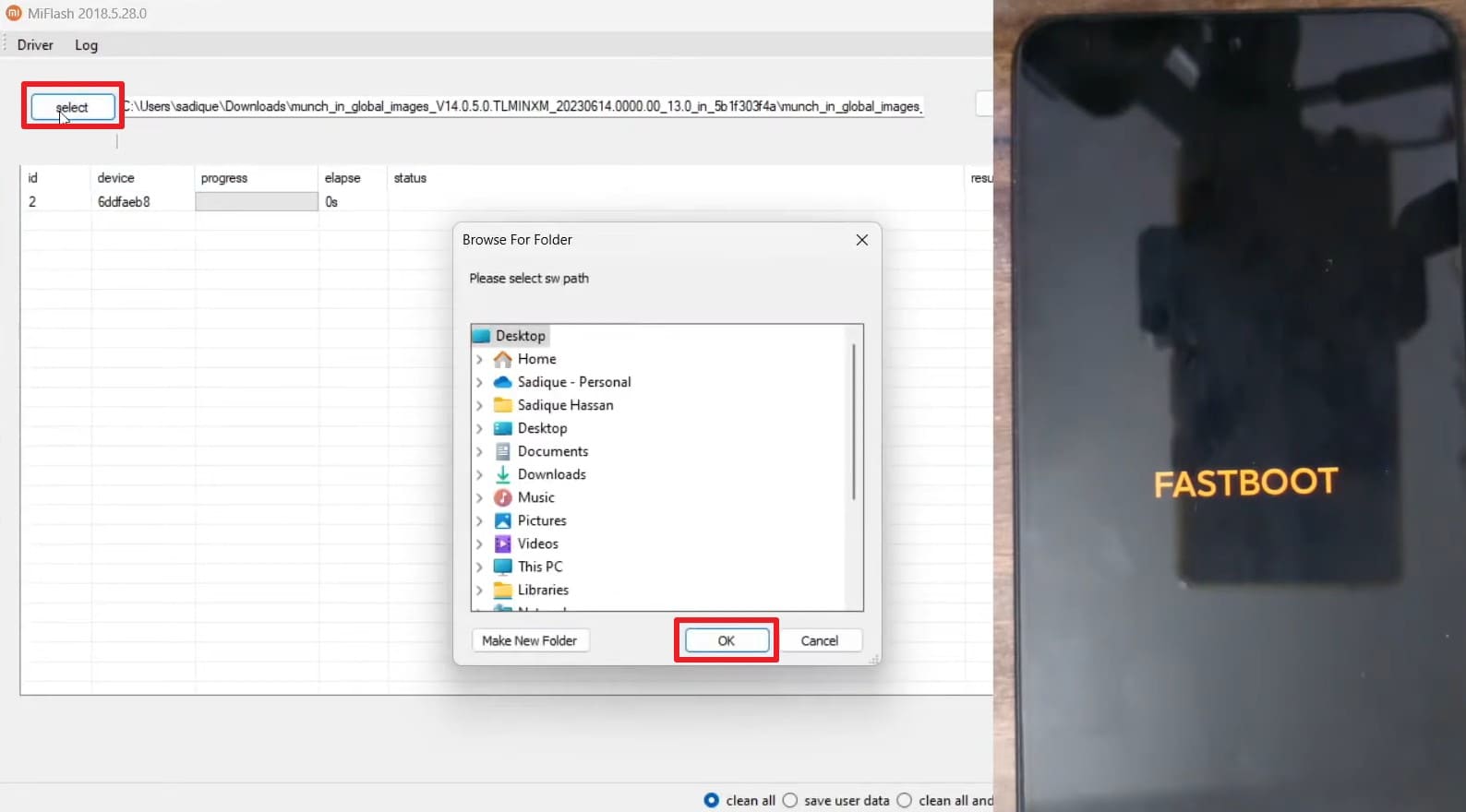
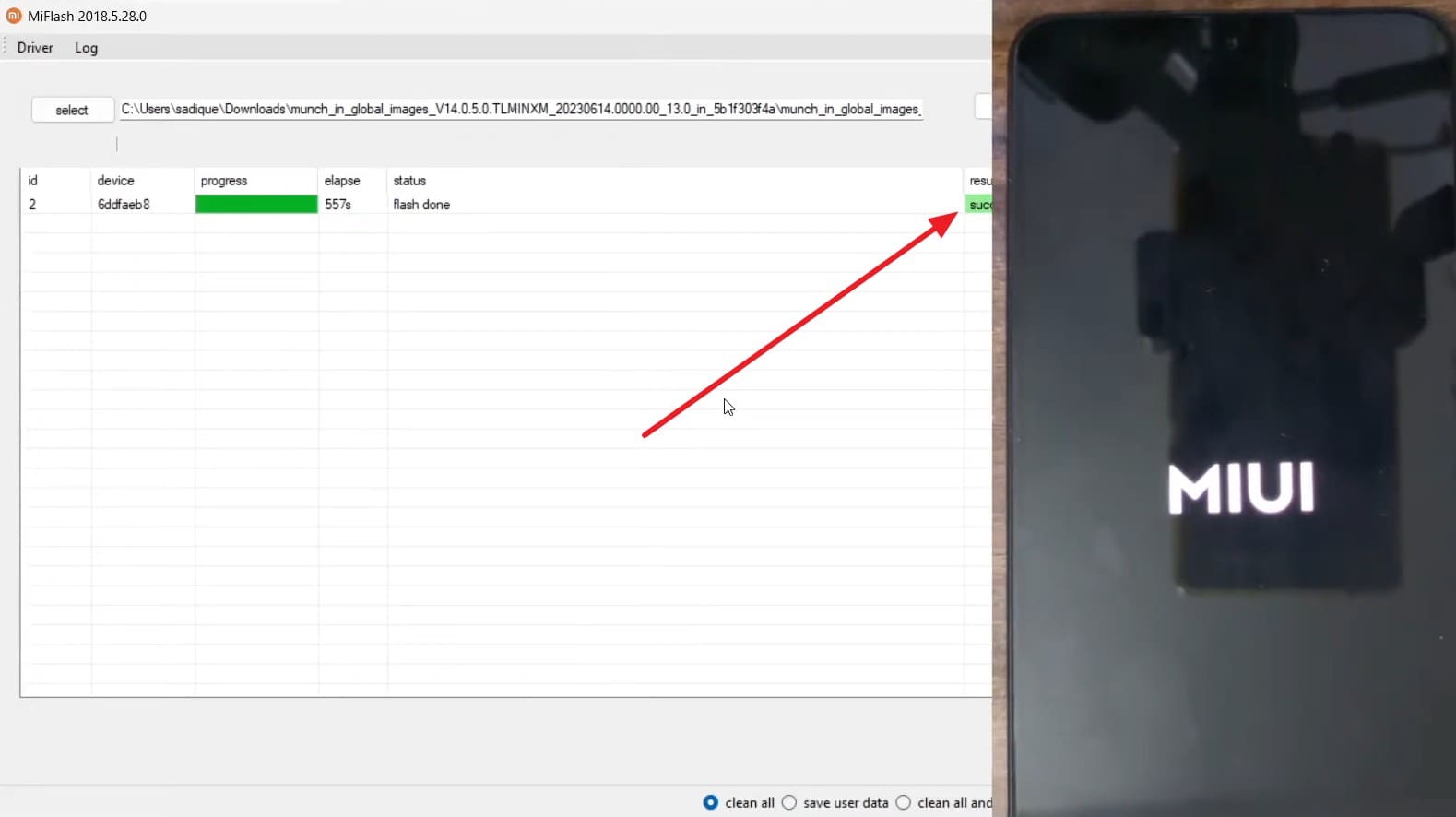
- Step 5. After that, press the "Flash" button and do not disconnect the cable or power off the PC during this time. When Mi Flash shows "Success" with a green bar, the phone should restart automatically. If it does not, restart it manually and wait a few minutes on the Mi/Redmi logo for the first boot.
Solution 4: Factory Reset (Wipe All Data)
If you still have the Redmi 6A recovery mode stuck, a factory reset in MIUI recovery is a stronger fix when lighter steps do not help. It removes all user data and settings and returns the Redmi to its original state. Additionally, this often clears software faults that force the phone back into recovery mode. It also removes corrupt apps and cached files, so MIUI can load with a clean setup, as guided:
Before You Start:
- All internal data will be erased; the SD card usually stays safe.
- Access your backup data via Mi Cloud, Google, or PC.
- Keep at least 40-50% battery to avoid shutdown during reset.
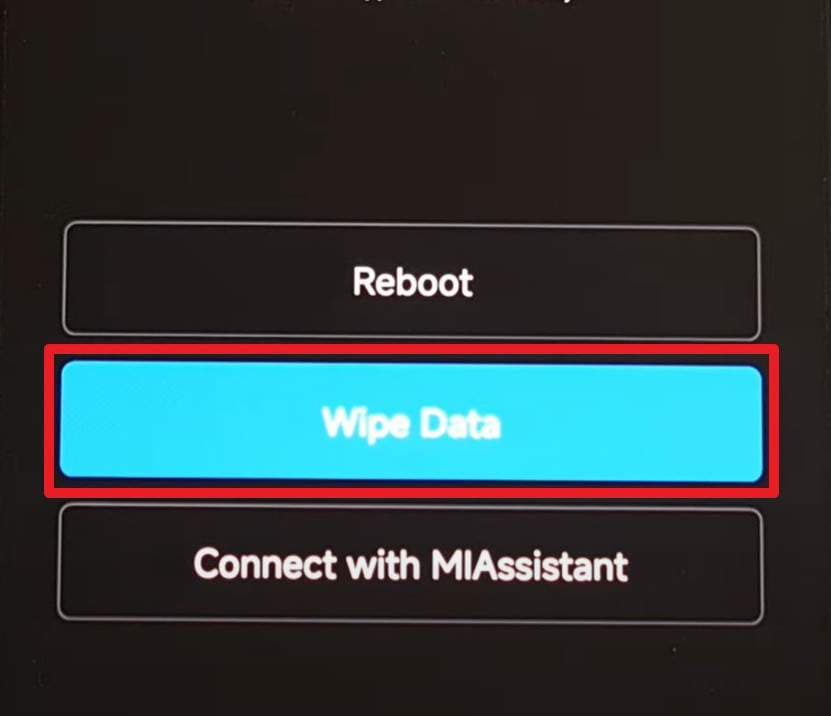
- Step 1. Stay on the MUI Recovery screen, and then use the "Volume Up or Down" button to choose the "Wipe Data" option and press the "Power" button to choose it.
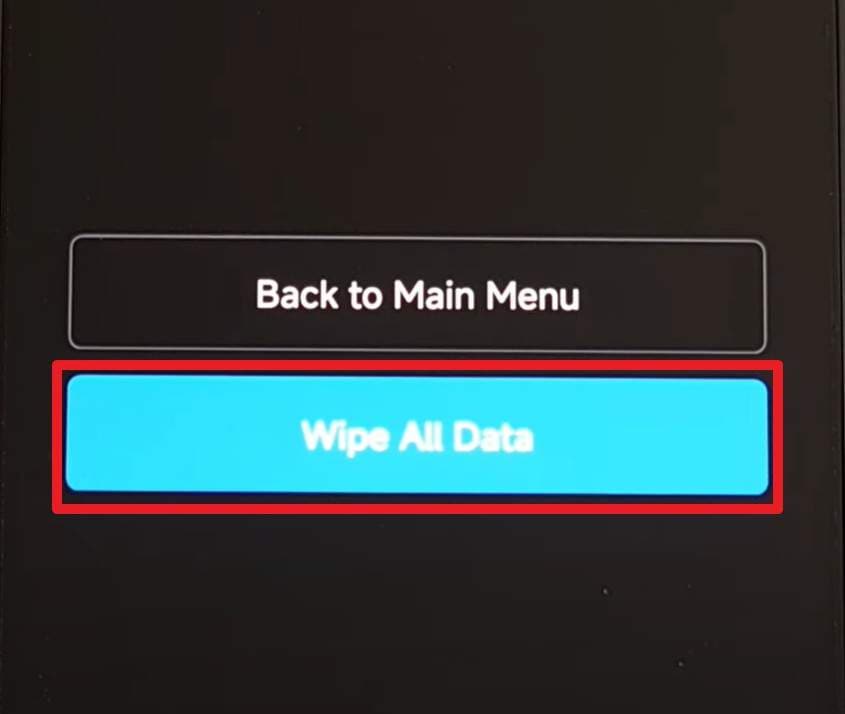
- Step 2. On the following interface, select the "Wipe All Data" option and use the keys again to select it. When asked, select the "Confirm" button to initiate the wipe process.
Solution 5: Visit the Service Center/Technician
Professionals have the tools and permission to repair deep software faults and hardware issues. Besides, a technician can check the phone, test hardware, and find the real cause of the loop instead of random trial steps. Service centers use official ROMs, proper tools, and safe repair methods, so the chance of hard brick or extra damage stays low.
Part 3. Prevent Redmi 6 & 6A from Getting Stuck in Recovery Again
To ensure you never have to deal with the Redmi stuck in recovery mode problem, follow the listed tips for aid:
| Tip | Why Does It Help/Benefit |
|---|---|
| Install apps only from the Play Store or trusted sources | Lowers the chance of bad or harmful apps that damage system files and cause boot loops or recovery issues. |
| Do not interrupt system updates (no forced shutdown, no low battery) | Stops incomplete updates, which are one of the main reasons Redmi phones end up stuck in recovery. |
| Keep at least 2-3 GB of free internal storage. | Low storage often causes update faults and system errors that push the phone into recovery. |
| Reboot the phone once in a while | A simple reboot clears small glitches and temporary cache before they grow into serious boot problems. |
| Avoid ROM flashing or mods unless you fully understand the process | Wrong flashing attempts are a common cause of recovery loops and hard-brick on Redmi 6/6A. |
| Do not press key combinations unnecessarily. | Stuck or misused buttons can force the device to boot into recovery instead of the main system. |
Conclusion
To wrap up, if you have encountered the Redmi stuck in recovery mode issue, this guide has provided all the solutions. From force restart to factory reset, each method addresses different severity levels. However, for users who want to preserve data and avoid complex manual processes, Dr.Fone - System Repair s the recommended choice. It specializes in Xiaomi system repair with data preservation, automatically detects compatible firmware, and even includes free tools to enter or exit Recovery and Fastboot modes—giving you complete control without the technical complexity.
safe & secure4,624,541 people have downloaded it
FAQs
 1. How long will the phone stay in recovery mode?2. Can a phone stuck in recovery still charge normally?3. Will the warranty cover a phone stuck in recovery mode?


Xiaomi Topics Series
- Xiaomi Screen & FRP Unlock
- 1. Unlock Xiaomi Bootloader
- 2. Mi Account Unlock Tools
- 3. Redmi Note 8 FRP Unlock Tool
- 4. Redmi Note 9 FRP Bypass Tool
- 5. Redmi 9A FRP Bypass
- 6. Remove FRP on Xiaomi/Redmi
- Xiaomi Repair
- Xiaomi Recover
- Xiaomi Reset
- Xiaomi Tips & News
- 1. Xiaomi HyperOS 3.0
- 2. Screen Mirror Xiaomi to PC
- 3. Run Hardware Tests on Xiaomi
- 4. Conduct battery test on Xiaomi
- 5. How Do I Obtain the Security Code Xiaomi
- 6. DND Mode Xiaomi
- Xiaomi Transfer & Backup
- ● Manage/transfer/recover data
- ● Unlock screen/activate/FRP lock
- ● Fix most iOS and Android issues
- Free Download Free Download Free Download




Ahmed Absal
contributor Editor
Generally rated4.5(105participated)