
How to Find Hidden Messages on iPhone (The Complete 2026 Guide)

Sep 18, 2026 • Filed to: Device Data Management • Proven solutions
 TL;DR:
Missing iPhone messages are rarely deleted and can typically be recovered directly in the Messages app by adjusting native filters, disabling conversation mutes, or forcing an iCloud resync.
● To restore filtered or muted chats, navigate to the Unknown Senders filter to mark numbers as known, or identify threads with a crossed-out bell icon in iOS 16/17 and toggle off the Hide Alerts option within the contact settings.
● Temporary display or indexing glitches can be resolved by connecting to a stable Wi-Fi network and toggling Messages in iCloud off and back on to force a system resync.
● For deeply hidden data or advanced extraction, Dr.Fone - Phone Manager offers a desktop dashboard to export message histories and attachments as PDF, Excel, or CSV files, fully supporting iOS 26, iPadOS 26, and the iPhone 17 series.
Ask AI for a summary
 ChatGPT
 Perplexity
 Gemini
 Claude
 Grok
Grok
Dr.Fone Basic:
Better Control for Your Phone
Manage, transfer, back up, restore, and mirror your device
Have you ever opened the Messages app expecting to see a certain conversation, only to discover that it's gone? This is a typical source of frustration with iPhones; usually, the message hasn't been deleted. Most of the time, it's just hidden by iOS features such as filtered conversations, muted threads, Unknown Senders, or even temporary sync and display issues.
This comprehensive 2026 guide is here to help you discover how to find hidden messages on iPhone. It does this by explaining what "hidden" means in the case of iOS and how to uncover those chats with the help of the built-in tools like filters, search, and notification settings. Besides that, we'll bring you a more advanced option with Dr.Fone - Phone Manager to get deeper access and more efficient organization of your message management. Let's explore how to locate hidden messages on your iPhone.

Part 1. Are Messages Actually Hidden on iPhone?
We've all been in such a situation: you vividly remember that important message, but it is nowhere to be found in your Messages app. Naturally, people think the chat must have been deleted when this happens, but more often than not, the conversation gets "hidden" by one of the features of iOS designed to help you organize, filter, or secure your inbox.
Apple is committed to delivering a neat and safe messaging experience first and foremost. So, it sometimes occurs that, completely unnoticed, messages are so effectively hidden that it might seem like they are gone.
Here are some common reasons which can explain why an iPhone user might find messages seemingly disappearing:
- Filtered messages: The system software automatically segregates certain categories of messages, e.g., business texts, OTPs, or promotional messages, so that your main inbox remains uncluttered.
- Archived messages: It is really the case that, due to the gestures or habit of organizing messages by grouping or swiping, some conversations get pushed aside and as a result, are hardly remembered.
- Unknown senders: In the case you get a message from a number that is not saved in your Contacts list, the message will be put in the Unknown Senders section, a tab that most users simply don't pay attention to.
- Sync or display problems: Messages disappearance, even if temporary, or the failure to load them properly on the device are usually the consequences of iCloud syncing hiccups, indexing failures, or software bugs.
By getting the hang of these iPhone behaviors, you will be able to work out how to locate hidden messages on your iPhone—and what a relief it is to realize the chats were never really lost.
Part 2. How to Find Hidden Messages in the Messages App
iOS has multiple embedded features that automatically arrange your chats and can sometimes make certain messages appear as if they're missing. Thoroughly inspecting the right filters and preferences within the Messages application, you can swiftly discover and bring back these concealed conversations. Here's how to find secret messages on iPhone:
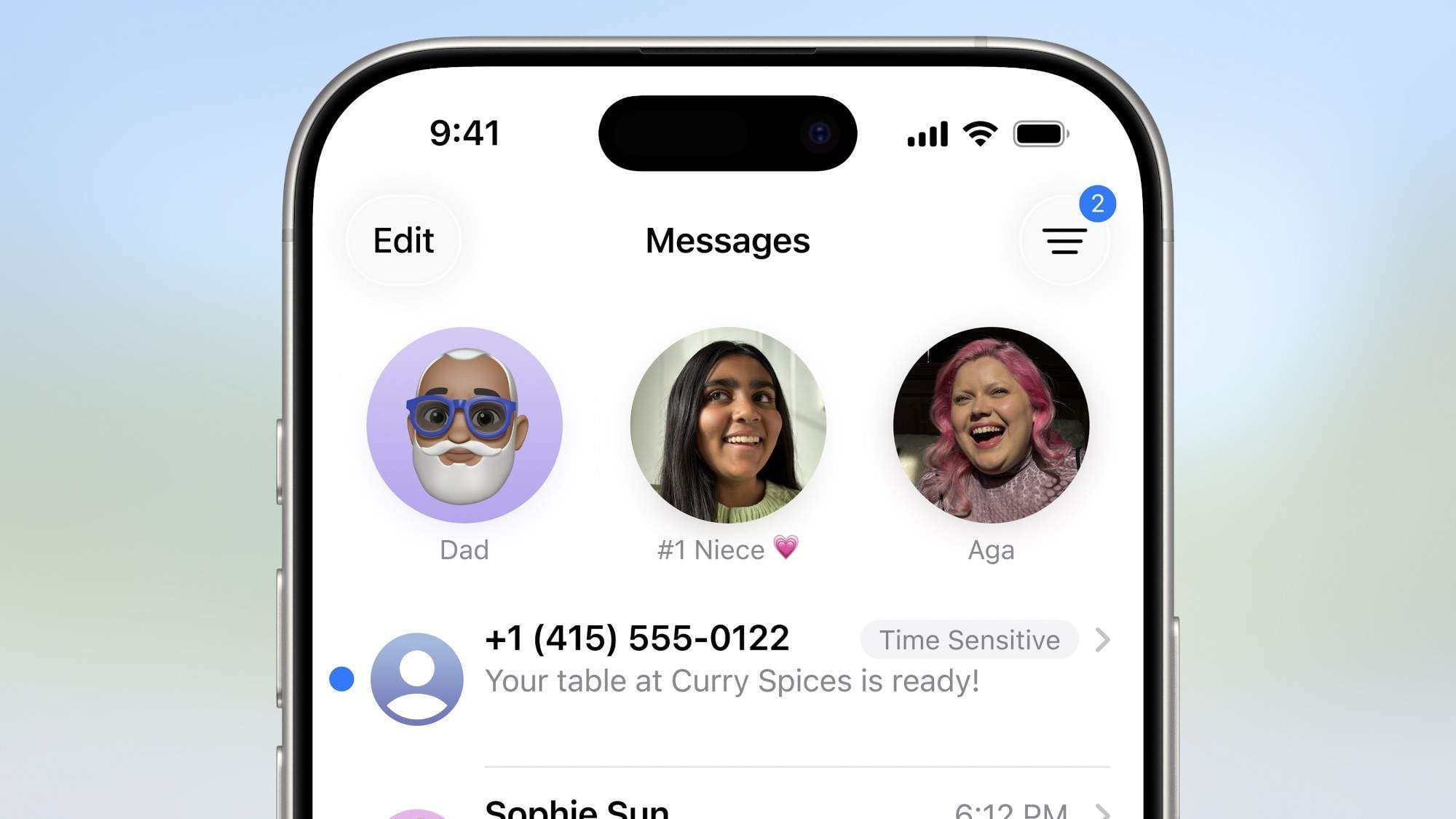
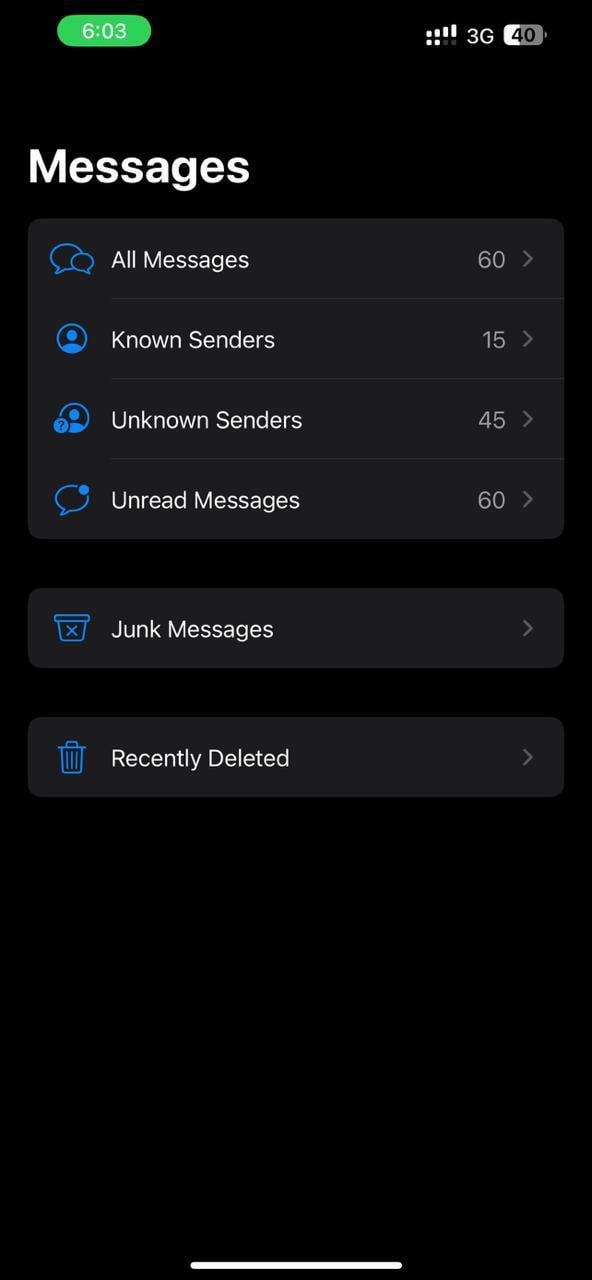
Check the Unknown Senders Filter
One of the most typical reasons why messages get hidden on an iPhone is the Unknown Senders filter. It divides the texts of the numbers that aren't saved in your Contacts from the rest, thus saving your main inbox from clutter but making it easy to miss as well.
Here's how to find hidden text on iPhone:
- Step 1. Open the Messages app on your iPhone.
- Step 2. Tap Filters in the top-left corner of the screen to access message categories.
- Step 3. Select Unknown Senders to view all messages from numbers not saved in your Contacts.
- Step 4. Open the conversation you want to reveal.
- Step 5. Tap Mark as Known or add the sender to your Contacts to move the conversation back into your main message list.
Find Muted Conversations (Hide Alerts)
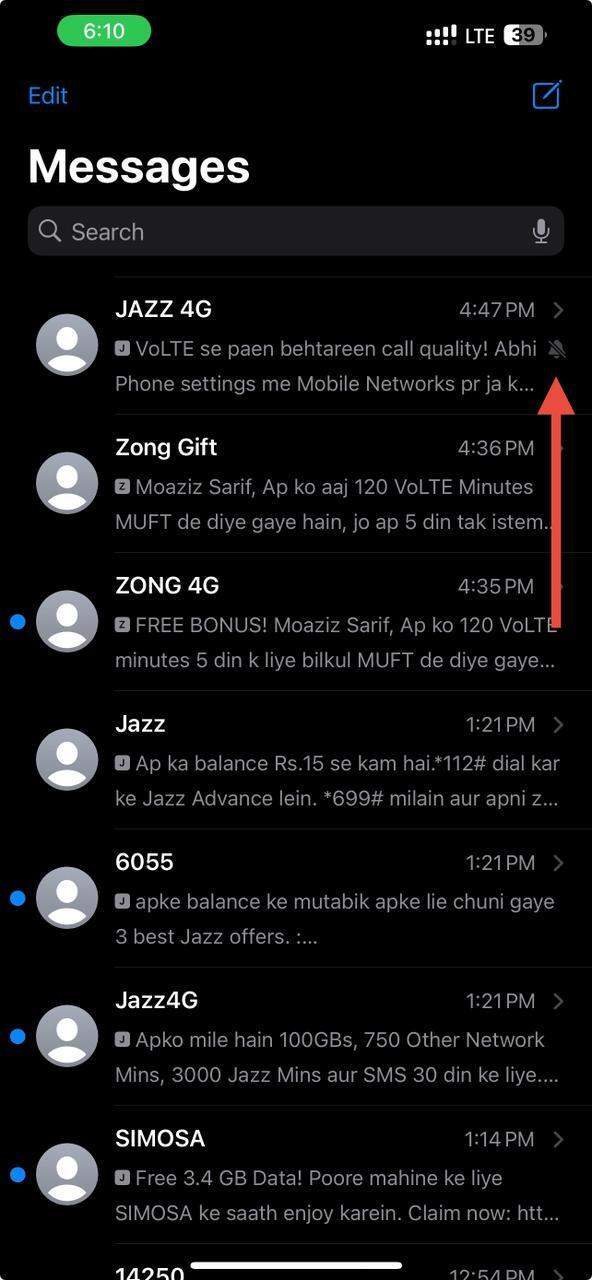
Sometimes it seems like texts are "hidden" just because you muted that chat by using the Hide Alerts feature. These chats will still be kept in your main Messages list, but they will not give you any notifications, which is why you easily miss new messages. Next to the conversation, the muted chats are indicated by a bell icon with a line.
Here's how to view hidden messages on iPhone:
- Step 1. Open the Messages app on your iPhone.
- Step 2. Look through your main conversation list for threads with a bell icon with a line through it —these are muted.
- Step 3. Open the muted conversation you want to unhide.
- Step 4. Tap the contact's name or avatar at the top of the screen to open the conversation settings.
- Step 5. Toggle Hide Alerts off to unmute the conversation.

Use Message Search to View Hidden Text Messages
When messages are filtered, muted, or there are sync issues, you can still use the Messages app search to find hidden texts quickly. This great feature even investigates the conversations that are out of your immediate sight in the main list.
Here is how do you find hidden messages on iPhone:
- Step 1. Launch the Messages application on your iPhone.
- Step 2. From the main list of conversations, perform a downward swipe motion to uncover the search bar at the top.
- Step 3. Type the name of the contact, phone number, or any words that you remember from the conversation.
- Step 4. Check through the search results and tap the one that is the most appropriate to open the conversation.
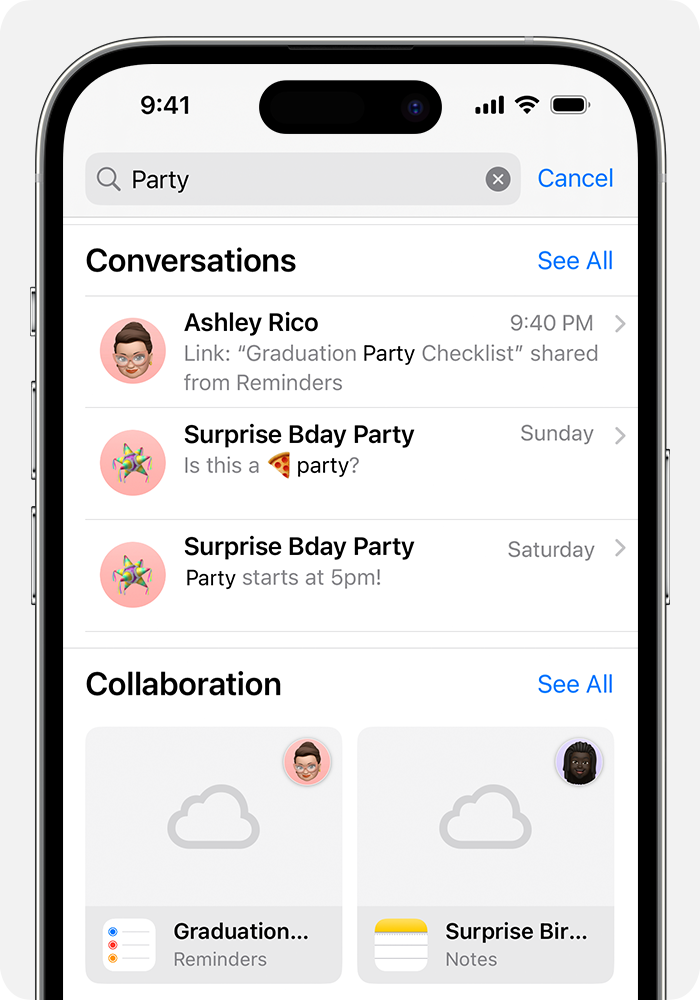
It's a smart move to use the search function to find messages of unknown senders, archived threads, or those few that might be out of sync for a while. This way, you don't need to scroll through each chat to find hidden messages on iPhone.
Fix Sync & Display Issues That Hide Messages
At times, messages do not appear in your conversations, not because they are filtered or muted, but because of iCloud sync delays, indexing problems, or temporary display glitches. These issues can cause conversations to appear as if they are hidden while they are present on your device or backup.
Follow these steps to resolve sync and display problems:
- Step 1. Ensure your iPhone is connected to a stable Wi-Fi network.
- Step 2. Go to Settings > [your name] > iCloud > Messages and make sure Messages in iCloud is enabled.
- Step 3. If messages still don't appear, try toggling Messages in iCloud off and back on. This forces the app to resync your conversations.
- Step 4. Restart your iPhone to refresh the Messages app and system indexing.
- Step 5. Check for iOS updates in Settings > General > Software Update and install any pending updates, as these often fix display or sync bugs.
Part 3. How to Unhide Text Messages on iPhone
If your aim is to quickly find and unhide messages, this table provides a summary of features, their locations, and the methods for recovering hidden conversations.
| Feature | Where to Find It | How to Unhide / Restore |
|---|---|---|
| Unknown Senders Filter | Messages app > Tap Filters > Unknown Senders | Open the conversation and Mark as Known or add the sender to Contacts |
| Muted Conversations (Hide Alerts) | Main message list (bell icon with a line through it for iOS 16/17) | Open the conversation, tap the contact's name/avatar, and toggle Hide Alerts off |
| Indexed but hidden | Messages search bar | Use the Messages search bar to find messages by contact name, number, or keywords |
| Sync / Display Issues | Settings > [Your Name] > iCloud > Messages | Ensure Messages in iCloud is on, toggle it off/on if needed, restart your iPhone, and check for iOS updates |
Part 4. Advanced Solution: Professional Access with Dr.Fone – Phone Manager
iOS does provide you with some tools to find hidden messages, but there are times when the conversation is so well hidden that you need the intervention of filters, muted alerts, or sync issues. Dr.Fone - Phone Manager is a solution to such scenarios. It is a professional tool, a dashboard on a computer, which allows you to explore, manage, and back up your iPhone data, thereby giving you full control over messages, attachments, and other app data.
This tool allows you to freely explore, back up, restore, and export messages - even including attachments - without being dependent on the Messages app on your device. Besides that, it is also compatible with the most recent devices and supports iOS 26, iPadOS 26, as well as the iPhone 17 series.
Regardless of whether you are using it for yourself, a company, or a creative project, Dr.Fone makes handling an iPhone very simple, and at the same time, it allows you to be fully in charge of your device's contents. Selectively export your messages, backup your important data, and recover hidden or inaccessible chats all with great ease.

Wondershare Dr.Fone
Transfer Photos from Computer to iPod/iPhone/iPad without iTunes
- Transfer, manage, export/import your music, photos, videos, contacts, SMS, Apps, etc.
- Back up your music, photos, videos, contacts, SMS, Apps, etc., to the computer and restore them easily.
- Transfer music, photos, videos, contacts, messages, etc., from one smartphone to another.
- Transfer media files between iOS devices and iTunes.
- Fully compatible with the newest iOS system.


How Dr.Fone Helps "Find" Hidden Messages: Step-by-step guide
- Step 1. Connect and access your iPhone
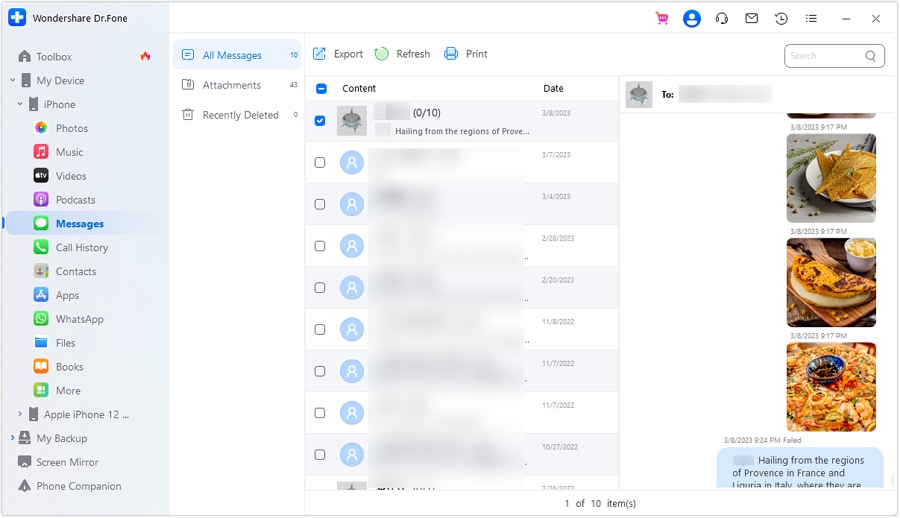
- Step 2. View and export conversations
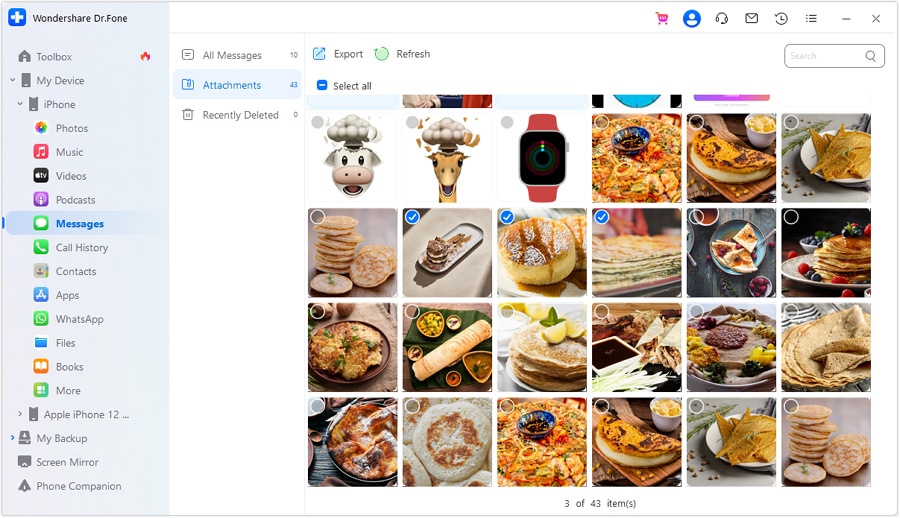
- Step 3. Export specific attachments
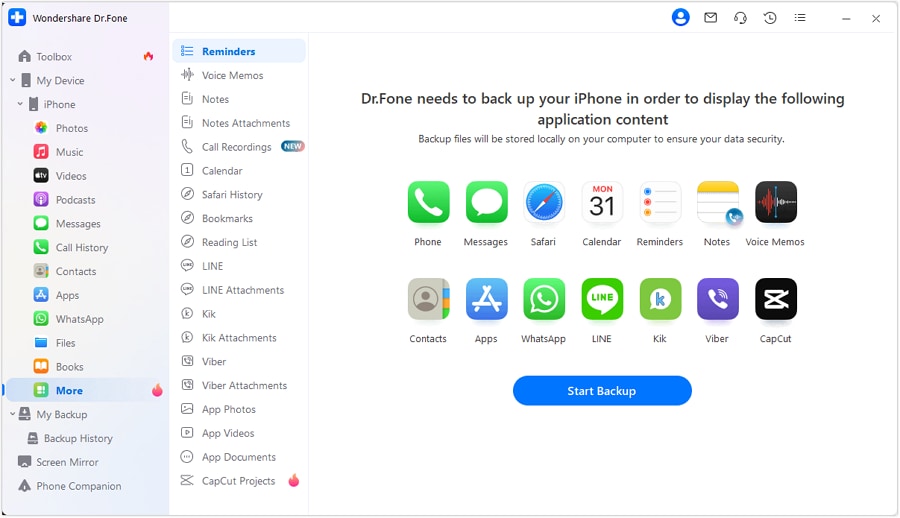
Connect your iOS device to your computer using a USB cable or the Dr.Fone Link app for a wireless connection. Open Dr.Fone and navigate to My Device > iDevice > Messages to access your complete inbox and all message types.
The All Messages section allows you to view the complete message history. You may save the entire chat with attachments as PDF, Excel, or CSV files by clicking the Export button. Additionally, you have an option to print the chat or refresh the messages list.
To access images, videos, or other attachments from your messages, go to the Attachments section. Select specific files or export all attachments at once. Use the search bar to quickly locate any attachment within your chats.
 safe & secure
Conclusion
Discovering ways on how to see hidden messages on iPhone is quite perplexing without the right tools and tricks at your disposal. iOS reveals various native tricks to help you locate hidden messages, such as unmuting a conversation, searching the message with the help of the bar, checking the filter for unknown senders, and fixing the sync issue.
Those who desire absolute command and have professional-level access can safely view, extract, and manage messages as well as attachments, even from the backups, with a single, centralized solution by Dr.Fone - Phone Manager.
In 2026, whether it is for your personal enjoyment, running a business, or securing your data, these instructions will be your guide to find, retrieve, and arrange all your iPhone messages in the most efficient manner.
safe & secureDr.Fone Basic:
Better Control for Your Phone
Manage, transfer, back up, restore, and mirror your device


iPhone Data & Files
- iPhone File Managers
- 1. iPhone File Browsers
- 2. iPhone File Explorers
- 3. iPhone File Managers
- 4. Apps to Transfer File Wirelessly
- Transfer iPhone Files
- 1. Send Large Files For Free
- 2. Transfer File from iPhone to Laptop
- 3. Transfer Files from iPhone to Mac
- 4. Transfer Files from iPhone to PC
- 5. Transfer Files from Mac to iPhone
- 6. Transfer Files from PC to iPhone
- 7. Print Text Messages from iPhone
- 8. Transfer Files Over WiFi
- 9. iPhone File Transfer Without iTunes
- 10. Access iPhone Files Using a PC
- 11. Export Notes from iPhone to PC/Mac
- 12. Save iPhone Text Messages to Computer
- iPhone Manage Tools
- 1. iPhone Transfer Tools
- 2. Manage Apps On iPhone
- 3. Security Apps for iPhone
- 4. Call Forwarding Apps
- 5. iPhone Tracking Apps
- Manage iPhone Apps
- 1. Change Viber Number
- 2. iPhone Calls Apps
- 3. Block People in Facebook
- 4. Monitor Snapchat on iPhone
- 5. Snapchat Saver Apps
- Sync iPhone Data
- 1. Sync Notes from iPhone to Mac
- 2. Ford Sync iPhone
- 3. Sync iCal with iPhone
- 4. iPhone Calendar Not Syncing
- 5. Sync iTunes Library to iPhone
- 6. Unsync iPhone from Computer
- 7. Sync iPhone with Multiple Computers
- More iPhone File Tips
- ● Manage/transfer/recover data
- ● Unlock screen/activate/FRP lock
- ● Fix most iOS and Android issues
- Free Download Free Download Free Download




Jane Lunes
staff Editor