
How to Search Text Messages on iPhone (iMessage & SMS) – Complete Guide

Oct 24, 2026 • Filed to: Device Data Management • Proven solutions
 TL;DR:
To instantly search both iMessage and SMS conversations on an iPhone, swipe down within the main Messages list or on the Home Screen to reveal the hidden search bar and query exact keywords, sender names, or media types.
● If older texts are missing from search results, check if your iPhone storage settings automatically deleted them by verifying the Keep Messages option is set to Forever instead of 30 Days or 1 Year, or toggle iCloud message syncing.
● The native iPhone search returns results containing any of the inputted words rather than exact phrases, making it necessary to combine highly specific terms or use media identifiers like http:// or photo to narrow down large thread volumes.
● Dr.Fone - Phone Manager is recommended for users needing to bulk export complete chat histories with attachments into PDF, Excel, or CSV formats, supporting Windows, macOS, iOS 26, iPadOS 26, and the iPhone 17 series.
Ask AI for a summary
 ChatGPT
 Perplexity
 Gemini
 Claude
 Grok
Grok
Dr.Fone Basic:
Better Control for Your Phone
Manage, transfer, back up, restore, and mirror your device
We've all faced the situation when you need an address, a confirmation code, or a meaningful conversation from a few months back. Locating that one specific message can be due to having to find a needle in a haystack, especially if there is not a lot of time.
This comprehensive guide will teach you how to search text messages on iPhone like a pro. It will cover basic search methods, advanced tips, and easy ways to keep your messages organized for quicker searches in the future.
- Part 1. How to Search Text Messages on iPhone (The Fastest & Easiest Way)
- Part 2. How to Search for Text Messages on iPhone More Precisely
- Part 3. How to Search for iMessage on iPhone (Is It Different?)
- Part 4. When iPhone Message Search Isn't Enough: Try Dr.Fone - Phone Manager

- Part 5. When You Can't Find Messages on iPhone (Issues & Tips)
- Part 6. Other Ways to Look Up Messages on iPhone
Part 1. How to Search Text Messages on iPhone (The Fastest & Easiest Way)
One way to quickly locate the iMessage or SMS conversations that you have on your iPhone is to directly use the search feature in the Messages app. Here is how to search through text messages on iPhone:
Using the Search Bar in Messages App
This method involves using the built-in search box located at the top of the Messages app to locate certain words or phrases in all your chats without having to open each chat individually.
Here is how do you search text messages on iPhone:
- Step 1: Launch the Messages app on your iPhone.
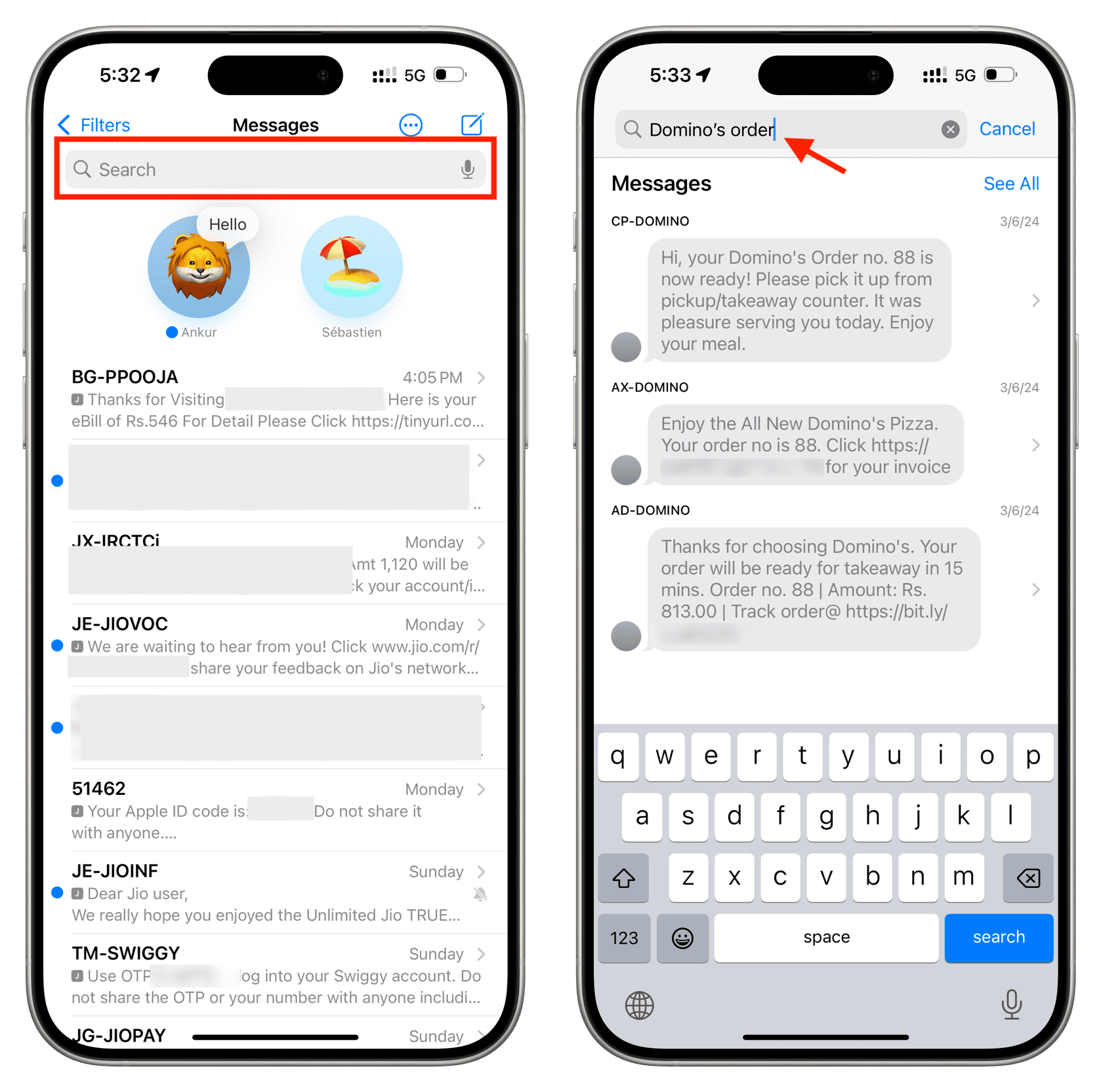
- Step 2: At the main chat list, swipe down a bit to reveal the search bar on the top.
- Step 3: Click the search bar and enter the word or phrase you recall like "pizza," "Saturday," or "confirmation."
- Step 4: Look through the results and click the message to view the entire chat.
The matching words are highlighted to help you confirm the message you were looking for.
Part 2. How to Search for Text Messages on iPhone More Precisely
Knowing which conversation contains the message, you can simply search within that text thread. This is the most accurate and fastest way. Let's explore how to look up messages on iPhone:
How to Search Within a Specific Text Thread
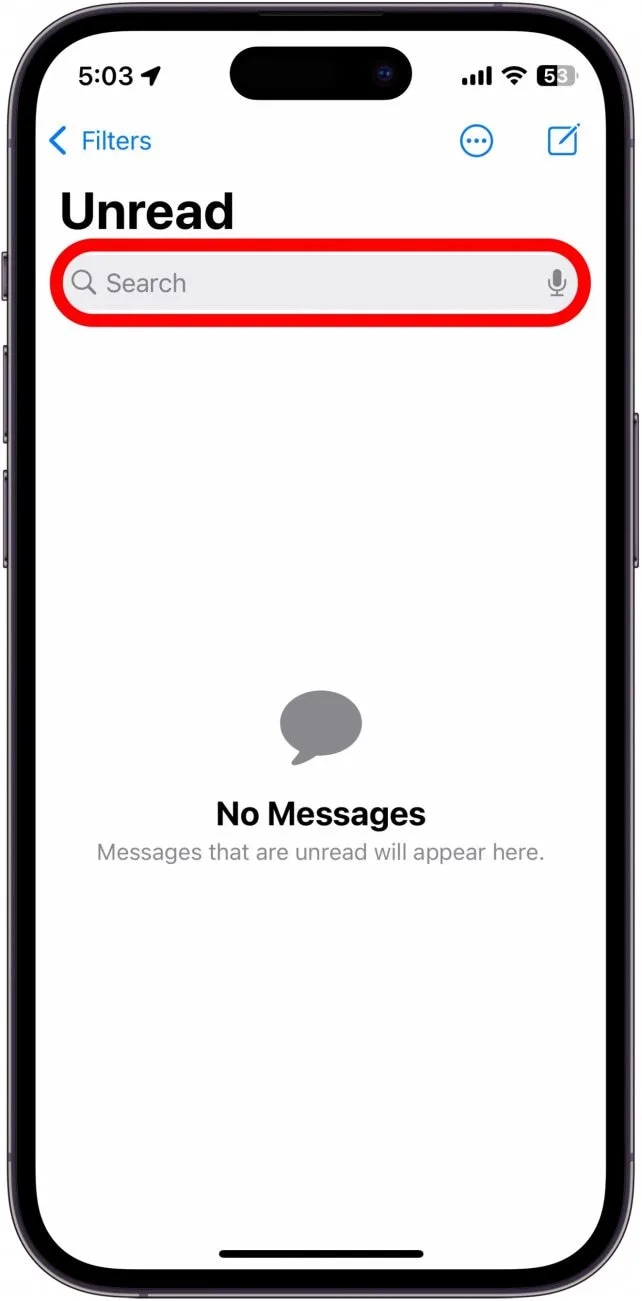
Wondering how to search in text messages on iPhone? The iPhone Messages app lacks a separate search bar for each chat. If you want to locate a specific message in a lengthy conversation, you will continue relying on the overall search bar in the Messages list — enter a keyword there, then select the conversation from the results list. This will lead you straight to the chat where your search term is highlighted.
Advanced Search Techniques & Tips to Find Messages Faster
With some clever tips and tricks, locating a message on an iPhone can be a much quicker and more effective experience than just searching for basic keywords. Here are some advanced ways of finding messages:
- Try to be very specific with your keywords: If you employ general words like "dinner" or "meeting," you could get a very long list of results. On the contrary, use very precise phrases such as "reservation for 8pm" or "project report Q1". The more unique your keyword is, the faster you will locate the message.
- Filter the messages by the sender: If you can recall who the message was from, write the name of the person in the search field. This way, you exclude all other discussions and see only the messages from that person, which is the best way to focus on lengthy ones.
- Combine several words in your query: The iPhone search tool works as a broad "OR" system and consequently, it will display messages containing any of the words you input. To make your results more relevant, combine a couple of distinct phrases or long sentences. To illustrate, if you key in "invoice March 15", it is probable that you will get the conversation where the two words appeared together rather than all the messages containing "invoice" or "March".
- Locate links, attachments, and media: By searching for specific words, for example, "http://" for links, "photo" for pictures, or "video" for videos, you can easily find the shared content. This method is great if you want to get back to a letter or media that you once had in a chat.
- Put quotations marks around your search phrase (hack): Although the Messages app does not officially support exact phrase search, the use of longer, unique phrases work very similarly, thereby reducing the number of irrelevant hits.
Part 3. How to Search for iMessage on iPhone (Is It Different?)
Many iPhone users are curious if looking for something in iMessage is different from looking for a regular SMS message. The great news is that Apple treats both iMessage and SMS similarly in the Messages app. The search bar built into the app looks through all your conversations, whether blue (iMessage) or green (SMS), and highlights the matching words in both types, thus it is very easy to find any text quickly.
Here is how do you search texts on iPhone:
- Step 1: Open the Messages app on your iPhone.
- Step 2: From the main conversation list, swipe down slightly to reveal the search bar at the top.
- Step 3: Tap the search bar and type the keyword, phrase, or contact name you want to find.
Part 4. When iPhone Message Search Isn't Enough: Try Dr.Fone - Phone Manager
Built-in tools may not be enough for those who have super long message histories, use multiple devices, or need to export, back up, or manage messages in bulk. Getting a more powerful desktop app can help you not only to search but also to organize and manage your messages more effectively if you want a higher level of control.
Dr.Fone - Phone Manager is a full-fledged iPhone management application that offers a lot more than just the native search features. You can also get a full picture of your iMessages and SMS conversations, plus export and back them up to a computer using it. This is very convenient especially if you have a very extensive message history or if you want to handle multiple types of data simultaneously.

Wondershare Dr.Fone
Transfer Photos from Computer to iPod/iPhone/iPad without iTunes
- Transfer, manage, export/import your music, photos, videos, contacts, SMS, Apps, etc.
- Back up your music, photos, videos, contacts, SMS, Apps, etc., to the computer and restore them easily.
- Transfer music, photos, videos, contacts, messages, etc., from one smartphone to another.
- Transfer media files between iOS devices and iTunes.
- Fully compatible with the newest iOS system.


Here are some of the benefits that you can get from Dr.Fone when managing messages:
- You can export, delete or organize messages together with their attachments very fast.
- You can transfer in bulk messages, contacts, photos, videos, and other files without the use of iTunes or iCloud from iPhone to a computer and vice versa.
- You can accurately find text messages, links, media, and attachments even if they are spread over different devices.
- Along with iPhone SMS/iMessage, you can check out and export WhatsApp, LINE, Kik, and Viber chats.
- Before initiating exporting or transferring operations, evaluate the health and data status of your iPhone.
- It works with iOS 26, iPadOS 26, and the iPhone 17 series, and supports Windows and macOS computers.
Steps to manage messages using Dr.Fone - Phone Manager
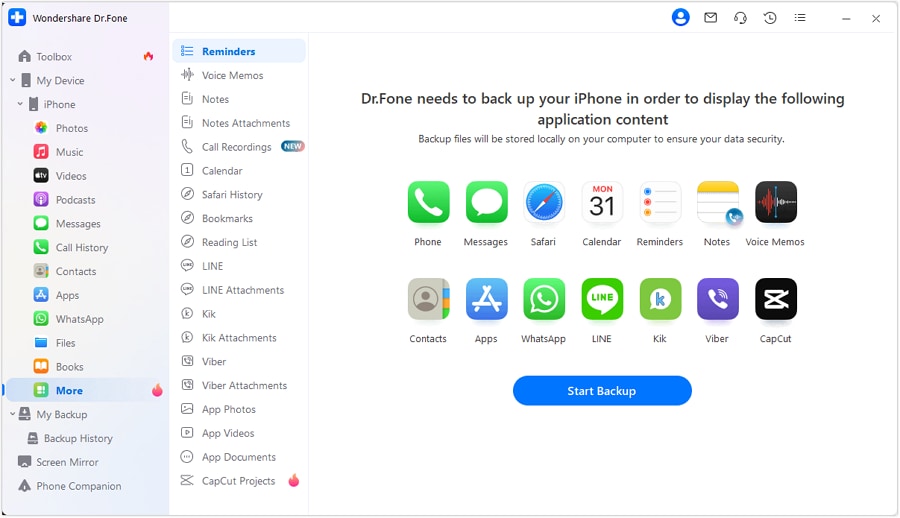
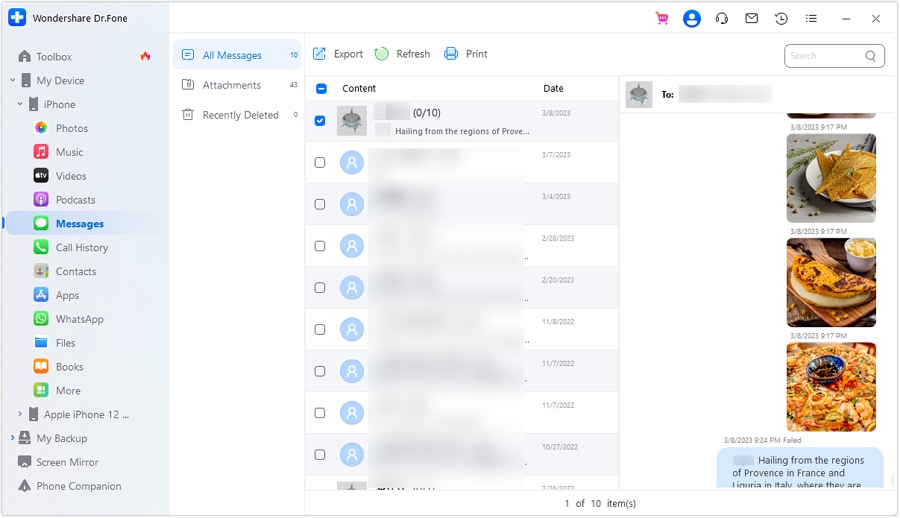
- Step 1: Connect your iPhone to your computer (USB or wireless) and open Dr.Fone > My Device > iDevice > Messages to access your full inbox.
- Step 2: View all conversations in All Messages and export entire chats in PDF, Excel, or CSV formats, including attachments.
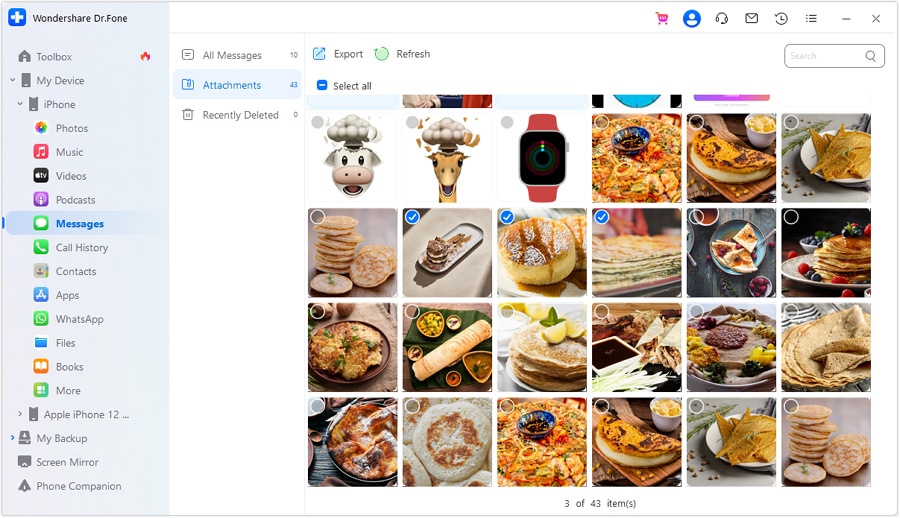
- Step 3: For specific attachments, go to the Attachments section, select the files you need, and use the search bar to quickly locate and export them.
 safe & secure
Part 5. When You Can't Find Messages on iPhone (Issues & Tips)
While iPhone's built-in search is powerful; there are still times when it may not show a message that you are sure exists. Syncing problems, message deleting settings, or even a simple case of not matching the keywords are examples of such scenarios. Knowing what typically causes these problems and ways of fixing them can be a great help in saving your time and frustration.
Why sometimes iPhone search doesn't find messages
1. The message didn't fully sync to your iPhone
You might have many Apple gadgets, like a Mac and an iPad, besides your iPhone. Some messages can be stored locally on those other devices and have not yet been synchronized with your iPhone. So, a search on your iPhone will not be able to find those messages.
Fix: Open Settings > [Your Name] > iCloud > Messages and tap the toggle next to it to ensure it is enabled. Also, connect your iPhone to Wi-Fi so iCloud can definitely sync all the messages across your devices.
2. The message was deleted automatically
You can set your iPhone to automatically get rid of old messages in order to save storage space. So, if your message is very old, it may have been deleted according to your settings.
Fix: Have a look at Settings > Messages > Keep Messages. You are allowed to keep messages forever, for 1 Year, or 30 Days. If your texts were set to get rid of after 30 days or 1 year, then the older ones may no longer be there.
3. The search keyword is not an exact match
Because iPhone search only looks for the very words you type in, it won't find the message if you used a synonym or an incomplete phrase.
Fix: Use the keyboard to enter different words or exact quotes from the conversation. To illustrate, if you searched for "dinner" but the message contains the word "supper," then it will not show up. Precision helps track down the message fast.
When the search bar is missing or unresponsive
- Force close and reopen the Messages app: Restarting the app will give it a refresh and most of the time it will solve glitches.
- Restart your iPhone: Simple restart can help in fixing iPhone if it is behaving abnormally due to temporary system issues.
- Update iOS to the latest version: Regularly updating your iPhone ensures that the bugs, which cause the search function not to work properly, are fixed.
Part 6. Other Ways to Look Up Messages on iPhone
Besides the search function in the native Messages app, your iPhone has other ways of quickly finding messages. So, finding the exact text you want without the hassle of scrolling forever becomes a less exhausting task.
1. Search iMessage via Spotlight Search
Spotlight Search is like a powerful tool that looks for anything on your iPhone, including messages, apps, and contacts. It is probably the quickest method to get back to a conversation.
Step 1: To bring up Spotlight Search, swipe down on the Home Screen.
Step 2: Enter the word(s) from the message or the person's name you are searching for.
2. Search messages with the help of filters
Here are the types of filters that you can apply:
- Known Senders vs. Unknown Senders: This feature compares messages from your saved contacts and unknown numbers.
- Chats with attachments: This filter shows only threads that contain images, videos, documents, or links.
Tips to Make Message Search Easier in the Future
- Use the "Share to Notes" option: For instance, if a message carries crucial information like addresses, confirmation codes, or directions, you can send it to the Notes app.
- Pin important conversations: Let's say a chat has vital information like work threads or family updates, pin it on top of your Messages app. So, you will always notice them without even scrolling.
- Periodically review your "Keep Messages" settings: Go to Settings > Messages > Keep Messages and choose Forever if you want to make sure your messages won't be deleted automatically.
Conclusion
Knowing how to search text messages on iPhone will open ways of creativity. Locating messages on iPhone becomes simpler if you make good use of the built-in search, Spotlight, and filters. For big mailboxes or professional needs, Dr.Fone - Phone Manager allows you to arrange, export, and manage messages efficiently. You can find any message fast and keep your chats well organized for the future by means of clever keywords, pinning important conversations, and changing message settings.
safe & secureDr.Fone Basic:
Better Control for Your Phone
Manage, transfer, back up, restore, and mirror your device


iPhone Data & Files
- iPhone File Managers
- 1. iPhone File Browsers
- 2. iPhone File Explorers
- 3. iPhone File Managers
- 4. Apps to Transfer File Wirelessly
- Transfer iPhone Files
- 1. Send Large Files For Free
- 2. Transfer File from iPhone to Laptop
- 3. Transfer Files from iPhone to Mac
- 4. Transfer Files from iPhone to PC
- 5. Transfer Files from Mac to iPhone
- 6. Transfer Files from PC to iPhone
- 7. Print Text Messages from iPhone
- 8. Transfer Files Over WiFi
- 9. iPhone File Transfer Without iTunes
- 10. Access iPhone Files Using a PC
- 11. Export Notes from iPhone to PC/Mac
- 12. Save iPhone Text Messages to Computer
- iPhone Manage Tools
- 1. iPhone Transfer Tools
- 2. Manage Apps On iPhone
- 3. Security Apps for iPhone
- 4. Call Forwarding Apps
- 5. iPhone Tracking Apps
- Manage iPhone Apps
- 1. Change Viber Number
- 2. iPhone Calls Apps
- 3. Block People in Facebook
- 4. Monitor Snapchat on iPhone
- 5. Snapchat Saver Apps
- Sync iPhone Data
- 1. Sync Notes from iPhone to Mac
- 2. Ford Sync iPhone
- 3. Sync iCal with iPhone
- 4. iPhone Calendar Not Syncing
- 5. Sync iTunes Library to iPhone
- 6. Unsync iPhone from Computer
- 7. Sync iPhone with Multiple Computers
- More iPhone File Tips
- ● Manage/transfer/recover data
- ● Unlock screen/activate/FRP lock
- ● Fix most iOS and Android issues
- Free Download Free Download Free Download


 > How-to > Device Data Management > How to Search Text Messages on iPhone (iMessage & SMS) – Complete Guide
Alice MJ
staff Editor