
How to Print Text Messages from iPhone: Guide for Personal & Legal Use

Oct 24, 2026 • Filed to: Device Data Management • Proven solutions
 TL;DR:
To print iPhone text messages, you can bulk-export conversations to a PC using Wondershare Dr.Fone, sync and print them through a Mac using your Apple ID, or capture screenshots for brief exchanges.
● Wondershare Dr.Fone is optimal for extensive legal or business records, as it requires a PC connection to create encrypted backups and allows for selective printing of bulk messages alongside their media attachments.
● Printing via a Mac provides a professional layout but strictly requires identical Apple ID logins, active iCloud syncing, and Text Message Forwarding for SMS, with the operational risk that long chat histories may freeze while syncing.
● The screenshot method bypasses third-party tools but is only viable for very short conversations, as capturing lengthy threads is highly time-consuming and the resulting images are generally less trusted by courts due to the ease of editing.
Ask AI for a summary
 ChatGPT
 Perplexity
 Gemini
 Claude
 Grok
Grok
Dr.Fone Basic:
Better Control for Your Phone
Manage, transfer, back up, restore, and mirror your device
Sometimes you need a copy of your iPhone text messages for personal records or legal matters. No matter if it is for proof, backup, or sharing with someone, having a printed version can be very useful. Hence, users are left wondering how to print text messages from an iPhone, which this guide will cover.
Adhere to the given details and learn if the iPhone has a direct option to print messages and what workarounds you can opt for. As you review the details given in this guide and limitations for each option, understand how Dr.Fone is the best and easiest option.

Part 1. Why You Might Want to Print iPhone Texts
Before you explore the ways to print messages from an iPhone, review the given reasons. Get to know what one might need to print the Message for better clarity:
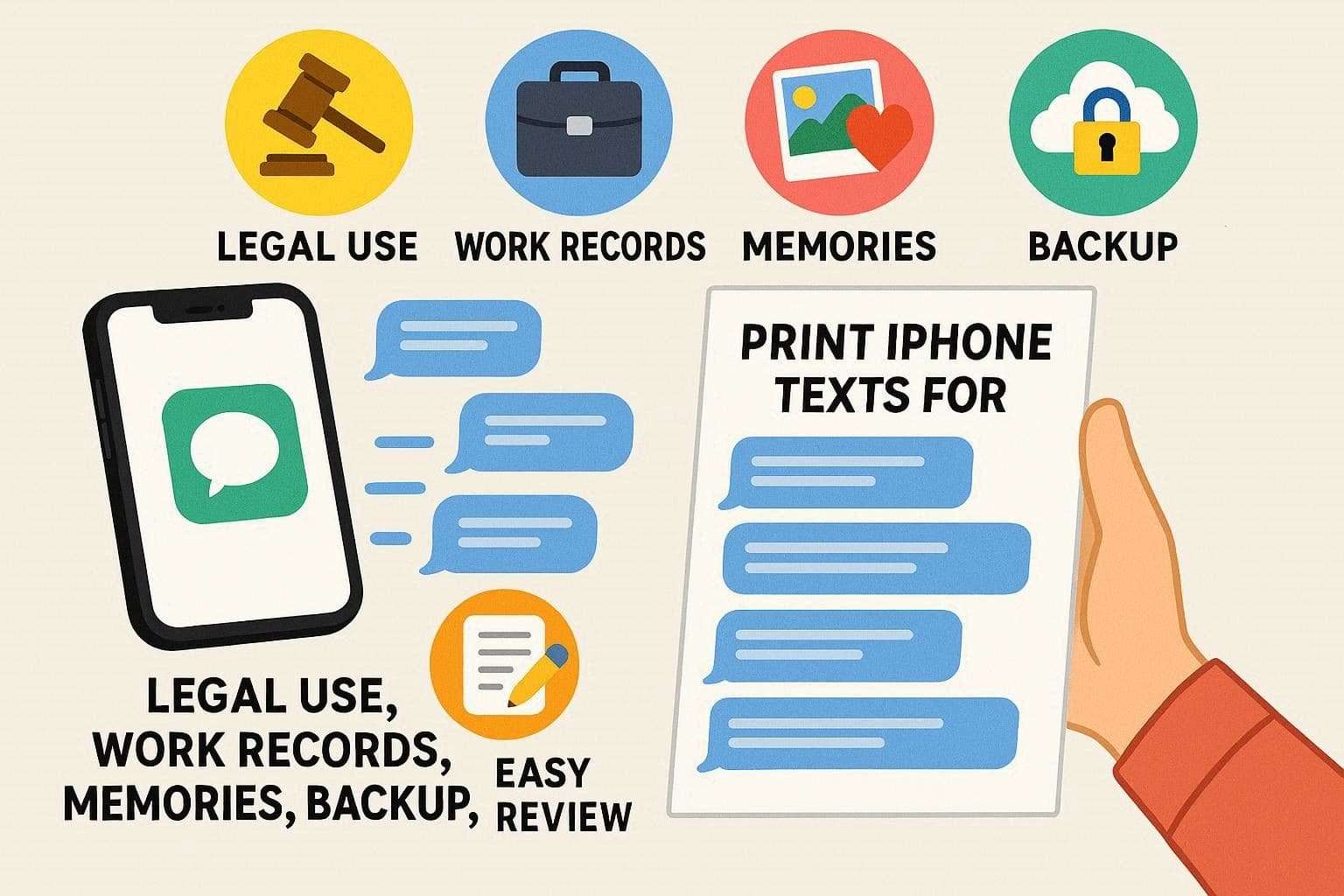
- Legal and Court Applications: Written text messages may reveal harassment, agreement, custody, and any other conflict. As such, they can be used by lawyers and the courts, and messages are typically admitted by the courts provided they have the sender, receiver, date, and the entire conversation.
- Business and Work Records: Documents containing approvals, instructions, or agreements between the business and its clients, colleagues, or suppliers. Therefore, it is useful when you print them out to check specifics related to audits, compliance, or to clarify who said what in professional affairs.
- Preserving Personal Memories: People print important messages with partners, family, or friends, like last messages from a loved one. Thus, physical copies can be framed, stored, or kept in a scrapbook beyond the phone.
- Backup and Security: Most often, phones can break, messages can be deleted, or accounts can lock. Therefore, printed copies remain safe and accessible, and when combined with digital files like PDFs, printouts serve as an extra backup for important conversations.
- Easier Review, Sharing, and Notes: Long message threads are simpler to read, highlight, or mark on paper. Besides, printouts can be shared with people without smartphones or app access, rather than giving access to your full device.
Part 2. Top 3 Simple Methods to Print Text Messages from iPhone
For those seeking simple ways to print text messages from an iPhone, this section offers 3 options. Review them in detail, consider the benefits and drawbacks, and determine which option suits you best.
Method 1. Export & Print iPhone Text Messages Using Dr.Fone [Most Efficient]
Before considering a workaround, consider Wondershare Dr.Fone, which lets you export or drag-and-drop messages across devices. Users can easily manage iPhone data and sync it between iOS devices and a computer without using iTunes or iCloud. For message export and printing, this tool lets you select multiple data types in bulk, reducing manual selection.
Furthermore, you can create an encrypted backup on a PC to keep a secure copy of your conversations. Unlike other methods, you can have complete control over the process and choose to preview it later in the designated folder. In terms of usability, it's seamless thanks to its intuitive, guided interface, making it an ideal option for beginners and professionals alike.
Guide to Export/Print Messages Effortlessly with Wondershare Dr.Fone

Wondershare Dr.Fone
Export & Print iPhone Text Messages Using Dr.Fone
- Transfer, manage, export/import your music, photos, videos, contacts, SMS, Apps, etc.
- Back up your music, photos, videos, contacts, SMS, Apps, etc., to the computer and restore them easily.
- Transfer music, photos, videos, contacts, messages, etc., from one smartphone to another.
- Transfer media files between iOS devices and iTunes.
- Fully compatible with the newest iOS system.


Since you get both the export and print later facility on this PC-based tool, here is how you can use it:
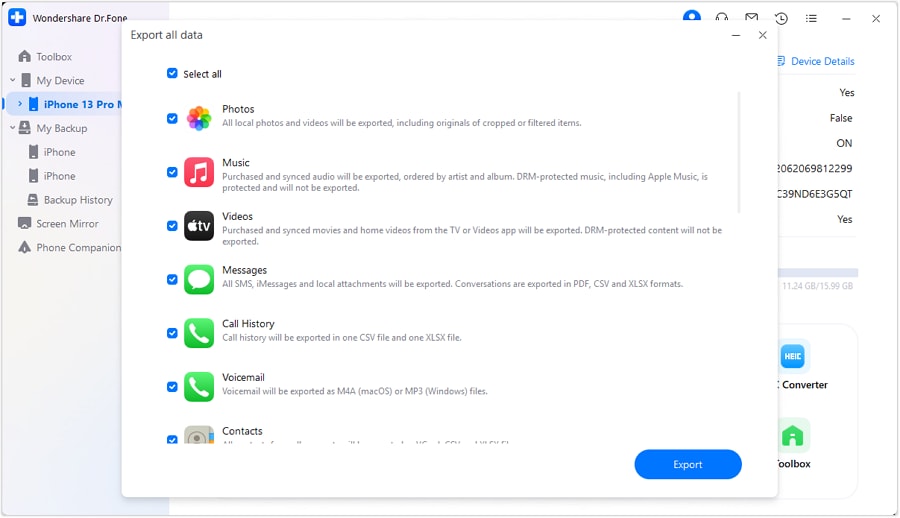
Step 1. Connect Your iPhone to Access Messages
Under the “My Device” tab, locate your iPhone as you connect it, choose “Messages” as data type, and press “Export.”
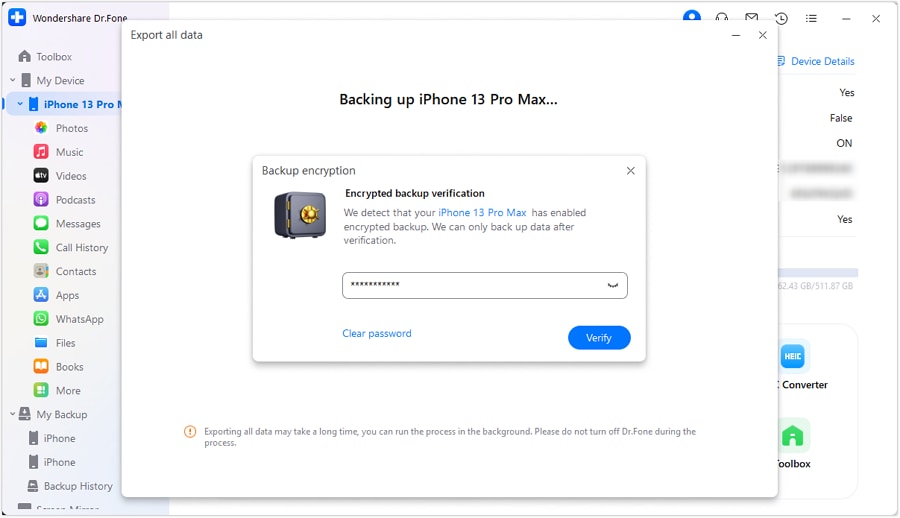
Step 2. Add a Passcode to the Backup and Verify (If Required)
When prompted, enter the passcode to create the encrypted backup on the PC, then select the “Verify” button.
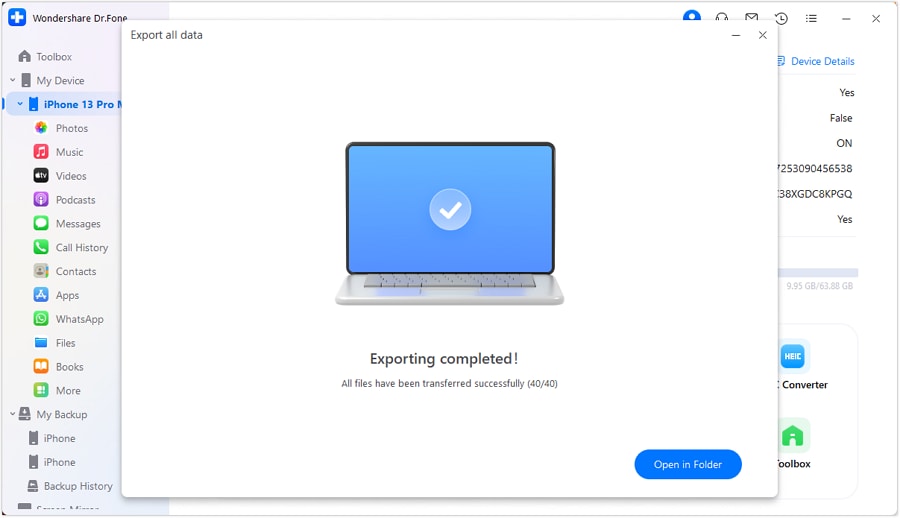
Step 3. Check Your Exported iPhone Messages
As the tool starts the export process, review it and choose the “Open in Folder” option to preview and print your messages.
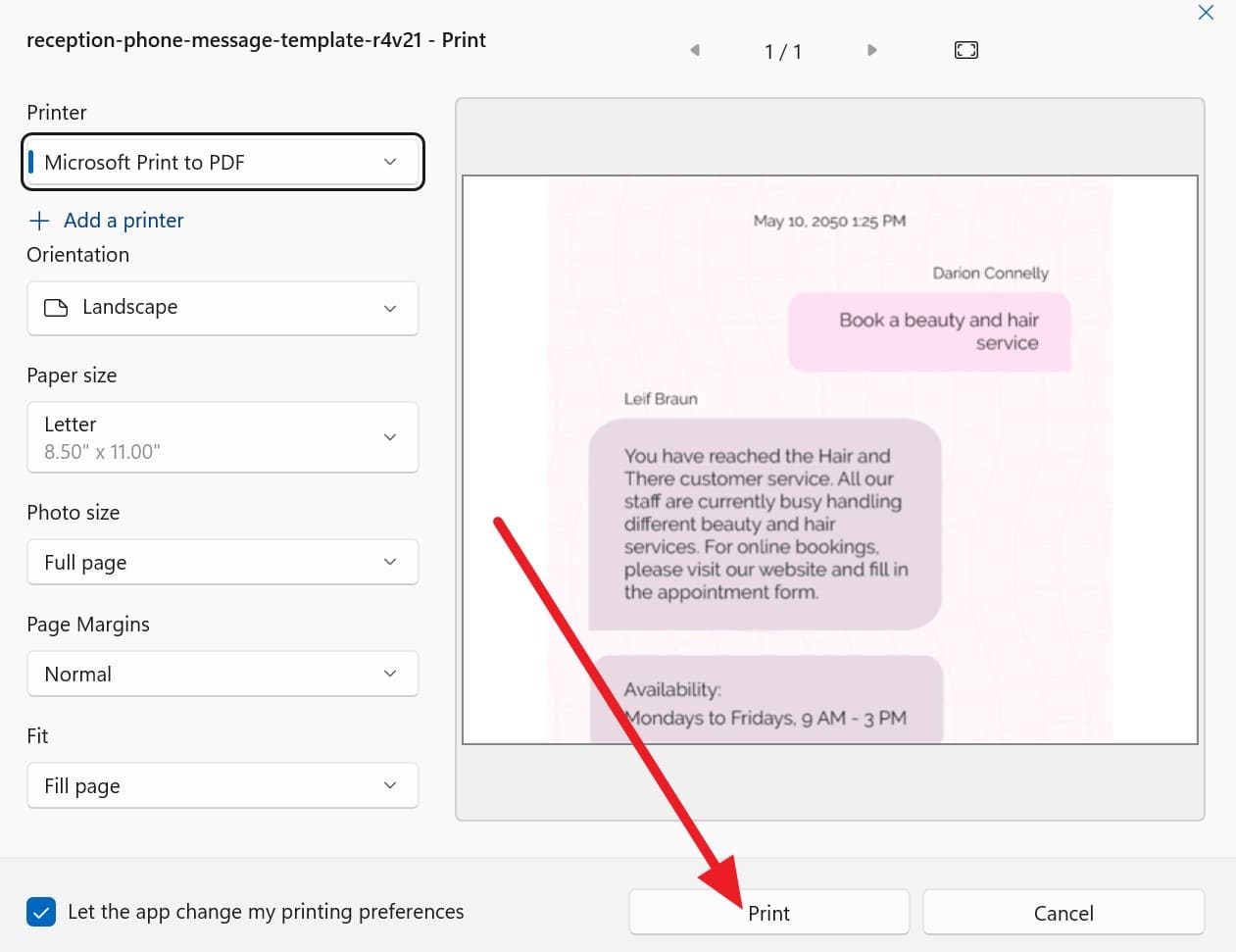
Step 4. Choose the Printer to Print a Message
In the designated folder, tap and open the file, and press the “Ctrl + P” key. After that, pick the printer and other settings like “Orientation, Paper size, and Margins, and press the “Print” button.
Benefits of Dr.Fone – Phone Manager (iOS)
- Review, choose, and print only the needed chats after export safely.
- Export messages, photos, videos, and music together from iPhone easily.
- This phone manager also offers backup, restore, export, and screen copy features.
- You can also create a backup of social apps like WhatsApp on your computer.
 safe & secure
4,624,541 people have downloaded it
Method 2. Print Messages from iPhone Using Screenshots
To know how to print text messages from an iPhone without any tool, use the screenshot method. The screenshots show chat bubbles, names, dates, and Emojis exactly as seen on screen. Besides, you can share them by email or AirDrop, then print one or many pages. This method works best when you need only a few messages and want a quick solution, and is guided below in detail:
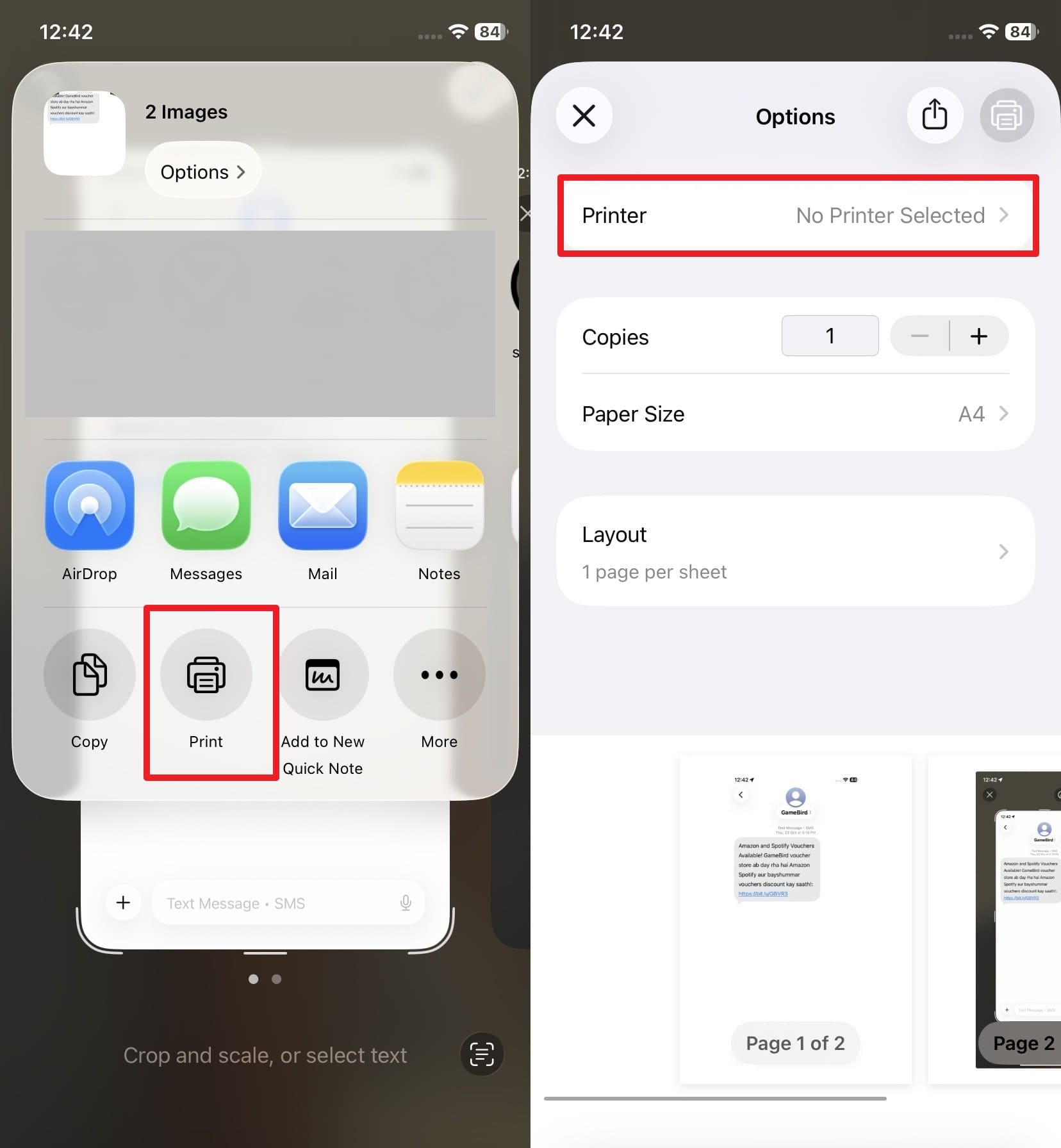
Step 1. Open the conversation you seek to print and press the “Power” and “Volume Up” buttons to take the screenshot. After that, tap the screenshot thumbnail and pick the “Share” icon.
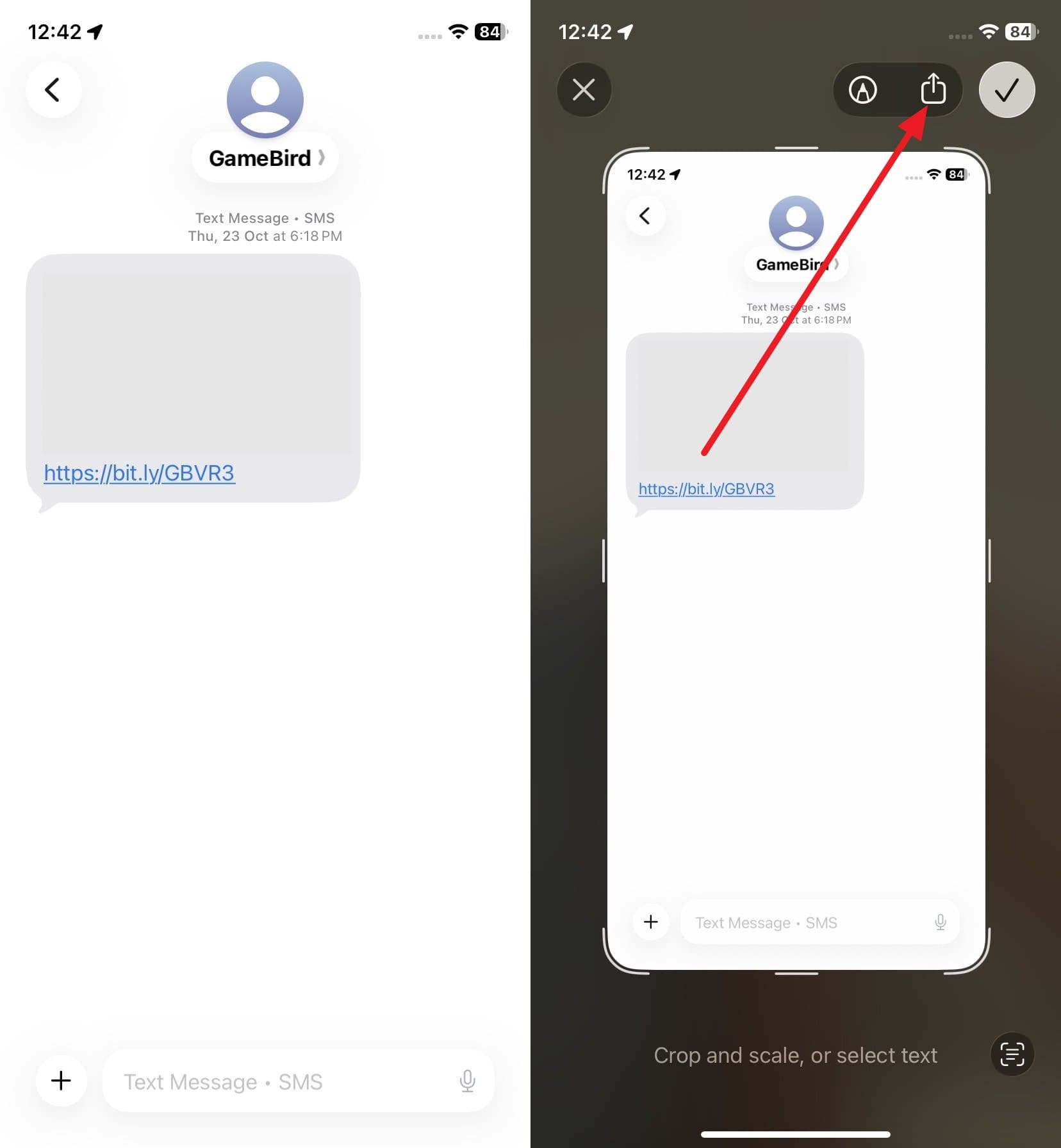
Step 2. In the pop-up, choose the “Print” option, choose the “Printer” along with other settings, and pick the “Print” button.
⚠️ Disadvantages
- Long chats need many screenshots, which takes too much time.
- Screenshots can be edited easily, so courts trust them less.
Method 3. Printing Using a Mac
If you still ask how to print SMS messages from an iPhone, sync messages with the same Apple ID on a Mac. Once they become accessible on Mac, printouts look clear and professional, with names, dates, and proper layout. Additionally, you can also save messages as PDF or text files for later use or sharing. So, to learn how to do that, adhere to the given steps for guidance:
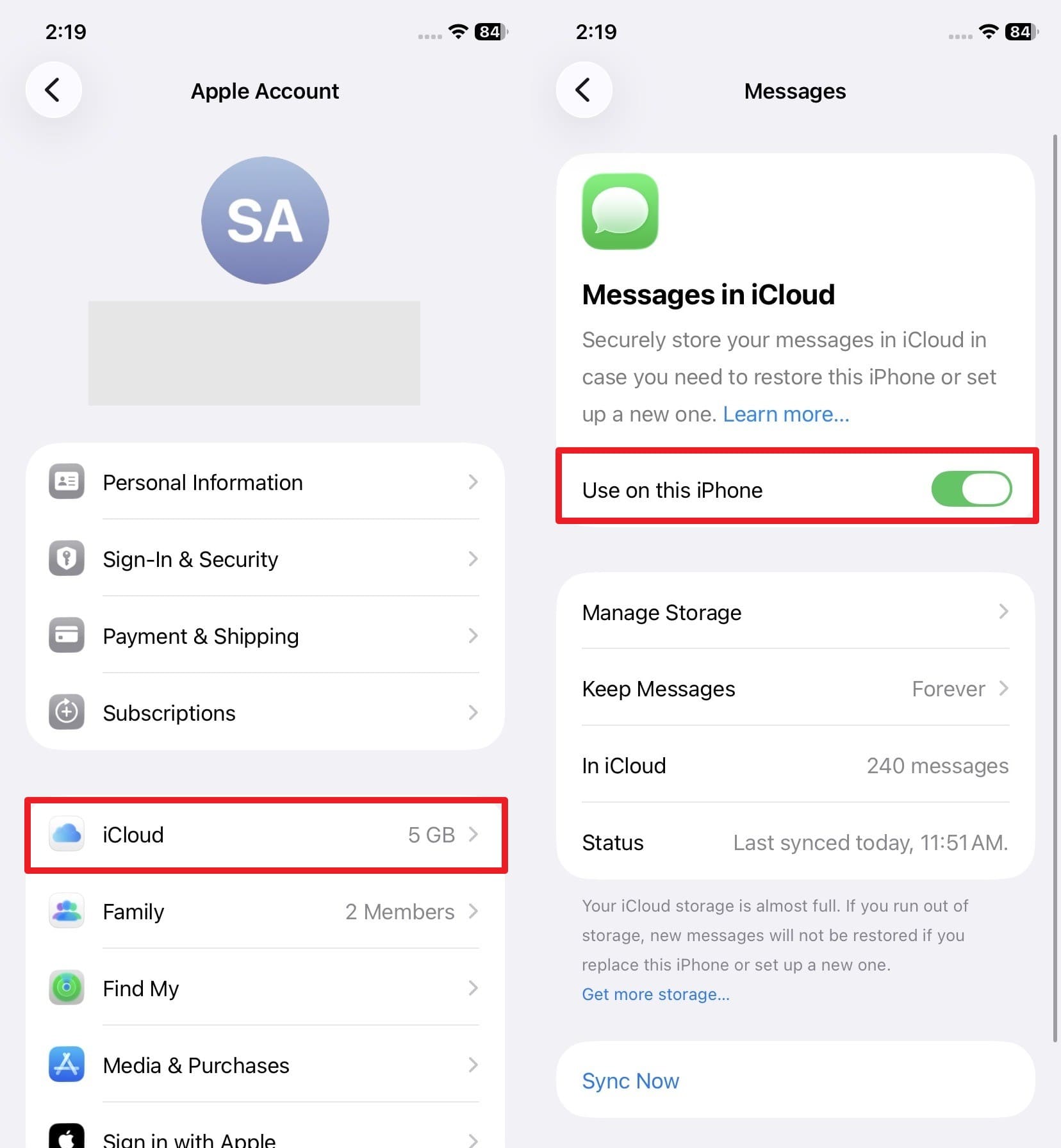
- For iMessage (Blue Bubbles): Synced via your Apple ID “Use on This Phone” option.
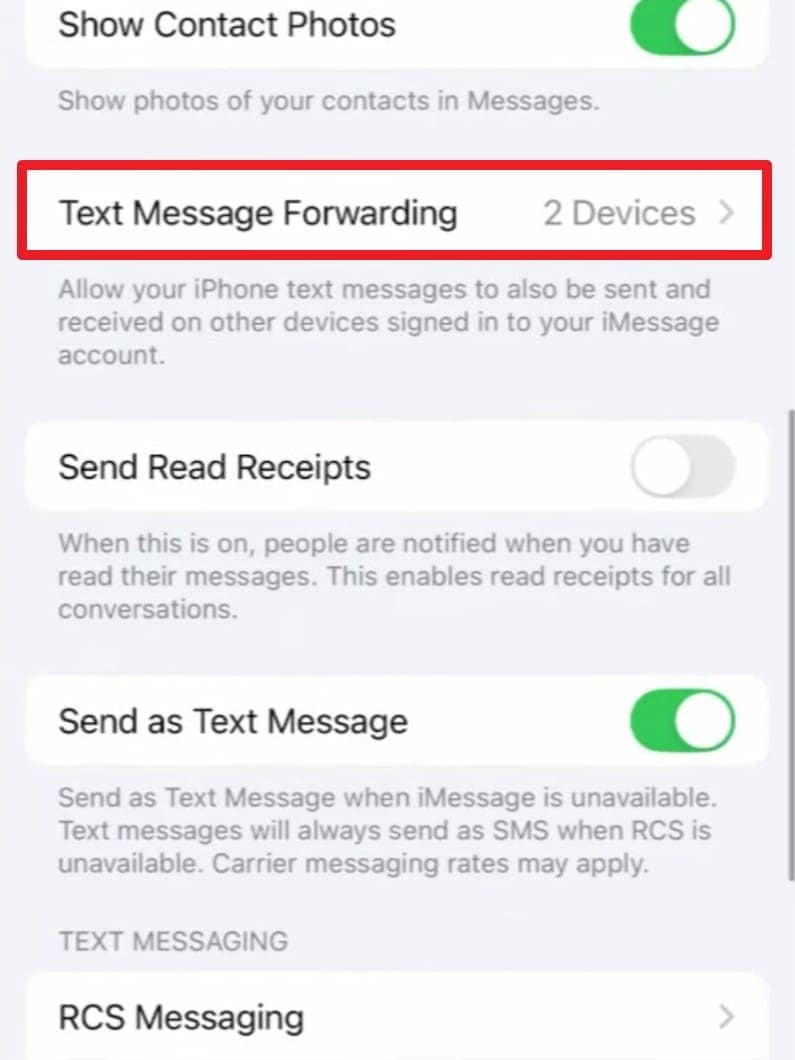
- For SMS/MMS (Green Bubbles): Forwarded from iPhone to Mac using Text Message Forwarding
Step 1. Tap the Apple ID in iPhone settings to choose the “iCloud” option, enable the “Use on This Phone” option for Messages, and ensure you are signed in with the same ID.
Step 2. After that, select “Text Message Forwarding” in the Message settings, then choose the devices signed in to the same Apple ID as the Mac. If prompted, add the code on Mac so that you can access and print messages there.
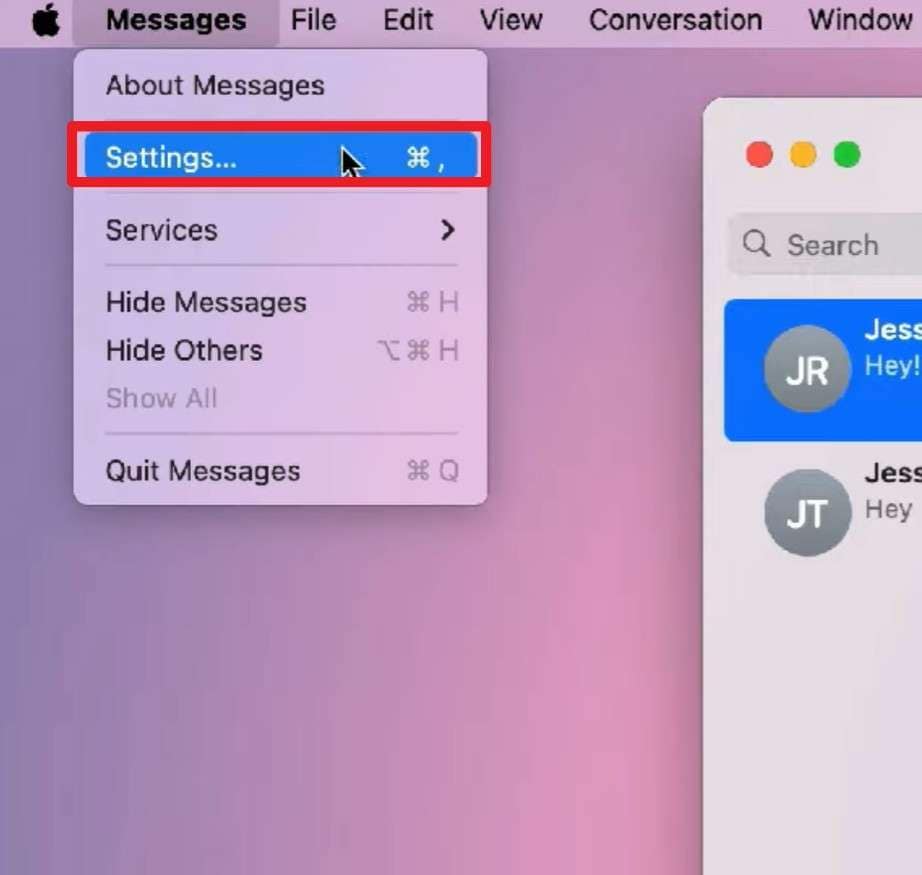
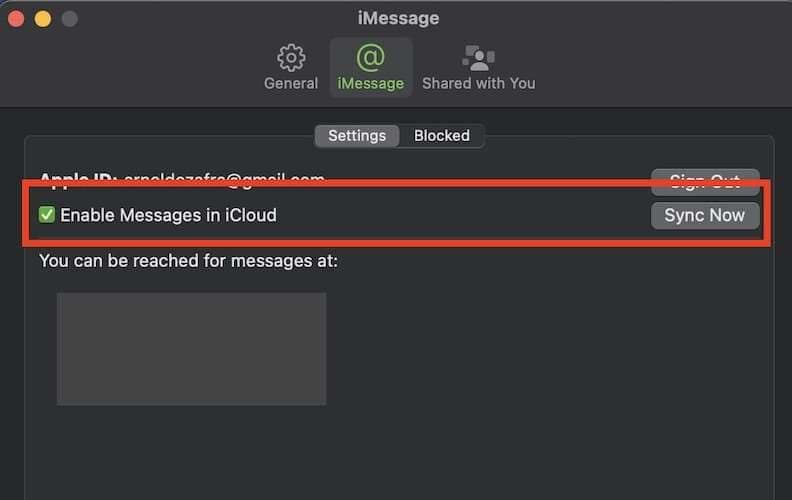
Step 3. On Mac, press “Messages” in the top menu to pick the “Settings” option and go to the “iMessage” tab.
Step 4. Check the box titled “Enable Messages in iCloud” and press the “Sync Now” button.
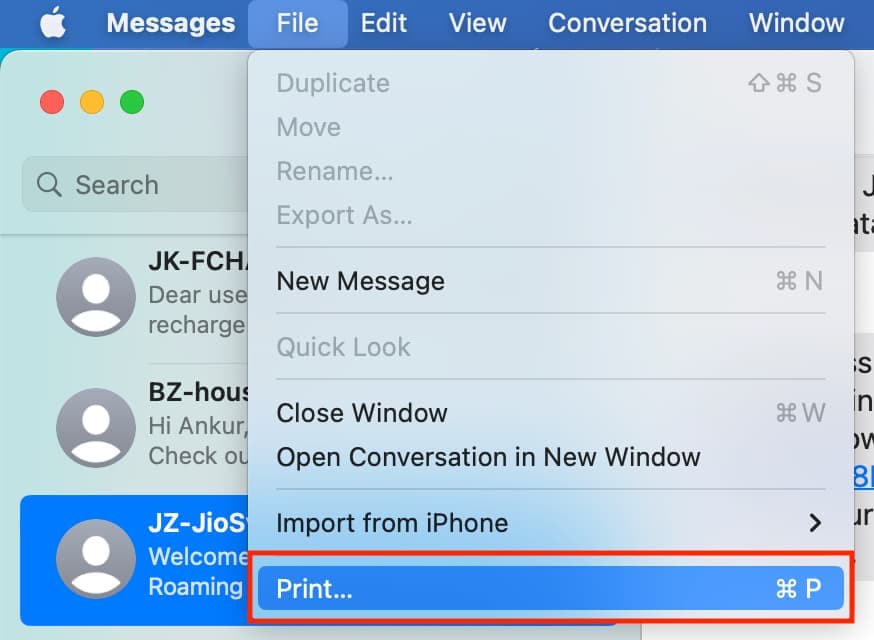
Step 5. Now, click on the conversation you want to print, and in the menu bar, select the “File” option to choose “Print.” In the print dialog, you can choose your printer and other settings or select the “Save as PDF” option.
⚠️ Disadvantages
- Very long chats may freeze or stop during the syncing process.
- Same Apple ID and SMS setup needed, or messages may not appear on Mac.
Conclusion
To sum up, this guide has explained ways on how to print text messages from an iPhone with detailed instructions. While doing so, 3 options are reviewed, with their benefits and disadvantages, so you can pick the right one. However, if you want a solution that is less tricky and offers a backup option, Dr.Fone - Phone Manager (iOS) is recommended.
safe & secure4,624,541 people have downloaded it
FAQs
 Q1. Will printing messages affect my iPhone's data?Q2. Can I print messages with images or attachments?Q3. Can I share printed messages safely?
Dr.Fone Basic:
Better Control for Your Phone
Manage, transfer, back up, restore, and mirror your device


iPhone Data & Files
- iPhone File Managers
- 1. iPhone File Browsers
- 2. iPhone File Explorers
- 3. iPhone File Managers
- 4. Apps to Transfer File Wirelessly
- Transfer iPhone Files
- 1. Send Large Files For Free
- 2. Transfer File from iPhone to Laptop
- 3. Transfer Files from iPhone to Mac
- 4. Transfer Files from iPhone to PC
- 5. Transfer Files from Mac to iPhone
- 6. Transfer Files from PC to iPhone
- 7. Print Text Messages from iPhone
- 8. Transfer Files Over WiFi
- 9. iPhone File Transfer Without iTunes
- 10. Access iPhone Files Using a PC
- 11. Export Notes from iPhone to PC/Mac
- 12. Save iPhone Text Messages to Computer
- iPhone Manage Tools
- 1. iPhone Transfer Tools
- 2. Manage Apps On iPhone
- 3. Security Apps for iPhone
- 4. Call Forwarding Apps
- 5. iPhone Tracking Apps
- Manage iPhone Apps
- 1. Change Viber Number
- 2. iPhone Calls Apps
- 3. Block People in Facebook
- 4. Monitor Snapchat on iPhone
- 5. Snapchat Saver Apps
- Sync iPhone Data
- 1. Sync Notes from iPhone to Mac
- 2. Ford Sync iPhone
- 3. Sync iCal with iPhone
- 4. iPhone Calendar Not Syncing
- 5. Sync iTunes Library to iPhone
- 6. Unsync iPhone from Computer
- 7. Sync iPhone with Multiple Computers
- More iPhone File Tips
- ● Manage/transfer/recover data
- ● Unlock screen/activate/FRP lock
- ● Fix most iOS and Android issues
- Free Download Free Download Free Download


 > How-to > Device Data Management > How to Print Text Messages from iPhone: Guide for Personal & Legal Use
James Davis
staff Editor