
Where Is the Apps & Data Screen on iPhone? Why You Can't Find It & What to Do Instead

Oct 24, 2026 • Filed to: Device Data Management • Proven solutions
 TL;DR:
The Apps & Data screen is not a permanent iOS settings menu, but a one-time setup assistant step that permanently disappears once your iPhone configuration is complete.
● To access this screen on an already configured iPhone, you must perform a total device wipe via the "Erase All Content and Settings" option, which deletes all current data and forces a fresh setup.
● If you utilize the Quick Start method to transfer data directly between two devices, the system may automatically skip the Apps & Data screen entirely and bypass alternative restore options like iCloud, Mac, or PC.
● For ongoing data management without erasing your device, desktop alternatives like Dr.Fone - Phone Manager permit selective data transfers, backups, and targeted restores outside of Apple's restricted all-or-nothing sandbox model.
Ask AI for a summary
 ChatGPT
 Perplexity
 Gemini
 Claude
 Grok
Grok
Dr.Fone Basic:
Better Control for Your Phone
Manage, transfer, back up, restore, and mirror your device
Trying to locate the Apps & Data screen on an iPhone is a bit like hunting for a secret system menu—it is not a normal screen at all, that's why. It is typical for people to look for it when they are setting up their iPhone for the first time or when restoring data from iCloud or transferring apps and files from another device. The dilemma starts when the screen does not show up at all, even after you have gone through iOS settings thoroughly.
This article finds out where the Apps and Data screen is located, explains why you can't find it on a fully configured iPhone, and introduces a powerful alternative for ongoing management: Dr.Fone - Phone Manager, a desktop tool that provides persistent, flexible control over your iOS apps and data, well beyond the initial setup.
- Part 1. What Is the Apps & Data Screen on iPhone? (Quick Answer)
- Part 2. Where is the Apps & Data screen on iPhone — and why can't you find it now
- Pro Tip. Manage Your iPhone Data with Dr.Fone - Phone Manager

- Part 3. How to Access the "Apps & Data" Screen
- Part 4. Why is iPhone data management so restricted? Apple's philosophy
Part 1. What Is the Apps & Data Screen on iPhone? (Quick Answer)
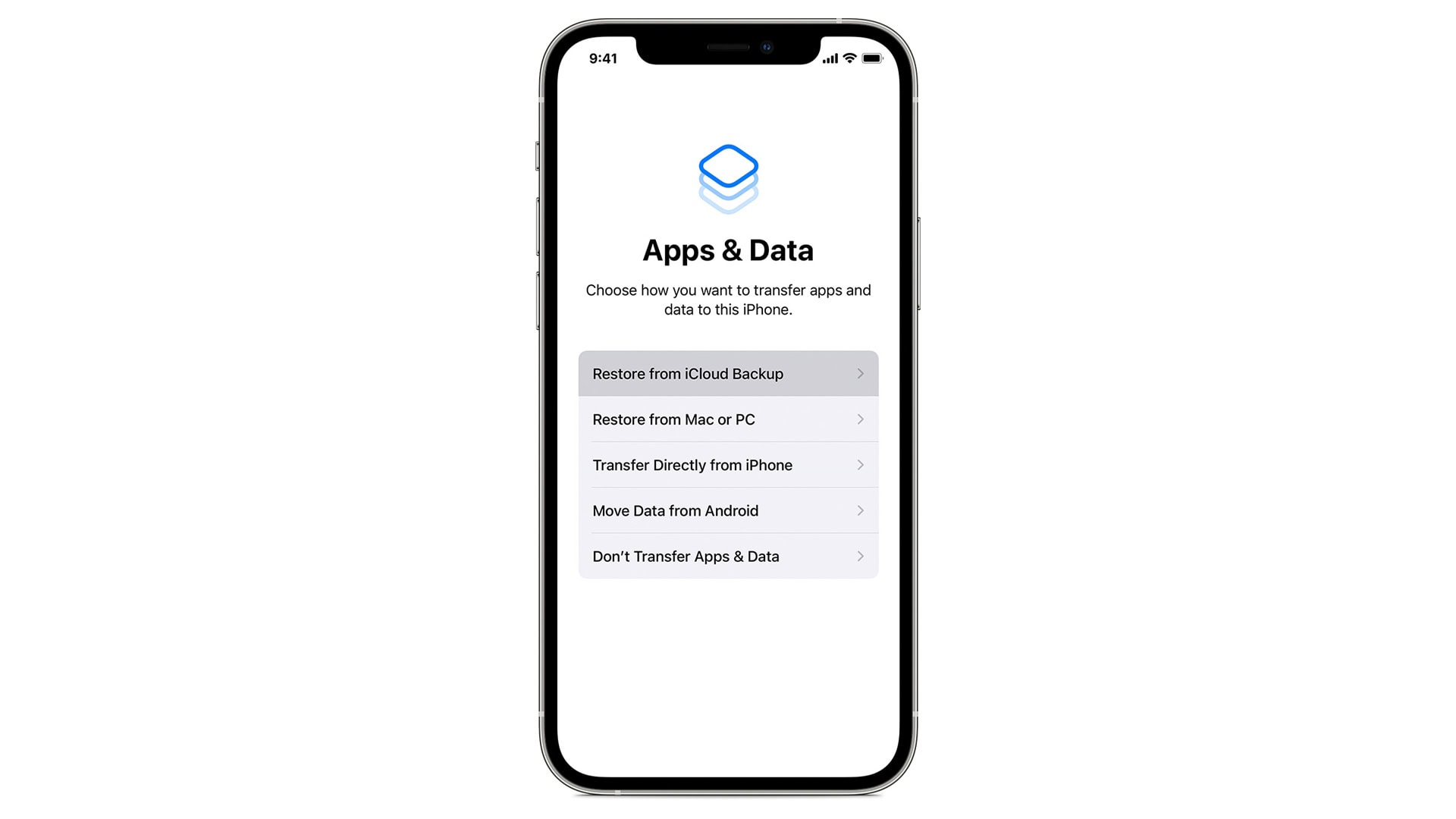
The Apps & Data screen is one of the special setup screens on iPhone intended to allow users to restore or transfer the content of the device when they decide to start fresh with a device. People often look for it because it is the screen where you choose the way to bring your apps, photos, and other data to your iPhone. Major events always involve this screen—like when a new iPhone is set up, or data is restored from iCloud or another device, or when apps and data are transferred from an old phone. The misunderstanding begins when users want to see this screen again in iOS settings and, after looking around, find that it simply does not exist there, resulting in the frequent question that is a common one: why can't I find the Apps and Data screen on iPhone anymore?
The Apps & Data screen on iPhone is a one-time setup assistant screen, not a permanent menu available to you later via iOS settings. It is a segment of Apple's initial device setup flow and is intended to assist you in choosing how your data will be transferred to the iPhone before you start using it.
This screen is shown only when setting up a new iPhone for the first time or after you've fully reset an old device. As soon as the setup process starts, Apple shows the Apps and Data screen momentarily for you to select the way forward.
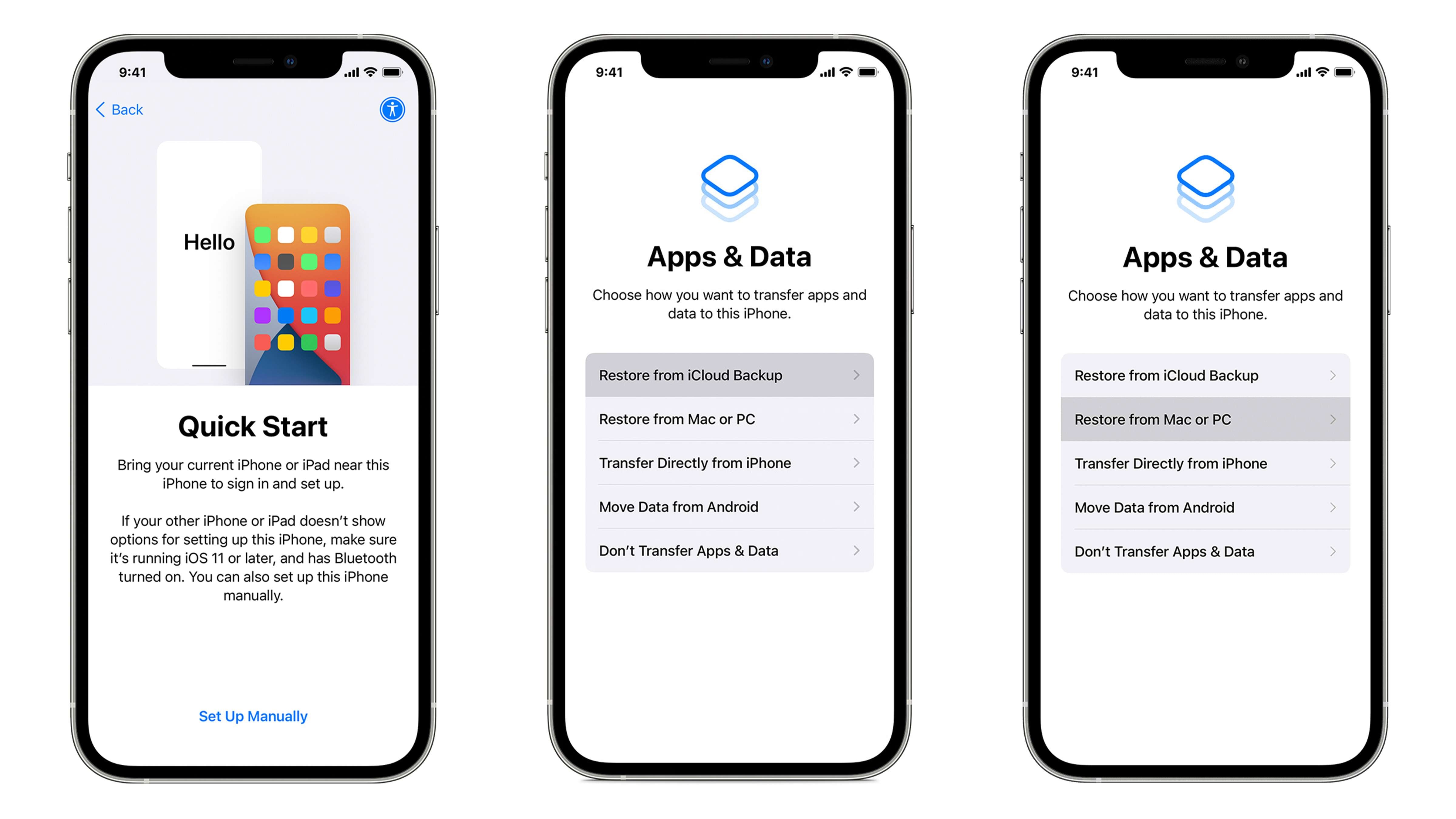
At this stage, you're given four main options:
- Restore from iCloud Backup
- Restore from Mac or PC (using iTunes or Finder)
- Transfer directly from iPhone (via Quick Start)
- Set up as new iPhone
The Key Limitation
The most crucial limitation that anyone should be aware of is that the moment the setup is completed, the Apps & Data screen vanishes permanently. There is no setting or menu in iOS that allows you to go back to it. If you want to see this screen again or change your restore method, the only way is to erase the iPhone and start the setup process over.
Part 2. Where is the Apps & Data screen on iPhone — and why can't you find it now
Here is the straightforward explanation: the Apps & Data screen is not a menu, page, or setting within iOS. It is not in Settings, iCloud options, or anywhere else after the iPhone has been started.
There are several reasons for which users mistake the screen for being eliminated:
- It is only visible during the setup process and not after the iPhone has been set up for use
- Quick Start might skip it automatically, transferring data from another iPhone without showing all the restore options
- Apple hides system-level restore tools on purpose to lower the chance of data loss or wrong restorations by the users
The main point is clear: if your iPhone is already configured and working, then the Apps and Data screen is deliberately unavailable. This is how Apple wanted it: making it a decision point that happens only once instead of a feature that you can find in iOS settings later on.
Pro Tip. Manage Your iPhone Data with Dr.Fone - Phone Manager
Apple's Apps & Data screen is set up as a decision point that is only supposed to be made once. For instance, if you don't access the screen during the setup, pick the wrong restore option, or later only want to move some files, iOS does not provide any built-in method to go back to that screen. Apple's native solution is an all-or-nothing approach - your only official option is to erase the iPhone and start over.
This is exactly the limitation that has caused many users to switch to Dr.Fone - Phone Manager. It is a professional-grade iPhone data management tool that doesn't rely on the setup process and thus always gives you access to and control over your data even after your device is fully configured.
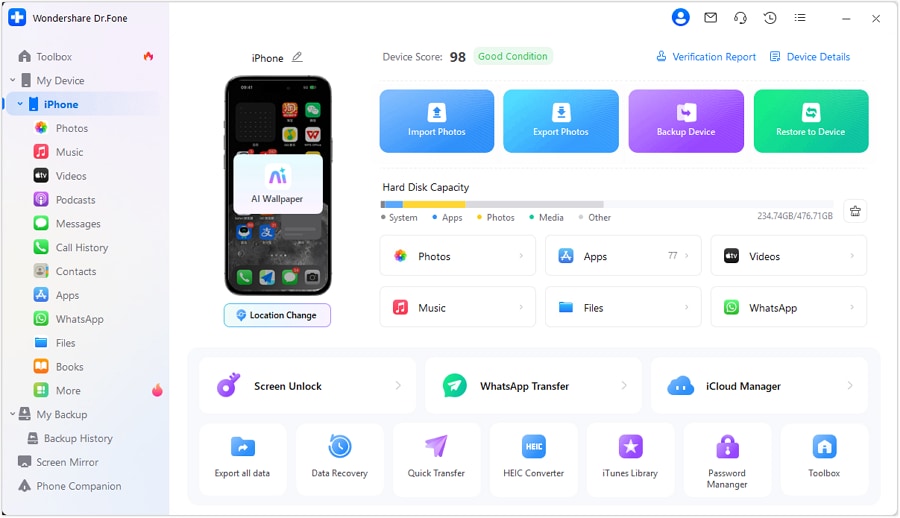
Dr.Fone - Phone Manager gives you the ability to access, transfer, back up, and restore only those specific data types that you want without the necessity of wiping your iPhone or re-entering the setup assistant. Rather than restoring everything at once, you can take control of your data according to your liking.

Wondershare Dr.Fone
Transfer Photos from Computer to iPod/iPhone/iPad without iTunes
- Transfer, manage, export/import your music, photos, videos, contacts, SMS, Apps, etc.
- Back up your music, photos, videos, contacts, SMS, Apps, etc., to the computer and restore them easily.
- Transfer music, photos, videos, contacts, messages, etc., from one smartphone to another.
- Transfer media files between iOS devices and iTunes.
- Fully compatible with the newest iOS system.


Why It's a Better Alternative:
As opposed to the Apps & Data display— which goes away after setup and only lets you do a full restore— Dr.Fone – Phone Manager is an iPhone data management software that gives users great control over their data. With it, you can selectively transfer, make a backup of only desired data, and do a target restore without wiping the device or starting the setup again. That kind of freedom is what a lot of people would want for their day-to-day data management after the iPhone has already used.
 safe & secure
Part 3. How to Access the "Apps & Data" Screen
The Apps & Data screen is a feature that only appears while setting up an iPhone. It goes away after the setup is complete, hence it's crucial to understand its timing and methods of appearance when restoring or transferring your data. Here we explain the situations in which you can see it.
Scenario 1: On a Brand New iPhone
Here is the way you can get to the Apps & Data screen on a brand new iPhone. Do these steps in the right order and take them carefully so that you reach the screen before you start to transfer or restore your data.
- Step 1. Power on your iPhone
- Step 2. Select language and region
- Step 3. Connect to Wi-Fi
- Step 4. Set up Face ID or Touch ID
- Step 5. Create a passcode
- Step 6. Reach the Apps & Data screen
You can turn on the phone by simply pressing and holding the side button until a "Hello" screen appears. This is the first step in opening your brand-new iPhone.
First, you must pick your preferred language and the region. In this way, your iPhone will automatically adjust the interface and change the formats of dates, time, and currency according to the local standards.
Logging in to a Wi-Fi network is indispensable as it not only activates your iPhone, provides access to the iCloud, and enables the use of online features but also allows the restoring of backups at this stage.
Use the visual guide to enroll your Face ID or Touch ID. Hence, the security level is enhanced, and Apple Pay, among other services, is also enabled.
Pick a six-digit passcode (or a custom passcode) that only you know to secure your device, as this is a device security measure.
Once the passcode is set, the Apps & Data screen will open. If you are on this screen, you have the option to restore from iCloud, load from your Mac or PC, transfer from another iPhone wirelessly, or just go for a fresh iPhone setup (starting a new iPhone).
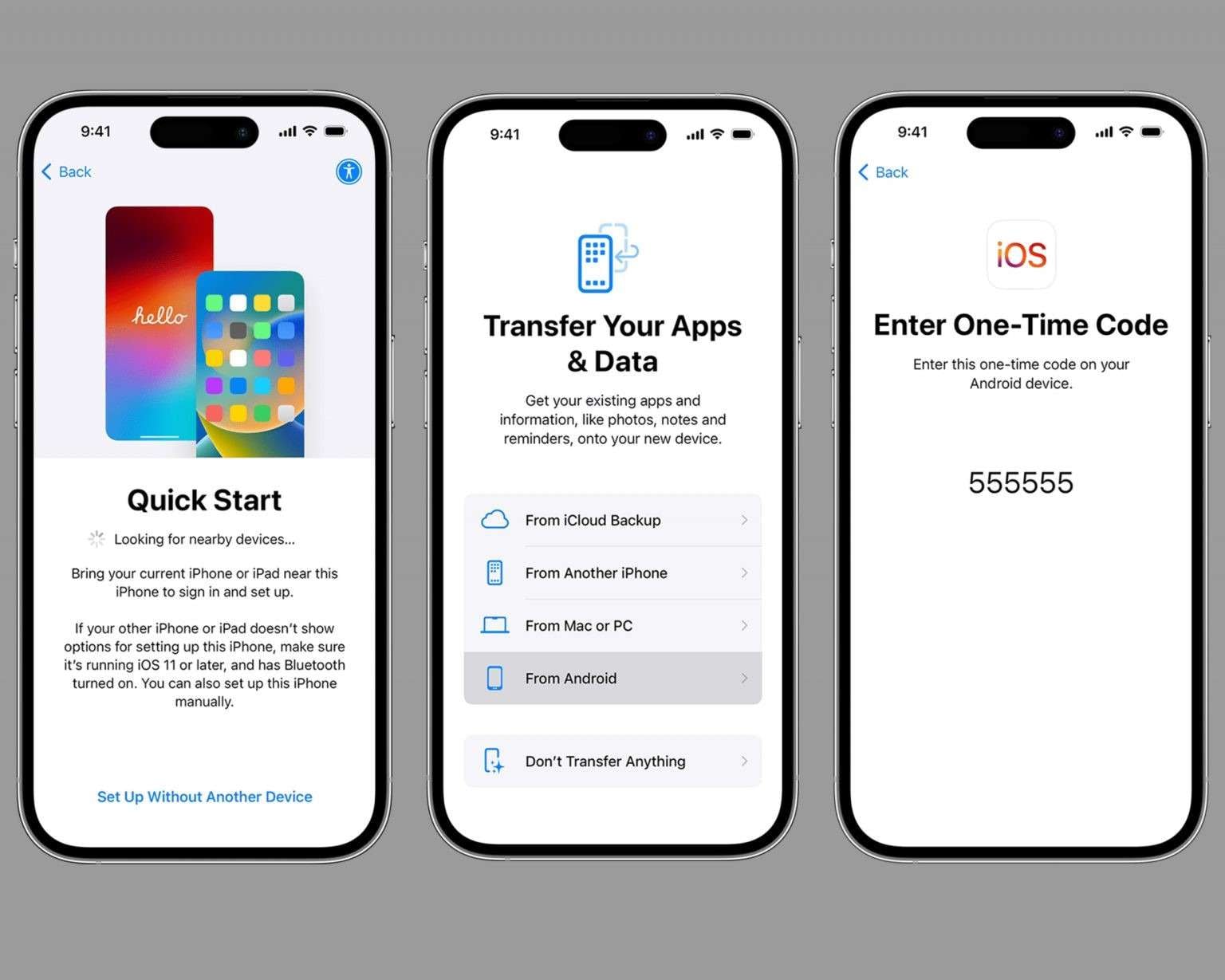
Important note: When two iPhones are used for Quick Start, the Apps & Data screen might not even appear as it is skipped due to data being directly sent from the old device without providing all the restore options.
Scenario 2: On a previously set up iPhone (The Nuclear Option)
In case your iPhone is previously configured, and you want to open the Apps & Data screen, you will have to erase the device and set it up again. It means deleting all current data, so extreme caution must be exercised.
- Step 1. Back up your iPhone
- Step 2. Go to Settings > General > Transfer or Reset iPhone
- Step 3. Click on "Erase All Content and Settings"
- Step 4. Reboot and follow setup steps
It is highly recommended to have a recent and complete backup of your data via iCloud, iTunes, or a third-party software such as Dr.Fone – Phone Manager before erasing the iPhone, which is a destructive process.
To start erasing an iPhone, open Settings, tap General, and select Transfer or Reset iPhone.
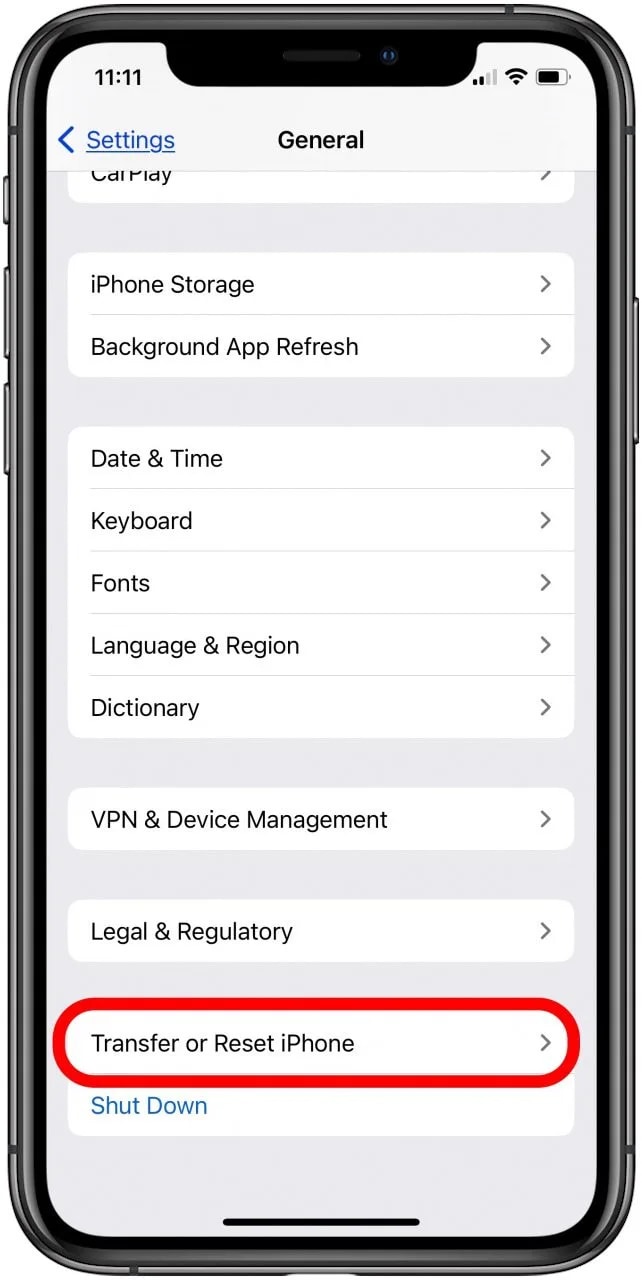
Request confirmation for the erasing of an iPhone. To do this, you might have to enter your Apple ID password as well as the device passcode.
Once the wipe is done, the iPhone will show the "Hello" screen after a reboot. The usual setup sequence language selection, Wi-Fi, Face/Touch ID, and passcode create should be restarted until the Apps & Data screen is visible again.
Warning: This solution is a total wipe of current data. If you are unsure about the consequences, please do not continue without having a backup that can be trusted.
Part 4. Why is iPhone data management so restricted? Apple's philosophy
Apple carefully considers data protection and user interaction in its decisions, which explains why an iPhone's data handling seems more limited when compared with a computer.
The "Sandbox" security model
iOS employs the sandbox technique to keep apps and their data isolated from each other. Each application has its separate, secured domain where other applications - and even the user - don't get to access its files without permission.
User experience vs. control
Apple mainly focuses on delivering a simple yet secure experience to most users, even at the cost of flexibility being limited. In contrast to a computer, iOS does not provide direct access to the file system or allow detailed data management.
The gap in functionality
The screen of Apps & Data, due to these limitations, is a very blunt, all-or-nothing tool — its primary purpose is to deal with full-device restores rather than selective transfers. People looking to get used to their data must turn to other solutions like Dr.Fone – Phone Manager, which operates beyond the confinements of Apple's setup and offers selective access, backups, and restores.
Conclusion
The Apps & Data screen on iPhone is a tool that can be used only once during the initial setup to facilitate the restoration and transfer of data. After the setup has been completed, the screen disappears intentionally and is not accessible. Many users get puzzled as to why they cannot locate it, and on top of that, Apple's sandbox model and focus on security and simplicity come with no native feature to re-access the screen.
Besides, if users want to have a tighter grip on their data by transferring only a few selected files, or saving only certain ones, or restoring without deleting the device, they could turn to Dr.Fone - Phone Manager, which is a viable option. Since it provides functionalities to handle apps, media, contacts, messages, and iCloud data, it will empower users with a level of flexibility and accuracy that the Apps and Data screen is not capable of.
safe & secureDr.Fone Basic:
Better Control for Your Phone
Manage, transfer, back up, restore, and mirror your device


iPhone Data & Files
- iPhone File Managers
- 1. iPhone File Browsers
- 2. iPhone File Explorers
- 3. iPhone File Managers
- 4. Apps to Transfer File Wirelessly
- Transfer iPhone Files
- 1. Send Large Files For Free
- 2. Transfer File from iPhone to Laptop
- 3. Transfer Files from iPhone to Mac
- 4. Transfer Files from iPhone to PC
- 5. Transfer Files from Mac to iPhone
- 6. Transfer Files from PC to iPhone
- 7. Print Text Messages from iPhone
- 8. Transfer Files Over WiFi
- 9. iPhone File Transfer Without iTunes
- 10. Access iPhone Files Using a PC
- 11. Export Notes from iPhone to PC/Mac
- 12. Save iPhone Text Messages to Computer
- iPhone Manage Tools
- 1. iPhone Transfer Tools
- 2. Manage Apps On iPhone
- 3. Security Apps for iPhone
- 4. Call Forwarding Apps
- 5. iPhone Tracking Apps
- Manage iPhone Apps
- 1. Change Viber Number
- 2. iPhone Calls Apps
- 3. Block People in Facebook
- 4. Monitor Snapchat on iPhone
- 5. Snapchat Saver Apps
- Sync iPhone Data
- 1. Sync Notes from iPhone to Mac
- 2. Ford Sync iPhone
- 3. Sync iCal with iPhone
- 4. iPhone Calendar Not Syncing
- 5. Sync iTunes Library to iPhone
- 6. Unsync iPhone from Computer
- 7. Sync iPhone with Multiple Computers
- More iPhone File Tips
- ● Manage/transfer/recover data
- ● Unlock screen/activate/FRP lock
- ● Fix most iOS and Android issues
- Free Download Free Download Free Download


 > How-to > Device Data Management > Where Is the Apps & Data Screen on iPhone? Why You Can't Find It & What to Do Instead
Selena Lee
chief Editor