
How DND Mode Xiaomi Really Works for Calls, Messages, Alerts

Oct 10, 2026 • Filed to: Screen Lock Removal • Proven solutions
 TL;DR:
Xiaomi's Do Not Disturb (DND) mode silences calls and alerts by routing them to voicemail while callers hear normal ringing, but unexpected silence is usually caused by active automatic schedules or lock-state rules that must be managed in the Sound and vibration settings.
● Important calls can bypass DND silence if you configure the settings to allow exceptions for specifically selected contacts or repeated callers making a second attempt within a short time window.
● If a forgotten PIN or password prevents access to a silenced device, Dr.Fone - Screen Unlock (Android) can remove the lock screen, but data retention is not guaranteed and depends entirely on the device model and lock method.
Ask AI for a summary
 ChatGPT
 Perplexity
 Gemini
 Claude
 Grok
Grok
DND in Xiaomi is often activated for one reason and forgotten for weeks. Calls stop ringing. Messages arrive late. Important alerts are missed during work travel or rest hours. Many users assume a network problem or hardware issue when the cause is a silent system rule still running. Do not disturb Xiaomi settings can remain active through schedules system updates or accidental taps. These quiet rules affect daily communication more than most people expect.
This article focuses on the practical control of Xiaomi Do Not Disturb. It explains how to manage settings, remove unwanted silence, and regain access if DND overlaps with a locked screen. The aim is simple. Prevent missed calls, restore normal alerts, and keep phone behavior predictable.

Part 1. What Does DND Do on Xiaomi?
When Do Not Disturb on Xiaomi is turned on, the phone enters a controlled-silence state. Calls and app notifications stop making sounds. Alerts no longer vibrate. Messages still arrive, but remain quiet until DND is disabled.
Calls and notifications behavior
- Incoming calls do not ring
- App notifications stay silent
- Visual alerts are reduced
- Network connection stays active
This keeps the phone usable while limiting interruptions.
System alerts that still work
Some alerts ignore DND rules.
- Alarms ring at the scheduled time
- System reminders still notify
This ensures time-sensitive events are not missed.
DND synchronization across devices
When sync is enabled, Xiaomi do not disturb works across connected devices.
- Turning on DND on the phone activates it on paired devices
- Disabling it on one device removes it from the other
This two-way sync keeps silence consistent without repeated setup.
Part 2. How to Set, Turn Off/Remove Do Not Disturb on Xiaomi?
Xiaomi allows full control of do not disturb Xiaomi from three main areas. The same paths are used to turn DND on or off. This makes management simple once you know where to look.
Quick control using volume buttons
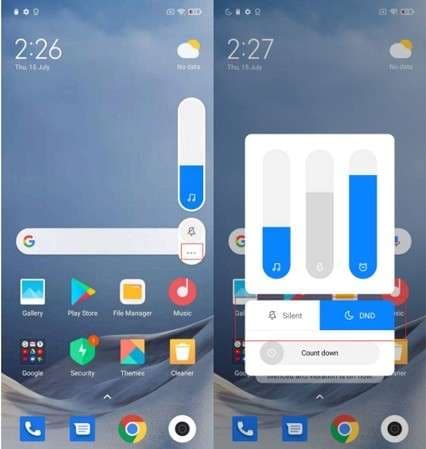
- Press any volume button
- The sound panel appears
- Tap the three dots under the volume bar
- Select the DND icon
Tapping the icon once enables Xiaomi Do Not Disturb. Tapping it again turns it off.
Control through the system settings
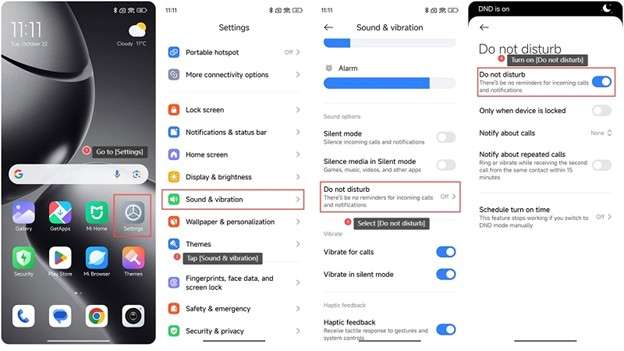
- Open Settings
- Go to Sound and vibration
- Tap Do Not Disturb
From here, you can turn dnd mode Xiaomi on or off using the main toggle. This section also shows the DND status at the top of the screen.
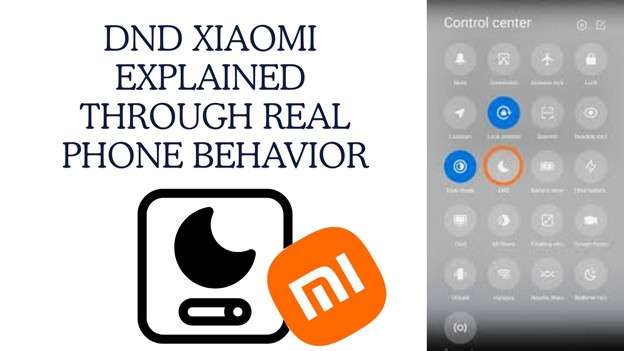
Control from the control center
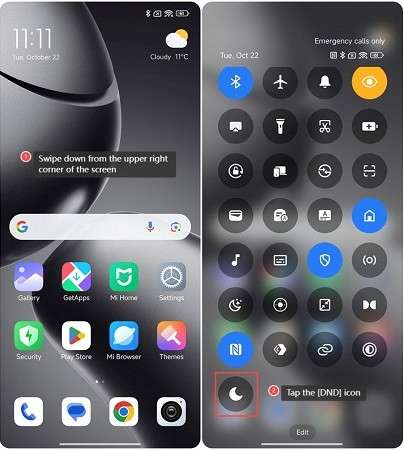
- Swipe down from the upper right corner
- Open the control center
- Find the DND icon
- Tap once to enable or disable
Options that affect when DND activates automatically
Some settings change when Do Not Disturb Xiaomi turns on without user action.
- Call permission rules: Inside DND settings, you can allow calls from selected contacts or repeated callers. These calls bypass silence.
- Automatic DND when the phone is locked: Only when the device is locked is it enabled; the phone enters Xiaomi Do Not Disturb automatically after locking. This often causes unexpected silence.
Part 3. What Happens When Your Phone Is on Do Not Disturb, and Someone Calls You?
When a call arrives while do not disturb Xiaomi is active, the phone stays silent but continues to receive the call. Alerts are suppressed, not blocked. The call is handled quietly based on DND rules. Call logs still update, and special settings can allow important calls to break through the silence.
What Happens on Your Phone (the Receiver)
- Silent response: The phone makes no sound and does not vibrate. Call pop-ups and notification banners do not appear.
- Voicemail handling: Most calls are forwarded to voicemail after a short delay.
- Call record saved: The call shows in recent calls as missed or voicemail, never as blocked.
- Allowed exceptions: DND settings can permit calls from selected contacts or allow a repeat call within a short time to ring through.
What the Caller Experiences
- Ringing behavior: The caller usually hears normal ringing before the call moves to voicemail. In some cases, it goes directly to voicemail.
- No DND signal: The caller is not told that DND is active. From their side, it sounds like the call was unanswered or the phone was busy.
Part 4. Best Tool For Unlocking The Do Not Disturb Xiaomi Screen: Dr.Fone - Screen Unlock (Android)
When do not disturb Xiaomi is active, and the phone is locked, access becomes difficult. Calls stay silent. Verification alerts are missed. Settings cannot be reached. In such cases, the issue is no longer DND alone. It becomes a lock screen access problem.
Dr.Fone - Screen Unlock (Android) by Wondershare is designed to handle this situation. It helps remove Android lock screens when normal access is blocked. The tool supports many Android brands, including Xiaomi. If a device is not eligible for data-safe unlocking, it provides an alternative removal method that restores access reliably.
This approach is useful when Xiaomi Do Not Disturb overlaps with a forgotten PIN, pattern, or password and prevents normal phone use.

Dr.Fone - Screen Unlock (Android)
The Best Tool For Unlocking The Do Not Disturb Xiaomi Screen
- Completely unlinked from the previous Google account, it won’t be traced or blocked by it anymore.
- Remove all Android screen locks (PIN/pattern/fingerprints/face ID) in minutes.
- Compatible with various Android models.
- Provide specific removal solutions to promise success rate.


Steps to remove the locked DND Xiaomi screen
Step 1: Choose the Android screen unlock option
Open Dr.Fone on your computer. Select Screen Unlock. Choose Android as the device type. Then select the option to unlock the Android screen.

Step 2: Select the Xiaomi device brand
From the brand list, choose Xiaomi. The software adjusts the process based on the selected brand.

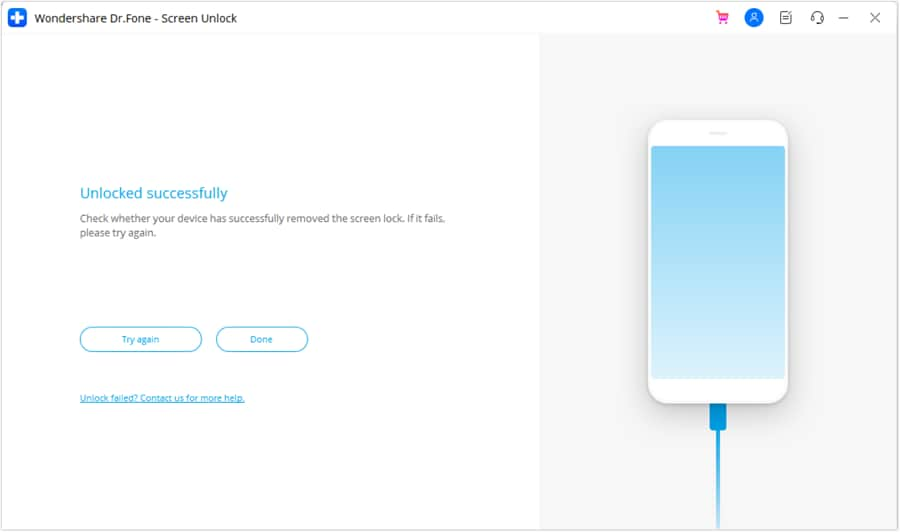
Step 3: Complete the unlock process
Wait while the unlock process runs. Once complete, the lock screen is removed. Tap Done to finish.
Conclusion
Silence on a phone should feel deliberate, not confusing. Missed calls and hidden alerts usually come from settings that stayed active longer than planned. When do not disturb Xiaomi is kept in check, it supports focus without cutting off communication. Real trouble starts only when silence and lock screens overlap, and access is lost. At that point, adjusting settings is no longer possible.
A practical recovery option like Dr.Fone becomes useful, not as a shortcut, but as a way to regain normal control. The outcome that matters is consistency. Alerts behave as expected, access stays available, and the phone works on the user’s terms, not against them.
 safe & secure
4,624,541 people have downloaded it
FAQs
 Q1. Why do calls go straight to voicemail on Xiaomi when DND is onQ2. How can I let important calls ring during Do Not Disturb on XiaomiQ3. Why does Do Not Disturb keep turning on by itself on XiaomiQ4. What is the fastest way to turn DND on or off on XiaomiQ5. Can Dr Fone unlock a Xiaomi lock screen, and will it erase data


Xiaomi Topics Series
- Xiaomi Screen & FRP Unlock
- 1. Unlock Xiaomi Bootloader
- 2. Mi Account Unlock Tools
- 3. Redmi Note 8 FRP Unlock Tool
- 4. Redmi Note 9 FRP Bypass Tool
- 5. Redmi 9A FRP Bypass
- 6. Remove FRP on Xiaomi/Redmi
- Xiaomi Repair
- Xiaomi Recover
- Xiaomi Reset
- Xiaomi Tips & News
- 1. Xiaomi HyperOS 3.0
- 2. Screen Mirror Xiaomi to PC
- 3. Run Hardware Tests on Xiaomi
- 4. Conduct battery test on Xiaomi
- 5. How Do I Obtain the Security Code Xiaomi
- 6. DND Mode Xiaomi
- Xiaomi Transfer & Backup
- ● Manage/transfer/recover data
- ● Unlock screen/activate/FRP lock
- ● Fix most iOS and Android issues
- Free Download Free Download Free Download




Julia Becker
chief Editor