

Backup Xiaomi/Redmi Phone to PC Without Cloud or Account Risks
Xiaomi Topics Series
- Xiaomi Screen & FRP Unlock
- 1. Unlock Xiaomi Bootloader
- 2. Mi Account Unlock Tools
- 3. Redmi Note 8 FRP Unlock Tool
- 4. Redmi Note 9 FRP Bypass Tool
- 5. Redmi 9A FRP Bypass
- 6. Remove FRP on Xiaomi/Redmi
- Xiaomi Repair
- Xiaomi Recover
- Xiaomi Reset
- Xiaomi Tips & News
- 1. Xiaomi HyperOS 3.0
- 2. Screen Mirror Xiaomi to PC
- 3. Run Hardware Tests on Xiaomi
- 4. Conduct battery test on Xiaomi
- 5. How Do I Obtain the Security Code Xiaomi
- 6. DND Mode Xiaomi
- Xiaomi Transfer & Backup
- ● Manage/transfer/recover data
- ● Unlock screen/activate/FRP lock
- ● Fix most iOS and Android issues
- Free Download Free Download Free Download


Sep 12, 2026 • Filed to: Backup & Restore Solutions • Proven solutions
 TL;DR:
Securing Xiaomi and Redmi phone data offline without cloud limits requires generating a local device backup and manually moving it to a computer, or using desktop software to directly extract system data and media.
● The built-in MIUI local backup saves files to the internal storage path MIUI / backup / AllBackup, which must be manually copied to a PC via USB transfer mode to actually protect against hardware failure.
● Direct USB file manager transfers only copy media and documents, whereas Wondershare Dr.Fone creates a selectively restorable backup including contacts and messages but requires setting the DrFone Link app as the default SMS handler during the process.
● The official Mi PC Suite tool provides offline data syncing primarily for older devices like the Redmi Note 6 Pro, but it requires users to manually enable developer options and USB debugging beforehand and has limited support for newer MIUI versions.
Ask AI for a summary
 ChatGPT
 Perplexity
 Gemini
 Claude
 Grok
Grok
Dr.Fone Basic:
Better Control for Your Phone
Manage, transfer, back up, restore, and mirror your device
A Xiaomi Redmi Note 7 user once shared how a simple screen freeze forced a factory reset. Family photos were gone. A Mi A3 owner faced the same loss after a failed update. These are common stories. Phones like Redmi Note 6 Pro and newer Redmi models store years of personal data but offer little warning before failure. Cloud backups depend on access and storage limits. A computer does not.
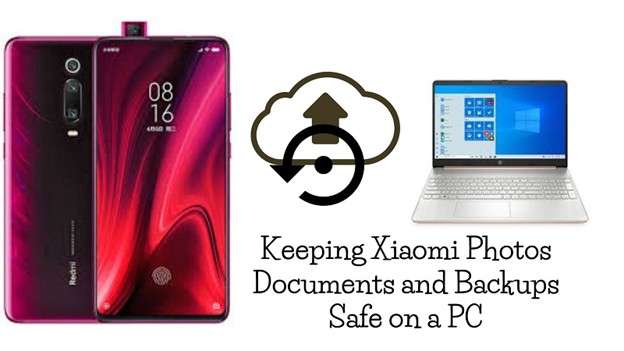
This article focuses on backup xiaomi phone to pc using practical methods tested on real devices. It explains the Mi phone backup to pc, Redmi phone backup to pc, and Xiaomi Mi A3 backup to pc using official tools, USB transfer, and safe software. The aim is clear. Keep data safe before loss becomes irreversible.
- Part 1: Where Is Xiaomi Backup Stored
- Part 2: Backup Methods That Match Different Xiaomi Use Cases
- Method 1: Backing Up Xiaomi Redmi Phones to PC Using Wondershare Dr.Fone

- Method 2: Backup and Restore Xiaomi Phone to PC Using Mi PC Suite
- Method 3: Use Local Backup to Create Xiaomi Mi A3 Backup to PC
- Method 4: Copy Xiaomi Media Files to PC Using a USB Cable
- Method 5: Manually Back Up and Restore Redmi Phones Using File Explorer
- Part 3: Quick Comparison of Xiaomi to PC Backup Methods and Use Cases
Part 1: Where Is Xiaomi Backup Stored
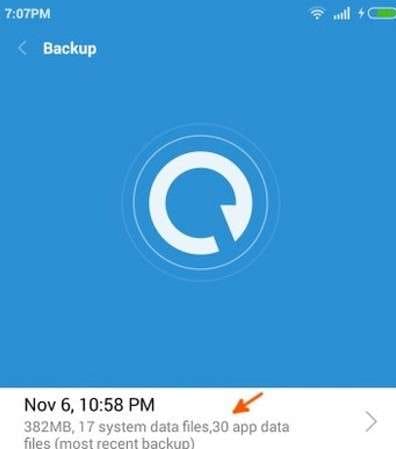
The Xiaomi phone, it comes with a built-in local backup function to provide offline protection. When you back up from the phone settings, the data is not stored in the cloud, and it's saved directly onto your device. It is integrated into Xiaomi Mi Backup and works across most Redmi and Mi devices.
The backup files are stored inside a fixed folder path. On both Xiaomi and Redmi phones, the location is:
MIUI / backup / AllBackup
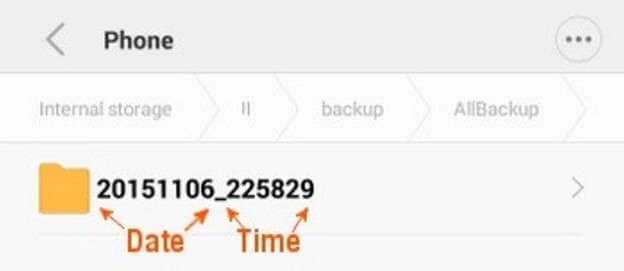
Each backup appears as a separate folder. The folder name is created from the backup's date and time. This makes it easier to distinguish older and newer clones. Phones such as the Redmi Note 7 and the Redmi Note 6 Pro have a similar pattern to follow.
If there is an SD card installed, Xiaomi could store the backup in there and not in internal memory. For backing up a Xiaomi phone to a PC, this folder must be copied manually to the PC. Without this step, the backup remains tied to the phone and cannot protect against device failure.
Part 2: Backup Methods That Match Different Xiaomi Use Cases
Many people first try apps or desktop tools to protect their Xiaomi data. These options work well, but some users prefer direct access to files. For backup mi phone to a PC, a manual method offers full visibility and control without relying on extra software.
Method 1: Backing Up Xiaomi Redmi Phones to PC Using Wondershare Dr.Fone
Wondershare Dr.Fone is designed for users who want a structured and reliable Xiaomi phone backup to PC without relying on cloud storage. It creates a full backup on the computer and allows selective restore later. This is useful when switching phones or protecting data before updates or resets. The backup stays offline and remains accessible even if the phone is no longer usable. DrFone supports contacts, messages, photos, videos,s music app,s call history, and system data.

Wondershare Dr.Fone
Flexibly Backup and Restore Android Data
- Selectively backup Android data to the computer with one click.
- Preview and restore the backup to any Android device.
- Supports 8000+ Android devices.
- There is no data lost during backup, export, or restoration.


Step-by-Step Guide to Back Up Xiaomi Redmi Phone to PC
Step 1: Connect the Xiaomi Phone to the Computer
Install Wondershare Dr.Fone on your PC and run it. Connect your Xiaomi or Redmi device to the computer with a USB cable. Open the phone and grant permissions if prompted.
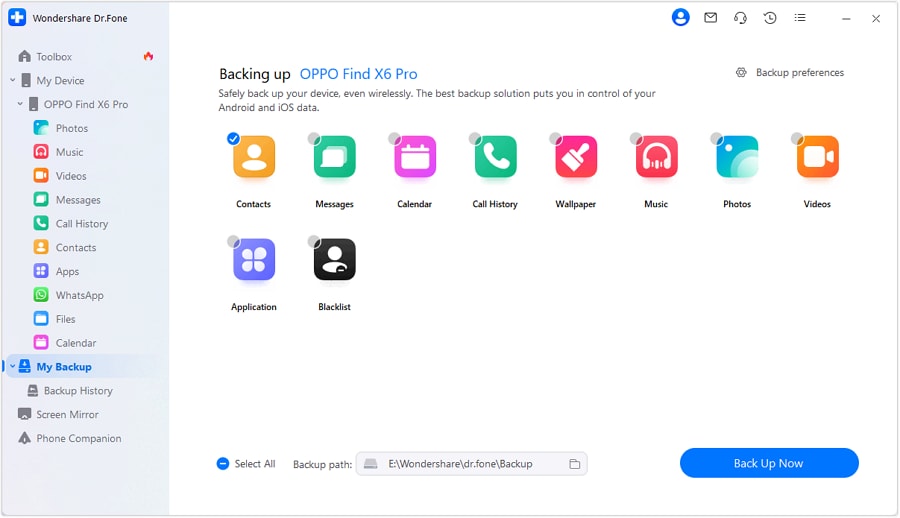
Step 2: Open the Backup Tool
From the main screen, select the backup option. Choose to start a new backup. The software will automatically detect the phone.
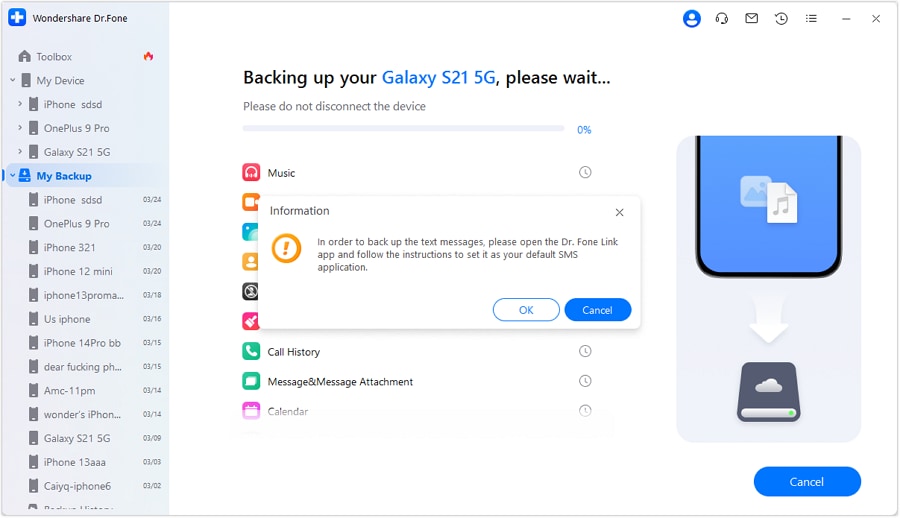
Step 3: Allow Message Backup Access
If message backup is selected,d the phone will request permission. Set the DrFone Link app as the default SMS app when prompted. This is required only for message data.
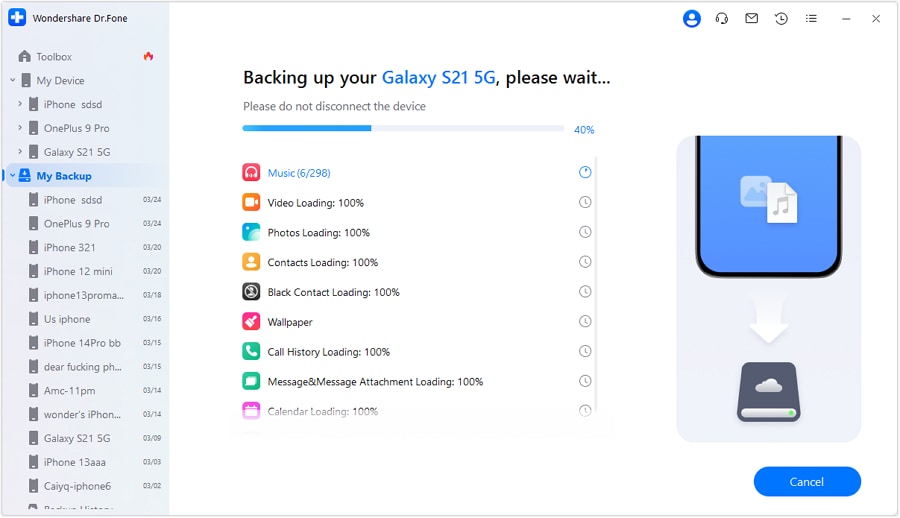
Step 4: Start the Backup Process
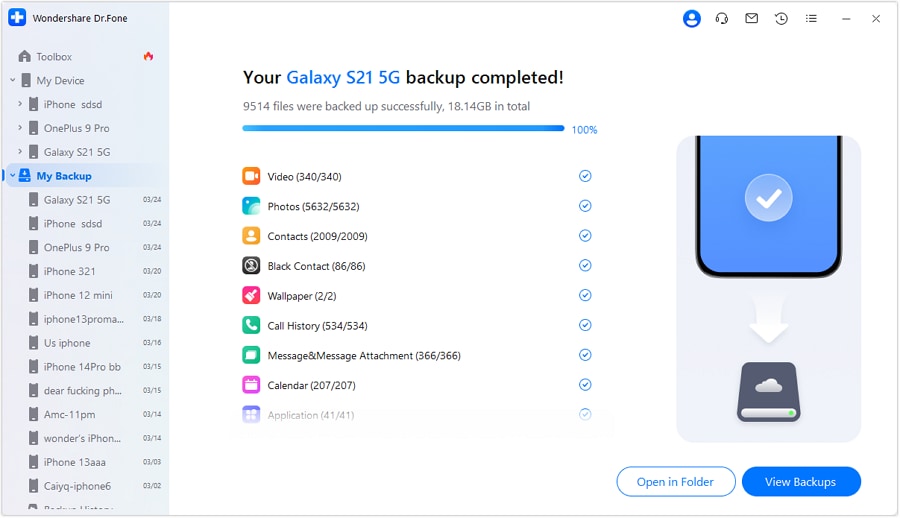
Select the data types you want to include. Start the backup. A progress bar shows the status on the screen.

Step 5: Finish and Save Backup on PC
Once completed, the backup appears in the software. You can open the backup folder directly on your computer. This completes backup Xiaomi phone to the PC securely.
 safe & secure
4,624,541 people have downloaded it
Method 2: Backup and Restore Xiaomi Phone to PC Using Mi PC Suite
Mi PC Suite is an official phone manager application for desktop to Transfer Files, or use the Windows Mobile Phone. It is also popular on older series like Redmi Note 6 Pro and Redmi Note 7; system support is decent in this case as well. For users who need to back up their Xiaomi Redmi Note 6 Pro to a PC, this tool provides a direct, offline solution. It allows data to be saved locally on the computer without cloud sync. The software supports contacts, messages, photos, videos, and basic files. For old devices, this is also how it can be considered the Xiaomi Mi Backup software instead of any 3rd party one.
Step-by-Step Guide
Step 1: Download Mi PC Suite on the Computer
Visit Xiaomi’s official website and get the Mi PC Suite for Windows. Save the file on your PC.
Step 2: Install the Software Completely
Just run it and follow the instructions on screen. Complete the setup before the cable is plugged between your phone and the pc.
Step 3: Prepare the Redmi Phone for Backup
Plug your phone in PC with a USB. Open phone settings. Go to About Phone and tap MIUI version multiple times to enable developer options. Return to settings and enable USB debugging.
Step 4: Launch Mi PC Suite
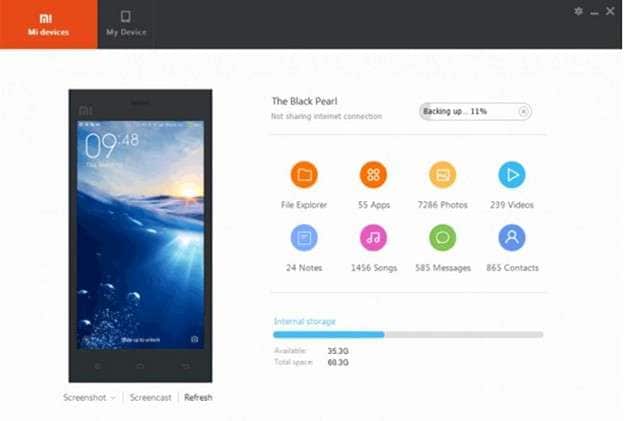
Open Mi PC Suite on the PC. The connected Redmi phone will be detected automatically.
Step 5: Choose Data for Backup
Select the data you want to save, such as contacts, messages, photos, videos, and files.
Step 6: Start the Backup Process
Confirm your selection and begin the backup. The data will be copied to the computer.
Step 7: Wait for Backup Completion
Keep the phone connected until the process finishes. The time depends on file size.
Method 3: Use Local Backup to Create Xiaomi Mi A3 Backup to PC
Xiaomi Mi A3 runs Android One and does not rely on Mi Cloud like MIUI phones. It still supports local backups through system settings. This method first saves data on the phone and then moves it to a computer. It works well for Xiaomi Mi A3 backup to pc when software tools are not preferred. The local backup includes contacts, messages, call log,s media files, and app data supported by the system. Once copied to a PC, the backup stays safe even if the phone stops working.
Step-by-Step Guide
Step 1: Open Backup Settings on Mi A3
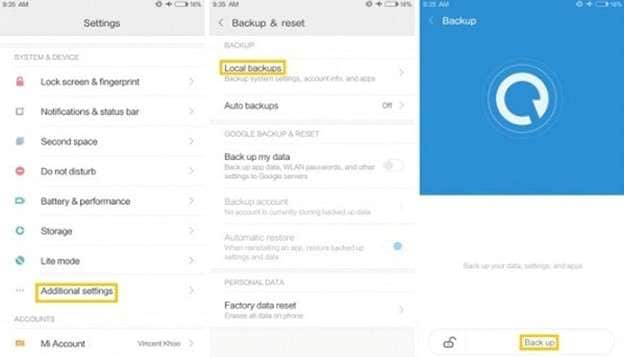
Unlock the phone and open Settings. Scroll to System. Open Backup. Enable local backup options if disabled.
Step 2: Start the Local Backup Process
Tap the backup option and confirm. The phone saves data to internal storage. Make sure there is enough free space.
Step 3: Locate the Backup File
Open the file manager. Find the system-created backup folder. The folder name is based on the date and time.
Step 4: Move the backup to the Computer
Connect the Mi A3 to the PC using a USB cable. Copy the backup folder to the computer. This completes Xiaomi Mi A3 backup to pc safely.
Step 5: Restore the Backup When Required
To restore later, copy the same folder back to the phone storage. Open backup settings and select restore.
Method 4: Copy Xiaomi Media Files to PC Using a USB Cable
This method is best when the phone stores photos, videos, music, and documents. It does not create a system backup. Instead, it copies files directly to a computer. Phones like Redmi Note 7 and Redmi Note 6 Pro work well with this approach. Many users rely on it for Xiaomi Redmi Note 7 backup pc when the goal is to protect personal files quickly. It needs no software and works on any Windows computer.
Step-by-Step Guide
Step 1: Connect the Phone to the Computer
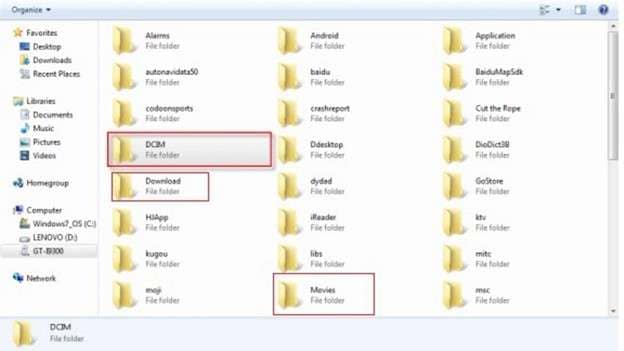
Use a USB cable to connect the Xiaomi phone to the PC. Unlock the phone and select file transfer mode when asked.
Step 2: Open the Phone Storage on PC
Open This PC on the computer. Click on the connected Xiaomi device. The internal storage folders will appear.
Step 3: Select Important File Folders
Open folders such as Camera, Pictures, Videos, Music Downloads, and Documents. These contain most personal data.
Step 4: Transfer the Files to PC
Choose the files or directory that you wish to recover and save it to a secure location over PC. This completes the file backup.
Step 5: Recover Files as Necessary
To restore anything, plug the phone back in and copy these files back to those same folders.
Method 5: Manually Back Up and Restore Redmi Phones Using File Explorer
Windows File Explorer is a built-in tool that lets a computer read phone storage directly. When a Redmi phone is connected via USB, files can be copied without extra software. This method is often used on models like the Redmi 12 and the Redmi Note 13. It works well for backup redmi phone to pc when the goal is to save photos, videos, music, and documents. The process is manual but reliable. Files stay visible and easy to manage on the computer.
Step-by-Step Guide
Step 1: Connect the Redmi Phone to the Computer
Use the original USB cable to connect the phone. Unlock the phone and select file transfer mode.
Step 2: Open the Device in File Explorer
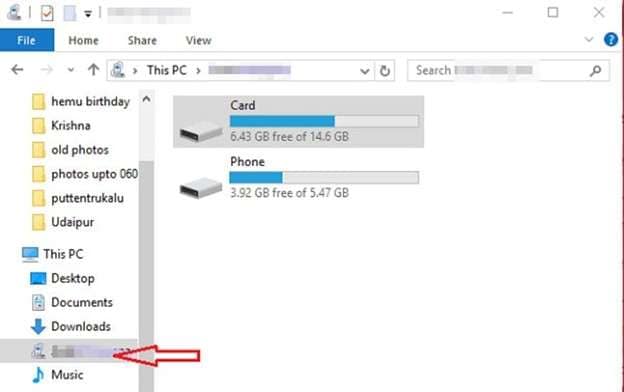
Open This PC on the computer. Click on the connected Redmi device to view storage.
Step 3: Locate Important Data Folders
Open folders such as DCIM, Pictures, Videos, Music Downloads, and Documents. These hold most personal files.
Step 4: Copy Files to the PC
Create a new folder on the computer. Copy the selected phone folders and paste them into this location.
Step 5: Restore Files When Required
To restore later, connect the phone again and copy the files back to their original folders.
Part 3: Quick Comparison of Xiaomi to PC Backup Methods and Use Cases
|
Method |
What It Backs Up |
Best Use Case |
Key Limitation |
| USB Media Transfer | Photos, videos, music, documents | Fast file copy for everyday media | No apps, messages, or system data |
| Wondershare Dr.Fone | Media contacts, messages, call logs, and apps calendar | Full structured backup of Xiaomi phone to pc | Requires PC software |
| Mi PC Suite | Contacts, messages, photos, and basic files | Older Xiaomi and Redmi models | Limited support for newer MIUI |
| Local Backup Feature | Apps, system data, messages, media | Offline backup before reset or update | Must manually copy to PC |
| ShareMe Wireless | Photos videos documents | Cable-free transfer on the same WiFi | Not suitable for large backups |
| Mi File Manager FTP | Files and folders | Quick wireless file access | Manual selection only |
| Mi Cloud | Contacts, photos, notes, synced data | Online access across devices | Storage limits and internet are needed |
| File Explorer Manual Copy | Media documents app folders | Simple backup my phone to pc with full visibility | No system or app restore |
Conclusion
A Xiaomi phone often becomes the main place for daily records, work files, and personal memories. Relying on one device always carries risk. Moving data to a computer creates a stable copy that remains available even when the phone is unavailable. Basic transfers help, but they leave gaps when deeper data is involved. A complete backup needs structure, clarity, and reliability.
Dr.Fone provides that balance by fully scanning the phone and saving data in an organized way on the PC. For long-term safety and easier recovery, backing up a Xiaomi phone to a PC using a reliable Xiaomi Mi backup software remains the most practical choice.
safe & secure4,624,541 people have downloaded it
Dr.Fone Basic:
Better Control for Your Phone
Manage, transfer, back up, restore, and mirror your device


 > How-to > Backup & Restore Solutions > Backup Xiaomi/Redmi Phone to PC Without Cloud or Account Risks
James Davis
staff Editor