
Best App Lock for Xiaomi, Redmi & POCO Phones (2026 Guide)

Oct 10, 2026 • Filed to: Screen Lock Removal • Proven solutions
 TL;DR:
The most secure method to protect applications on Xiaomi, Redmi, and POCO phones running MIUI or HyperOS is the native MIUI App Lock, while the built-in Second Space feature is best for users who need to completely hide applications inside a separate profile.
● The native MIUI App Lock strictly requires an active primary screen lock to function, and while it securely restricts access, it cannot hide app icons from the home screen.
● The Second Space sandbox provides ultimate app anonymity but consumes extra device storage, creates delays when transitioning between profiles, and is not recommended for heavy applications.
● If a forgotten primary password completely locks you out of your device and protected apps, Dr.Fone - Screen Unlock can bypass biometric locks, PINs, and Google FRP on versions up to Android 16.
Ask AI for a summary
 ChatGPT
 Perplexity
 Gemini
 Claude
 Grok
Grok
Today, phones are shared between family members, kids, and friends. Because of this, Xiaomi app locks have become crucial. MIUI App Lock protects WhatsApp, Gallery, banking apps, and social media apps. An app lock prevents others from opening your important apps even if they unlock your phone. It helps when you have professional files, personal images, or financial apps on your phone.
This article covers app lock for Mi phones, including Xiaomi, Redmi, and POCO, since they all run MIUI or HyperOS. Although distinct, these brands have comparable app locks. Additionally, it discusses screen password recovery techniques. Xiaomi phones may be unlocked safely with Dr.Fone - Screen Unlock.
- Part 1. Top list - 4 Best Methods to Lock Apps on Xiaomi
- Bonus Tip: Forgot Password on Mi Phone? Try Dr.Fone - Screen Unlock

- Method 1: MIUI Built-in App Lock (Best Native Option)
- Method 2: Using the MIUI "Second Space" Feature (The Sandbox Method)
- Method 3: Best Dedicated Third-Party App Lockers
- Method 4: Launcher with App Lock
- Part 2. Quick Comparison: Xiaomi App Lock Methods
- Part 3. Common Issues with App Lock on Xiaomi (And Fixes)
Part 1. Top list - 4 Best Methods to Lock Apps on Xiaomi
Mi phones like Redmi and POCO lock apps easily and securely. This is in MIUI and HyperOS. It adds another security layer to your phone. Your protected apps cannot be opened even if someone unlocks your screen. This makes Xiaomi App Lock useful for privacy.
App lock varies by MIUI version, region, and device model. Newer HyperOS phones have smoother and faster app lock features than older Xiaomi or Redmi phones. The core premise remains: password, pattern, PIN, or fingerprint-protect your programs.
You must understand the difference between two locking methods:
- Screen Lock → Full phone protection.
- App Lock → protects certain apps even when the phone is unlocked.
Set up a secure screen lock before using any Xiaomi app lock. PIN, pattern, password, or fingerprint. All other lock features depend on it. MIUI and HyperOS cannot lock apps without it.
Bonus Tip: Forgot Password on Mi Phone? Try Dr.Fone - Screen Unlock
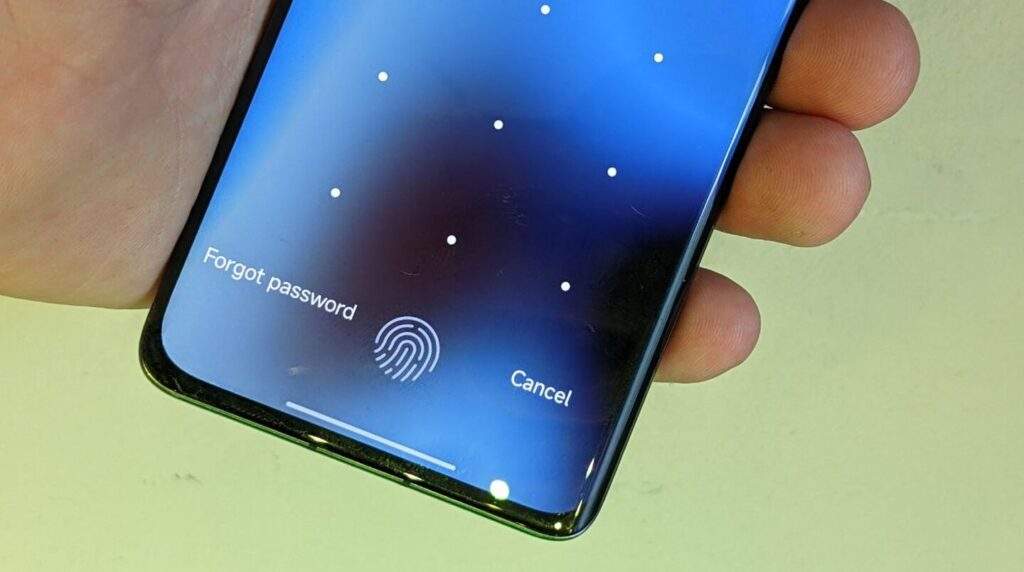
Many Xiaomi users may lock their screens easily. Forgetting your password, pattern, or PIN is difficult. MIUI-running Redmi, Xiaomi, and POCO phones often do this. Sometimes fingerprint or face unlock fails. Some consumers buy locked used phones.
Common MIUI Device Lockouts
- You forgot screen unlock PIN/pattern
- Face or fingerprint unlock no longer works.
- Your used Xiaomi or Redmi phone has a lock screen.
- The phone rebooted and requests the password.
Recommended Solution: Dr.Fone – Screen Unlock (Android)
Dr.Fone - Screen Unlock is a trusted Android screen lock remover. Xiaomi, Redmi, and POCO devices support it. You need no IT expertise. The tool is fast, safe, and straightforward. Also supports the latest Android 16.
Over 22 Android brands and 2,000 smartphone models are supported by Dr.Fone. It can quickly remove all common Android screen locks—including pattern, PIN, password, fingerprint, and Face Lock—in just a few minutes, helping you regain full access without technical skills. The tool also supports Google FRP bypass, making it especially useful if you forgot your Google account details or bought a second-hand MIUI device.

Dr.Fone - Screen Unlock (Android)
The Best UnlockJunky Alternative to Bypass FRP and Solve Your Screen Locks
- Completely unlinked from the previous Google account, it wont be traced or blocked by it anymore.
- Remove all Android screen locks (PIN/pattern/fingerprints/face ID) in minutes.
- Compatible with various Android models.
- Provide specific removal solutions to promise good success rate.


Step-by-Step Guide to Use Dr.Fone – Screen Unlock (Android)
- Step 1. Download Dr.Fone on your computer. Select "Toolbox > Screen Unlock." Connect your Xiaomi or Redmi phone via USB. Let the tool recognize your device.
- Step 2. Unlock options appear. Select "Android." On the next tab, select "Unlock Android Screen." Continue with usual unlock if not.
- Step 3. Select Xiaomi, Redmi, or POCO. Put your phone in the proper mode using the screen directions. This stage is simple because the tool instructs.
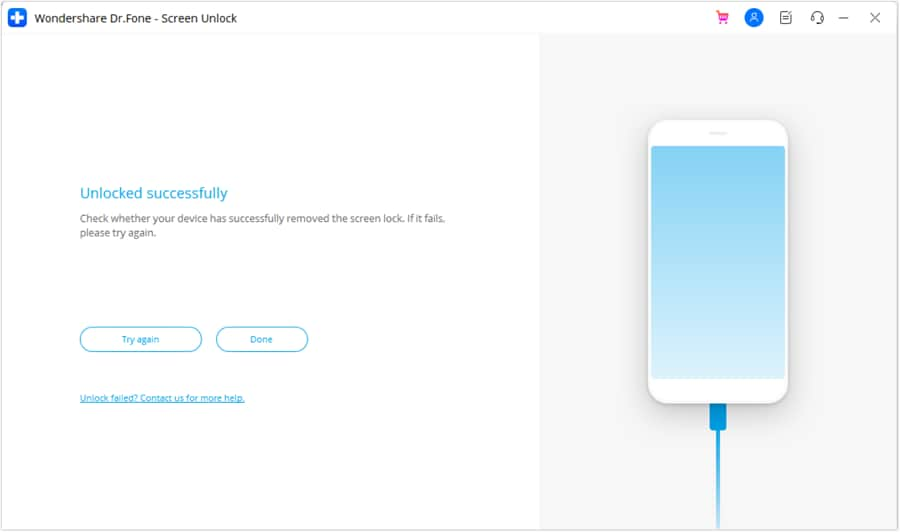
- Step 4. The tool removes screen locks. Avoid disconnecting the phone. Wait for "Unlock Successful." Now click Finish. You can now unlock your phone without a password.



 safe & secure
4,624,541 people have downloaded it
Method 1: MIUI Built-in App Lock (Best Native Option)
Xiaomi phone app locking is safest and easy with MIUI App Lock. This tool is embedded within MIUI, thus no installation is required. It accepts PIN, Pattern, Password, or Fingerprint. Most apps including WhatsApp, Facebook, Gallery, Messages, and more work with this native app lock.
Key Features
- Lock any app on your Xiaomi phone
- Enter PIN, Pattern, Password, or Fingerprint
- Easily configured in Settings
- Privacy protection for Gallery, WhatsApp, and financial apps
Best For
Xiaomi users who desire fast, secure app locking.
Simple MIUI App Lock Instructions
These steps are brief and simple for everyone:
- Step 1. Launch "Settings" on your Xiaomi phone.
- Step 2. Scroll down to "Apps."
- Step 3. Tap "App Lock."
- Step 4. Select "Turn on" app lock then MIUI will ask for a PIN, Pattern, or Fingerprint for the first time.
- Step 5. You'll see all apps after setup. Select apps to lock by turning the switch on.
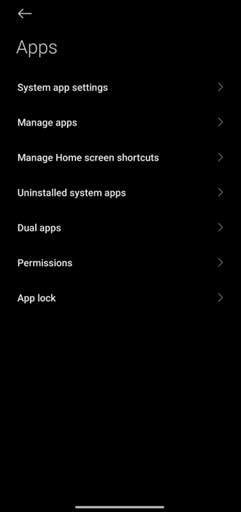
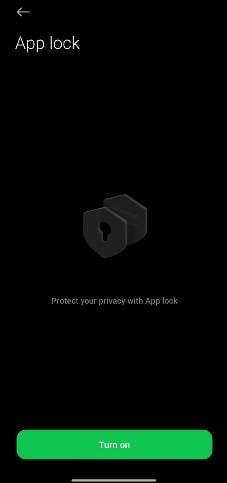
MIUI locks these apps. The phone will request your lock code when opened.
Method 2: Using the MIUI "Second Space" Feature (The Sandbox Method)
Second Space is another fantastic MIUI utility. Your gadget gets a phone slot. Imagine having two phones in one. Your Second Space remains secret while your Main Space remains normal. This helps secure apps, images, and information.
Second Space is a phone-based private room. You changed its password. Only you can open it. Private apps, photographs, texts, and files can go here. Works well for kids, work, and personal space.
How It Acts as an App Lock
Second Space apps don't appear in your primary space. They can only be opened by unlocking the Second Space. This is a powerful Mi app lock.
Best For
Those who desire ultimate app anonymity without installing anything.
Steps to Use Xiaomi Second Space
- Step 1. Go to your device "Settings."
- Step 2. Scroll down and tap "Special features."
- Step 3. Tap "Second Space."
- Step 4. Tap "Turn on Second Space."
- Step 5. Select how to access second space "Password or Shortcut", to switch between spaces.
- Step 6. Click on the "Set Now" button to set password.
- Step 7. Enter your First Space password (current space), then click "Next." Then, enter and confirm a new Second Space password.
- Step 8. You can also add a fingerprint. Once the password is set, you will enter the Second Space.
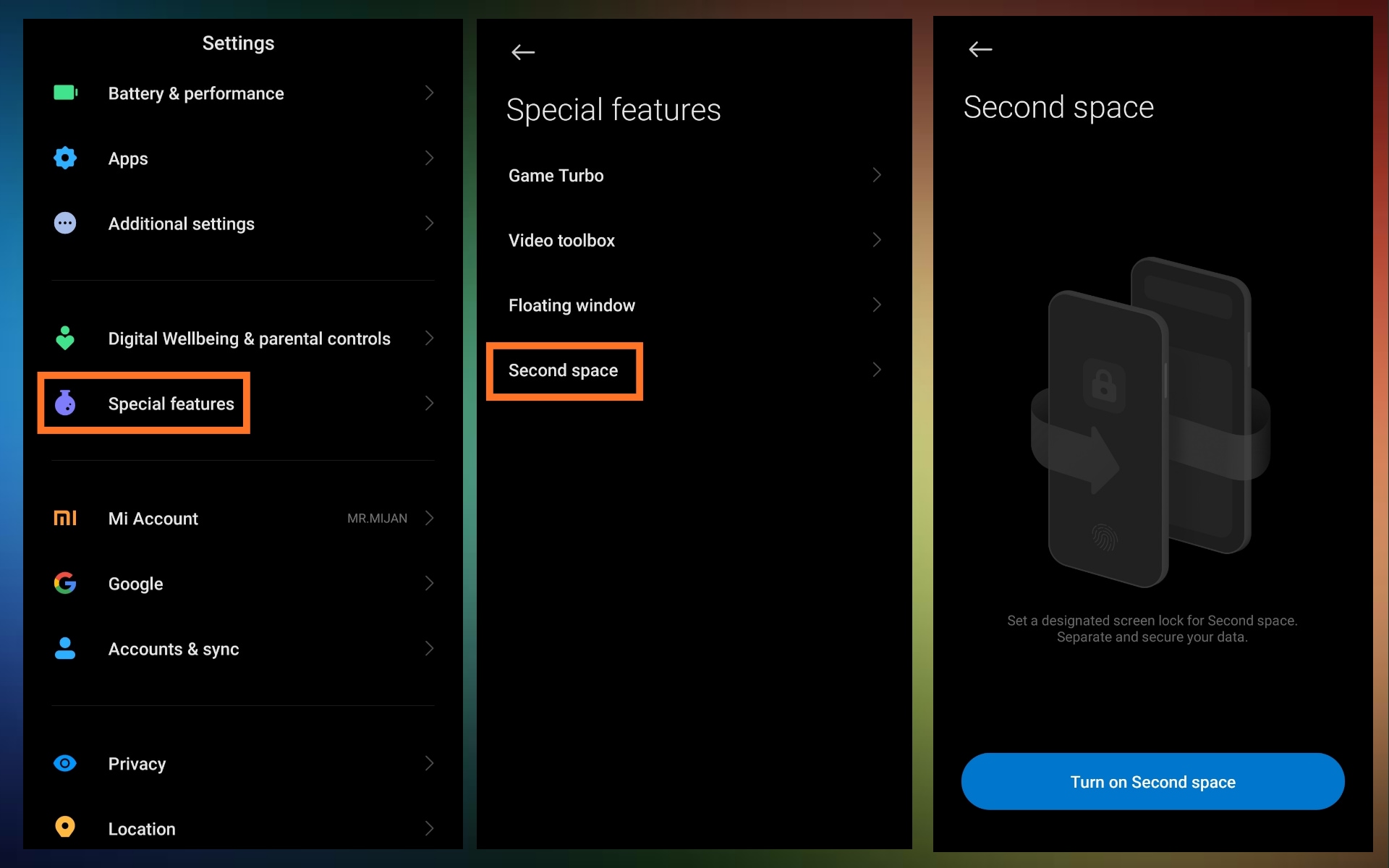
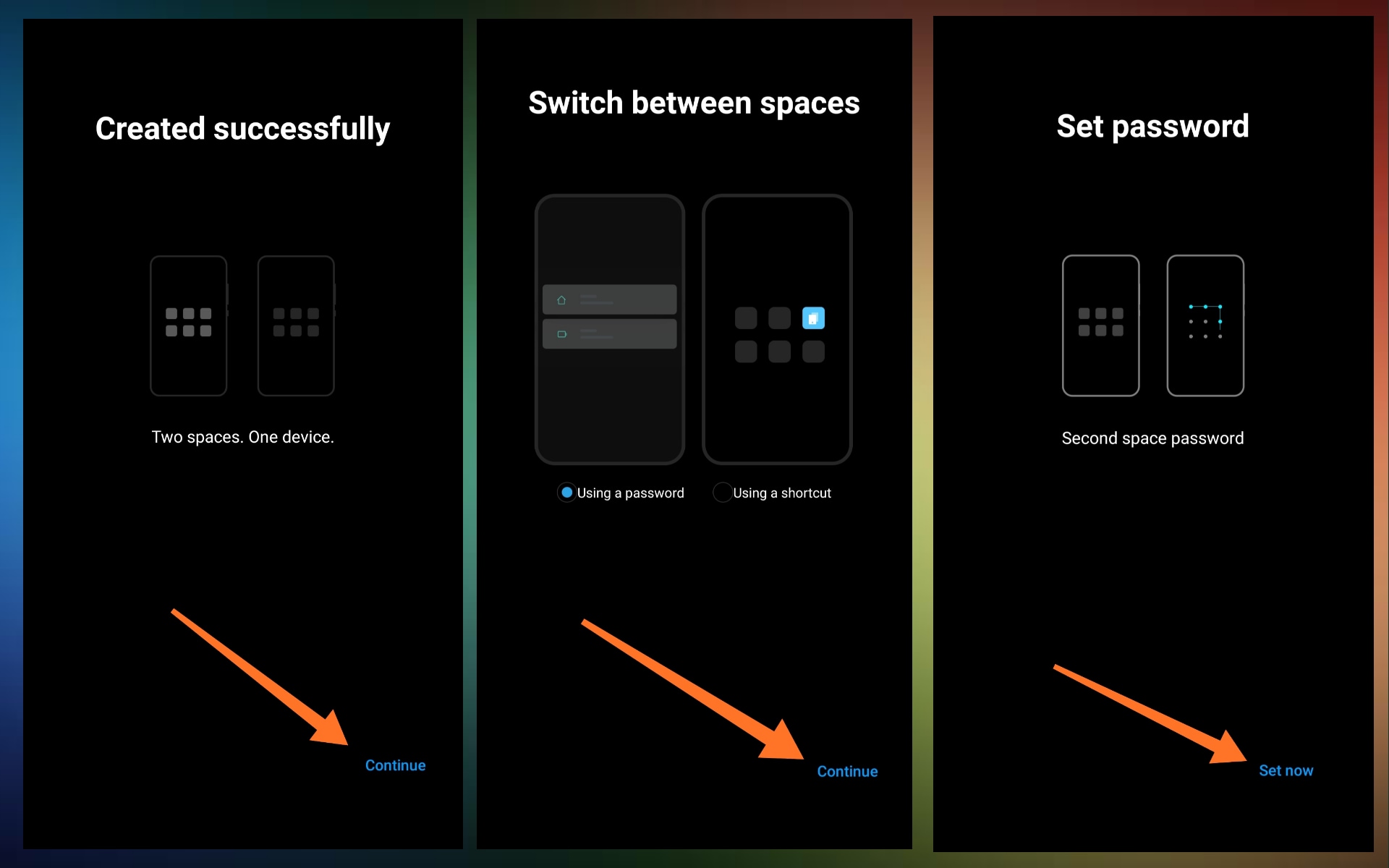
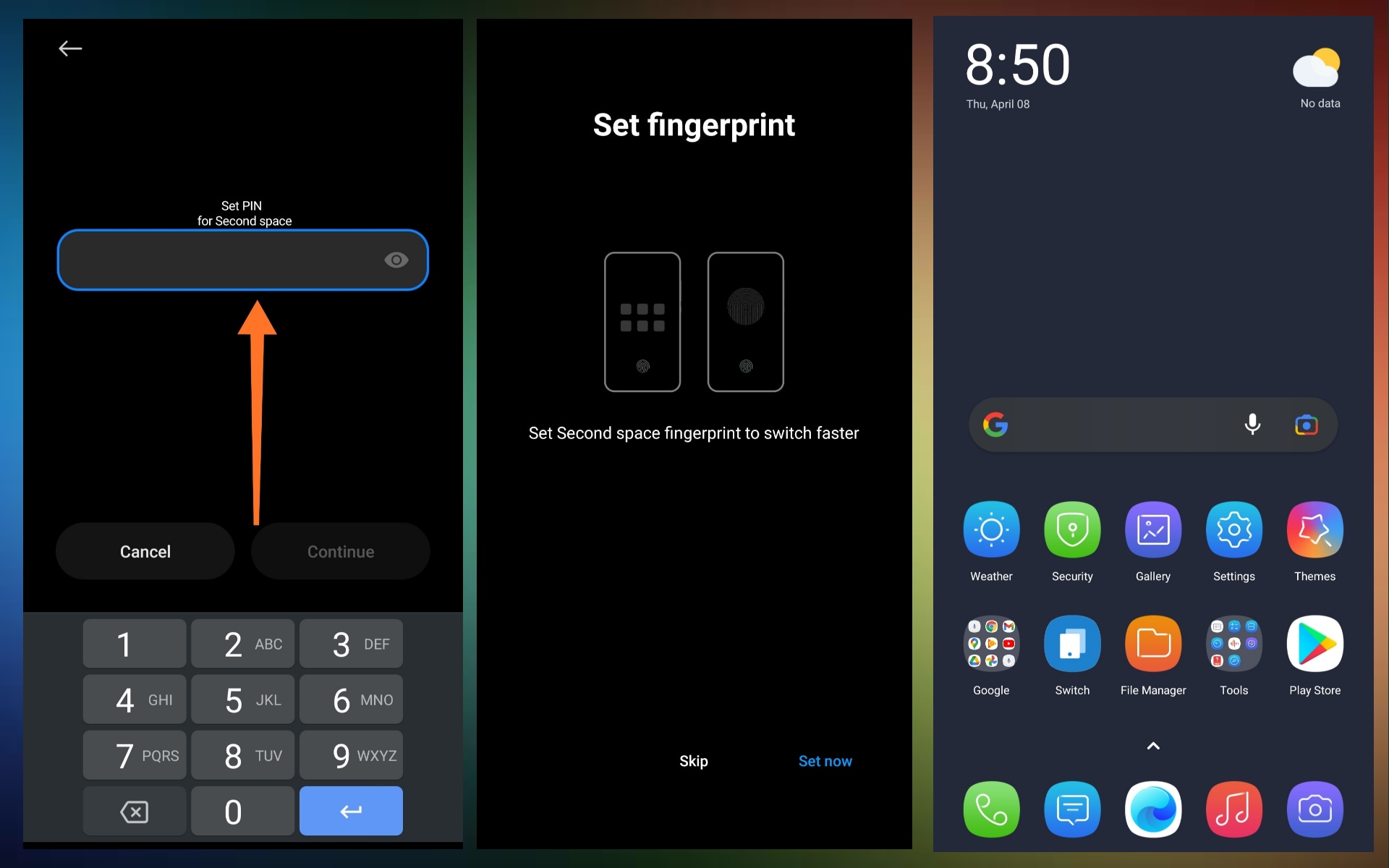
Second Space lets you install apps, move files, and save private data. Without the Second Space password, nobody can see this.
Method 3: Best Dedicated Third-Party App Lockers
Below are the top three selections and their functions.
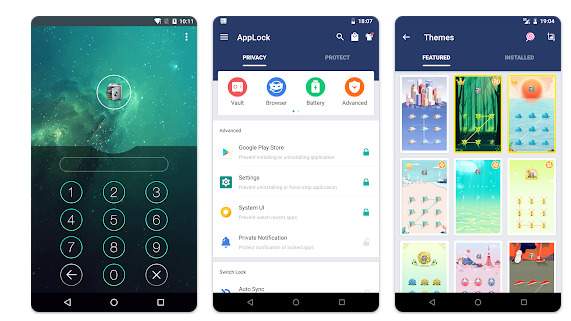
1. AppLock by DoMobile
DoMobile AppLock works well with MIUI and HyperOS. It rapidly shuts apps and hides private photographs and videos. People who share their phone at home or work should use it because it protects apps even if someone knows your main phone password.
Features
- Lock WhatsApp, Facebook, TikTok, Instagram, Gmail, etc.
- Secure images and movies in a vault.
- Invisible pattern and random keys prevent peeking.
- Hide AppLock icon.
- Trick snoops using fake cover.
- Browser links, widgets, and secret dial codes open hidden AppLocks.
- Protection against uninstalling without authorization.
2. Norton App Lock
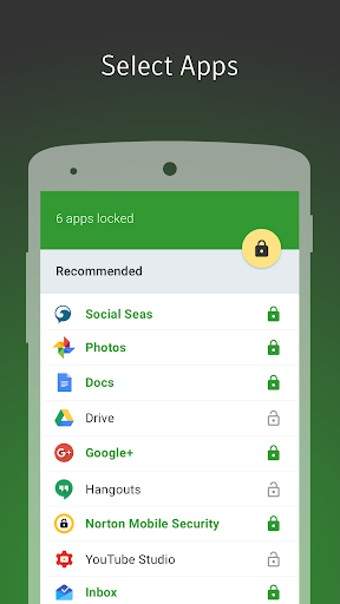
Norton App Lock was created by the well-known Norton security company. It protects personal data and is straightforward. Uses a "Recommended List" that highlights risky apps you should lock (like WhatsApp, banking apps, Gallery, Messages). Families with kids will love it on shared devices. Although Norton has discontinued its services since 2024, users can still download Norton app lock from third party services.
Features
- Secure apps with PIN or pattern.
- Apps recommended for protection are listed.
- Blocks banking, messaging, gallery, and social apps.
- "Sneak Peek" photographs intruders.
- With most Android phones, including Xiaomi, Redmi, and POCO.
3. Smart AppLock
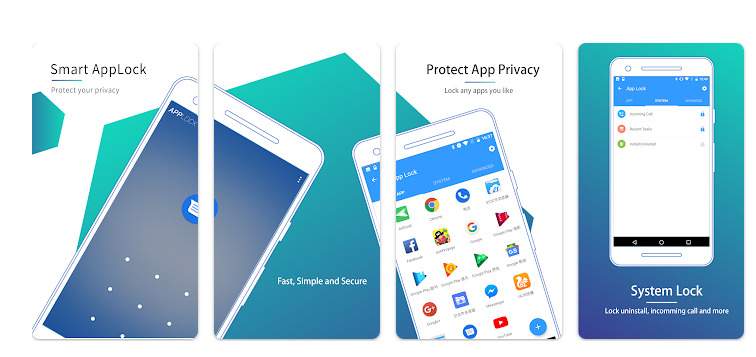
Smart AppLock goes beyond app locks with its many features. Biometric and facial locks, intruder photographs, false error displays, notification blocking, and WiFi/Bluetooth locking are included.
Features
- PIN, pattern, fingerprint, or facial recognition lock apps.
- Send intruder photographs or videos to your email.
- Fake error window to disguise app lock.
- Lock notifications to hide messages.
- Smart Lock Auto-unlock via WiFi or Bluetooth.
- Multiple app passwords.
Method 4: Launcher with App Lock
Some launchers are a used to lock or hide apps, among which Nova Launcher and POCO Launcher are popular. They offer privacy tools and modify your home screen.
Best For
Hide apps and modify home screen look
Let's see how it works:
- Step 1. Install a Play Store launcher like Nova launcher.
- Step 2. Launch and set as default launcher.
- Step 3. Go to launcher settings.
- Step 4. Select apps to hide under Hide Apps.
- Step 5. (Optional) Use a plugin or app locker for security.
Part 2. Quick Comparison: Xiaomi App Lock Methods
Before exploring deeper, here is a quick and simple comparison of the main Xiaomi app lock methods. This table will help you understand which option fits your needs best.
| Method | Ease of Use | Security Level | MIUI Integration | Best For |
|---|---|---|---|---|
| Native MIUI App Lock | Very Easy | High | Full | Daily app protection |
| Second Space | Medium | Very High | Full | Hiding apps and private data |
| Third-Party App Lock | Easy | Medium to High | Low | Extra features like fake covers |
| Launcher-Based Lock | Easy | Low to Medium | None | Hiding apps only |
Part 3. Common Issues with App Lock on Xiaomi (And Fixes)
MIUI App Lock sometimes malfunctions. Xiaomi customers often experience app lockout and fingerprint not showing issues. The most common issues and simple fixes are here.
- App Lock Not Working After Reboot
This is a very common issue. MIUI may delay lock after resuming. Change "Settings > Apps > App Lock off" and on once to cure this. The feature is refreshed. - Apps closing in background
Battery optimization disables locked apps. Go to "Setting > Battery > Battery Saver." Disable battery saver for essential apps. - Fingerprint Not Showing in App Lock
The fingerprint option may disappear. Open "Settings > Passwords & Security > Fingerprint Unlock." Add your fingerprint. Reopen App Lock and activate fingerprint. - MIUI Permission Conflicts
MIUI can block permissions for several apps. Access "Settings > Apps > Manage." Enable App Lock and all permissions. This resolves most difficulties.
Conclusion
Xiaomi phones offer several basic app and data protection options. Most people find App Lock for Mi easiest. Second Space is fantastic for full app hiding and privacy. Third-party lockers and launchers add features but are less secure than MIUI's. Dr.Fone - Screen Unlock can unlock your Xiaomi phone in minutes if you forget your screen lock or get trapped. These approaches and solutions help keep your Xiaomi phone safe and easy to use daily.
safe & secure4,624,541 people have downloaded it


Xiaomi Topics Series
- Xiaomi Screen & FRP Unlock
- 1. Unlock Xiaomi Bootloader
- 2. Mi Account Unlock Tools
- 3. Redmi Note 8 FRP Unlock Tool
- 4. Redmi Note 9 FRP Bypass Tool
- 5. Redmi 9A FRP Bypass
- 6. Remove FRP on Xiaomi/Redmi
- Xiaomi Repair
- Xiaomi Recover
- Xiaomi Reset
- Xiaomi Tips & News
- 1. Xiaomi HyperOS 3.0
- 2. Screen Mirror Xiaomi to PC
- 3. Run Hardware Tests on Xiaomi
- 4. Conduct battery test on Xiaomi
- 5. How Do I Obtain the Security Code Xiaomi
- 6. DND Mode Xiaomi
- Xiaomi Transfer & Backup
- ● Manage/transfer/recover data
- ● Unlock screen/activate/FRP lock
- ● Fix most iOS and Android issues
- Free Download Free Download Free Download




Selena Lee
chief Editor