Move contacts, messages, photos, videos, app data, and more between iOS and Android.

 100% Security Verified | No Subscription Required | No Malware

 :
: 
 ChatGPT
 Perplexity
 Gemini
 Claude
 Grok
Grok
The release of the innovative Xiaomi 16 and 15 series has dramatically shifted upgrade cycles for 2026. With AI features feeling deeply integrated, mobile cameras capturing cinematic quality, and processing performance delivering instant responses, many users are moving fast to upgrade. However, the old Xiaomi stays nearby on the desk, holding years of irreplaceable photos, intimate chats, professional documents, and personalized system records. That older device contains the digital footprint of your daily routine and workflow that cannot simply be left behind.
While people naturally expect an official xiaomi to xiaomi data transfer to execute flawlessly, reality often presents frustrating roadblocks. Crucial message threads fail to migrate, customized applications start entirely fresh, and hidden cache files remain stranded on the older hardware. A seemingly simple phone change quickly spirals into a stressful technical puzzle when data gets fragmented across two devices.
This comprehensive guide has one definitive purpose: to clearly explain the most secure, verified, and efficient ways to transfer data from Xiaomi to Xiaomi without data loss, compression, or confusing system errors. Whether you are migrating gigabytes of multimedia or just core contact lists, every method detailed below will equip you to execute a complete Xiaomi to Xiaomi transfer with total clarity, administrative control, and technical confidence.
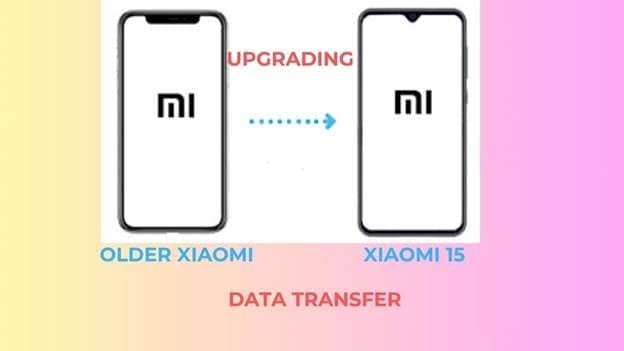
In this article
Part 1. How do I Transfer from the Old Xiaomi to the New Xiaomi?
Upgrading strictly within the Xiaomi ecosystem requires you to choose the correct data migration protocol. While it might seem unified, your essential contacts, varied third-party messaging apps, and high-resolution media do not inherently migrate using identical pathways across different MIUI or HyperOS system versions.
Method 1: Use Mi Mover to Transfer from Old Xiaomi to New Xiaomi
Mi Mover serves as Xiaomi’s dedicated, built-in migration utility explicitly designed for upgrading hardware inside the brand's ecosystem. Most contemporary Xiaomi devices come with it pre-installed at the factory level. If your model lacks it, Mi Mover is readily available in the Mi App Store. This application remains one of the most accessible ways to transfer data from Xiaomi to Xiaomi without requiring physical cables or an active external internet connection.
By leveraging an independent local Wi-Fi hotspot generated between the two devices, Mi Mover effortlessly handles common data variants—spanning contacts, raw SMS threads, galleries of photos and videos, music directories, documents, and the base installations of standard apps. Because the phones connect directly via a localized wireless link, the migration is completely private, impressively fast, and bypasses third-party cloud servers entirely.
What Mi Mover Can Effectively Transfer
Using this official application allows you to initiate a transfer xiaomi to xiaomi covering:
- Detailed contacts and chronological call records.
- Standard SMS message threads.
- Photos, albums, and video files from your Gallery.
- Locally stored music tracks and PDF/Word documents.
- Installed application packages (APKs) and selective basic app data.
Remember, the transfer occurs directly phone-to-phone. Your sensitive personal data never routes through external servers or secondary computing devices.
Steps to Execute Xiaomi to Xiaomi Data Transfer Using Mi Mover
Carefully execute these instructions to successfully transfer data xiaomi to xiaomi using the Mi Mover utility:
-
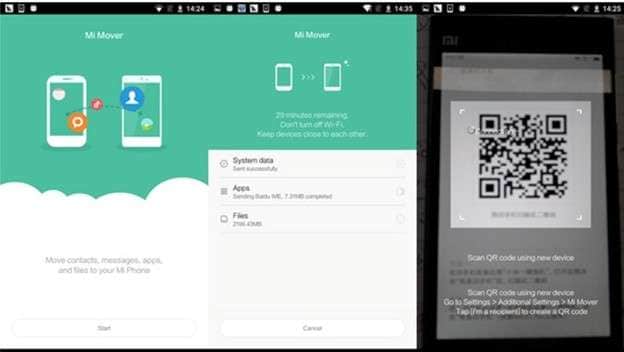
Step 1 Launch Mi Mover on Both Devices
Access the app drawer and open the Mi Mover application simultaneously on your older, sending Xiaomi and your brand-new receiving Xiaomi device. Ensure both devices have sufficient battery life (above 50% is highly recommended).
-
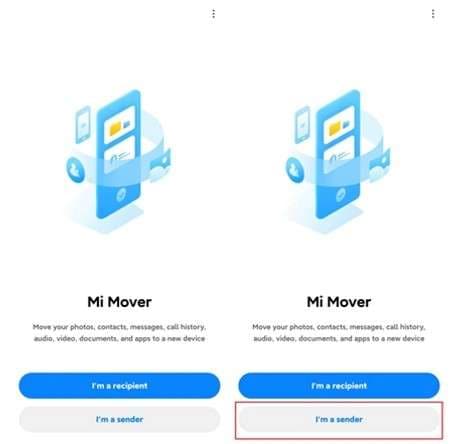
Step 2 Designate the Sender and Receiver
On your older hardware, firmly tap the "I'm a sender" option. Conversely, on your newly unboxed Xiaomi phone, select the "I'm a receiver" choice.
-
Step 3 Scan to Establish Connection
A dynamically generated QR code will populate on the screen of the new receiving handset. Utilize the old phone's camera interface (which automatically opens within Mi Mover) to scan this code, instantly pairing the two ecosystems via a localized hotspot.
-
Step 4 Select Your Desired Data Packets
Once paired, a categorized list appears. Diligently check the boxes next to the precise data categories—such as Contacts, High-Res Photos, Audio, Messages, or specific applications—that you intend to migrate over.
-
Step 5 Initiate the Transfer Process
Tap the "Send" button. It is imperative to keep the two mobile phones positioned closely together, completely unobstructed, to maintain peak wireless throughput.
-
Step 6 Confirm Completion
Patiently allow the progress bar to reach 100%. The duration varies heavily depending on the volume of gigabytes queued. Once the terminal screen confirms success, tap "Done" to safely exit the environment on both devices.
Method 2: Use ShareMe to Transfer Data from Old Xiaomi to New Xiaomi
ShareMe operates as a remarkably versatile, ad-free file-sharing platform engineered by Xiaomi. Like Mi Mover, it establishes an accelerated direct wireless connection, entirely bypassing standard cellular data or external Wi-Fi networks. While this utility isn't strictly gated to the Xiaomi ecosystem, it performs exceptionally well for a targeted xiaomi to xiaomi transfer involving heavy multimedia.
By heavily utilizing the Wi-Fi Direct protocol—which boasts data transfer speeds magnitudes faster than legacy Bluetooth integrations—ShareMe excels at rapidly pushing bulky photos, 4K videos, massive music folders, robust documents, and raw app installer files. It is an outstanding fallback choice when you simply need to selectively transfer a file from Xiaomi to Xiaomi rather than cloning an entire operating system profile.
What ShareMe Can Seamlessly Transfer
ShareMe shines when you need to swiftly move specific data chunks from Xiaomi to Xiaomi, including:
- High-definition photos and localized video renders.
- Lossless music files and voice recordings.
- Large PDF, Word, and Excel document archives.
- Raw Application installation packages (APKs).
- Other uncategorized stored media bundles.
Note: This app is optimized for heavy file-sharing duties rather than systematic full-profile system migrations.
Steps to Transfer Data Using ShareMe Protocol
Implement the following workflow to accurately transfer data from Xiaomi to Xiaomi utilizing the ShareMe framework:
-
Step 1 Install and Launch ShareMe
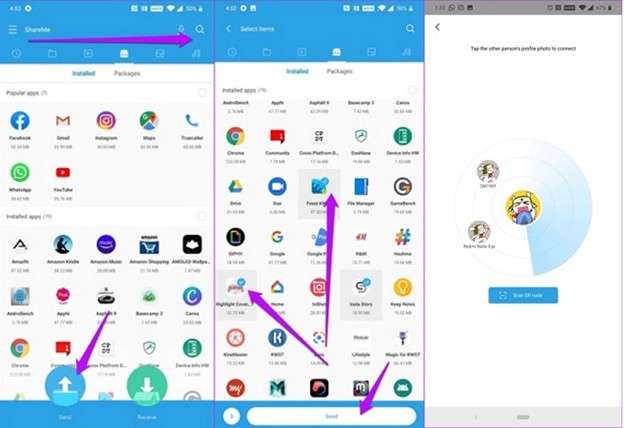
Navigate to the native Play Store or Mi App Store to install ShareMe on both the transmitting and receiving phones. Launch the application, diligently granting it all requested storage and location permissions. Manually toggle on both Wi-Fi and Bluetooth antennas on both devices, laying them side-by-side. Finally, tap "Send" on the source phone.
-
Step 2 Curate Your File Selection
Browse through the categorized tabs to pick the exact files you wish to relocate. You can batch-select images, sprawling video folders, essential music, complex documents, or cached app data. Leverage the built-in search bar if you need to isolate highly specific buried items.
-
Step 3 Establish the Device Bridge
Tap "Send" once your batch is verified. A radar-like connection interface will populate, scanning for proximate compatible hardware. Simply tap your new Xiaomi handset's avatar when it appears in the list, or alternatively, elect to scan the receiver’s unique QR code to force the connection.
-
Step 4 Accept and Finalize the Transfer
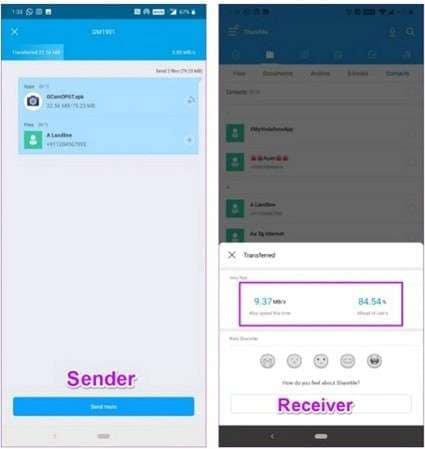
The instant the handshake completes, the transmission initiates. On your brand-new Xiaomi display, promptly tap "Accept" to green-light the incoming data flood. Leave both screens active until the interface officially declares the procedure finished.
Part 2. How to Transfer Data from Mi to Xiaomi?
Transitioning from a slightly older "Mi" branded device to a newer flagship Xiaomi model ultimately hinges on two primary avenues: leveraging authenticated cloud account synchronization, or relying on localized direct connections. Though Mi and Xiaomi practically operate under the identical corporate and software umbrella, they often require different procedural pathways depending on the sheer volume of data being moved.
Method 1: Use Mi Cloud to Transfer Data from Mi to Xiaomi
Mi Cloud functions as Xiaomi’s integrated, proprietary cloud storage ecosystem. It inherently empowers users to automatically synchronize critical data matrices across multiple pieces of hardware, provided they are logged into the exact same Mi Account identity. This cloud-first methodology performs beautifully when both units reside deep within the Xiaomi software family, proving to be an elegant strategy to transfer data from Xiaomi to Xiaomi without touching a single USB cable.
It is important to emphasize that Mi Cloud specializes in syncing absolute core system data. While it won't meticulously clone massive local media libraries without a premium storage tier, it handles your foundational digital essentials flawlessly. This renders it a highly attractive option for minimalists who demand a clean, incredibly safe pathway for Xiaomi data synchronization.
What Data Matrices Mi Cloud Can Sync
The Mi Cloud infrastructure enables you to wirelessly push data from Xiaomi to Xiaomi, notably:
- Your complete Contacts list and vCard data.
- Detailed SMS and MMS text messages.
- Comprehensive daily call history logs.
- Important Notes and calendar events.
- Photos and select gallery items (dependent on your storage tier).
- Fundamental Wi-Fi and UI device settings.
Be aware that Mi Cloud does not possess the capability to fully restore complex third-party application structures or cache files.
Steps to Transfer Data Utilizing Mi Cloud Sync
Follow these structured steps to execute a secure transfer from Xiaomi to Xiaomi relying on Mi Cloud's servers:
-
Step 1 Initiate the Cloud Backup on the Source Device
Launch the Settings application on your old Mi device. Scroll down and navigate to "Mi Account" followed by "Cloud." Tap on "Mi Cloud" to expose your detailed synchronization toggles.
-
Step 2 Select and Upload Your Core Data
Methodically check the specific data variants you need heavily backed up. Toggle on the sync switches for Contacts, Messages, Gallery, and Notes. Leave the device connected to a strong Wi-Fi network and wait patiently until the progress indicates a completed sync cycle. This officially secures your data in the Mi Cloud.
-
Step 3 Authenticate on the Destination Device
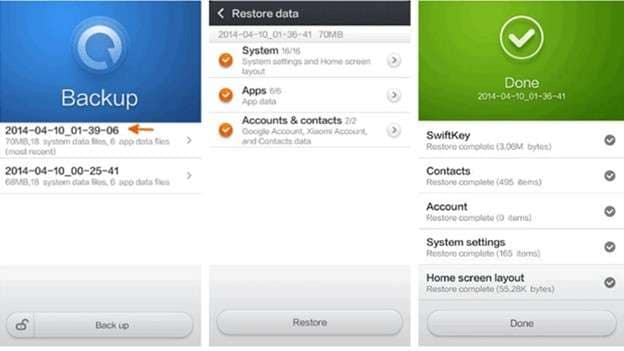
Boot up your fresh Xiaomi hardware. Navigate directly into Settings, tapping on "Mi Account" and "Cloud." Crucially, input the exact same Mi Account credentials that were active on the old hardware.
-
Step 4 Execute the Cloud Restoration
Within the new device's Mi Cloud menu, locate the "Restore from backup" or "Sync" quadrant. Handpick the datasets you wish to repopulate onto the new storage drive. Keep the device on Wi-Fi and allow the operating system to fully download and unpack the information.
Method 2: Transfer Files from Mi to Xiaomi Using Bluetooth
Legacy Bluetooth stands as the most rudimentary wireless conduit available for sharing isolated files between smart devices. While universally compatible, it is strictly viable only for minuscule data packets and should categorically never be deployed for a comprehensive, full-scale Mi-to-Xiaomi data transfer protocol. The bandwidth limitations mean that compared to modern Wi-Fi Direct or desktop utilities, migrating large High-Efficiency Video Coding (HEVC) files or application databases could literally take days to finish processing.
Furthermore, Bluetooth architecture suffers from severe throughput bottlenecks, minimal native encryption security during transit, and heavy battery consumption as dual antennas aggressively ping one another. Consequently, Bluetooth serves only as an absolute last-resort methodology for pushing a single file to a Xiaomi, rather than executing a unified phone migration.
What Bluetooth Is Practically Suitable For
If you absolutely must use Bluetooth to move data from Xiaomi to Xiaomi, restrict it to:
- A handful of isolated, compressed JPEG photos.
- Very brief, low-resolution video clips.
- Small audio tracks or voice notes.
- Tiny text-based documents or basic PDFs.
Remember: Bluetooth physically cannot migrate applications, complex message threads, underlying system settings, or complete OS backups.
Steps to Push Files Using Legacy Bluetooth
If necessary, follow this sequence to beam files from Mi to Xiaomi using the Bluetooth radio:
-
Step 1 Activate Bluetooth Radios
Access the Settings menu or drop-down quick panel on both mobile devices. Hard-toggle the Bluetooth switches to "On" for the aging Mi phone and the incoming Xiaomi handset.
-
Step 2 Discover and Pair the Devices
Place both physical units close together. Keep the Bluetooth menu open on the old device until the nomenclature of your new Xiaomi device populates in the "Available Devices" registry.
-
Step 3 Execute the Handshake
Tap the new Xiaomi handset's name on the older device. A prompt will surface on both screens demanding a PIN verification. Tap "Pair" or "OK" on both endpoints to cement the connection.
-
Step 4 Select and Share Your Files
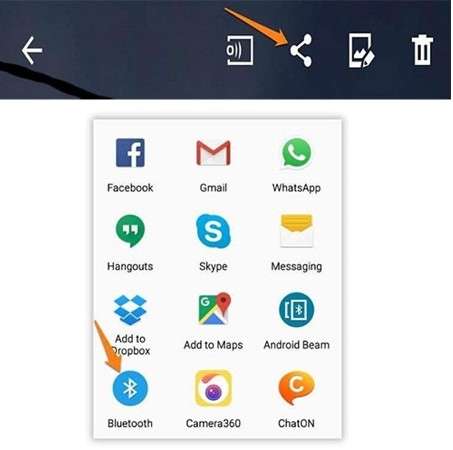
Open the native File Manager or Gallery on your source Mi phone. Long-press to highlight the exact micro-files you are sending. Tap the "Share" icon, and explicitly choose "Bluetooth" from the sharing sheet.
-
Step 5 Authorize the Reception
The new Xiaomi phone will sound an alert requesting permission to receive incoming packets. Tap "Accept" and ensure neither screen locks out while the notoriously slow transfer slowly finalizes.
| Transfer Method | Best Used For | Transfer Speed | Requires Internet? | Full Profile Migration? |
|---|---|---|---|---|
| Mi Mover | Wireless App & Media Transfer | Fast (Wi-Fi Direct) | No | Partial (Some app data excluded) |
| ShareMe | Bulk Media Sharing | Fast (Wi-Fi Direct) | No | No |
| Mi Cloud | Core Settings & Contacts Sync | Depends on Network | Yes | No |
| Dr.Fone - Phone Transfer | Comprehensive One-Click Switch | Ultra-Fast (USB Cable) | No | Yes |
Part 3. Best Method on How to Transfer Phone Data from Xiaomi to Xiaomi: Dr.Fone - Phone Transfer
When the operational objective is to clone and migrate a completely holistic phone profile seamlessly, standard localized tools frequently stumble. Many wireless setups inexplicably skip vital SMS message threads. Others fail entirely when attempting to decrypt protected third-party application directories or choke on massive 4K video repositories. Dr.Fone - Phone Transfer has been meticulously engineered for flawless, full-scale device switching. By utilizing a physical tether, it establishes an impenetrable direct connection between two pieces of hardware, effectively migrating gigabytes of data through one highly controlled, error-free automated process.
This premium desktop methodology operates entirely offline once the software is launched and devices are hooked in via USB. Absolutely no vulnerable cloud storage pathways or throttling Wi-Fi networks are involved. Deep structural data is transferred bit-by-bit directly from the old Xiaomi flash storage to the new Xiaomi memory module. This is precisely why industry professionals regard it as the absolute safest and most reliable desktop vector to transfer data from Xiaomi to Xiaomi in 2026.
Boasting unparalleled cross-compatibility, Dr.Fone - Phone Transfer seamlessly maps complex data hierarchies. It effortlessly transitions your contacts, nuanced SMS records, exhaustive call histories, sprawling media galleries, heavy calendar structures, and even raw installed applications. Thanks to this robust data parsing framework, it is the quintessential tool for any user who absolutely demands every byte of content transition perfectly from their legacy Xiaomi model to their new daily driver, completely eliminating the headache of manual post-transfer system configurations.
What Dr.Fone Can Comprehensively Transfer Between Xiaomi Devices
Deploying Dr.Fone empowers users to execute an extensive xiaomi to xiaomi data transfer, encompassing:
- High-resolution photos and heavily compressed 4K videos.
- Curated music playlists, raw audio files, and custom ringtones.
- Complete contact books, including vCards and the system blacklist.
- Threaded text messages (SMS/MMS).
- Granular call history logs spanning months.
- Complex synchronized calendar entries.
- Browser bookmarks and localized web cache.
- Proprietary voice memos and recorder files.
- Locally installed application packages.
Steps to Transfer Phone Data from Xiaomi to Xiaomi Using Dr.Fone
Carefully execute these structured instructions to accurately transfer phone data from Xiaomi to Xiaomi via desktop interface. A major benefit of this software is the ability to securely halt the process mid-way without corrupting the target drive if necessary.
 Move data between iOS to Android and vice versa.
- Transfer contacts, SMS, photos, videos, music, and more types.
- Available with all phones with Android and iOS versions.
- Simple, click-through process.

-
Step 1 Connect Both Xiaomi Devices and Launch the Suite
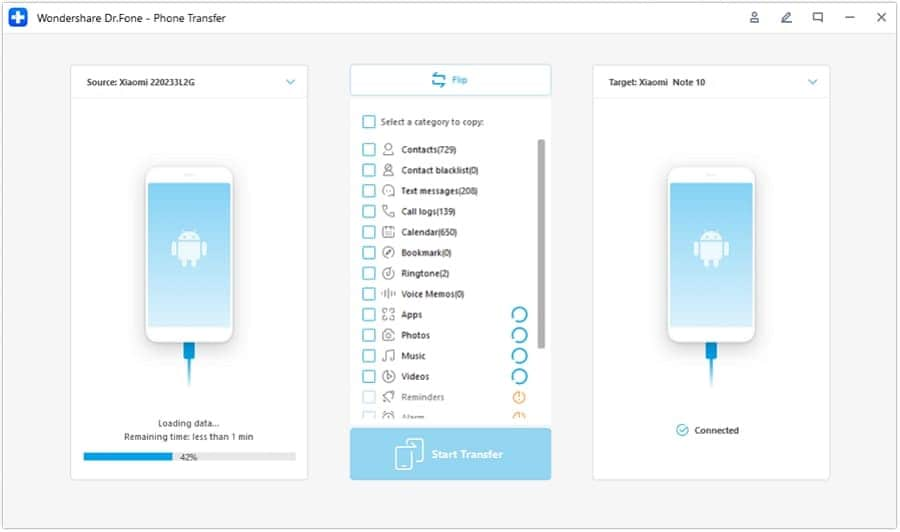
Utilize high-quality, data-capable USB-C cables to hook up both Xiaomi mobile phones securely to your desktop computer or Mac. Execute the Dr.Fone software suite on your machine, then navigate to and select the "Phone Transfer" module from the main dashboard. The software engine will immediately begin scanning and loading the storage profiles from both connected handsets.

Vigilantly check the on-screen orientation. Ensure the aging Xiaomi is designated solidly as the "Source" device on the left side of the screen. Conversely, ensure the fresh, incoming Xiaomi is mapped as the "Destination" device on the right. If they are backwards, swiftly click the "Flip" button located top-center to reverse the data flow trajectory.
-
Step 2 Curate the Migration Data Payloads
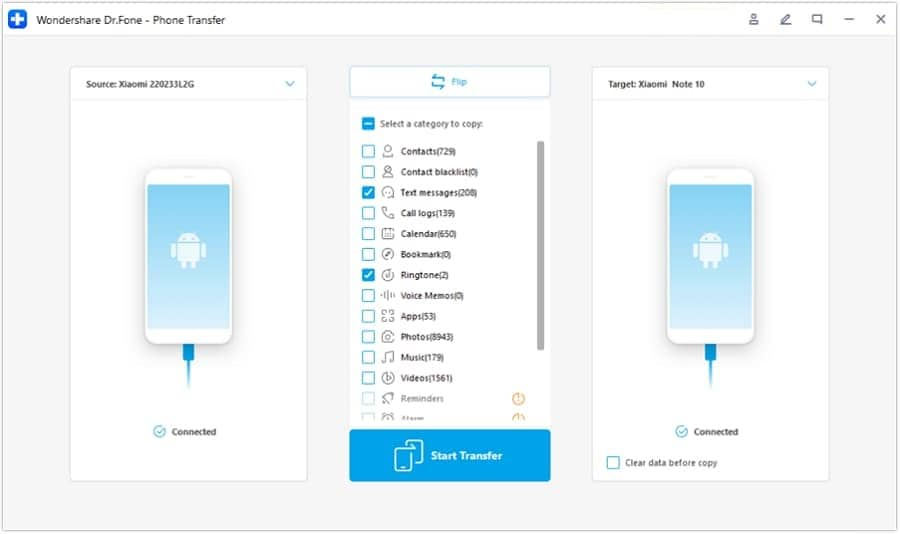
Direct your attention to the central console checklist. Here, you must manually check off the precise data streams you intend to push across the wire. Feel free to bulk-select contacts, sensitive messages, sprawling photo directories, heavy videos, or apps. Once your payload is confidently curated, affirmatively click the bold "Start Transfer" button at the bottom right to initiate the extraction.
-
Step 3 Monitor the Live Data Injection
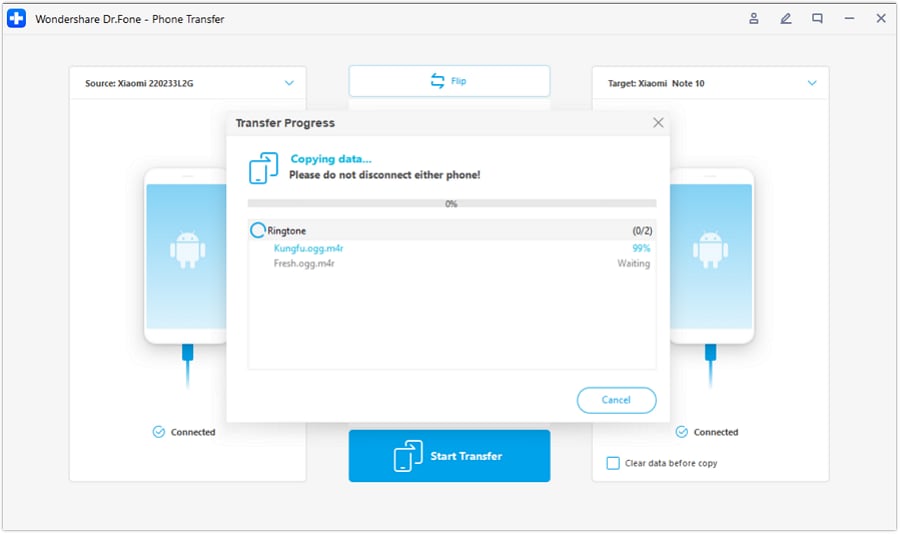
An intuitive pop-up window will instantly surface on your monitor, dynamically tracking the transfer's status file-by-file in real time. It is absolutely critical that you do not touch or unplug either phone's USB connection during this highly sensitive writing stage. If an emergency arises, you can safely abort the process utilizing the on-screen "Cancel" function.
-
Step 4 Validate and Safely Disconnect
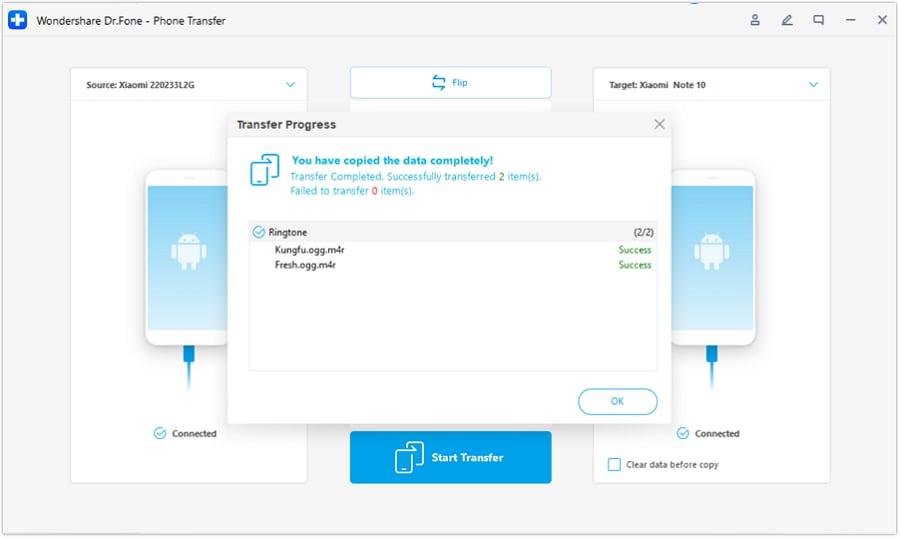
The moment the data injection is successfully finalized, the interface will generate a cheerful confirmation message declaring a 100% completion status. You may now click "OK" to safely terminate the session, gracefully close the Dr.Fone software, and physically detach both Xiaomi devices from the workstation.




Conclusion
Executing a flawless migration from an older generation Xiaomi to a 2026 flagship is rarely a simplistic, one-tap procedure. As explored throughout this guide, varied file types—from granular SMS texts to heavy media codecs—behave entirely differently during a standard xiaomi to xiaomi data transfer. By systematically breaking down the mechanics of each protocol, you can deploy the correct tool for your unique scenario. Mi Mover is brilliant for localized wireless bumps. ShareMe rules heavy media batch sharing. Mi Cloud excels at restoring foundational ecosystem elements over Wi-Fi. And Bluetooth remains effectively obsolete for anything beyond a singular photo transfer.
However, when your objective mandates that absolutely everything must migrate uniformly without dropped files or broken app caches, a tethered desktop solution like Dr.Fone - Phone Transfer proves vastly superior. By avoiding the inherent instability of wireless drops and supporting deeper structural extraction, it guarantees that your transition into the newest Xiaomi hardware is seamless, fully intact, and completely free of frustrating manual configurations.
FAQ
-
1. Why are some of my apps missing after I used Mi Mover to transfer data from Xiaomi to Xiaomi?
While Mi Mover is a fantastic native tool, it frequently encounters compatibility roadblocks when attempting to clone highly secured, proprietary third-party applications (especially banking apps or DRM-heavy games). Mi Mover will usually only transfer the basic APK installer, meaning you must re-download the app's internal cache and log back into your accounts manually upon opening the app on the new phone. -
2. Can I use ShareMe to transfer my entire WhatsApp chat history between Xiaomi phones?
No. ShareMe strictly operates as an expedited file and media sharing utility. While you could technically use it to push the encrypted WhatsApp local backup file (.crypt14) across to the new device's storage, ShareMe cannot dynamically restore the database into the WhatsApp application itself. For deep social media chat restorations, you must rely on native Google Drive backups or specialized desktop software like Dr.Fone. -
3. What should I do if my xiaomi to xiaomi transfer keeps disconnecting midway?
Wireless drops are incredibly common during intensive transfers. First, guarantee both devices are charged past 80%. Second, disable standard Cellular Data and Bluetooth, leaving only Wi-Fi active to reduce antenna interference. Third, ensure "Battery Saver" mode is fully toggled off on both handsets, as MIUI/HyperOS will aggressively kill background hotspot connections to conserve juice. Finally, physically place the phones less than an inch apart. -
4. Does transferring data via Mi Cloud consume my personal mobile data allowance?
It absolutely can if you are not careful. By default, Xiaomi devices try to restrict heavy Mi Cloud syncing to established Wi-Fi networks. However, if your Wi-Fi signal drops and "Sync using mobile data" is toggled on inside your Mi Account settings, the device will immediately begin uploading or downloading gigabytes of information over your 4G/5G cellular network, which could trigger massive carrier overage fees. Always check your settings before initiating a cloud transfer.
 Add Wondershare Dr.Fone as a preferred source on Google