Effortlessly manage data through preview, delete, export, etc.

 100% Security Verified | No Subscription Required | No Malware

 :
: 
 ChatGPT
 Perplexity
 Gemini
 Claude
 Grok
Grok
In 2026, our Xiaomi and Redmi devices serve as the central hubs for our digital lives, capturing high-resolution 8K videos, complex documents, and thousands of personal photos. However, as storage fills up, your device's performance can lag, and the risk of data loss increases if you don't have a secure backup on a computer.
Transferring your data to a PC isn't just about freeing up space; it's about professional organization and long-term security. Whether you are looking for a quick USB plug-and-play solution or a more robust wireless sync, this guide details the most reliable methods to transfer files from Xiaomi to PC without compromising quality or security.
In this article
- Part 1. How to Transfer Data from Xiaomi to PC: 8 Tested Methods
- 1-1. Method 1: Use USB Media Transfer (MTP)
- 1-2. Method 2: Transfer Data via Wondershare Dr.Fone Expert
- 1-3. Method 3: Using the Official Mi PC Suite
- 1-4. Method 4: Wireless Transfer via ShareMe
- 1-5. Method 5: FTP via Mi File Manager
- 1-6. Method 6: Cloud Sync via Mi Account
- 1-7. Method 7: Bluetooth for Small Files
- 1-8. Method 8: Direct File Transfer Protocol
- Part 2. Quick Comparison of Xiaomi to PC Transfer Methods
Part 1. How to Transfer Data from Xiaomi to PC: 8 Tested Methods
Xiaomi's HyperOS and MIUI ecosystems provide multiple pathways for data migration. Depending on whether you have a USB cable handy or prefer a wireless cloud-based approach, you can choose the method that fits your specific needs for speed and data type.
1-1. Method 1: Use USB Media Transfer (MTP)
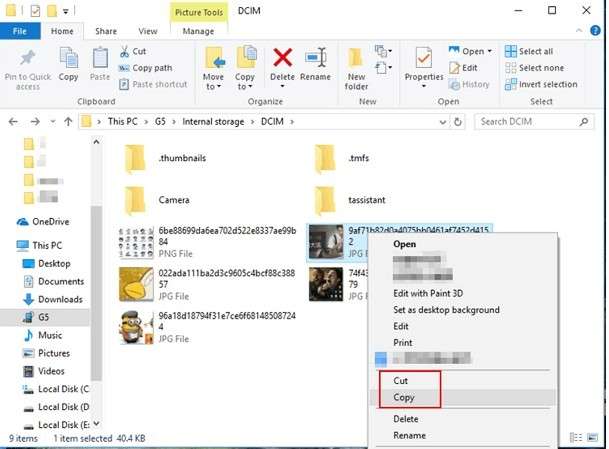
This is the standard procedure for moving media files. It treats your Xiaomi phone as a portable media player, allowing Windows to access the DCIM and Media folders directly. This is ideal for those wondering how to transfer photos from Redmi to PC quickly.
Step 1Connect the Hardware
Link your Xiaomi device to your computer using a certified USB-C cable. Ensure the phone is unlocked to allow the system to initialize the connection.
Step 2Select USB Configuration
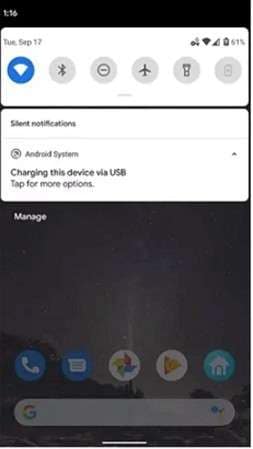
Swipe down the notification shade on your phone. Tap the USB connection notification and select "File Transfer" or "MTP". By default, phones often start in "Charging Only" mode.
Step 3Navigate Storage
On your PC, open File Explorer and locate your device name under "This PC". Double-click to enter the Internal Shared Storage.
Step 4Copy and Paste
Locate your files (usually in folders like DCIM, Pictures, or Documents). Select your items and drag them to your local PC drive.

1-2. Method 2: Transfer Data via Wondershare Dr.Fone Expert
When you need to move more than just photos—such as WhatsApp messages, call logs, or specific app data—standard USB transfer often falls short. Wondershare Dr.Fone acts as a professional bridge, offering a visual interface to manage all your Xiaomi data in one place.
 Move data between iOS to Android and vice versa.
- Transfer contacts, SMS, photos, videos, music, and more types.
- Available with all phones with Android and iOS versions.
- Simple, click-through process.

Step 1Launch Dr.Fone
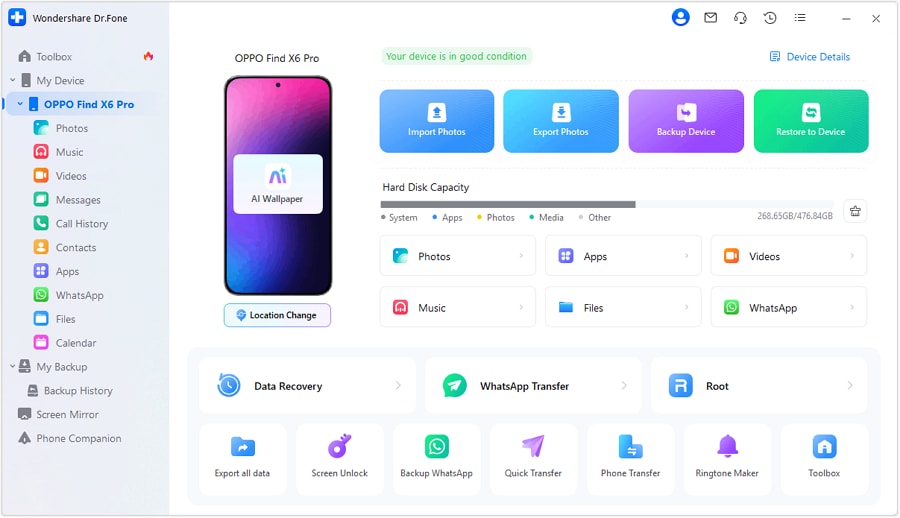
Open Dr.Fone on your computer and connect your Xiaomi phone via USB. Select the "My Device" or "Export Data" module from the dashboard.
Step 2Scan and Preview
The software will categorize your phone's contents into Photos, Videos, Contacts, and Messages. You can click on each category to preview the items before moving them.
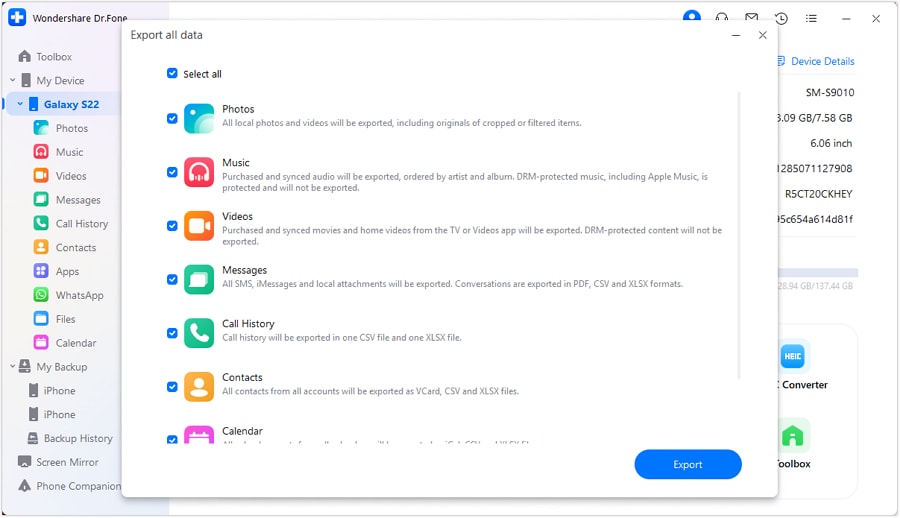
Step 3Execute Export
Tick the checkboxes for the files you need and click "Export to PC". Choose your destination folder, and the software will handle the rest with high-speed stability.

1-3. Method 3: Using the Official Mi PC Suite
Mi PC Suite is Xiaomi's dedicated desktop client designed to bridge the gap between your mobile device and your workstation. While it is highly effective for older models, it remains a go-to for those who want a proprietary backup solution.
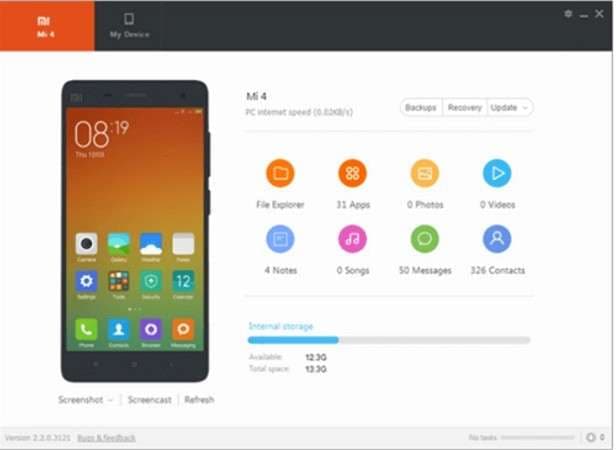
- Install the Mi PC Suite and connect your device.
- Grant the necessary permissions on your Xiaomi phone to allow system-level access.
- Use the "Back up to PC" feature to create a local copy of your device's architecture and media.
1-4. Method 4: Wireless Transfer via ShareMe
Formerly known as Mi Drop, ShareMe is a powerful tool for how to transfer files from Xiaomi to PC without USB. It utilizes P2P technology to create a local connection between devices.
Step 1Open ShareMe
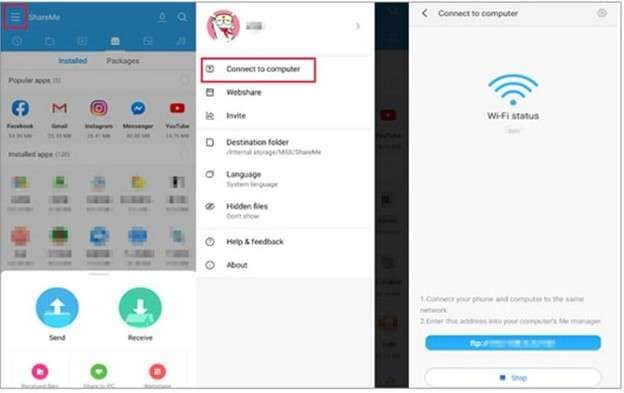
Launch the app on your Xiaomi phone and select "Connect to PC" from the sidebar menu.
Step 2Set up FTP
Tap "Start" and select the storage type (Portable or Password Protected). The app will provide an FTP address (e.g., ftp://192.168.1.5:2121).
Step 3Access on PC
On your computer, open any folder and type that FTP address into the top address bar. You will now see your phone's files as if they were a network drive.
1-5. Method 5: FTP via Mi File Manager
Similar to ShareMe, the built-in Mi File Manager has a native FTP server built directly into its core interface. This is often the quickest way for advanced users to grab a single file wirelessly.
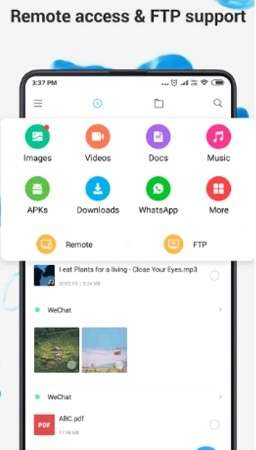
- Open File Manager and tap the menu icon.
- Select "Remote Management" or "FTP".
- Follow the prompts to start the server and enter the generated URL into your PC's browser or File Explorer.
1-6. Method 6: Cloud Sync via Mi Account
If you need to access your data from any computer, not just your personal one, Mi Cloud is the answer. It keeps your contacts, notes, and gallery in sync across the internet.
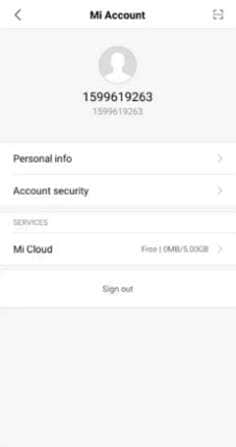
- Navigate to Settings > Mi Account > Xiaomi Cloud on your phone.
- Enable sync for the categories you need (Gallery, Contacts, etc.).
- On your PC, log in to i.mi.com to view and download your synced data.
1-7. Method 7: Bluetooth for Small Files
While extremely slow for videos, Bluetooth is useful when you have no cables and no WiFi network. It is the fallback method for tiny documents.
- No cables or internet required
- Universally compatible with almost all PCs
- Great for single .txt or .jpg files
- Extremely slow data transfer speeds
- Prone to connection drops
- Requires manual pairing process
1-1. Method 8: Direct File Transfer Protocol
This is the raw data method where the phone acts as a Mass Storage device. It is similar to Method 1 but focuses on broad file system access rather than just media. This is the preferred way to transfer data from Xiaomi to PC if you are moving folders like Downloads or WhatsApp databases.
Part 2. Quick Comparison of Xiaomi to PC Transfer Methods
| Method | Connection Type | Data Scope | Speed Rating | Best For |
|---|---|---|---|---|
| Wondershare Dr.Fone | USB Cable | Full (SMS, Contacts, Apps) | High / Stable | Total Data Migration |
| USB Media (MTP) | USB Cable | Photos/Videos | High | Quick Media Copy |
| ShareMe (FTP) | Local WiFi | Files/Folders | Medium-High | Cable-free usage |
| Mi Cloud | Web/Internet | Gallery/Contacts | Internet Dependent | Remote Access |
| Bluetooth | Wireless P2P | Small Docs | Low | Emergency single file |
Conclusion
Managing your Xiaomi storage by transferring data to a PC is a vital habit for maintaining device health in 2026. While native USB methods are quick for basic photos, professional software like Dr.Fone provides the necessary depth for comprehensive backups. Always choose a wired connection for bulk data and wireless for quick, intermittent file sharing to ensure your digital memories remain safe and accessible.
FAQ
1. How to transfer files from Xiaomi to PC with USB if the PC doesn't recognize it?
Ensure you have the latest Xiaomi USB drivers installed on your Windows PC. Also, try switching the USB cable or port, and ensure your phone's USB mode is set to 'File Transfer' rather than 'Charging Only'. If the issue persists, enable USB Debugging in the Developer Options menu.2. Can I transfer photos from Redmi to PC without a cable?
Yes, you can use the ShareMe app or the FTP feature within the Mi File Manager. Both allow you to view your phone's storage on a PC over the same WiFi network. Alternatively, you can sync your photos to Xiaomi Cloud and download them at i.mi.com.3. What is the fastest way to transfer 50GB of data from Xiaomi to PC?
The fastest and most stable method is using a high-speed USB 3.0/C cable combined with professional management software like Dr.Fone. This avoids the overhead of explorer crashes and provides significantly better throughput than wireless methods.4. Is Mi PC Suite compatible with the latest HyperOS/MIUI versions?
While the original Mi PC Suite has limited support for the newest OS versions, many users find success with updated third-party management tools. For the most modern Xiaomi devices, using MTP mode or Dr.Fone is recommended over the legacy official suite.
 Add Wondershare Dr.Fone as a preferred source on Google