
Overview of Fastboot in Redmi Phones: Complete Guide for All Models

Oct 23, 2026 • Filed to: Phone Repair Solutions • Proven solutions
 TL;DR:
To manage frozen Redmi devices using Fastboot mode without data loss, manually enter the diagnostic state by holding the Power and Volume Down buttons until the logo appears, and exit by holding the Power button for 10 to 20 seconds.
● Executing ADB operations requires turning on USB debugging, installing Google Platform-Tools on your PC, and using the adb reboot bootloader command to enter or fastboot reboot to exit the mode.
● Resolving severe boot loops via the official Mi Flash Tool requires a downloaded Fastboot ROM and Xiaomi USB drivers, but selecting the "Clean all" flashing option will completely wipe the device data.
● As an alternative to manual button timing and command-line interfaces, Dr.Fone – System Repair offers a free, single-click tool to enter and exit Fastboot mode on supported Android devices.
Ask AI for a summary
 ChatGPT
 Perplexity
 Gemini
 Claude
 Grok
Grok
Many Redmi users face problems when their phone freezes, fails to start, or gets stuck on the logo. In such cases, standard methods fail, and Fastboot mode saves the day. It comes as a solution to fix these issues and take control of your device. Therefore, this guide explains Fastboot Redmi in detail with extensive instructions on how to enter and exit it.
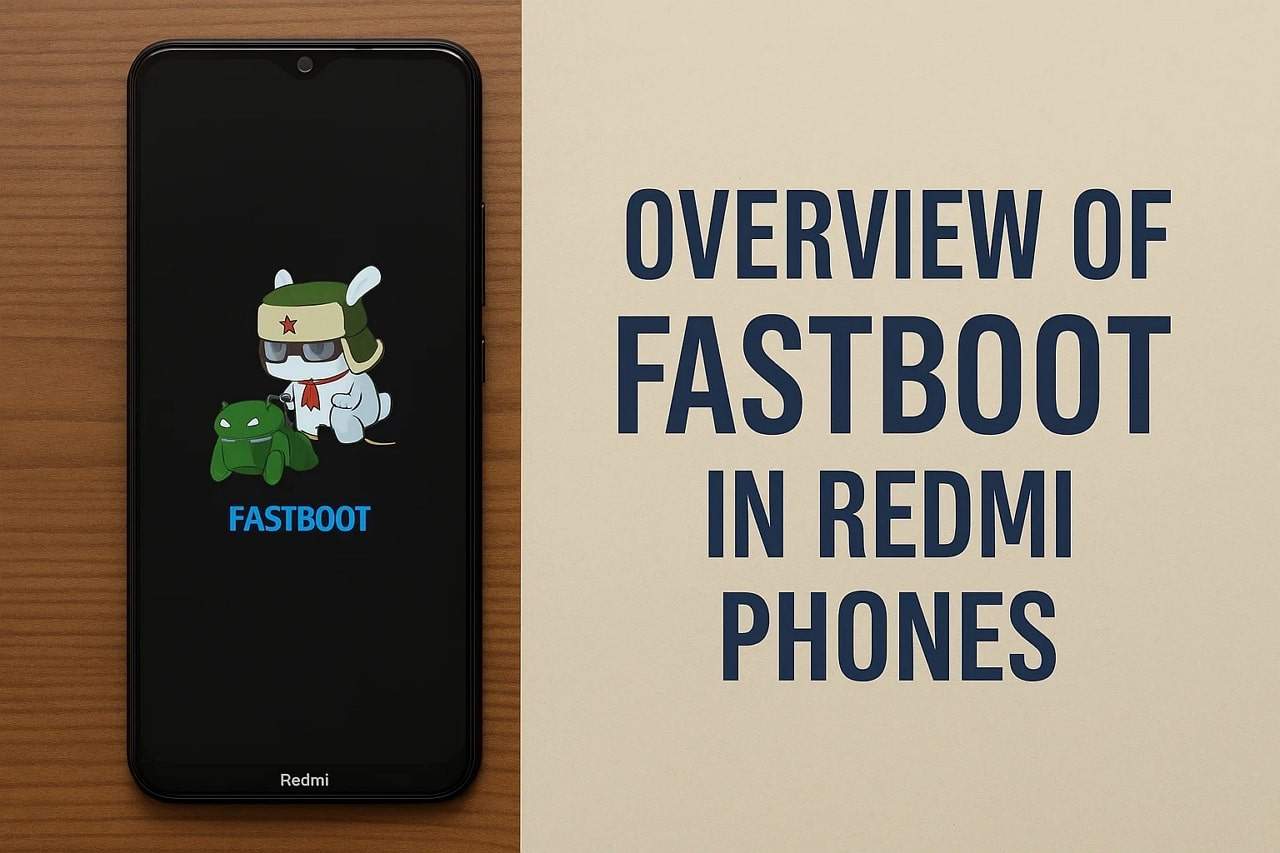
Learn how you can solve common phone problems and make your device work smoothly again. Additionally, understand how manual ways can require a learning curve and how the need for innovative solutions is raised.
 safe & secure
4,624,541 people have downloaded it

Part 1. What Fastboot Mode Means on Redmi Devices
Redmi users see problems when their phone does not start, freezes, or gets stuck on the logo, and Fastboot mode helps here. Fastboot in Redmi is an exotic boot mode that does not initialize Android but directly communicates with the phone's system. Under this mode, the phone will wait until a computer sends it a command, and the user is safe to fix software errors, reformat the system, or fix a failed update.
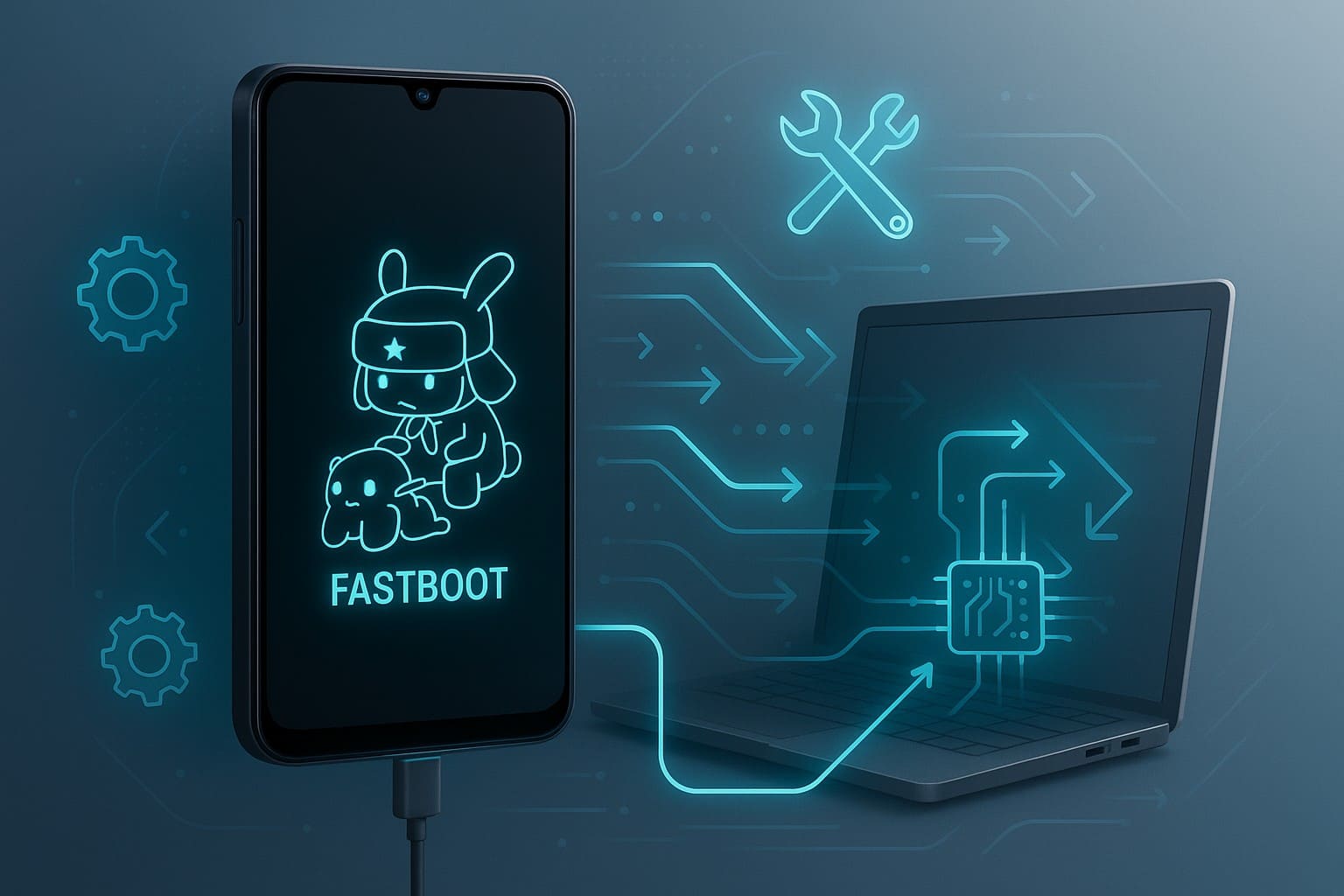
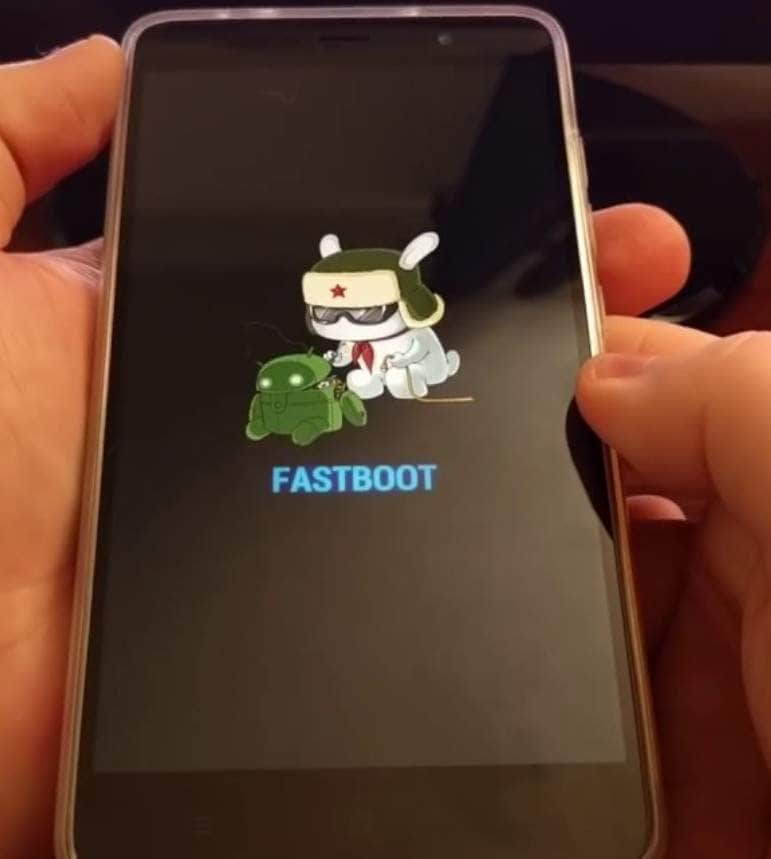
Additionally, Redmi uses Fastboot to enable users and technicians to install updates, change software versions, or repair corrupted files. In terms of appearance, the Fastboot screen often shows a bunny or the word "FASTBOOT."
Part 2. How to Enter Fastboot Mode in Redmi Phones (All Models)
Now that you know what Fastboot mode Redmi is, review this section and learn how you can enter it in the 2 ways listed below:
1. Using Hardware Buttons
Fastboot mode on a Redmi lets the phone enter a special service state even if Android does not start or the screen does not respond. For that, users can use hardware buttons such as Power + Volume Down, which work without USB or PC tools. This solution gives a simple, reliable way to fix serious software problems and keep the phone running safely, as guided:
Instructions: Power off the phone, then press and hold the "Power" and "Volume Down" buttons simultaneously for a few seconds. After that, release the button when you see the "Fastboot" logo or the Xiaomi bunny graphic.
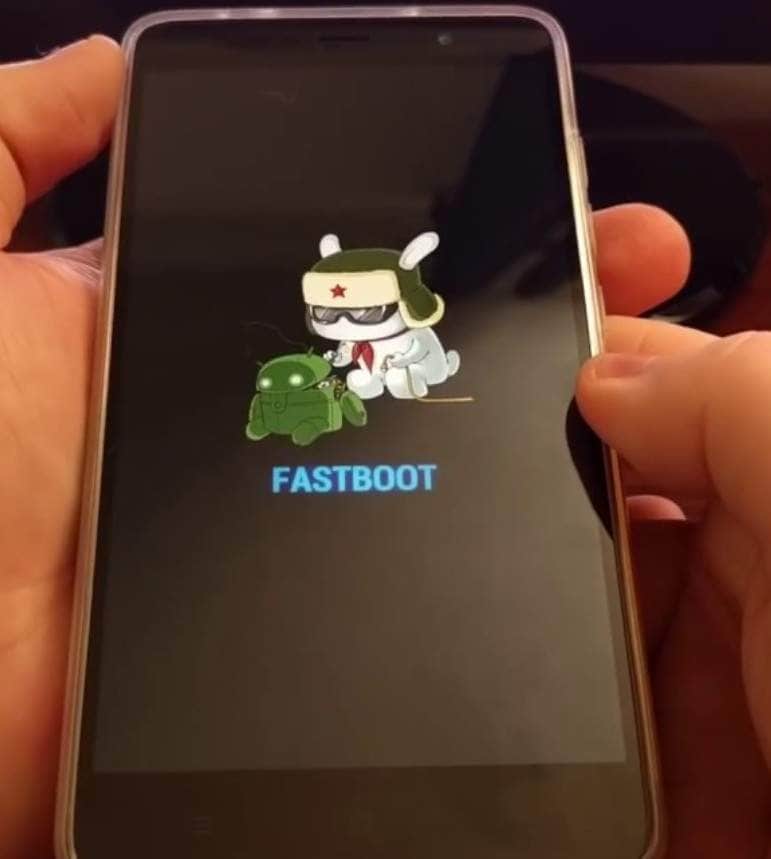
Note: For some specific or older Redmi models, the combination might involve holding the "Volume Up" button and the Power button instead.
2. Using ADB Commands
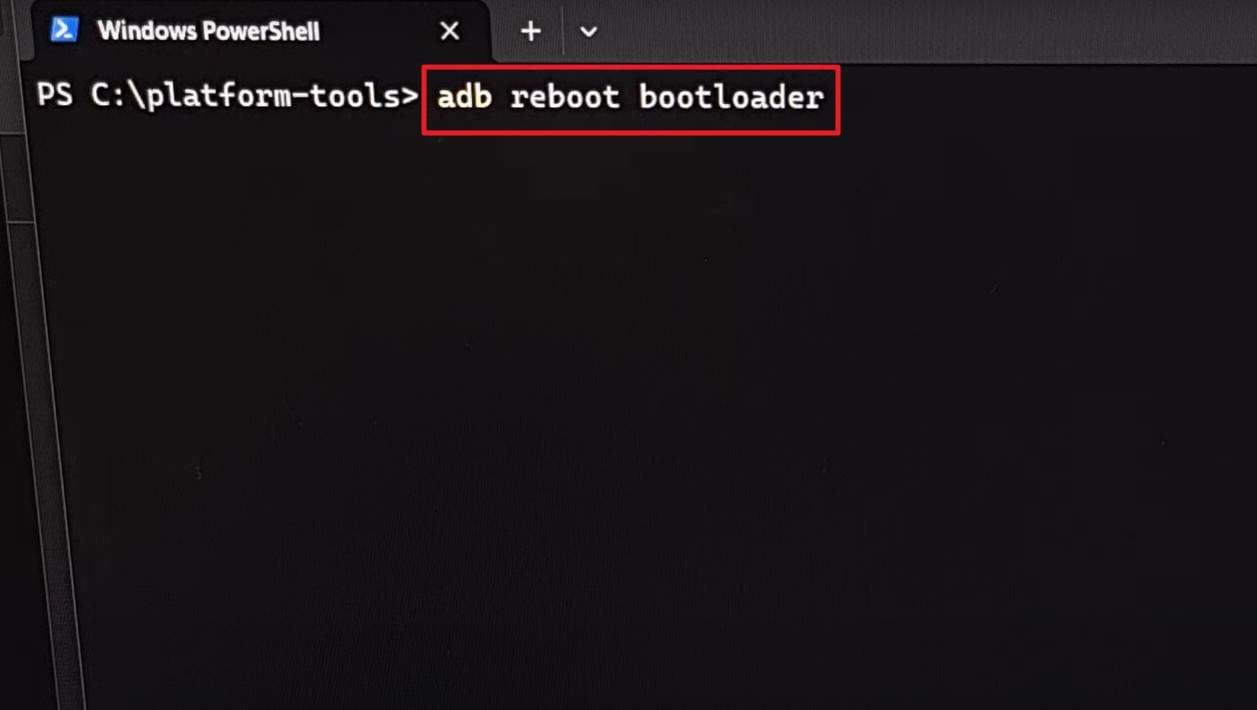
To enter the Redmi Fastboot mode, users can also use ADB commands since it's a simple and precise way to reach Fastboot from a computer. With USB debugging on, the command adb reboot bootloader restarts the phone directly into Fastboot without using hardware buttons, as illustrated below. Hence, this is useful if Power or Volume keys are hard to press or if button timing feels tricky.
Before You Start:
- Download and install Google Platform-Tools on your computer for ADB.
- Enable Developer Options, then turn on USB debugging on your phone.
- Use a good cable and install Xiaomi drivers on your PC.
- Step 1. Plug your Redmi phone into your PC using the USB cable, then navigate to the ADB/Fastboot tools folder. After that, open the Command Prompt or PowerShell, type "adb devices" and press the "Enter" key.
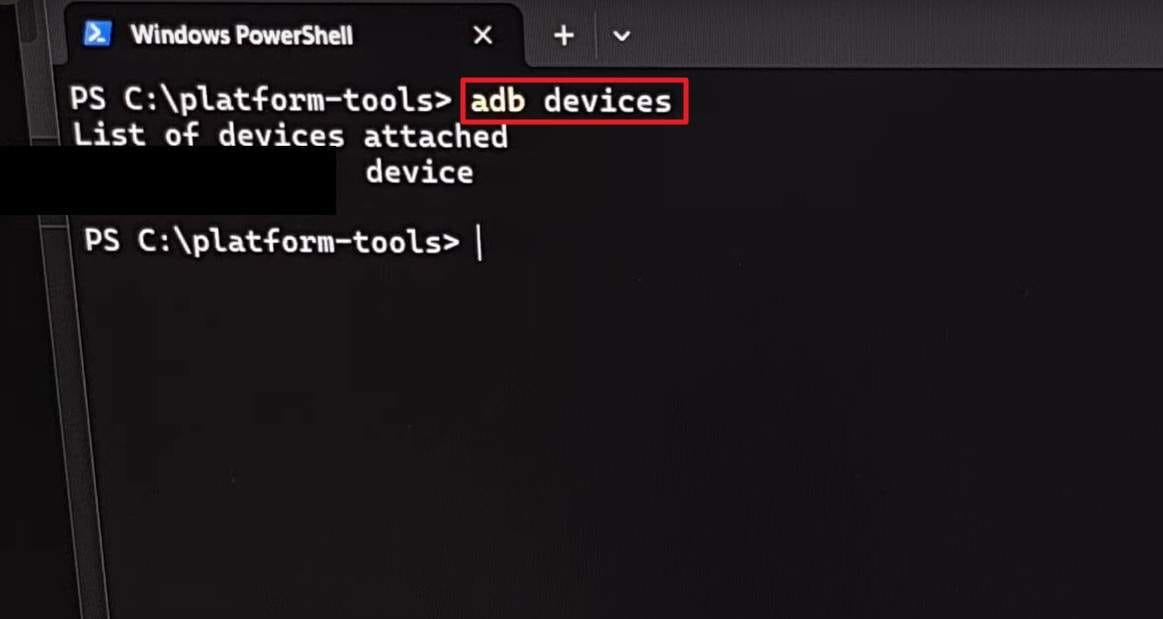
- Step 2. If prompted on your phone, allow USB debugging, and you should see your device's serial number listed. Then type the "adb reboot bootloader" command, press the "Enter" key, and the phone will automatically restart and boot straight into Fastboot mode.
Pro Tip. Free Way to Enter or Exit Fastboot Mode on Redmi Without ADB Commands
After learning the manual methods, some users may prefer a simpler way to manage Fastboot Mode on Redmi devices. Remembering button combinations or using ADB commands can be inconvenient, especially for beginners. To make the process easier, Dr.Fone – System Repair provides a free Fastboot Mode tool that allows users to enter or exit Fastboot Mode in just a few clicks.
Unlike manual methods, there is no need to memorize commands, install additional Fastboot utilities, or worry about incorrect operations. The tool supports Redmi, Xiaomi, POCO, Samsung, and many other Android devices, making it a convenient option for everyday users and technicians alike.
Key Benefits
- Free tool to enter Fastboot Mode on Android devices
- Free one-click exit from Fastboot Mode
- No ADB commands required
- No complicated button combinations
- Supports Redmi and other major Android brands
- Beginner-friendly interface with guided operation
How to Enter Fastboot Mode with Dr.Fone For Free
- Step 1. Open Dr.Fone on your computer, connect your Samsung phone, and select System Repair from the Toolbox section.

- Step 2. Choose Android as the device type to continue.

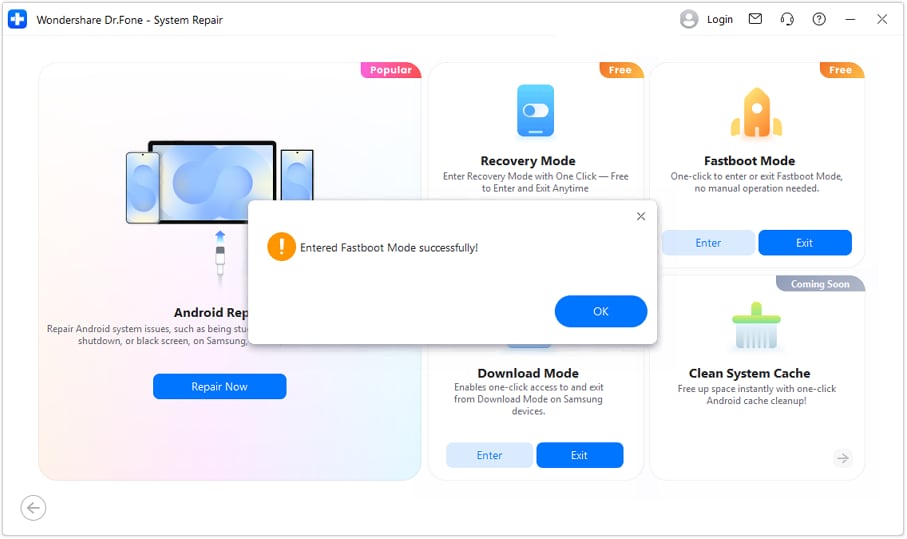
- Step 3. Select Fastboot Mode and click Enter to start the process.

- Step 4. Wait until Dr.Fone displays a confirmation message showing that the device has successfully entered Fastboot Mode.
safe & secure4,624,541 people have downloaded it
Part 3. How to Get Your Redmi Phone Out of Fastboot Mode Without Risk?
After understanding the Fastboot meaning in Redmi, if you want to exit it and deal with the issue where it gets stuck, this section has you sorted. Review the 7 simple and practical ways and learn how you can get out of stubborn Fastboot mode via detailed instructions:
1. Restart Your Redmi Phone Normally
This method avoids risks like accidental flashing, data loss, or firmware damage. Additionally, it keeps apps, photos, and settings safe, which makes it ideal for users who see Fastboot by mistake. Plus, a normal restart does not need a PC, ADB, or any tools. It works anywhere and returns the phone to normal quickly when Fastboot appears unexpectedly, as guided:
Instructions: Press and hold the "Power" button continuously for a minimum of 10 to 20 seconds. When the screen goes black or vibrates, release the "Power" button once the Redmi logo appears.

2. Use the Hardware Buttons to Exit Fastboot
To exit Fastboot on Redmi, this method works without a PC, drivers, or tools, and avoids mistakes with Fastboot commands. Besides, it keeps apps, photos, and settings safe because it does not wipe storage or flash ROMs. You can use it anywhere, anytime, even if Fastboot appears by mistake. So, to determine what button combination to use, adhere to the simple guide given ahead:
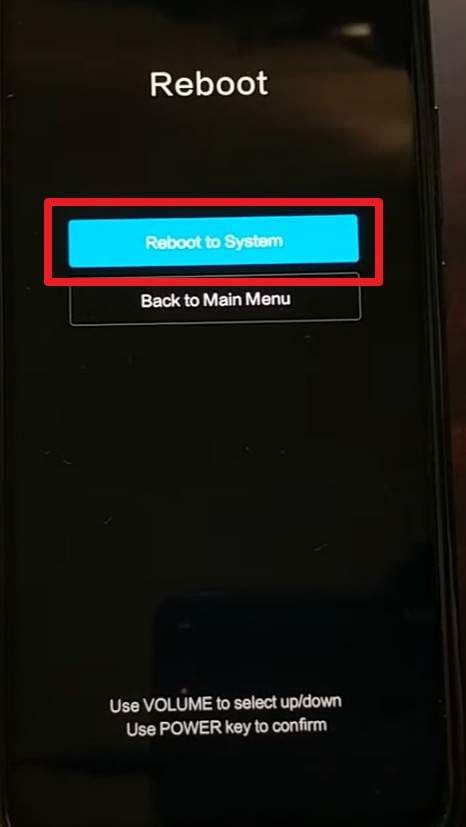
- Step 1. With the Fastboot screen showing, press and hold the "Power" button for about 7-15 seconds until the screen turns off and the Redmi logo appears. Otherwise, press and hold "Power" and "Volume Up" for several seconds on some models. This can trigger a reboot or take you to the recovery menu, where you can reboot the system. Release the "Power" button when the Mi logo appears, but continue holding "Volume Up" until the recovery menu loads.
- Step 2. To do that, use the "Volume Down" button to scroll to "Reboot," then the "Volume Up" button to highlight "Reboot to system." After that, press the "Power" button to select the "Reboot to System" option and restart your device.
3. Exit Fastboot Mode via ADB Command
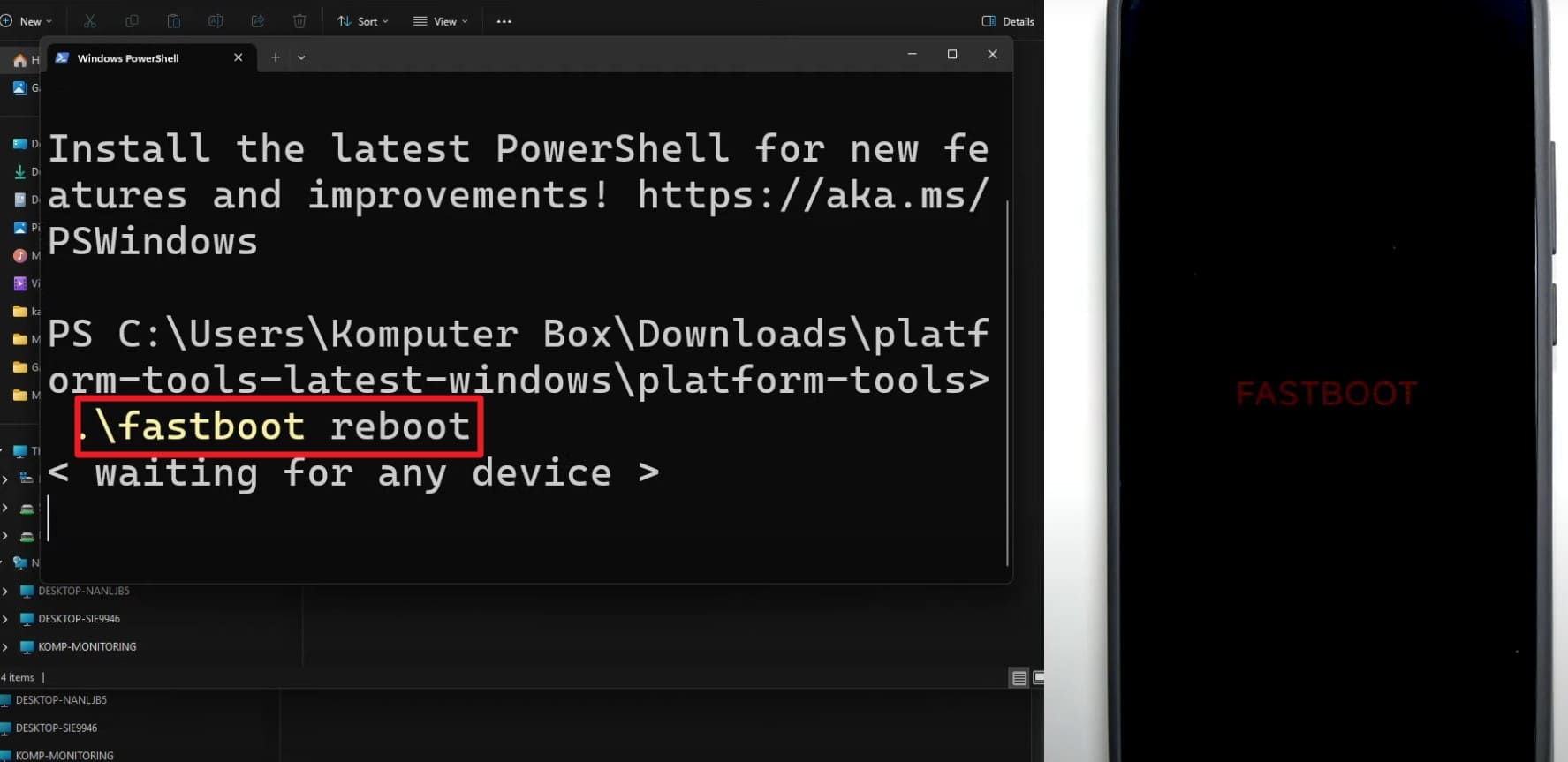
The command fastboot reboot restarts Android without touching system partitions or user data. This method works well when the phone connects to a PC for service and allows technicians to control the process from the computer. Also, this works for multiple devices at once, as a script can reboot many phones. So, review the simple steps given below and learn how you can use this command to exit Redmi Fastboot mode:
Prerequisites:
- Have a computer with Android SDK Platform-Tools installed and ready.
- Use a USB cable to connect your phone to the computer.
- Make sure your Redmi phone is in Fastboot Mode and connected.
Instructions: On your PC, open Command Prompt/Terminal in the platform-tools folder and type the "fastboot devices" command to check if the phone appears. After that, type the "fastboot reboot" command, and the phone will exit Fastboot and restart normally.
4. Drain Battery Power
Letting the battery drain is a safe way to get a Fastboot on Redmi since the phone powers off automatically when the charge reaches zero. This method needs no PC, tools, or technical knowledge, and it does not touch files, wipe data, or change settings. Even if buttons or PC commands fail, the battery forces a full shutdown. After that, you can power the phone on and return to normal use safely.
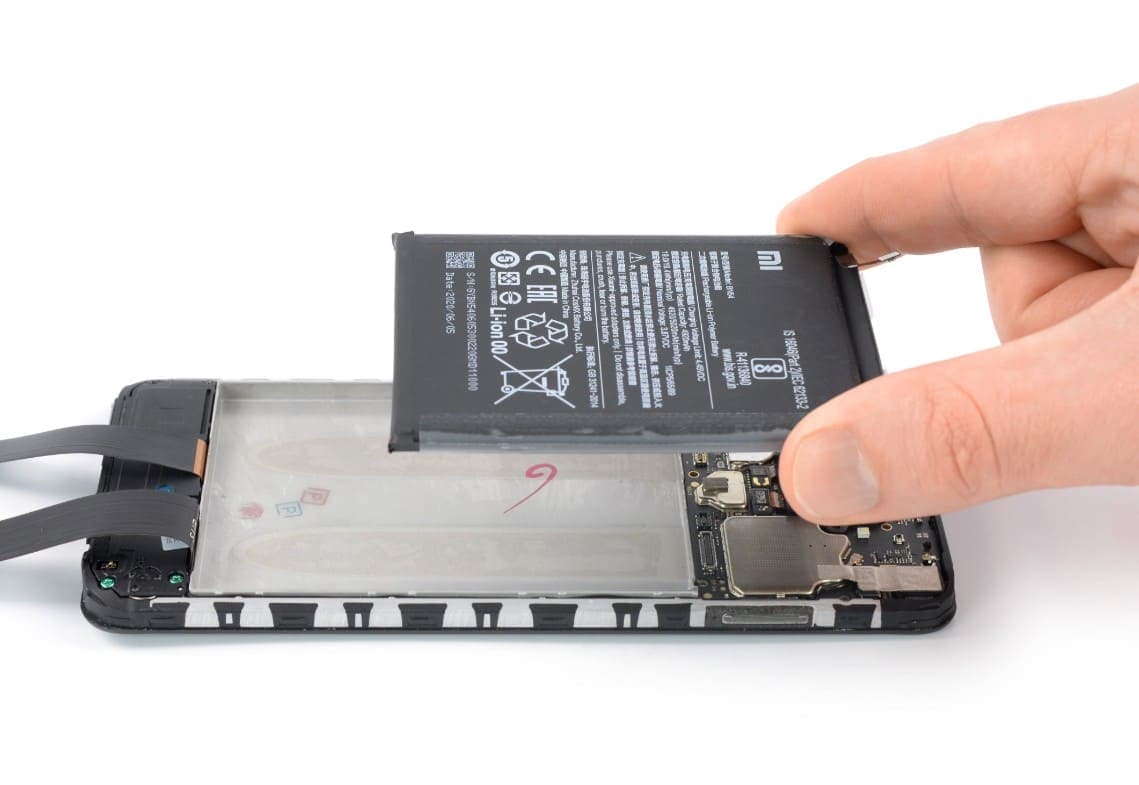
5. Remove and Reinsert the Battery
This solution cuts power completely and stops Fastboot and frozen processes. Plus, this method has no software risk because it does not run commands or flash files. This method also helps fix other freezes, but it only works on models with a removable battery.
6. Flash Stock Firmware Using Mi Flash Tool
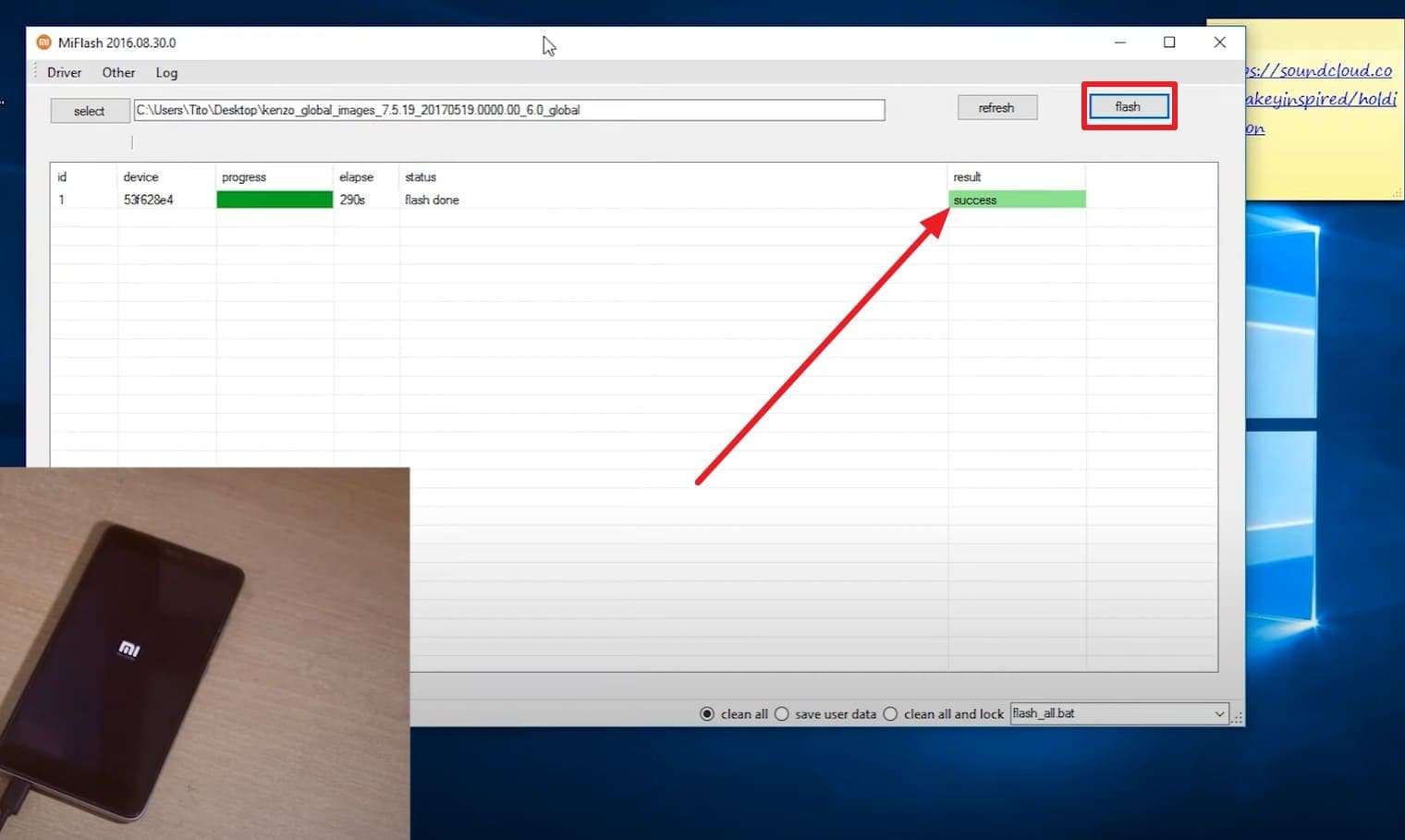
To exit Fastboot Redmi Note 11 or any other model, Mi Flash Tool is a reliable way when a Redmi phone has serious software issues. The tool installs official Fastboot ROMs for your exact model and reduces the risk of errors or incompatible firmware. Additionally, it can restore the system after failed updates, boot loops, or deleted files and returns the phone to a clean, stable state, as shown:
Prerequisites:
- Get the correct Fastboot ROM for your Xiaomi device from a trusted site.
- Install the official Mi Flash Tool on your Windows PC for flashing.
- Extract the downloaded Fastboot ROM into a separate folder using 7-Zip.
- Install proper Xiaomi USB drivers on your PC for device connection.
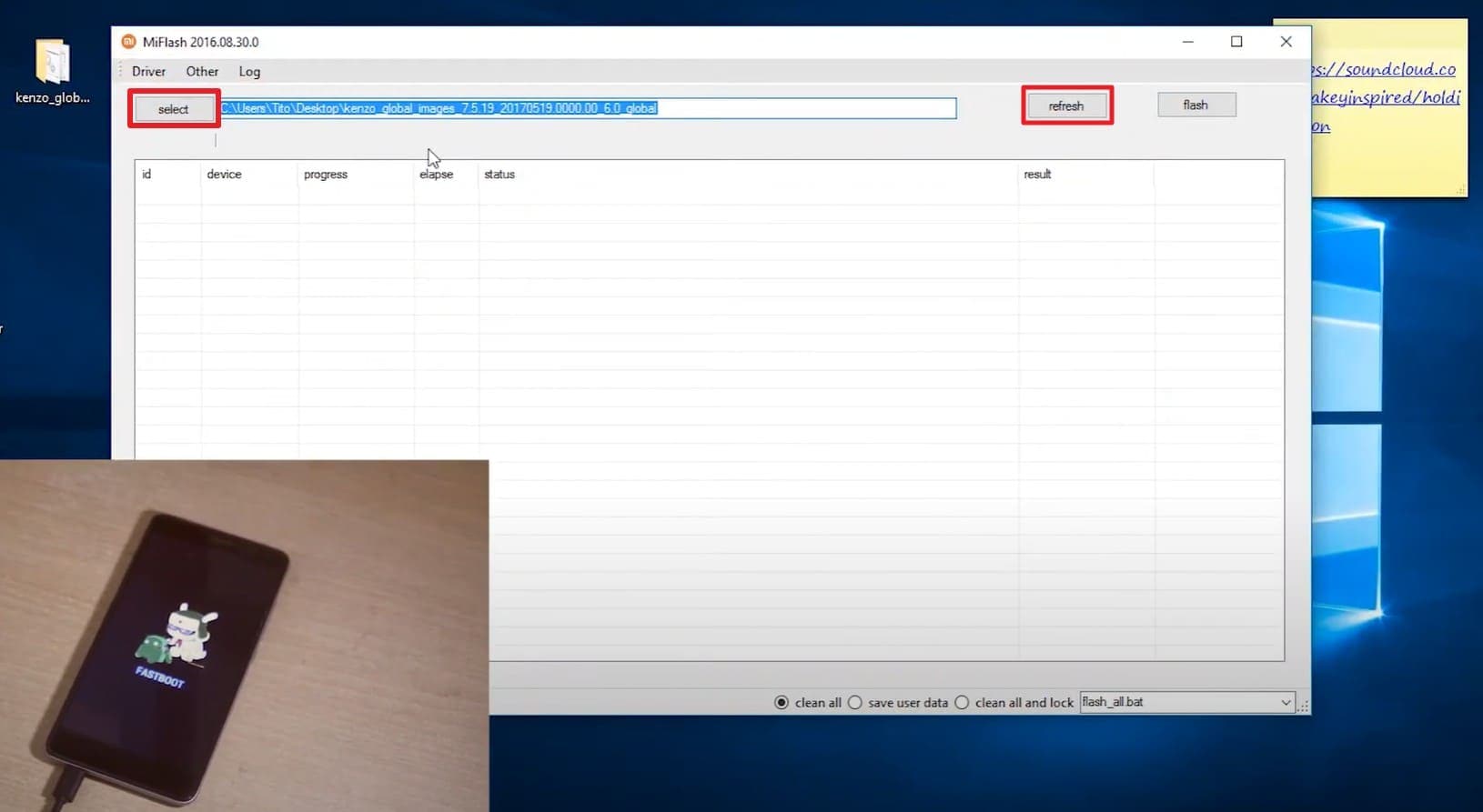
- Step 1. While the phone is in Fastboot mode, connect it to the PC with a USB cable and launch Mi Flash Tool. Choose the "Select" option on the tool and navigate to the extracted Fastboot ROM folder. There, press the "Refresh" option to see your device appear in the tool.
- Step 2. After that, select the "Clean all" option to wipe data and install a fresh image, or the "Clean all and Lock" option to lock the bootloader.
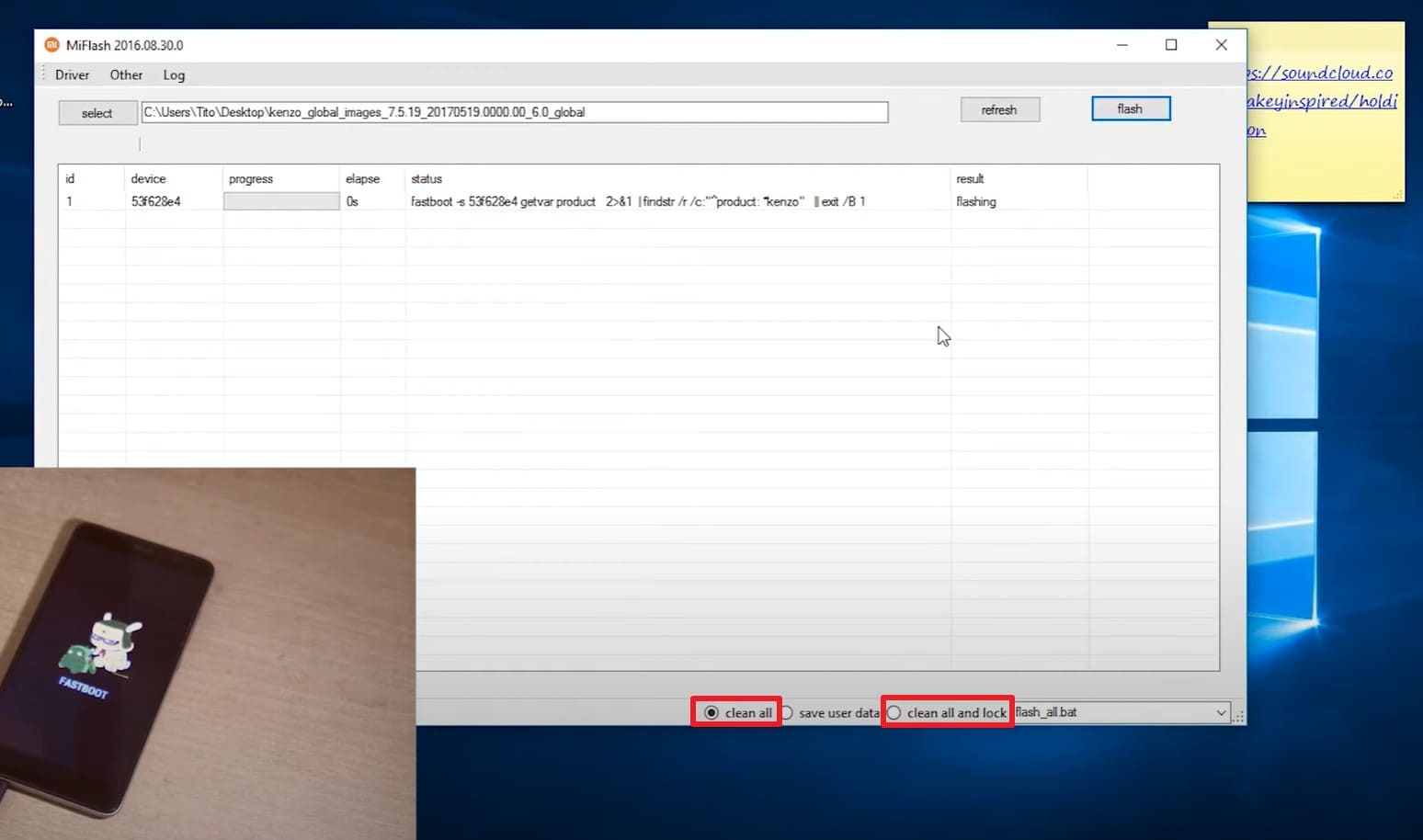
- Step 3. Now, tap the "Flash" option, after which the tool will show progress, and you will have to wait for the "Success" prompt. Your phone will automatically reboot from Fastboot mode once the new stock ROM is installed.
7. Seek Professional Help If All Else Fails
When standard methods fail to exit Fastboot on Redmi, contact an authorized Xiaomi service center. Certified technicians use official diagnostic tools and approved procedures to identify underlying issues, recover the system safely, and preserve data whenever possible.
Conclusion
To wrap up, since many users ask about Fastboot Redmi, this guide has explored this mode in detail. So, review the article and determine how you can enter and exit it in simple, manual ways. However, know that any wrong combination of keys or commands can lead to a data loss threat. This is why it is suggested to use seamless solutions like Dr.Fone – System Repair, a one-click solution.
safe & secure4,624,541 people have downloaded it
FAQs
 1. Can I use Fastboot for software updates?2. Is Fastboot safe for beginners?3. Will using Fastboot erase my data?4. Can Fastboot unlock hidden features?


Xiaomi Topics Series
- Xiaomi Screen & FRP Unlock
- 1. Unlock Xiaomi Bootloader
- 2. Mi Account Unlock Tools
- 3. Redmi Note 8 FRP Unlock Tool
- 4. Redmi Note 9 FRP Bypass Tool
- 5. Redmi 9A FRP Bypass
- 6. Remove FRP on Xiaomi/Redmi
- Xiaomi Repair
- Xiaomi Recover
- Xiaomi Reset
- Xiaomi Tips & News
- 1. Xiaomi HyperOS 3.0
- 2. Screen Mirror Xiaomi to PC
- 3. Run Hardware Tests on Xiaomi
- 4. Conduct battery test on Xiaomi
- 5. How Do I Obtain the Security Code Xiaomi
- 6. DND Mode Xiaomi
- Xiaomi Transfer & Backup
- ● Manage/transfer/recover data
- ● Unlock screen/activate/FRP lock
- ● Fix most iOS and Android issues
- Free Download Free Download Free Download


 > How-to > Phone Repair Solutions > Overview of Fastboot in Redmi Phones: Complete Guide for All Models
Daisy Raines
staff Editor
Generally rated4.5(105participated)