
Android Fastboot Mode: How to Enter, Exit, & Use on Phones and Tablets

Oct 23, 2026 • Filed to: Phone Repair Solutions • Proven solutions
 TL;DR:
Android Fastboot mode is a pre-OS diagnostic state used for firmware-level repairs that can be entered and exited manually via device-specific key combinations or managed automatically without command-line knowledge using the free Fastboot feature in Dr.Fone - System Repair.
● Unlike ADB, which requires a normally booted device with USB debugging enabled for OS-level control, Fastboot operates before the Android OS starts and is utilized for higher-risk operations like flashing system partitions or modifying bootloader components.
● To manually enter Fastboot mode using a PC, users must first activate "USB Debugging" within the Android Developer Options before running the `adb reboot bootloader` command in a terminal.
● If a device becomes stuck in Fastboot mode, users can force a restart by holding the Power button for 30 seconds or executing the `fastboot reboot` command, reserving a Recovery Mode Factory Reset as a final option since it permanently wipes all user data.
Ask AI for a summary
 ChatGPT
 Perplexity
 Gemini
 Claude
 Grok
Grok
Fastboot mode is a special tool for Android phones and tablets that helps fix serious software problems. It works even when the device will not start normally. Hence, one can easily exit and enter Fastboot mode with the right button combinations. Since many beginners are unaware of these combinations, this guide will outline manual ways to enter and exit Fastboot mode.
For users who forbid the use of manual methods, they'll learn how innovative tools can also prove to be handy. So, review the article and learn seamless ways to troubleshoot issues if you get stuck in Android Fastboot mode while trying anyway.
- Part 1. What Is Android Fastboot Mode & Why Is It Useful
- Part 2. Automatic Method: Enter or Exit Fastboot Mode with Dr.Fone

- Part 3. How to Enter Fastboot Mode on Android Manually
- Part 4: How to Exit Fastboot Mode on Android Manually
- Part 5. How to Troubleshoot Android Stuck in Fastboot Mode - 4 Ways
Part 1. What Is Android Fastboot Mode & Why Is It Useful
Android Fastboot mode is a special boot loader mode on Android phones and tablets that assists in repairing or restoring the system. Moreover, the mode can be used even when the device does not boot, and one can use it to install official firmware, unlock the bootloader, or safely fix software issues.

It also enables manual updates and resets in case of failure in the normal methods. Besides, Fastboot provides complete access to system partitions in order to repair critical software problems without danger.
Fastboot vs ADB: Key Differences
Before you know how to enter or how to exit Fastboot mode, many users confuse the ABD and Fastboot command line tools for Android. Therefore, this section compares the two to show their differences and when to use each tool for device management and troubleshooting:
| Aspect | ADB | Fastboot |
|---|---|---|
| Mode Required | Works when the device is booted normally with USB debugging enabled, or in recovery if ADB sideload is supported. | Works in bootloader / Fastboot mode before the Android OS starts. |
| Main Purpose | App debugging, system communication, file transfers, and OS-level control. | Firmware-level operations like flashing partitions and modifying bootloader components. |
| Typical Uses | Install/uninstall APKs, pull/push files, reboot to recovery/bootloader, capture logs, perform sideload updates. | Flash system/boot/recovery images, unlock or relock bootloader, wipe or format partitions, modify low-level firmware. |
| Risk Level | Lower risk because most commands do not alter critical partitions. | Higher risk because incorrect commands or files may brick the device. |
| Who Uses It | Developers, testers, and users who need debugging and maintenance tools. | ROM modders, technicians, and experienced users performing deep system changes. |
Part 2. Free Automatic Way to Enter or Exit Fastboot Mode on Android (No ADB Required)
Before trying hardware button combinations or ADB commands, there is a faster and easier way to manage Fastboot Mode on Android devices. Dr.Fone – System Repair includes a free Fastboot Mode feature that allows users to enter or exit Fastboot Mode automatically in just a few clicks.
Unlike manual methods, there is no need to memorize device-specific button combinations, install Android Platform Tools, or run command-line instructions. The entire process is guided on screen, making it suitable for beginners and advanced users alike.
Whether you need to access Fastboot Mode for system maintenance or safely leave Fastboot Mode after completing a task, Dr.Fone helps simplify the process while reducing the risk of incorrect operations.

Dr.Fone - System Repair (Android)
Repair Android System Errors without Any Trouble.
- Fix your Android to normal, no skills required.
- Fix various Android system issues, stuck in boot loop, black screen, or won't turn on, looping on start, etc.
- The high success rate in resolving Android system issues.
- Compatible with a wide range of Android devices and OS versions
- User-friendly interface with easy-to-follow steps.


Why Choose Dr.Fone for Fastboot Mode?
- Free tool to enter Fastboot Mode on Android devices
- Free one-click exit from Fastboot Mode
- Automatic operation with guided instructions
- No ADB commands required
- No complicated button combinations
- Supports major Android phones and tablets
- Beginner-friendly and easy to use
- Helps avoid common mistakes during manual Fastboot operations
How to Enter Fastboot Mode with Dr.Fone For Free
Dr.Fone - System Repair lets users access Fastboot Mode without relying on hardware key combinations. The process takes only a few clicks and works across a wide range of Android devices.
- Step 1. Open Dr.Fone on your computer, connect your Samsung phone, and select System Repair from the Toolbox section. Choose Android as the device type to continue.

- Step 2. Select Fastboot Mode and click Enter to start the process.

- Step 3. Wait until Dr.Fone displays a confirmation message showing that the device has successfully entered Fastboot Mode.
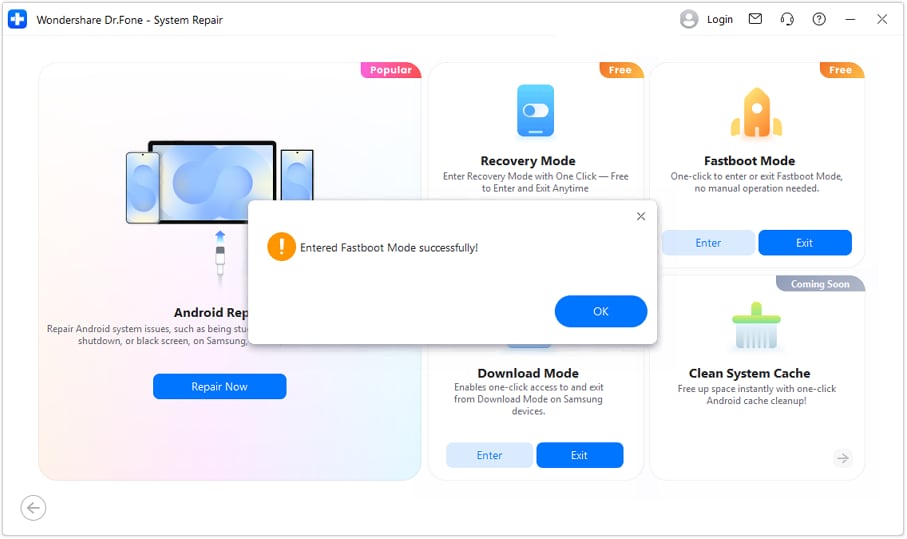
Note: Dr.Fone supports both entering and exiting Fastboot Mode for free. This can be especially useful when hardware buttons are unresponsive, ADB tools are unavailable, or users simply prefer a faster and more automated solution.
 safe & secure
4,624,541 people have downloaded it
Part 3. How to Enter Fastboot Mode on Android Manually
To learn how to activate Android Fastboot mode, follow the given simple manual steps to access Fastboot mode on any Android device.
1. Use Power + Volume Down from the Recovery Menu
This button combo works even if the system will not start or the screen stays stuck. Many brands, including Xiaomi and Redmi, use this as the standard Fastboot shortcut, so most guides and tools follow it. Plus, this method does not need a PC or commands and gives direct access to repair the phone. It works even if settings or recovery options are not available, as guided:
- Step 1. Take a Motorola phone as an example: Turn off the phone, press the "Power" and "Volume Down" keys, then turn it back on and release the buttons. Press those buttons again, then use the "Volume Down" key to pick the "Recovery Mode" option and press the "Power" button.
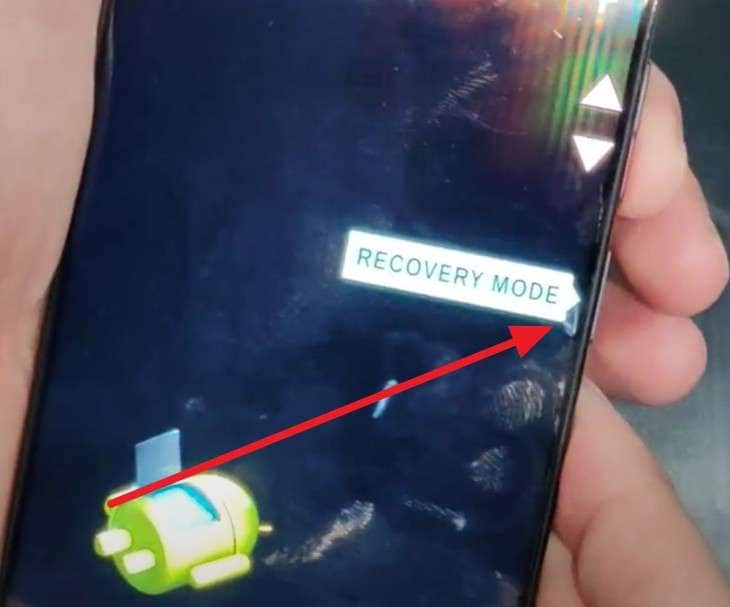
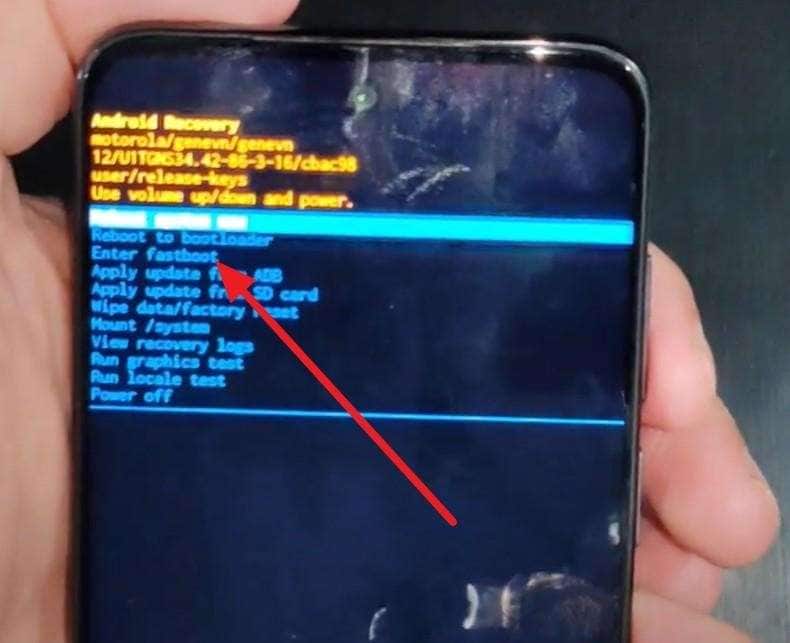
- Step 2. Now, wait for the phone to restart, and if it says "No Command," keep pressing the "Power" and "Volume Up" keys. On the following interface, select the 'Enter Fastboot" mode option, then press the "Power" button to confirm. It will restart quickly, and the interface will say "Fastboot" once you access it.
2. Via ADB On A PC
To access the AP Fastboot flash mode, use ADB on a PC to enter Fastboot mode with the command adb reboot bootloader. This works when the phone can still boot into Android or recovery and provides direct control. Besides, it is helpful if the Power or Volume buttons are broken, because the device can enter Fastboot without pressing any keys, as mentioned in the given instructions:
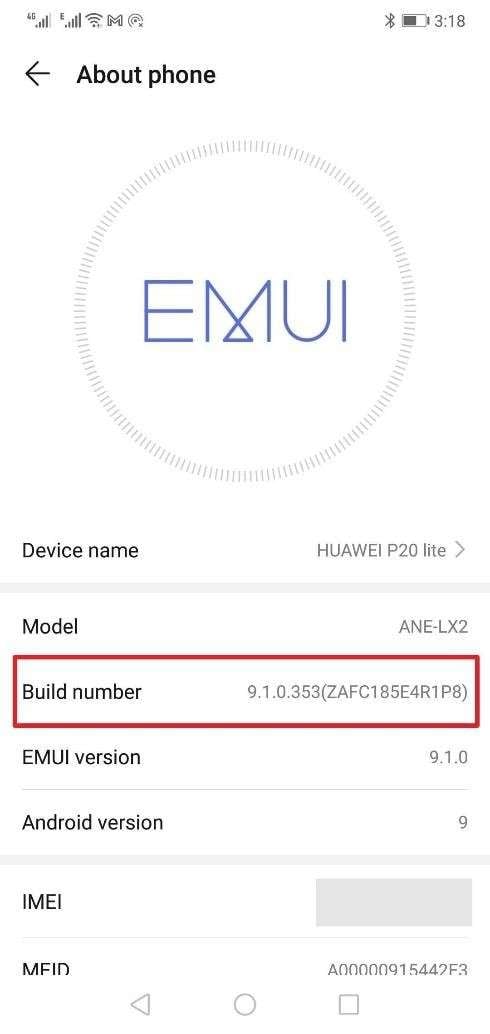
- Step 1. Enable the Developer mode first from the "About Phone" section and press the "Build Number" 7 times.
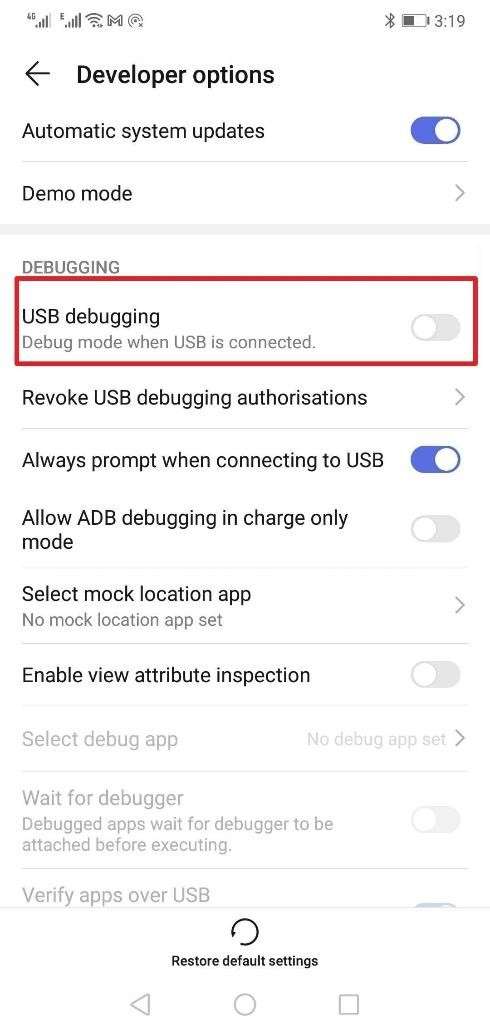
- Step 2. As it is on, then go to the "Developer Options" by choosing the additional settings option in the settings to turn on the "USB Debugging" option.
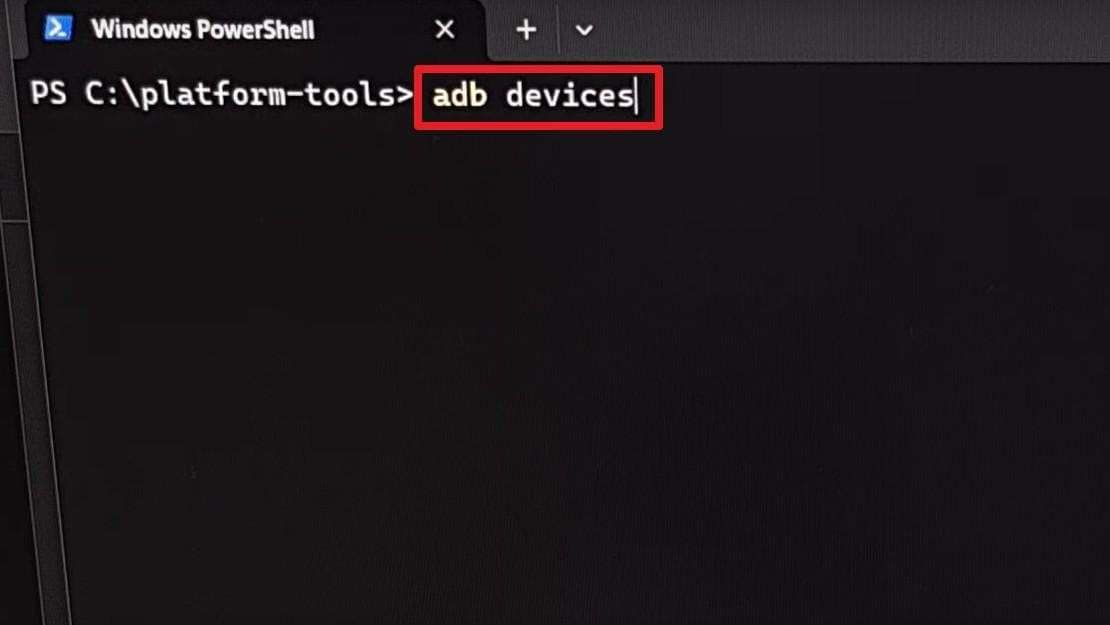
- Step 3. Subsequently, open the ADB tool on the PC using the official bundle or Google and extract it to a folder. Plug the phone into the PC using a USB cable and open Command Prompt, Terminal, or PowerShell. Go to the folder where you have installed the ADB and Fastboot tools, such as the platform-tools. Then type "adb devices" and press the Enter key, and your device serial number will appear.
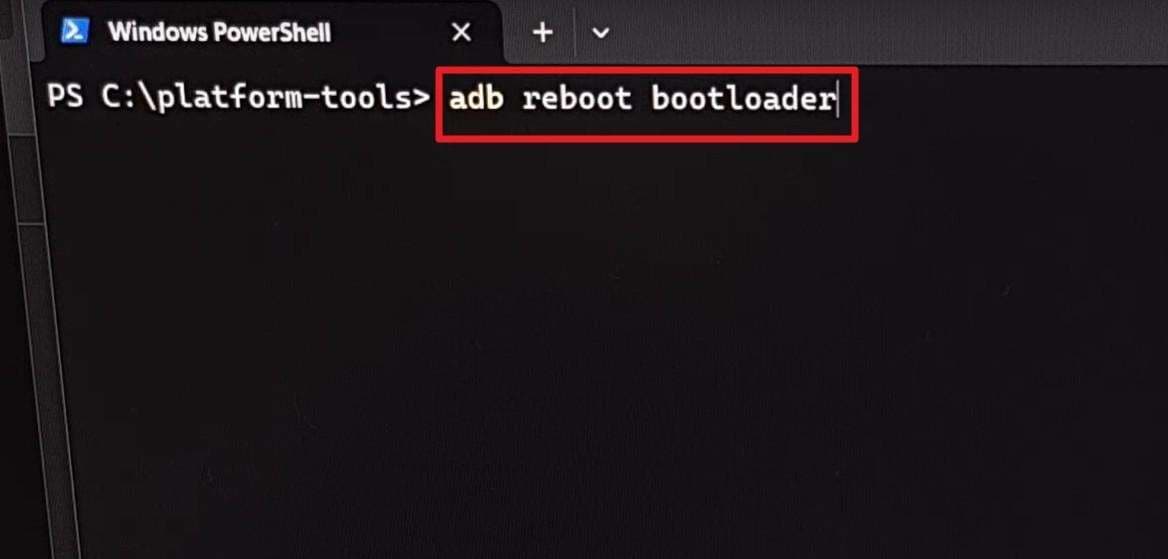
- Step 4. If you are doing this for the first time, you will see the USB debugging prompt on the screen. Hence, grant "Allow USB debugging?" permission on your phone if prompted. As you are ready to enter the Fastboot mode, type the "adb reboot bootloader" command and press the "Enter" key.
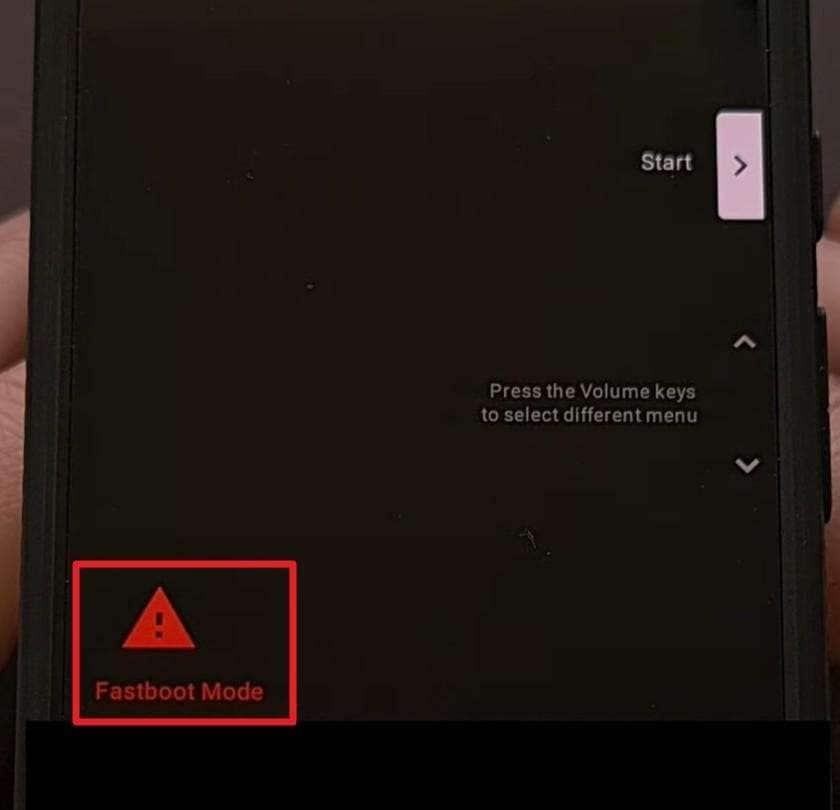
- Step 5. Your device will reboot into Fastboot mode as long as you don't get an error message. From there, you can run Fastboot commands on the same PC, or just unplug the phone if you only need Fastboot.
Part 4: How to Exit Fastboot Mode on Android Manually
To exit the Fastboot mode of a tablet or phone, force restart the phone by holding the Power button. This reboots the device without changing data or system files. Additionally, it works if Fastboot appeared by accident from a button combo or minor glitch. To know how you can perform it via keys, adhere to the listed guide:
Power and Volume Down Buttons
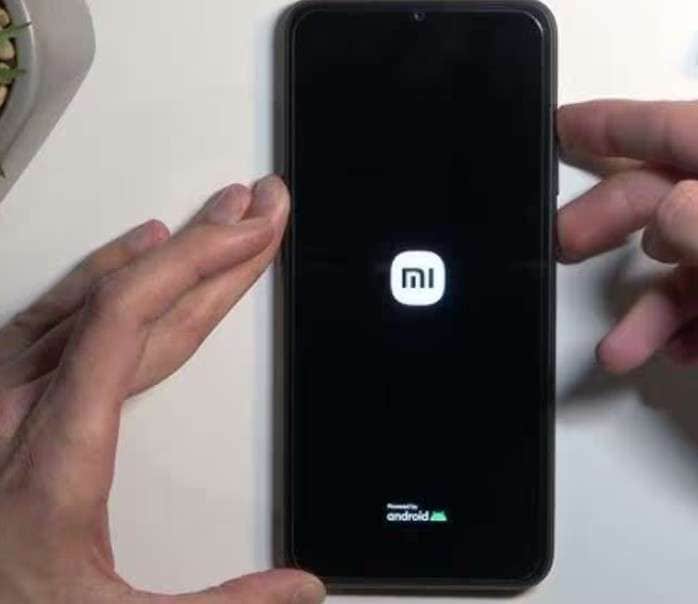
Instructions: Press and hold the "Power" and "Volume Down" buttons for 10 to 12 seconds and release when the screen goes black, vibrates, or shows the logo.
Power Button Only
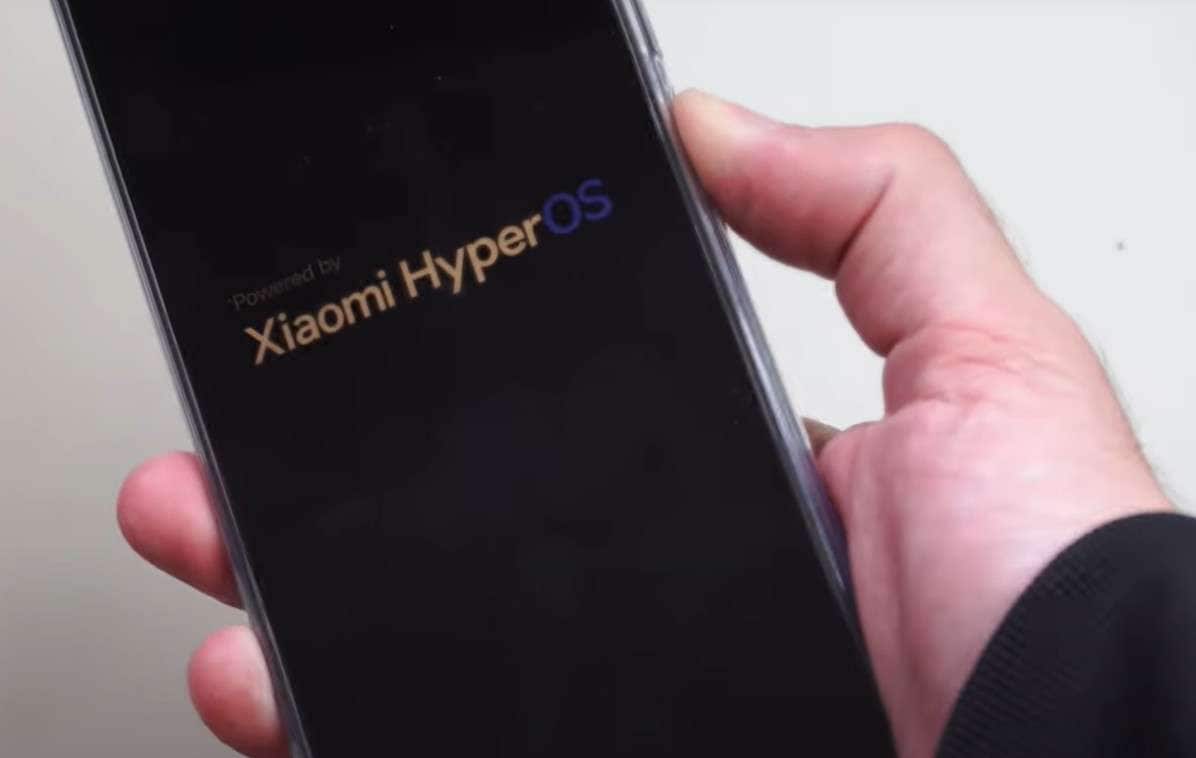
Instructions: Maintain pressure on the "Power" button for 30 seconds and keep holding until the screen turns off and the device begins to restart.
Part 5. How to Troubleshoot Android Stuck in Fastboot Mode - 6 Ways
For a situation where you try to exit or enter Fastboot mode and get stuck, try the listed 6 ways to resolve this issue:
1. Button Check
If you are stuck in Android Fastboot mode, check for stuck buttons because a jammed Power or Volume key can force the phone into Fastboot at every boot. Fix or clean the button to stop unwanted Fastboot boots without flashing or resetting. Once the button works, the phone can start normally, avoid bootloop, and show if the problem is hardware.
2. Use Recovery Mode
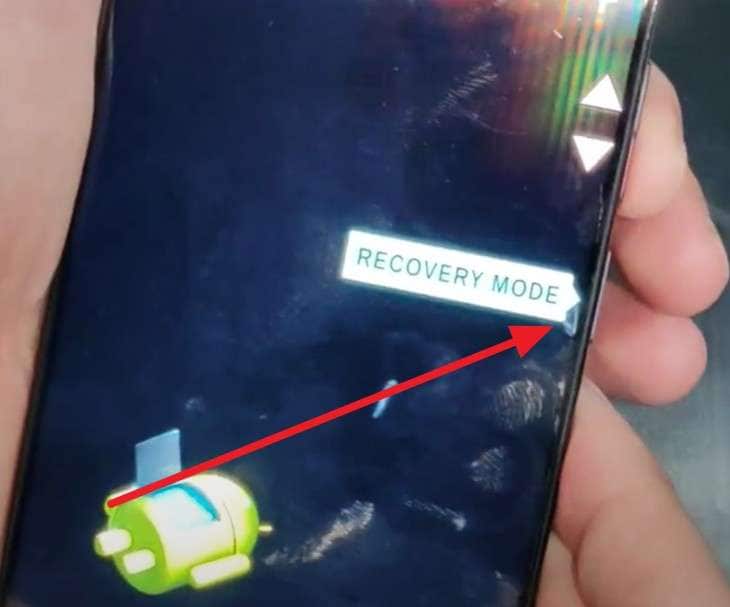
Recovery mode is a simple and safe way to exit Fastboot on most Android phones when it's stuck. This method does not need a PC, drivers, or commands, so that any user can use it without trouble. Additionally, if Android still does not start, you are already in recovery mode, where you can wipe the cache or reset the phone once entered via the given steps:
Instructions: In the "Fastboot" Mode, press the "Power" and "Volume Down" buttons and release both buttons as the phone turns off. On the menu, choose the "Recovery Mode" option via the "Volume Down" button and press the "Power" button to confirm. The phone should restart and then show the Android recovery screen.
3. Use a Fastboot Command
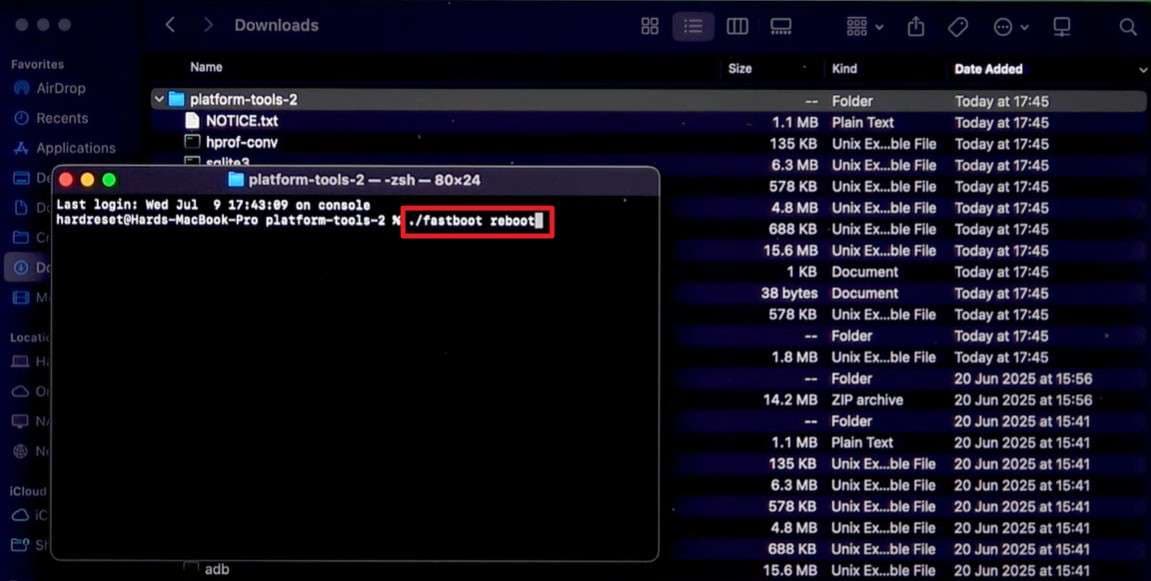
To exit Fastboot flash mode on Android devices, use the Fastboot command when the phone fails to start normally, and you need a direct way to access the device. This command sends a clear order to the bootloader, so the phone boots normally without any button tricks or menu issues. It also helps when the buttons or screen do not work properly, as illustrated below:
Instructions: Open a Terminal or Command Prompt in that folder as you install the Android Platform tools and connect the phone to the PC via USB. After that, type ".\fastboot reboot" in Windows and "./fastboot reboot" on Mac and hit the "Enter" key to restart in standard phone mode.
4. Battery Removal
This forces a complete power cut, so the phone stops all stuck processes and starts fresh when you turn it on again. This helps when buttons don't work, or no PC is nearby, and often clears frozen Fastboot screens. However, it only applies to phones with a real removable battery; most newer sealed phones do not allow this and may get damaged if forced open.
5. Let The Battery Drain Completely
To exit Android Fastboot mode, you can also let the battery drop to 0%. It is a slow but simple way to force a sealed phone out of Fastboot when nothing else works. Plus, it is only valid when other options fail, and the phone has a non-removable battery.

6. Factory Reset (Last Resort)
Perform a factory reset only as a last option when the phone is stuck or keeps getting stuck in Fastboot. This clears corrupt apps, settings, and user data that may block normal startup, allowing the phone to boot fresh. Additionally, a reset removes bad data and gives the system a clean start, so it is less likely to return to Fastboot, as guided:
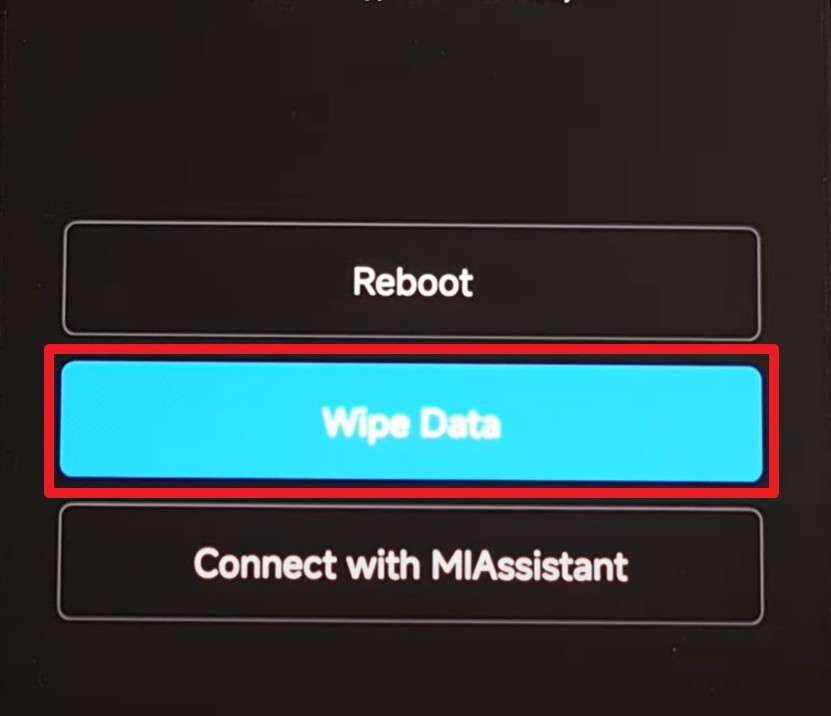
- Step 1. Head to the MIUI Recovery screen, use the "Volume Down" button to highlight "Wipe Data," and use the "Power" button to confirm.
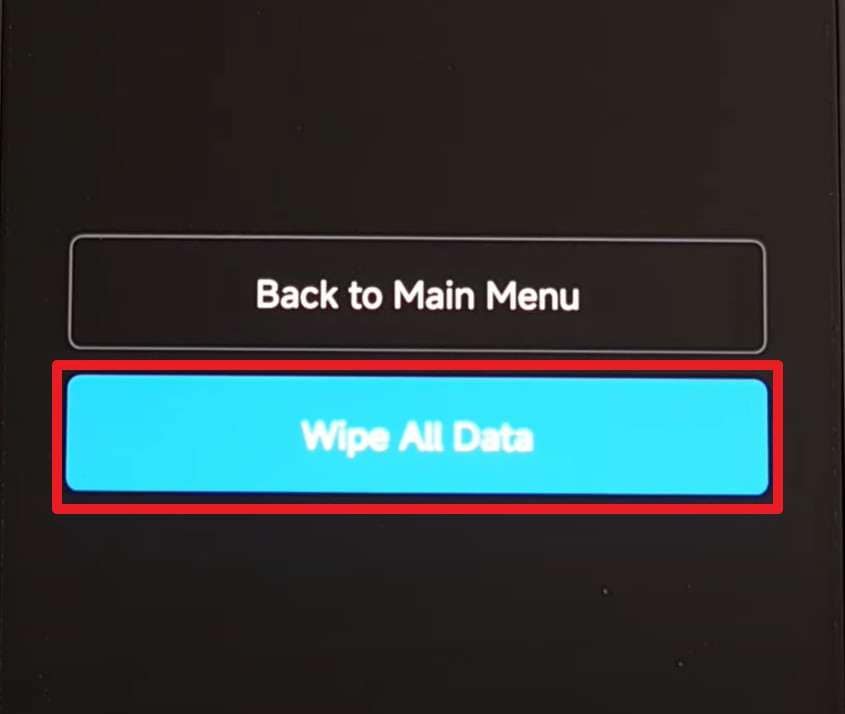
- Step 2. After that, select "Wipe All Data" using the same volume key, then press the "Power" button to confirm.
Conclusion
To wrap up, many users ought to learn how to exit and enter Fastboot mode on Android devices via manual and simple ways. For that, this guide has reviewed simple solutions via a detailed guide on how to perform them. So, as you learn how to deal with situations where you get stuck on Fastboot, it is recommended to use the Dr.Fone – System Repair tool if manual methods fail.
safe & secure4,624,541 people have downloaded it
FAQs
 1. Is Fastboot mode harmful to my phone? 2. Why does my phone not respond in Fastboot mode? 3. Can I update software from Fastboot mode?


Android Issues
- Android Update
- 1. Download and Use Samsung Odin
- 2. Samsung Phone Stuck in Odin Mode
- 3. Latest Updates in Android 11
- 4. Update Android Oreo 8.1
- Android Not Working
- 1. Solution To Bricked Android Phone
- 2. Fix 'Android Phone Won't Turn On'
- 3. Flash Dead Android Phone
- 4. Fix Phone Keep Turning Off
- 5. Fix Android Bootloop Problem
- 6. Fix Android Phones and Tablets
- Android Errors
- 1. Fix Error 495 While Download Apps
- 2. Fix Error 505 in Google Play Store
- 3. Fixes For Authentication Error
- 4. Fix Error Code 963 on Google Play
- 5. Fix Error Code 920 In Google Play
- 6. Fix Encryption Error
- Screen Problems
- 1. Fix Unresponsive Fire Tablet Screen
- 2. Fix Unresponsive Android Screen
- 3. Fix Android Screen Problem
- 4. Fix Phone Is Stuck on Boot Screen
- 5. Fixes for Tablet Screen Not Working
- 6. Tools for Removing Stuck Pixels
- 7. Fix Android Black Screen of Death
- 8. Fix Android Stuck on Boot Screen
- 9. Fix Android White Screen of Death
- 10.Fix Android Blue Screen of Death
- 11.Fix ONN Tablet Screen Not Working
- 12.Fix Android Touch Screen Proble
- 13.Fix Smartphone With a Black Screen
- 14.Fix Realme Screen Not Responding
- 15.Fix Phone Screen Not Responding
- Android Problems
- ● Manage/transfer/recover data
- ● Unlock screen/activate/FRP lock
- ● Fix most iOS and Android issues
- Free Download Free Download Free Download


 > How-to > Phone Repair Solutions > Android Fastboot Mode: How to Enter, Exit, & Use on Phones and Tablets
James Davis
staff Editor
Generally rated4.5(105participated)