
Fastboot for Samsung: Complete Guide for All Models [2026]

Oct 23, 2026 • Filed to: Phone Repair Solutions • Proven solutions
 TL;DR:
Unlike standard Android devices, most Samsung phones do not have a traditional Fastboot mode and instead rely on Download/Odin Mode for firmware flashing, though some newer dynamic partition models feature a limited "fastbootd" option in Recovery Mode.
● Standard Fastboot commands cannot unlock Samsung bootloaders or recover bricked devices; these tasks require Download/Odin Mode, a Windows PC, the latest Samsung USB drivers, and exact device-and-region (CSC) stock firmware.
● To safely exit a stuck Fastboot or Recovery mode without PC software, press and hold the Volume Down and Power buttons simultaneously for a few seconds until the Samsung logo appears.
● Users who prefer to bypass manual hardware key combinations can use Dr.Fone - System Repair (Android) on Windows or Mac to enter or exit Fastboot Mode with a single click.
Ask AI for a summary
 ChatGPT
 Perplexity
 Gemini
 Claude
 Grok
Grok
Your Samsung phone may get stuck on the logo, freeze, or fail to update. These problems make daily use frustrating and hard to fix, but Fastboot can help by giving you control over the phone's software. It allows you to unlock the bootloader, install updates, and fix any problems that cannot be resolved with a regular method.
As not all of you know about Fastboot on Samsung, this tutorial will demonstrate to you how you can safely use Fastboot on any Samsung model. Get the basics and take the steps that this mode requires to get in and out, to have your device functioning smoothly without having to visit a service center.

Part 1. Does Samsung Have Fastboot Mode? Understanding Samsung Boot Modes
Most users who are conversant with the use of Android devices question whether Samsung phones possess Fastboot mode just as other Android phones. The answer is no, Samsung does not have a Samsung Fastboot mode in the way that is usually present in other brands, such as Google Pixel or OnePlus. Rather, Samsung phones have a variant system named Download Mode and Recovery Mode, which Fastboot would otherwise accomplish.
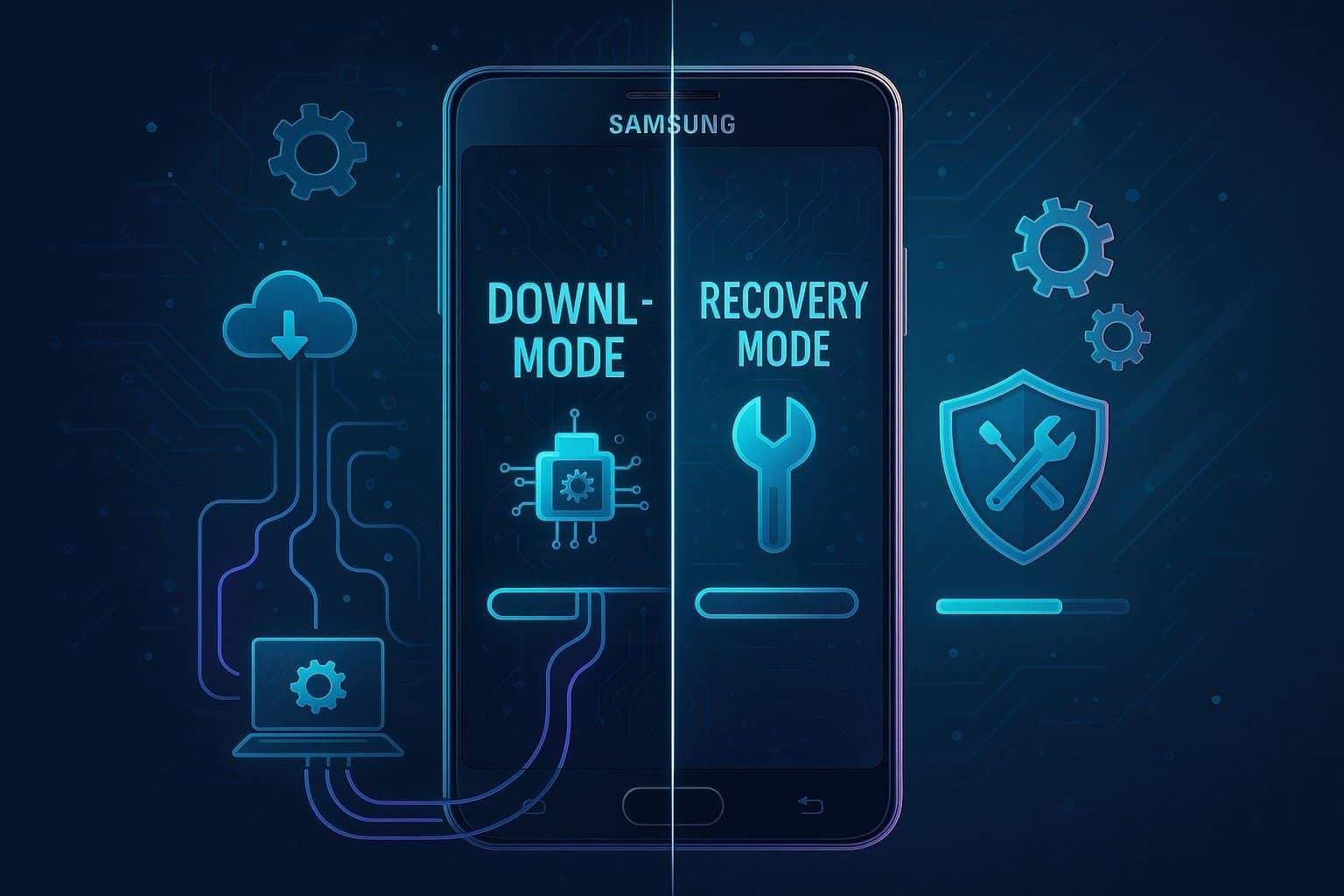
Main Samsung Boot Modes
| Mode Name | How Do You See It on the Device | Main Purpose | Typical Key Combo (Newer Galaxies) |
|---|---|---|---|
| Normal System | Standard Android or One UI | Everyday phone usage | Power key or Side key |
| Recovery Mode | Android Recovery menu | Wipe cache or data, apply updates, ADB actions | Power key + Volume Up |
| Download or Odin Mode | Downloading Do not turn off | Flash firmware using Odin or Smart Switch | Power off → Hold Volume Up + Volume Down → Connect USB cable |
| Safe Mode | Safe mode watermark on screen | Boot without third party apps | Power key → Tap and hold Power off → Safe mode |
Download/Odin Mode vs Fastboot
While learning about Samsung Fastboot mode, it's better to have a clear understanding of Fastboot and Download/ODIN modes. Download mode is Samsung's own tool for installing software on its phones. It takes the place of Fastboot. Samsung firmware is made to be installed using Odin, not Fastboot. That is why standard Fastboot tools do not work on Galaxy phones.
What About "Fastboot" on Some Samsung Models?
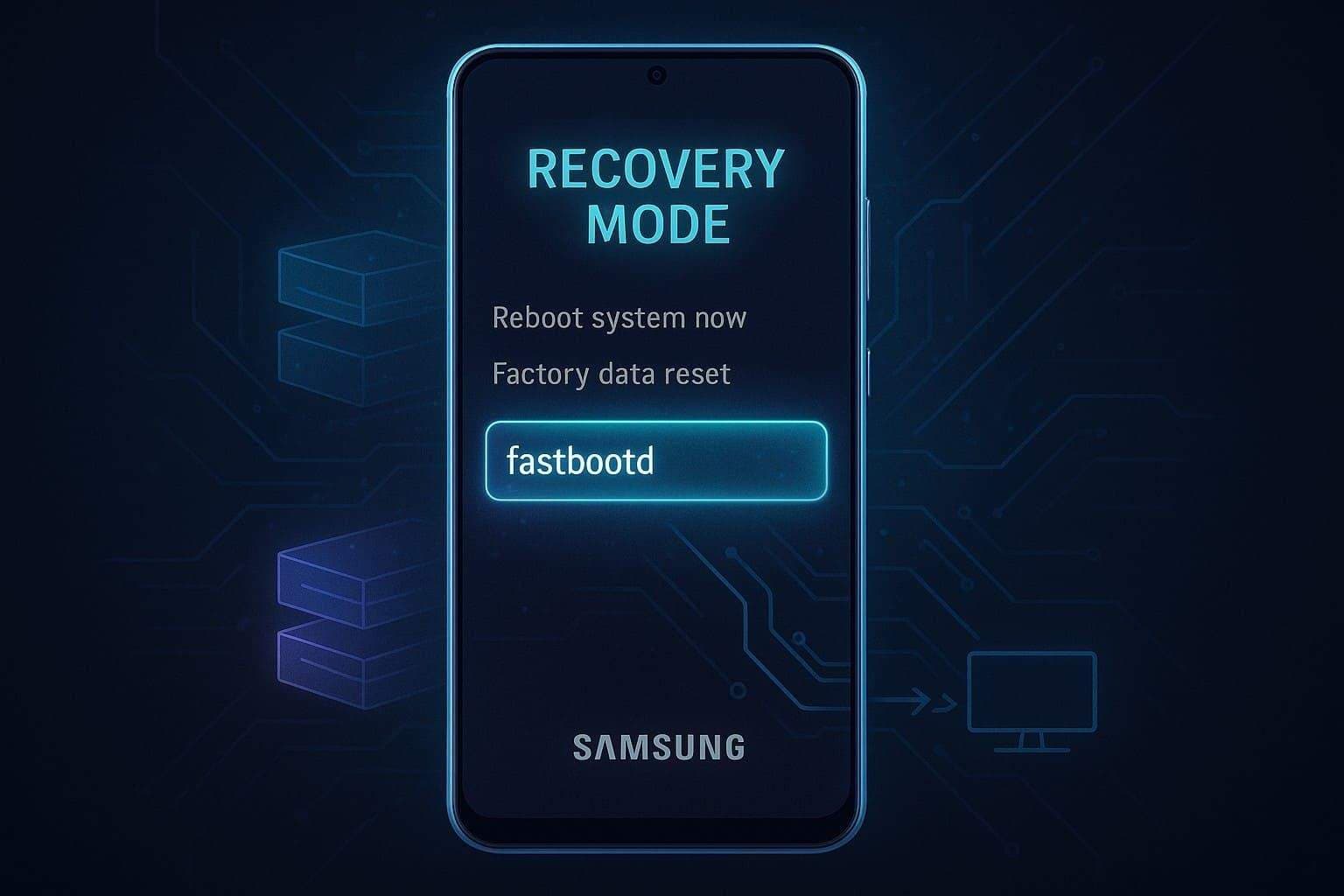
Some newer Samsung phones with dynamic partitions may show a "fastbootd" option in recovery. However, it is not a full Fastboot mode like other phones have. It has limited use, and most software flashing or unlocking still requires Download mode.
Part 2. Quick Guide: Enter Fastboot Mode on a Samsung Device
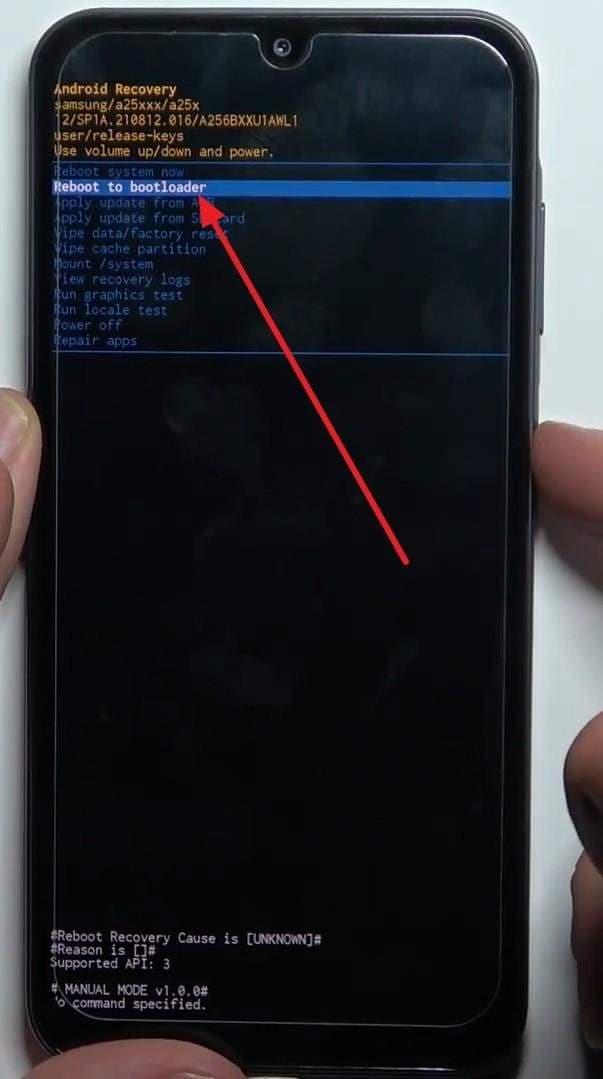
Newer models or custom ROMs may provide a Reboot to Bootloader option in Recovery Mode to access Fastboot. In addition, Nexus S/Nexus Nexus supported Fastboot mode Samsung, so visit the provided instructions and master how to access it:
Via Recovery Mode (Most Common for Modern Samsung)
Some newer A-series and M-series models show the option, but it is limited and cannot fully replace Download/Odin mode. When present, Samsung fastbootd can help flash or modify specific partitions for testing, repairs, or custom ROM work. It also helps manage system partitions more flexibly and allows switching between ADB sideload and Fastbootd, which is helpful for developers and service technicians, as guided:
- Step 1. Power it off, connect a USB-C cable to your phone, and connect it to a computer or another Samsung device that supports fast charging. Now, press and hold the "Volume Up" and "Power" buttons together, and release them when the Samsung logo appears.
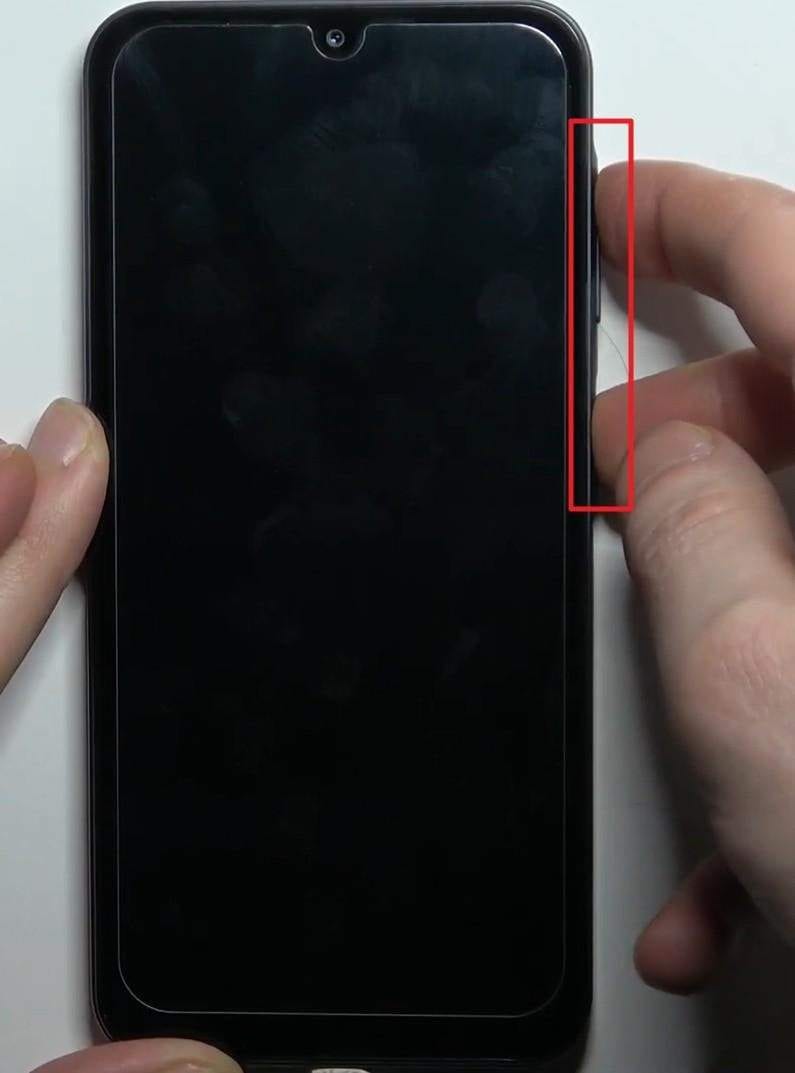
- Step 2. This will load the Recovery Mode menu and use the "Volume Down" button to select the "Reboot to Bootloader" option, then press the "Power" button. After that, your phone will then restart and enter Fastboot Mode.
Part 3. Free Way to Enter or Exit Fastboot for Samsung with Dr.Fone
After learning the manual methods, some users may prefer a simpler way to manage Fastboot for Samsung devices. Instead of remembering different button combinations or troubleshooting boot issues manually, Dr.Fone – System Repair provides an easier way to enter or exit Fastboot Mode. It supports Samsung and many other Android devices, making the process more convenient for both beginners and experienced users.

Dr.Fone - System Repair (Android)
Repair Android System Errors without Any Trouble.
- Fix your Android to normal, no skills required.
- Fix various Android system issues, stuck in boot loop, black screen, or won't turn on, looping on start, etc.
- The high success rate in resolving Android system issues.
- Compatible with a wide range of Android devices and OS versions
- User-friendly interface with easy-to-follow steps.


How to Enter Fastboot Mode with Dr.Fone For Free
Dr.Fone - System Repair lets users access Fastboot Mode without relying on hardware key combinations. The process takes only a few clicks and works across a wide range of Android devices.
- Step 1. Open Dr.Fone on your computer, connect your Samsung phone, and select System Repair from the Toolbox section.

- Step 2. Choose Android as the device type to continue.

- Step 3. Select Fastboot Mode and click Enter to start the process.

- Step 4. Wait until Dr.Fone displays a confirmation message showing that the device has successfully entered Fastboot Mode.
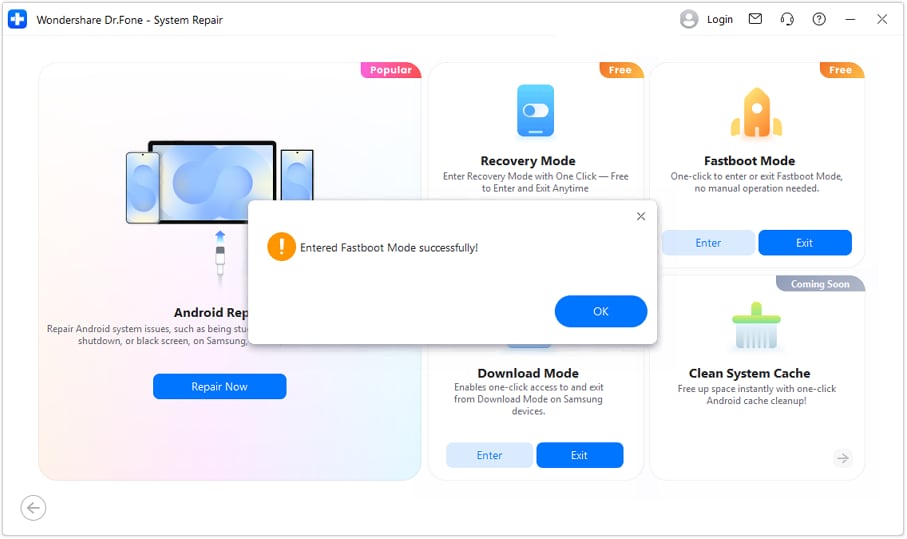
Note: Besides entering Fastboot Mode, Dr.Fone also allows users to exit Fastboot Mode with a single click when they need to return their device to normal operation.
 safe & secure
4,624,541 people have downloaded it
Part 4. Step-by-Step Guide: Exit Fastboot Mode on Samsung Devices
Users who want to exit the Samsung Fastboot mode can try the 5 simple manual ways mentioned ahead, along with detailed instructions:
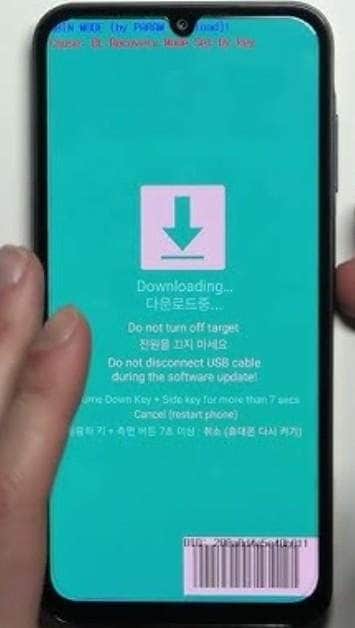
1. Restart Your Samsung Device Normally
This is the easiest and safest way to leave Fastboot, Recovery, or Download (Odin) mode. A normal restart returns the phone to regular Android without any special commands or tools. Moreover, it shuts down temporary boot environments safely and reduces the risk of leaving partitions or processes in an unfinished state. A normal restart also prevents accidental flashing or changes to firmware, as illustrated below on how to do it:
Instructions: Press the "Power" button for a few seconds until the screen goes black and the Samsung logo appears.
2. Use Hardware Button Combination
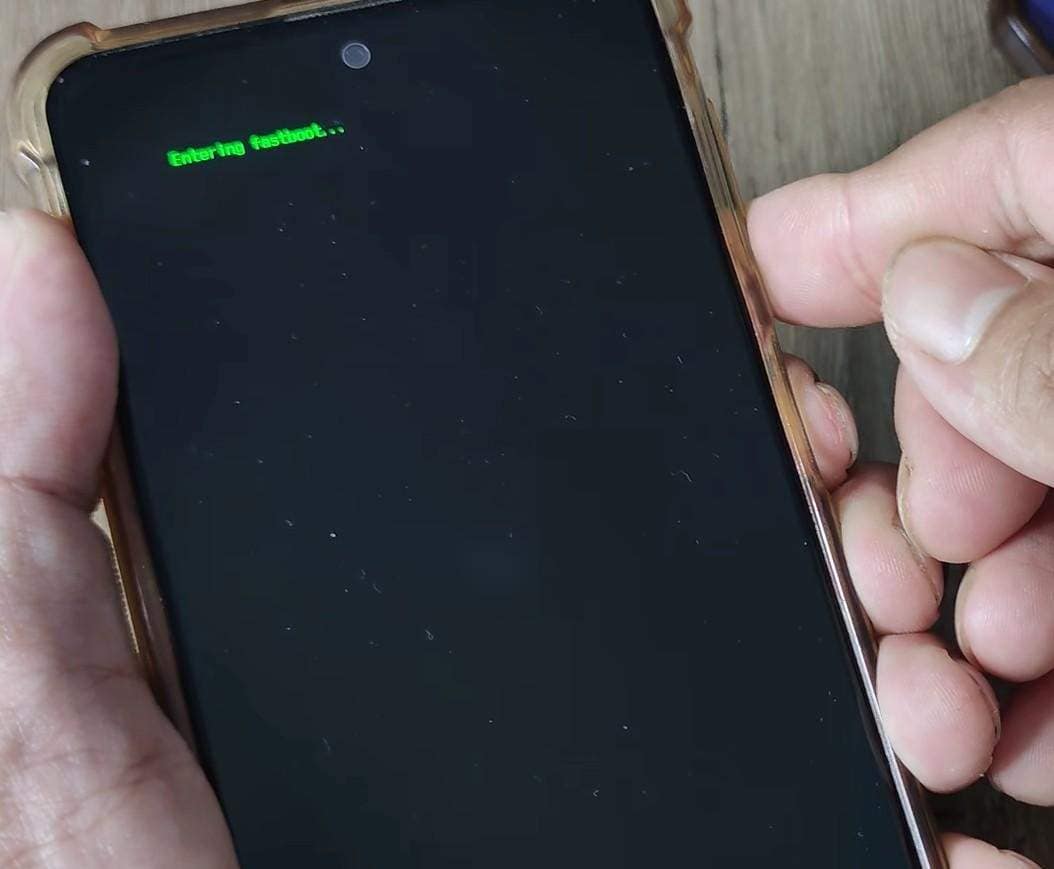
To exit the Fastboot mode on Samsung, you can also try this method even when PC tools or software are not available. There is no need for ADB, Fastboot, or Odin, and key combinations like "Volume Down + Power" are simple and safe. Additionally, after a failed flash or root attempt, the buttons can return the phone to normal. So, to know how to try these combinations, adhere to the given instructions:
Instructions: Hold the "Volume Down" and "Power" buttons together until the Samsung logo appears after a few seconds.
3. Flashing with the Odin Tool
You can also use the Odin tool to exit the Fastboot mode on Samsung and install stock firmware on phones in Download mode. It can also fix phones stuck on the logo, bootloop, or software errors, and restore official firmware from custom ROMs or root setups. Additionally, Odin uses Samsung firmware files and reduces the risk of wrong flashes. So, here is how you can use it to flash a Samsung S series, Note series, A series, etc to exit the Fastboot node:
Prerequisites:
- A Windows PC (Odin only works on Windows).
- The latest Samsung USB drivers are installed on your PC.
- The correct stock firmware for your exact device model and region (CSC). You can find firmware on sites like SamMobile or SamFW.
- The latest version of the Odin flash tool.
- A reliable USB cable.
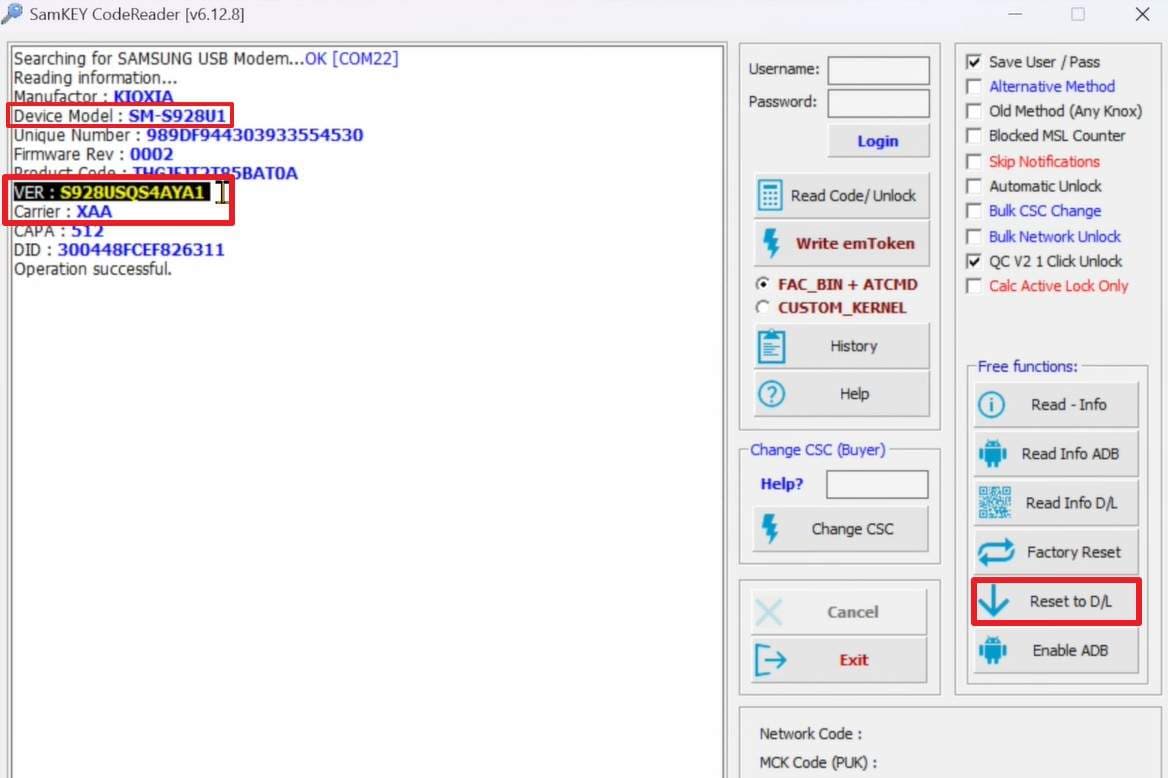
- Step 1. Connect the phone to the PC and retrieve the "Device Model, Carrier, and VER" details using the SamKey CodeReader tool's "Read Info D/L" section.
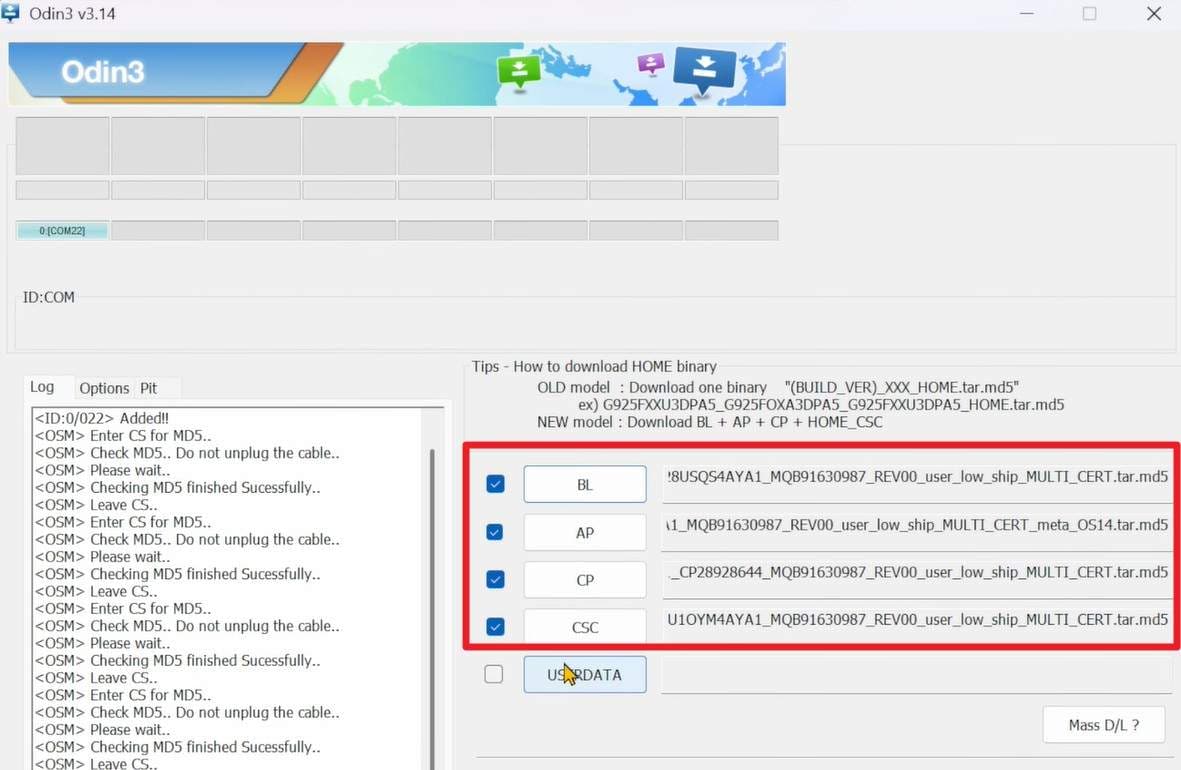
- Step 2. Now, head to Samfw.com and search for the Samsung firmware for the model, version, and carrier. After that, extract the ZIP file, launch Odin, and select the "BL, AP, CSS, and CP" option to import the extracted files. For "CSC" files, choose the "Home CSC" file to secure your data during the process.
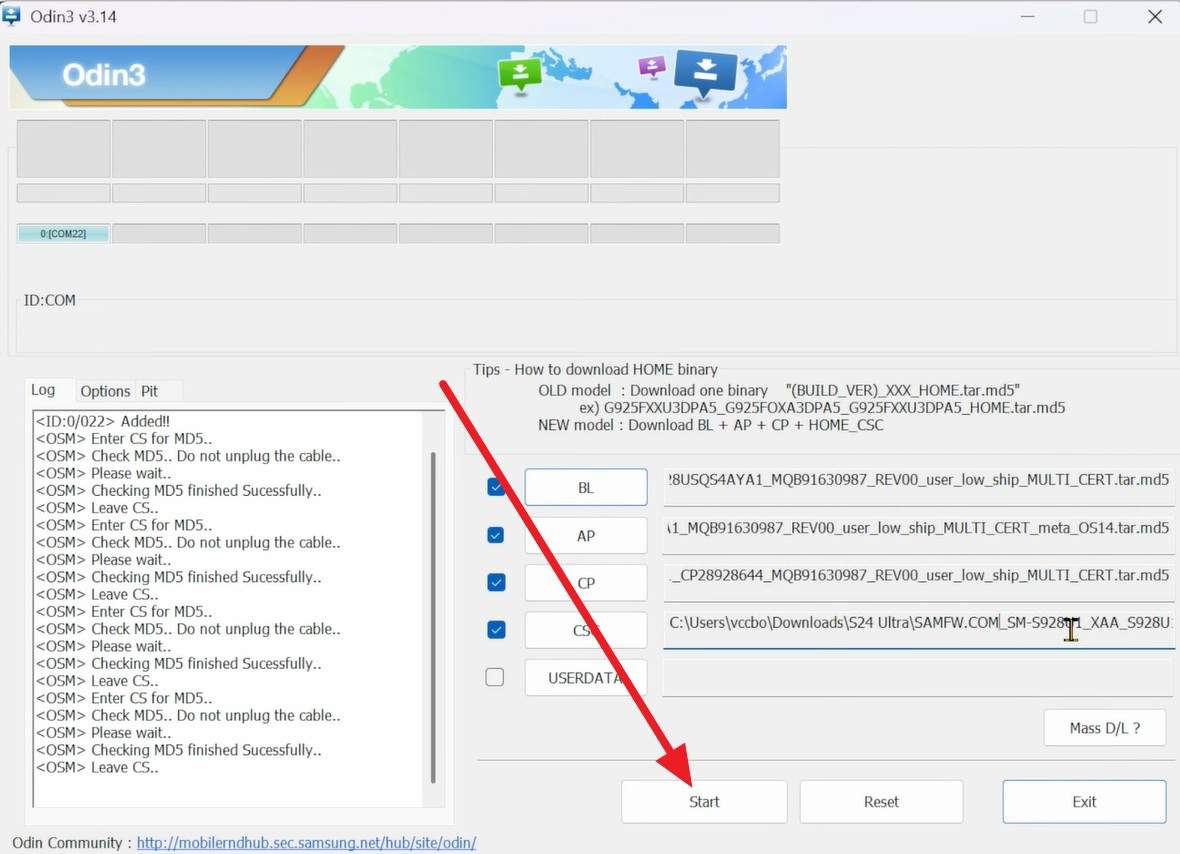
- Step 3. After that, press the "Start" button and locate the progress under the "Log" section. Once you see the "Pass" notification, your device will automatically reboot to the normal system mode.
4. Check for Stuck Buttons
Check for stuck buttons to make sure the phone does not enter Fastboot mode on every restart. This problem often causes a Samsung device to remain in Fastboot or Recovery mode. So, fix the button first to avoid unnecessary software changes. Free buttons let the phone boot normally, prevent accidental wipes or flashes, and allow repair of failing hardware before it causes other problems.
Conclusion
Summing up, this guide has uncovered the reality behind the Fastboot for Samsung and on which devices it is accessible. After reviewing these details, learn how to enter and exit this mode manually, if you have a compatible device. However, if ADB commands or key combinations are hectic to remember, it's better to rely on a simple and one-click solution - Dr.Fone – System Repair for easy access.
safe & secure4,624,541 people have downloaded it
FAQs
 1. Can I unlock the bootloader on Samsung phones using Fastboot?2. Is it safe to use fastbootd or Download/Odin mode?3. Can I use Fastboot to recover a bricked Samsung phone?4. Will using fastbootd void my warranty?


Android Issues
- Android Update
- 1. Download and Use Samsung Odin
- 2. Samsung Phone Stuck in Odin Mode
- 3. Latest Updates in Android 11
- 4. Update Android Oreo 8.1
- Android Not Working
- 1. Solution To Bricked Android Phone
- 2. Fix 'Android Phone Won't Turn On'
- 3. Flash Dead Android Phone
- 4. Fix Phone Keep Turning Off
- 5. Fix Android Bootloop Problem
- 6. Fix Android Phones and Tablets
- Android Errors
- 1. Fix Error 495 While Download Apps
- 2. Fix Error 505 in Google Play Store
- 3. Fixes For Authentication Error
- 4. Fix Error Code 963 on Google Play
- 5. Fix Error Code 920 In Google Play
- 6. Fix Encryption Error
- Screen Problems
- 1. Fix Unresponsive Fire Tablet Screen
- 2. Fix Unresponsive Android Screen
- 3. Fix Android Screen Problem
- 4. Fix Phone Is Stuck on Boot Screen
- 5. Fixes for Tablet Screen Not Working
- 6. Tools for Removing Stuck Pixels
- 7. Fix Android Black Screen of Death
- 8. Fix Android Stuck on Boot Screen
- 9. Fix Android White Screen of Death
- 10.Fix Android Blue Screen of Death
- 11.Fix ONN Tablet Screen Not Working
- 12.Fix Android Touch Screen Proble
- 13.Fix Smartphone With a Black Screen
- 14.Fix Realme Screen Not Responding
- 15.Fix Phone Screen Not Responding
- Android Problems
- ● Manage/transfer/recover data
- ● Unlock screen/activate/FRP lock
- ● Fix most iOS and Android issues
- Free Download Free Download Free Download




Alice MJ
staff Editor
Generally rated4.5(105participated)