
test-iPhone Stuck on Apple Logo After Update: AI Prompt Guide

Nov 05, 2026 • Filed to: Phone Repair Solutions • Proven solutions
 TL;DR:
Some websites block video downloads using DRM, making screen recording difficult or illegal. For educational purposes, tools like FocuSee (Windows/Mac), iTop Screen Recorder (Windows 10), and Zoom (smartphones) can record protected videos, offering features like 4K capture, cursor effects, and cloud storage. Legal risks exist, so recordings should only be for personal, non-commercial use.
Ask AI for a summary
 ChatGPT
 Perplexity
 Gemini
 Claude
 Grok
Grok
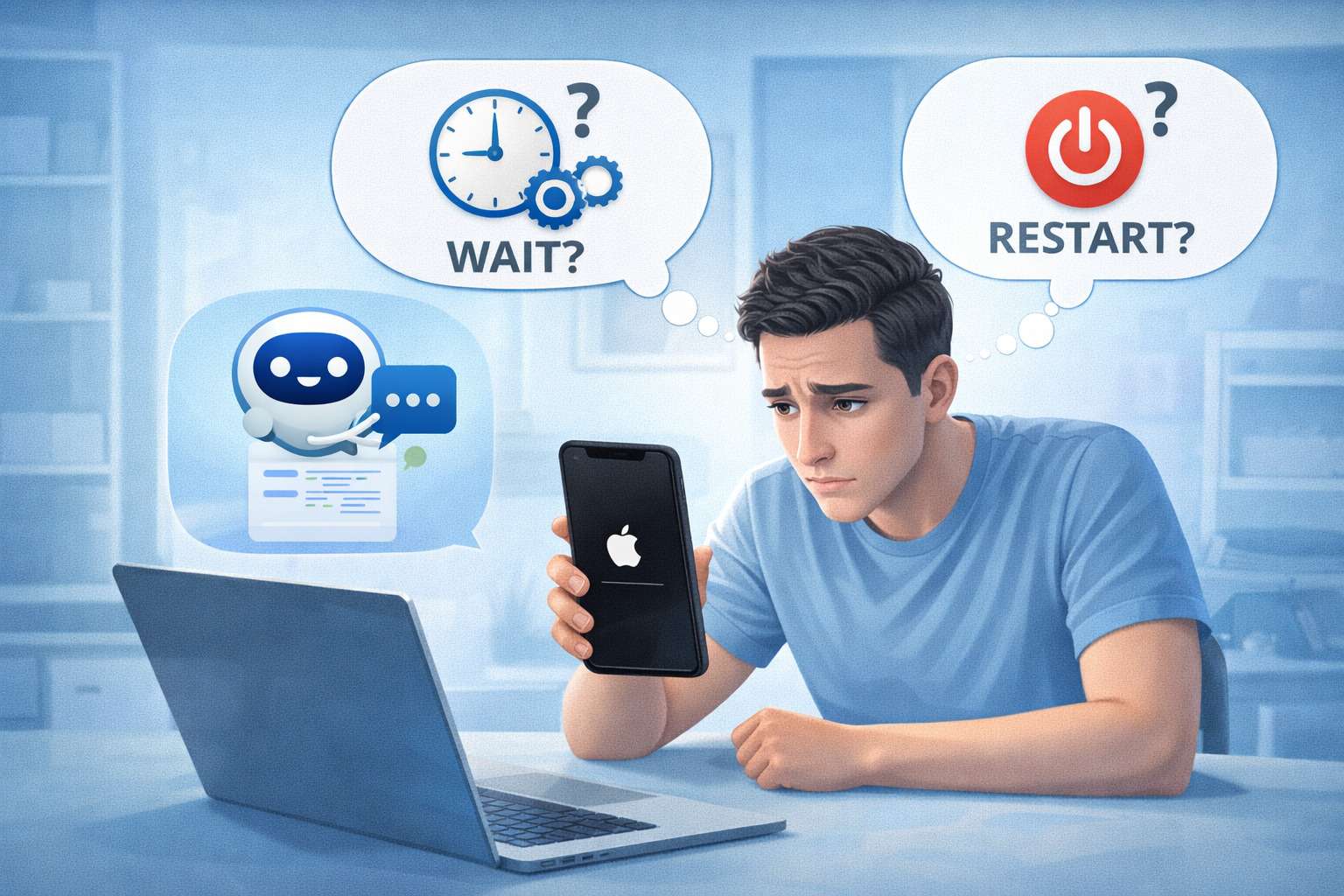
Your iPhone may get stuck on the Apple logo right after an iOS update—often after you tap Install Now and the device restarts. This can happen on models like iPhone 13 or iPhone 14, and it’s confusing when nothing changes after several minutes.
AI can help you describe the symptoms clearly, narrow the most likely causes, and choose low-risk checks in a sensible order. The goal is to reduce guesswork and help you decide what to do next based on evidence.
AI can’t verify what’s happening inside your iPhone, and trial-and-error can increase risk (especially if storage is full, the battery is unstable, or you repeatedly force-restart). Use prompts to diagnose carefully, then use a dedicated tool for execution if needed.
- Part 1. Why iPhone stuck on Apple logo after update happens and what it means
- Part 2. Using AI prompts to diagnose iPhone stuck on Apple logo after update safely
- Part 3. When to stop troubleshooting iPhone stuck on Apple logo after update and avoid risks
- Part 4. iPhone stuck on Apple logo after update: fix or resolve it safely with Dr.Fone
Part 1. Why iPhone stuck on Apple logo after update happens and what it means
This issue usually shows up right after an update reboot, where the Apple logo appears and stays there. Sometimes you might see a progress bar that doesn’t move, or the phone loops (logo appears, screen goes dark, then logo again).
Common “meaning” behind the symptom: iOS may not have completed its boot process. That can be due to a partial update install, low storage during the update, a failed verification step, a glitch in the boot sequence, or (less commonly) a deeper system fault.
Uncertainty is normal here: it can look identical whether the phone is still finishing the update or stuck indefinitely. The next steps depend on what you observe (time elapsed, heat, battery behavior, computer recognition).
Before You Prompt the AI
Collect these details first so the AI can narrow causes faster:
- iPhone model and iOS version you tried to install (if known)
- How long it’s been on the Apple logo (e.g., 5 minutes vs 60 minutes)
- Whether there’s a progress bar and if it moves at all
- Battery level / whether it was charging during the update
- Storage status before update (if you remember being near full)
- Whether a Mac/PC can detect the iPhone (Finder/iTunes)
- Any recent drops, water exposure, or third-party cable use
Part 2. Using AI prompts to diagnose iPhone stuck on Apple logo after update safely
Level 1: Basic Prompt
Copy-ready prompt:
My iPhone is stuck on the Apple logo right after an iOS update. Ask me the minimum questions needed to tell whether it’s still updating, in a boot loop, or likely a failed update install—and give the safest next steps in order without risking data.
Level 2: Advanced Prompt
Copy-ready prompt:
Diagnose my “iPhone stuck on Apple logo after update” issue using a risk-aware approach.
1) List the top 5 likely causes and rank them by likelihood.
2) For each cause, give one key sign that would support it and one sign that would rule it out.
3) Recommend next actions from lowest risk to highest risk, and clearly label anything that could increase data-loss risk.
4) Tell me when I should stop trying steps and switch to a dedicated iOS system repair workflow.
Level 3: Evidence Prompt
Copy-ready prompt:
Act like a diagnostic triage assistant for an iPhone stuck on the Apple logo after an update. Use my evidence to narrow causes and recommend low-risk checks first.
Device info
- iPhone model: (e.g., iPhone 13 Pro)
- Storage before update: (e.g., “almost full,” “20GB free,” “unknown”)
- Battery state: (e.g., “charging,” “not charging,” “unknown”)
- Update trigger: (e.g., tapped Install Now / overnight auto-update / updated via Mac)
Current symptoms
- Apple logo duration: (e.g., 10 minutes / 1 hour)
- Progress bar: (none / present but frozen / slowly moving)
- Looping behavior: (restarts to logo every X minutes / stays constant)
- Heat/fan/charging behavior: (warm, normal, not charging, etc.)
Computer detection (if tried)
- Finder/iTunes detects iPhone: (yes/no)
- Recovery/DFU screen seen: (yes/no/unsure)
- Error codes: (e.g., 4013 / 9 / none)
Constraints
- Data priority: (must avoid data loss / ok with erase if needed)
- Time available: (e.g., 15 minutes / 1 hour)
Output:
A) The 3 most likely explanations with reasoning tied to my evidence
B) The safest next 3 actions and what I should observe after each
C) Clear stop conditions where I should not continue trial-and-error
Prompt Refinement
Use these follow-ups to make the AI’s diagnosis more precise:
- “What two questions would reduce uncertainty the most in my case, and why?”
- “Separate possibilities into software update, storage/battery, computer/connection, and hardware categories.”
- “Rank causes again after this new detail: [add one observation], and explain what changed.”
- “What single piece of evidence would best distinguish boot loop vs still updating?”
- “List the next steps but exclude anything that could erase data unless I explicitly approve.”
- “If a Mac/PC detects the iPhone, what does that imply about likely causes?”
AI Output vs Reality
AI can guide decisions, but it can’t confirm what your device is actually doing. Use this comparison to stay grounded:
What AI can do | What you must verify |
| Interpret your symptoms and suggest likely causes | Whether the progress bar is truly moving over time |
| Provide low-risk checks in a sensible order | Whether your cable/port/power source is stable and reliable |
| Explain what different modes imply (normal, recovery, DFU) | What screen the iPhone actually shows when you try mode changes |
| Help you choose a safer execution path | Whether a chosen action could affect data in your specific situation |
AI may recommend a path based on typical patterns, but execution depends on real-world signals (time elapsed, detection by computer, and repeatability). If the situation doesn’t match the assumptions, switch from prompting to a controlled repair workflow.
Part 3. When to stop troubleshooting iPhone stuck on Apple logo after update and avoid risks
Stop experimenting when the situation suggests escalating risk or repeating the same failure loop.
- The Apple logo persists for a long time with no visible change, and repeated restarts don’t alter behavior
- A computer shows repeated connection/disconnection, or you see recurring error codes
- The iPhone becomes unusually hot, won’t charge reliably, or powers off unexpectedly
- You’re about to try high-impact steps (restore/erase) but data preservation is important
Once you’ve narrowed likely causes with AI prompts, the next phase is choosing a predictable execution method that targets iOS system faults without piling on random attempts.
Part 4. iPhone stuck on Apple logo after update: fix or resolve it safely with Dr.Fone
If your diagnosis points to an iOS system startup problem (failed update boot, boot loop, recovery-mode loop), Dr.Fone - System Repair (iOS) can be used to execute the Repair iOS Issues workflow in a guided way, instead of repeating ad-hoc restarts.
4,624,541 people have downloaded it
 safe & secure
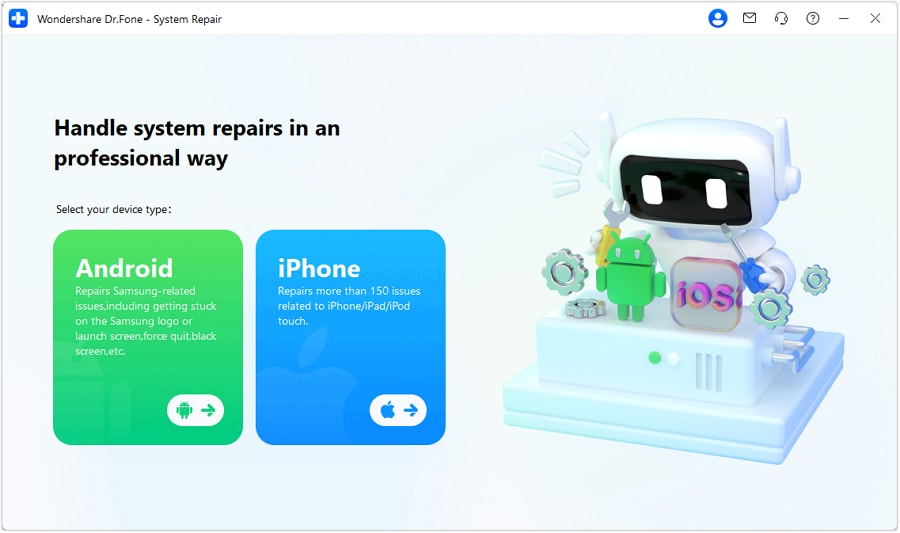
Step 1. Connect iPhone and open iOS System Repair
Use a stable USB connection and select the iOS system repair option for startup/update issues.
Caution: Avoid loose cables or USB hubs that can interrupt the process.

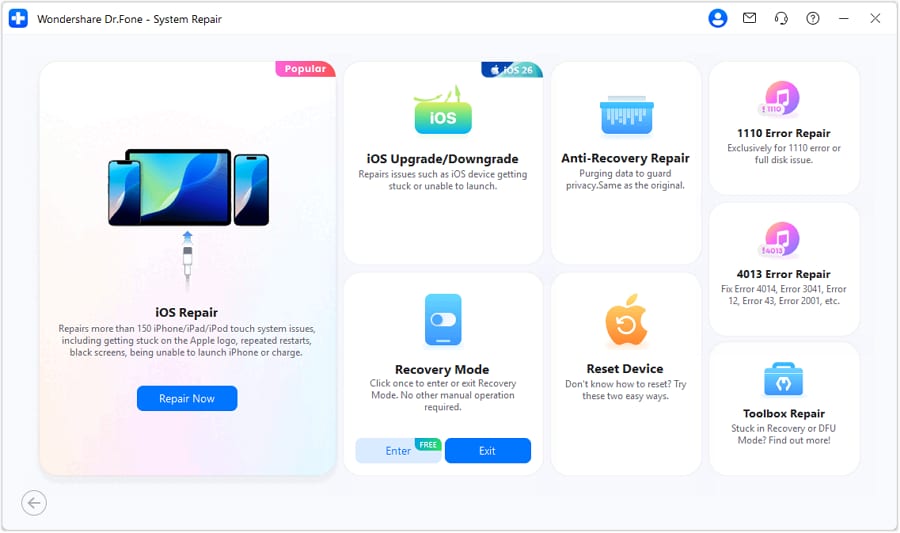
Step 2. Choose the appropriate repair mode for your data priority
Pick the mode that aligns with your goal (prioritize keeping data when possible).
Caution: Always read mode notes carefully—some paths may carry higher data impact than others.
Step 3. Run the guided repair and re-check boot behavior
Follow the on-screen steps until the device can restart normally and complete initialization.
Caution: If the phone can’t be detected consistently, resolve connection/power stability before repeating attempts.
FAQs
 How long should I wait if my iPhone is stuck on the Apple logo after an update?
If there’s no progress change for a long time (especially beyond ~30–60 minutes), treat it as likely stuck and move to diagnosis steps rather than waiting indefinitely.
Does an iPhone stuck on the Apple logo always mean hardware damage?No. It’s often software-related (update install/boot process). Hardware is more likely if there were recent drops, water exposure, charging instability, or the device won’t be detected reliably.
What if my iPhone shows the Apple logo but a computer still detects it?That usually suggests the device is partially responsive, which can make system-level repair workflows more feasible than if it’s completely undetected.
What’s the difference between Recovery Mode and DFU Mode for an Apple logo loop?Recovery Mode is a standard “restore/update” state; DFU is a deeper mode used when recovery doesn’t work. The right choice depends on what the computer detects and how the phone behaves.
Will repeated force restarts make the problem worse?Repeated restarts can add uncertainty and may interrupt a slow update completion. It’s better to observe, document behavior, and use a controlled approach once you suspect it’s truly stuck.
Conclusion
Use AI prompts to turn vague symptoms into a ranked set of likely causes and low-risk next steps, then hand off execution to a structured iOS system repair workflow like Dr.Fone’s when you need a predictable way to address startup issues without further trial-and-error.


Xiaomi Topics Series
- Xiaomi Screen & FRP Unlock
- 1. Unlock Xiaomi Bootloader
- 2. Mi Account Unlock Tools
- 3. Redmi Note 8 FRP Unlock Tool
- 4. Redmi Note 9 FRP Bypass Tool
- 5. Redmi 9A FRP Bypass
- 6. Remove FRP on Xiaomi/Redmi
- Xiaomi Repair
- Xiaomi Recover
- Xiaomi Reset
- Xiaomi Tips & News
- 1. Xiaomi HyperOS 3.0
- 2. Screen Mirror Xiaomi to PC
- 3. Run Hardware Tests on Xiaomi
- 4. Conduct battery test on Xiaomi
- 5. How Do I Obtain the Security Code Xiaomi
- 6. DND Mode Xiaomi
- Xiaomi Transfer & Backup
- ● Manage/transfer/recover data
- ● Unlock screen/activate/FRP lock
- ● Fix most iOS and Android issues
- Free Download Free Download Free Download



Ahmed Absal
contributor Editor
Generally rated4.5(105participated)