
Lenovo Fastboot & FFBM Mode Guide: How to Enter, Exit, and Fix Issues Safely

Oct 23, 2026 • Filed to: Phone Repair Solutions • Proven solutions
 TL;DR:
To exit a Lenovo device stuck in Fastboot or FFBM mode safely, perform a hard restart by holding the Power button for 30 seconds or the Power and Volume Down buttons simultaneously for 10-15 seconds before attempting PC-based software repairs.
● For manual entry into Fastboot when the touchscreen is unresponsive, power off the device and hold Power + Volume Down, or hold all three physical buttons while plugging into a PC to access the recovery menu.
● Beginners can automate Fastboot entry and exit without hardware key combinations using Dr.Fone - System Repair, whereas devices with severely corrupted firmware require the official Lenovo Smart Assistant to download and flash the appropriate stock ROM.
● Advanced PC repair using ADB requires installing Android Platform-Tools and running the "fastboot reboot" command, though any attempt to flash or modify partitions will be blocked if the device has a locked bootloader.
Ask AI for a summary
 ChatGPT
 Perplexity
 Gemini
 Claude
 Grok
Grok
Sometimes Lenovo devices stop responding, fail to boot, or get stuck on the logo. Here, Fastboot and FFBM modes offer a way to regain control safely. These modes allow users to restore the system, fix software errors, and install firmware when standard options fail. Therefore, one needs to know the correct steps to enter and exit these modes to help protect data and prevent damage.
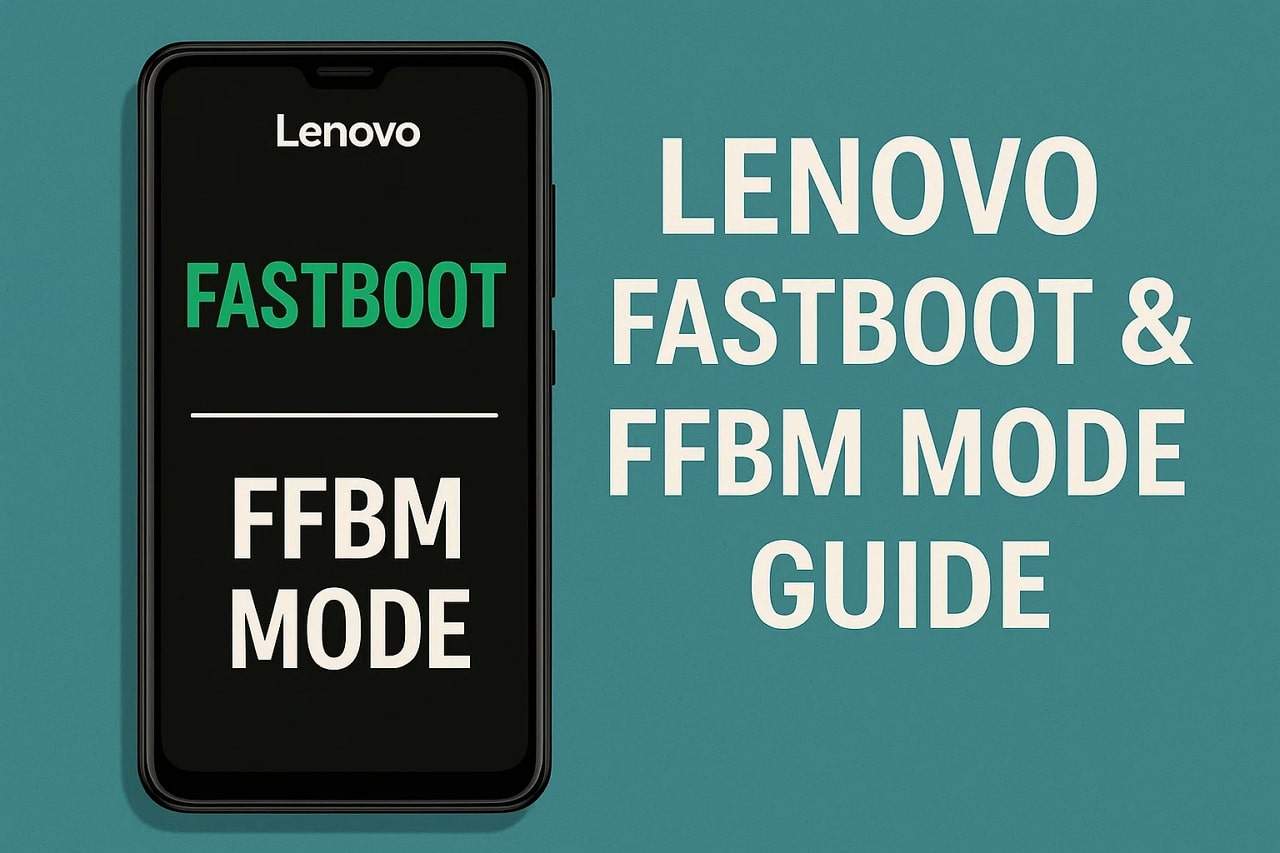
To that end, this guide explains Lenovo Fastboot mode and provides simple, clear instructions for all Lenovo models. Besides, get to know what a better alternative could be than manual ways to enter and exit this mode in one click.
- Part 1. Everything You Need to Know About Lenovo Fastboot and FFBM
- Part 2. How to Enter Fastboot Mode on Lenovo Devices - Complete Guided Ways
- Pro Tip. Free One-Click Way to Enter or Exit Android Fastboot Mode Automatically

- Part 3. How to Exit Fastboot or FFBM Mode on Lenovo Devices
- Part 4. Essential Tips to Prevent Lenovo Devices from Getting Stuck in Fastboot/FFBM
Part 1. Everything You Need to Know About Lenovo Fastboot and FFBM
Before you know how to enter and exit the Fastboot Lenovo, let's understand Fastboot and FFBM first:
What Are Fastboot and FFBM Modes?
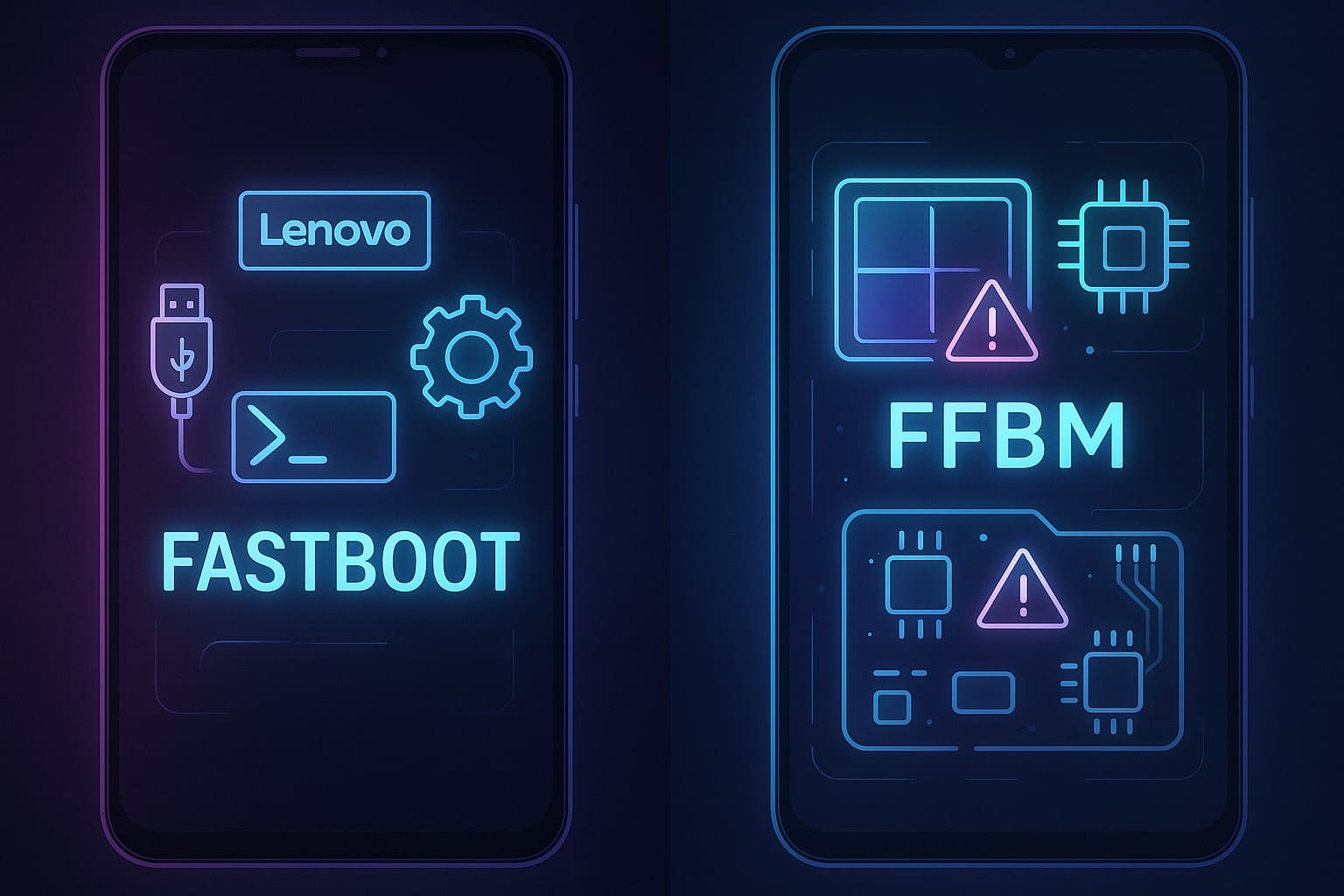
Fastboot and FFBM are special system modes on Lenovo devices that allow access below the Android operating system. They let the phone or tablet communicate directly with the bootloader and firmware, bypassing normal startup processes. Additionally, these modes are essential for situations when the device does not start, freezes, or faces serious software issues.
Purpose of Fastboot Mode
Fastboot mode is used to repair the system, restore official firmware, update software manually, or fix critical errors that prevent normal boot. It also enables advanced tasks such as unlocking or relocking the bootloader.
Purpose of FFBM Mode
Lenovo FFBM mode provides deeper system access; on the other hand. It enables full firmware installation, complete system recovery, and advanced maintenance that Fastboot alone may not support. Additionally, this mode is often used by technicians or advanced users to restore devices that cannot boot normally.
Why These Modes Are Important
Both Fastboot and FFBM help fix boot loops, restore corrupted system files, and recover devices stuck on the logo. They are crucial tools for software repair, firmware updates, and unlocking or preparing the device safely. Additionally, using these modes carefully can prevent permanent device failure and data loss.
Part 2. How to Enter Fastboot Mode on Lenovo Devices - Complete Guided Ways
After having the idea of Fastboot and FFBM mode on the Lenovo tab, review the listed ways to enter the Fastboot mode:
1. Power + Volume Down
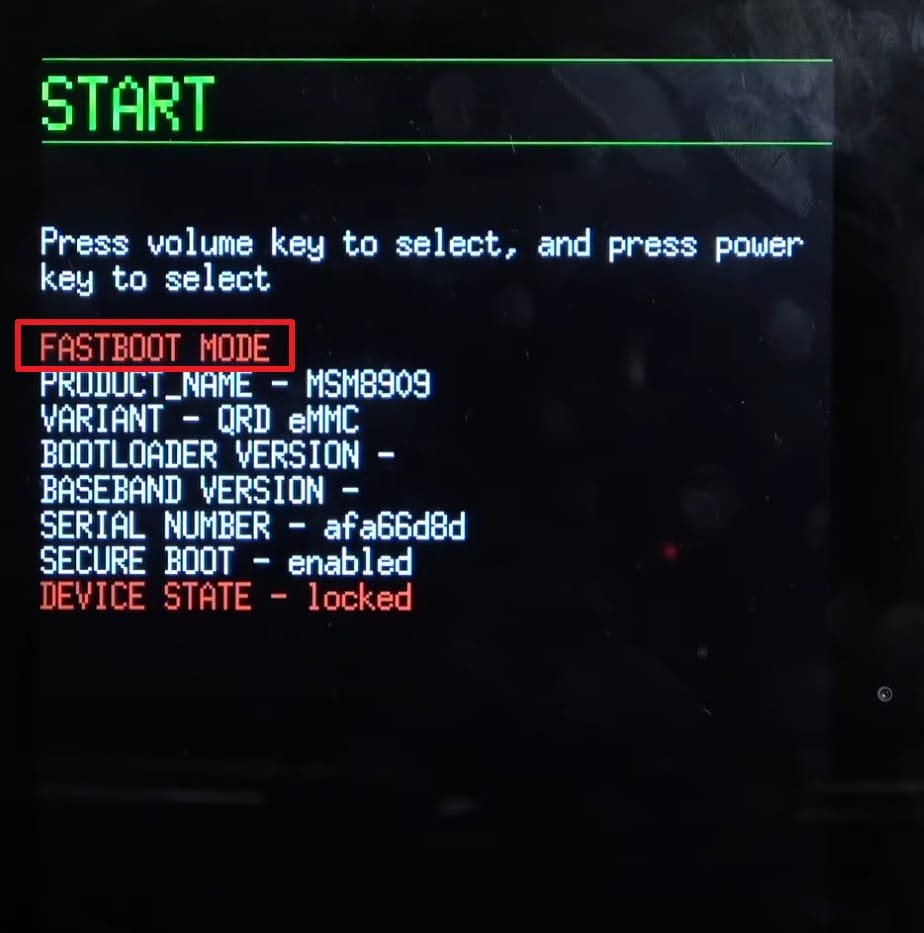
This is the simplest method to enter Fastboot without a PC in Lenovo phones or tablets. It boots the device, then boots to Android, making it functional even in the event that the system is frozen or the touchscreen is unresponsive. Moreover, it can be used by technicians to flash firmware, perform diagnostic tests, or unlock the bootloader when ADB or software tools are unsuccessful, as guided:
Instructions: Power off the device, then press and hold the "Volume Down + Power" buttons simultaneously until the Lenovo logo appears, then release. Now, use the "Volume" keys to navigate and the "Power" button to select the "Fastboot Mode" option if prompted.
2. Power + Volume Up + Volume Down
To enter the Fastboot Lenovo, this three-button combo prevents accidental entry because all buttons must be pressed together. Users see a menu first, so they can choose Fastboot consciously and avoid mistakes. Moreover, the menu works even if Android is broken, frozen, or the touchscreen does not respond. Technicians can use it to access Fastboot, Recovery, or other service modes from one place, once accessed via the given tutorial:
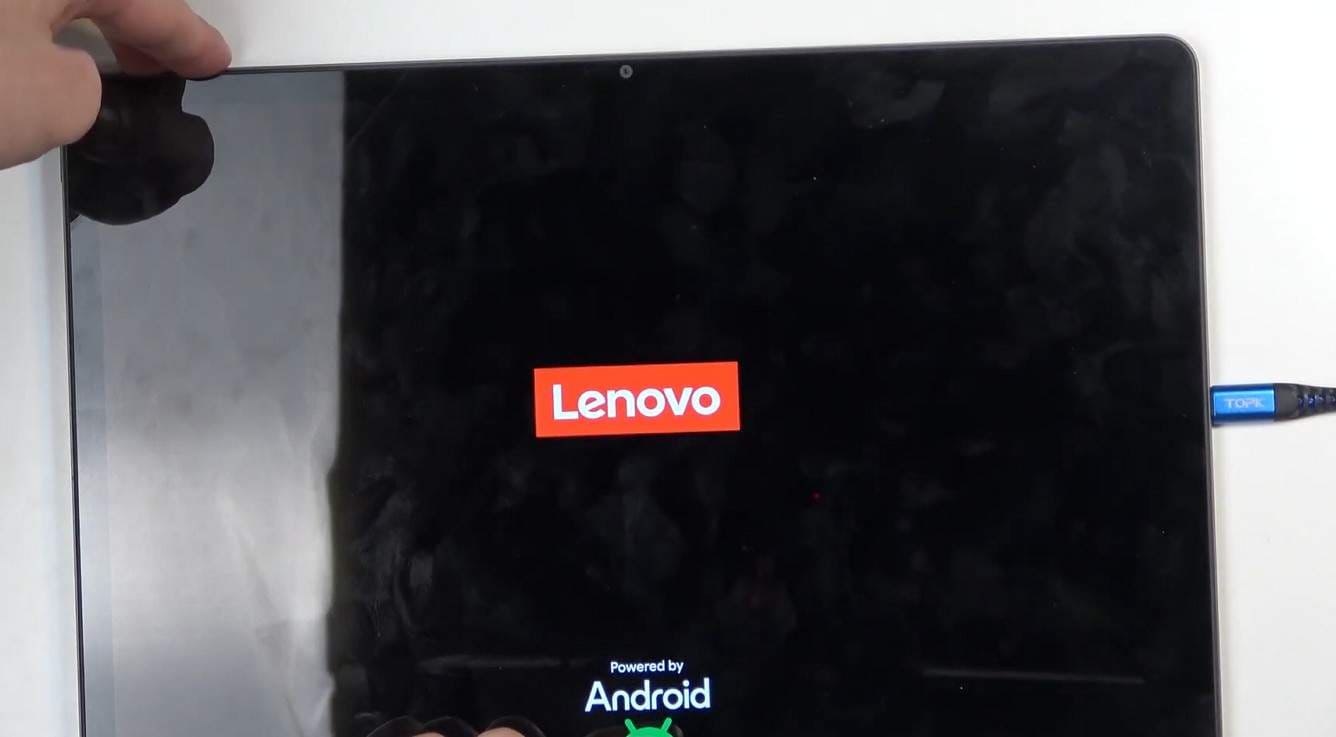
- Step 1. Power off the device and press and hold the "Volume Up + Volume Down" buttons at the same time. While doing that, plug in the USB cable connected to the PC, then press the "Power" button immediately. This will display the Lenovo logo; after a few seconds, you will see Recovery Mode.
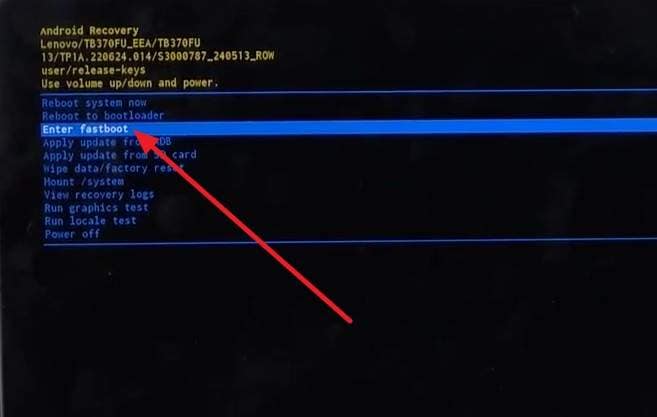
- Step 2. Unplug the cable and use the "Volume Down" key to choose the "Enter Fastboot" option. Press the Power button to confirm, and the device will then switch into Fastboot mode.
Pro Tip. Free One-Click Way to Enter or Exit Android Fastboot Mode Automatically
If remembering hardware button combinations feels complicated, there is a simpler way to manage Android Fastboot Mode. Dr.Fone – System Repair includes a free Fastboot Mode feature that allows users to enter or exit Fastboot Mode automatically with just a few clicks.
Unlike manual methods, there is no need to memorize different key combinations, use ADB commands, or navigate bootloader menus. The entire process is guided on screen, making it accessible even for beginners.
Whether you need to access Fastboot Mode for troubleshooting or safely return an Android device to normal operation, Dr.Fone provides a fast and convenient solution while helping reduce the risk of incorrect manual operations.
Why Use Dr.Fone for Lenovo Fastboot Mode?
- Free one-click entry into Fastboot Mode
- Free one-click exit from Fastboot Mode
- Automatic guided process
- No ADB commands required
- No complex hardware button combinations
- Supports Lenovo phones and tablets, along with other major Android brands
- Beginner-friendly interface
- Helps avoid mistakes when working with Fastboot and bootloader functions

Dr.Fone - System Repair (Android)
Repair Android System Errors without Any Trouble.
- Fix your Android to normal, no skills required.
- Fix various Android system issues, stuck in boot loop, black screen, or won't turn on, looping on start, etc.
- The high success rate in resolving Android system issues.
- Compatible with a wide range of Android devices and OS versions
- User-friendly interface with easy-to-follow steps.


How to Enter Fastboot Mode with Dr.Fone For Free
- Step 1. Open Dr.Fone on your computer, connect your Samsung phone, and select System Repair from the Toolbox section.

- Step 2. Choose Android as the device type to continue.

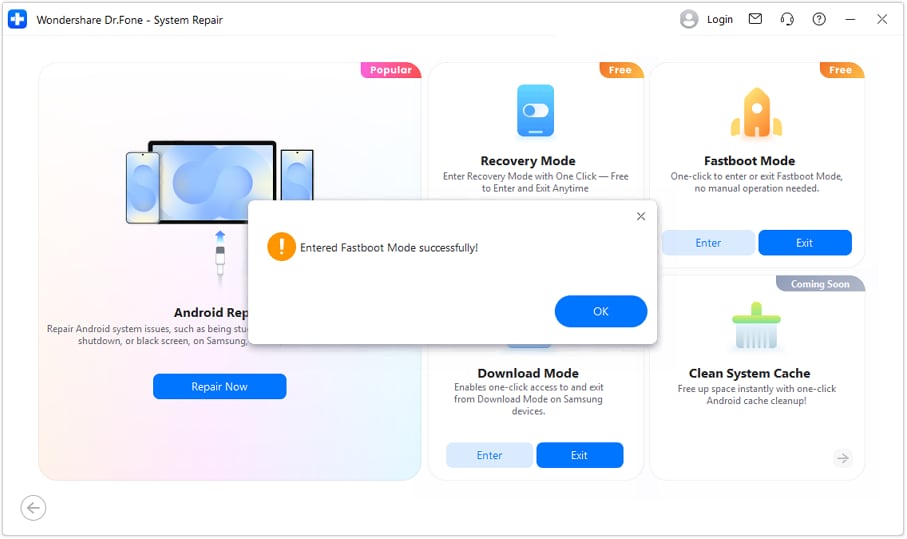
- Step 3. Select Fastboot Mode and click Enter to start the process.

- Step 4. Wait until Dr.Fone displays a confirmation message showing that the device has successfully entered Fastboot Mode.
Note: Dr.Fone supports both entering and exiting Fastboot Mode for free. This can be particularly useful when physical buttons are unresponsive, key combinations vary by model, or users simply want a faster and more automated solution.
 safe & secure
4,624,541 people have downloaded it
Part 3. How to Exit Fastboot or FFBM Mode on Lenovo Devices
While learning about the FFBM mode of the Lenovo tab, review this section and learn how to exit Fastboot. These solutions also deal with the issue where you get stuck in the Fastboot mode, so determine which ones prove to be handy.
1. Restart Your Lenovo Tablet Normally
This method works if Fastboot or FFBM is opened by mistake and does not need a PC, drivers, or tools. A normal restart keeps apps, data, and partitions safe. Additionally, it is quick and should be the first step for troubleshooting, which you can perform via the given instructions:
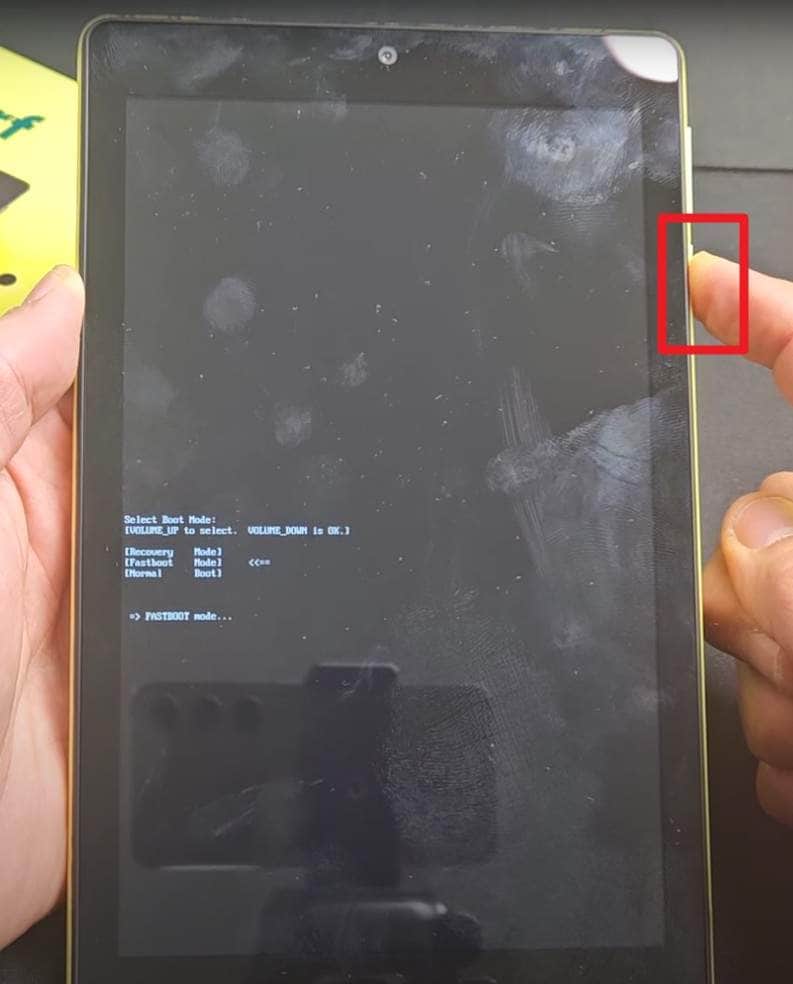
Instructions: Press and hold the Power button for at least 30 seconds or keep holding until the device logo appears. Once the tablet is off, wait a few seconds, then press the "Power" button to turn it back on normally.
2. Use Hardware Buttons to Exit Fastboot/FFBM
To exit the Lenovo Fastboot, a restart keeps apps, files, and partitions intact, and no computer, cables, or drivers are needed. In most cases, this method brings the device back to Android safely, as illustrated in this given solution. Only deeper software or hardware issues may prevent it, but for normal situations, a button press is enough to recover the device.
Instructions: Press and hold the "Power" and "Volume Down" buttons simultaneously for 10-15 seconds until the device powers off. After that, release the buttons and power on the tablet normally.
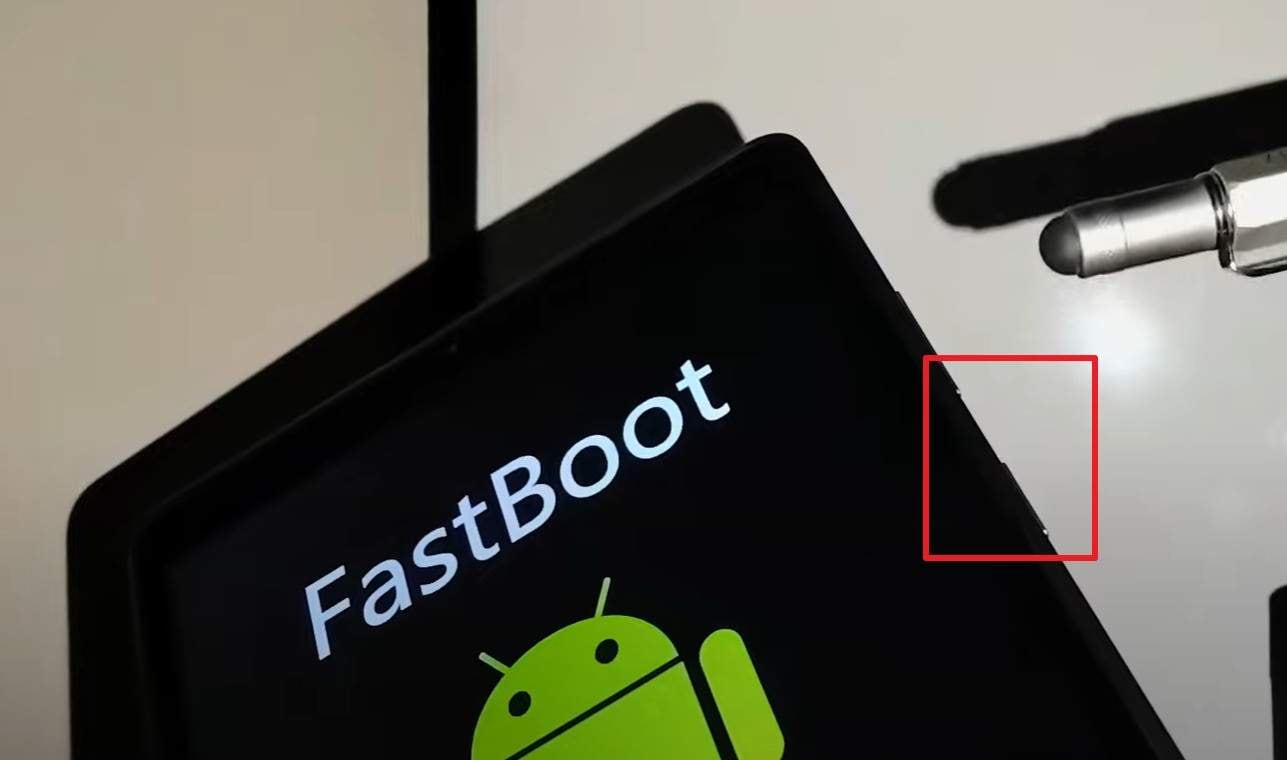
3. Use Lenovo Smart Assistant to Restore Normal Mode
When you are still on Lenovo Fastboot, you can use Lenovo Rescue and Smart Assistant, as it is one of the safest methods to correct a Lenovo device. It is based on Lenovo's own firmware and repair instructions, and the tool recognizes the device, verifies the model, and installs the appropriate stock ROM. Not only that, but it also installs official firmware, adheres to the repair policies of Lenovo, and reduces mistakes, as illustrated below:
Prerequisites:
- Install Lenovo Smart Assistant on your computer from Lenovo's official website.
- Use a USB cable compatible with your tablet to connect it to a computer.
- Have a stable internet connection to download the needed firmware files.
- Step 1. Connect your Lenovo to the computer using the USB cable, and the tool will detect it automatically. After that, head to the "Rescue" section, select "Tablets" from the device list, or manually select your tablet model if automatic detection fails.
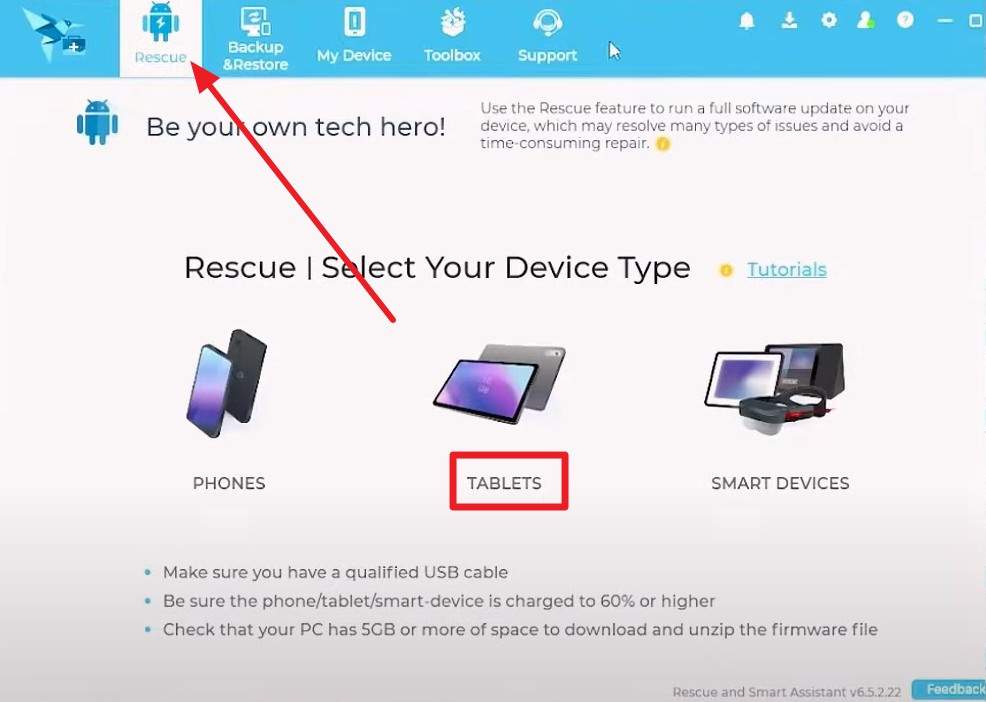
- Step 2. The application will identify the correct firmware, and you need to click the "Download" button to download it.
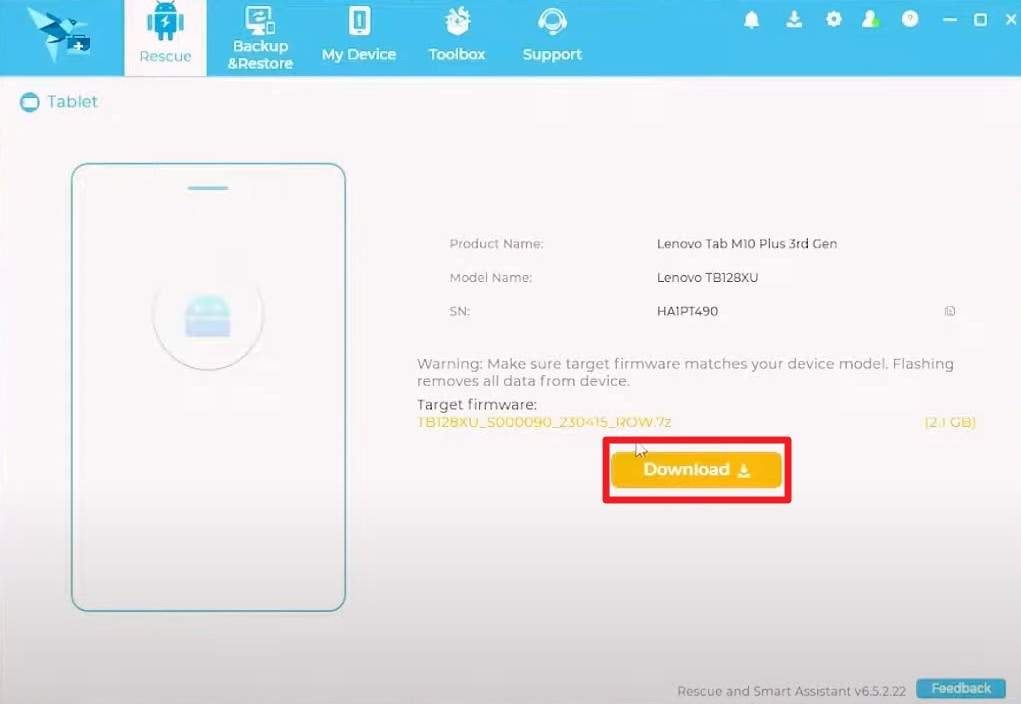
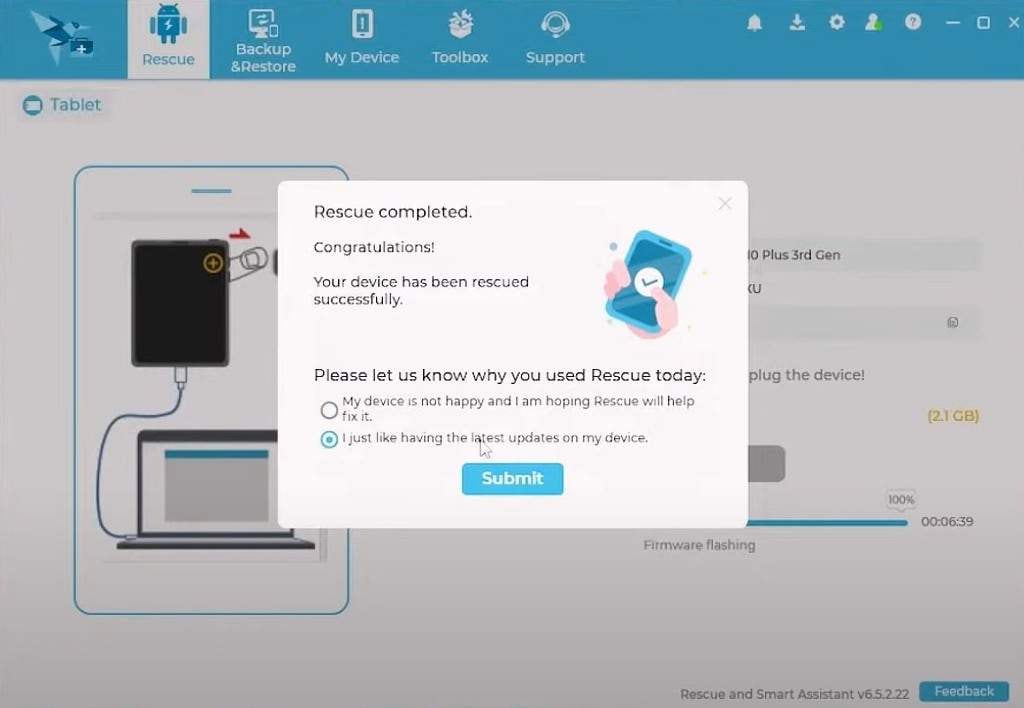
- Step 3. When the process ends, select the "Start Rescue" button to begin. There, the software will provide specific instructions on how to connect your device in the required mode for the rescue to proceed. Follow that to start the procedure and do not disconnect the tablet or interrupt the process until it is 100% complete.
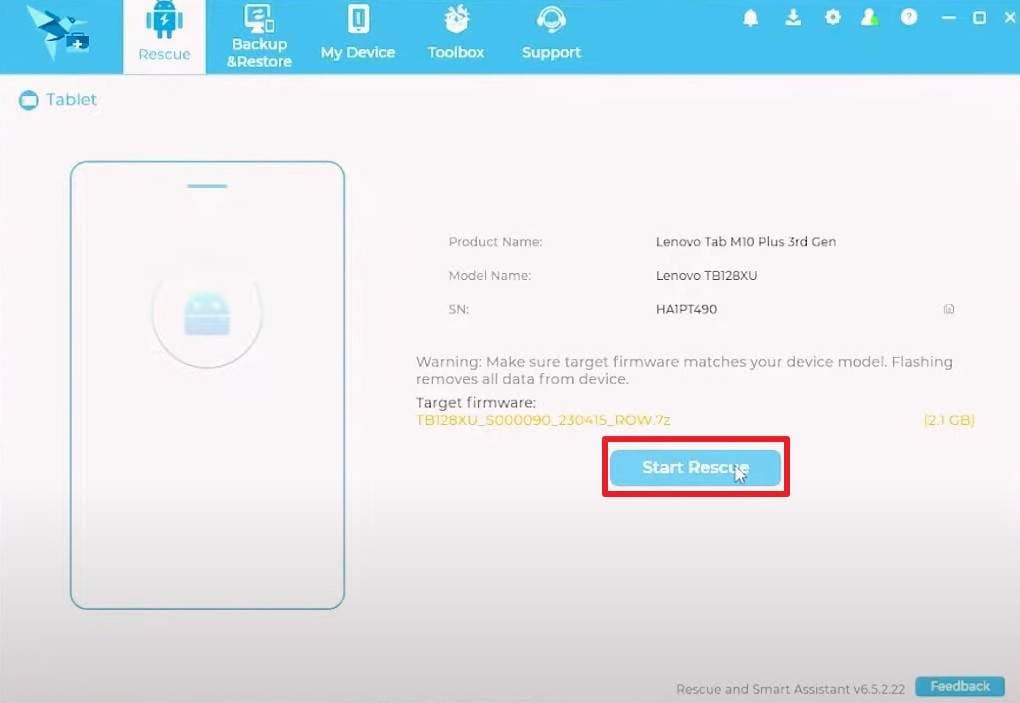
- Step 4. After the rescue is complete, a pop-up will confirm the process, and your tablet should automatically reboot into normal mode.
4. Reboot via ADB Command from PC
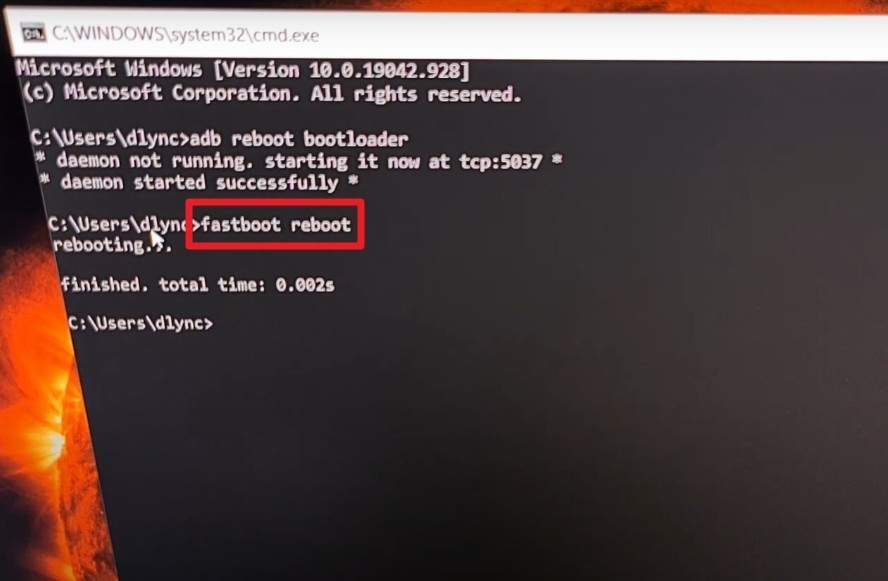
Users can also try the ADB command like fastboot reboot to exit the Lenovo FFBM mode. Moreover, rebooting via an ADB command from a PC is useful when the phone is connected and authorized. It gives a controlled way to exit Fastboot or FFBM modes of Lenovo. Additionally, ADB allows remote control if buttons are hard to reach, damaged, or the phone is in a test setup, as shown below:
Before You Start:
- Download and install Android Platform-Tools with ADB and Fastboot.
- Enable USB Debugging in Developer Options if phone settings are accessible.
- Use a reliable USB cable to connect the device to the computer.
After you connect the devices via USB cable, navigate to your installed platform-tools folder and right-click on the empty space to launch Command Prompt or PowerShell. Type the "fastboot devices" prompt, press the "Enter" key, and your device's serial number should appear, confirming it's recognized. Then, type the command "fastboot reboot," press the "Enter" key, and our device will restart out of Fastboot mode and into the Android OS.
5. Seek Professional Support if All Else Fails
Professional support is the safest choice when a Lenovo device stays stuck in Fastboot or FFBM. Problems at this stage often indicate corrupt bootloaders, damaged partitions, or hardware faults that home methods cannot resolve. Hence, random commands or flashes can damage the device, so a service center or repair shop is a safer option. Technicians have the right tools, authorized software, and clear workflows to revive devices that do not respond to standard procedures.
Part 4. Essential Tips to Prevent Lenovo Devices from Getting Stuck in Fastboot/FFBM
To ensure you don't get stuck on the Lenovo Fastboot again, follow the given tips:
| Area | Tip | Why It Helps |
|---|---|---|
| System Updates | Keep firmware updated, but avoid interrupting updates (no reboots or battery removal mid-update). | Prevents partial flashes that can dump the tablet into Fastboot/FFBM. |
| Button Handling | Ensure at least ~50% battery (or keep plugged in) before big updates or flashing. | Reduces risk of shutdown during a critical bootloader/system write. |
| USB Cable/Port | Use good-quality cables and stable USB ports when connected to a PC for flashing or rescue. | Prevents disconnects that can corrupt firmware during operations. |
| Rescue Tools | Prefer official Lenovo rescue/smart-assistant tools over random third-party flashing apps. | Lowers the risk of incompatible ROMs or wrong commands. |
| Shutdown/Restart | Use normal software restart/shutdown; avoid forced power cuts unless necessary. | Reduces chances of corrupting system files during writes. |
Conclusion
To sum up, this article has explained everything you need to know about FFBM and Lenovo Fastboot mode. So, review the simple ways on how to enter and exit the Fastboot mode and determine which way is seamless. Since manual ways are daunting for beginners, it is suggested to use a free one-click solution like Dr.Fone – System Repair.
safe & secure4,624,541 people have downloaded it
FAQs
 1. Why does my Lenovo device enter Fastboot or FFBM by itself? 2. Does Fastboot or FFBM mean my device is dead? 3. Can a locked bootloader still enter Fastboot?


Android Issues
- Android Update
- 1. Download and Use Samsung Odin
- 2. Samsung Phone Stuck in Odin Mode
- 3. Latest Updates in Android 11
- 4. Update Android Oreo 8.1
- Android Not Working
- 1. Solution To Bricked Android Phone
- 2. Fix 'Android Phone Won't Turn On'
- 3. Flash Dead Android Phone
- 4. Fix Phone Keep Turning Off
- 5. Fix Android Bootloop Problem
- 6. Fix Android Phones and Tablets
- Android Errors
- 1. Fix Error 495 While Download Apps
- 2. Fix Error 505 in Google Play Store
- 3. Fixes For Authentication Error
- 4. Fix Error Code 963 on Google Play
- 5. Fix Error Code 920 In Google Play
- 6. Fix Encryption Error
- Screen Problems
- 1. Fix Unresponsive Fire Tablet Screen
- 2. Fix Unresponsive Android Screen
- 3. Fix Android Screen Problem
- 4. Fix Phone Is Stuck on Boot Screen
- 5. Fixes for Tablet Screen Not Working
- 6. Tools for Removing Stuck Pixels
- 7. Fix Android Black Screen of Death
- 8. Fix Android Stuck on Boot Screen
- 9. Fix Android White Screen of Death
- 10.Fix Android Blue Screen of Death
- 11.Fix ONN Tablet Screen Not Working
- 12.Fix Android Touch Screen Proble
- 13.Fix Smartphone With a Black Screen
- 14.Fix Realme Screen Not Responding
- 15.Fix Phone Screen Not Responding
- Android Problems
- ● Manage/transfer/recover data
- ● Unlock screen/activate/FRP lock
- ● Fix most iOS and Android issues
- Free Download Free Download Free Download


 > How-to > Phone Repair Solutions > Lenovo Fastboot & FFBM Mode Guide: How to Enter, Exit, and Fix Issues Safely
Ahmed Absal
contributor Editor
Generally rated4.5(105participated)