
Message Blocking Is Active: What It Means and How to Fix It

Sep 23, 2026 • Filed to: Device Data Management • Proven solutions
 TL;DR:
The "message blocking is active" error indicates a text was stopped at the carrier or account level due to billing issues, plan restrictions, or disabled SMS features, rather than the recipient blocking your number.
● Resolve carrier-side blocks by verifying your account for unpaid balances, incomplete SIM activations, and disabled settings for short codes or premium messaging.
● Address device-level conflicts by verifying the default SMS app on Android, or toggling iMessage off and on while ensuring SMS/MMS is enabled on iPhone.
● Wondershare Dr.Fone can export and review Android message threads and attachments on a computer to identify failure patterns, but it cannot bypass carrier-enforced network limits.
Ask AI for a summary
 ChatGPT
 Perplexity
 Gemini
 Claude
 Grok
Grok
Dr.Fone Basic:
Better Control for Your Phone
Manage, transfer, back up, restore, and mirror your device
You try to send a text, and it fails with a notice saying message blocking is active. There’s no clear reason given, and nothing else on the screen explains what changed. For some people, it appears after switching carriers or plans. For others, it shows up without any obvious trigger.
The issue isn’t tied to one single problem. It can come from carrier restrictions, account settings, billing status, blocked numbers, or device-level controls. That’s why the same error can appear on both Android and iPhone, even when the phones and apps are different.
This article explains why message blocking is active, how to fix it step by step, and how to tell whether the block is on your side, your carrier’s side, or coming from the person you’re trying to text.

Part 1. Common Reasons Your Phone Says “Message Blocking Is Active”
The alert message blocking is active appears when a text is stopped before delivery. Your phone is only showing the result. The decision happens earlier, at the carrier level.
Below are the most common causes, without overlap or speculation.
Account or plan restrictions
Many prepaid and postpaid plans limit messaging under certain conditions. Billing delays, expired plans, or incomplete activation can all cause message blocking active text errors, even if calls and data still work.
Carrier-level message controls
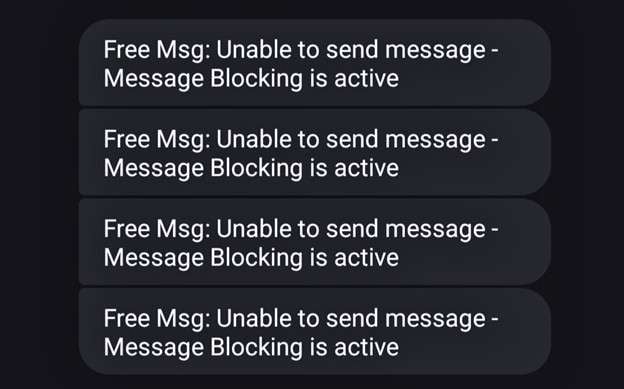
Most carriers allow users to disable SMS, MMS, short codes, or premium messages. If any of these are turned off, messages may fail with free message blocking active or similar notices.
Device-level blocking
Blocked contacts, messaging app filters, or incorrect default SMS apps can also produce blocking errors. On Android, this often shows up as android message blocking is active. On iPhone, conflicts between iMessage and SMS can lead to message blocking of active iPhone messages.
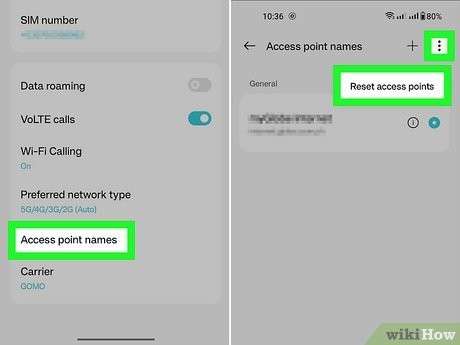
Network-specific restrictions
Some carriers restrict international texting, group messages, or messages sent over Wi-Fi calling. These limits can trigger blocking notices without clearly stating the reason.
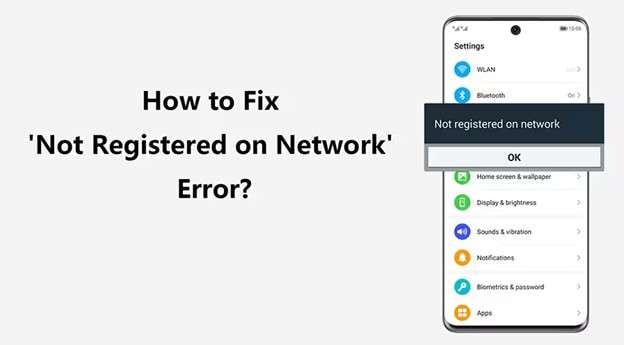
Part 2. How to Fix “Message Blocking Is Active”
Once you know that message blocking is active is usually triggered at the carrier or account level, fixing it becomes a process of elimination rather than guessing.
Step 1. Check Carrier and Account Status First
Before touching phone settings, confirm that messaging is allowed on your line.
- Make sure your plan includes SMS and MMS
- Check for unpaid balances or suspended services
- Confirm the line is fully activated (common after SIM swaps or plan changes)
Many cases of “blocking is active” trace back to plan restrictions rather than phone problems.
If you’re on prepaid or MVNO carriers (such as Metro PCS or Mint Mobile), messaging blocks are more common when plans expire or renew incorrectly.
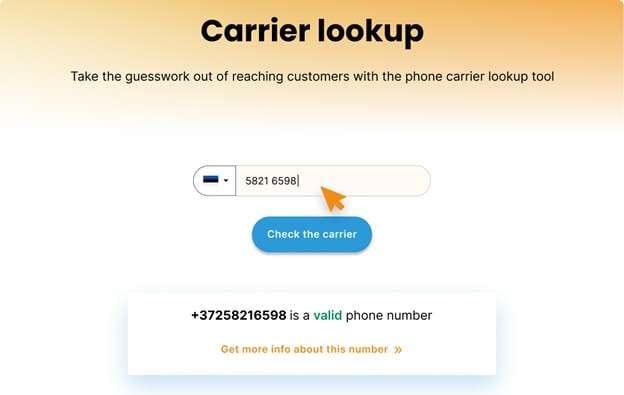
Step 2. Review Messaging Restrictions on Your Account
Log in to your carrier account and look for messaging controls.
- Outgoing SMS disabled
- Short codes blocked
- Premium messaging turned off
- International texting restricted
Any of these settings can lead to message blocking on incoming texts, even if basic messaging worked before.
Step 3. Check Device-Level Blocking
If the carrier side looks normal, move to the phone itself.
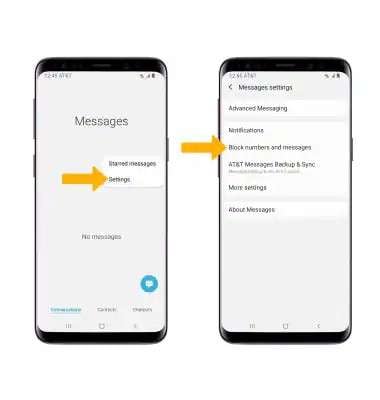
On Android:
- Make sure the correct app is set as the default SMS app
- Check blocked numbers inside the Messages app
- Disable third-party messaging apps temporarily
On iPhone:
- Toggle iMessage off, restart, then turn it back on
- Check that SMS/MMS is enabled under Messages
- Confirm the number isn’t blocked in Phone or Messages
These steps often resolve message blocking errors caused by app conflicts rather than carrier rules.
Step 4. How to Tell If Someone Blocked You from Texting
This is where many people misread the situation.
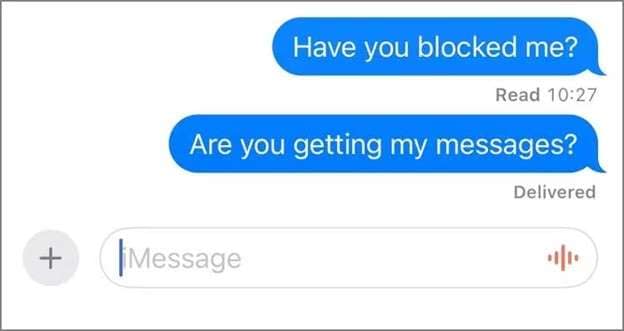
When someone blocks your number, your phone usually does not show that message blocking is active. Instead:
- Messages may be sent, but never show “Delivered”.
- Replies stop entirely
- Group messages may fail silently
If you consistently see a blocking notice, the restriction is almost always on your side or your carrier’s side, not theirs.
A quick test is to text a different number. If messages fail the same way, the block isn’t personal.
When Contacting Support Is Necessary
If none of the above changes the behavior, the block is likely enforced by the carrier and cannot be lifted from the phone. In those cases, customer support is the only way to remove the restriction.
Part 3. Managing Messages When Blocking Issues Keep Coming Back
After checking carrier limits, blocked numbers, and plan restrictions, many people still feel stuck. The error keeps showing up, but it’s not obvious which messages failed, which contacts are affected, or whether the issue is repeating with specific threads. On a phone screen, this is hard to see clearly.
At this stage, the problem is no longer just why message blocking is active, but how to review and manage your messages properly so you’re not guessing. This is where managing your Android from a computer can help.
One tool people use for this is Wondershare Dr.Fone device management feature. It won’t lift carrier limits or get around network rules, but it does make it easier to look through your messages and spot where the problem is really coming from.

Wondershare Dr.Fone
One-Stop Solution to Manage and Transfer Data on Android Phone
- Transfer files between Android and computer, including contacts, photos, music, SMS, and more.
- Manage, export/import your music, photos, videos, contacts, SMS, Apps, etc.
- Transfer iTunes to Android (vice versa).
- Manage your Android device on the computer.
- Fully compatible with the newest Android OS.


Step 1. Read all message chats
After connecting your Android device, open the Messages section from the left panel.
All SMS conversations stored on your phone appear in one place. You can read complete chat threads on a larger screen, preview messages in the right window, and manage them easily. Options are available to export, print, or delete entire conversations if needed.
This helps when you want to check where replies stopped or confirm whether messages failed with specific contacts.

Step 2. View message attachments
Next, switch to the Attachments section.
Here, you can see all files linked to your messages, such as images or media. Select specific attachments and export them to your computer if needed. This is useful when large or failed attachments may be affecting message delivery.

Conclusion
The message blocking is an active alert that is rarely random. In most cases, it comes from carrier restrictions, plan limits, or account settings rather than the phone itself. That is why the same error appears on Android and iPhone, even when messaging apps look fine.
The key is checking issues in order. Start with your plan and billing status. Then review carrier messaging controls. After that, confirm device-level settings. If messages fail across multiple contacts, the block is almost always on your side or the carrier’s side.
When the issue keeps repeating, tools like Wondershare Dr.Fone’s message management feature help you review message threads clearly and identify patterns before contacting support.
 safe & secure
4,624,541 people have downloaded it
FAQs
 Q1. Why does my phone suddenly say “message blocking is active” when it worked before?Q2. Does “message blocking is active” mean someone blocked me?Q3. Can message blocking affect only one contact?Q4. Will switching messaging apps fix message blocking?
Dr.Fone Basic:
Better Control for Your Phone
Manage, transfer, back up, restore, and mirror your device


iPhone Messages
- Back Up iPhone Messages
- 1. Back up Messages on iPhone
- 2. Save Text Messages on iPhone
- 3. Back up Viber messages
- 4. Back up WhatsApp Data to Computer
- 5. Export WhatsApp Message from iOS
- Delete iPhone Messages
- 1. Delete iMessages on iPhone and iPad
- 2. Delete Snapchat Messages on iPhone
- 3. Delete WA for Everyone
- 4. Delete WA Message Permanently
- 5. Delete Text Messages from iPhone
- 6. Tips about WhatsApp Delete Message
- 7. Undelete Messages on iPhone
- 8. View Deleted iMessage History on PC
- Recover iPhone Messages
- 1. Recover iPhone Deleted Text Messages
- 2. Recover Deleted Viber Messages
- 3. Recover Messages on iPhone 13
- 4. Recover Deleted Message on iPhone 8
- 5. Recover Deleted Message iPhone 6
- 6. Transfer from iPhone to iPhone
- 7. Recover WhatsApp Messages Online
- 8. Restore 1-Year-Old WhatsApp Chats
- Restore iPhone Messages
- 1. Restore Kik Messages from iPhone
- 2. Restore Text Messages on iPhone
- 3. Restore Viber Messages Selectively
- 4. Restore Kik Messages to iPhone
- Transfer iPhone Messages
- 1. Transfer from Android to iPhone
- 2. Transfer from iPhone to iPhone
- 3. Transfer from iPhone to Computer
- 4. Transfer from Android to iPhone XS
- 5. WhatsApp from Android to iOS
- 6. Transfer from Android to iPhone 13
- 7. WhatsApp from iPhone to PC
- 8. Download Text Messages from iPhone
- 9. Sync iMessage between iPhone and Mac
- iPhone Messages Problems
- 1. iMessage Not Working
- 2. iMessage Keeps Crashing
- 3. iMessage Not Syncing on a Mac
- 4.iPhone won't send or receive texts
- 5. Message Blocking Is Active
- 6. Why Are My iPhone Messages Green
- iPhone Message Tricks
- 1. Export Messages from iPhone to PDF
- 2. Read Others WA Messages
- 3. iPhone Message Tips and Tricks
- 4. Access iMessage Online
- 5. Extract Text Messages from iPhone
- 6. Forward Text on iPhone and Android
- 7. Print Text Messages from iPhone
- 8. View iPhone Messages on PC/Mac
- 9. Tell If You Are Blocked on iMessage
- ● Manage/transfer/recover data
- ● Unlock screen/activate/FRP lock
- ● Fix most iOS and Android issues
- Free Download Free Download Free Download




Alice MJ
staff Editor