

Is it Possible to Use Miracast with iPhone? All You Want to Know!

Jun 30, 2026 • Filed to: Phone Mirroring Solutions • Proven solutions
 TL;DR:
iPhones natively lack Miracast support and rely entirely on Apple's AirPlay protocol, which restricts compatibility to Apple TVs, Macs running macOS Monterey 12.0 or later, and AirPlay 2-certified smart TVs.
● Unlike Miracast's router-free Wi-Fi Direct technology, AirPlay strictly requires both devices to operate on the exact same Wi-Fi network, limits video mirroring resolution to 1080p, and may block DRM-protected content.
● To mirror an iPhone to unsupported displays like Windows PCs or Android TVs, AirDroid Cast enables hardware-free browser casting, Dr.Fone provides stable USB mirroring with native PC screen recording, and AnyMirror supports 1080p/60fps partial-screen or multi-device presentation modes.
Ask AI for a summary
 ChatGPT
 Perplexity
 Gemini
 Claude
 Grok
Grok
Dr.Fone Basic:
Better Control for Your Phone
Manage, transfer, back up, restore, and mirror your device
Short answer: iPhones do not support Miracast. Miracast is a Wi-Fi-based wireless display standard developed by the Wi-Fi Alliance and is widely used on Android devices and Windows PCs — but Apple has never adopted it. Instead, Apple devices use a proprietary wireless streaming protocol called AirPlay for iPhone screen casting. If you've been searching for Miracast for iPhone and wondering why it doesn't work, this is the reason: iOS and Miracast are fundamentally incompatible at the protocol level.
So, does iPhone support Miracast? No — and that applies to all iPhone models, including the latest iPhone 15 and iPhone 16 series. The same answer applies if you're asking does my iPhone support Miracast or do iPhones support Miracast: Apple devices do not implement the Miracast protocol. However, this doesn't mean you're stuck. With AirPlay and a growing number of powerful third-party screen mirroring tools, iPhone casting to TVs, monitors, and PCs is easier than ever in 2026.
In this guide, we'll break down exactly what Miracast and AirPlay are, how they differ, step-by-step instructions for using AirPlay on your iPhone, and the best Miracast-compatible alternatives that let you wirelessly mirror your iPhone screen to virtually any display — including non-Apple smart TVs and projectors.

Part 1: What are Android Miracast and Apple AirPlay
Quick answer: Miracast is Android/Windows's wireless display standard; AirPlay is Apple's equivalent. They are not cross-compatible — an iPhone cannot connect to a Miracast receiver, and an Android device cannot natively use AirPlay. Understanding this distinction is essential before choosing the right mirroring solution for your iPhone.
1. What is Miracast on Android?
Miracast is a peer-to-peer wireless display standard developed by the Wi-Fi Alliance in 2012. It allows devices to mirror their screen to compatible displays — such as smart TVs, monitors, or projectors — entirely wirelessly and without requiring a shared Wi-Fi network. Instead of relying on a router, Miracast uses Wi-Fi Direct technology to create a direct, encrypted connection between the source device (e.g., a smartphone) and the receiving display. This makes it particularly useful in environments without internet access, such as conference rooms or hotel rooms.
To be clear: Miracast is not an Android-exclusive technology — it is a universal standard. However, in practice, Miracast support is common on Android smartphones, Windows 8.1+ laptops, and many smart TVs, while Apple has deliberately chosen not to support it on any of its devices, including iPhone, iPad, or Mac. So if you're asking does Apple support Miracast — the answer is no.
Which devices support Miracast?
- Android smartphones and tablets: Most Android devices running Android 4.2 and later support Miracast, including Samsung Galaxy, LG, Sony Xperia, and Google Pixel devices. iPhones and iPads do not support Miracast under any iOS or iPadOS version.
- Windows laptops and desktops: Windows 8.1 and later (including Windows 10 and Windows 11) include native Miracast support under the "Connect" or "Project" feature. Some Chromebooks also support Miracast through Chrome OS extensions.
- Smart TVs and displays: Many modern smart TVs from Samsung, LG, Sony, Hisense, and TCL include built-in Miracast receivers. If your TV doesn't support Miracast natively, you can add it using a low-cost Miracast dongle (such as Microsoft Wireless Display Adapter or generic Amazon dongles).
- Miracast adapters: Standalone dongles plug into an HDMI port on any TV or monitor and instantly add Miracast receiving capability, effectively turning any screen into a wireless display target.
2. What does Apple AirPlay do?
AirPlay is Apple's proprietary wireless streaming and screen mirroring protocol, introduced in 2010 (originally as AirTunes). It allows Apple devices — including iPhone, iPad, iPod touch, and Mac — to stream audio, video, photos, and full-screen mirroring to AirPlay-compatible receivers over a Wi-Fi network. Unlike Miracast, AirPlay requires both the sender and receiver to be connected to the same Wi-Fi network (or, in newer implementations, uses Bluetooth for initial pairing).
AirPlay 2, introduced in iOS 11.4, added multi-room audio support and improved synchronization across multiple speakers and TVs simultaneously. In 2021, Apple expanded AirPlay support to select third-party smart TVs from Samsung, LG, Sony, and Vizio, removing the requirement for an Apple TV in many living room setups. This makes AirPlay a more versatile solution for iPhone casting in 2026 than it was in its early years.
Which devices support Apple AirPlay?
- iPhone and iPad: AirPlay is supported on iPhone 4 and later (iOS 4.2+), all iPad Pro models, iPad Air, iPad mini, and iPod touch (5th generation and later). All current iPhone and iPad models in 2026 fully support AirPlay 2.
- Mac: AirPlay is available on Macs running macOS Monterey (12.0) and later, with AirPlay Receiver support allowing you to mirror other Apple devices to your Mac's screen.
- Apple TV: All Apple TV (2nd generation and later) and the Apple TV 4K are primary AirPlay receivers designed for living room use.
- Third-party smart TVs: Samsung, LG, Sony, Vizio, and select other manufacturers include native AirPlay 2 support in their newer smart TV models — check your TV's specifications or AirPlay compatibility page to confirm.
- Third-party speakers and audio receivers: Brands such as Sonos, Bose, Denon, Marantz, and Bang & Olufsen offer AirPlay 2-compatible speakers and soundbars for multi-room audio.
Miracast vs. AirPlay: Key Differences at a Glance
- Developed by: Wi-Fi Alliance (Miracast) vs. Apple Inc. (AirPlay)
- Supported on iPhone/iPad: No (Miracast) vs. Yes (AirPlay)
- Requires Wi-Fi router: No — uses Wi-Fi Direct (Miracast) vs. Yes — requires same network (AirPlay)
- Cross-platform: Yes — Android, Windows, smart TVs (Miracast) vs. Limited — primarily Apple ecosystem (AirPlay)
- Latency: Generally lower for gaming/presentation (Miracast) vs. Slightly higher, optimized for media (AirPlay)
Part 2: How To Mirror iPhone With AirPlay
Since iPhone doesn't support Miracast, AirPlay is Apple's built-in solution for wirelessly mirroring your iPhone screen. AirPlay Screen Mirroring lets you cast your entire iPhone display — including apps, games, photos, videos, and presentations — to an Apple TV, AirPlay 2-compatible smart TV, or Mac in real time. It requires both devices to be on the same Wi-Fi network and takes just seconds to set up.
AirPlay is ideal for a wide range of use cases: streaming movies from your iPhone to your TV, running a slideshow from Photos app, presenting a Keynote or PowerPoint, playing mobile games on a big screen, or demonstrating an app to a group. The steps below walk you through how to initiate AirPlay Screen Mirroring on any iPhone running iOS 7 or later.
- Step 1. Make sure your iPhone and your AirPlay-compatible display (Apple TV, AirPlay 2 smart TV, or Mac) are connected to the same Wi-Fi network. This is the most common reason AirPlay fails to detect devices.
- Step 2. On your iPhone, open Control Center: swipe down from the top-right corner (iPhone X and later) or swipe up from the bottom of the screen (iPhone 8 and earlier).
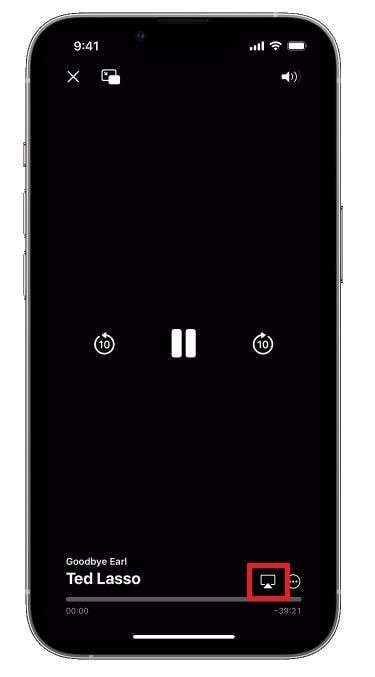
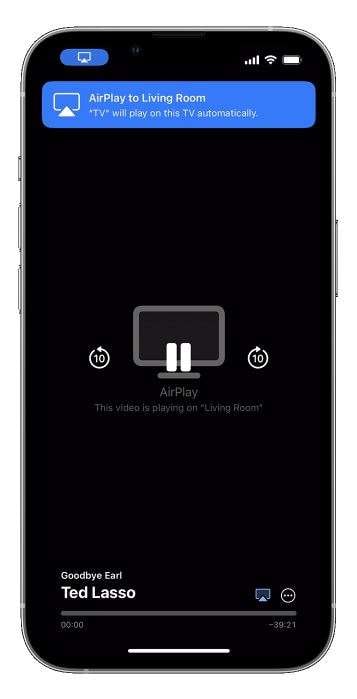
- Step 3. Tap "Screen Mirroring" (the icon that looks like two overlapping rectangles). Alternatively, in some apps like Photos or Videos, you may see an AirPlay icon (a rectangle with a triangle at the bottom) — tap that to stream content directly.
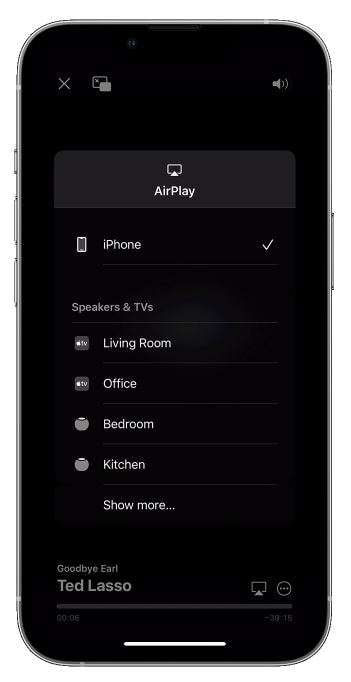
- Step 4. A list of available AirPlay receivers on your network will appear. Select your TV, Apple TV, or Mac from the list. If prompted, enter the 4-digit AirPlay passcode shown on your TV screen.
- Step 5. Your iPhone screen will now be mirrored to the selected display in real time. A blue status bar appears at the top of your iPhone, confirming that Screen Mirroring is active. To stop mirroring, open Control Center and tap "Stop Mirroring."
What are the limitations of AirPlay?
While AirPlay remains the most seamless option for iPhone casting within the Apple ecosystem, it has several notable limitations that may prompt users to seek alternatives — especially when they want to mirror to non-Apple displays or Miracast-enabled TVs:
- Limited third-party device support: AirPlay is natively supported on Apple devices and select smart TV brands. It is not compatible with the majority of Android TV, Fire TV, or generic smart TVs, and it cannot be used with Miracast dongles or receivers — meaning AirPlay won't work as a Miracast iPhone solution.
- Requires the same Wi-Fi network: Unlike Miracast (which uses Wi-Fi Direct and doesn't need a router), AirPlay requires both your iPhone and the display to be connected to the same local Wi-Fi network. This can be a significant limitation in hotels, offices, or conference rooms with segregated networks.
- Maximum resolution of 1080p: AirPlay currently caps video mirroring at 1080p Full HD. Users who want to display 4K content from their iPhone on a 4K TV will not see a quality improvement over a standard HD stream.
- Wi-Fi signal dependency: AirPlay performance is directly tied to the quality and stability of your Wi-Fi connection. In environments with congested Wi-Fi or weak signal, mirroring may experience lag, dropped frames, or disconnections.
- DRM content restrictions: Some streaming apps (e.g., Netflix, Disney+) may block AirPlay Screen Mirroring for DRM-protected content. In these cases, you can use AirPlay's built-in app casting (not screen mirroring) within the app itself.
- AirPlay 2 device requirement for multi-room audio: The multi-room audio feature, which allows you to broadcast the same audio to multiple speakers simultaneously, is only available on AirPlay 2-certified devices — older AirPlay speakers or receivers will not benefit from this feature.
Part 3: The Best Alternatives for AirPlay to Miracast iPhone
Since iPhone doesn't support Miracast and AirPlay is limited to Apple-compatible displays, third-party mirroring tools fill the gap — letting you mirror your iPhone to any TV, PC, or projector regardless of brand. These solutions work by bridging Apple's AirPlay protocol with broader display ecosystems, or by creating their own proprietary wireless connection. Whether you need to cast to a Windows PC, a Miracast-enabled TV, or an Android TV box, the alternatives below offer reliable, high-quality screen mirroring without needing a Miracast-compatible iPhone.
Below are the top three solutions for how to Miracast on iPhone (or more accurately, how to achieve Miracast-equivalent wireless mirroring from an iPhone to any display) in 2026.
1. Dr.Fone Screen Mirroring — Best for PC & Mac Mirroring
Wondershare Dr.Fone is a comprehensive iOS management platform that includes a powerful Screen Mirroring feature, allowing you to wirelessly or via-cable mirror your iPhone display to a Windows PC or Mac in real time. It's one of the most reliable solutions available for users who want to present, record, or extend their iPhone screen on a computer — without needing an Apple TV or AirPlay 2-compatible smart TV.
Dr.Fone Screen Mirroring is particularly valuable for content creators, educators, and business professionals who need to display iPhone content on a laptop during meetings or record iPhone gameplay and app demos for YouTube or documentation purposes. It supports both cable and Wi-Fi connections, giving you flexibility depending on your environment.
Wondershare Dr.Fone
Mirror iOS Screen to a Computer
- Mirror iOS screen to computers with cable or Wi-Fi.
- Extend your iOS device screen with your PC or Mac.
- Record iOS screen and take screenshots from PC or Mac.
Key features of Dr.Fone Screen Mirroring:
- Dual connection modes: Connect via USB cable for a stable, low-latency connection, or use Wi-Fi for a completely wireless experience — ideal when you need an AirPlay-like experience on a PC without an Apple TV.
- Built-in screen recorder: Record your iPhone screen directly to your PC or Mac in high quality, making Dr.Fone ideal for app demonstrations, tutorials, and gameplay capture.
- iOS compatibility: Supports all iPhone models and iOS versions from iOS 7 through the latest iOS 18 releases.
- No Apple TV required: Mirror your iPhone to any Windows or Mac computer — no AirPlay-compatible TV or Apple TV hardware needed.
Steps to mirror your iPhone screen using Dr.Fone:
- Step 1. Download and install Dr.Fone on your Windows PC or Mac. Launch the application and select the "Phone Mirror" option from the main menu.
- Step 2. Install the Dr.Fone Connect companion app on your iPhone from the App Store before proceeding with the wireless connection option.
- Step 3. In the Dr.Fone desktop application, choose "Screen Mirror" from the left navigation panel.
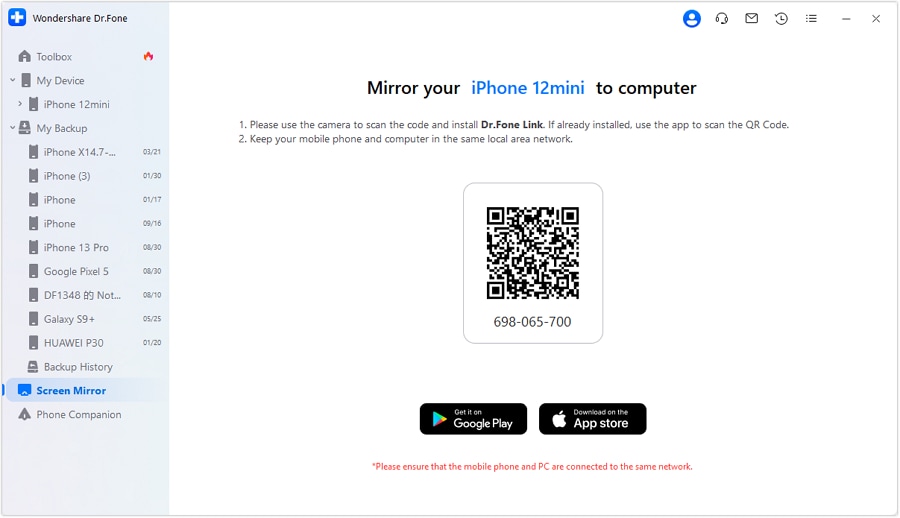
- Step 4. Ensure your iPhone and computer are connected to the same local Wi-Fi network, or connect your iPhone via USB cable. Dr.Fone will automatically detect your device once both are on the same network.
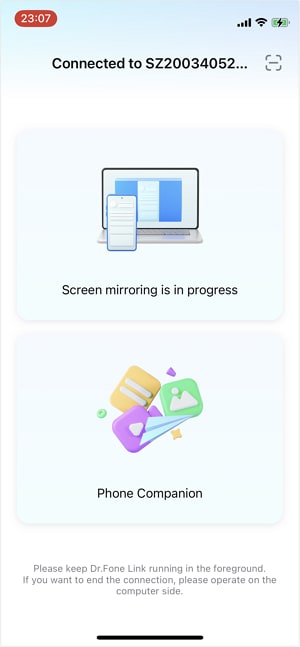
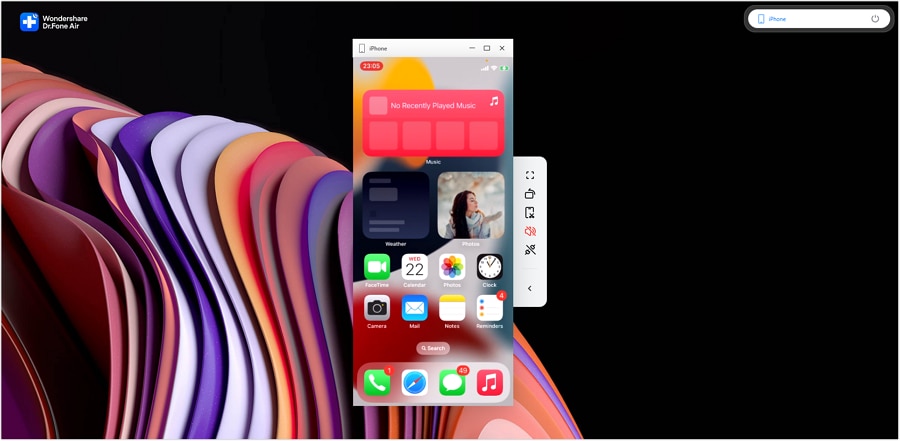
- Step 5. Once connected, your iPhone screen will appear live on your computer display. You can now enjoy gaming, present apps, or record your iPhone screen directly from your PC or Mac.
4,624,541 people have downloaded it
 safe & secure
2. AirDroid Cast — Best for Cross-Platform & Browser-Based Mirroring
AirDroid Cast is a versatile cross-platform screen mirroring application that enables you to mirror your iPhone screen to a Windows PC, Mac, Android device, or even a web browser — making it one of the most flexible iPhone-to-non-Apple-display solutions available. Unlike AirPlay, which requires a dedicated AirPlay receiver, AirDroid Cast works on virtually any device that can run its app or open a browser, significantly expanding your mirroring options beyond the Apple ecosystem.
AirDroid Cast supports three connection methods: Wi-Fi, USB, and browser-based casting via a unique cast code or QR code. This makes it particularly useful for corporate environments where you need to quickly share your iPhone screen on a presenter's Windows laptop without configuring Wi-Fi networks or installing special hardware.
- True cross-platform support: AirDroid Cast works on Windows, macOS, Android, iOS, and web browsers — a significant advantage over AirPlay's Apple-only ecosystem. You can mirror an iPhone to an Android TV or Windows projector with ease.
- Low-latency, high-quality streaming: AirDroid Cast uses advanced video compression to deliver smooth, high-quality mirroring with minimal latency — suitable for real-time presentations, app demos, and casual viewing.
- No additional hardware required: Unlike Miracast (which requires a Miracast-capable receiver) or AirPlay (which requires Apple TV or AirPlay 2 TV), AirDroid Cast runs entirely in software — no dongles, no adapters, no special TV features required.
- Remote control capability (Pro): The Pro version allows the receiving device to remotely control the iPhone screen — useful for IT support, remote device management, and collaborative work.
Steps to mirror your iPhone to a PC using AirDroid Cast:
- Step 1. Download and install AirDroid Cast on both your PC (or Mac) and your iPhone. Alternatively, open webcast.airdroid.com in any browser on your PC for the browser-based option.
- Step 2. On the PC app or browser, a unique Cast Code will be displayed. On your iPhone's AirDroid Cast app, enter this code — or scan the on-screen QR code — to initiate the connection.
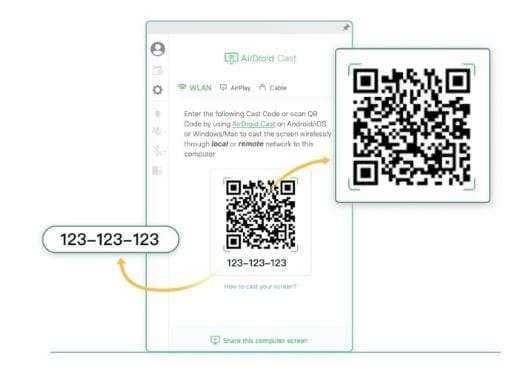
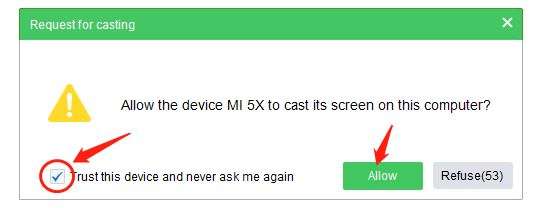
- Step 3. On your PC, click "Accept" to confirm the cast request from your iPhone.
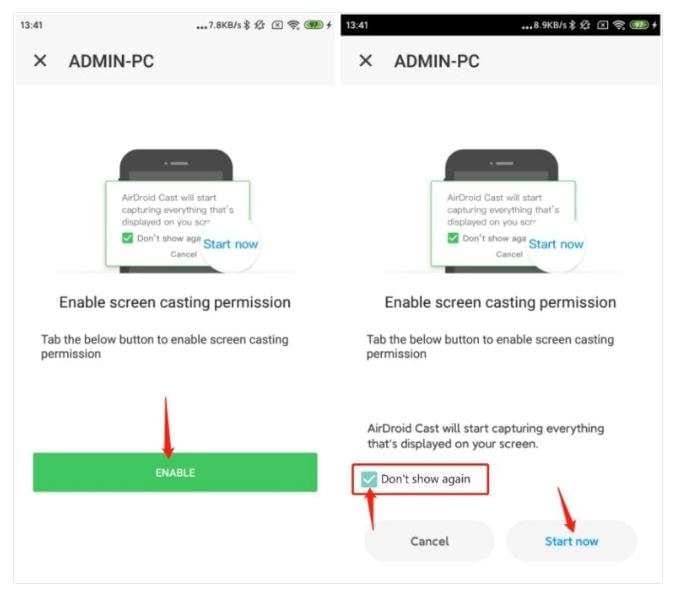
- Step 4. On your iPhone, tap "Allow" when prompted to grant casting permission. Your iPhone screen will immediately begin mirroring to your PC display.
3. AnyMirror — Best for Flexible Display Options
AnyMirror is a dedicated iPhone and iPad screen mirroring application that supports mirroring to Windows PCs, Mac computers, smart TVs, and projectors. It offers a straightforward interface designed for users who want quick, reliable screen mirroring without complicated setup procedures. AnyMirror is a strong AirPlay alternative for scenarios where you need to cast your iPhone to a non-Apple display that lacks built-in AirPlay support.
One of AnyMirror's standout features is its support for multiple mirroring modes — including full-screen mirroring, partial-screen mirroring (useful for focusing on specific content), and simultaneous multi-device mirroring. This flexibility makes it suitable for classroom instruction, video production monitoring, and customer-facing retail demonstrations.
- Clean, intuitive interface: AnyMirror's minimalist design makes it easy for first-time users to set up and start screen mirroring within minutes — no technical knowledge required.
- High-quality streaming up to 1080p/60fps: AnyMirror supports Full HD mirroring at 60 frames per second with low latency, delivering a smooth mirrored experience for both video playback and interactive app use.
- Multiple mirroring modes: Choose from full-screen, partial-screen, or multi-device mirroring to match your specific presentation or viewing needs.
- USB and Wi-Fi connection: AnyMirror supports both wired (USB) and wireless (Wi-Fi) connections, giving you a stable low-latency option (USB) and a convenient cable-free option (Wi-Fi).
Steps to mirror your iPhone to a PC using AnyMirror:
- Step 1. Download and install AnyMirror on your Windows PC or Mac, then launch the application.
- Step 2. Connect your iPhone to the PC using a USB cable, or select the Wi-Fi connection option within the app if you prefer a wireless setup.
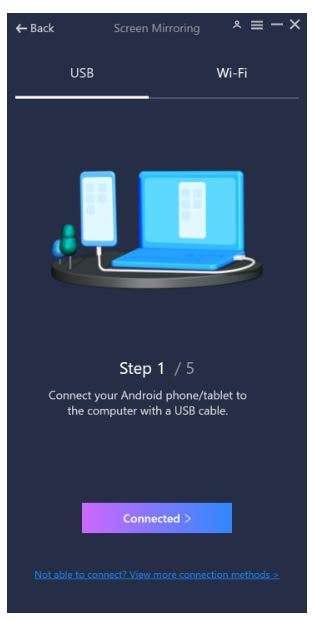
- Step 3. If using USB, your iPhone will prompt you to "Trust This Computer" — tap Trust to authorize the connection. For MTP mode (Android), select "Transfer Files." Then click "Next" in the AnyMirror app.

- Step 4. Follow the in-app instructions to enable Developer Options on your device if required, then activate USB Debugging mode to allow full screen mirroring access.
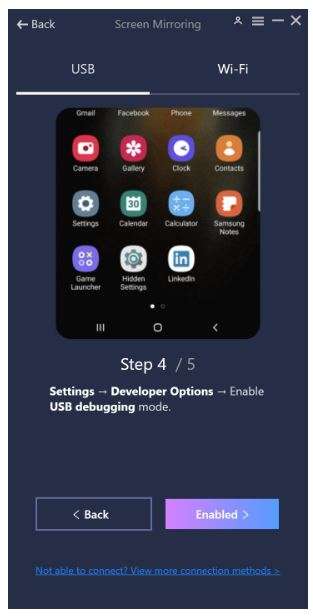
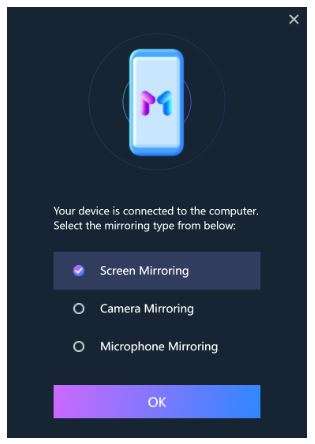
- Step 5. Tap "Screen Mirroring" in the AnyMirror app to begin casting your iPhone screen to your PC or connected display in real time.
 safe & secure
Summary
To summarize: iPhones do not support Miracast — this is true for all iPhone models across all iOS versions. Apple has deliberately chosen not to implement the Wi-Fi Alliance's Miracast standard in favor of its own proprietary AirPlay protocol. If you're asking does Miracast work with iPhone, does my iPhone support Miracast, or do iPhones support Miracast — the definitive answer is no, and that is unlikely to change.
For iPhone casting within the Apple ecosystem — to an Apple TV, AirPlay 2 smart TV, or Mac — AirPlay remains the best and simplest option. It's built into every iPhone, requires no additional software, and delivers high-quality wireless mirroring with minimal setup. The key requirement is that both your iPhone and display are on the same Wi-Fi network.
When AirPlay isn't an option — for example, if you're trying to mirror to a Windows PC, a Miracast TV, a non-AirPlay smart TV, or a projector in a corporate setting — the three third-party alternatives covered in this guide offer powerful solutions:
- Wondershare Dr.Fone — Best for mirroring and recording your iPhone screen on a Windows PC or Mac, with both USB and Wi-Fi connection options.
- AirDroid Cast — Best for cross-platform flexibility, including browser-based casting with no hardware requirements.
- AnyMirror — Best for multi-mode mirroring including full-screen, partial-screen, and multi-device options.
Whether you're sharing content in a business meeting, streaming entertainment to a larger screen, or recording iPhone gameplay for content creation, these tools ensure that the lack of native Miracast for iPhone support is never a limitation.
Tips: Looking for an all-in-one mobile management software? Look no further than Dr.Fone App - the ultimate choice for all your needs:
- For iOS Users: Free up space with Smart Clean, remove any restriction including screen lock, iCloud activation lock, MDM, or Apple ID, and transfer data easily between devices with our all-in-one iOS solution.
- For Android Users: Bypass screen locks and FRP with our Android unlocker, change your location with one click, and repair damaged Samsung devices with ease.
Discover more possibilities for mobile management solutions with Dr.Fone App (iOS) and Dr.Fone App (Android). Don't miss out, try it now and revolutionize your smartphone experience.



FAQs
 Q1. Does iPhone support Miracast?Q2. Does iPad support Miracast?Q3. How do I Miracast from my iPhone to a TV?Q4. Does Apple support Miracast on any of its devices?
Dr.Fone Basic:
Better Control for Your Phone
Manage, transfer, back up, restore, and mirror your device


Xiaomi Topics Series
- Xiaomi Screen & FRP Unlock
- 1. Unlock Xiaomi Bootloader
- 2. Mi Account Unlock Tools
- 3. Redmi Note 8 FRP Unlock Tool
- 4. Redmi Note 9 FRP Bypass Tool
- 5. Redmi 9A FRP Bypass
- 6. Remove FRP on Xiaomi/Redmi
- Xiaomi Repair
- Xiaomi Recover
- Xiaomi Reset
- Xiaomi Tips & News
- 1. Xiaomi HyperOS 3.0
- 2. Screen Mirror Xiaomi to PC
- 3. Run Hardware Tests on Xiaomi
- 4. Conduct battery test on Xiaomi
- 5. How Do I Obtain the Security Code Xiaomi
- 6. DND Mode Xiaomi
- Xiaomi Transfer & Backup
- ● Manage/transfer/recover data
- ● Unlock screen/activate/FRP lock
- ● Fix most iOS and Android issues
- Free Download Free Download Free Download


 > How-to > Phone Mirroring Solutions > Is it Possible to Use Miracast with iPhone? All You Want to Know!
James Davis
staff Editor