Effortlessly manage data through preview, delete, export, etc.

 100% Security Verified | No Subscription Required | No Malware

 :
: 
 ChatGPT
 Perplexity
 Gemini
 Claude
 Grok
Grok
It's a usual Monday morning, and you’re rushing to get ready for work when you realize your Android is locked. After multiple failed attempts to recall your password, the device becomes disabled, leaving you completely cut off. Moments like these are when the need for an Android screen unlock tool emerges, offering a quick way to regain access.
For your assistance, this guide explores the most dependable methods to overcome these security barriers with access without delay. Both tools discussed below are carefully evaluated based on their performance, key features, and strengths. As you keep on reading the article, you’ll soon discover how Dr.Fone stands as a trusted choice among users.
In this article
- Part 1. 5 Key Features That Matter in an Android Screen Unlock Tool
- Part 2. Dr.Fone Screen Unlock — Features and Strengths
- Part 3. iToolab UnlockGo Screen Unlock — Features and Strengths
- Part 4. Supported Screen Unlock Lock Types: What Each Tool Can Remove
- Part 5. Dr.Fone vs UnlockGo: Pros and Cons for Screen Unlock Users
- Part 6. Cost Comparison: Which Screen Unlock Tool Offers Better Value
- Part 7. Final Verdict: Which Screen Unlock Tool Should You Choose
- Frequently Asked Questions
Part 1. 5 Key Features That Matter in an Android Screen Unlock Tool
With multiple options in the market, focus on the highlighted features that ensure you choose the best Android screen unlock tool:
- Supports Many Lock Types: A reliable tool should remove all common lock screens, including PIN, password, fingerprints, and face unlock. This means you can use the same software whether you forgot a pattern or your fingerprint stopped working.
- High Safety and Low Data Loss Risk: Consider tools that clearly explain when they can unlock without wiping data and when a reset is needed. The best screen unlocker tries to keep your photos, chats, and files safe, especially on supported Samsung models.
- Easy to Use (Even for Beginners): Any beginner-friendly tool has a clean interface, stepwise instructions, and only a few clicks to finish. You should not need technical skills like commands; the program should guide you like a simple wizard.
- Wide Device and Version Compatibility: Professional tools support many brands, including Samsung, Xiaomi, and Vivo, as well as a wide range of Android versions. This makes it more future-proof, so you can unlock older phones and the latest Android devices with the same tool.
- Reliable Updates and Helpful Support: Prefer a program that receives regular updates and supports new Android versions and phone models. It should also provide helpful support (guides, FAQs, or live help) if something goes wrong or you get stuck.
Part 2. Dr.Fone Screen Unlock: Features and Strengths
While evaluating multiple Android screen lock removal software, Dr.Fone is considered one of the leading software solutions. It excels at removing multiple screen lock types, including PIN, password, face, and fingerprint locks. Besides this, the vendor claims a 100% success rate in removing locks from 29 Android brands (the most among all). It guarantees to bypass the lock within 5 minutes and provides a list of supported devices in its UI.
This vendor's tech spec supports desktop systems including Windows 11 and earlier, and macOS 10.13 or later. It means that almost any regular user of a PC or Mac can run Dr.Fone - Screen Unlock (Android) to unlock the Android screen lock. When technical expertise is considered, the program addresses both simple and complex locks by detecting the Android version and model. As per its official page, the vendor has no learning curve and requires no device root.
 Unlock Android phone in seconds.
- Remove PIN, pattern, password, fingerprint.
- Bypass Google FRP lock easily.
- Works on all Android brands & models.
- No tech skills required – user-friendly.

Key Features
- Data-Preserving Mode: The software provides a data-preserving mode that unlocks the screen on a number of Samsung models, including the Note 2 and 4 series. Moreover, Dr.Fone is the only program that currently enables data-preserving screen unlock on LG devices, in addition to Samsung.
- Supported Android Devices and Versions: These brands include Huawei, OPPO, Xiaomi, and OnePlus, as well as the latest Samsung series, such as S25 and S26. Unlike other tools, we found that it supports Nokia, TCL, Maxwest, Redmi, Kyocera, and SHARP devices. With immense support for POCO, Doogee, and more, Dr.Fone emerges as an excellent choice compared to competitors. Since the program comes with extensive brand support, it facilitates Android from version 2.1 onwards. Whereas its official page shows it covers Android 14 and beyond for most modern brands. Plus, the program claims to support brands common in the US, such as Motorola and Google Pixel.

I have tried SEVERAL different tools to unlock my Samsung 24 ultra with no luck. But Wondershare Dr. Fone helped me successfully and unlocked my phone! I am beyond impressed and highly recommend this program !!!
Kate
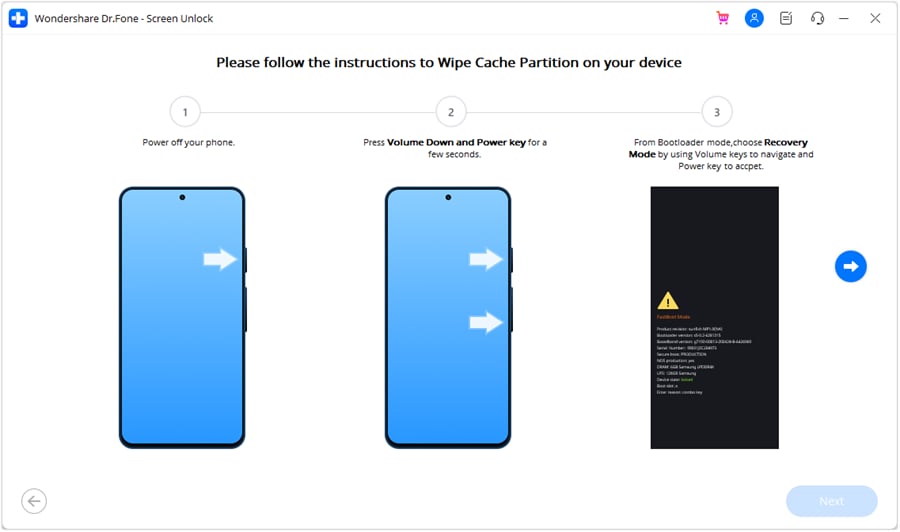
- Workflow Modes and Ease of Use: Its user guide demonstrates clear stepwise instructions to enter and remove with "no data loss" for earlier Samsung devices such as the S6 and Note 4. As we move forward, we see that the vendor provides an easy, in-depth guide on "Download or Recovery mode" with proper video guidance. During this process, the system requires user consent and verification via code "000000" to proceed with the unlock. Now, when it comes to Android devices overall, it has a “data-loss” option for brands like Lenovo, Vivo, and Xiaomi. Upon pursuing this option, the system automatically offers an automated special mode, a convenient choice for beginners. Moreover, this option is more straightforward and ensures a higher success rate while completing the entire process in simple 3 steps.
- Latest Updates and Future Implementation: During our analysis, we found that Dr.Fone is considering adding one-click screen lock removal for Samsung Android 12 devices. Not only this, but sourced reports show that it will surely include support for the Wiko brand. With this future addition, Dr.Fone will gain a unique competitive advantage compared to others. Most importantly, the tool guarantees weekly updates with new features and additions to the device’s support for screen lock purposes.
It was straightforward, and it worked. Also, the discount is what made me get the program in the first place…
Kate
- Pricing Plan Coverage: Here, with the free plan, you can preview the complete process, including the exact steps to enter special or specific modes. Once you move to the monthly subscription, you can use the unlocking feature with 1-5 mobile devices and 2 PCs. According to its pricing plans, you’re provided with free software updates and technical support, regardless of the plan you choose.
Comprehensive Guidelines to Perform Screen Unlock on Android
-
Step 1 Choose the Android Screen Unlock Tool on Dr.Fone
Initially, access the Screen Unlock Android tool from the toolbox and press the “Unlock Android Screen” option.

-
Step 2 Specify Your Device Model and Unlock Phone
Once done, select your phone brand, and allow the tool to automatically direct the device to special mode for unlocking.

What Users Say
The process was seamless, simple to use, and fast. I was very impressed with the iOS screen lock removal option. Their pricing is fair, and they offer many different plan options for customers to choose from. I will absolutely use Wondershare Dr.Fone again in the future, and I highly recommend!
Liz Spears




Part 3. iToolab UnlockGo Screen Unlock: Features and Strengths
In comparison, we have iToolab UnlockGo, which claims to remove all common Android lock methods, such as PIN, password, or face locks. During analysis, we discovered that the program supports 21 Android brands, including Samsung, Huawei, Xiaomi, and Vivo. While supporting 6000+ Android phones and tablets, it provides a one-click removal for Android 12 devices, a unique comparison advantage. Additionally, the vendor's tech specs report indicates support for Android 2.0 and later.
Key Features
- Compatibility and Other Brand Support: Users can access this tool on Windows and Mac, with system requirements ensuring it works well on all devices. If we extend its brand limit, we noticed that the tool does not offer screen lock removal for NOKIA, POCO, TCL, Maxwest, Doogee, SHARP, Kyocera, Redmi, etc. Since this limitation can be a concern for users, the Android OS support falls short here, making Dr.Fone a better option.
- Special No-Data Loss for Samsung: This vendor offers this “no-data loss” feature only for earlier Samsung devices. This makes Dr.Fone a better option here, as the support extends to LG devices. For UnlockGo, the no-data-loss list can include Galaxy Note 3/4/4Edge/8.0/II/S3/S4 LTE-A, etc.
- Workflow and Ease of Use: It is true that the tool comes with a separate “Unlock Screen Lock” tab. The software prepares a specific data package or configuration file. Instead of a command-line prompt, users follow on-screen illustrations and videos showing exactly which buttons to hold. However, a major pitfall is the lack of Mode automation: there is no option to access modes automatically, so it requires manual effort, unlike Dr.Fone. When we verified its usage, many Trustpilot users' reviews report that the tool failed, saying:
I then tried unlocking it using the Android 12 method, since my Samsung Galaxy A53 runs Android 12, but when I reached the Google lock screen and used UnlockGo, the process failed, and both methods failed.
Agit Oguz
- Free Samsung Reset Option: This tool lets you perform a one-click factory reset on Samsung phones and tablets. This can be done in 5 minutes and is designed for users who want to quickly wipe all data and settings. Additionally, the function is often available in the trial version without requiring a full registration code. It's a handy option, but Dr.Fone handles it automatically once it accesses the Special mode for “Most” Android brands. So, if you think this “Reset” option is a bonus tool, it's actually just a simplified shortcut to a manual recovery-mode wipe.
- Pricing Coverage and Support: The final “Start Unlock” button is usually locked behind a paywall, and in the free version, you only get access to device detection. Upon accessing the tool, it offers you a screen lock removal option for 1-5 devices and 1 PC. Compared to Dr.Fone, having 1 PC access in almost the same range is a bit costly. Still, you can get its 1 Device Plan if you are looking for a more affordable, single-use license. Regarding support, the vendors claimed it to be responsive, but many users have faced issues, stating that:
I tried everything to make the software work, but couldn’t get any results. I contacted support, but they kept directing me to the FAQ. Although they offered a 35% refund, it was never applied, and instead, I was told to buy another subscription, which felt like a waste of money.
William Zavah
Guide to Bypass Screen Lock with UnlockGo (Android)
-
Step 1 On the main interface, select the “Remove Screen Locks” button, then tap the “Start” button.
-
Step 2 Now connect your device, select the brand, and follow the instructions to access Recovery Mode.
-
Step 3 After that, restart the device, and when the tool bypasses the lock, press the “Done” button.
What Users Say
I found UnlockGo’s steps a bit complicated as a beginner, and the process took longer than expected, with some failures during Recovery Mode.
Janina Gečienė
Part 4. Supported Screen Unlock Lock Types: What Each Tool Can Remove
| Metric / Feature | Dr.Fone – Screen Unlock (Android) | iToolab UnlockGo (Android) |
|---|---|---|
| Core Screen Lock Types | Removes PIN, pattern, password, fingerprint, and face lock on most major Android brands. | Removes PIN, pattern, password, fingerprint, and face recognition. |
| Coverage Of Mainstream Brands | Supports 29 brands and 2000+ phone and tablet models, including Samsung, Huawei, Xiaomi, OnePlus, Motorola, Google, etc. One-click screen lock removal for Samsung Android 12 and Wiko-branded devices is expected. | Supports about 21 brands like Samsung, Google, Huawei, vivo, OPPO, etc. |
| Device Coverage | 1-5 devices and 2 PCs. | 1-5 devices and 1 PC. |
| Data‑loss Risk on Screen Unlock | Offers different paths (including no‑data‑loss modes on Samsung and LG brands in the desktop suite) and clearer warnings before risky operations. | Includes some no‑data‑loss options for certain Samsung devices, but mainly promotes quick unlock rather than detailed risk control. |
| Guidance And Usability for Each Lock Type | Explains standard lock types (PIN, password, pattern) and gives simple, step‑by‑step UI tailored to each, making complex unlocks easier for beginners. For the “Most” brand, access to the mode is automated. For data loss models, it asks for consent and “000000” code for security. | Simple wizard and “no tech skill needed” messaging; very easy for basic locks, but with fewer lock‑type‑specific explanations. |
| Extra Tools That Help with Tough Screen Locks | Part of a broader toolkit (backup, repair, FRP, etc.), so users tackling hard screen locks can combine unlock with system repair if needed. | Mainly focused on screen locks and FRP; fewer integrated repair utilities for devices that are both locked and unstable. |
| Best Suited For | Users who want a more controlled, brand‑aware solution for complex or high‑risk screen lock situations. | Users who mostly face straightforward forgotten locks and want a fast, simple unlock. |
Based on the comparison, Dr.Fone is the best Android screen unlock tool, as it supports 29 major brands. Additionally, it caters to both data-loss and no-data-loss scenarios through mode automation and code verification.
Part 5. Dr.Fone vs UnlockGo: Pros and Cons for Screen Unlock Users
Pros & Cons of Dr.Fone
- Massive 29-brand support, including unique US models.
- Exclusive “No Data Loss” option for Samsung and LG phones.
- Automated “Special Mode” makes the unlocking process perfect for beginners.
- Weekly updates ensure compatibility with the latest Android 16 security.
- Generous licensing covers 2 PCs and 1-5 mobile devices.
- One-click consent and “000000” code verification add an extra security layer.
- Unlock screen lock in 5 minutes with 100% success rate.
- Wiko brand and no-click screen lock removal for Samsung Android 12 is expected.
- Toolkit pricing reflects a premium, all-in-one solution for every emergency.
- Modern non-Samsung brands still require a full data-wiping factory reset.
Pros & Cons of UnlockGo
- Offers a free one-click factory reset for Samsung devices.
- Lightweight interface designed for fast and straightforward screen unlocking.
- Affordable single-device plans cater to users on a strict budget.
- Lacks support for major brands like Nokia, Poco, and Sony.
- Requires manual navigation in Recovery Mode, which can confuse non-technical beginners.
- Data-preserving unlock is limited only to very old Samsung models.
- Pricing is higher for users who need multi-PC access to software.
- Users report inconsistent customer support and difficulty with refund requests.
- Updates are inconsistent, and no future improvements are expected.
Part 6. Cost Comparison: Which Screen Unlock Tool Offers Better Value
Free vs Paid Features Breakdown
Learn what these tools cover in their paid and free plans to make a cost-effective choice:
| Metric / Feature | Dr.Fone – Screen Unlock (Android) | iToolab UnlockGo (Android) for Windows |
|---|---|---|
| Free Trial | 7‑day free trial; can fully test detection and basic unlock flow before paying. | The free version mainly detects the device/lock; it does not complete a full unlock. Offers a free one-click factory reset for Samsung devices. |
| Monthly Plan (Screen Unlock) | $29.95, includes updates and support. 1-month access to Screen Unlock (Android) | 1 Device Plan: $14.95 1 Month Plan: $29.95 |
| Annual Plan | $39.95/year for Screen Unlock; good “best value” pricing. 1-month access to Screen Unlock (Android) | $39.95 |
| Lifetime / Perpetual Plan | $49.95, free updates. 1-month access to Screen Unlock (Android) | $49.95 |
| Devices Per License (Personal Tiers) | Available for 1-5 mobile devices with 2 PCs | 1 device and 1 PC on 1 Device Plan 5 devices and 1 PC on all plans. |
| Higher‑tier / Business Options | Dr.Fone - Full Toolkit: $99.95/Year, $115.95/Perpetual. 1-year access to all features of Dr.Fone – Full Toolkit Includes a free 1-year license of Dr.Fone Air |
Startup/Business plans for more devices; priced higher (up to $399/year). |
| Included Updates & Support | Free software updates and technical support across all plans; part of a mature toolkit. | Free lifetime updates and 24/7 support are mentioned, but focus only on UnlockGo. |
| Extra Tools That Increase the Value of Complex Locks | Bundled with Dr.Fone suite (backup, system repair, data transfer) if you choose the Toolkit plan, so you can fix or back up before/after unlocking. | Focused on FRP + screen lock only; no integrated repair/backup tools in the same product. |
| Overall Cost-to-Value for Screen Lock Use | Strong: competitive price, better free trial, multi‑device + multi‑PC coverage, and extra utilities make it more cost‑effective long‑term. | Moderate: headline prices are similar, but data wipe, limited free version, and fewer extras reduce value on complex cases. |
Which Tool Requires Less Technical Knowledge
Aside from its cost-effectiveness in terms of device coverage, Dr.Fone is the superior choice for users seeking a stress-free experience. It features an automated "Special Mode" that handles the technical heavy lifting for you. This wizard-style interface guides beginners through a simple step process, making it the most reliable "no-skills-required" solution for bypassing any Android lock screen in 2026.
Part 7. Final Verdict: Which Screen Unlock Tool Should You Choose
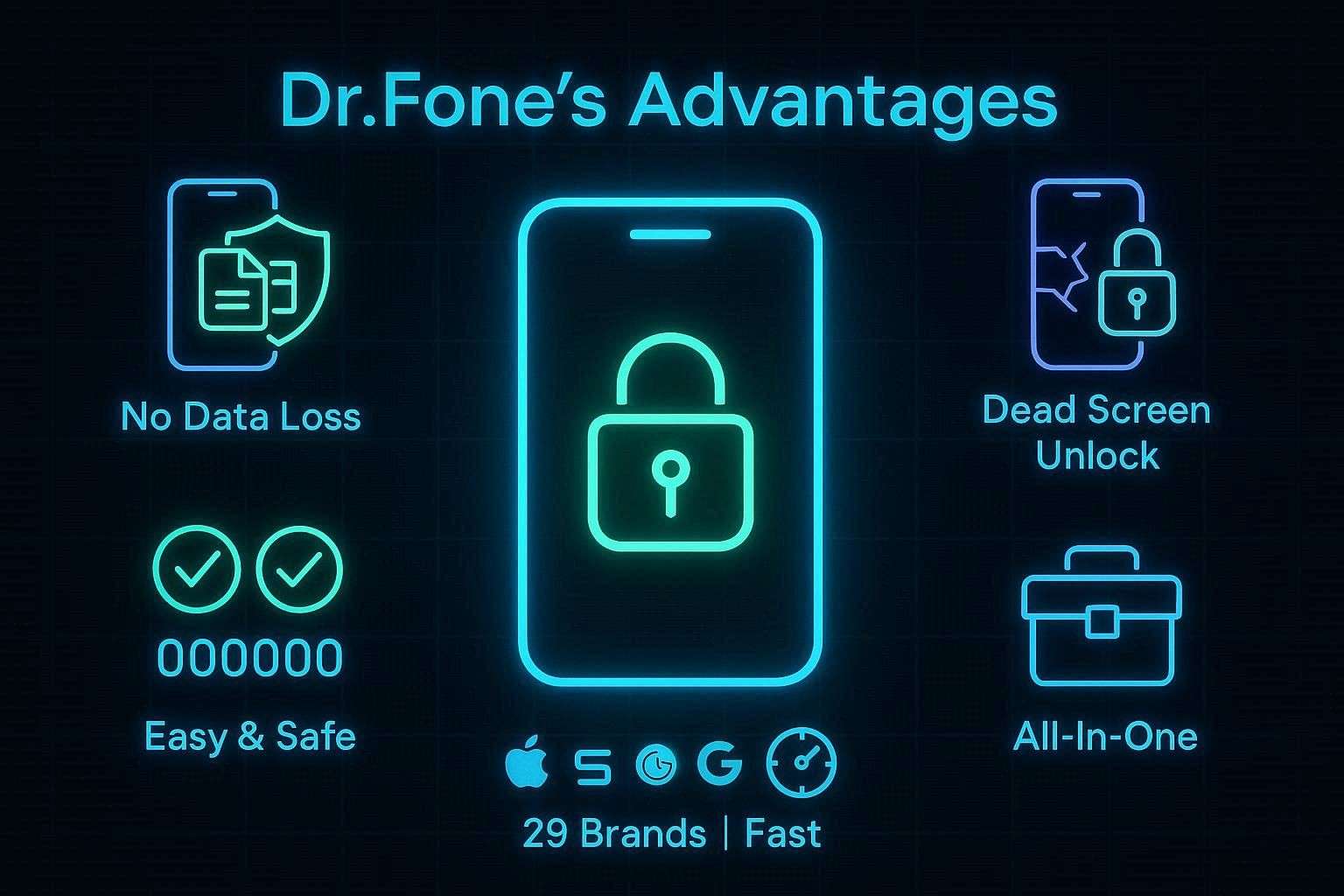
To bypass the Android screen lock without a password, Dr.Fone outshines UnlockGo, and the following real-life situations highlight how:
1. Unlocking Without Data Loss
If you use Samsung or LG devices, Dr.Fone can unlock many models without deleting existing data from the phone. This is especially useful when you have not created a backup and want to keep photos, chats, and important files safe.
2. Bypassing Unresponsive Screens (Most Devices)
Dr.Fone can help unlock most devices, even when the touchscreen is broken. In this regard, it automatically accesses “Special Mode,” and leverages automated driver installation to recognize the phone's model and brand.
3. Beginner-Friendly Unlocking
The tool provides a clear step-by-step wizard with simple instructions, warnings, and guided actions for users. Furthermore, it includes confirmation steps before critical actions and requests the “000000” code, reducing errors and making the process easier to follow.
4. Handling Complex Locks
Dr.Fone supports 29 Android brands and uses these factors to bypass all screen lock types in 5 minutes. Hence, it uses optimized methods to remove locks quickly and ensures success at 100%.
5. All-in-One Device Solution
Dr.Fone combines unlocking with features like data backup, system repair, and file transfer in one place. This makes it a long-term solution for users who want more than just a basic unlock tool.
Conclusion
In conclusion to the article above, we’re sorted with our search for the best Android screen unlock tool for 2026. In this guide, we compared the 2 most leading platforms, Dr.Fone and iToolab UnlockGo, covering their top capabilities for screen lock removal. According to our assessment, the UnlockGo user guide can be difficult for beginners but is well-suited to technical users.
On the other hand, Dr.Fone - Screen Unlock (Android) offers more user-friendly options, with a clean layout, clearly organized tabs, and precise instructions. Therefore, it is suggested that you choose Dr.Fone for Android screen unlock, as it provides a comprehensive list of supported (29) devices.
FAQ
-
1. Does Dr.Fone have a higher success rate than UnlockGo?
Indeed, Dr.Fone is reported to have a 100% success rate for screen lock removal, which is further accelerated by the special mode on Android devices. However, UnlockGo also performs well, but the results can vary depending on the device model and the Android version. -
2. Which tool is better for beginners: Dr.Fone or UnlockGo?
Even though both tools are user-friendly, according to sources, Dr.Fone offers a more guided interface with clear, step-by-step instructions. Plus, its user guide explains every step with clear guidance, making it slightly easier for beginners. Whereas UnlockGo is also simple but may require closer attention during certain steps. -
3. Do these tools require an internet connection during the unlocking process?
Yes, of course, both Dr.Fone and UnlockGo typically require an active internet connection to download unlocking modes. This is mainly because the tools need to download the necessary firmware packages and device-specific data to proceed with the unlock.
 Add Wondershare Dr.Fone as a preferred source on Google