Bypass iCloud Activation Lock and Android FRP without password.

 100% Security Verified | No Subscription Required | No Malware

 :
: 
 ChatGPT
 Perplexity
 Gemini
 Claude
 Grok
Grok
Getting locked out of your Android device is a massive headache, whether it’s a forgotten PIN/pattern or the dreaded FRP (Factory Reset Protection) lock after a reset. In 2026, security is tighter than ever, making DIY bypasses nearly impossible. That’s where professional software like AppGeeker Android Unlocker and Dr.Fone - Screen Unlock (Android) come in.
This review cuts through the marketing fluff to provide a “people-first” Android unlock tool comparison. We have put both tools through rigorous, real-world testing on the latest Samsung, Pixel, and Xiaomi models.
Our goal is to see whether Dr.Fone actually delivers on its promises without turning your phone into a paperweight.
In this article
- Part 1. AppGeeker (Android) — Android Unlock Review
- Part 2. Dr.Fone Android Unlock — Screen Lock and FRP Features
- Part 3. AppGeeker vs Dr.Fone: Feature‑by‑Feature Android Unlock Comparison
- Part 4. Real‑World Use: Ease of Use and Performance in Common Unlock Cases
- Part 5. Android Unlock Tool: Best Practices for Smooth Unlocking
Part 1. AppGeeker (Android) — Android Unlock Review
AppGeeker lets users bypass multiple screen lock types, including passcode, PIN, pattern, fingerprint, and facial recognition. This is particularly useful for second-hand phones or devices with broken screens, where touch input is impossible. Featuring an auto-detection engine, the tool automatically detects the brand model to apply the correct unlocking script.
Key Features
1. Supported Android Devices: For screen lock, this tool supports 17 major Android brands. This list can range from Samsung, Motorola, OPPO, VIVO, Xiaomi, Google, Realme, OnePlus, Huawei, LG, ASUS, Lenovo, HTC, POCO, Infinix, Sony, and Alcatel. On the contrary, it supports 8 FRP brands, including Samsung, Motorola, OPPO, Realme, OnePlus, VIVO, Xiaomi, and Huawei.
2. Supported Android Versions: From Android 7 to Android 16, it supports all Android versions. Thus, it is made to work with new Android phones and tablets, with frequent updates to support the latest models and software. One major pitfall was that AppGeeker hadn’t clearly specified the model versions, making it hectic to decide upon.
3. Workflow and Ease of Use: It is a Windows program that you need to install on your PC and use with a USB cable to unlock your Android phone. Thus, it has two main options: remove the screen lock or bypass the Google FRP lock, so you can choose what you need easily.
To use it, just follow a simple 3-step process for screen locks: Open the tool, select Remove Password, connect the phone, and click Remove. Hence, the tool gives clear steps with on-screen help and device tips, so even beginners can use it without technical skills.
4. Automation and Detection Features: It shows only the steps that match your phone model and lock type, so you do not see any extra or confusing options. Additionally, it automatically downloads the required firmware or files for unlocking, reducing manual effort and helping avoid errors.
So, it does not need ADB commands or flashing tools; it guides you step by step. If the phone is not detected, it displays simple instructions for USB debugging Mode. However, we noticed that the tool lacked a “No Data Loss” option, and the device list was quite limited.
5. US Model Support: Since the device list remains unclear, we can’t determine which US carrier version it supports. However, several source articles have reported that AppGeeker provides extensive support for US variants of popular Android devices, particularly Samsung, Motorola, and Google Pixel models.
Pros & Cons of AppGeeker
Now, understand the capabilities of the AppGeeker Android Unlock tool, and take a look at its perks and pitfalls:
- Simple wizard guides users with clear steps, no technical skills required.
- It detects the phone brand and Android version, then shows the correct steps.
- Automatically downloads the required firmware, so users avoid manual searching.
- It works only on Windows and has no Mac or phone version.
- Remove the screen lock by factory reset, which deletes all data.
- It supports many devices but may not work with the latest security updates.
- FRP tool helps, but success depends on the model, region, and Android version.
- There is no option to bypass the lock without data loss.
- Brand support is limited, and models are not specified.
- No support for the Wiko brand, even in future updates.
- Limited Samsung MTK and Qualcomm-based FRP unlock support.
- The free version is limited to device detection only.
- Users get 1 PC Android Unlock access in all plans.
- For complex locks, advanced tools or expert help may still be needed.
Guide to Use AppGeeker (Android) Remove Screen Password
Those who want to know how to use this Android screen lock removal tool, follow the given guide:
-
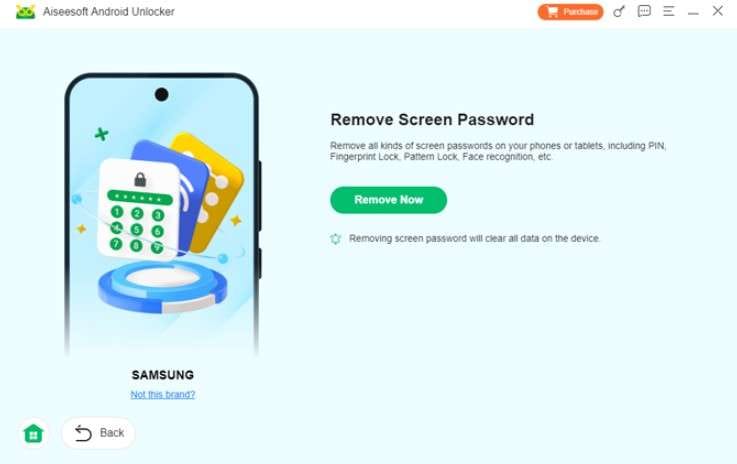
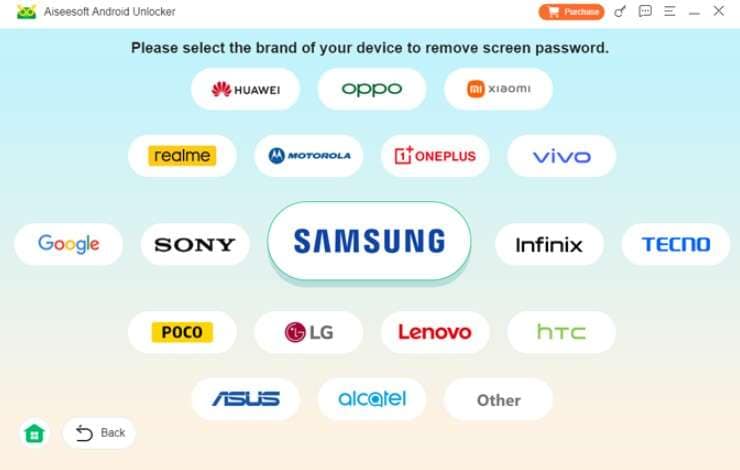
Step 1 Tap the “Remove Screen Password” tool on the main interface
Then choose the model from the list.
-
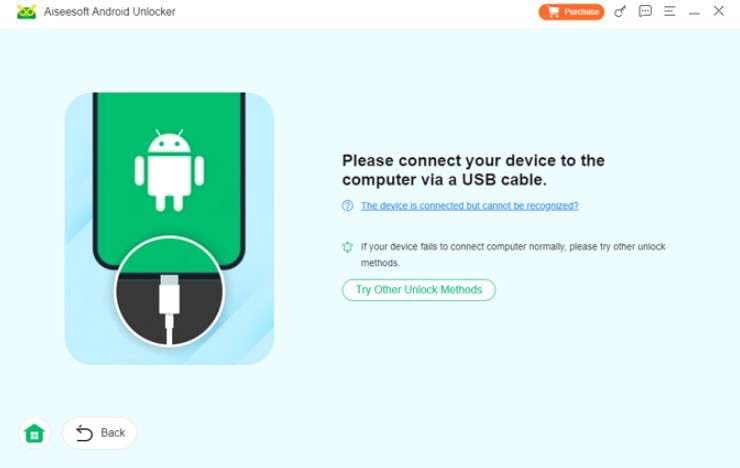
Step 2 Connect the device
Now, connect the device, or choose “The Device Is Connected But Cannot Be Recognized?” link to reconnect.
-
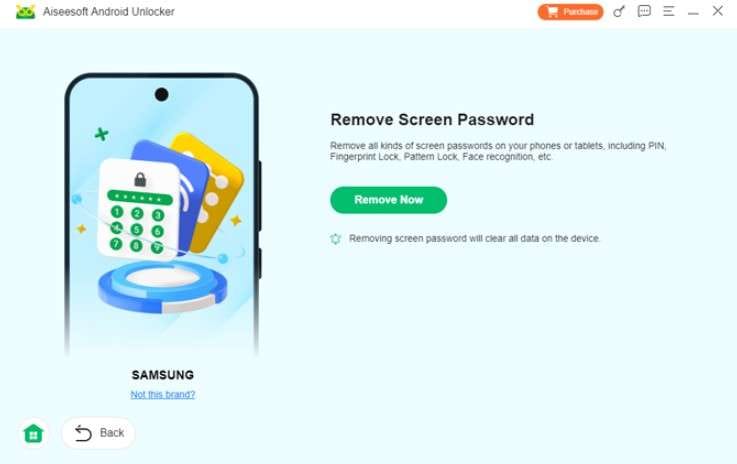
Step 3 Press the “Remove Now” button
After that, press the “Remove Now” button and wait for the tool to bypass the lock. This will remove all your data as there is no “Without Data Loss” option, so use this tool accordingly.
I tried the AppGeeker Android screen unlock tool, but my experience was not good. It did not work on my device, and the process felt slow and confusing. Even after following all the steps, my phone was not unlocked. I also faced USB connection issues, and sometimes the software did not detect my phone. The success rate felt low, especially on newer Android versions. Overall, I was disappointed with its performance and expected a more reliable tool. - Josh
Part 2. Dr.Fone Android Unlock — Screen Lock and FRP Features
As we continue our Android unlock tool review, Dr.Fone - Screen Unlock (Android) is another foremost name. This Wondershare tool allows users to bypass multiple Android screen locks, including Pattern, PIN, Password, Fingerprint & Face Lock. Unlike AppGeeker, where the brand support was unclear, Dr.Fone clearly displays the brand models in its UI. The procedure is guided, and even the claims on the success rate and bypassing time are clear.
Dr.Fone says the FRP bypass will have a 100% success rate on Samsung Snapdragon devices. In addition, both FRP and screen unlock will take 5 minutes, even on the modern versions and security patches. Unlike AppGeeker, users can also access the tool on Windows and Mac, and the requirements ensure the tool runs smoothly on all devices.
 Unlock Android phone in seconds.
- Remove PIN, pattern, password, fingerprint.
- Bypass Google FRP lock easily.
- Works on all Android brands & models.
- No tech skills required – user-friendly.

Key Features
1. Screen Unlock Support: With this unlocker, you can bypass screen locks on 29 brands, including Samsung, Huawei, Xiaomi, OPPO, Vivo, LG, OnePlus, etc. Additionally, it clearly states that they will have Wiko brand support and Samsung Android 12 in the future. This shows that the tools update weekly, prioritizing security patches and version improvements rather than remaining static.
2. Not Data Loss Option: The tools value users' data and enable them to choose the “Remove Without Data Loss” option for Samsung and LG devices. Featuring a separate tab, we noticed that the tool provides detailed notes on which methods will affect data integrity.
3. FRP Bypass Support: Compared to AppGeeker, users can bypass FRP from 12 major brands. Rather than being too simple or relying on USB debugging, Dr.Fone’s approach for FRP removal is AI-powered and one-click. Furthermore, it is reported to be the first solution to offer the FRP lock bypass on Samsung Android 16 versions.
4. Samsung FRP Support: Since we were unsure which sub-models AppGeeker further supports, Dr.Fone made this easier for us. This tool clearly states that it can bypass FRP on Android 16 and Samsung S26/S25 devices, including Samsung Snapdragon devices.
With all these facilities, another foremost aspect was online FRP removal, making it a one-stop choice. Regarding online usage, users can also remove carrier, SIM, and MI Account locks that AppGeeker lacks.
5. Chipset and US model Support: From MTK to Qualcomm and Exynos, Dr.Fone features multiple chipsets. Furthermore, it supports US-based Samsung and LG models without erasing your photos or files. This typically applies to models where the security can be bypassed at the system level.
Samsung supports many Galaxy S, Note, and Tab models, while LG supports devices like G2, G3, and G4. For the latest US flagships, such as the Galaxy S25 and S26, unlocking is supported but will result in data loss due to enhanced encryption on Android 15/16. Still, the tool automatically identifies the US model variant (e.g., SM-G991U for a US Galaxy S21) to ensure the correct firmware script is applied.
6. Workflow, Modes, and Ease of Use: Inside the tool, you can choose between screen unlock and FRP lock removal, with simple, guided steps tailored to your phone brand and Android version.
It provides clear, step-by-step instructions for entering modes such as Download or Recovery, with on-screen tips and progress bars, making it easy for beginners to follow. Before unlocking, it asks for a confirmation code to warn about potential data loss, helping prevent accidental mistakes and unwanted resets.
7. Automation and Technical Handling: We found that AppGeeker’s detection was basic and met only the need for easy bypassing. Whereas Dr.Fone catered to both simple and complex locks by detecting the model and Android version, installing the required drivers, and automatically starting the correct unlock process.
For Samsung screen unlock, it automatically downloads the required firmware or files, so you do not need to search for or install anything manually. Furthermore, on some Samsung Snapdragon phones, it uses special EDL methods to remove FRP, which can work on newer security versions.
8. Pricing Coverage: The free version is essentially a diagnostic tool to ensure your phone is compatible before you pay. You can see the full process and exact buttons needed for Download or Recovery Mode. Upon evaluation and purchase, you can leverage the lock-bypassing facility on 1-5 devices and 2 PCs.
Pros & Cons of Dr.Fone Android Unlock
If you want to know whether it's the ideal Android unlock tool, here are some of its pros and cons:
- Supports some Samsung and LG models with no data loss.
- Removes PIN, password, pattern, and fingerprint, and supports FRP unlock.
- Offer support for multiple brands' screens and FRP locks.
- Comes with weekly updates and security patches.
- Expected to offer Wiko-brand and Samsung Android 12 support.
- Supports multiple US versions and Chipsets, MTK, Qualcomm, and Exynos.
- Offers one-click Samsung FRP solutions, supports newer models and chipsets.
- Works on Windows and Mac, and includes tools beyond unlocking in one package.
- The official version is safe and malware-free, unlike risky cracked versions.
- The no data loss feature works only on a few devices, Samsung and LG.
- Most cases require a full reset, which erases all data.
Simple Guide to Use Dr.Fone Android Unlock on Most Versions
To test the usage of Dr.Fone Android Unlock tool, we have given a simplified guide ahead:
-
Step 1 Choose the Android Screen Unlock Tool on Dr.Fone
Access the Screen Unlock Android tool from the “Toolbox” tab and tap the “Unlock Android Screen” option.

-
Step 2 Access Special Mode and Unlock Device in 5 Minutes
Choose the Android models from the list, and the tool will automatically fetch the device into special mode to unlock it. Within 5 minutes, as it's done, select the “Done” button to see if the screen lock is bypassed.
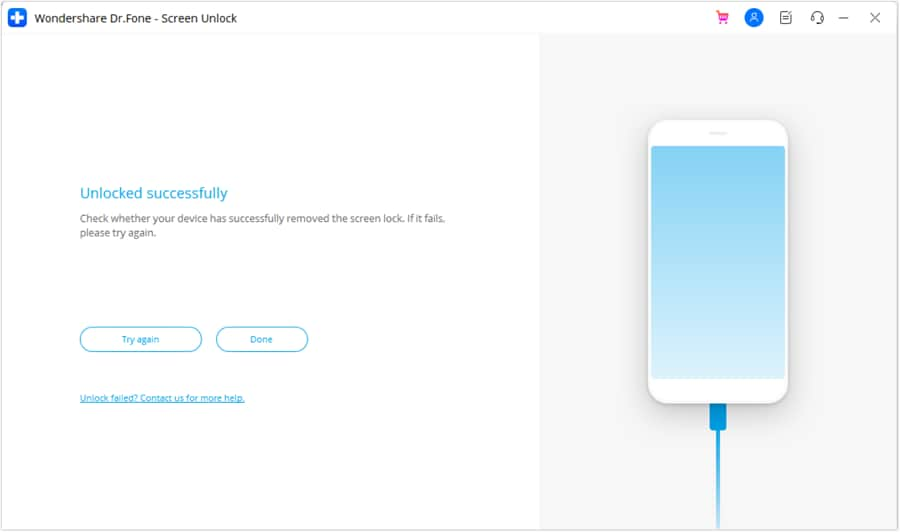
Yeah, it took time, and I needed an EDL cable for my S22 Ultra, but it did remove the Google FRP lock. - jaxon




Part 3. AppGeeker vs Dr.Fone: Feature‑by‑Feature Android Unlock Comparison
To help you decide on AppGeeker vs Dr.Fone, we have compiled a comprehensive comparison table below:
| Metric / Aspect | AppGeeker Android Unlocker | Dr.Fone – Screen Unlock (Android) |
|---|---|---|
| Supported Lock Types | PIN, pattern, password, some biometrics | PIN, pattern, password, fingerprint, face + FRP |
| SIM, Carrier, MI Account lock (Online) | ||
| FRP Focus | Standard FRP flows, limited brand/method depth. 8 brands | Multiple Samsung/non‑Samsung FRP methods, more scenarios. 12 brands |
| Brand Coverage | 17 Major brands, fewer niche/region‑specific models | 29 Major brands + many niche and carrier variants. MTK, Qualcomm, and Exynos. Wiko brand support is expected in the future. |
| Android Version Coverage | Broad, but less explicit on the newest releases. Android 7-16 | Clearly documented support for old + latest Android versions. First to offer Android 16 Samsung FRP bypass. Android 12 support expected. |
| No‑data‑loss Modes | Mostly factory‑reset based (data loss common) | Special no‑data‑loss modes on selected Samsung/LG models |
| Success Rate (Practical) | Good on common, older scenarios | 100% claimed. Higher and more consistent on modern devices and FRP cases |
| Update Frequency | Periodic updates | Frequent/weekly‑style updates for new devices & patches |
| PC Support | Windows only | Windows and macOS |
| Ease Of Use (UI & Guides) | Simple UI, basic wizards | Polished UI, more detailed, brand‑specific guides |
| Automation Level | Some automatic detection, more manual steps in tricky cases | More automation (mode selection, package download, flows) |
| Trial/Testing Options | Limited free trial, mostly interface/scan | 7-day time-limited trial and clear previews for compatibility |
| Pricing Flexibility | Simple plans, fewer bundle options | Multiple plans, bundles, and cross‑module value |
| Best For | Users needing straightforward, budget‑friendly unlocks | Users and shops wanting higher success, better FRP + extra tools |
| Overall Effectiveness In 2026 | Solid for basic use | Best choice for most Android unlocks and FRP needs |
Part 4. Real‑World Use: Ease of Use and Performance in Common Unlock Cases
In this Android unlock tool review, we have gathered details from user reviews. Thus, this section will help you know how these unlocking solutions have helped users and which one is worth considering:
AppGeeker Android Unlock Reviews
Get to know the positive and negative feedback for AppGeeker here:
Positive Comment (John Miller)
I used AppGeeker Android Unlock Tool, and it worked fine on my phone. The steps were simple, and I unlocked my device without much trouble.
Negative Comment (David Smith)
I tried AppGeeker, but it failed on my device. The tool was slow, and my phone was not detected properly during the process.
Dr.Fone Android Unlock Reviews
Since we think that the tool outperforms AppGeeker, review the user’s feedback and decide for yourself:
Positive Comment (Wan)
Dr.Fone was easy to use, and I recommend it for unlocking phones or recovering lost data. I forgot my iPad PIN after not using it for years, but Dr.Fone helped me unlock it and fix the issue in less than 10 minutes.
Negative Comment (Georg Paul)
I was able to unlock my phone after many tries, and the app let me keep going until it worked.
Android Unlock Tool Pricing and Value: Which Option Is Worth It?
Since cost is another aspect to decide the best tool, in this Android unlock tool review, follow the table mentioned below:
| Metric / Aspect | AppGeeker Android Unlocker | Dr.Fone – Screen Unlock (Android) |
|---|---|---|
| Main License Type | Single‑module desktop unlock tool | Part of a broader phone toolkit (unlock + repair + utilities) |
| Devices Per License | Usually 1–3 devices per PC (entry plans) | 1–5 devices and up to 2 PCs on common plans |
| Typical Short‑term Cost (Monthly) | Not available. | $29.95. Slightly higher, but covers more features and platforms |
| Long‑term Cost (Annual/Lifetime) | ● Standard: $39.95 ● Pro/Lifetime: $49.95 |
● Annual Plan: $39.95 ● Perpetual Plan: $49.95 |
| Best Suited For | Budget users with a few standard devices | Users and shops requiring reliability across many devices |
Based on pricing and usage, we would say that if you want to unlock multiple phones and devices, Dr.Fone is the best option. It also supports brands for screen and FRP lock better than AppGeeker, and users can get faster updates and extra toolkit modules.
Part 5. Android Unlock Tool: Best Practices for Smooth Unlocking
Not just the price, but in all aspects, we have evaluated that Dr.Fone is the finest option in this Android unlock tool review. The first reason is the automated screen unlock and AI-powered FRP unlock of multiple, properly mentioned brands. Unlike AppGeeker, this factor suits the needs of both professionals and beginners, not just novices.
Additionally, there is a proper “No Data Loss” option and future updates, making it a well-growing solution for the upcoming years. So, if you decide upon Dr.Fone, here are some best practices we have mentioned for safe and legal usage of Android unlock tool 2026:
-
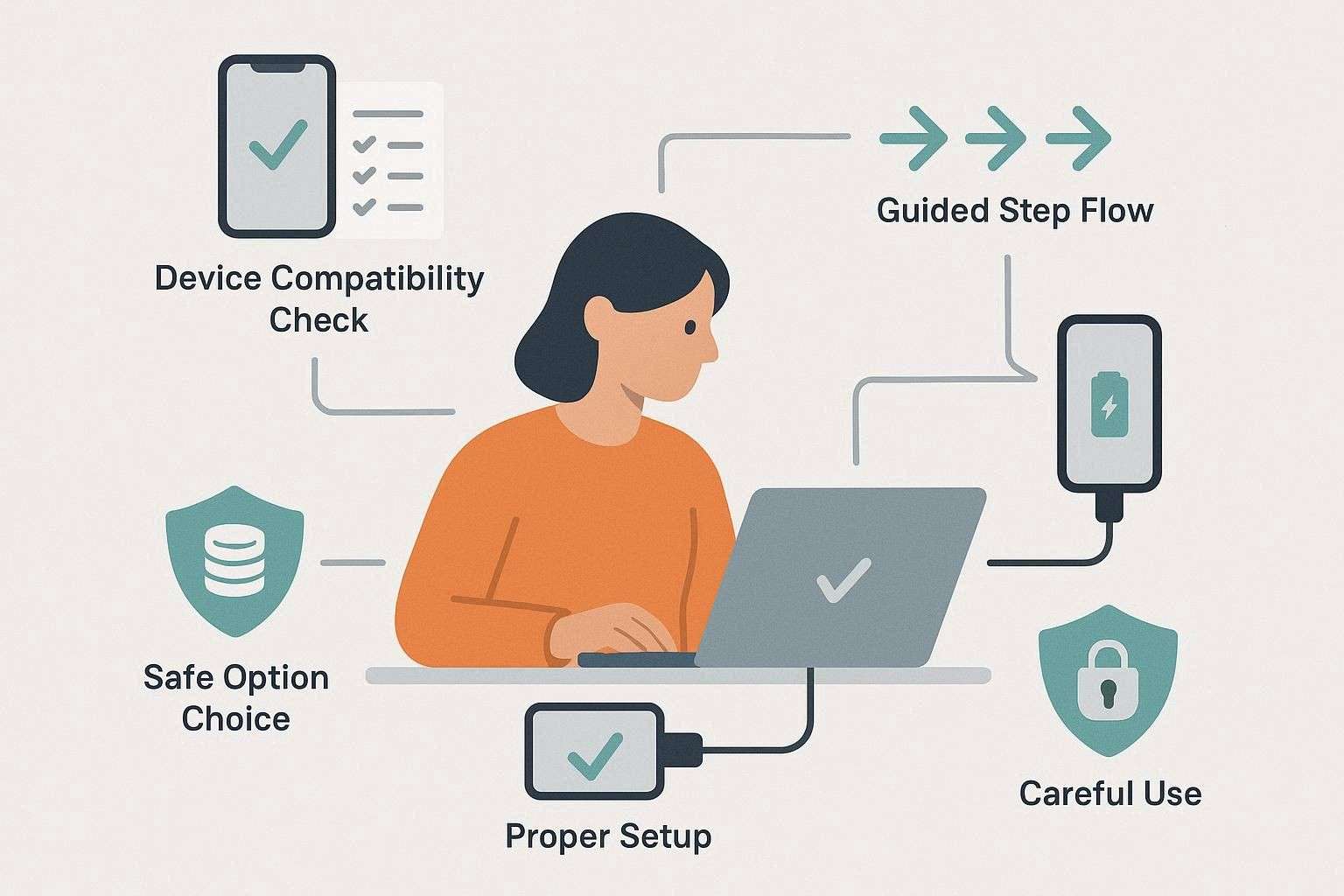
Step 1 Check Device Match
First, locate the tool's device list on its main UI for your exact model, brand, and Android version before you start. In this case, Dr.Fone, as compared to AppGeeker, lists them on the main interface and displays them in the bottom slideshow. This helps you decide if it's right for the screen and FRP lock.
-
Step 2 Set Up Phone and PC
Use a stable PC with a reliable USB cable and maintain a direct connection. Furthermore, charge the phone to at least 50% before starting. Additionally, save your data if possible, as most tools will erase data except for some Samsung or LG models.
-
Step 3 Follow Steps Exactly
Let Dr.Fone detect your phone, then follow each step to enter Download or Recovery mode without making any mistakes. Whereas to bypass most Android versions, the tool will automatically fetch the “Special” mode to save the hassle of doing it manually. Moreover, do not remove the cable or close the app, because any break can cause failure or even damage the system.
-
Step 4 Pick a Safe Method
If you use Samsung or LG, choose the no-data-loss option first, as it keeps files safe and works fast. Otherwise, accept a full reset for other brands and do not mix tools, as conflicts can cause serious phone issues.
-
Step 5 Use the Tool Carefully
Only unlock your own phone, or do so with permission, since unauthorized access can violate rules and lead to legal trouble. After the process, check the phone setup, sign in to your account, and set a new lock to confirm complete success.
Conclusion
We all know that the right Android unlock tool is the need of the time in this era. Therefore, this guide has compared 2 frequently searched options, Dr.Fone and AppGeeker, with details on key features, usage, and user reviews.
Based on our in-depth evaluation, we have recommended Dr.Fone - Screen Unlock (Android) for its extensive brand support, device details, and lock-bypassing solutions for technical and professional use on 2 PCs. However, always verify your device compatibility and local rules before use, and only unlock devices you own or have clear permission to access.
Frequently Asked Questions
-
1. Can AppGeeker or Dr.Fone unlock my phone without erasing data?
Samsung and LG models can be unlocked with Dr.Fone’s “Remove Without Data Loss” option. However, other devices and all FRP scenarios still require a factory‑reset style wipe. As for the AppGeeker, there is no such option, and it is factory-rest-based. So, if you need security for specific Samsung and LG models, Dr.Fone surely helps here. -
2. Which is easier for beginners: AppGeeker or Dr.Fone?
It's true that AppGeeker comes with an intuitive interface and offers basic unlocking options, which are comfortable for absolute beginners. However, the tool lacks automated steps and proper data loss alerts, which makes it slightly unsafe. So, here, Dr.Fone can be the reliable choice, as the steps are guided, have a high success rate, bypass the lock within 5 minutes, and include proper safety prompts. -
3. Which option is a better value for money in 2026?
If you want to unlock one or two ordinary phones at a low cost, AppGeeker is a good budget choice. However, at the same price, if you have the option to unlock 1-5 devices and 2 PCs with free updates and major-brand support, we think Dr.Fone is a suitable option here. Through this tool, you can also achieve better success across more devices, plus additional repair tools and flexible limits.
 Add Wondershare Dr.Fone as a preferred source on Google