How to Resolve iOS 27 Mail Notifications Not Working

Oct 16, 2026 • Filed to: Phone Repair Solutions • Proven solutions
 TL;DR:
To resolve iOS 27 Mail and Gmail notifications not working, immediately disable any active Focus mode, enable per-mailbox alert settings, and assign a frequent Fetch interval for accounts lacking Push support.
● Gmail and standard IMAP accounts added to the native Mail app lack Push protocol support and require a fixed Fetch schedule, such as every 15 minutes, to retrieve messages and trigger background alerts.
● If notifications persistently fail for a single provider, deleting and re-adding the account clears cached states and resolves OAuth authentication tokens that often become invalidated during the iOS 27 upgrade.
● Notification failures caused by corrupted system daemons or incomplete iOS 27 beta installations require an iOS update, an iTunes restore, or Dr.Fone - System Repair (iOS) to reinstall firmware components without erasing personal data.
Ask AI for a summary
 ChatGPT
 Perplexity
 Gemini
 Claude
 Grok
Grok
If you've recently updated your device and found that iOS 27 mail notifications are not working, you're far from alone. Thousands of iPhone users have reported that email alerts from the native Mail app and Gmail suddenly stop appearing after an update. Missing a critical email because your phone stayed silent is more than an inconvenience; it can disrupt your work, personal communications, and daily routine.
The good news is that iOS 27 mail notification issues are almost always fixable with the right approach. This guide explains exactly why email and Gmail notifications stop working on iPhone in iOS 27, then walks you through 8 targeted solutions — from a one-tap Focus Mode toggle to a deep firmware-level repair — so you can find the fix that works for your specific situation and restore your email alerts without losing any data.
- Part 1. Why Are My Mail Notifications Not Working on iOS 27?
- Part 2. How to Fix iOS 27 Mail Notification Issues
- Fix 1: Disable Do Not Disturb / Focus Mode
- Fix 2: Enable Mail Notifications and Sounds
- Fix 3: Check Mail Fetch/Push Settings
- Fix 4: Make Sure iPhone isn't on Silent
- Fix 5: Restart Your iPhone
- Fix 6: Reset All Settings
- Fix 7: Delete and Re-Add Your Email Account
- Fix 8: Update or Restore iOS

- Part 3. Dr.Fone - System Repair (iOS): A Reliable Fix for iOS Glitches
Part 1. Why Are My Mail Notifications Not Working on iOS 27?
Before jumping into fixes, it's important to understand what's actually causing your iOS 27 mail notifications to stop working. The root cause determines the most efficient solution. In iOS 27, notification failures for Mail and Gmail typically fall into one of several categories — ranging from a simple silenced switch to a deeper firmware bug introduced by an incomplete update. Here are the most common reasons, along with what each one means for your device.
Do Not Disturb / Focus Mode: This is the single most common reason iPhone email notifications stop working after an iOS 27 27update. When any Focus mode (including Personal, Work, Sleep, or a custom profile) is active, it silences incoming alerts from apps that haven't been explicitly allowed — and Mail is often excluded by default. After updating to iOS 27, some users find that a Focus schedule has been automatically re-enabled, which blocks all Mail and Gmail alerts without any visible warning on the lock screen.
Mail Notification Settings Turned Off: iOS 27 may reset or alter per-app notification permissions during a system update. If "Allow Notifications" for Mail has been toggled off — or if the alert style has been set to "None" — you will receive no banners, lock screen previews, or badge counts for incoming emails. This issue affects both the native Mail app and Gmail accounts added through Mail, since each mailbox can have its own individual notification toggle within the Customize Notifications submenu.
Fetch/Push Mail Configuration: iOS 27 supports both Push (real-time delivery) and Fetch (periodic polling) for email accounts. iCloud and Exchange accounts support true Push notifications, meaning new emails arrive instantly. Gmail, Yahoo, and most IMAP accounts added to the native Mail app, however, rely on Fetch — and if your Fetch schedule is set to "Manually" or "Automatically" with a long interval, new emails may not be retrieved promptly enough to trigger an alert. This is one of the most overlooked causes of iOS 27 Gmail notifications not working on iPhone.
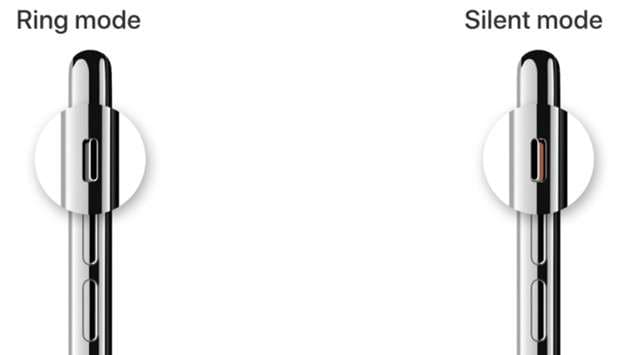
Silent Switch or Low System Volume: The physical Ring/Silent switch on the side of your iPhone mutes all notification sounds system-wide, regardless of your in-app volume settings. If this switch is toggled to silent (showing an orange line), no email alert tone will play — even if all notification settings are correctly configured. Similarly, if your ringer volume has been turned all the way down via the volume buttons, email sounds will be inaudible even though visual banners may still appear.
Background App Refresh Disabled: For email notifications to arrive in real time, iOS must allow Mail to run processes in the background. If Background App Refresh is turned off — either globally or specifically for Mail — the app cannot check for new messages or trigger alerts while you're using another app or the screen is off. This setting is often disabled automatically to preserve battery life, but it directly impacts notification reliability for all email accounts, including Gmail.
Software Bugs or Incomplete iOS 27 Installation: iOS 27 — particularly its early beta builds — has been reported to contain glitches that affect the notification delivery pipeline for Mail and third-party email clients. An interrupted or corrupted update installation can leave system daemons in an inconsistent state, causing notifications to fail silently even when all settings appear correct. In these cases, a software update patch or a firmware-level repair using a dedicated tool is the most reliable resolution path.
Part 2. How to Fix iOS 27 Mail Notification Issues
The following eight solutions address every major cause of iOS 27 mail and Gmail notifications not working on iPhone. They are arranged from the quickest and least invasive to the most comprehensive. We recommend working through them in order — most users find a resolution by Fix 3 or Fix 5. If you're dealing with a deeper system-level issue, Fix 8 and the Dr.Fone method in Part 3 will cover you without any data loss.
Fix 1: Disable Do Not Disturb / Focus Mode
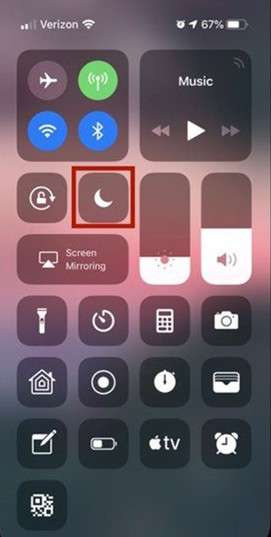
Disabling Focus Mode is the fastest way to restore Mail and Gmail notifications on iOS 27 — and it's often the only step needed. When any Focus profile is active on your iPhone, it acts as a system-wide filter that prevents non-whitelisted apps from sending alerts. Since Mail is not included in any default Focus allowlist, your email notifications are silenced the moment a Focus mode activates — including on a schedule you may have set weeks ago and forgotten about. This applies to all email accounts in the native Mail app, including iCloud, Gmail, Outlook, and Yahoo.
Instructions: Swipe down from the top-right corner of your iPhone screen to open Control Center. Look for a highlighted crescent moon icon (Do Not Disturb) or a labeled Focus icon. If either is active (glowing or colored), tap it once to turn it off. Alternatively, go to Settings > Focus and verify that no Focus profile is scheduled or linked to a location that might re-enable silently. After disabling Focus, send yourself a test email to confirm that notifications are now appearing.
Fix 2: Enable Mail Notifications and Sounds
If Focus Mode is off but email alerts still aren't appearing, your Mail notification settings may have been reset or misconfigured by the iOS 27 update. iOS 27 can silently change per-app notification permissions during installation, and the Mail app has a two-level notification system — a top-level toggle plus per-mailbox controls — that must both be correctly configured. This fix also addresses iOS 27 Gmail notifications not working for Gmail accounts added to the native Mail app, since each Gmail mailbox requires its own notification setting.
Step 1: Go to Settings > Notifications > Mail. Toggle "Allow Notifications" on if it is currently disabled. Under the Alerts section, make sure at least one delivery style is enabled — select Lock Screen, Notification Center, and Banners for the most visible notification experience.
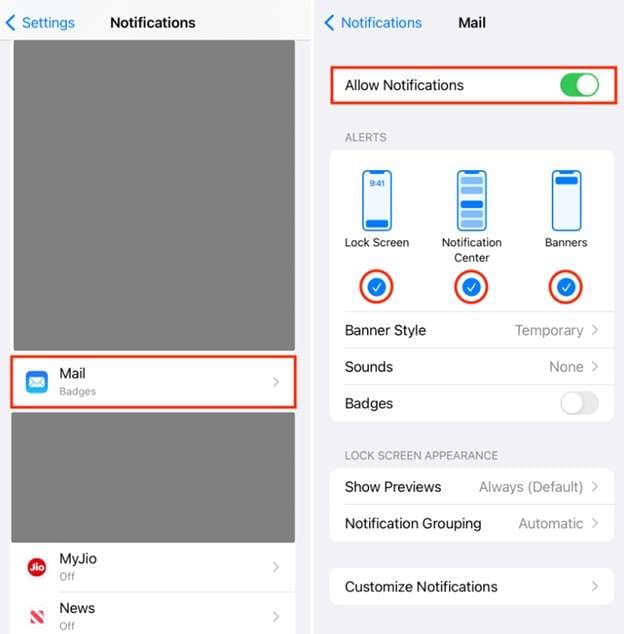
Step 2: Tap "Sounds" and select a default notification tone — make sure it is not set to "None." Then, tap "Customize Notifications" to reveal per-mailbox settings. Scroll through each mailbox (Inbox, VIP, Threads, and any custom folders) and confirm that Alerts or Badge is enabled for the mailboxes you want to monitor. For Gmail accounts in the native Mail app, locate the Gmail mailbox within Customize Notifications and confirm it is set to receive alerts. If you use the standalone Gmail app, also check Settings > Notifications > Gmail and ensure Allow Notifications is enabled there separately.
Fix 3: Check Mail Fetch/Push Settings
If your email accounts are configured to check for new messages infrequently — or only when you manually open the app — you may experience significant delays in receiving notifications, or miss them entirely. This is a particularly common cause of Gmail notifications not working on iPhone with iOS 27, since Gmail accounts added to the native Mail app do not support Apple's Push protocol and instead rely on the Fetch schedule you configure. Setting a short, consistent fetch interval ensures that the Mail app retrieves new messages frequently enough for timely alerts.
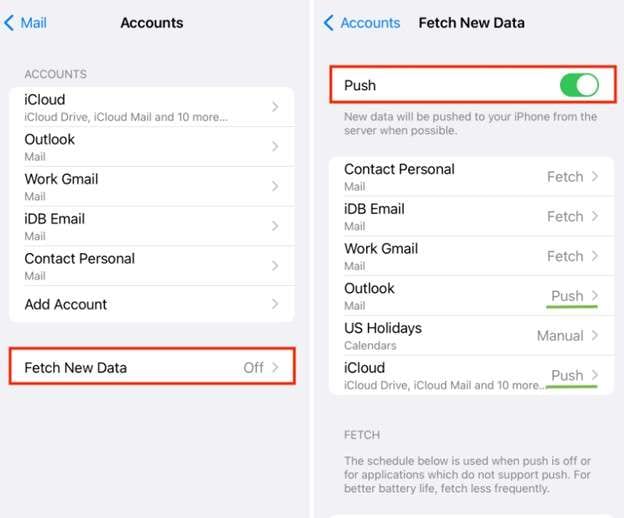
Instructions: Go to Settings > Mail > Accounts > Fetch New Data. At the top, toggle "Push" on. For each account in the list, check its individual setting. For iCloud and Exchange accounts, select "Push" to enable real-time delivery. For Gmail, Yahoo, or standard IMAP accounts (which do not support Push in the native Mail app), select a fixed fetch interval such as "Every 15 Minutes" — do not leave it set to "Automatically" or "Manually," as these options result in infrequent or no background checks. At the bottom of the screen, also confirm the global Fetch schedule matches your preference.
Fix 4: Make Sure iPhone isn't on Silent
Even with perfectly configured notification settings, you will never hear an email alert if your iPhone's Ring/Silent switch is toggled to silent or your ringer volume is set to zero. Silent mode physically disables all notification sounds at the hardware level — meaning no email tone, no haptic buzz for sounds, and in some configurations, no audio cues from any app. This is easy to overlook, especially if another person handled your phone or the switch was accidentally toggled in a pocket or bag. Note that this fix addresses the sound component of notifications; visual banners will still appear on screen even in silent mode, so if you're seeing banners but hearing nothing, this is likely the cause.
Instructions: Locate the Ring/Silent switch on the left side of your iPhone, just above the volume buttons. If you can see an orange stripe along the edge of the switch, your phone is in silent mode — flip it upward (toward the screen) to re-enable the ringer. Next, press the Volume Up button several times to raise the ringer volume. You should see a notification volume indicator on screen confirm the increase. To verify, go to Settings > Sounds & Haptics and ensure the Ringer and Alerts slider is not at the far left, and that "Change with Buttons" is toggled on.
Fix 5: Restart Your iPhone
A standard restart clears temporary memory, resets background service states, and forces all notification daemons to reinitialize — which often resolves email notification failures that persist despite correct settings. After updating to iOS 27, background processes related to notification delivery can sometimes enter an unresponsive state without triggering any visible error. A clean restart is the most reliable way to reset these services without altering any of your data or settings. This fix is especially effective when your notification settings are all correctly configured but alerts are still intermittently failing or not appearing at all.
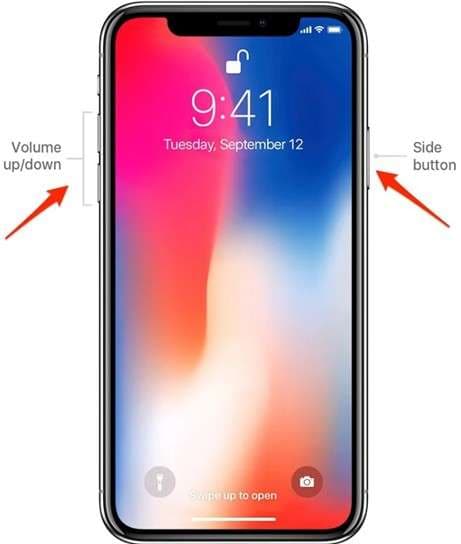
Step 1: Press and hold the Side button and either the Volume Up or Volume Down button simultaneously until the power-off slider appears. Drag the "Slide to power off" slider to the right and wait approximately 10–15 seconds for the device to shut down completely.
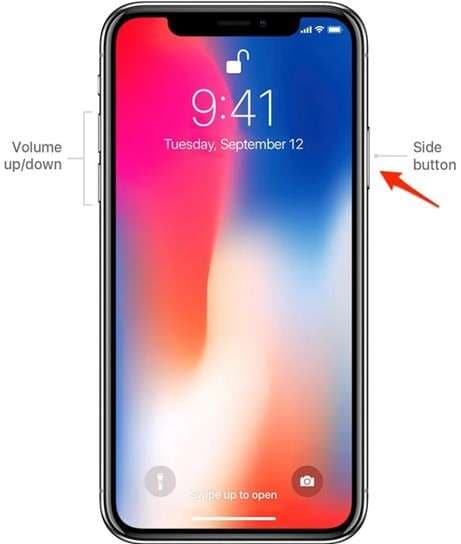
Step 2: Press and hold the Side button until the Apple logo appears, then release. Allow your iPhone to fully boot — this typically takes 30 to 60 seconds. Once the home screen loads, open Settings > Mail > Accounts briefly to prompt the Mail app to reconnect to its servers, then send yourself a test email to verify that notifications are now working.
Fix 6: Reset All Settings
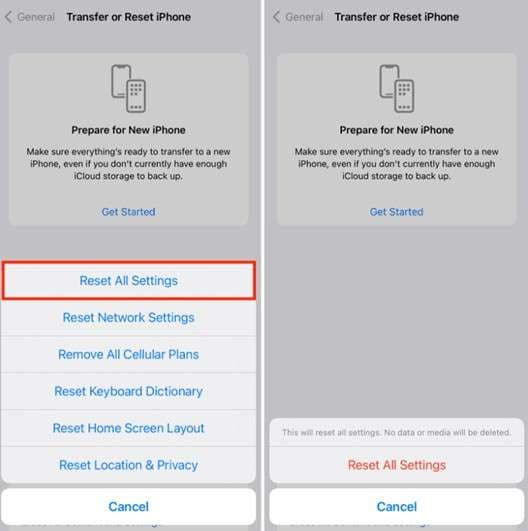
If the previous fixes have not restored your email notifications, a full settings reset can resolve persistent, hard-to-identify configuration conflicts that are blocking Mail alerts in iOS 27. Over time — and particularly after a major iOS version update — notification preferences, Focus schedules, and system-level permissions can become inconsistent in ways that are invisible to the user. Resetting All Settings restores every system configuration to its factory default state, which clears all such conflicts, while crucially leaving all of your personal data (photos, messages, apps, and app data) completely intact. After the reset, you will need to reconfigure Wi-Fi passwords, notification preferences, and wallpaper, but your core data is safe.
Instructions: Go to Settings > General > Transfer or Reset iPhone > Reset > Reset All Settings. Enter your passcode if prompted, then tap "Reset All Settings" to confirm. Your iPhone will restart automatically. After the reboot, go to Settings > Notifications > Mail and re-enable Mail notifications, then check whether your email alerts are now working.
Fix 7: Delete and Re-Add Your Email Account
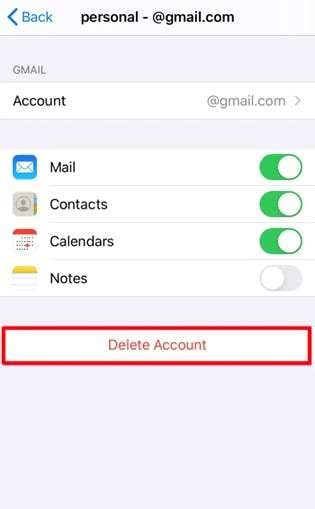
If notifications are failing for a specific email account — such as Gmail or an Exchange account — rather than all mailboxes, the account's internal authentication tokens or sync state may have become corrupted. This commonly happens after an iOS upgrade when the stored credentials for an email provider are no longer valid or when the account's push subscription has expired. Removing the account and re-adding it forces a fresh authentication handshake and resets the notification registration for that account. This fix is particularly effective for resolving iOS 27 Gmail notifications not working in the native Mail app, as Gmail's OAuth token can sometimes become invalidated during a system update.
Step 1: Navigate to Settings > Mail > Accounts and tap the email account that is not sending notifications (e.g., your Gmail, Outlook, or iCloud account). On the account detail screen, scroll down and tap "Delete Account," then confirm the deletion. Note: deleting the account from Mail does not delete the emails from the server; it only removes the local sync configuration.
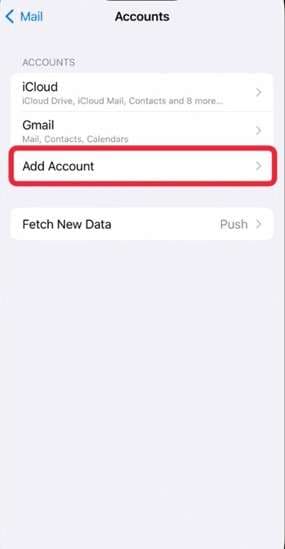
Step 2: Restart your iPhone to clear the account's cached state. Then go to Settings > Mail > Accounts > Add Account and select your email provider (Google for Gmail, Microsoft for Outlook/Exchange, or "Other" for IMAP/POP). Re-enter your credentials and complete any two-factor authentication steps. Once the account is re-added, go to Settings > Notifications > Mail > Customize Notifications and confirm that the re-added mailbox has alerts enabled. Send yourself a test email to verify the fix.
Fix 8: Update or Restore iOS
When all other fixes fail, the root cause is almost certainly a firmware-level bug in your current iOS 27 installation — and the only definitive solution is to update to the latest iOS 27 patch or perform a full restore. Apple regularly releases incremental updates to address known bugs in iOS 27, including issues that affect the notification delivery system for Mail and Gmail. If you are on an early iOS 27 beta or a release that has a known notification bug, updating to the current stable build is the most targeted fix available. For cases where the installation itself is corrupted — which can occur when an OTA update is interrupted — a full restore via iTunes or Finder reinstalls the entire iOS system cleanly.
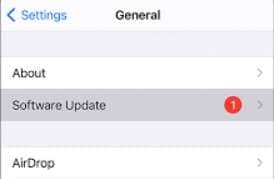
Instructions: Go to Settings > General > Software Update. If a newer version of iOS 27 is available, tap "Update Now" and follow the prompts to download and install it. Ensure your iPhone has at least 50% battery (or is connected to power) and a stable Wi-Fi connection before proceeding. If an update is not available but the issue persists, consider performing an iTunes/Finder restore: back up your iPhone to iCloud or your computer first, then connect to iTunes (Windows) or Finder (macOS Catalina and later), select your device, and click "Restore iPhone" to perform a clean iOS reinstall. After the restore completes, restore your backup and re-check Mail notification settings.
If the standard iOS update or restore does not fully resolve the iOS 27 mail notification not working problem — particularly if you encounter errors during the restore process or if notifications fail again after reinstallation — proceed to Part 3 for a deeper, data-safe firmware repair approach using Dr.Fone - System Repair. You may also want to review common iPhone notification issues for additional context on persistent notification failures across iOS versions.
Part 3. Dr.Fone - System Repair (iOS): A Reliable Fix for iOS Glitches
If you've worked through all eight fixes above and your iPhone mail notifications are still not working on iOS 27, the problem almost certainly lies below the settings layer — in corrupted system frameworks, damaged notification daemons, or an incomplete iOS installation that standard troubleshooting cannot reach. This is where a specialized repair tool becomes essential. Dr.Fone - System Repair (iOS) is a desktop application designed to repair over 150 common iOS issues — including persistent notification failures — by reinstalling the device's firmware at a component level, without erasing any of your personal data.
Unlike a full iTunes restore (which wipes the device), Dr.Fone's Standard Repair mode targets only the corrupted system components and replaces them with a verified, matching iOS firmware package. This makes it the safest and most precise option for resolving iOS 27 email notification issues caused by deep software faults — whether you're on a public release or an iOS 27 beta build. It works on all iPhone models, supports both Windows and Mac, and the entire repair process takes under 15 minutes in most cases.
Key Features of Dr.Fone - System Repair (iOS)
- Resolves 150+ iOS issues including notification failures, app crashes, freezes, and boot loops — without data loss.
- Standard Repair mode fixes system glitches while preserving all personal data, photos, messages, and app settings.
- Deep Repair mode performs a more thorough firmware reinstall for severe corruption cases where Standard Repair is insufficient.
- Automatically identifies and fetches the correct, verified iOS firmware package for your specific device model and iOS version.
- Fully compatible with all iOS 27 builds — including beta releases — and works on all iPhone, iPad, and iPod Touch models.

Dr.Fone - System Repair (iOS)
Repair iOS System Errors Without Data Loss.
- Only fix your iOS to normal, no data loss at all.
- Fix various iOS system issues stuck in recovery mode, white Apple logo, black screen, looping on start, etc.
- Upgrade and Downgrade iOS without iTunes at all.
- Work for all iPhone/iPad/iPod Touch, running on all iOS versions.


Instructions to Repair Your iPhone Using Dr.Fone - System Repair
Step 1: Install and Launch Dr.Fone
Download Dr.Fone - System Repair (iOS) from Wondershare's official website and install it on your Windows PC or Mac. Open the program and select "System Repair" from the main Toolbox screen to get started.

Step 2: Connect Your Device
Use an Apple-certified Lightning or USB-C cable to connect your iPhone to your computer. When the connection is detected, click "iOS Repair" from the left panel. Select "Standard Repair" to fix the iOS 27 mail notification issue without erasing any personal data. If Standard Repair does not resolve the issue, you can subsequently try Deep Repair for a more thorough firmware reinstallation.

Step 3: Download Firmware
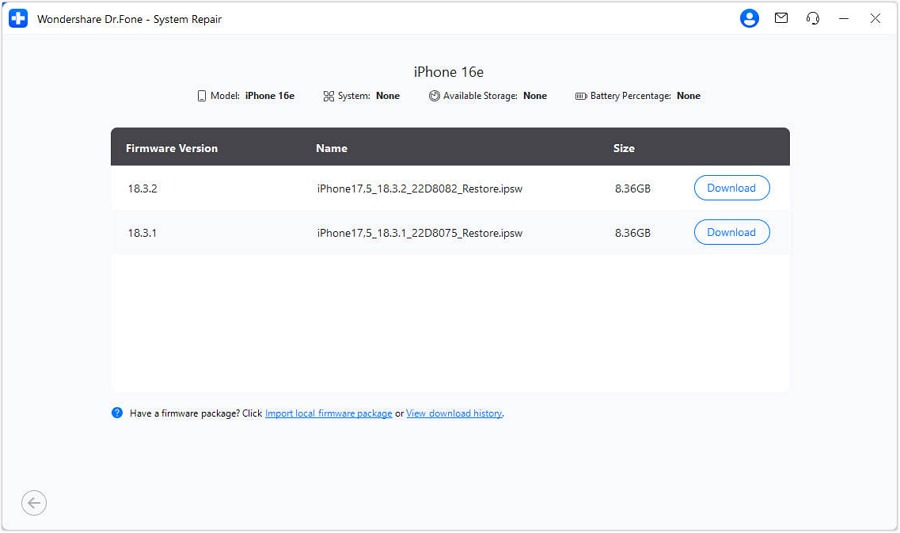
Dr.Fone will automatically detect your iPhone model, current iOS version, and region to identify the correct firmware package. Click "Download" to begin fetching the firmware. Download time depends on your internet speed and firmware size — progress is shown in real time within the app. Do not disconnect your iPhone during this step.
Step 4: Start Repair
Once the firmware download and verification are complete, click "Repair Now" to begin the repair process. Dr.Fone will reinstall the verified iOS system components and correct the underlying firmware bugs that are preventing Mail notifications from working. Keep your iPhone connected and the screen on during the repair. The process typically takes 5 to 10 minutes, after which your iPhone will reboot automatically.

After the reboot completes, go to Settings > Notifications > Mail and confirm that Allow Notifications is enabled. Send yourself a test email — your Mail and Gmail notifications should now be working correctly in iOS 27.
Conclusion
Dealing with iOS 27 mail notifications not working is a frustrating experience, but as this guide has shown, the issue is almost always resolvable without professional help or data loss. We covered eight targeted fixes: disabling Focus Mode to unblock silenced alerts, re-enabling Mail notification settings (including per-mailbox controls for Gmail), adjusting Fetch/Push schedules so email accounts actually poll for new messages, turning off Silent Mode to restore notification sounds, restarting the device to reset stuck notification services, resetting All Settings to clear invisible configuration conflicts, deleting and re-adding problematic email accounts (especially Gmail) to refresh authentication tokens, and finally updating or restoring iOS to patch firmware-level bugs. For cases where the standard troubleshooting steps don't deliver results — particularly on iOS 27 beta builds or after a failed update — Dr.Fone - System Repair (iOS) provides a fast, guided, and completely data-safe path to fixing the underlying firmware issue. Start with Fix 1 and work through the list; in most cases, your email notifications will be back within minutes.
 safe & secure
4,624,541 people have downloaded it
FAQs
 Q1. Why am I still not getting mail notifications after updating to iOS 27?Q2. iPhone email notifications not working in 2026 — what should I check first?Q3. Can Dr.Fone - System Repair fix missing mail sounds and alerts on iOS 27?Q4. Why are Gmail notifications not working on iPhone with iOS 27?


iOS 26 Topics
- iOS 26 Downgrade/Upgrade
- iOS 26 Bugs/Issues
- 1. iOS 26 Beta Bugs List
- 2. Fix iOS 26 Glitches
- 3. Unable to Verify Update iOS 26
- 4. Hey Siri Not Responding on iOS 26
- 5. RCS Messaging Not Working in iOS 26
- 6. iOS 26 Beta Battery Drain
- 7. iOS 26 Stuck on Install Now
- 8. iOS 26 Update Not Showing Up
- 9. iOS 26 Unable to Check for Update
- 10. iOS 26 Update Failed
- 11. iOS26 Developer Mode Not Showing
- 12. iOS26 Beta Frozen
- 13. iOS 26 Camera Not Working
- 14. iOS 26 Beta Control Center Bugs
- 15. iOS 26 Stuck on Apple Logo
- 16. iOS 26 Widget Not Working
- 17. iOS 26 Face ID Not Working
- 18. Mail Notifications Not Working
- 19. Taking Forever to Update iOS 26
- 20. iOS 26 Beta Laggy
- iOS 26 Features
- ● Manage/transfer/recover data
- ● Unlock screen/activate/FRP lock
- ● Fix most iOS and Android issues
- Free Download Free Download




James Davis
staff Editor
Generally rated4.5(105participated)