
Reboot to Bootloader Meaning: Guide for Samsung & Other Android Devices

Sep 24, 2026 • Filed to: Phone Repair Solutions • Proven solutions
 TL;DR:
Rebooting to the bootloader restarts an Android device into a low-level, pre-OS firmware environment used to flash custom ROMs, execute Fastboot commands, or restore factory images when the normal system fails to boot.
● Hardware key combinations, such as Volume Down + Power for Motorola and Pixel or distinct Download Mode button sequences for Samsung, allow system access even if the device has a black screen or is stuck in a bootloop.
● Accessing the bootloader via the adb reboot bootloader PC command requires installing the Minimal ADB Fastboot tool and pre-enabling both USB Debugging and OEM Unlocking in the device Developer Options.
● Simply entering the bootloader screen is harmless and retains the manufacturer warranty, but executing an unlock command permanently deletes all personal data and disables Verified Boot security.
Ask AI for a summary
 ChatGPT
 Perplexity
 Gemini
 Claude
 Grok
Grok
What if you turn on your Samsung or Android phone, but it refuses to start normally? Your device shows errors, freezes, or apps crash constantly. Here, you need a solution to fix the system without losing any data, and rebooting to the bootloader can help. This mode gives full access to system recovery tools and firmware updates.
Whether you want to flash new software, unlock the device, or restore it to factory settings, understanding the bootloader is key. Therefore, this guide explains the reboot to bootloader meaning and how to use it on Samsung and other Android devices. While learning that, explore how Dr.Fone can resolve the bootloader issue seamlessly.
- Part 1. Reboot to Bootloader Meaning: What It Does on Android
- Part 2. Is Reboot to Bootloader Safe? Risks and Things to Know First
- Pro Tip: Use Dr.Fone – System Repair to Fix Android Bootloader Issues Safely

- Part 3. How to Perform Reboot to Bootloader on Samsung & Other Android Devices
- Part 4. When and Why Users Use Reboot to Bootloader to Fix Android Issues
Part 1. Reboot to Bootloader Meaning: What It Does on Android
"Reboot to bootloader" restarts your Android phone into a special mode called the bootloader, rather than loading Android. The bootloader runs first when you power on the device, sets up the hardware, and then loads the operating system. Additionally, it acts as a security check, verifying critical system components before allowing the phone to start normally, enter recovery, or display a warning.
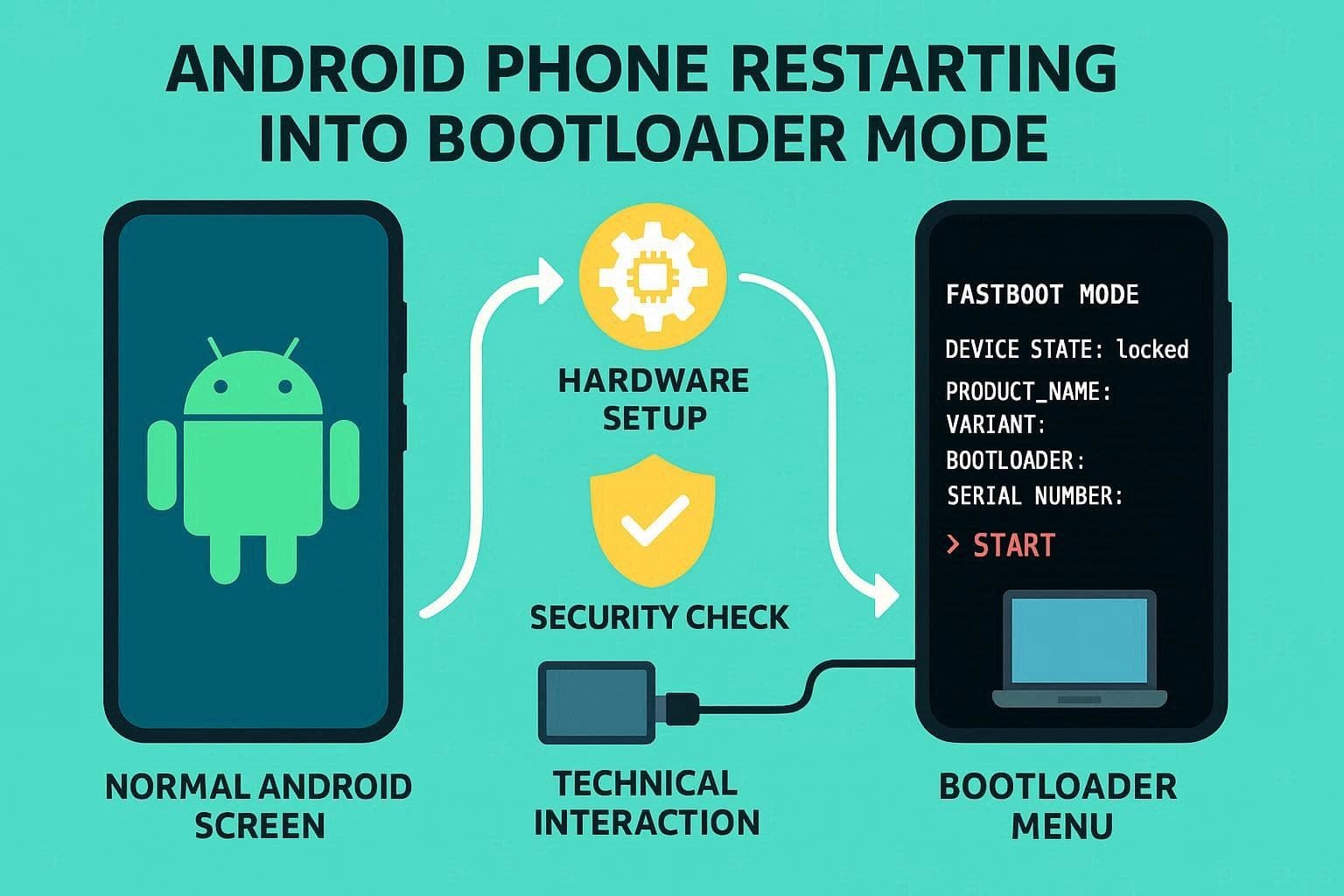
To further explain what reboot to bootloader is, know that each phone uses a manufacturer-specific bootloader configured for its hardware. When you reboot to the bootloader, Android does not run. Instead, you interact through buttons or a PC using Fastboot. From here, you can issue flashing commands, change boot state, test boot images, and view device information.
Reboot to Bootloader vs Normal Restart
Now that you know what does reboot to bootloader mean, review the given table and learn how it differs from a normal restart:
| Aspects | Normal Restart (Reboot system) | Reboot to the Bootloader |
|---|---|---|
| What It Does | Restarts Android and boots straight back into the OS | Restarts and stops at the bootloader screen |
| Level | High level (full Android running) | Low level (pre‑OS firmware stage) |
| User Control | Touchscreen UI, apps, settings | Hardware keys or Fastboot commands from a PC |
| Typical Uses | Fix minor glitches, refresh RAM, and apply normal updates | Flash firmware, unlock/lock bootloader, boot test images |
| Access to OS | The Android system and apps are fully loaded | Android is not loaded; only the bootloader environment is active |
| Risk Level | Very low (like a normal reboot) | Higher if flashing/unlocking; wrong actions can brick the device |
Part 2. Is Reboot to Bootloader Safe? Risks and Things to Know First
If you are concerned about the reboot to the bootloader Android safety, know that it's generally safe. It lets you check hardware, wipe data, or flash firmware, so simply entering it doesn't harm the device. Instead, the risk comes from the actions you take while in this mode, and a few of them are mentioned below:
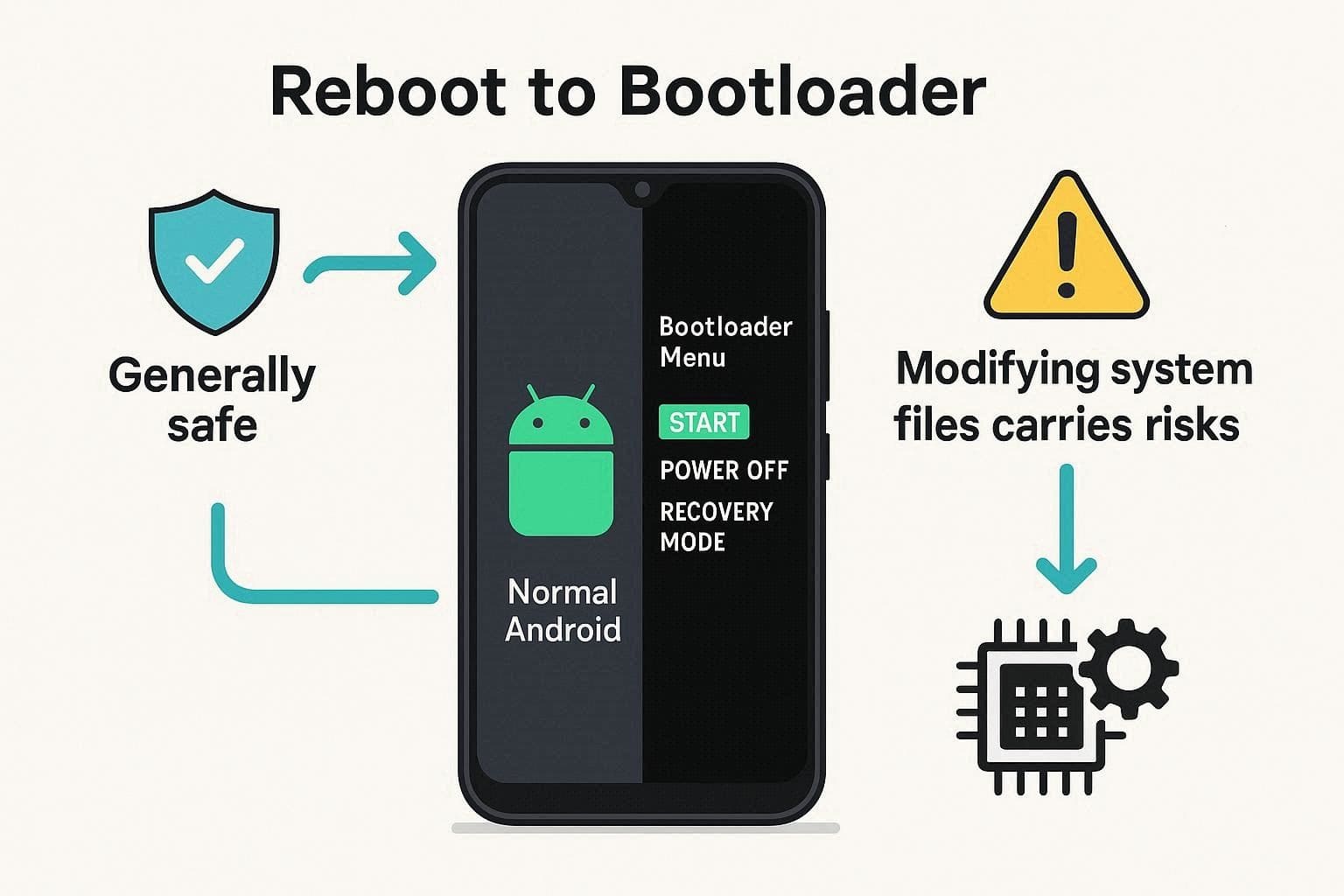
1. Unlocking the Bootloader: Unlocking (Fastboot flashing unlock) resets the phone and deletes all your personal data to block unauthorized access. Thus, an unlocked bootloader disables Verified Boot verification, allowing modified system images and potential malware with physical access.
2. Flashing Images from Bootloader/Fastboot: Flashing the wrong ROM or modem can soft-brick the phone. As a result, commands like "fastboot flash -w" wipe the data partition during a factory image install.
3. Relocking the Bootloader on a Modified System: Relocking on a custom ROM or non-stock partitions can stop the phone from booting. Hence, guidelines advise relocking only after restoring a clean stock image.
Things to Know Before You Start and Safety Precautions
So, before you restart the bootloader of Motorola or other Android devices, here are some things/aspects you need to be familiar with:
1. Locked vs Unlocked Matters: A locked bootloader with stock firmware is safe and resists tampering. On the contrary, an unlocked bootloader increases the risk for you and anyone with physical access.
2. Follow Device‑specific Instructions: Each OEM, such as Pixel, Xiaomi, or Samsung, has its own unlock and relock steps. So, using generic commands without checking can cause avoidable bricks.
3. Always Back Up Before Unlocking or Flashing: Unlocking or flashing wipes all data, so back up before any operation. Furthermore, do not treat bootloader work as risk-free tinkering.
Pro Tip: Use Dr.Fone – System Repair to Fix Android Bootloader Issues Safely
To repair a stuck boot, black screen, or bootloop, Dr.Fone - System Repair can download the correct firmware. While learning what is reboot to bootloader, know that this tool claims to enter and exit Fastboot mode or Download mode in just one click. Hence, it triggers a reboot to the bootloader/Fastboot for you effortlessly, rather than wasting time on commands or button combinations.
Since the process is completely guided in 3-4 steps, its usage is hassle-free for all types of users. Not just that, users can have complete control over entering the Download or Fastboot mode, as Dr.Fone seeks the user's confirmation at every step. So, without needing any skill, it can fix system repair issues for Samsung, Xiaomi, Redmi, and POCO phones and tablets.

Dr.Fone - System Repair (Android)
Repair Android System Errors without Any Trouble.
- Fix your Android to normal, no skills required.
- Fix various Android system issues, stuck in boot loop, black screen, or won't turn on, looping on start, etc.
- The high success rate in resolving Android system issues.
- Compatible with a wide range of Android devices and OS versions
- User-friendly interface with easy-to-follow steps.


Simple Guide to Fix Android Bootloader/System Issue with Dr.Fone
When one gets stuck in the reboot to bootloader Android loop or face system issues, here is how you can restart the device back to normal:
- Step 1. Access the System Repair Tool for Android
- Step 2. Choose the Model and Press Start
- Step 3. Enter the Download Mode to Continue Firmware Installation
- Step 4. Type the Code and Repair Android Issues
Press the "Repair Now" button as you connect the Android device and choose the "System Repair" tool for Android. On the new interface, select a model, such as "Samsung," and click the "Start" button to continue.

Review the list of issues to be addressed in this process, then click the "Start" button again. Now, select the device model and name, check the agreement, then select the "Next" button.
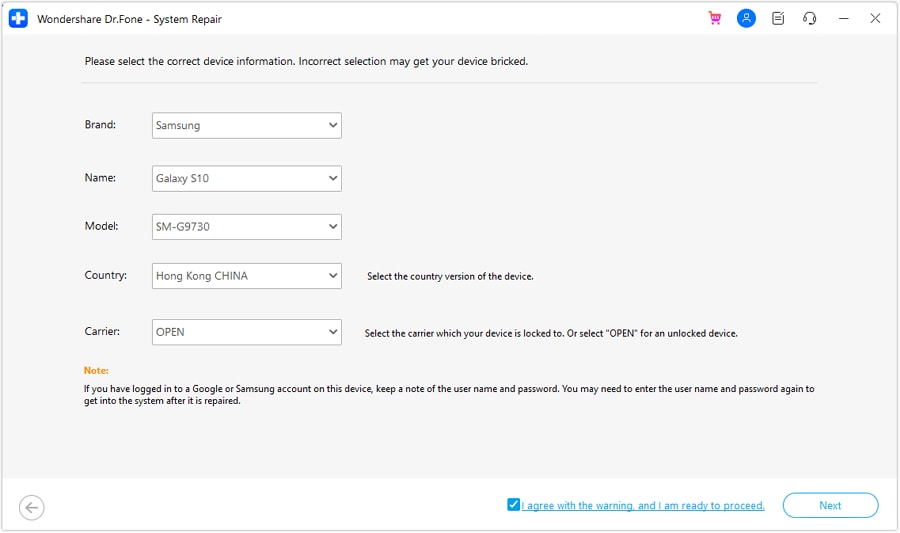
Once done, follow the instructions and enter Download Mode on the Samsung device. Then, adhere to the guide for phones with home buttons and without home buttons, based on your preferences. As you enter the Download Mode, the firmware installation will start, which you can "Stop" when needed.
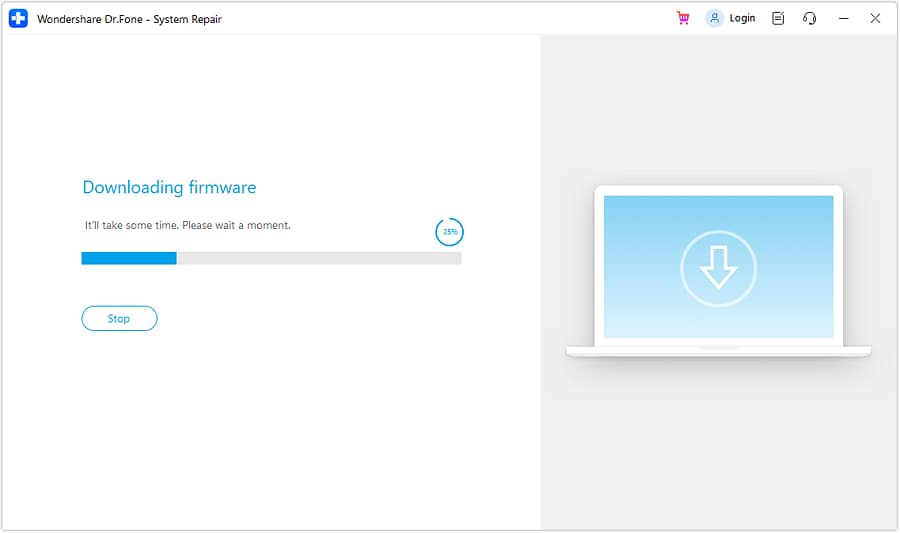
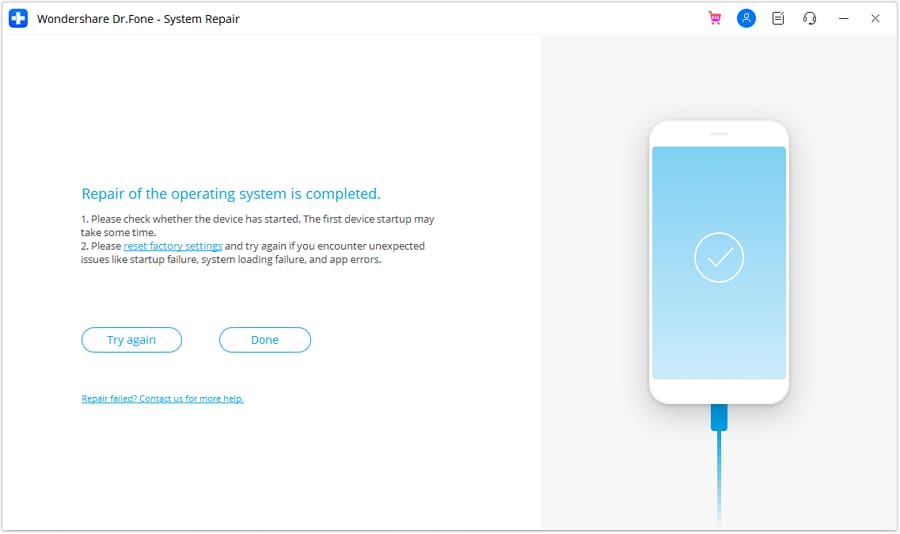
After the installation ends and the tool displays details, pick the "Fix Now" button. Since the repair may wipe the data, type "000000" in the text box when prompted, then press "Confirm." The system repair process will start. When it finishes, select "Done" to conclude or "Try Again" if there's an issue.
 safe & secure
4,624,541 people have downloaded it
Part 3. How to Perform Reboot to Bootloader on Samsung & Other Android Devices
If you want to learn how to access reboot to bootloader on Samsung or other Android devices, review the listed guidelines:
Method 1: Reboot to Bootloader Using Key Combination
Hardware keys let you enter bootloader, Fastboot, or Download Mode even when Android fails or shows a black screen. These buttons work before Android starts, so you do not need on-screen menus, USB debugging, or a trusted PC. In addition, they add extra security because low-level access needs physical button use, which stops silent access by malicious apps. Hence, the key combination for the standard Android version is mentioned below:
Samsung Devices (Download Mode)
Since there is Download Mode in Samsung, this section will highlight how to reboot to the bootloader via key combinations and Recovery mode:
Using Button Combinations
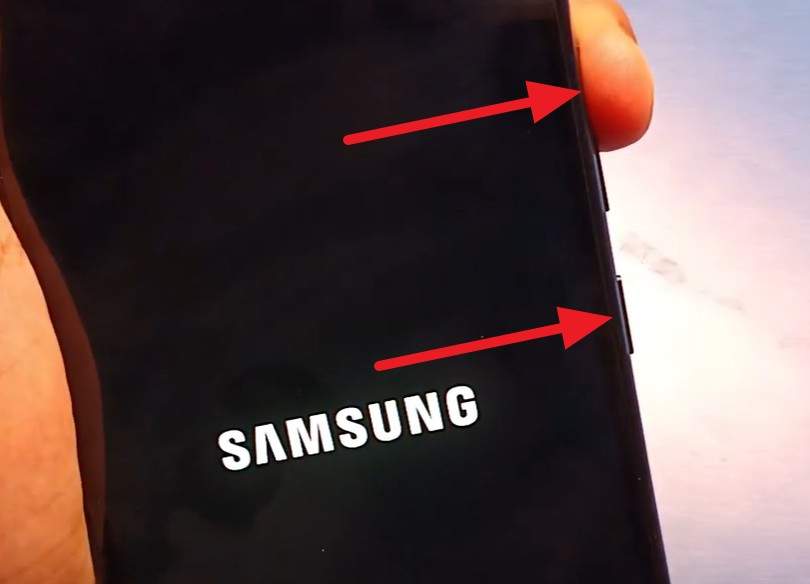
Newer Samsung Devices (No Home Button): Power off the phone completely. Then press and hold "Volume Up + Volume Down" together and connect the USB cable to a PC. When the warning screen appears, press "Volume Up" to enter Download Mode.
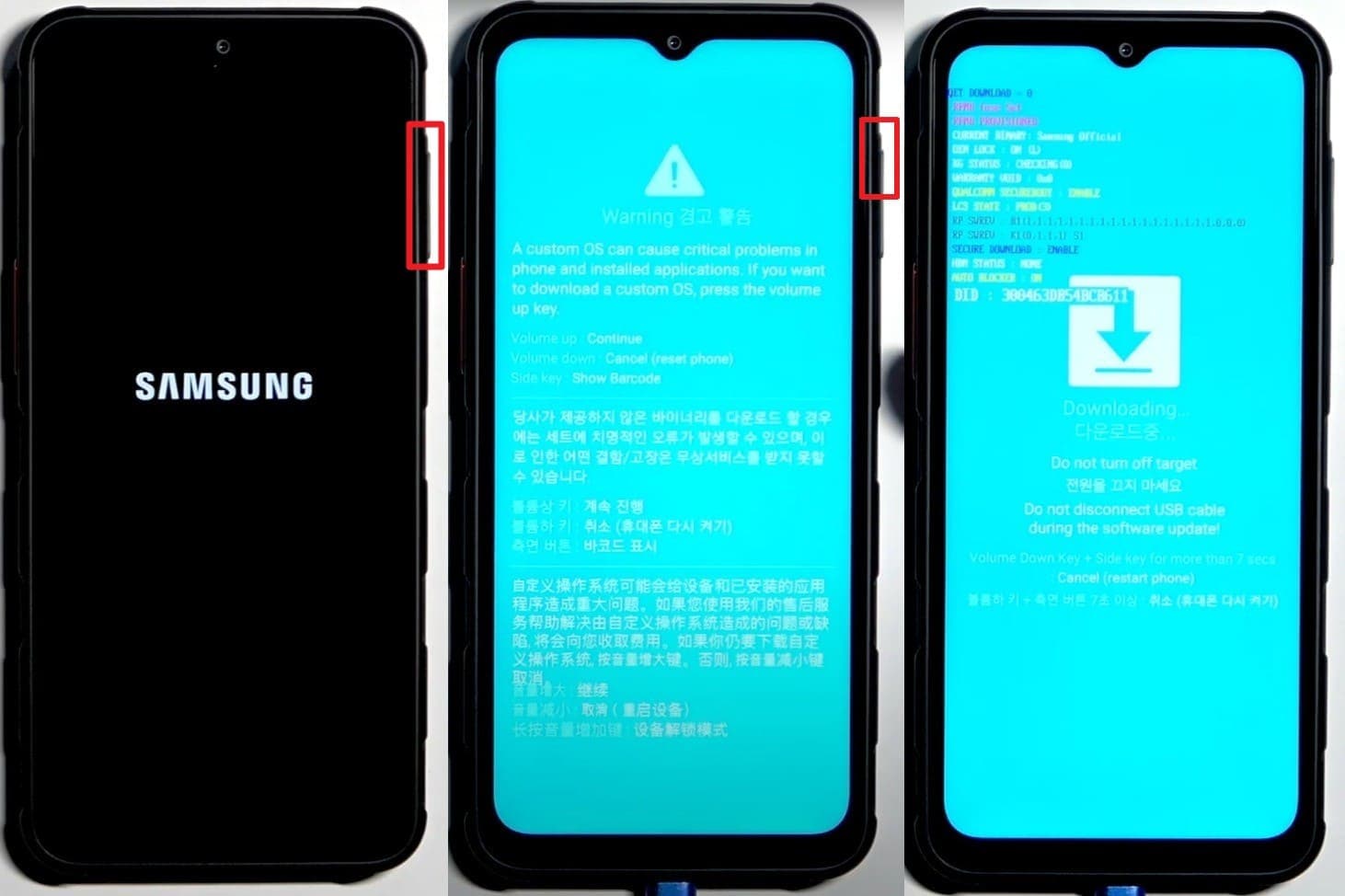
Samsung Devices with Bixby Button: Turn the device off. Then press and hold "Volume Down + Bixby + Power" at the same time. When the warning screen appears, press "Volume Up" to continue into Download Mode.
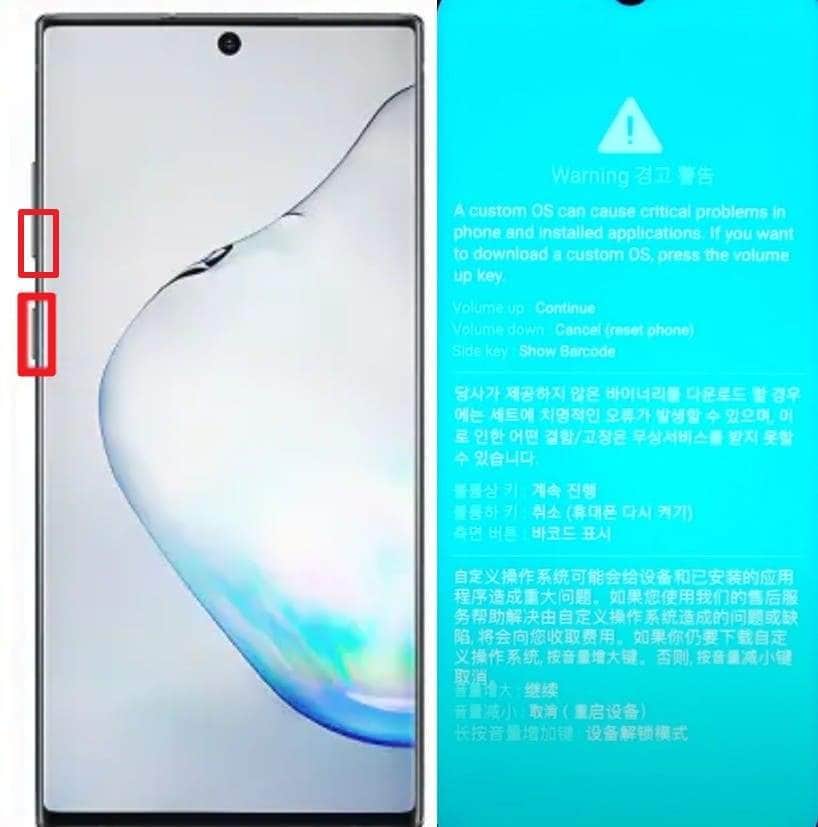
Older Samsung Devices (With Home Button): Power off the phone. Then press and hold "Volume Down + Home + Power" simultaneously. When the warning screen appears, press "Volume Up" to enter Download Mode.
Via Recovery Mode
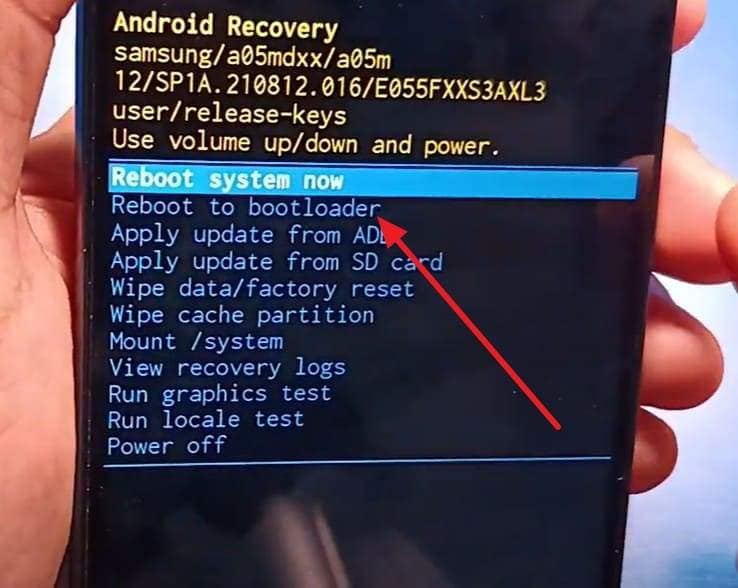
- Step 1. As you power off the device, press the "Power" and Volume" buttons together and let go as you feel vibration.
- Step 2. In the Android Recovery mode, choose the "Volume Down" button to choose the "Reboot to Bootloader" option.
Other Android Devices (Fastboot Mode)
Google Pixel/Nexus/Motorola: To restart bootloader of Motorola, or other brands, power off the device, and press the "Volume Down + Power" buttons.
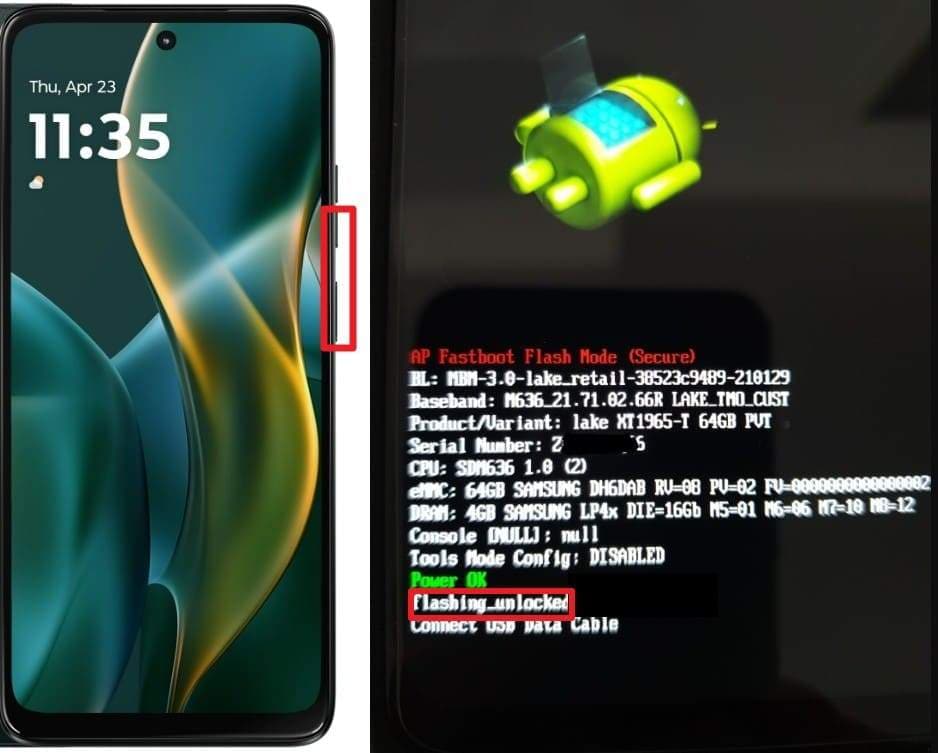
HTC: With the device powered off, hold the "Volume Down" button, then hold the "Power" button. Release "Power" after vibration, but keep holding "Volume Down" until the bootloader screen opens.
LG: As you power off the device (LG like G7), connect a USB cable to the PC and press the "Volume Up" button. Keep holding it until you get the Fastboot/bootloader screen.
Method 2: Reboot to Bootloader Using Android Debug Bridge (ADB)
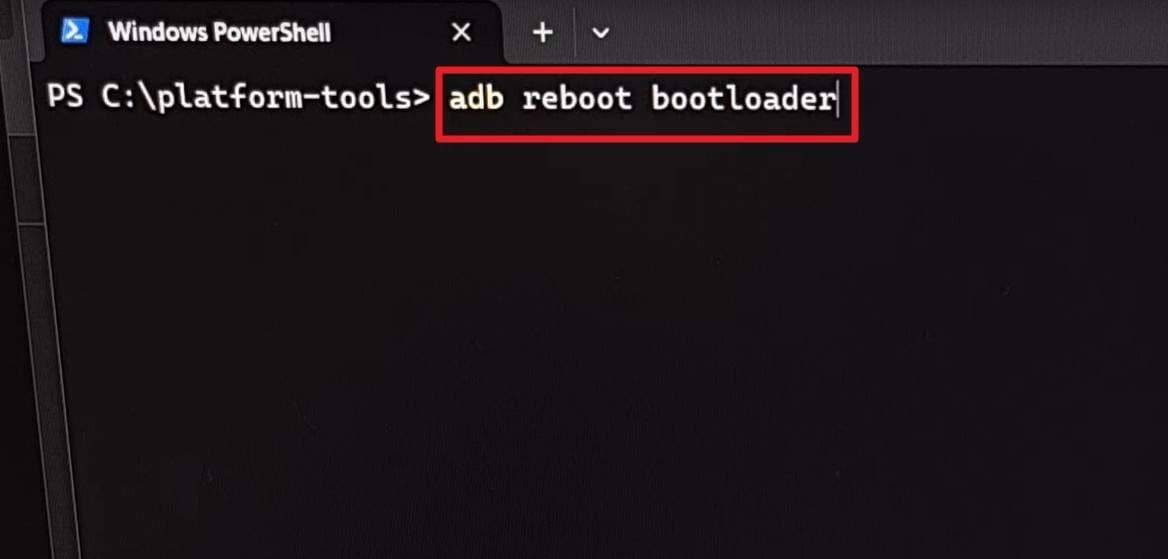
For the reboot to the bootloader of Motorola or another Android, the ADB command adb reboot bootloader also helps. It offers convenience, and you do not need to guess button combos. Instead, a single command sends the device straight to the bootloader or Fastboot if Android is running and USB debugging is enabled.
Furthermore, developers use it in scripts because it connects smoothly with ADB and Fastboot tasks. So, here are the prerequisites and steps for Android models, highlighting how it differs for Samsung users:
Prerequisites:
- Install ADB and Fastboot on the computer; the Minimal ADB Fastboot tool is recommended.
- Enable Developer Options and USB Debugging, then tap Build Number 7 times quickly.
- Ensure OEM Unlocking is enabled inside Developer Options.
- Connect the phone to the computer with the USB cable for a stable connection.
ADB Command (Any Supported Android)
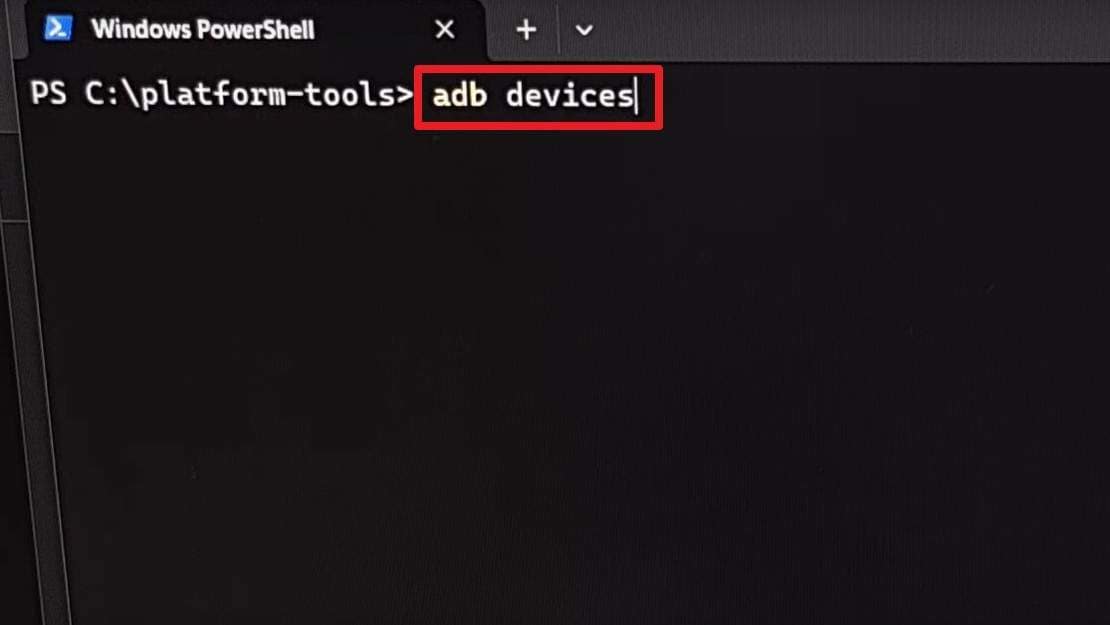
- Step 1. As you open the Command Prompt/PowerShell in the folder where ADB is installed, type "adb devices" and verify the connection.
- Step 2. After that, type the command "adb reboot bootloader" and press the "Enter" key. The phone will restart into a screen showing "Fastboot" or a similar diagnostic menu.
Part 4. When and Why Users Use Reboot to Bootloader to Fix Android Issues
Having the idea of what does restart bootloader means, here are some situations where people use a reboot to the bootloader:
| Situation/Issue | Why Use a Reboot to the Bootloader | What Users Typically Do There |
|---|---|---|
| Phone Won't Boot (Bootloop, Stuck Logo) | Access low‑level tools when Android won't start | Flash stock firmware, restore factory image, or switch OS slot |
| Need to Install/Update Firmware Manually | The normal system updater can't be used or fails | Flash official factory images or vendor firmware packages |
| Flash Custom ROM or Recovery (TWRP, etc.) | Need direct access to partitions via Fastboot | Flash custom ROMs, recoveries, kernels, or boot images |
| Unlock or Relock the Bootloader | The bootloader state can only be changed from this mode | Run Fastboot unlock/relock commands as allowed by OEM |
| Wipe Cache or Reset When Recovery Is Limited | Some devices expose extra options only around the bootloader/Fastboot | Wipe cache, sometimes trigger factory reset via low‑level tools |
Conclusion
To sum up, this comprehensive guide has explained the reboot to bootloader meaning with detailed insights on why and when one uses it. Additionally, the means to perform this action via key combinations or a command-line tool are also discussed for the user's ease. However, if one gets stuck in a boot loop or faces system issues, Dr.Fone - System Repair fixes the problem.
safe & secure4,624,541 people have downloaded it
FAQs
 1.
Will rebooting the bootloader void my warranty?2.
Why does my phone show a warning screen in the bootloader?3.
Is the bootloader the same as recovery mode?
1.
Will rebooting the bootloader void my warranty?2.
Why does my phone show a warning screen in the bootloader?3.
Is the bootloader the same as recovery mode?


Android Issues
- Android Update
- 1. Download and Use Samsung Odin
- 2. Samsung Phone Stuck in Odin Mode
- 3. Android 9 Pie Problems & Fixes
- 4. Latest Updates in Android 11
- 5. Update Android Oreo 8.1
- Android Not Working
- 1. Solution To Bricked Android Phone
- 2. Fix 'Android Phone Won't Turn On'
- 3. Flash Dead Android Phone
- 4. Fix Phone Keep Turning Off
- 5. Fix Android Bootloop Problem
- 6. Fix Android Phones and Tablets
- Android Errors
- 1. Fix Error 495 While Download Apps
- 2. Fix Error 505 in Google Play Store
- 3. Fixes For Authentication Error
- 4. Fix Error Code 963 on Google Play
- 5. Fix Error Code 920 In Google Play
- 6. Fix Encryption Error
- Screen Problems
- 1. Fix Unresponsive Fire Tablet Screen
- 2. Fix Unresponsive Android Screen
- 3. Fix Android Screen Problem
- 4. Fix Phone Is Stuck on Boot Screen
- 5. Fixes for Tablet Screen Not Working
- 6. Tools for Removing Stuck Pixels
- 7. Fix Android Black Screen of Death
- 8. Fix Android Stuck on Boot Screen
- 9. Fix Android White Screen of Death
- 10.Fix Android Blue Screen of Death
- 11.Fix ONN Tablet Screen Not Working
- 12.Fix Android Touch Screen Proble
- 13.Fix Smartphone With a Black Screen
- 14.Fix Realme Screen Not Responding
- 15.Fix Phone Screen Not Responding
- Android Problems
- ● Manage/transfer/recover data
- ● Unlock screen/activate/FRP lock
- ● Fix most iOS and Android issues
- Free Download Free Download Free Download


 > How-to > Phone Repair Solutions > Reboot to Bootloader Meaning: Guide for Samsung & Other Android Devices
Ahmed Absal
contributor Editor
Generally rated4.5(105participated)