
Facing iOS 26 Black Screen After Update? Here's How to Fix!

Oct 22, 2026 • Filed to: Phone Repair Solutions • Proven solutions
 TL;DR:
To fix an unresponsive iOS 26 black screen after updating, first charge your device for 20 minutes and perform a force restart by sequentially pressing Volume Up, Volume Down, and holding the Side button.
● If the screen remains dark but the device vibrates or connects to a computer, use Dr.Fone - System Repair (iOS) in Standard Mode to downgrade to a stable firmware version without erasing personal data.
● For deep system corruption, entering DFU Mode or using the Restore option in Recovery Mode via iTunes or Finder will completely rewrite the firmware, but these methods will permanently erase all data on the device.
● If the iPhone still refuses to boot, show a charging indicator, or connect to a computer after attempting software restores, the issue likely stems from physical hardware damage requiring professional Apple Support diagnostics.
Ask AI for a summary
 ChatGPT
 Perplexity
 Gemini
 Claude
 Grok
Grok
If your iPhone went dark after installing the latest software and refuses to respond, you are dealing with the iOS 26 black screen — one of the most frustrating post-update issues reported by users in 2026. Whether your screen stays completely black after rebooting, blinks on and off, or gets stuck on the Apple logo, this guide walks you through every known cause and provides six actionable fixes you can try right now.
From a simple force restart to a professional iOS downgrade tool, you will find step-by-step solutions ranked from easiest to most advanced. If none of the basic methods resolve the black screen after iOS 26 update, you will also learn how to safely downgrade your iOS version using a reliable third-party repair tool — without losing any data.
- Part 1. Why iPhone Black After Update iOS 26 Occur?
- Part 2. Common Problems Related to iOS 26 Black Screen Issues
- Part 3. Safe Solutions to Address iOS 26 Black Screen Issues: Detailed Fixes
- Solution 1. Confirm That the Battery Isn't Drained
- Solution 2. Force Restart iPhone
- Solution 3. [100% Working] Downgrade iOS 26 Through Dr.Fone - System Repair (iOS)

- Solution 4. Enter DFU Mode & Restore the iPhone
- Solution 5. Restore Through iTunes/Finder
- Solution 6. Contact Apple Support & Get Expert Help
Part 1. Why Does iPhone Go Black After Update to iOS 26?
The iOS 26 black screen typically occurs when the update process disrupts core system files, exhausts available resources, or conflicts with existing apps or hardware components. Understanding the root cause helps you pick the most effective fix — and avoid making the problem worse.
Here are the five most common reasons your iPhone screen went black after the iOS 26 update:
- Software Bugs in the New iOS Build: iOS 26 — like any major update — may ship with undiscovered bugs that interfere with display initialization or startup routines. These bugs can prevent your device from loading the home screen correctly after installation, leaving you with a blank, unresponsive display. Reports of iOS 26.2 black screen and iOS 26.2.1 black screen issues confirm that even incremental updates can introduce new instability.
- Battery Drained During Installation: If your iPhone's battery was critically low or degraded while iOS 26 was installing, the device may have shut down mid-update. This interrupts critical write operations, preventing the system from completing its boot sequence and resulting in a persistent iOS 26 blank screen when unlocking.
- Insufficient Storage Space: iOS updates require a significant amount of free space to unpack and install system files. When available storage is too low, installation files may become corrupted or incomplete — triggering the iPhone to go black after the update to iOS 26 due to missing or damaged system components.
- System Crash During the Update Process: A crash during the final stages of the update — before the system fully reboots — can leave your iPhone in an inconsistent state. The device appears powered on, but cannot load the OS correctly, causing it to stay stuck on a dark screen with no error message shown.
- App Compatibility Conflicts: Older or poorly maintained apps may not be compatible with the new system-level changes introduced in iOS 26. When these apps attempt to run at startup, they can crash critical processes and trigger iPhone display issues after the iOS 26 update, resulting in the screen going black immediately after the device attempts to boot.
In most cases, the issue is software-related and can be resolved without visiting an Apple Store. Work through the solutions in Part 3 in order, starting with the simplest options first.
Part 2. Common Problems Related to iOS 26 Black Screen Issues
The iOS 26 black screen after update is not a single uniform problem — it presents in several distinct ways, each pointing to a different underlying cause. Identifying which specific symptom you are experiencing helps you narrow down the most effective fix before spending time on trial-and-error solutions.
Below are the five most widely reported display problems following the iOS 26 update:
- Phone Vibrates but Screen Stays Black: Your iPhone still rings, vibrates, or responds to notifications, but the display remains completely dark. This is a strong indicator that the device itself is still operational — only the display subsystem or the software layer controlling it has failed to initialize. This symptom is commonly associated with the iOS 26 black screen occurring right after an unlock attempt.
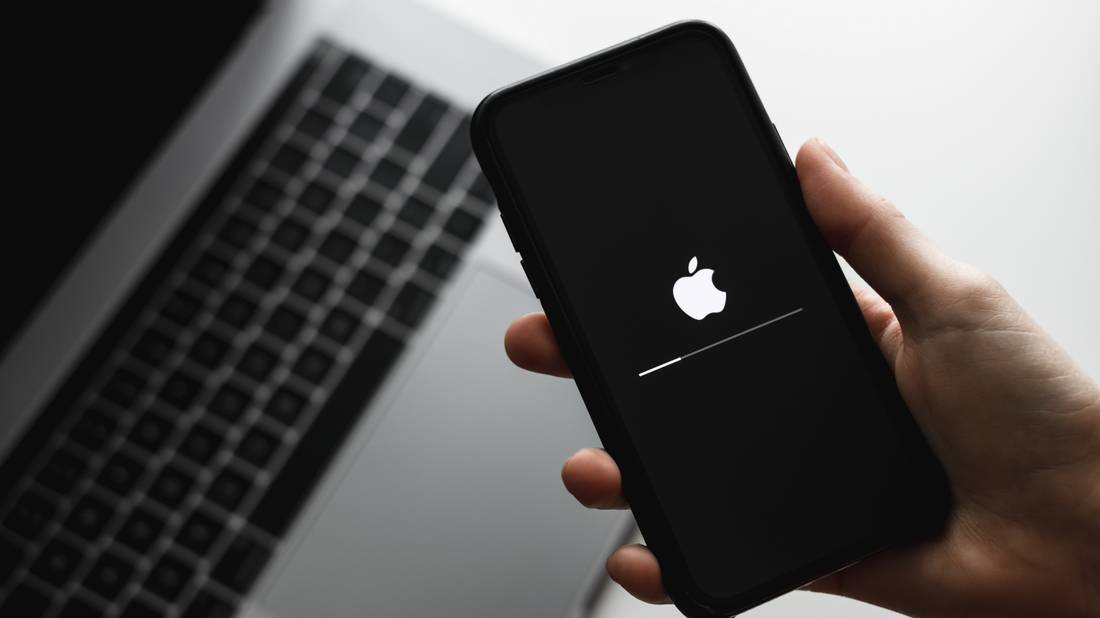
- Apple Logo Appears Then Disappears: The Apple logo flashes on the screen for a few seconds, then the display goes black again — often repeating in a loop. This boot loop behavior indicates the update failed to complete its installation successfully, or that critical system files were not written correctly during the process. It is one of the most recognized signs of a new iOS update black screen scenario.
- Screen Turns On and Off Repeatedly: The display flickers or cycles between on and off without any user input. This behavior — sometimes called a "black screen of death" — suggests serious software instability that prevents the OS from maintaining a stable display state. Users searching for the iphone black screen of death 2026 frequently describe this exact pattern.
- Black Screen with a Spinning Loading Wheel: The iPhone freezes on a dark background displaying only a spinning activity indicator. This means the device is attempting to complete a process — such as finalizing a system update or loading core services — but cannot finish. It is commonly seen when the user attempts to force-stop an iOS 26 update mid-installation, resulting in a corrupted system state.
- iPhone Won't Charge or Show Charging Indicator: When plugged in, no charging sound plays and no battery icon appears. While this may seem like a hardware problem, it is often caused by the same software failure responsible for the black screen — the device cannot load the charging management framework because the OS itself has not booted correctly.
If you recognize one or more of these symptoms, move on to Part 3, where each of the six solutions addresses these specific problem patterns.
Part 3. Safe Solutions to Address iOS 26 Black Screen Issues: Detailed Fixes
The following six solutions are ordered from simplest to most advanced. Start with Solution 1 and work your way down — most users resolve the iOS 26 black screen issue within the first two or three steps without needing to restore or downgrade.
Solution 1. Confirm That the Battery Isn't Drained
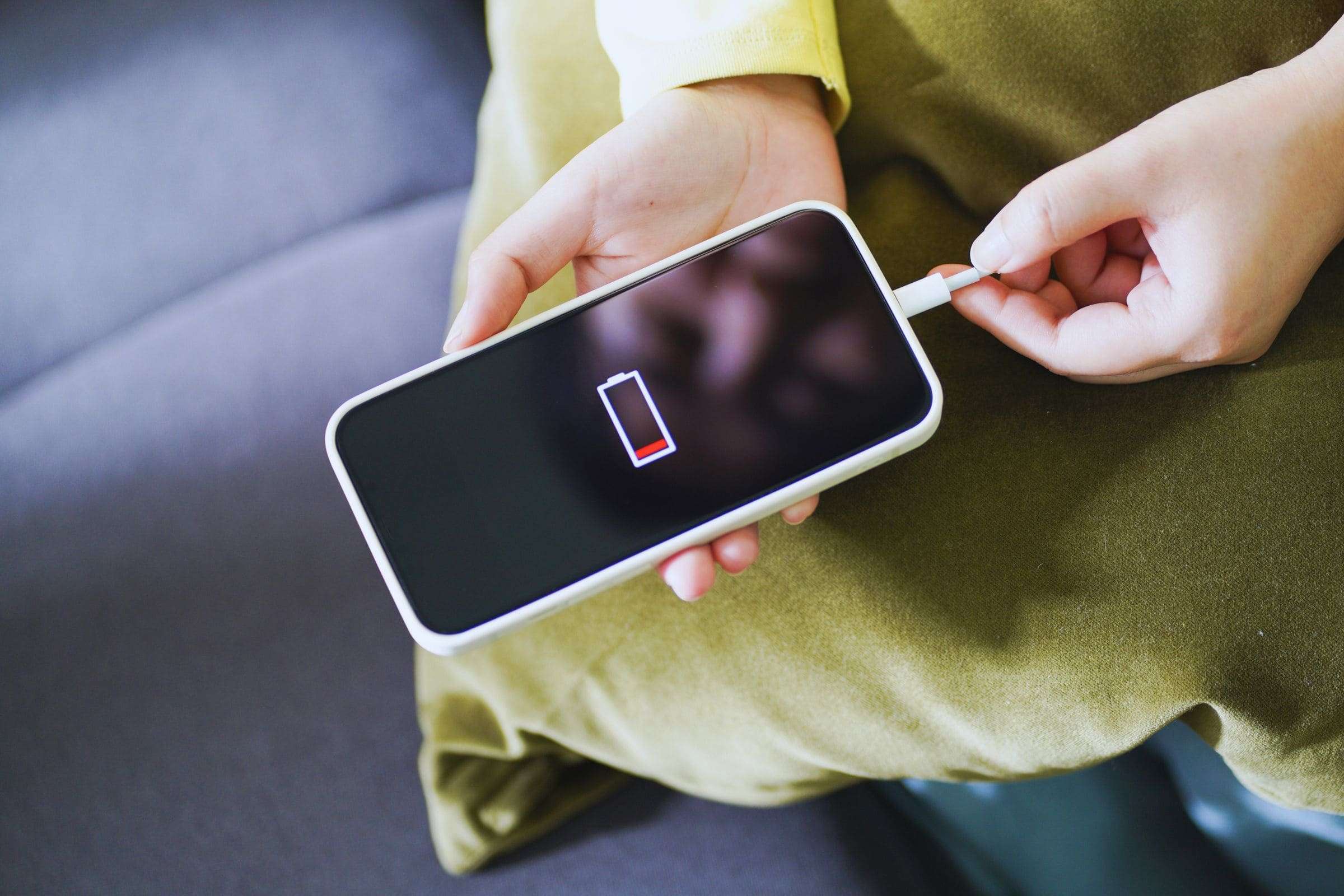
Before attempting any complex fix, rule out the simplest cause: a completely depleted battery. When an iPhone's battery reaches zero during or shortly after an iOS 26 update, the device will show a black screen and appear entirely unresponsive — even though no actual software damage has occurred.
To confirm this is not the issue, follow these steps:
- Connect your iPhone to its original Apple charger or a MFi-certified cable and adapter.
- Leave the device charging for at least 15–20 minutes without pressing any buttons.
- After charging, attempt a normal power-on by holding the Side button.
- If the low battery icon appears, continue charging until the battery reaches at least 20% before turning the device on.
If the screen remains black after 20 minutes of charging, the iPhone black screen after updating to iOS 26 is caused by something other than battery depletion. Proceed to Solution 2.
Solution 2. Force Restart iPhone
A force restart is the most effective first response to the iOS 26 black screen after update. Unlike a regular reboot, it bypasses the standard shutdown sequence and forces the device's hardware to reinitialize — clearing temporary memory states and resetting frozen software processes without deleting any of your data or settings.
This fix is particularly effective when the screen is completely black but the device still vibrates or makes sounds, indicating the hardware is functional but the OS is stuck.
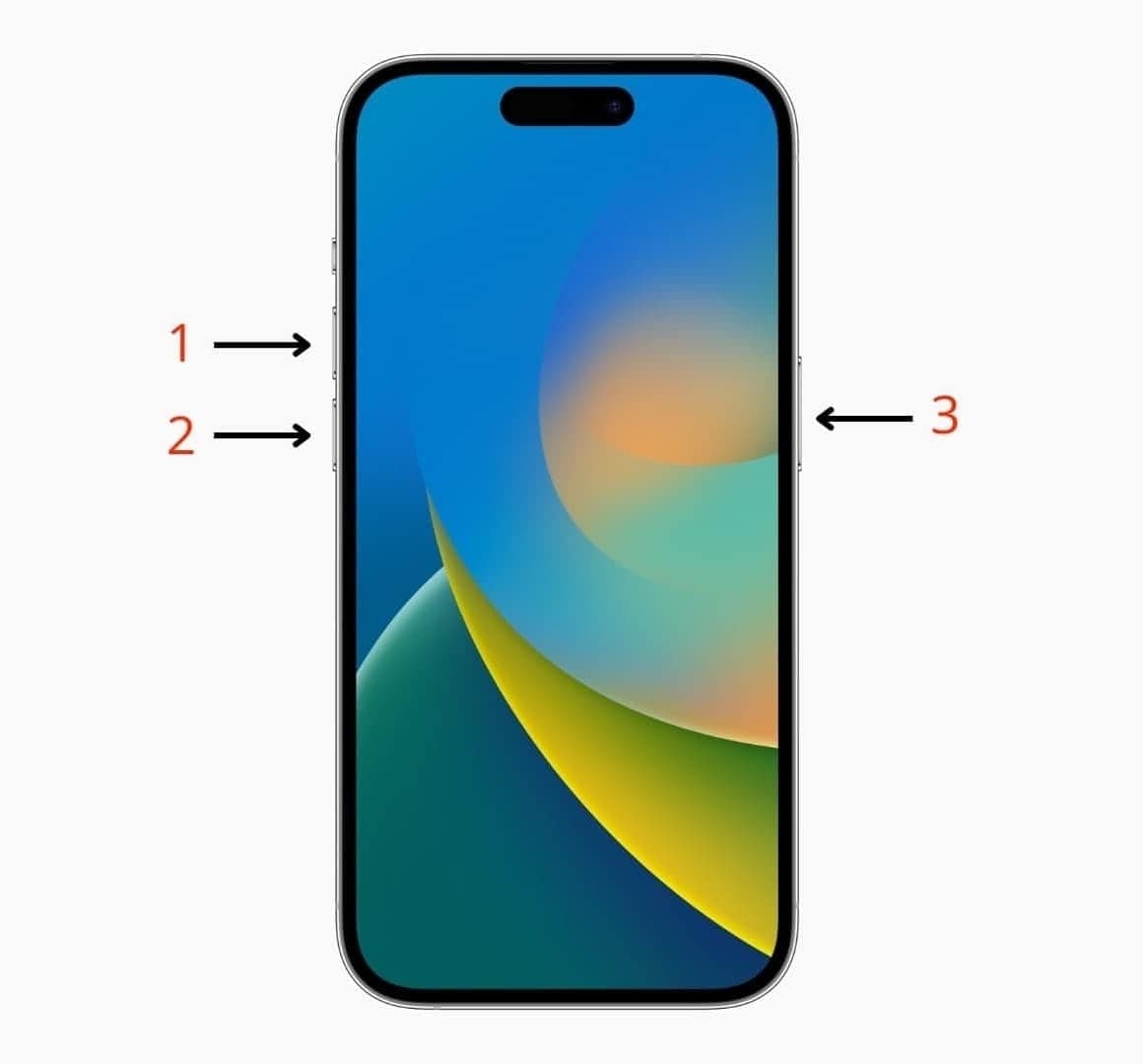
Follow these steps to force restart any iPhone with Face ID (iPhone X and later):
- Quickly press and release the Volume Up button.
- Quickly press and release the Volume Down button.
- Press and hold the Side (Power) button and keep holding it — even if the screen stays black.
- Release the Side button when the Apple logo appears on the screen.
Instruction. Initially, press the "Volume Up" button and release it, and perform this same action with the "Volume Down" button. After that, you need to tap the "Power" button until you see the Apple logo screen.
If the Apple logo appears and the device boots normally, the issue is resolved. If the logo appears but the device loops back to a black screen, proceed to Solution 3 for a deeper repair.
Solution 3. [100% Working] Downgrade iOS 26 Through Dr.Fone - System Repair (iOS)
If your iPhone continues to display the iOS 26 black screen after attempting both a charge and a force restart, the problem lies within the iOS 26 system files themselves — particularly if you installed a beta version or an update that introduced known instability. The most reliable fix in this scenario is to downgrade to a stable iOS version using a dedicated repair tool.
Dr.Fone – System Repair (iOS) is specifically designed for this situation. It allows you to downgrade to your preferred iOS versions cleanly and safely, without requiring iTunes, without jailbreaking your device, and — critically — without erasing your personal data. It also supports the ability to upgrade your iOS to a stable release directly from within the tool.
Beyond downgrading, Dr.Fone resolves over 150 distinct iOS system problems — including boot loops, recovery mode traps, failed startup sequences, and the iphone black screen of death 2026 scenario. It offers two repair modes tailored to different problem levels:
- Standard Mode: Fixes most common iOS issues, including the black screen after iOS 26 update, while preserving all existing data on the device.
- Advanced Mode: Performs a deeper system-level repair for severe corruption — suitable when Standard Mode cannot resolve the issue. Note that Advanced Mode will erase the device.
The tool also lets you freely enter or exit DFU and Recovery mode without any technical knowledge, making it accessible even for non-technical users dealing with iphone display issues after ios 26 update.

Dr.Fone - System Repair (iOS)
Downgrade & Upgrade iOS System Without Data Loss.
- Only fix your iOS to normal, no data loss at all.
- Fix various iOS system issues stuck in recovery mode, black screen, looping on start, etc.
- Upgrade and Downgrade iOS without iTunes at all.
- Work for all iPhone/iPad/iPod Touch, running on all iOS versions.


How to Downgrade iOS 26 Using Dr.Fone - System Repair (iOS): Step-by-Step Guide
Follow these four steps to downgrade your iOS 26 version and resolve the black screen issue completely:
Step 1. Launch Dr.Fone and Open System Repair
Open the Dr.Fone application on your Windows or Mac computer. From the main "Toolbox" screen, select "System Repair." On the next screen, choose "iPhone" as your device type to proceed to the repair dashboard.

Step 2. Select Downgrade iOS and Connect Your Device
Within the System Repair section, click "iOS Upgrade/Downgrade" and then choose "Downgrade iOS" on the following screen. Click "Continue" and connect your iPhone to the computer using a USB cable. Dr.Fone will automatically detect your device and retrieve its current iOS information.

Step 3. Choose Your Target Firmware Version
Dr.Fone will display all available firmware versions compatible with your iPhone model. Select the stable iOS version you want to downgrade to and click "Download." The tool will verify and download the official firmware package directly from Apple's servers.
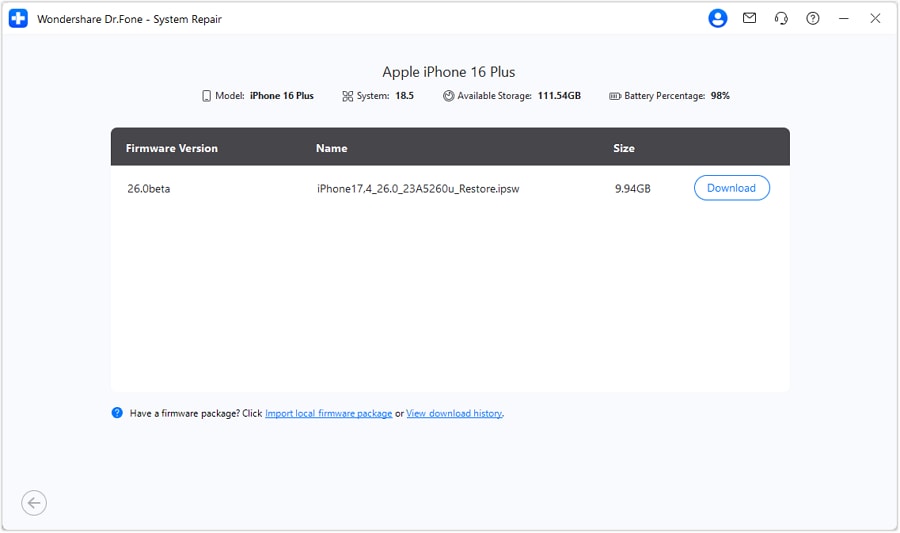
Step 4. Apply the Downgrade and Resolve the Black Screen
Once the firmware download is complete, click "Repair Now" to begin the downgrade process. Dr.Fone will install the selected iOS version onto your iPhone, overwriting the unstable iOS 26 build. When the process finishes, your iPhone will restart automatically — with the black screen issue fully resolved and all your data intact.

 safe & secure
4,624,541 people have downloaded it
Solution 4. Enter DFU Mode & Restore the iPhone
Device Firmware Update (DFU) mode is the deepest level of restore available on an iPhone. Unlike Recovery Mode, DFU mode bypasses the device's bootloader and iBoot, allowing iTunes or Finder to completely rewrite both the firmware and operating system from scratch. This makes it one of the most powerful tools for fixing a persistent iOS 26 black screen caused by deep system corruption.
Use this method when force restart and standard restore options have already failed. Note that DFU restore will erase all data on your device, so attempt Solution 3 (Dr.Fone) first if you want to preserve your data.
Follow these steps to enter DFU mode and restore your iPhone (iPhone X and later):
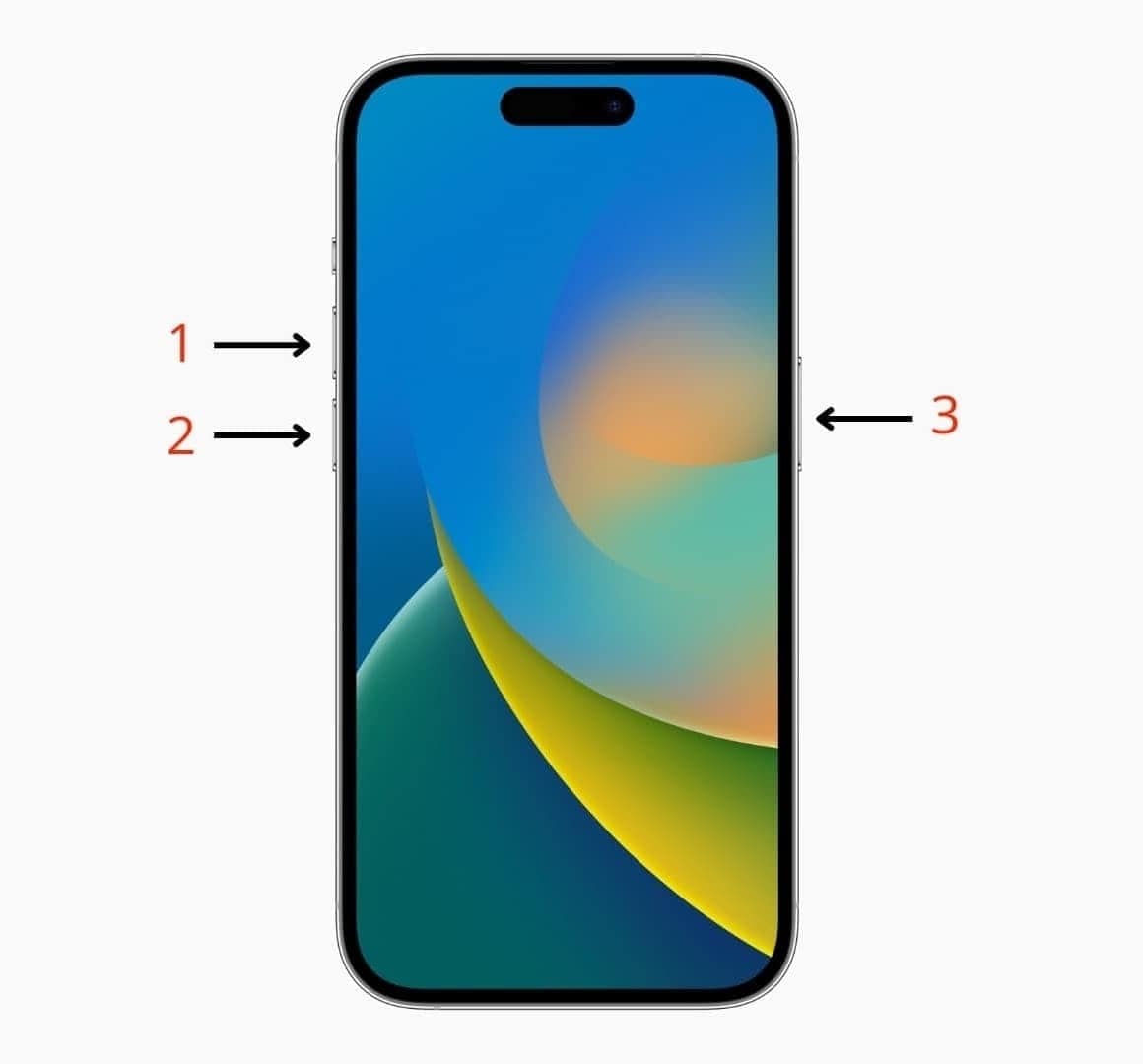
Step 1. Connect the phone to a PC/Mac that has iTunes/Finder installed. After that, press and suddenly release the "Volume Up" button and perform this same action with "Volume Down." Next, hit the "Side" button until your screen turns black.
Now, press the "Volume Down" button, along with the "Side" button, for 5 seconds. Afterward, release the "Side" button and continue pressing the "Volume Down" button for 10 seconds to enter DFU mode.
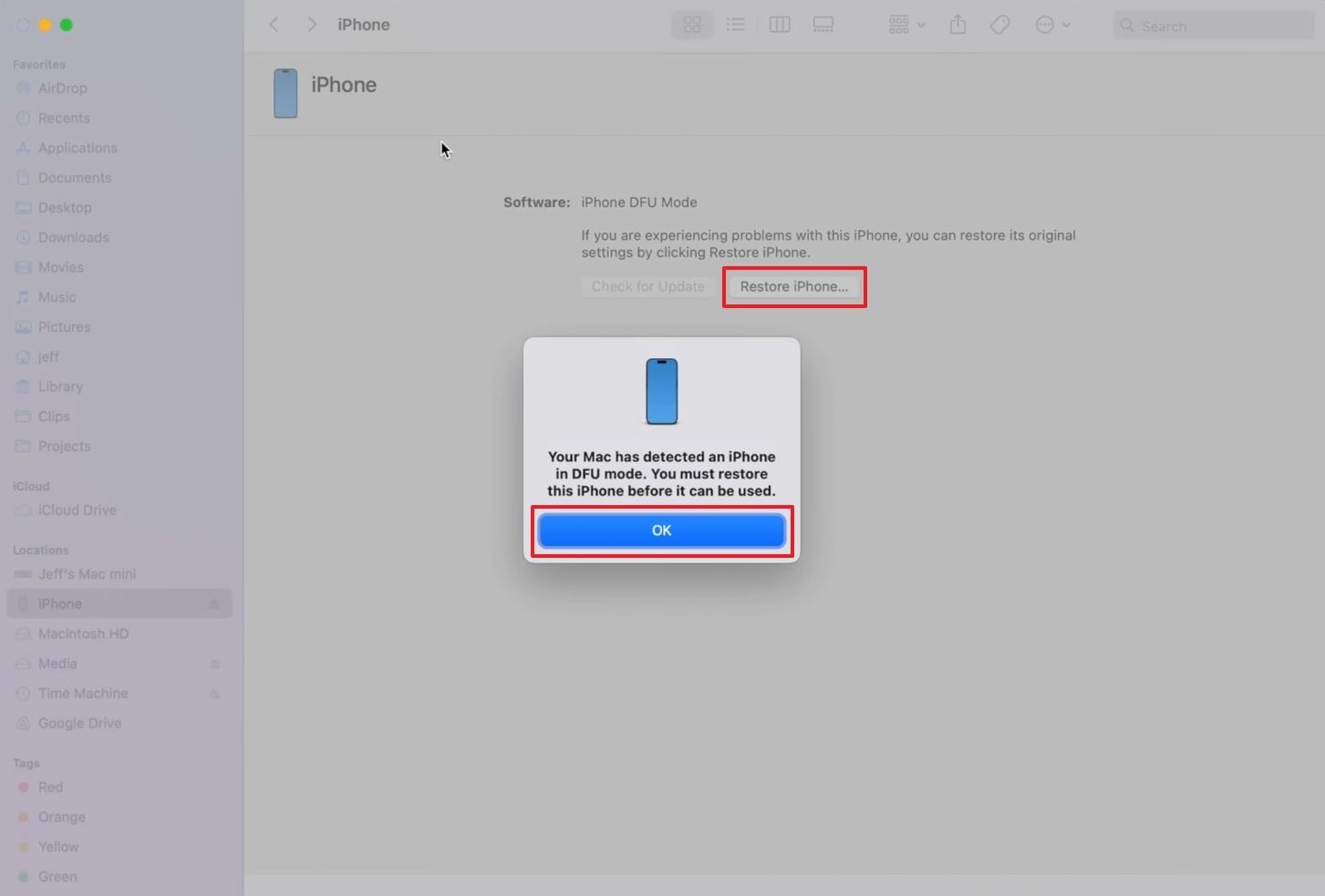
Step 2. When your Finder detects it in DFU mode, hit "OK" and press the "Restore iPhone..." button to commence the restoration task.
Your iPhone will restore to the latest compatible iOS version. The entire process typically takes 10–20 minutes depending on your internet connection speed. Once complete, you will need to set up your iPhone as new or restore from a backup.
Solution 5. Restore Through iTunes/Finder
Recovery Mode restore is a less aggressive alternative to DFU mode and is the recommended approach when you want to reinstall iOS while giving iTunes or Finder the option to update rather than fully erase the device. This method is effective for resolving the iOS 26 black screen after update when the operating system is corrupted but the device's firmware remains intact.
Recovery Mode offers two options when your Mac or PC detects the device:
- Update: Attempts to reinstall iOS without deleting your personal data. Try this option first.
- Restore: Performs a full factory reset, reinstalling a clean copy of iOS. Use this only if Update fails.
Follow these steps to enter Recovery Mode and restore your iPhone:
Step 1. Press and suddenly release the "Volume Up" button, and do this task with the "Volume Down" button. At this point, keep squeezing the "Side" button until you see the Connect to Computer screen. Next, link your iPhone with either a PC or a Mac that has the iTunes/Finder program running.
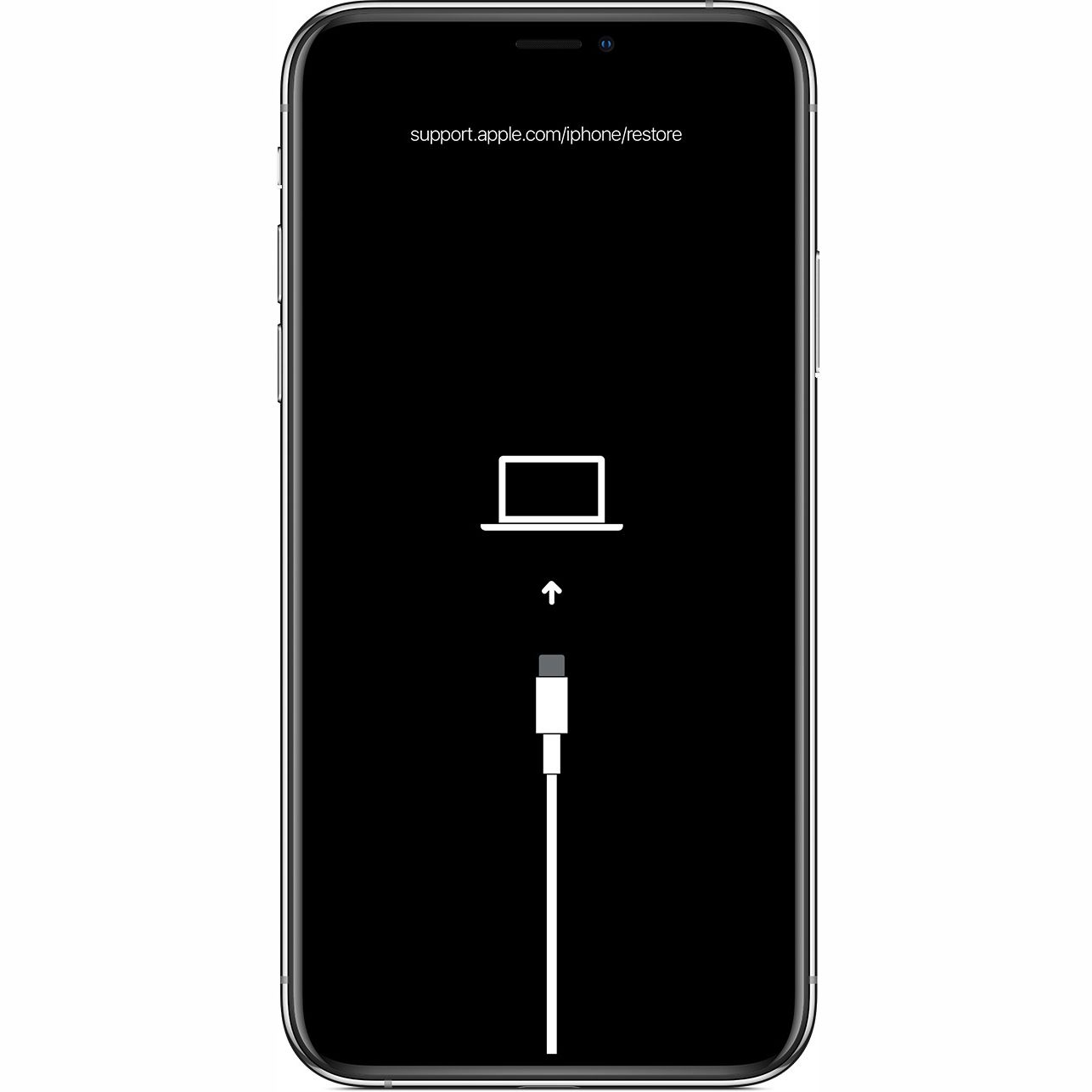
Step 2. Upon seeing the small dialogue box on your PC or Mac's screen, opt for the "Restore" button. Moving ahead, hit the "Restore and Update" button and follow the displayed instructions to start the restoration process.
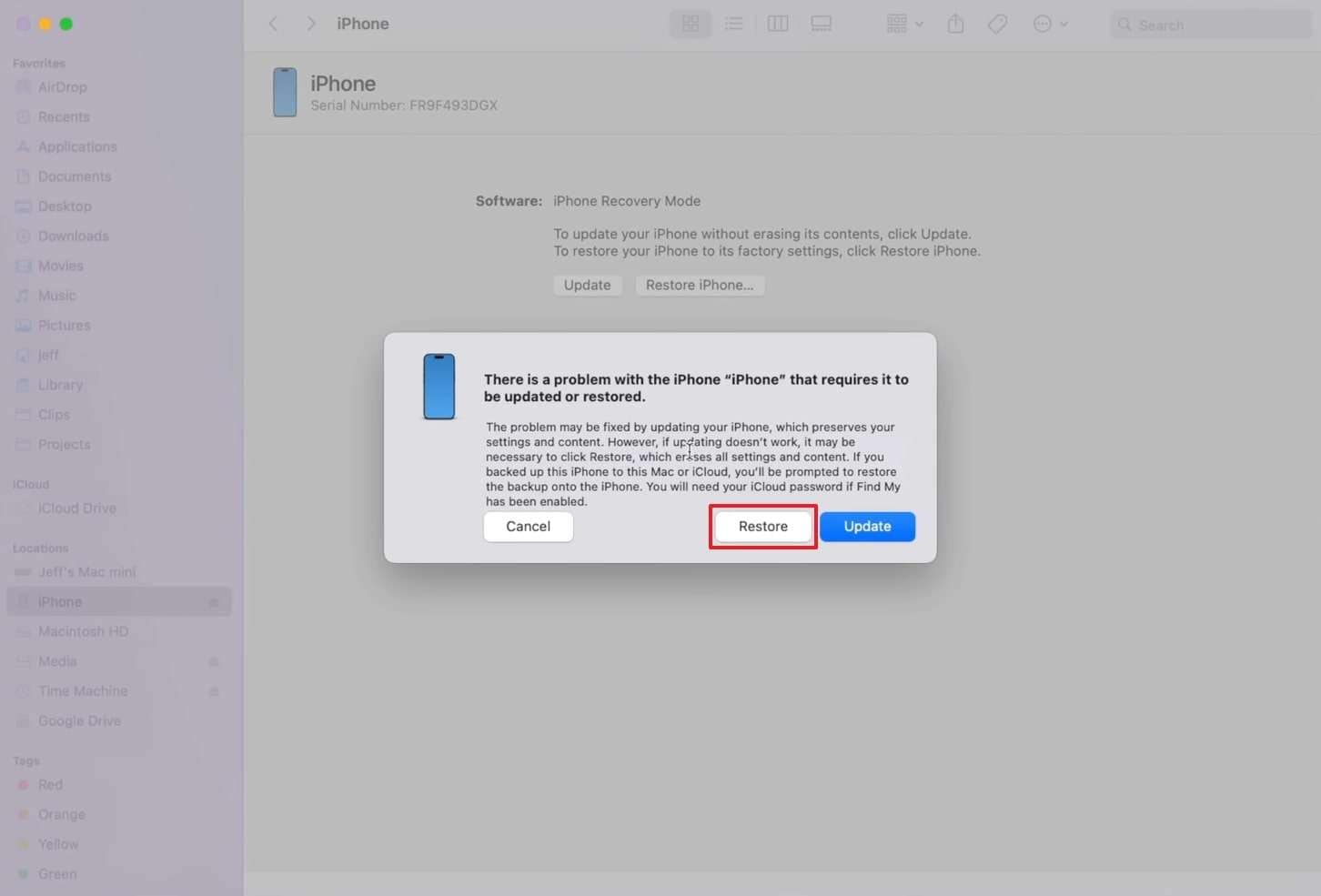
If iTunes or Finder cannot detect your iPhone in Recovery Mode, or if the restore process fails repeatedly, proceed to Solution 4 (DFU Mode) or contact Apple Support as outlined in Solution 6.
Solution 6. Contact Apple Support & Get Expert Help
If you have worked through all five solutions above and your iPhone still displays a black screen after the iOS 26 update, the issue may involve hardware damage — such as a failed display connector, a logic board fault, or physical damage that occurred during the update process. At this point, professional diagnosis is necessary.
Apple Support technicians have access to proprietary diagnostic tools and can determine whether your device requires a software-level repair, a display replacement, or a logic board service. This is especially relevant if you are experiencing an iphone black screen of death 2026 scenario where no software fix resolves the issue.
Here is how to reach Apple's support team:
- Visit Apple's official iPhone Support page to schedule a call, chat online, or book a Genius Bar appointment at your nearest Apple Store.
- If your iPhone is still under warranty or covered by AppleCare+, the repair may be covered at no cost.
- Bring any relevant purchase documentation and be prepared to describe when the black screen first appeared and which fixes you have already attempted.
Conclusion
The iOS 26 black screen is a solvable problem for the vast majority of iPhone users — even when the screen appears completely dead. Starting with the simplest fix (charging and force restart) and progressing to more advanced solutions gives you the best chance of recovering your device quickly and without data loss.
If basic methods do not work and your iPhone remains stuck on a black screen after the iOS 26 update, downgrading to a stable iOS version is the most effective next step. Dr.Fone – System Repair (iOS) makes this process straightforward — no iTunes required, no jailbreaking, and no data loss — giving you a clean, stable iOS installation within minutes.
safe & secure4,624,541 people have downloaded it
FAQs
 Q1. Why is My iPhone Screen Black After the iOS 26 Update?Q2. How Do I Fix a Black Screen After a New iOS Update Without Losing Data?Q3. What Is the iPhone Black Screen of Death in 2026 and How Is It Different?Q4. Can I Downgrade iOS 26 If My iPhone Screen Stays Black?


iOS 26 Topics
- iOS 26 Downgrade/Upgrade
- iOS 26 Bugs/Issues
- 1. iOS 26 Beta Bugs List
- 2. Fix iOS 26 Glitches
- 3. Unable to Verify Update iOS 26
- 4. Hey Siri Not Responding on iOS 26
- 5. RCS Messaging Not Working in iOS 26
- 6. iOS 26 Beta Battery Drain
- 7. iOS 26 Stuck on Install Now
- 8. iOS 26 Update Not Showing Up
- 9. iOS 26 Unable to Check for Update
- 10. iOS 26 Update Failed
- 11. iOS26 Developer Mode Not Showing
- 12. iOS26 Beta Frozen
- 13. iOS 26 Camera Not Working
- 14. iOS 26 Beta Control Center Bugs
- 15. iOS 26 Stuck on Apple Logo
- 16. iOS 26 Widget Not Working
- 17. iOS 26 Face ID Not Working
- 18. Mail Notifications Not Working
- 19. Taking Forever to Update iOS 26
- 20. iOS 26 Beta Laggy
- iOS 26 Features
- ● Manage/transfer/recover data
- ● Unlock screen/activate/FRP lock
- ● Fix most iOS and Android issues
- Free Download Free Download




Daisy Raines
staff Editor
Generally rated4.5(105participated)