
iPhone Not Sending Pictures? Complete Guide to Fix Photos & iMessage Issues

Sep 30, 2026 • Filed to: Phone Repair Solutions • Proven solutions
 TL;DR:
iPhones fail to send pictures primarily due to disabled messaging settings, file sizes exceeding the 2GB limit, or carrier configuration errors, requiring targeted adjustments to either iMessage, MMS, or the underlying iOS system.
● For iMessage delivery failures between Apple devices, verify Apple servers are online and enable Send Low Quality Photo Previews in settings to bypass slow networks or file size restrictions.
● When sending photos to non-Apple devices fails, explicitly enable MMS Messaging in your Text Messaging settings and perform a Reset Network Settings to clear hidden VPN or carrier data conflicts blocking media transfers.
● If network and setting adjustments do not restore picture messaging, use Dr.Fone - System Repair in Standard Mode to safely resolve deep iOS system glitches causing the Messages app or network to malfunction without causing data loss.
Ask AI for a summary
 ChatGPT
 Perplexity
 Gemini
 Claude
 Grok
Grok
What if you try to send a photo to a friend, but it never goes through? Your iPhone shows a stuck bubble or an error, and messages stay blank. This can be frustrating when you need to quickly share memories or important pictures. However, this issue is often simple and fixable, as it may relate to network issues, iMessage settings, or phone storage.
Regardless of the reason, this simple guide explains and resolves the iPhone not sending pictures issue for iMessage and MMS. You will also get to know how you can easily send images when the problem is with the device, as you can fix it with Dr.Fone - System Repair.
 safe & secure
- Part 1. 5 Common Reasons iPhone Won't Send Photos
- Part 2. Phone Not Sending Pictures via iMessage? Here's What to Do
- Part 3. iPhone Not Sending Pictures via MMS? 4 Fixes
- Pro Tip. Use Dr.Fone – System Repair to Fix All MMS and iMessage Issues

- Part 5. 5 Preventive Tips to Avoid iPhone Picture-Sending Issues in the Future
Part 1. 5 Common Reasons iPhone Won't Send Photos
To know why the iPhone is not sending photos, adhere to the 5 simple reasons to know the root cause:
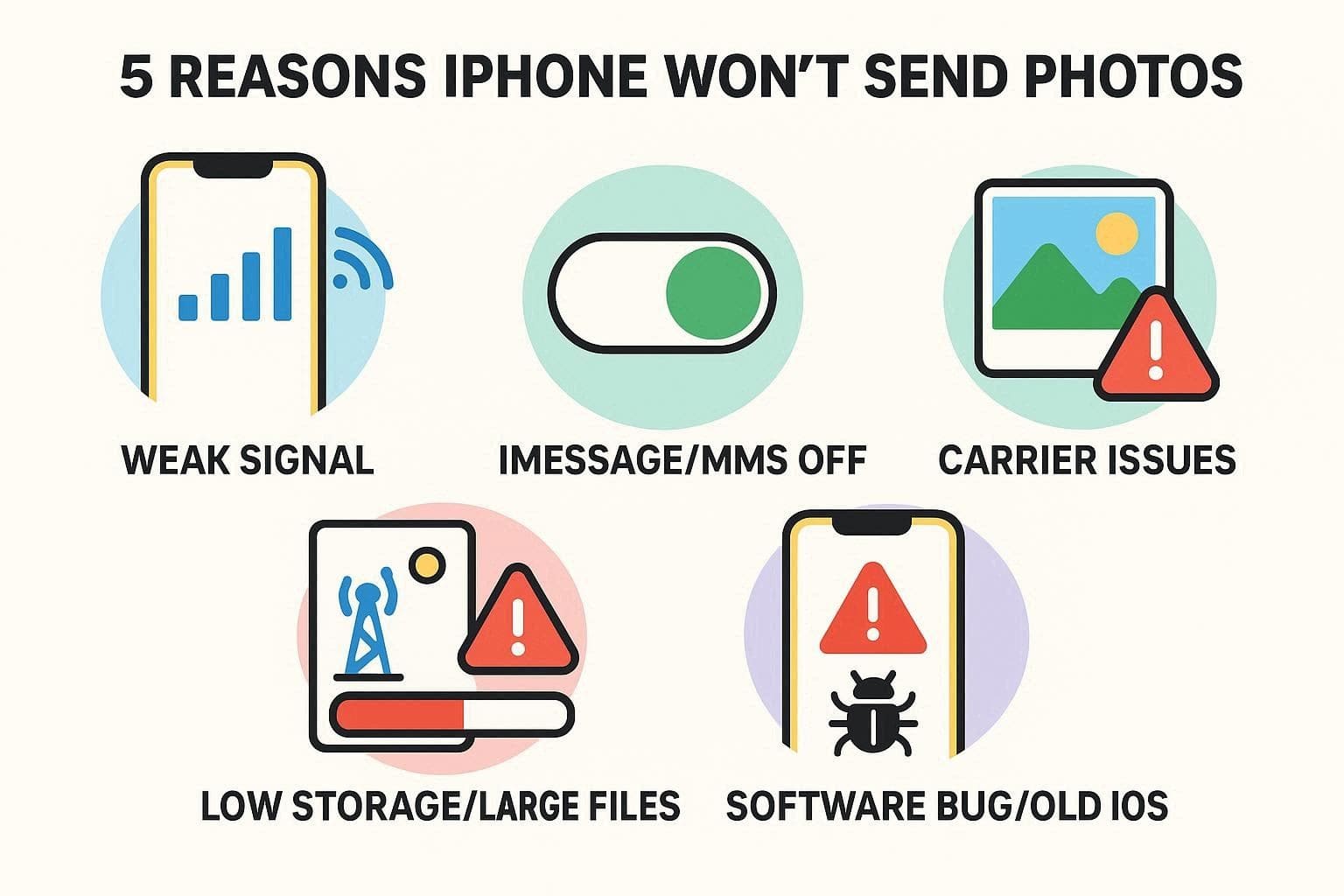
1. Weak or No Internet/Cellular Signal: iMessage uses Wi‑Fi or mobile data, while MMS uses mobile data with a strong signal. Hence, if the signal is weak, unstable, or unavailable, photos may fail to send or remain stuck as "Not Delivered."
2. iMessage or MMS Turned Off: If iMessage is off, the iPhone cannot send photos to other Apple users. Not just that, if the "MMS Messaging" option is toggled off, photos to Android phones or group messages usually do not send.
3. Carrier or Network Issues: At times, the mobile carrier or network encounters problems such as temporary outages, wrong MMS settings, or issues regarding the phone plan. These problems may make it impossible to send photos even when the signal seems good.
4. Low Storage or Very Large Files: When the storage of the iPhone is almost full, it cannot store any new photos or videos. Besides, huge pictures or videos may be larger than the carrier's limits, and they cannot be sent by phone.
5. Software Bugs or Old iOS: Photos may not be sent because of an error or glitch in the Messages app, the network system on the phone, or because of using an old version of iOS. The phone might not display any fault, but the message can be blocked by some underlying software issues.
Part 2. Phone Not Sending Pictures via iMessage? Here's What to Do
Now that you've learned why iPhone pictures won't send, follow the listed fixes for iMessage:
Fix 1. Ensure the Recipient Uses iMessage
Make sure the recipient is using iMessage, which transmits pictures via internet channels instead of carrier MMS, which frequently malfunctions. Photos sent between iMessage users are delivered more reliably. Moreover, you receive the advantages of being able to send bigger files, receive read receipts, use effects, and sync messages across Apple devices. It also avoids additional carrier charges and reduces errors associated with SMS or MMS.
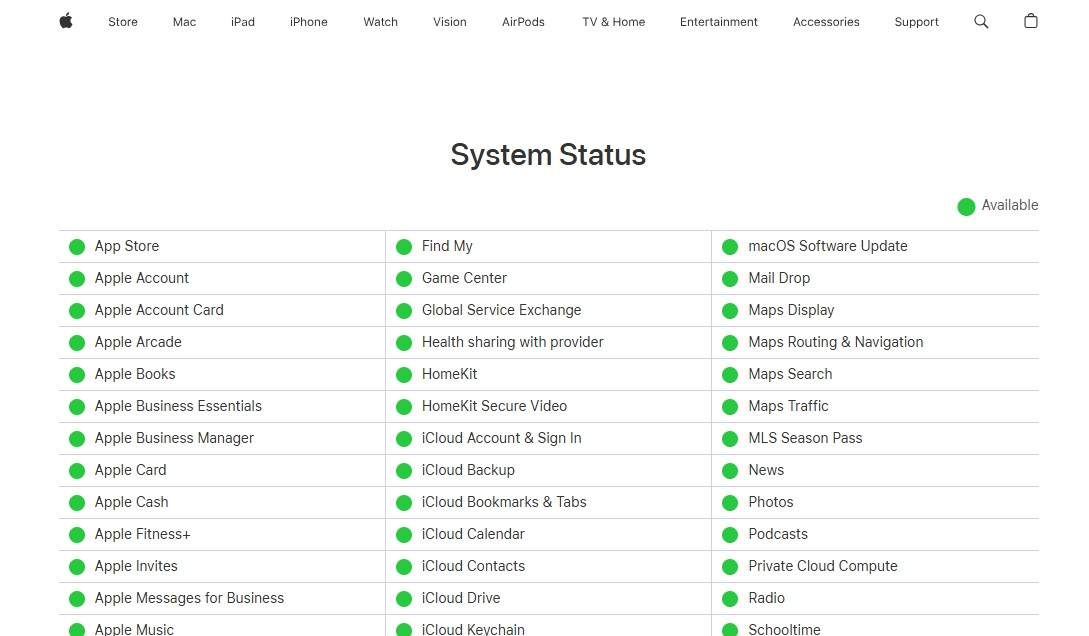
Fix 2. Check iMessage Servers
Even if the receipt includes iMessage, if the iPhone will not send pictures, check the iMessage server. If Apple's servers are down, messages and photos cannot be sent. With this solution, you can know if the problem is on Apple's side, not your phone. It also ensures your messages are delivered smoothly once servers are back online and reduces frustration from failed or delayed photos on iMessage.
Fix 3. Check iMessage Settings
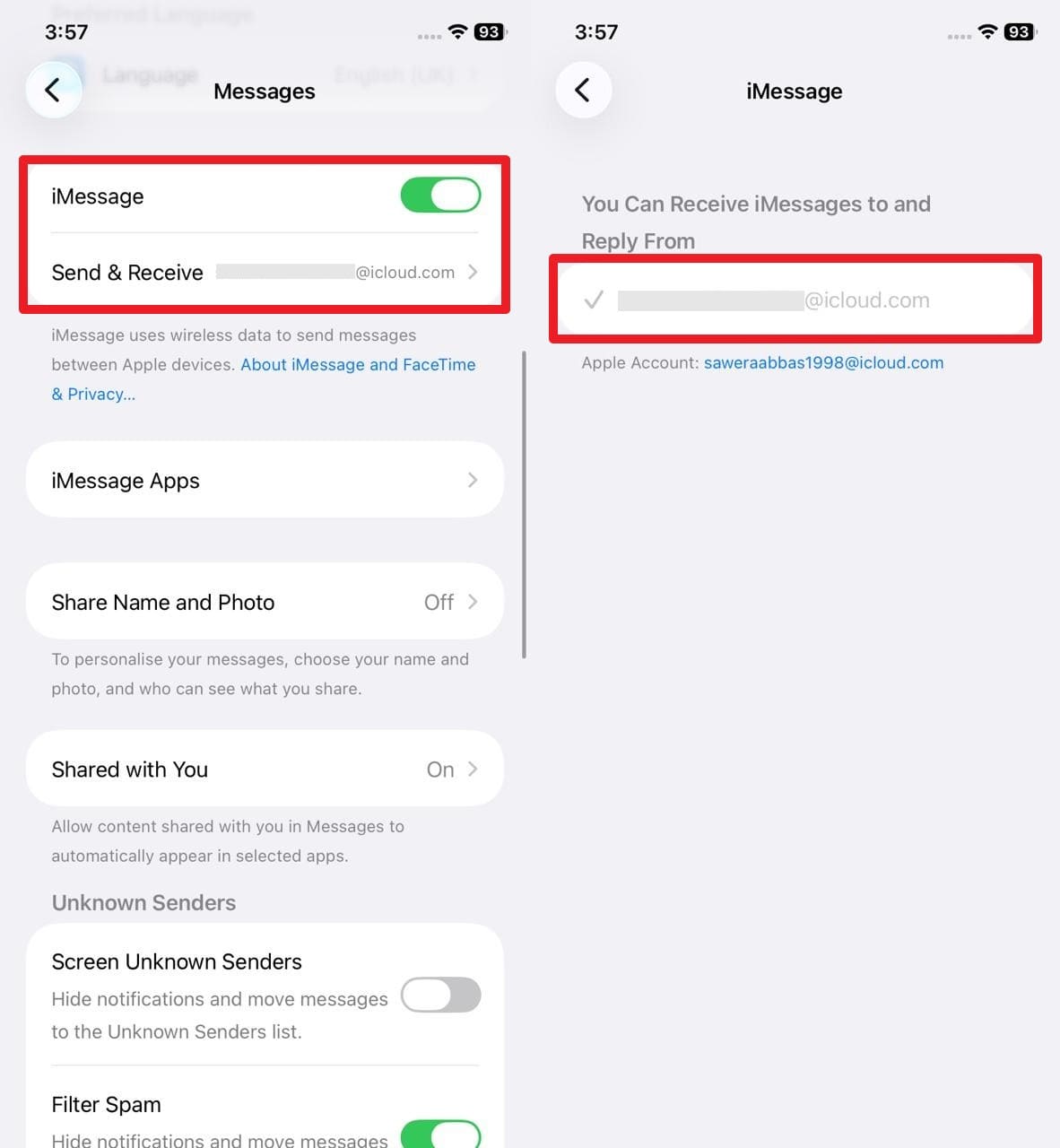
Make sure that you have the correct iMessage settings, which may block the sending of photos and messages. Ensure that iMessage is on, and the right phone number or email address is picked. Besides, it prevents the accidental sending of messages as SMS and saves time by fixing the iPhone won't send photos problems as fast as possible. So, to check these settings via the Message app, review the given steps:
Instructions: In the Apps settings, select "Messages" and toggle on "iMessage." Also, pick the "Send & Receive" menu to verify that the correct email account is selected.
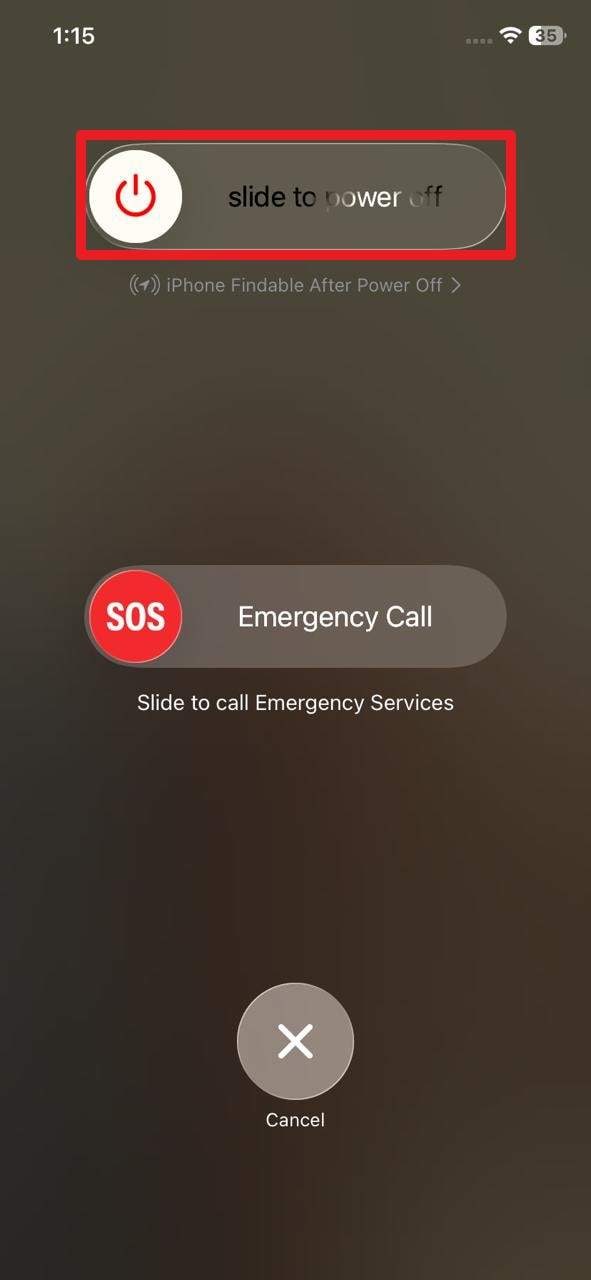
Fix 4. Restart Your Phone
In case you can't send pictures on an iPhone, restart the phone since it is capable of clearing glitches that occur temporarily and prevent the sending of photos or messages. It also fixes smaller network or software problems, restores normal message flow, and is able to fix iMessage problems without involving complicated procedures. Above all, it refreshes Wi‑Fi and mobile data connections to make sending photos easier, once restarted via the listed instructions:
Instructions: Slide the slider "Slide to Power Off" as you press and hold the "Power + Volume Up" button. Wait a few seconds, then press the "Power" button to restart the phone.
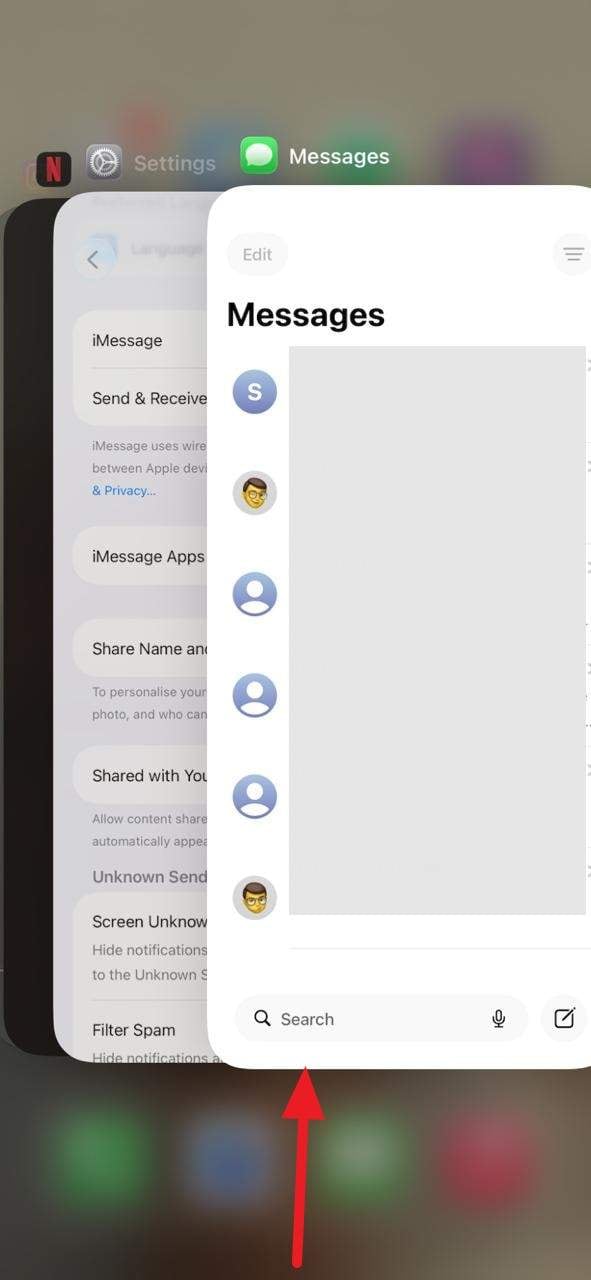
Fix 5. Force Quit Messages
Force quit the Messages app because it can stop problems caused by app glitches that block photos or messages. It can refresh the app, restore normal message delivery, clear minor errors, and avoid a full phone restart. Moreover, this method is quick and straightforward, and it fixes minor issues without affecting other apps or settings on your iPhone. This is why the simple instructions to force quit the app are given ahead:
Instructions: When iMessage isn't sending pictures, close the Messages app and swipe up from the middle of the screen to quit it.
Fix 6. Check the Image Size
It is also recommended to check the photo size, as very large photos can prevent iMessage from sending. This helps identify if the problem is the file rather than your phone or Apple's servers. It shows when a picture is too big for iMessage (up to 2GB between iPhones) or your carrier, so you can compress it.
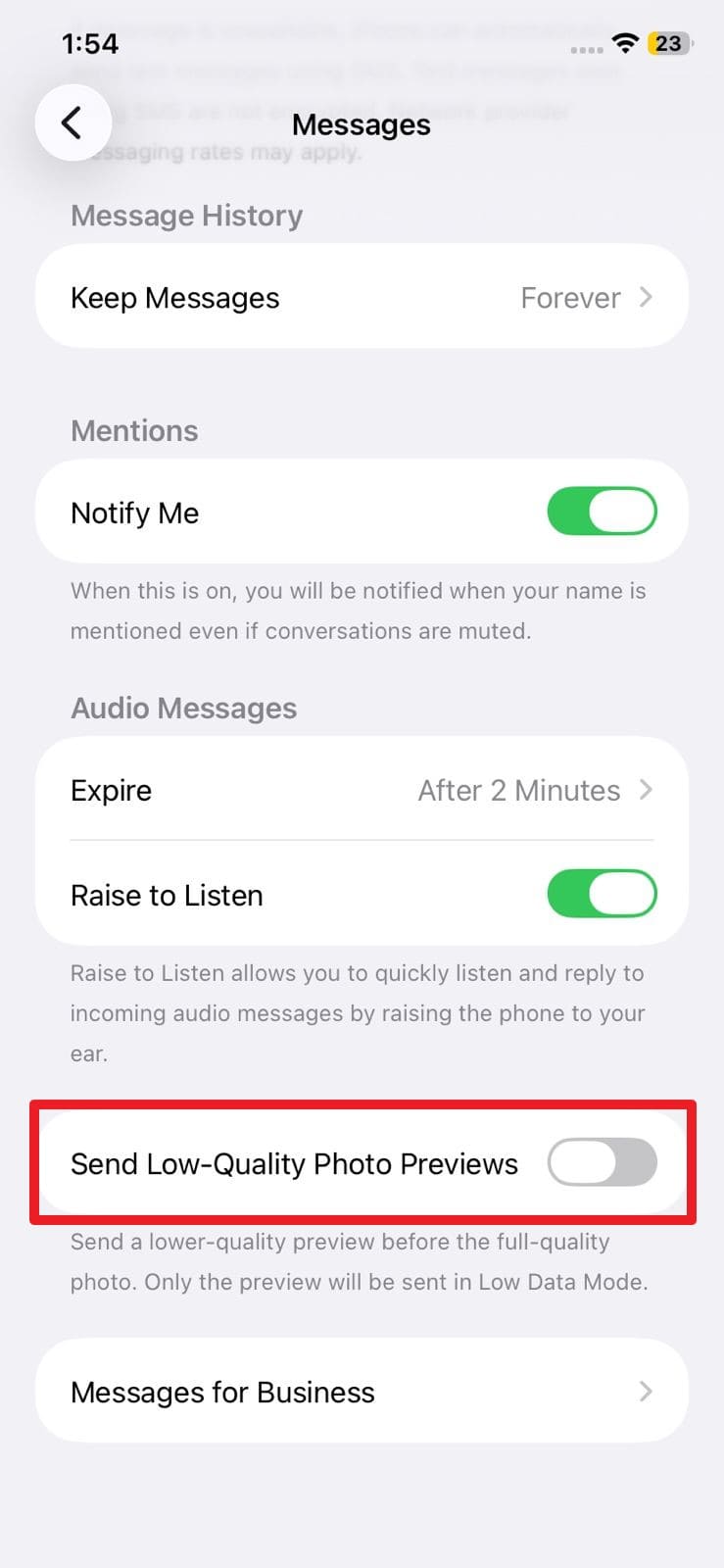
Users can also choose the "Send Low-Quality Photos Previews" settings, as it uses less data, and is guided below. Recipients can see a preview immediately without waiting for the full image. This also makes messaging work better on weak or slow networks, so photos still send even when the connection is poor.
Instructions: In the Messages app settings, scroll down and enable the "Send Low Quality Photo Previews" option.
Part 3. iPhone Not Sending Pictures via MMS? 4 Fixes
When the iPhone can't send photos via MMS, try the given 4 ways and see if they work:
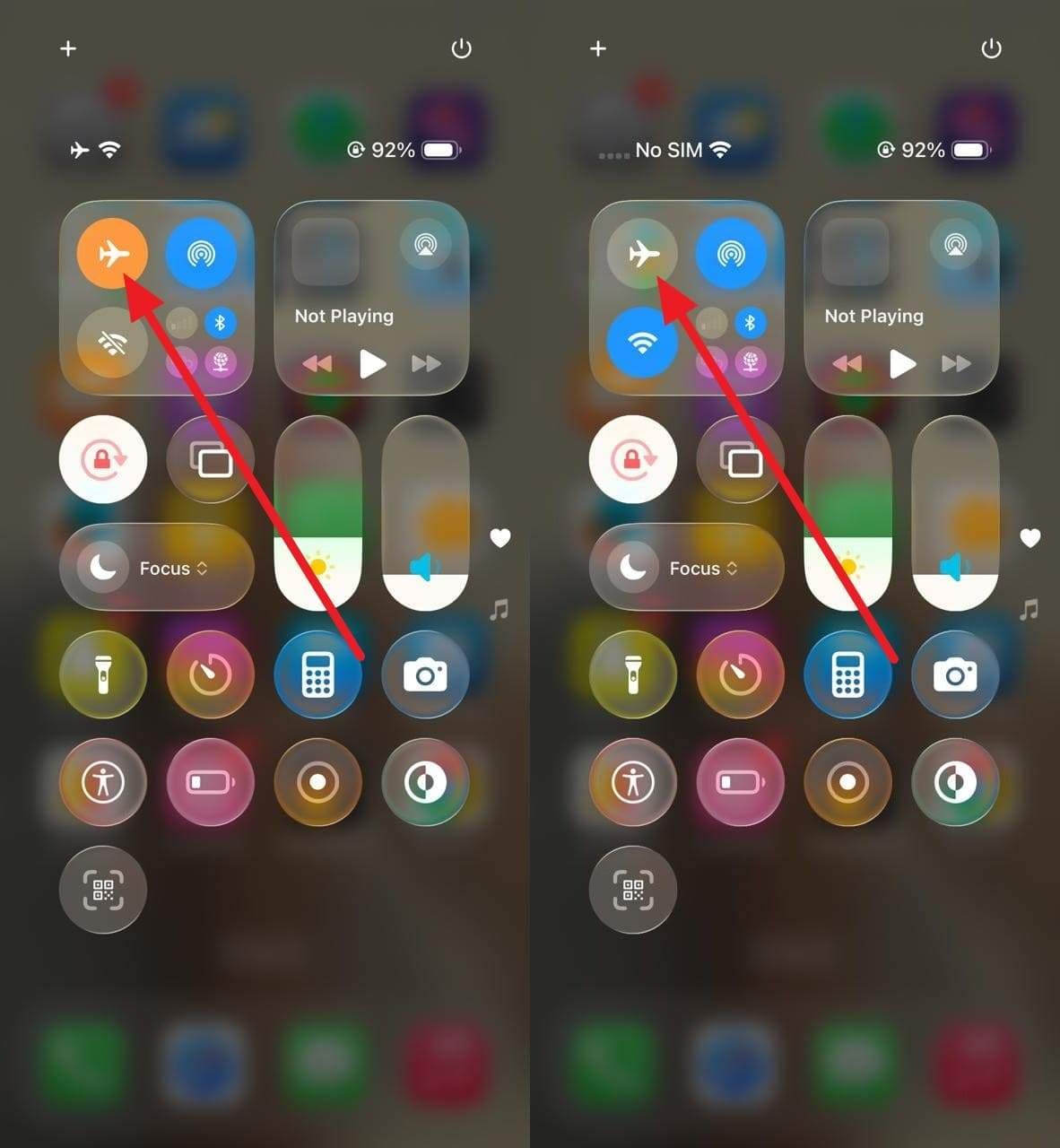
Fix 1. Toggle Airplane Mode On/Off
As you try this solution, it can reset your iPhone's network connection and fix MMS issues. Moreover, it can restore mobile data and signal, allow photos and messages to be sent, clear minor network glitches, and improve message delivery speed. It helps the iPhone connect to the carrier properly, prevents delays, and keeps messaging smooth. So, here is how you can toggle it on and off, via the Control Center:
Instructions: Swipe down from the Home screen, then tap the "Airplane Mode" icon to enable or disable it.
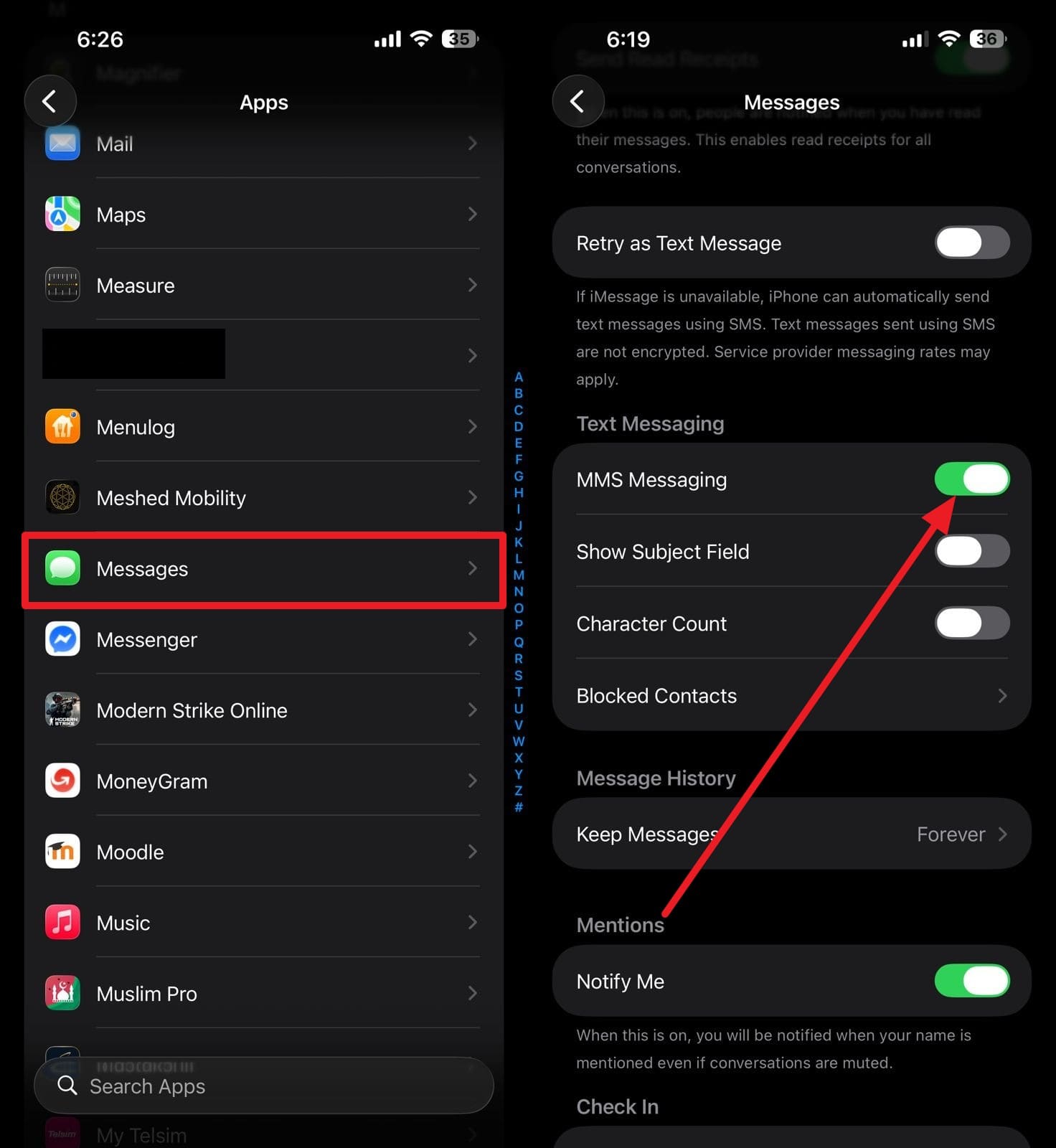
Fix 2. Make Sure MMS Messaging is Enabled
For the iPhone not sending pictures issue, ensure MMS Messaging is enabled; the iPhone cannot send pictures through MMS if it is off. Once enabled, it will allow photos and videos to be sent to non-iPhone users, prevent message failures, keep conversations complete, and avoid confusion about missing messages. Not just that, it ensures your iPhone uses the correct method for sending media, keeps messages reliable, and avoids unnecessary troubleshooting, as illustrated:
Instructions: Scroll down in the Messages settings interface and enable the "MMS Messaging" option within the "Text Messaging" section.
Fix 3. Update iOS to the Latest Version
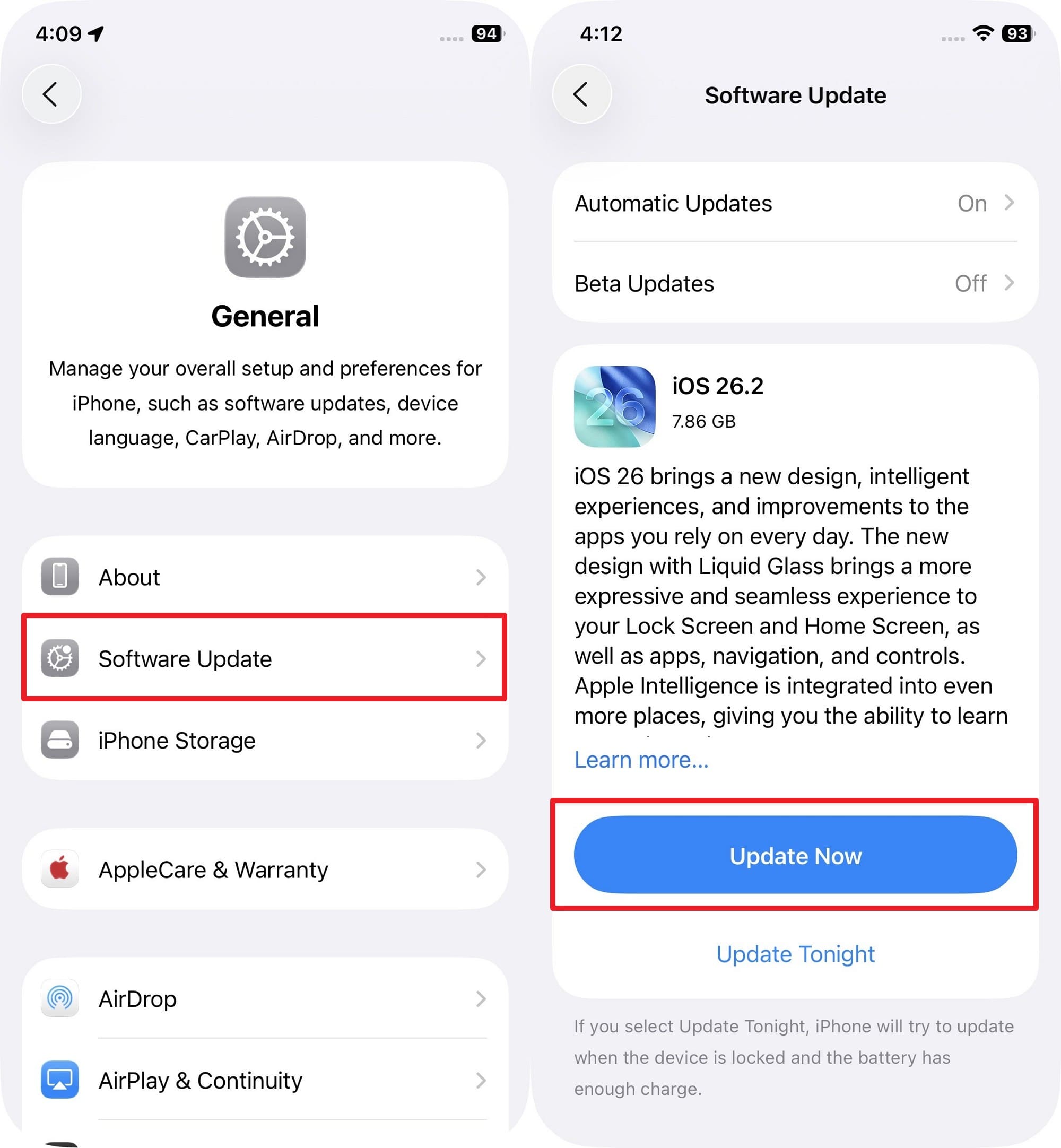
If you still can't send pictures on iPhone via MMS, update iOS to the latest version, since older software can cause MMS and iMessage problems. This can fix bugs, improve phone performance, ensure photos and messages are sent correctly, and maintain strong security. Additionally, it helps the iPhone work smoothly with carriers, prevents crashes or errors, and ensures all messaging features function properly, once updated via the given steps:
Instructions: Go to General settings, select "Software Update," and press "Update Now" if an update is available.
Fix 4. Reset Network Settings
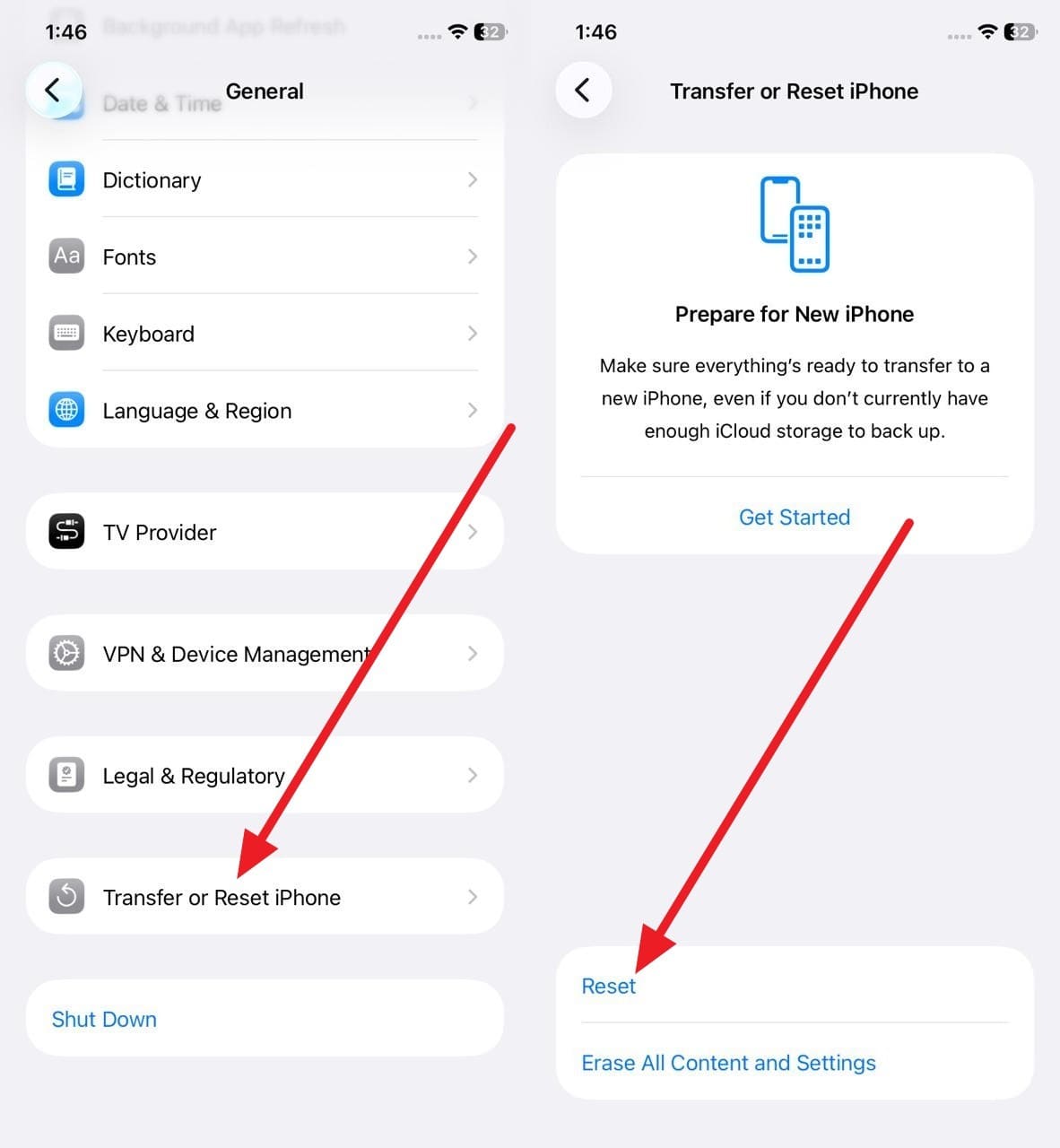
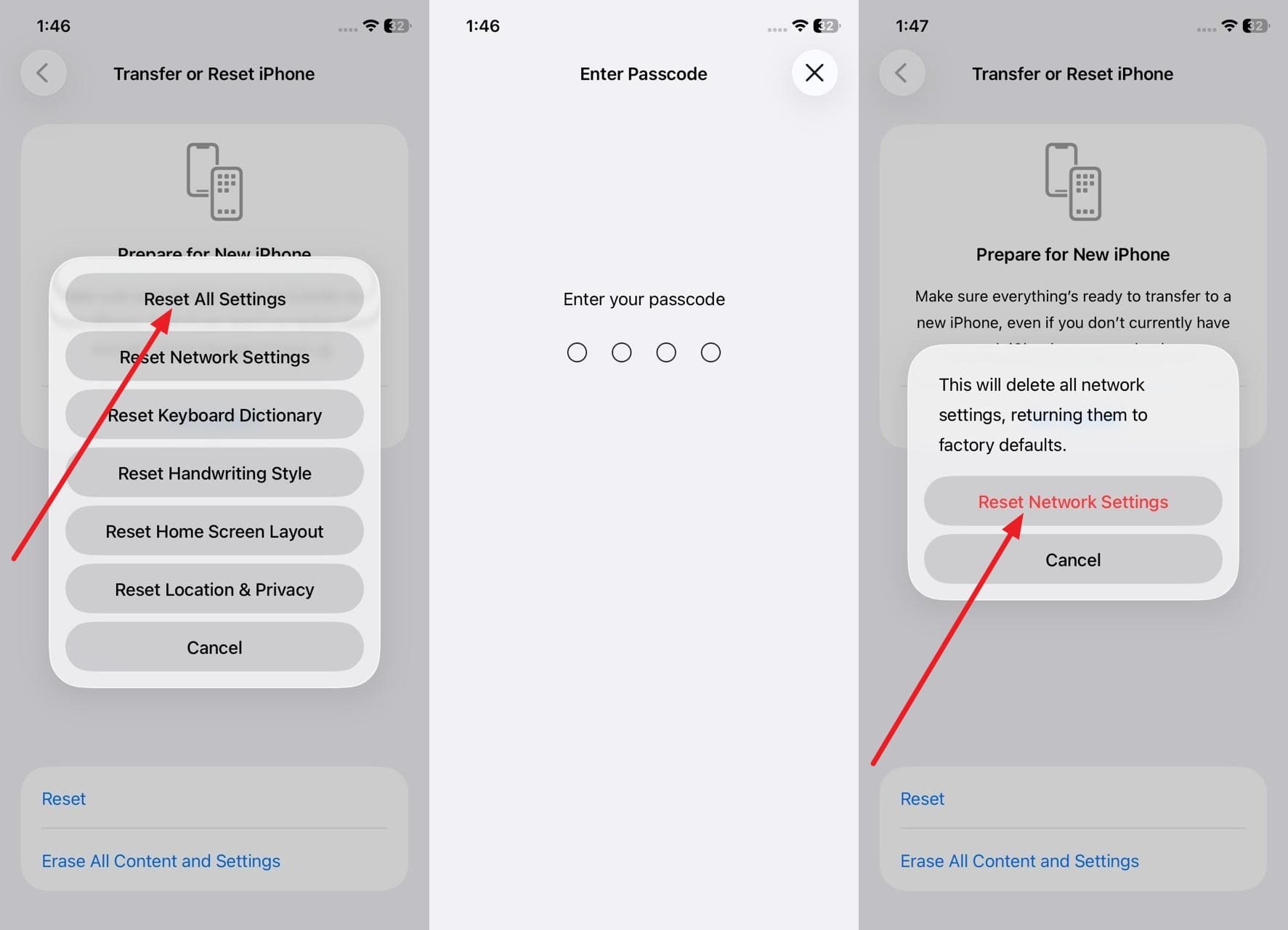
MMS requires accurate network and carrier settings to send pictures, so any error can prevent messages, even with a good signal. This reset removes saved networks, VPNs, and carrier data, which often restores MMS and group messages. Besides, it fixes hidden glitches, refreshes carrier connections, removes Wi-Fi or VPN conflicts, and keeps your photos, messages, and apps safe. To know how it's done, adhere to the listed steps for clarity:
- Step 1. If you can't send pictures from an iPhone, choose "Transfer or Reset iPhone" in the General settings and pick "Reset."
- Step 2. Choose the "Reset Network Settings" option, enter the device password, and press the "Reset Network Settings" option.
Pro Tip. Use Dr.Fone – System Repair to Fix All MMS and iMessage Issues
If the iPhone is not receiving pictures or sending via MMS and iMessage despite trying all fixes, the issue might be iOS system glitches rather than settings or network errors. In this situation, Dr.Fone - System Repair can help, as it can resolve over 150 iOS-related issues in mere seconds. It can address crashes, boot loops, and devices stuck on the Apple logo without affecting data in Standard Mode.
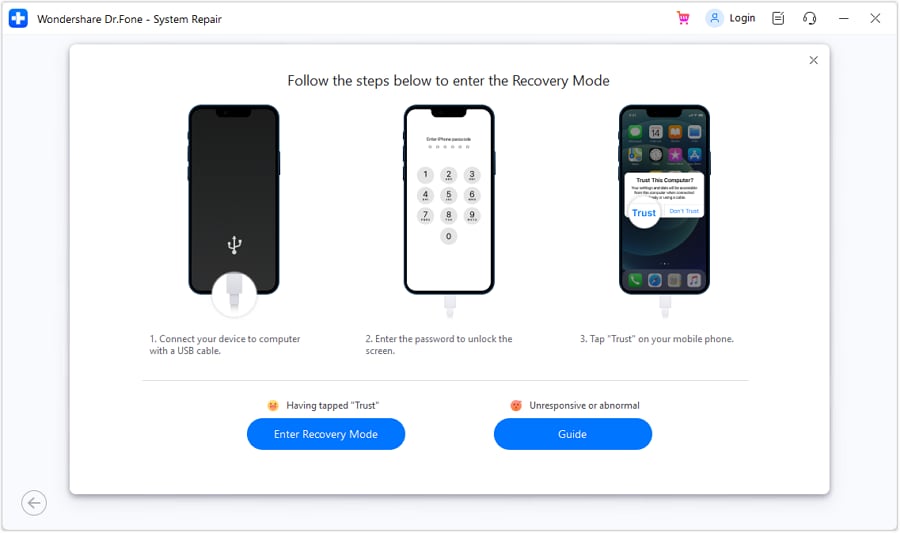
While doing so, it enables users to access the Recovery Mode for free, and the steps are also guided. Besides, Dr.Fone makes it easier to resolve iOS glitches and can fix issues rooted in damaged system components that affect Messages, networking, or activation, without requiring technical expertise. Where Standard Mode fails, Advanced Mode's deep scan addresses larger issues by resetting your iPhone to factory settings.

Dr.Fone - System Repair (iOS)
Repair iOS System Errors Without data loss.
- Only fix your iOS to normal, no data loss at all.
- Fix various iOS system issues stuck in recovery mode, white Apple logo, black screen, looping on start, etc.
- Upgrade and Downgrade iOS without iTunes at all.
- Work for all iPhone/iPad/iPod Touch, running on all iOS versions


Guide to Fix the Glitches Causing the iPhone Not to Send Pictures Issue
While knowing why iPhone pictures won't send, here is how you can fix the iOS system glitches in 4 simple steps:
- Step 1. Locate System Repair Within Dr.Fone's Toolbox
- Step 2. Choose the Standard Mode & Activate Recovery Mode
- Step 3. Download the iOS Firmware on the Tool
- Step 4. Repair the iOS System Glitches Now
Within the Toolbox tab, locate the "System Repair" tool, choose "iPhone" as the device type, and "iOS Repair" as the desired feature.

Select "Standard Mode" when connecting the device to avoid data loss, then choose "Enter the Recovery Mode."
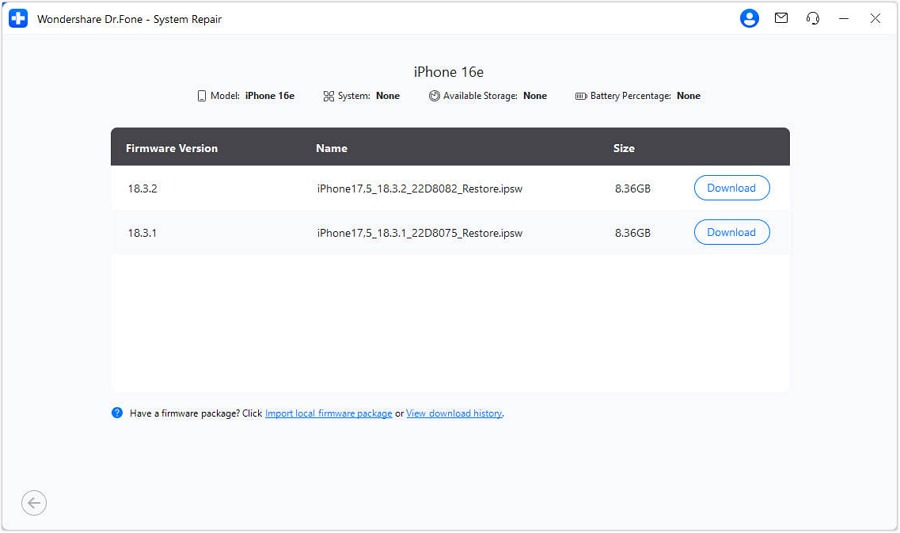
When the tool displays the available iOS firmware options, press the "Download" button to start the installation.
Once it ends and is verified, click the "Repair Now" button to resolve iOS system glitches.

safe & securePart 5. 5 Preventive Tips to Avoid iPhone Picture-Sending Issues in the Future
While trying the fixes for the situation when you can't send pictures on iPhone, also follow the given tips. With this, you can improve the phone's performance, avoid future errors, and keep photos and messages working smoothly every time.
| Quick Tip | Why It Helps |
|---|---|
| Keep Wi-Fi Or Data Strong | Photo messages depend on internet connectivity, so a strong signal helps prevent failed sends and delays. |
| Turn iMessage and MMS On | Both settings must remain active for photo delivery via Messages so the phone knows the correct path. |
| Update iOS Often | Updates fix hidden bugs, network errors, and messaging issues, keeping the phone ready to send pictures smoothly. |
| Clear Storage Before It Fills | Low storage prevents new photos from being saved, slows the phone, and can block message features that require space. |
| Restart The Phone Once in a While | A quick restart clears minor network errors and refreshes apps, so picture messages stay reliable. |
Conclusion
In a nutshell, this guide has explained why users face the iPhone not sending pictures issue. Possible solutions for iMessage and MMS are also provided so users can resolve the issue quickly, avoid recurring errors, and share photos without problems. However, if the issue is due to iOS system glitches rather than settings or network errors, Dr.Fone - System Repair is recommended to resolve 150+ iOS issues.
safe & secureFAQs
 1.
Does this problem mean my iPhone has a hardware fault?2.
Can I lose my photos if messages fail?3.
Can this issue happen only with certain contacts?
1.
Does this problem mean my iPhone has a hardware fault?2.
Can I lose my photos if messages fail?3.
Can this issue happen only with certain contacts?


iPhone Issues
- iPhone Storage Full
- 1. Stuck on Apple Logo Storage Full
- 2. Erase Content Settings not Working
- 3. iPhone Lagging
- 4. iPhone Running Slow
- iPhone Update Problems
- 1. Stuck on Updating iCloud Settings
- 2. iPhone Frozen During iOS Update
- 3. iPhone Checking for Update Stuck
- 4. iPhone Cellular Update Failed
- 5. iPhone Software Update Failed
- 6. iPhone Stuck on Update Requested
- 7. iPhone Update Error 1110
- 8. iPhone is Findable and Won’t Turn On
- 9. iPhone Won't Update
- 10. Update Server Couldn't Be Contacted
- 8. iPhone & iPad Security Updates
- 9. Update iPhone with/without iTunes
- 10. Can't Download or Update Apps
- iPhone Media Problems
- 1. Apple Music Song Not Available
- 2. iPhone Not Ringing
- 3. iPhone Echo Problem
- 4. iPhone Ringer Problems
- 5. iPhone Plays Music by Itself
- 6. Ringer Volume Changes by Itself
- 7. Music Won't Play on iPhone
- 8. Blurry Photos & Videos on iPhone
- 9. iPhone Volume Problems
- iPhone Sound Problems
- 1. YouTube no Sound
- 2. iPhone Microphone Problem
- 3. Test iPhone Microphone
- 4. Headphones No Sound from iPhone
- 5. No Sound on iPhone Game
- 6. iPhone Sound Not Working
- 7. iPhone Screen Recording no Sound
- iPhone Calling Problems
- 1. iPhone No Sound on Calls
- 2. Screen Goes Black During Call
- 3. iPhone Recent Calls Not Showing
- 4. iPhone Dropping Calls Issue
- 5. iPhone Calling Problem
- iPhone Camera Problems
- 1. iPhone Camera Black
- 2. iPhone Camera Blurry
- 3. iPhone Camera Not Working
- 4. iPhone Front Camera Not Working
- 5. TrueDepth Camera Not Working
- 6.Out-of-Focus Photos on iPhone 15
- iPhone Network Problems
- 1. Airpods Won't Connect to iPhone
- 2. iPhone Disabled Connect to iTunes
- 3. iPhone Not Syncing Problems
- 4. iPhone Internet Not Working
- 5. iPhone Keep Disconnecting from Wifi
- 6. iPhone WIFI Not Working
- 7. PC Not Recognizing iPhone
- 8. iPhone Stuck on Connect to iTunes
- 9. iPhone Not Showing up in iTunes
- 10. iTunes Not Detecting Your iPhone
- 11. iPhone Bluetooth Disconnect
- 12.Apple CarPlay Keeps Disconnecting
- iPhone Screen Problems
- 1. White Spots in iPhone Screen
- 2. iPhone Bleeding Screen
- 3. Turn Off iPhone When Frozen
- 4. Fix Orange Dot on iPhone
- 5. iPhone Green Screen Flickering
- 6. Green Lines in iPhone Screen
- Other iPhone Problems
- ● Manage/transfer/recover data
- ● Unlock screen/activate/FRP lock
- ● Fix most iOS and Android issues
- Free Download Free Download Free Download


 > How-to > Phone Repair Solutions > iPhone Not Sending Pictures? Complete Guide to Fix Photos & iMessage Issues
James Davis
staff Editor
Generally rated4.5(105participated)