

 TL;DR:
The standard keyboard shortcuts to reverse and repeat actions are Ctrl + Z for undo and Ctrl + Y or F4 for redo on Windows, while Mac applications primarily use Command + Z and Command + Shift + Z.
● Excel clears its undo history after you save the file or execute specific actions, whereas Word maintains a longer continuous undo stack that remembers multiple past steps.
● Undo commands are strictly limited to active editing sessions and cannot recover history once a file is closed, nor can they reverse file-level restrictions like "Read-Only" modes or password protections.
● To unlock password-protected Word, Excel, PowerPoint, and PDF files ranging from Office 97 to Microsoft 365, you must use offline desktop software like Dr.Fone - DocPassRemover to execute Combined Decryption, Dictionary Attack, or Brute Force methods.
Ask AI for a summary
 ChatGPT
 Perplexity
 Gemini
 Claude
 Grok
Grok
You are working on a Word file and suddenly delete an important paragraph. Or maybe you enter the wrong numbers in an Excel sheet. Your first thought is, "How do I undo in Excel?" This moment happens to everyone, even experts. This is where Undo and Redo become your best helpers. They act like a safety net and help fix mistakes in seconds. With one shortcut, you can go back and correct errors without stress.
But there is more to know. Undo works for recent actions, not everything. Some limits, like locked or password-protected files, cannot be fixed with shortcuts alone. Later in this guide, you will also learn about a stronger solution for those cases, like Dr.Fone - DocPassRemover.
In this article

Part 1. What Are Undo and Redo? (And Why They Matter)
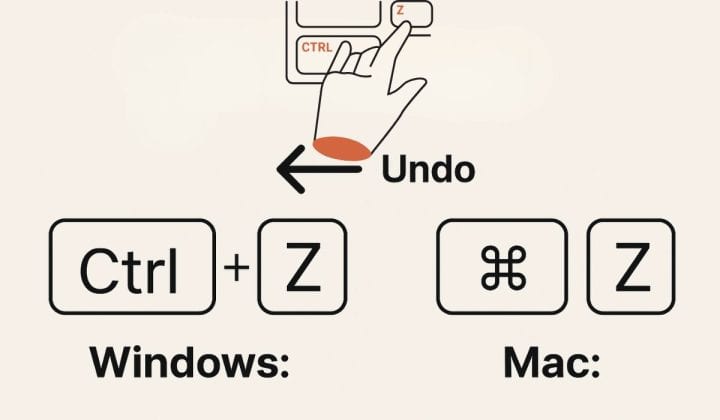
Undo (Ctrl + Z)
Undo it the command most often used with shortcuts a computer has to offer. It allows you to retrace your steps one by one. But what is undo shortcut? The moment you hit Ctrl + Z, the most recent action gets undone. You can keep doing that to step further and further into your past actions. It basically opens a window to the past of your actions. You can fix typing mistakes, remove wrong formatting, or bring back deleted text. This makes working faster and less scary, especially when you try new changes.
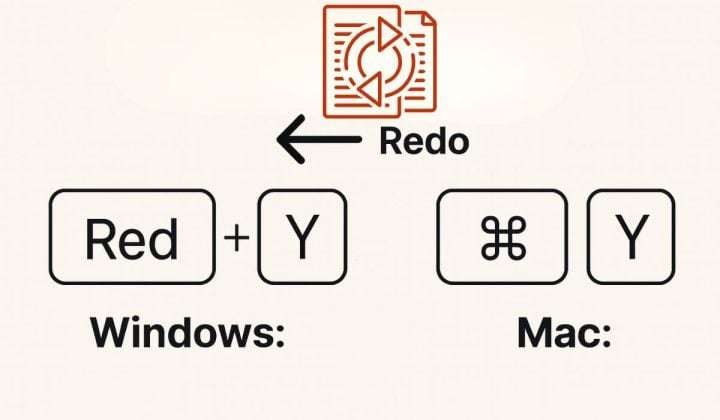
Redo (Ctrl + Y or F4)
Wondering what is redo shortcut? Undo and redo are two antonym actions, to redo is to bring back an action you have just removed. In case you undo something unintentionally, Ctrl + Y restores it. In addition, the repeat command is available on the F4 key, which will repeat or re-execute your last action. For instance, changing the format of a cell in Excel and then pressing F4 will put the same format again.
Part 2. Undo & Redo Keyboard Shortcuts – Quick Reference
Now that you know what Undo and Redo are, let's look at the shortcuts you can use right away.
A. Universal Keyboard Shortcuts
These shortcuts are easy to remember and work across many programs.
Universal Champion (Windows):
- Undo Shortcut: Ctrl + Z This key combo takes one step back. You can press it many times to undo more actions.
- Redo Shortcut: Here is keyboard shortcut to redo: Ctrl + Y (Primary) This brings back the action you just undid.
- Redo Shortcut: F4 (Secondary) F4 often repeats the last action. In many cases, it works like Redo, especially in Excel and Word.
Mac Command Center:
- Undo Shortcut: Command (⌘) + Z This works the same as Ctrl + Z on Windows.
- Redo Shortcut: Command (⌘) + Shift + Z This is the most common redo shortcut on Mac.
- Redo Shortcut (Some Apps): Command + Y A few apps also support this key for redo.
B. Office-Specific Notes (Excel & Word)
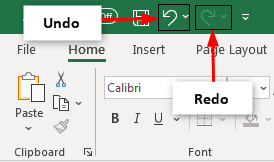
Microsoft Office also shows Undo and Redo on the Quick Access Toolbar at the top. You can click the small arrows to see a list of actions you can undo. One key difference is how history works:
- Excel: Undo history clears after saving or running some actions.
- Word: Keeps a longer undo history and remembers many steps.
Part 3. How to Undo and Redo in Excel & Microsoft Word
Let's now see how Undo and Redo work inside Excel and Word. These steps answer the most common user questions.
A. How to Undo in Excel
How to undo in Excel is very simple.
Steps to undo edits in Excel:
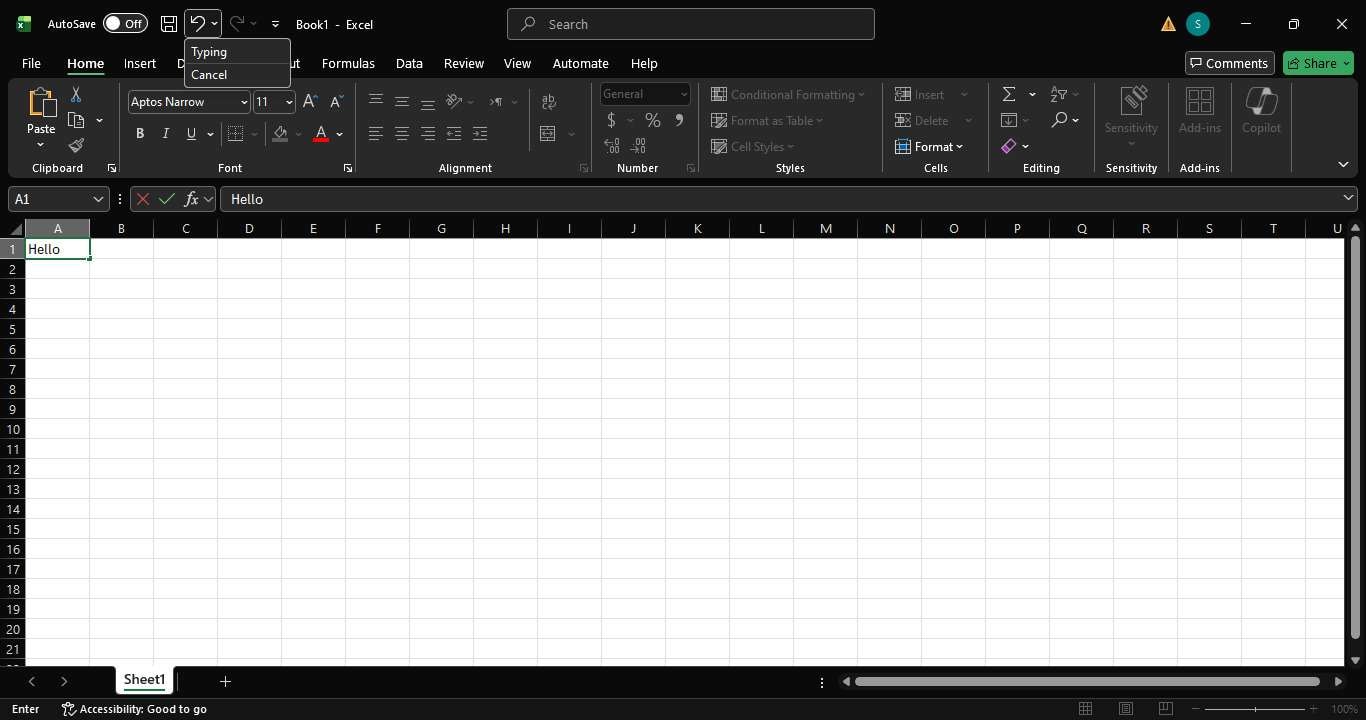
- Step 1. Make a change, like typing data or deleting a cell.
- Step 2. Press Ctrl + Z on your keyboard or click on the reverse sign in the top left corner.
- Step 3. The last action is reversed.
- Step 4. Press it again to go back more steps.
Special case: How to undo read-only in Excel
How to undo read only in Excel is not an edit. It is a file mode. You cannot undo it with Ctrl + Z. What you should do instead:
- 1. Close the Excel file.
- 2. Reopen it and make sure "Read-Only" is not selected.
- 3. If the file asks for a password, you must enter it to edit.
B. How to Undo in MS Word / Microsoft Word
How to undo in MS Word works very smoothly.
Steps to undo in Word:
- Step 1. Type text or change formatting.
- Step 2. Press Ctrl + Z or click on the reverse icon in the customized bar.
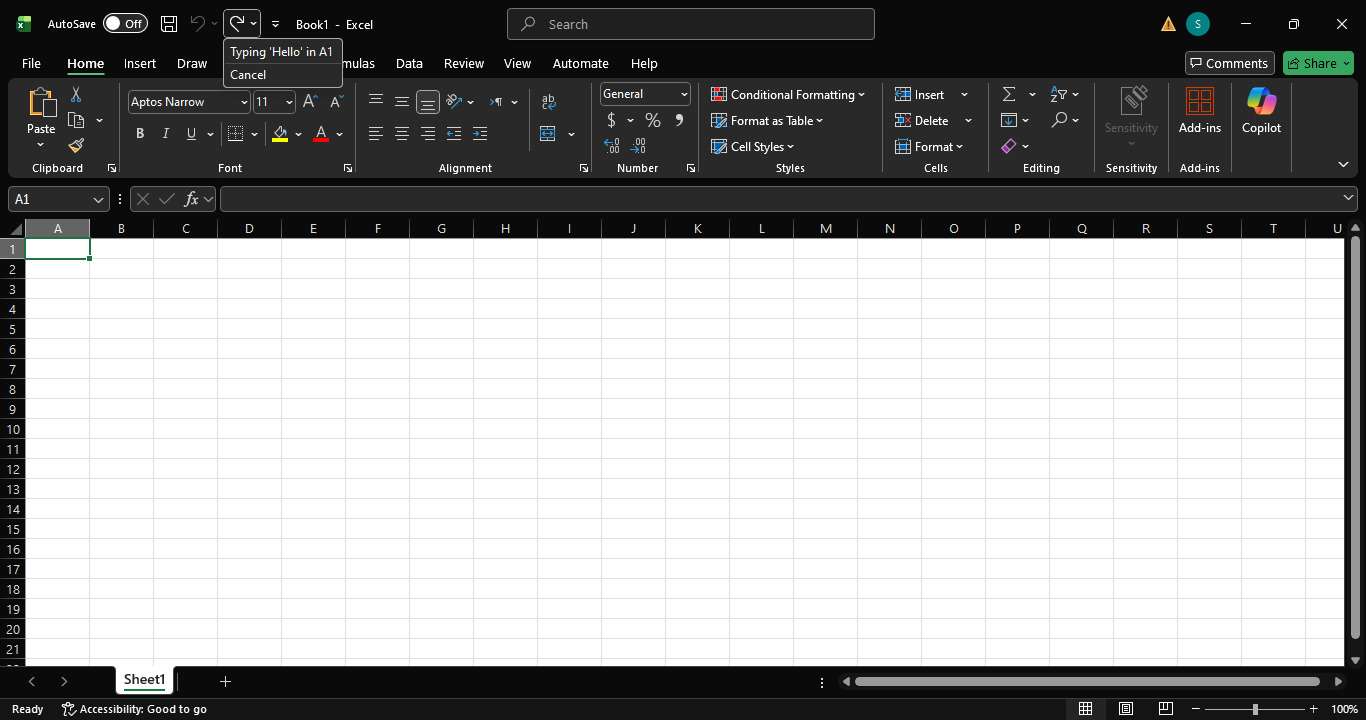
Step 3. Word removes the last change. Step 4. Keep pressing to undo many steps.
Word uses something called an Undo Stack. This means it remembers many actions. You can also click the Undo arrow in the toolbar to see past steps.
C. Redo Command in Word (& Other Apps)
The redo command in Word is easy.
Steps to redo:
- Step 1. Undo an action using Ctrl + Z.
- Step 2. Press Ctrl + Y to redo it.
If the Redo button is greyed out, it means there is nothing to redo. This happens when you make a new change after undoing.
Part 4. When Undo Shortcuts Don't Work (Common Misunderstandings)
Undo and Redo simplify your work significantly, but they are limited. At this point, a lot of users get confused and stuck. Undo is a very short period of time feature. Basically, it will only work while the file is still open in the application. As soon as you close Word and/or Excel or any other program, your undo history will be removed. Another big misunderstanding is document protection. If a file is locked with a password or set to "Read-Only," this is not an action you can undo. It is a security wall. Which shortcuts can you use for undo and redo like Ctrl + Z or Ctrl + Y cannot remove it.
Common situations where Undo does not work:
- You closed the file and reopened it.
- The document is password-protected.
- The file is locked for editing or marked as read-only.
- The document came from someone else with restrictions already set.
Part 5. Handling Locked or Protected Documents (Beyond Undo Shortcuts)
Undo and Redo shortcuts are perfect for tiny errors, however, the problem is that they won't work when a file is locked. At that time, continuously hitting Ctrl + Z will not assist you. To be able to work on protected documents, you need special software.
Dr.Fone - DocPassRemover is software that runs on a desktop and allows the user to open files protected by a password without any hassle or danger. The tool is intended for users who may have forgotten the password, who have a locked file, or who really want to get to their important document. The tool runs completely offline to ensure that your files do not go out of your computer. In this manner, your information is always private and safe.
It can handle multiple file formats in a single place. Besides Excel password removal, you can also use it to unlock Word, recover PowerPoint passwords and remove PDF passwords. It supports files of all ages, from Office 97 to Microsoft 365.
Dr.Fone - DocPassRemover
Decrypt open passwords, remove restrictions & passwords - all in one go!
- Convert secured PDF to PDF even if you don't know the open password.
- The "Remove Password" feature is free when the password is already known.
- Automatically detects the PDF file's name, location, and specific lock status.
- Removes permission restrictions like editing, printing, and copying.
- Clean and easy interface, perfect for all users—no technical skills needed.
How to Unlock Your Document Without a Password
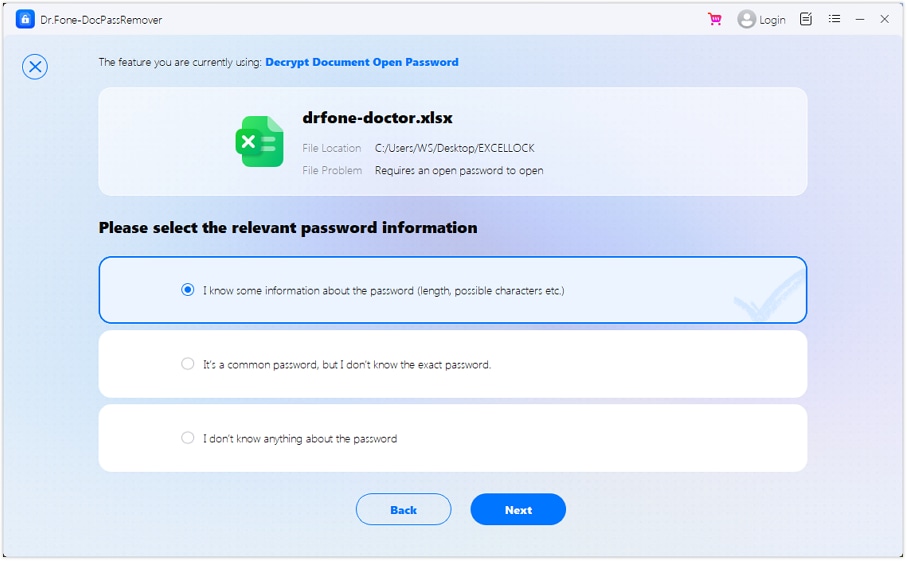
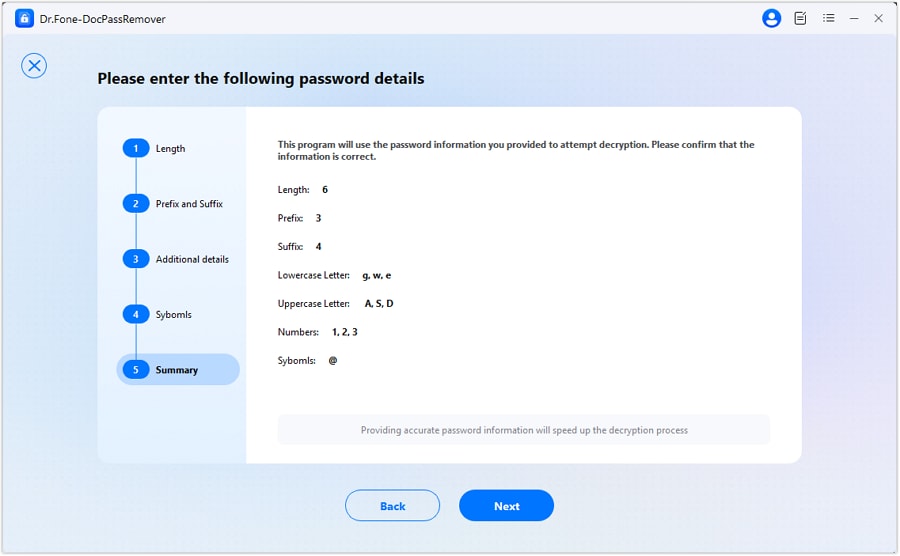
- Step 1: Open Dr.Fone – DocPassRemover, click Add File, and select your locked Excel file (.xls, .xlsx, .xlsm). Choose how much you remember: "I know some info", "It's a common password", or "I know nothing."
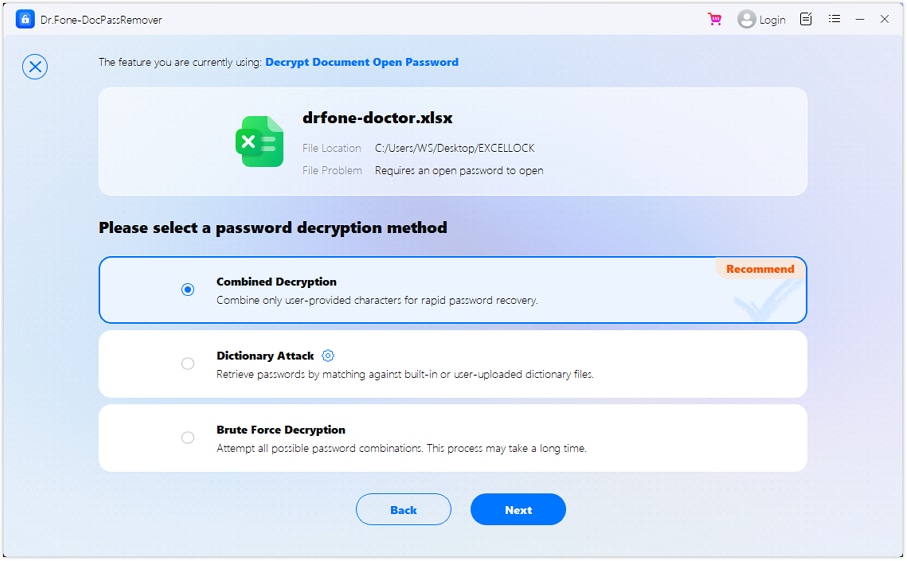
- Step 2. Then pick "Combined Decryption, Dictionary Attack, or Brute Force," and click "Next."
- Step 3: Enter any hints if asked, or use the default settings, then click "Start" to begin unlocking.
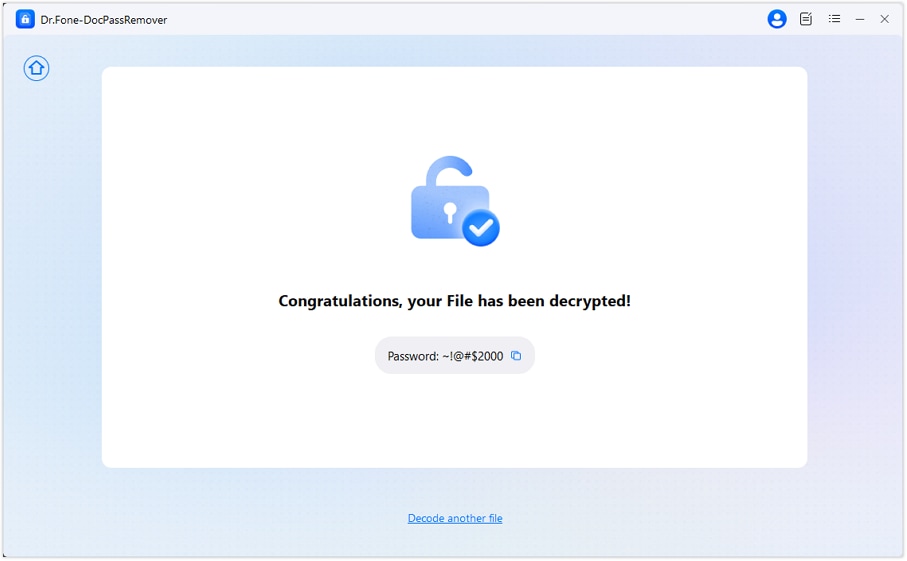
- Step 4: Wait for the result, view the password, and open your unlocked Excel file automatically saved on your PC.
Conclusion
Keyboard shortcut to redo and undo save us every day. They help fix small mistakes in Word, Excel, and many other apps. With one key press, panic turns into relief. But these shortcuts have limits. They cannot remove passwords or unlock protected files. When a document is locked, you need a stronger solution. This is where Dr.Fone - DocPassRemover really helps. The software can safely unlock Word, Excel, PowerPoint, and PDF files without any loss of data. In situations where shortcuts don't work, Dr.Fone is there to give you back your control quickly and without any hassle.

Daisy Raines
staff Editor
Generally rated4.5(105participated)