
How to Boot Xiaomi Devices into Fastboot Mode Safely - Ultimate Guide

Oct 23, 2026 • Filed to: Phone Repair Solutions • Proven solutions
 TL;DR:
You can safely enter and exit Xiaomi Fastboot mode using specific hardware button combinations, command-line ADB tools, or a guided software interface like Dr.Fone - System Repair.
● To manually enter Fastboot, power off the device and hold the "Power" and "Volume Down" buttons simultaneously, or execute the `adb reboot bootloader` command on a connected PC after enabling USB debugging.
● To force an exit from a stuck Fastboot screen and restore normal boot, press and hold the "Power" button for 10 to 20 seconds, or use the `fastboot reboot` command via PC if the physical buttons are unresponsive.
● Users uncomfortable with command-line utilities or button timing can bypass manual methods entirely by using the free Fastboot feature within Dr.Fone - System Repair to toggle the mode with one click.
Ask AI for a summary
 ChatGPT
 Perplexity
 Gemini
 Claude
 Grok
Grok
Step into the powerful side of your Xiaomi device with this safe and straightforward fastboot guide. Fastboot mode on Xiaomi phones often looks technical, but it does not need to feel complex or unsafe. With the right steps, you can open this mode with ease and use it to fix issues, flash updates, or check device health.
This guide shows a safe and simple way to enter and exit Fastboot mode without risk or confusion. Before you move forward, take a moment to understand how this mode works and why it helps. Later, decide whether the manual ways or an innovative System Repair solution is the best choice to enter & exit Fastboot mode.
- Part 1. What Is Fastboot Mode on Xiaomi Devices?
- Part 2. Free Tool to Enter or Exit Fastboot Mode on Xiaomi Without ADB Commands

- Part 3. How to Enter Fastboot Mode on Mi Phones: Step-by-Step Guide
- Part 4. How to Exit Xiaomi Fastboot Mode & Restore Normal Boot
- Part 5. Tips to Avoid Getting Stuck in Fastboot Mode on Xiaomi Devices
Part 1. What Is Fastboot Mode on Xiaomi Devices?
Xiaomi Fastboot mode is a special startup screen that allows a computer to communicate with the device at a low level. It helps fix software errors, restore the system, or install a fresh ROM when the phone does not open normally. In this mode, the phone does not load HyperOS, MIUI, or Android. Rather, it only shows a basic Fastboot screen, often with the word "FASTBOOT" or the old Mi bunny image.
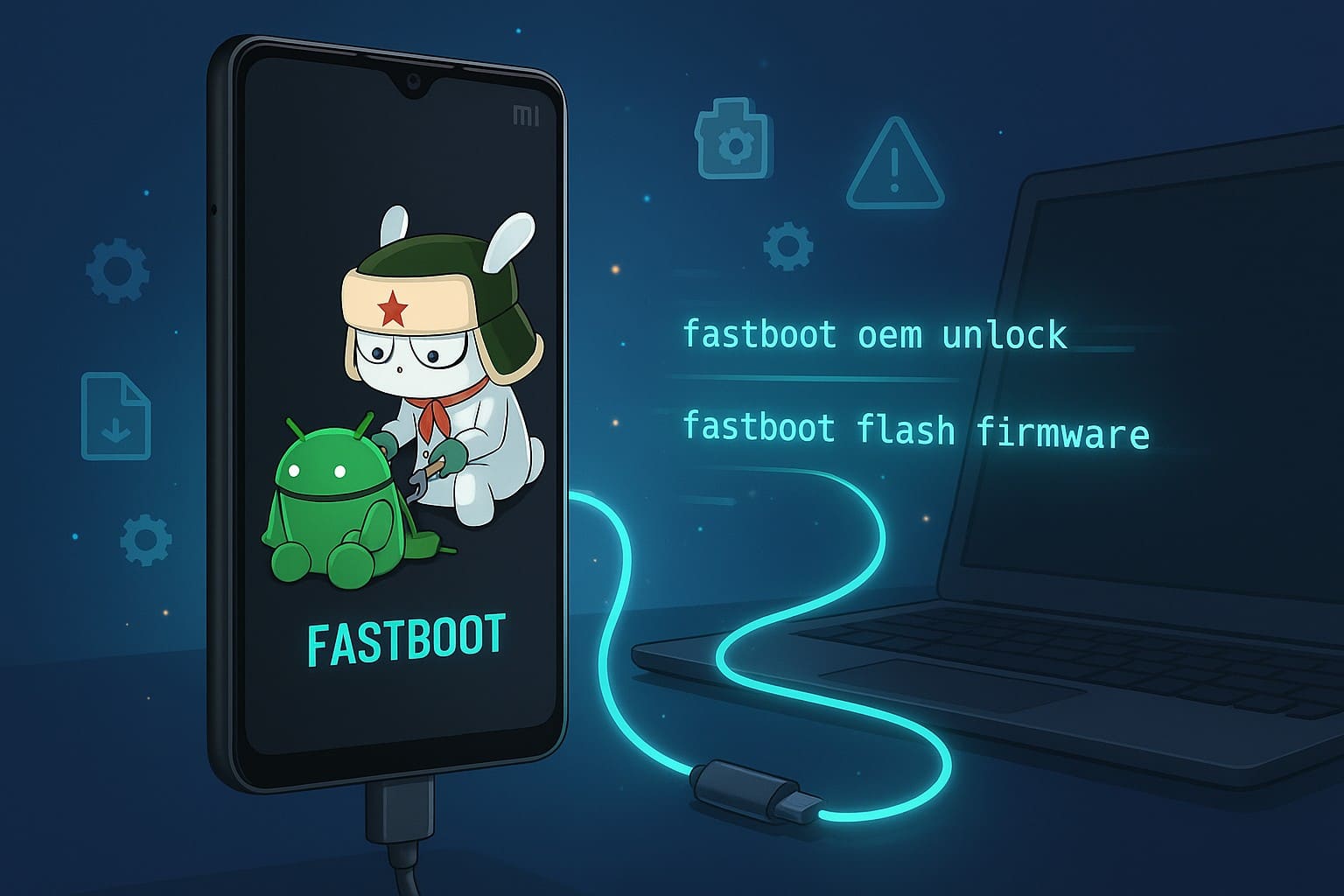
Additionally, a PC can send Fastboot commands to install official ROMs, restore a damaged system, change regions, or lock and unlock the bootloader. This mode gives strong control, so a wrong step can erase data or harm the device. Also, know that it's not the same as a normal boot or recovery menu. Fastboot provides deeper access and is useful only for repair tasks or advanced modifications.
Part 2. Free Tool to Enter or Exit Fastboot Mode on Xiaomi Without ADB Commands
Before trying hardware buttons or command-line tools, there is an easier way to manage Fastboot Mode on Xiaomi devices. Dr.Fone – System Repair includes a free Fastboot Mode feature that lets users enter or exit Fastboot Mode in just a few clicks. It eliminates the need to remember button combinations, install ADB tools, or execute Fastboot commands manually.
Unlike traditional methods, the entire process is guided on screen, making it suitable for both beginners and experienced Android users. Whether you need to access Fastboot for system maintenance or safely leave Fastboot Mode after completing a task, Dr.Fone provides a simple and reliable solution.

Dr.Fone - System Repair (Android)
Repair Android System Errors without Any Trouble.
- Fix your Android to normal, no skills required.
- Fix various Android system issues, stuck in boot loop, black screen, or won't turn on, looping on start, etc.
- The high success rate in resolving Android system issues.
- Compatible with a wide range of Android devices and OS versions
- User-friendly interface with easy-to-follow steps.


Why Use Dr.Fone for Fastboot Mode?
- Free tool to enter Fastboot Mode on Android devices
- Free one-click exit from Fastboot Mode
- No ADB commands or Fastboot utilities required
- No complicated hardware button combinations
- Supports Xiaomi, Redmi, POCO, Samsung, and other major Android brands
- Beginner-friendly interface with guided instructions
- Helps reduce the risk of incorrect manual operations
How to Enter Fastboot Mode with Dr.Fone For Free
Dr.Fone - System Repair lets users access Fastboot Mode without relying on hardware key combinations. The process takes only a few clicks and works across a wide range of Android devices.
- Step 1. Open Dr.Fone on your computer, connect your Samsung phone, and select System Repair from the Toolbox section.

- Step 2. Choose Android as the device type to continue.

- Step 3. Select Fastboot Mode and click Enter to start the process.

- Step 4. Wait until Dr.Fone displays a confirmation message showing that the device has successfully entered Fastboot Mode.
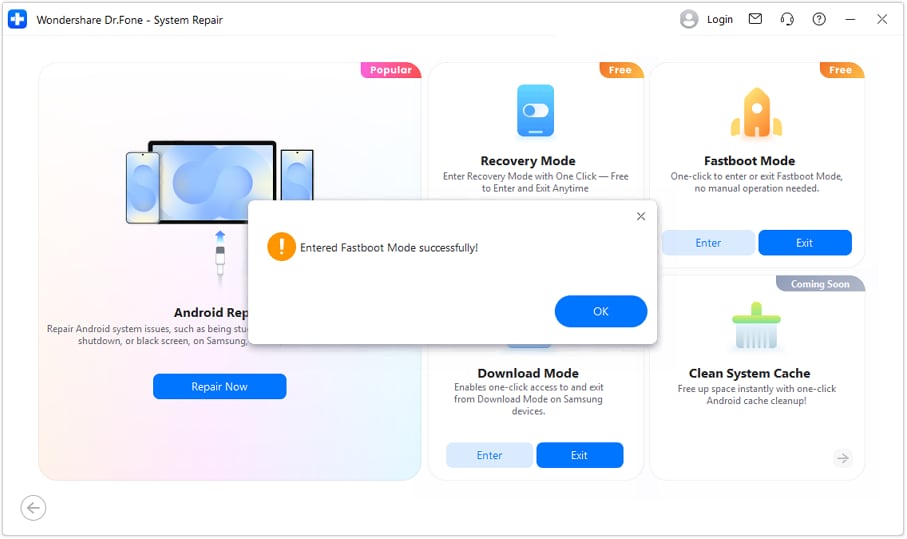
Note: Dr.Fone allows users to both enter and exit Fastboot Mode for free. This can be especially helpful when physical buttons are unresponsive or when ADB tools are unavailable.
 safe & secure
4,624,541 people have downloaded it
Part 3. How to Enter Fastboot Mode on Mi Phones: Step-by-Step Guide
Other than a one-click solution, you can also try manual ways in exceptional cases to enter and exit the Fastboot mode on a Mi phone. To that end, this section outlines 3 simple ways to enter the mode, along with detailed instructions.
Method 1. Using Hardware Buttons (Most Common)
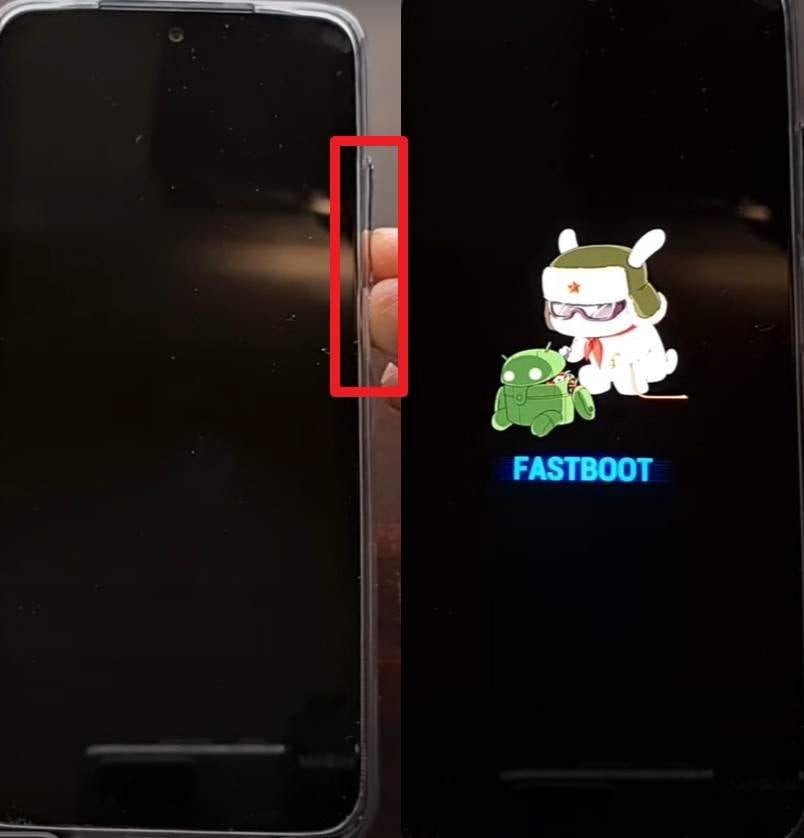
This method is useful even in cases when Android fails to boot, and no PC or USB debugging is necessary. Besides, it remains constant on the majority of Mi, Redmi, and POCO, meaning that a user can trust them anywhere. The buttons help when the phone is stuck on the logo or won't open the system. You do not need drivers or tools, and it works if the USB port faults, as guided:
Instructions: Power off the phone, then press and hold the "Power" and "Volume Down" buttons simultaneously. Continue holding the buttons until the "Fastboot" screen appears, then release them.
Method 2. From the Power Menu (If Phone is Responsive)
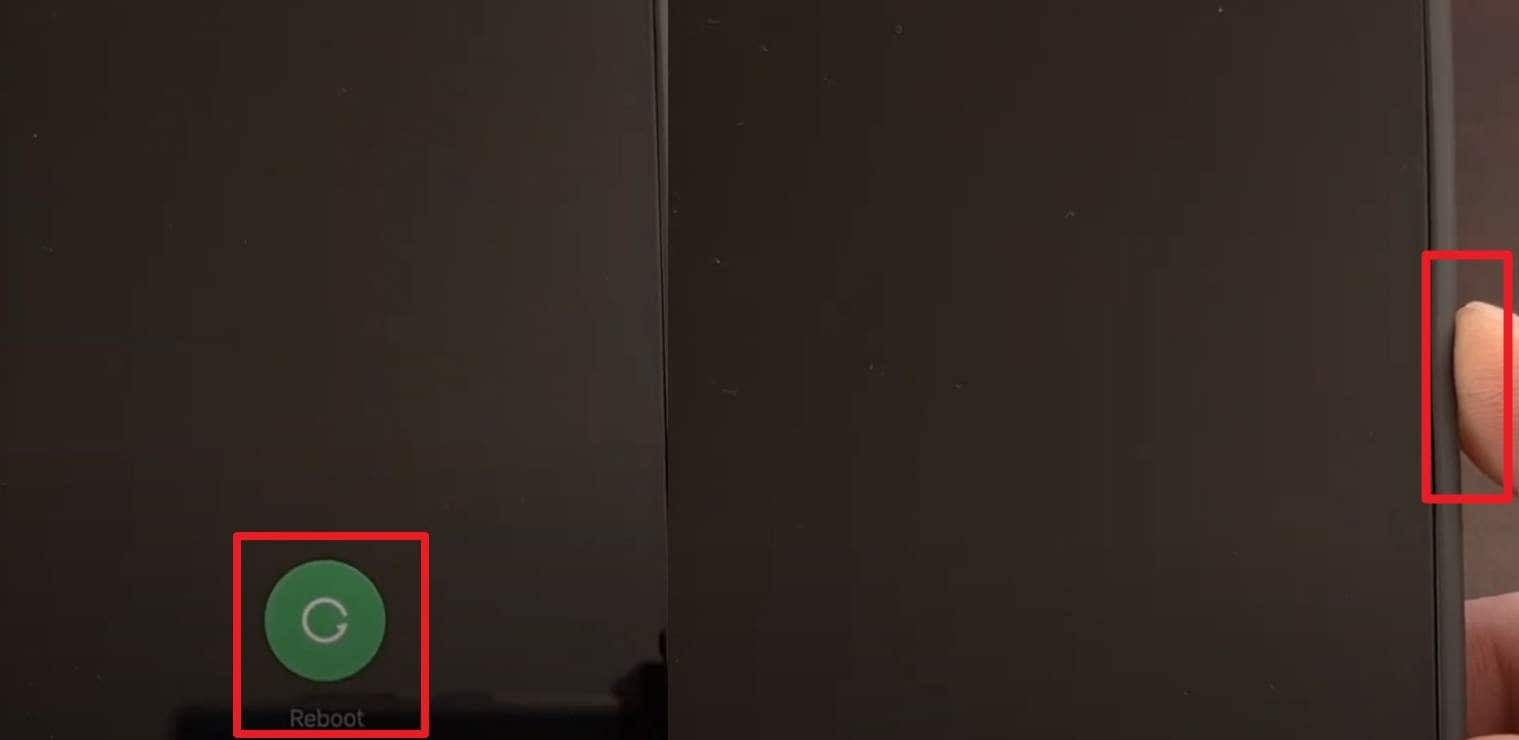
To enter the Fastboot mode of Xiaomi, this method follows the standard restart path, so there is no need to depend on button timing. The screen gives a clear signal, so the move feels reliable and straightforward. Additionally, some HyperOS, MIUI, or xiaomi.eu ROMs even offer a direct Fastboot option in the power menu, which turns the process into a quick tap, as illustrated below:
Instructions: Reboot the device, and as soon as the screen goes black, press and hold the "Volume Down" button. Keep holding both buttons until you see the Fastboot screen or the Mi Bunny logo appear on the display, then release both buttons.
Method 3. Via ADB (If PC is Connected)
Users can rely on Xiaomi ADB Fastboot tools to enter the Fastboot mode, since it suits advanced tasks and is suitable for phones with bad buttons. It sends the phone straight from a working Android system into Fastboot with one clear, guided command. Thus, there is no need to press buttons or turn the phone off by hand. Plus, it helps when the phone needs repeated reboot cycles during repairs or ROM work.
Prerequisites:
- You now have to download platform-tools on your computer, which is found on the Android Developers site.
- On the phone, turn on USB debugging in the settings and unlock the developer options.
- Ensure the PC is equipped with Xiaomi drivers, and disable signature enforcement as needed.
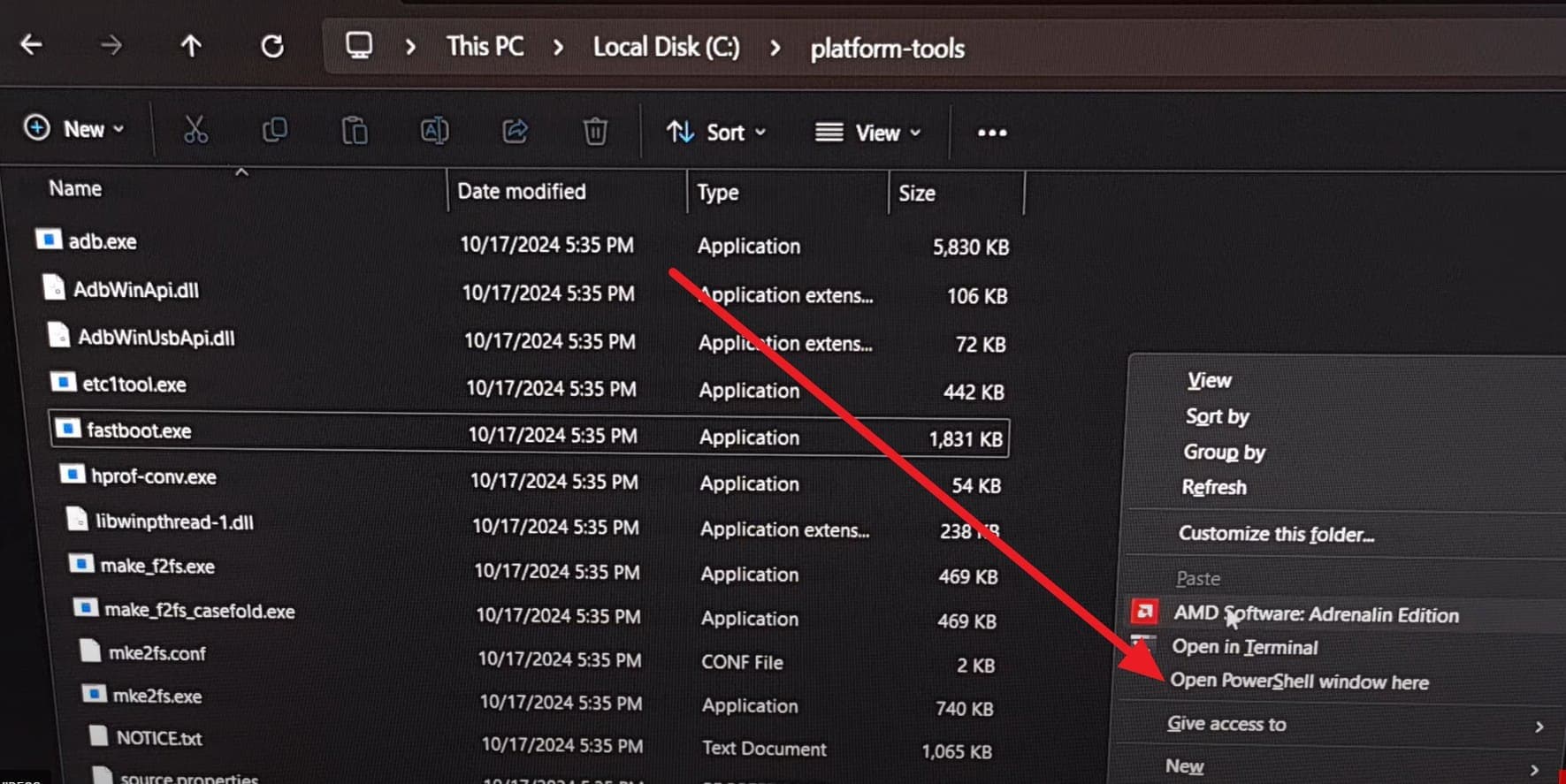
- Step 1. Connect your Xiaomi to the PC and open the folder where you have extracted the ADB/Fastboot tools (platform-tools). Then, start the Command Prompt or PowerShell in the same folder by right-clicking on the screen and in the pop-up, select the option of "Open in PowerShell Window Here."
- Step 2. After that, type the "adb devices" command and press the "Enter" key to see your device's serial number listed.
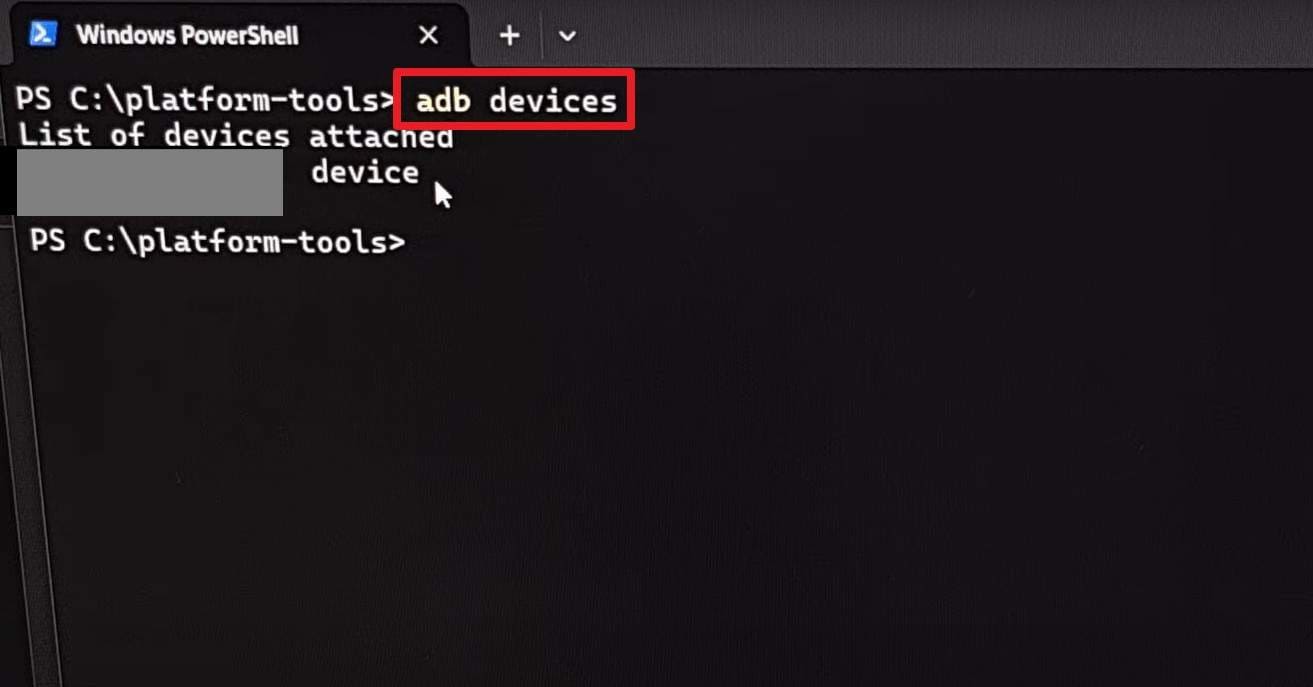
Note: If prompted on your phone, allow USB debugging if you are doing this for the first time.
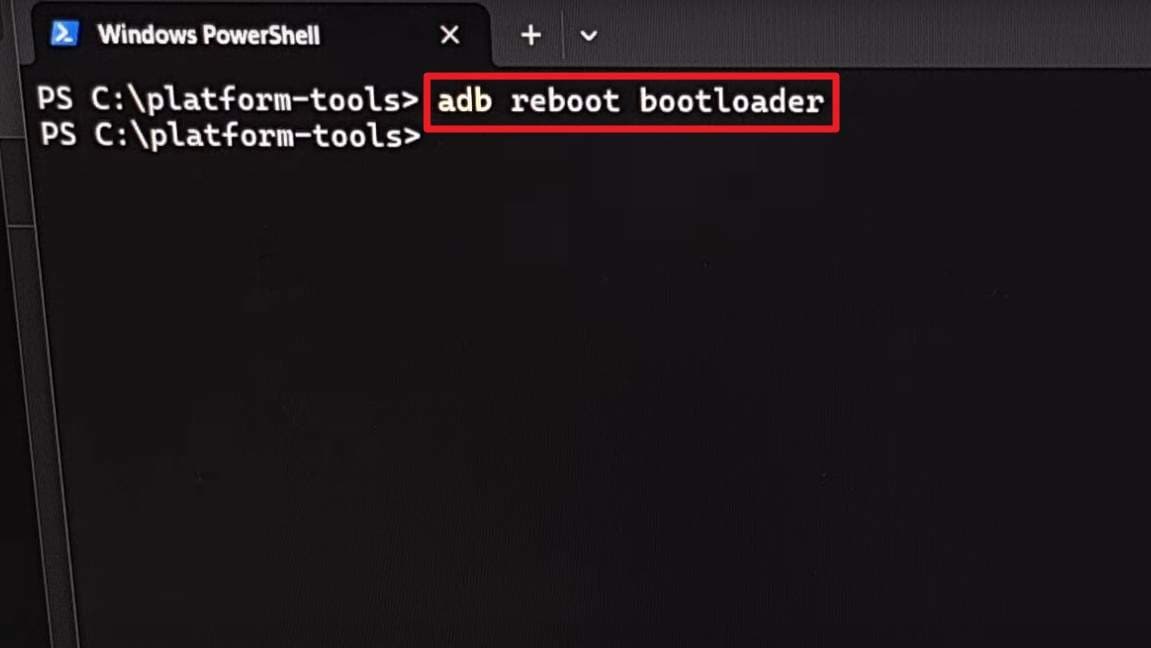
- Step 3. Now, type the "adb reboot bootloader" command, press the "Enter" key, and your phone will restart and display the Fastboot screen.
Part 4. How to Exit Xiaomi Fastboot Mode & Restore Normal Boot?
When the boot Xiaomi option fails to exit the Fastboot mode, here are some simple ways you can try to exit Fastboot mode safely:
Method 1. Force Restart with The Power Button
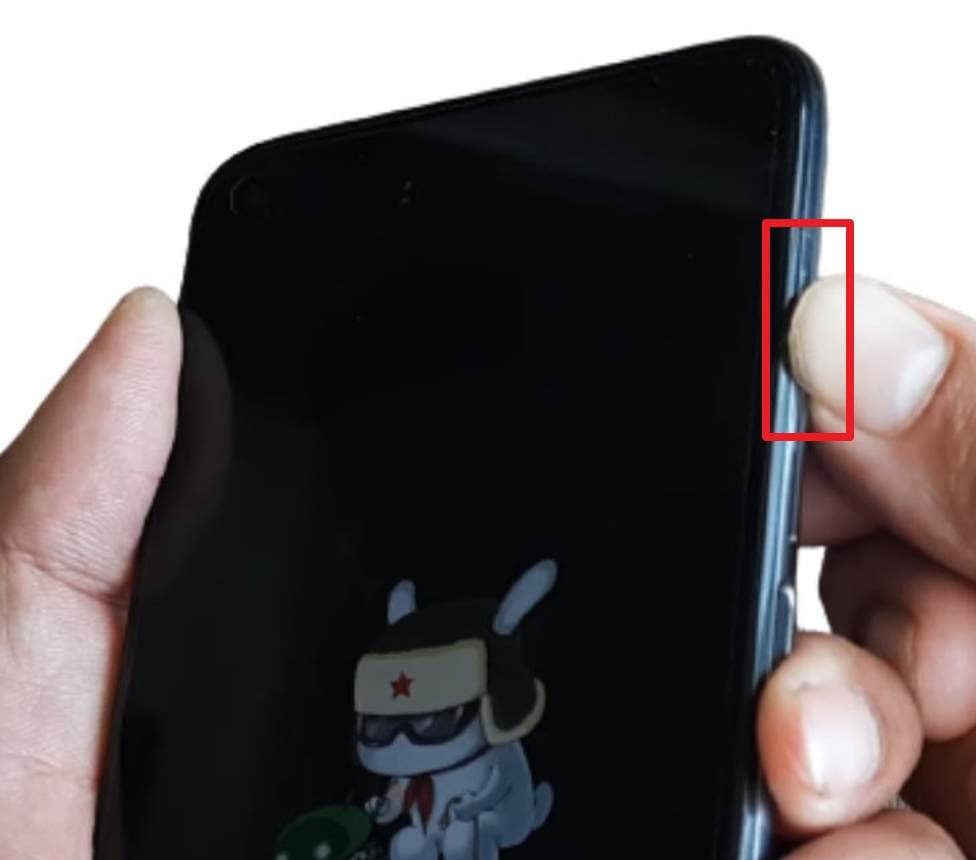
This trick works on almost all Xiaomi models, including popular Xiaomi number series and HyperOS devices. For most users, this is the best first step to leave Fastboot mode. Additionally, this method requires no PC, cables, or tools, so that any user can try it. Plus, it helps when the phone gets stuck on the Fastboot screen or fails to respond, as mentioned:
Instructions: Press and hold the "Power" button for 10 to 20 seconds until the phone vibrates and shows the Mi logo, exiting Fastboot and booting normally.
Method 2. Force Restart with Power and Volume Down Buttons
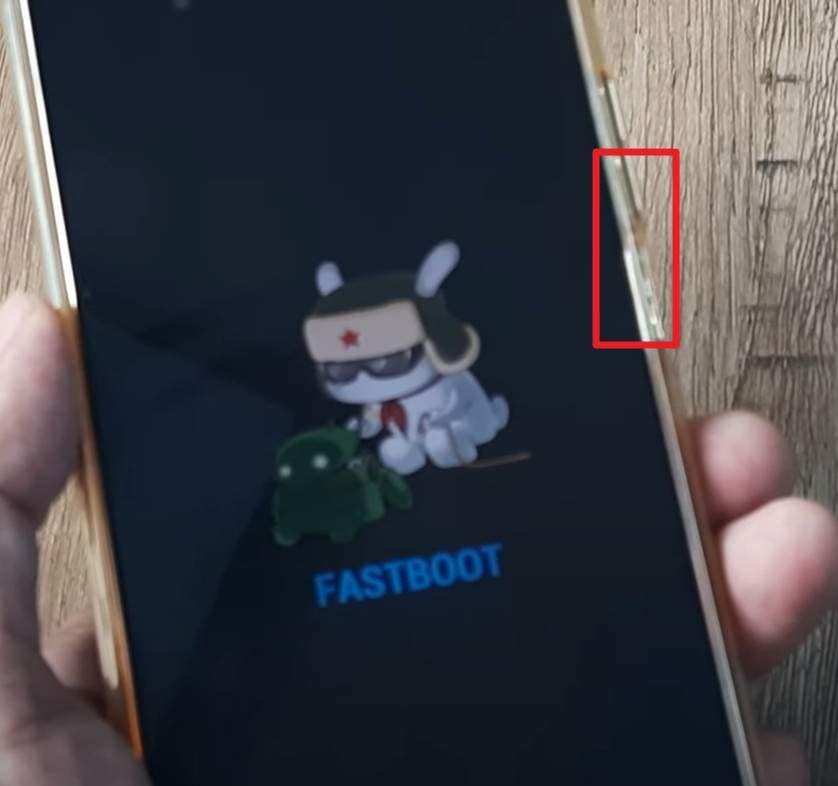
To exit the Fastboot mode on Xiaomi, this method helps when a normal Power hold does not work or when the phone stays fully frozen. As you press both buttons, it forces the bootloader to restart and often pushes the phone back into a standard Android boot. Hence, this move gives a stronger reset than Power alone but still keeps your data safe, as illustrated:
Instructions: Maintain pressure on the "Power" and "Volume Down" buttons for a few seconds and release when the device restarts. However, if it reenters Fastboot, press and hold "Power + Volume Up" buttons for 10+ seconds.
Method 3. Address a Potentially Stuck Button
A stuck hardware button, usually Volume Down or Power, can repeatedly push a Xiaomi phone into Fastboot, no matter which way you try to exit. Therefore, fixing the faulty button is the only way to break this loop and restore normal Android boot. Once the button is cleaned, freed, or repaired, the phone starts normally without extra tools or flashing.
Method 4. For a Device Stuck in Fastboot Mode [Battery Removal]
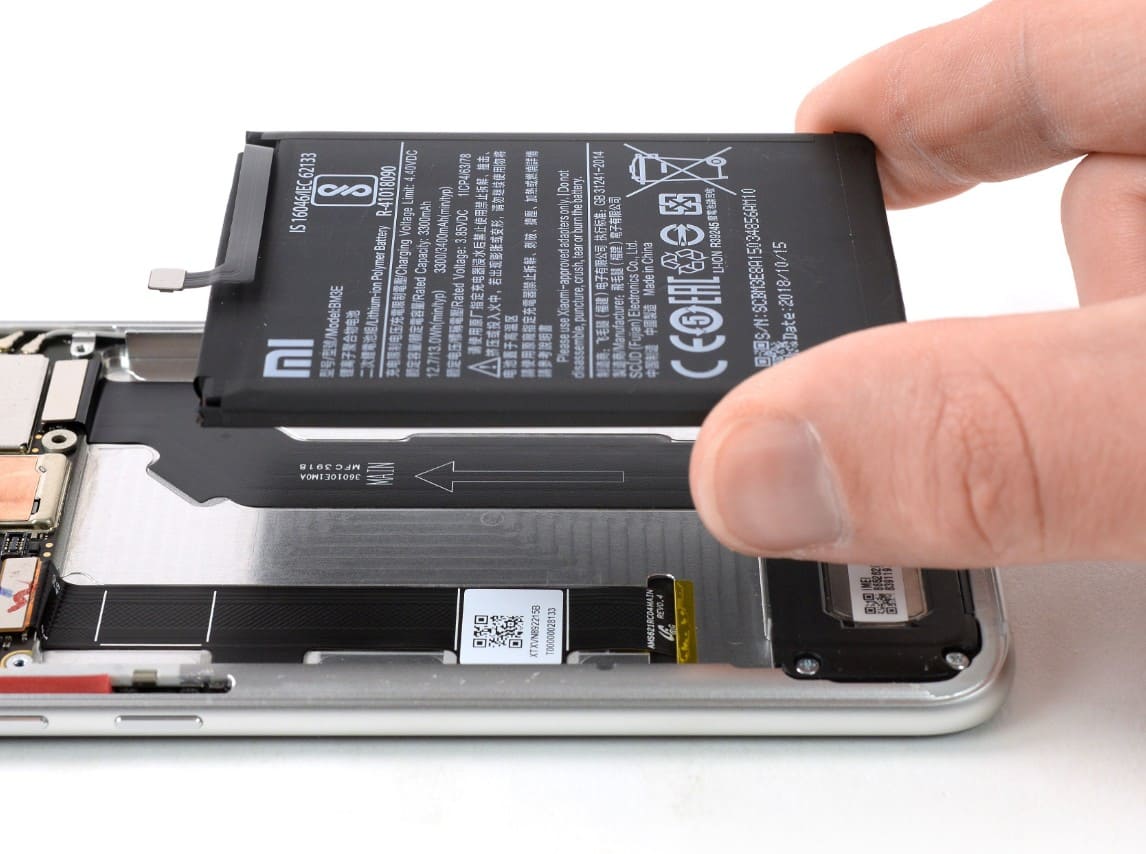
Before you try the Xiaomi ADB Fastboot tools to exit the Fastboot mode, remove and reinsert the battery if you have a phone with a removable battery. It cuts all power and forces a complete cold start, and as you reinsert it, the phone may boot normally instead of returning to Fastboot. Additionally, modern phones usually require a long press of the Power or Power + Volume keys instead.
Method 5. Try the Minimal ADB and Fastboot Tool
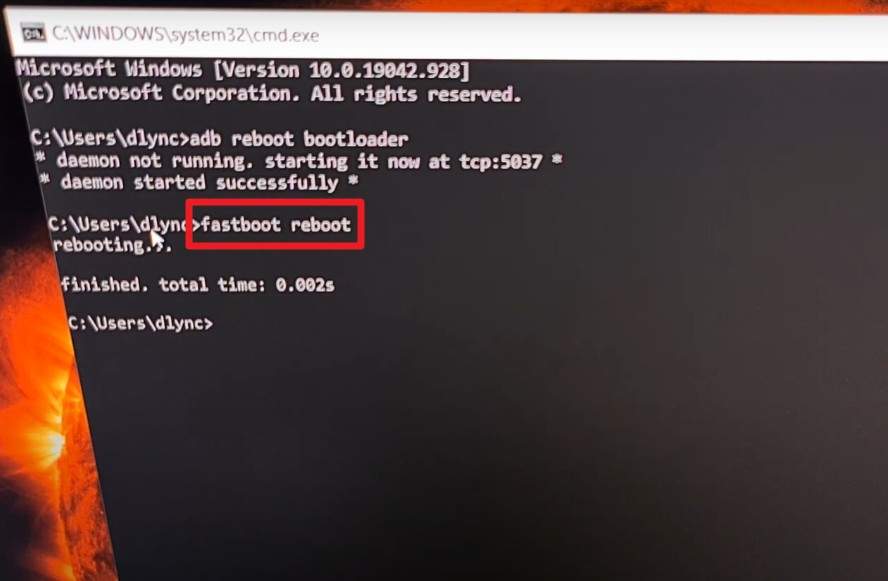
To exit Fastboot mode on Xiaomi, the Minimal ADB and Fastboot Tool on a PC can help when a Xiaomi phone is stuck in Fastboot, and button methods fail. It sends direct USB commands to reboot the phone normally. Additionally, this is best for those with a Windows PC and who are comfortable using simple command-line tools, as guided:
Instructions: Ensure your phone is connected to the PC via USB cable, open the tool, and type "fastboot reboot" in the command prompt. After that, press the "Enter" key, and if no error message appears, your phone will boot to regular mode after a set time.
Part 5. Tips to Avoid Getting Stuck in Fastboot Mode on Xiaomi Devices
No matter if you use keys or Xiaomi ADB Fastboot tools to exit the mode, it's vital that you avoid this hassle in the future. Therefore, this section offers you some basic tips that you can follow to avoid getting stuck in Fastboot mode:
| Tip | Why It Helps |
|---|---|
| Update carefully and keep the battery charged | Reduces the chance of interrupted updates that can push the device into Fastboot or a bootloop. |
| Avoid accidental key combos when booting | Prevents unintentional entry into Fastboot using Power + Volume Down. |
| Use good-quality USB cables and ports | Prevents flashing or PC based operations from failing midway and leaving the phone stuck in Fastboot. |
| Enable USB debugging only when needed | Reduces the risk of unintended ADB actions when the device is connected to a PC. |
| Avoid forced shutdowns during heavy tasks | Sudden power loss during system processes can corrupt partitions and trigger Fastboot mode. |
Conclusion
Summing up, if you are a Xiaomi user, this guide has answered how you can enter and exit Fastboot mode on Xiaomi. So, review the given manual ways and their detailed guide to determine if there is a need for the one-click solution. Since many users lack the skills to use command line tools and forget the sequence to press keys, Dr.Fone – System Repair usage is suggested. This tool saves the hassle of cables, complex setup, and commands since it offers simple and guided steps to enter or exit the Fastboot mode in a few seconds.
safe & secure4,624,541 people have downloaded it
FAQs
 1. Will entering Fastboot erase my data?2. Is Fastboot mode different from Recovery mode?3. Why would I need Fastboot if my phone works fine?


Xiaomi Topics Series
- Xiaomi Screen & FRP Unlock
- 1. Unlock Xiaomi Bootloader
- 2. Mi Account Unlock Tools
- 3. Redmi Note 8 FRP Unlock Tool
- 4. Redmi Note 9 FRP Bypass Tool
- 5. Redmi 9A FRP Bypass
- 6. Remove FRP on Xiaomi/Redmi
- Xiaomi Repair
- Xiaomi Recover
- Xiaomi Reset
- Xiaomi Tips & News
- 1. Xiaomi HyperOS 3.0
- 2. Screen Mirror Xiaomi to PC
- 3. Run Hardware Tests on Xiaomi
- 4. Conduct battery test on Xiaomi
- 5. How Do I Obtain the Security Code Xiaomi
- 6. DND Mode Xiaomi
- Xiaomi Transfer & Backup
- ● Manage/transfer/recover data
- ● Unlock screen/activate/FRP lock
- ● Fix most iOS and Android issues
- Free Download Free Download Free Download


 > How-to > Phone Repair Solutions > How to Boot Xiaomi Devices into Fastboot Mode Safely - Ultimate Guide
James Davis
staff Editor
Generally rated4.5(105participated)