
Where Do AirDrop Photos and Files Go? Ultimate Guide (2026)

Sep 18, 2026 • Filed to: Device Data Management • Proven solutions
 TL;DR:
AirDrop automatically routes received items based on the device and file type, saving media to the Photos app and documents to the Files app on an iPhone or iPad, while placing all accepted transfers into the Downloads folder on a Mac by default.
● Transfers between devices logged into the same Apple ID save automatically without any on-screen confirmation alerts, making files appear missing if you are expecting an acceptance prompt.
● Choosing "Open in Photos" instead of "Accept" on a Mac overwrites the default storage destination and routes incoming multimedia directly into the Photos app instead of the Downloads folder.
● Active transfers require both devices to remain awake and within a 10-meter range, as locking an iPhone screen or closing a MacBook lid will interrupt the process and discard the incomplete files.
Ask AI for a summary
 ChatGPT
 Perplexity
 Gemini
 Claude
 Grok
Grok
Dr.Fone Basic:
Better Control for Your Phone
Manage, transfer, back up, restore, and mirror your device
As more people share memories and documents using Apple devices, AirDrop has become essential. Whether you send photos, videos, or files, the process feels fast and effortless. Yet, many wonder, “Where do AirDrop photos go?” after the transfer finishes. It can be confusing when you cannot locate received items right away. Thus, this guide explains where your photos and files appear on different devices.

- Part 1. Understanding AirDrop on Apple Devices
- Part 2. Where Do AirDrop Photos/Files Go on iPhone or iPad?
- Part 3. Where Do AirDrop Photos/Files Go on a MacBook?
- Part 4. How to Find Your AirDropped Photos and Files?
- Part 5. Why Are My AirDrop Photos/Files Not Showing Up? 5 Reasons
- Part 6. How to Ensure AirDropped Photos/Files Appear Correctly - 3 Fixes

- Pro Tip. How to Efficiently Manage Your iPhone or iPad Data from Windows/Mac
Part 1. Understanding AirDrop on Apple Devices
It is a native feature on Apple devices that enables fast and secure sharing. This option works on iPhone, iPad, and Mac without extra apps. The process lets you send multiple data types with just a few taps. It actually uses Bluetooth to find devices and peer-to-peer Wi-Fi to move files between devices. This feature can manage large files, but transfer time depends on device speed, distance, and file size.

When sharing data with others, they can accept or decline each incoming transfer request. Plus, it works best when devices are within about 10 meters. Still, many beginners ask, “Where do air drop photos go?” after sending or receiving files.
Supported Data Types
|
Data Type |
Examples |
| Photos and Images | JPG, HEIC, PNG, GIF, TIFF |
| Videos | MOV, MP4, HEVC |
| Documents | PDF, Word, Excel, PowerPoint |
| Apple Files | Pages, Numbers, Keynote |
| Audio Files | MP3, M4A, AAC, WAV |
| Compressed Files | ZIP archives |
| Text Files | TXT, RTF |
| Code and App Files | HTML, JS, PY, design files |
| Contacts | VCF contact cards |
| Calendar Events | ICS files |
| Notes | Apple Notes files |
| Web Links | URLs, Safari webpage links |
| Location Data | Apple Maps locations |
| Voice Memos | M4A voice recordings |
Part 2. Where Do AirDrop Photos/Files Go on iPhone or iPad?
AirDrop automatically places received items in the right app based on their type. Multimedia files appear in the Photos app under the Recents section, sorted by time received. Alongside, documents and PDFs open or save in the Files app.
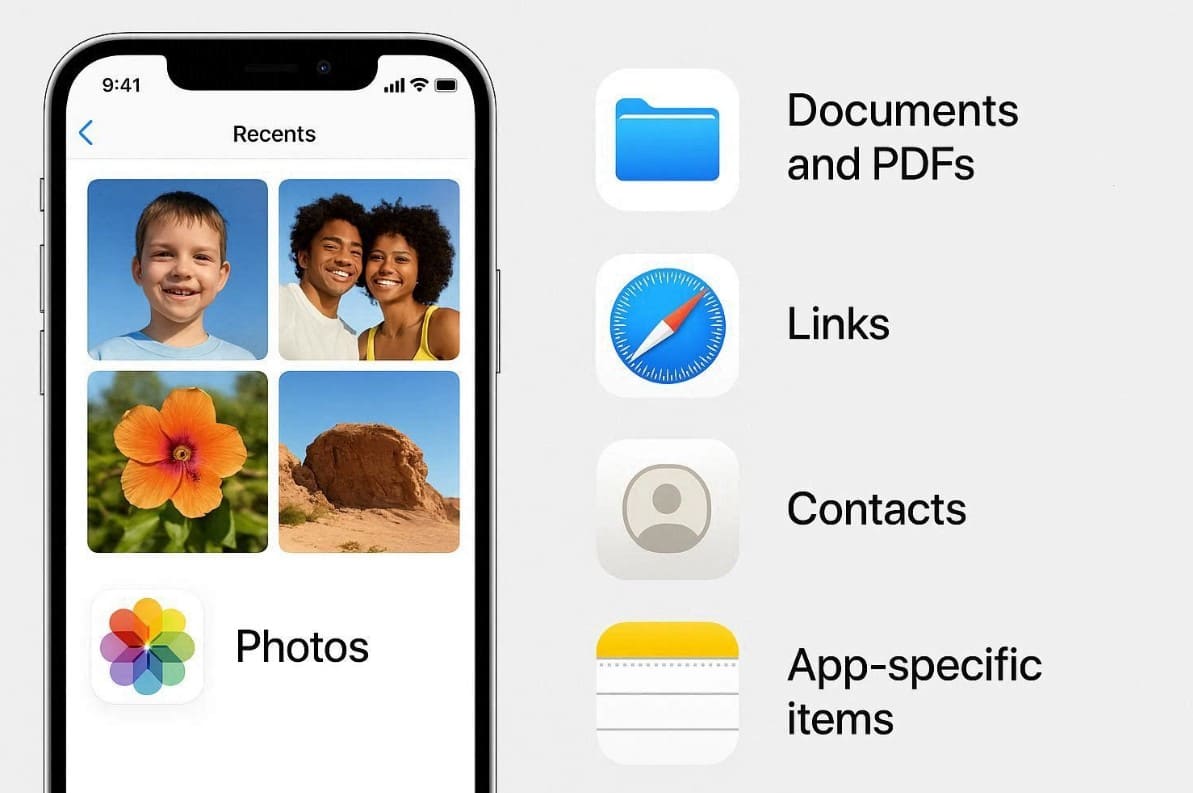
Links open in Safari, while contacts go into the Contacts app after saving. Plus, app‑specific items, like Notes or Pages, appear in their respective apps. Yet, many beginners wonder, “Where do AirDrop photos go on a MacBook?” after receiving them.
Part 3. Where Do AirDrop Photos/Files Go on a MacBook?
On a MacBook, AirDrop saves received files into the Downloads folder unless you select another location. This default location can be accessed through Finder by selecting Downloads in the sidebar. Many users wonder, “Where do AirDrop pictures go?” after accepting shared items on a Mac. By default, multimedia and other files all land in Downloads when you click Accept.
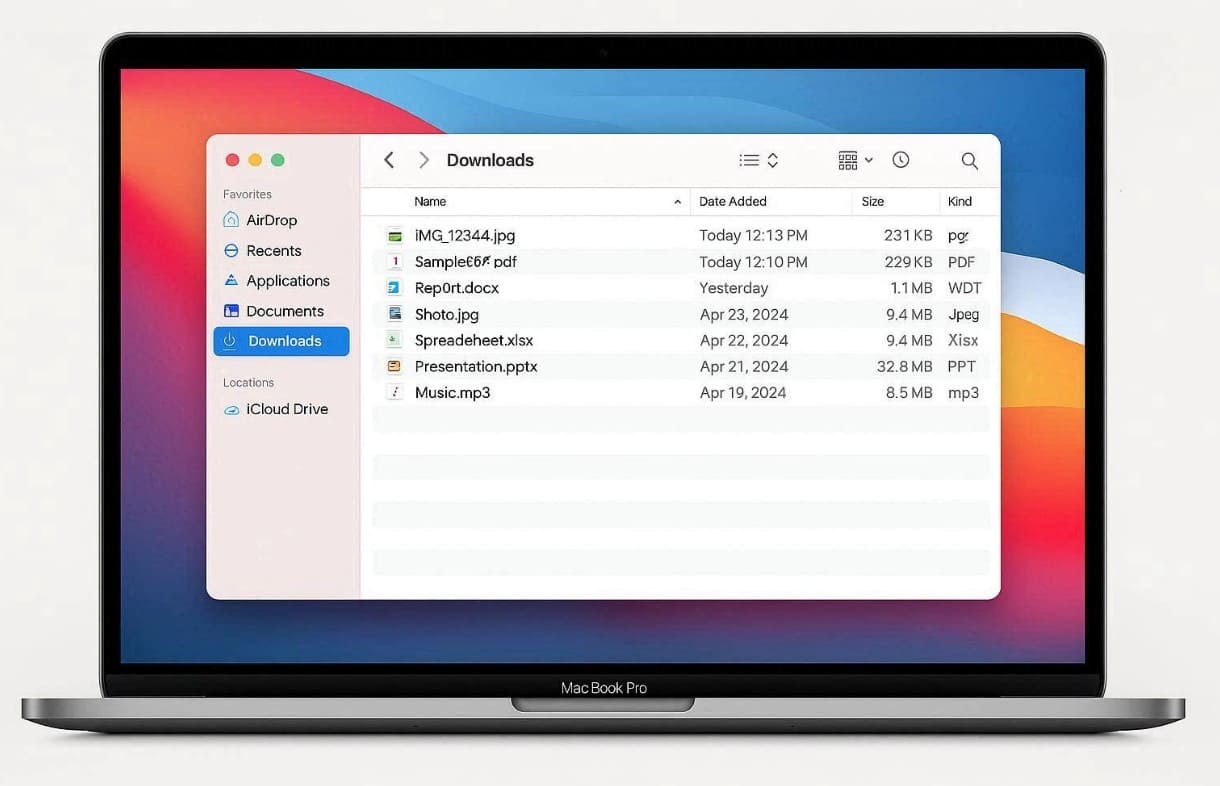
Yet, if you choose “Open in Photos” instead of Accept, the received media opens in the Photos app. This flexibility allows Mac users to manage AirDrop content. It also keeps downloads in one place while storing images within their photo collections.
Part 4. How to Find Your AirDropped Photos and Files?
Finding AirDropped photos and files is simple once you know the default locations. On iPhone or iPad, open the Photos app to check the Recents album first. Received images and videos appear there, organized by date and time received. Plus, documents land in the Files app under the Downloads section. Users search for “where do AirDrop files go on iPad” in the Files app sidebar.
On a MacBook, both photos and files go to the Downloads folder. AirDropped items are saved there unless you choose a different option during transfer. In case you can’t find them, use Spotlight search by typing file names if items seem hidden. So, understanding these storage rules helps locate AirDropped content faster and prevents frustration.
Part 5. Why Are My AirDrop Photos/Files Not Showing Up? 5 Reasons
Many times, your AirDrop transfers seem successful, yet the received files disappear afterward. This section will help you explore the common reasons why your photos or files are not showing:

- Transfer Was Not Accepted: AirDrop files are saved only after you tap Accept on the receiving device. If the request is ignored, declined, or times out, the photos or files are not stored.
- Wrong Save Location Was Chosen: On Mac, selecting Open instead of Accept opens the file without saving it to the Downloads folder. This makes users think the AirDropped file is missing.
- App-Specific Saving Behavior: AirDrop saves files based on their type. Photos go to the Photos app, documents go to the Files app, and links open in Safari. Checking the wrong app can make files seem lost.
- Transfer Was Interrupted: Locking the device, closing the lid on a Mac, or moving devices apart during transfer can interrupt AirDrop. Incomplete transfers are not saved.
- AirDrop Was Sent to the Same Apple ID: When AirDropping between devices using the same Apple ID, files may save automatically without alerts. Users often miss them because no confirmation appears.
Part 6. How to Ensure AirDropped Photos/Files Appear Correctly - 3 Fixes
In case AirDrop files do not appear, you can try a few fixes to resolve this issue. So, the following simple fixes ensure AirDrop transfers display without missing files:
Fix 1: Keep the Devices Closer
AirDrop works best when both Apple devices remain close, within around 10 meters. So, keeping them nearby improves transfer speed and stability. Many users asking “where do AirDrops go on iPhone” face issues due to distance. When devices are within around 10 meters, AirDrop detects nearby receivers and transfers files. Thus, shorter distances always make sharing faster, stable, and more reliable overall.
Fix 2: Restart Your Devices
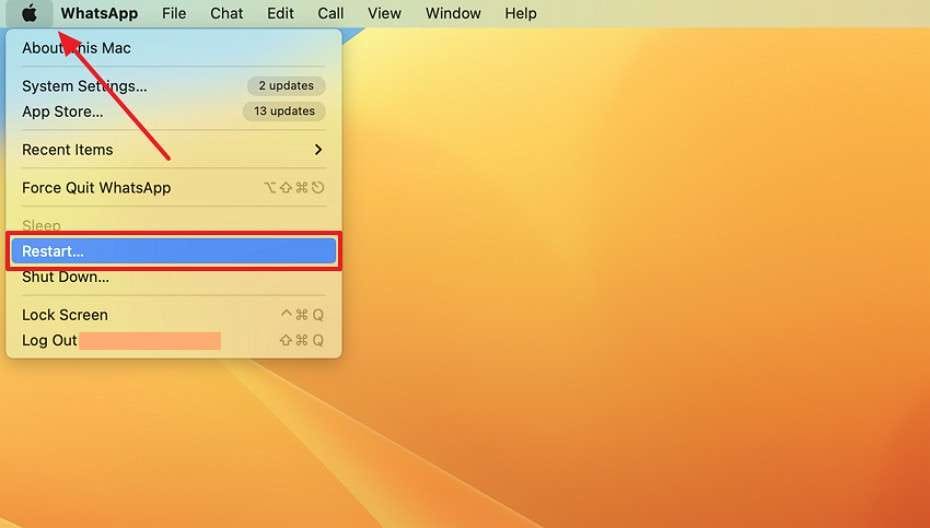
You should also try to restart your devices when you can’t find the Airdropped files. It can refresh internal processes and clear hidden glitches. This simple step resolves unresponsive AirDrop behavior without needing settings changes. When you ask, “Where did my AirDrop photos go?” discover that a restart restores correct visibility. So, adhere to the following guide to know how you can restart your devices:
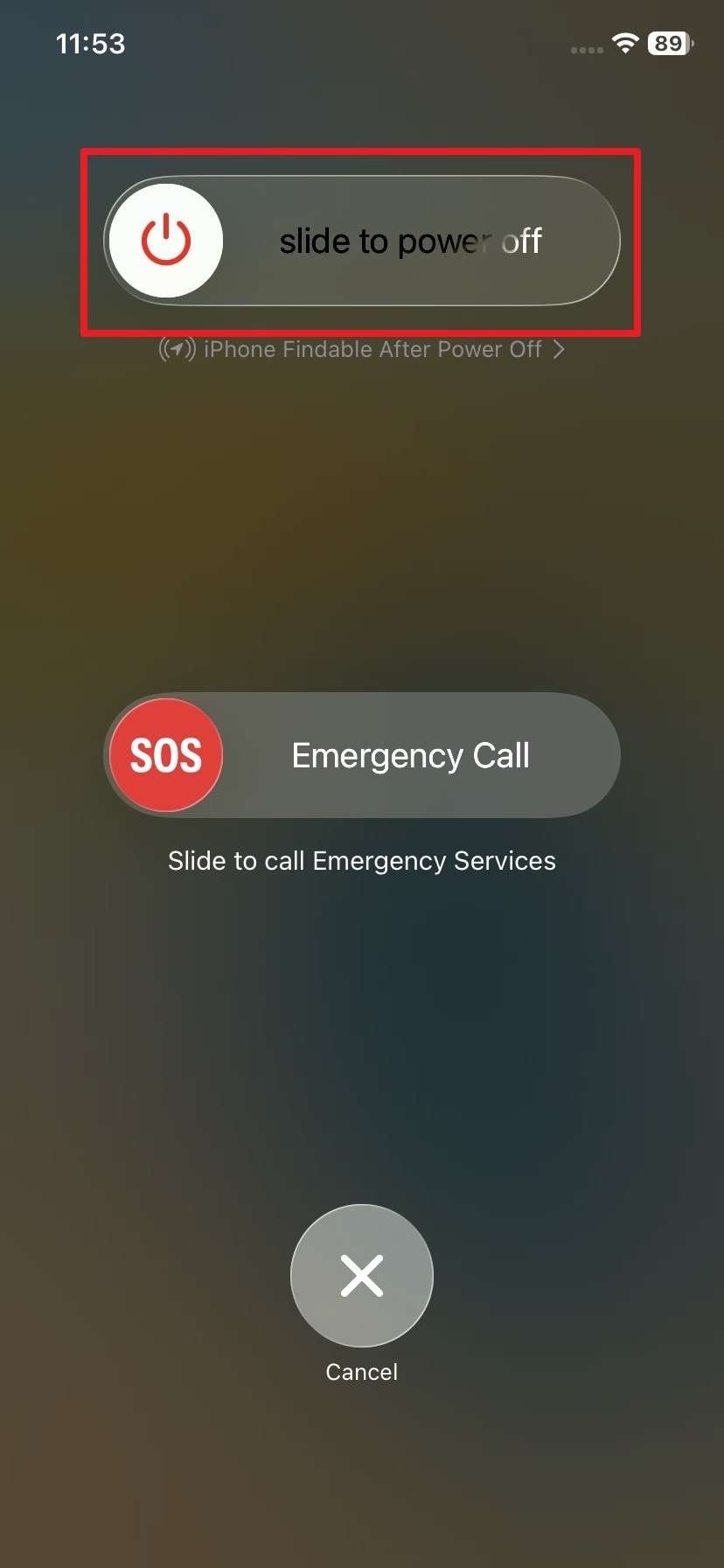
For iPhone: Keep pressing the “Power” and “Volume Up” keys for at least 5 to 10 seconds. Here, move the “Slide To Power Off” slider from left to right to power off your device. After a few seconds, press the “Power” button again turn it on.
For Mac: Upon clicking the “Apple” icon, opt for “Restart…” from the menu to reboot it.
Fix 3: Update Your iOS/macOS Version.
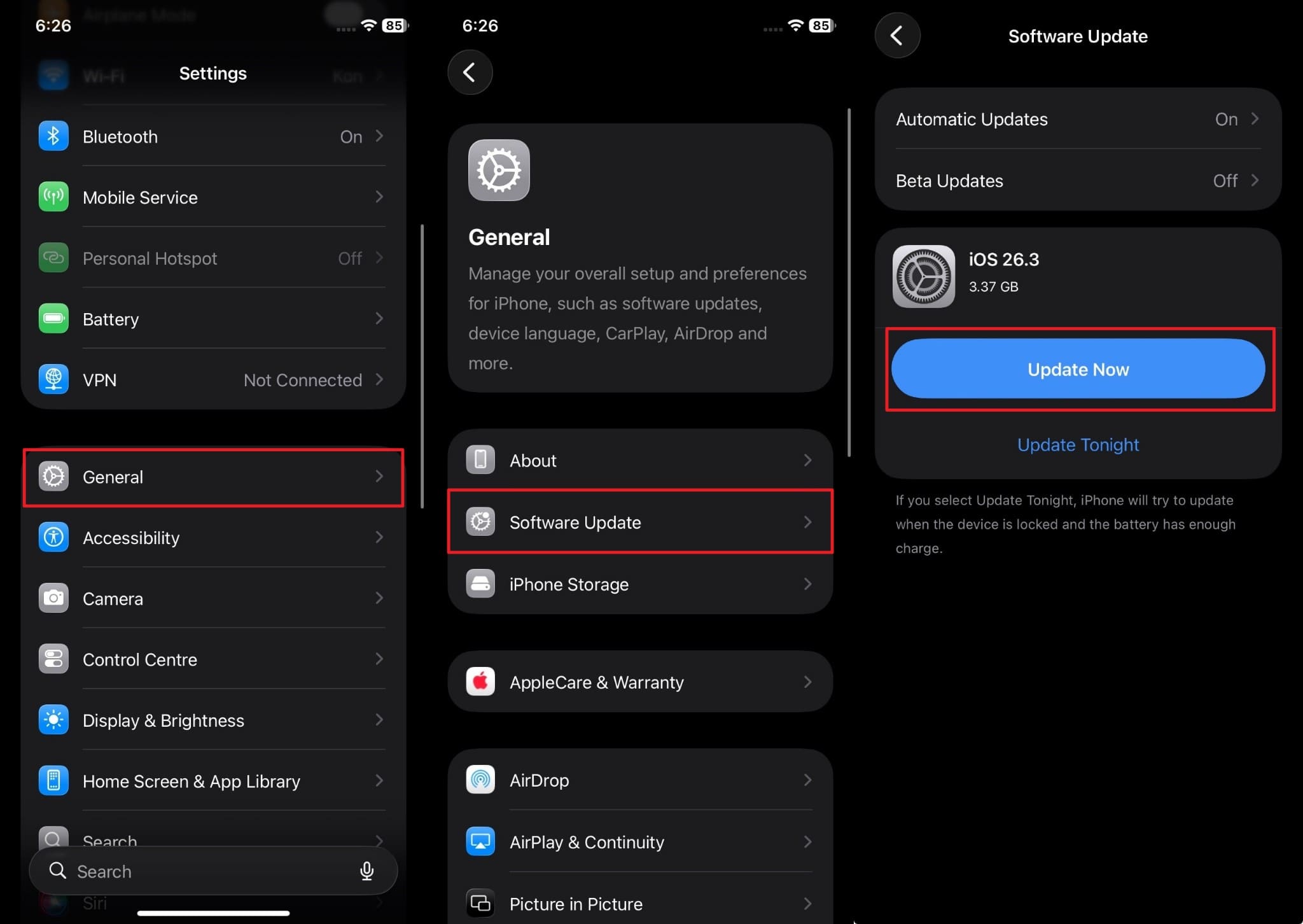
Updating iOS or macOS ensures devices have the latest fixes for AirDrop issues. Newer system versions often remove bugs that interrupt sharing or delay saved transfers. Users asking, “Where do AirDrops go on a MacBook?" sometimes face issues due to outdated software. This method enhances security and reduces bugs that prevent files from appearing. So, you can review the following guide to update your OS version on your device:
For iPhone
Instruction. As you access “General” from settings, head to the “Software Update” section. When you see an update available to download, press the “Update Now” button.
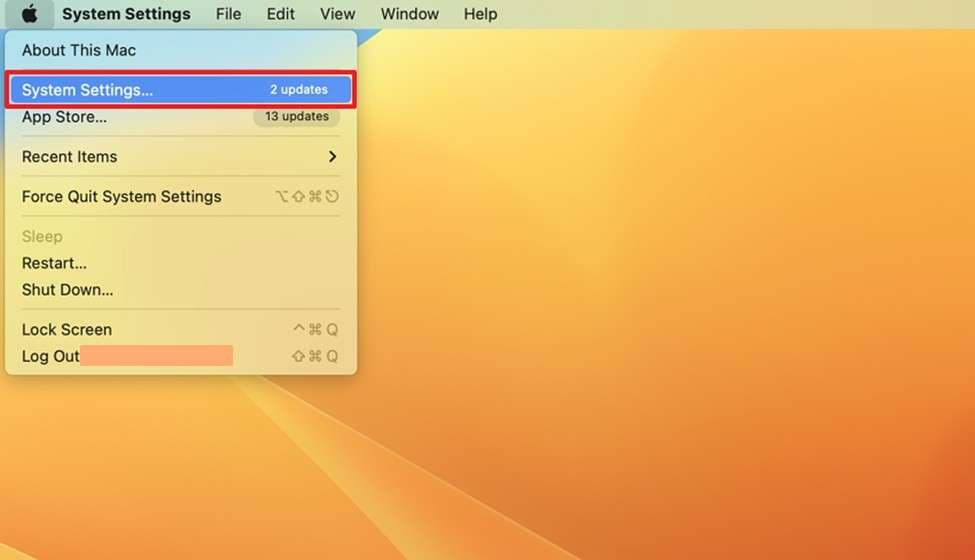
For MacBook
Step 1. To initiate, head to the “System Settings” section upon clicking the “Apple” icon.
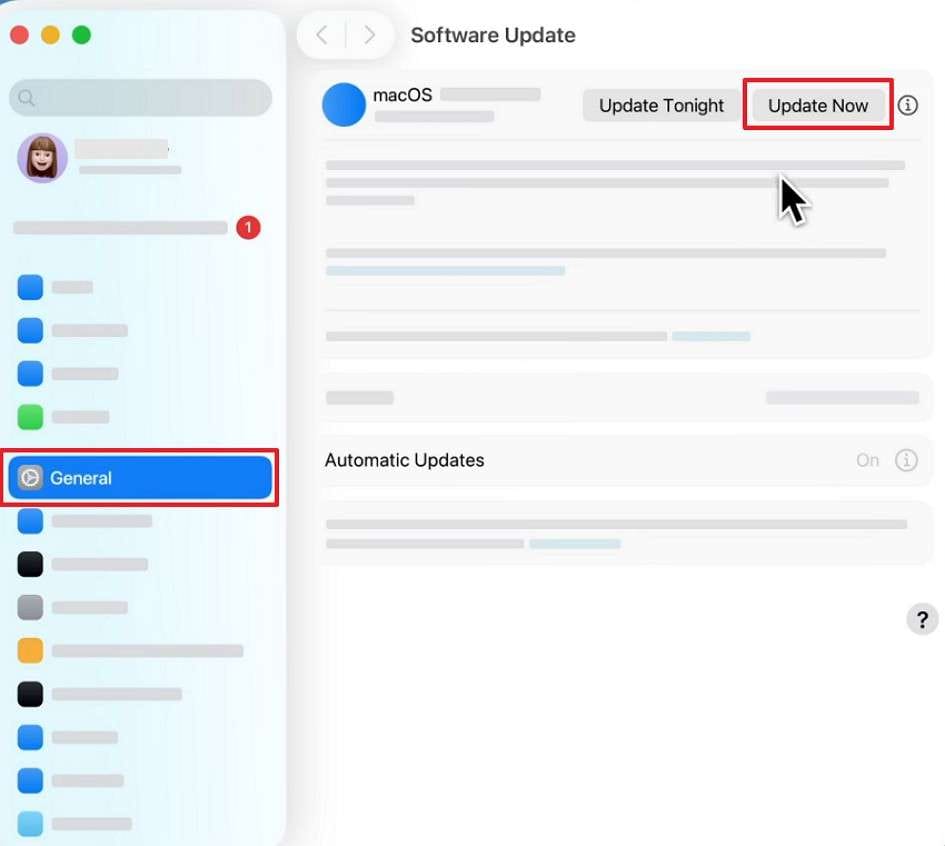
Step 2. Here, access the “General” tab to click “Software Update” and press the “Update Now” button.
Pro Tip. How to Efficiently Manage Your iPhone or iPad Data from Windows/Mac
Many iPhone and iPad users struggle to organize files across Apple devices. Apart from asking, “Where do my AirDrop files go?” users also seek ways to manage data. To address this need, Wondershare Dr.Fone steps in as a complete iOS data management solution. It lets users import, export, delete, and drag‑and‑drop files between devices and computers. Supported on iOS 26 and the latest iPhone 17 series, Dr.Fone Basic simplifies file control.
You can also transfer content from iCloud to your iPhone or PC without complex steps. Plus, it even syncs music and podcasts between iOS devices and iTunes with one click. The tool even manages and uninstalls multiple apps or removes unwanted pre‑installed software. Dr.Fone also helps preview and export social app data, including WhatsApp and Viber chats.

Wondershare Dr.Fone
Efficiently Manage Your iPhone or iPad Data from Windows/Mac
- Transfer, manage, export/import your music, photos, videos, contacts, SMS, Apps, etc.
- Back up your music, photos, videos, contacts, SMS, Apps, etc., to the computer and restore them easily.
- Transfer music, photos, videos, contacts, messages, etc., from one smartphone to another.
- Transfer media files between iOS devices and iTunes.
- Fully compatible with the newest iOS system.


Detailed Guide to Manage Your iPhone or iPad Data via Dr.Fone
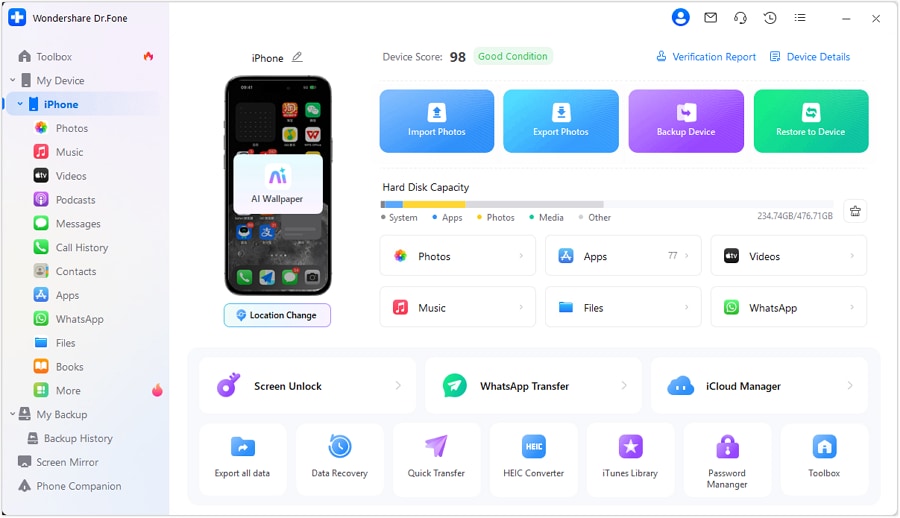
Step 1. Access the Program to Manage Phone Data
As you run Dr.Fone, connect your iPhone to the PC, and you will see your device’s storage and data.
Step 2. Review the Stored Data on Your iPhone
Afterward, head to the data tab like “Videos” to see all the stored videos and movies on your phone.

Step 3. Manage the Stored Data or Video
Following this, you can play, transfer, or even delete any preferred video or movie with one click. Here, you can also click the “To PC” to move the data to your computer.

 safe & secure
4,624,541 people have downloaded it
Conclusion
To conclude, understanding how AirDrop saves received content helps you find your shared files. Many users ask, “Where do AirDrop photos go?” after completing transfers between devices. Yet, you have now explored the exact storage spots that prevent confusion and save time. Still, managing large files across different devices can feel complicated without the proper tool. That’s why using Dr.Fone is recommended for effortless iPhone data management.
safe & secure4,624,541 people have downloaded it
Frequently Asked Questions
 Q1. Is AirDrop safe for private files?Q2. Can I AirDrop multiple files at once?Q3. How can I back up AirDropped files safely on my computer?
Dr.Fone Basic:
Better Control for Your Phone
Manage, transfer, back up, restore, and mirror your device


iPhone Transfer
- Data Transfer
- 1. Video from iPhone to External Drive
- 2. Transfer MP4 to iPhone
- 3. Put Wallpapers on iPhone
- 4. Move Photos to SD Card
- 5. Best Apps to Transfer from iPhone to Android
- iPhone to PC
- 1. Transfer Pictures From iPhone to PC
- 2. Transfer From iPhone to Computer
- 3. Transfer Album from iPhone to PC
- 4. Transfer Data from iPhone to PC
- 5. Copy Voice Memo from iPhone to PC
- 6. Apple 'MFi Certified'
- 7. Podcasts from iPhone to Computer
- 8. Transfer Notes from iPhone
- 9. Techniques Used in Mobile Phone Forensics
- 10. Facing Please Unlock iPhone Photos Error
- iPhone to Mac
- 1. Voice memos from iPhone to Mac
- 2. Synce Notes from iPhone to Mac
- 3. Export iBooks to PC and Mac
- 4. Transfer Photos from iPhone to Mac
- 5. Transfer Music from iPhone to Mac
- Computer to iPhone
- 1. AirDrop From Mac to iPhone
- 2. Use AirDrop from Mac to iPhone
- 3. Transfer Data from PC to iPhone
- 4. Transfer Videos from PC to iPhone
- 5. Unsync iPhone from Computer
- 6. Sync iPhone with Multiple Computers
- Transfer to iPhone
- 1. Switch Cards Between iPhones
- 2. Facetime for Android to iPhone
- 3. Transfer Data from Motorola to iPhone
- 4. Samsung to iPhone Transfer
- 5. Transfer iPhone Apps to iPhone
- 6. Clone iPhone/iPad to iPhone
- Transfer from iPhone
- 1. Transfer Video from iPhone to Laptop
- 2. Transfer Data from iPhone to Laptop
- 3. Transfer Notes from iPhone to iPad
- 4. Transfer Data from iPhone to Android
- 5. Switch from iPhone to Google Pixel
- 6. Switch from iPhone to Samsung S10
- 7. Switch from iPhone to Samsung
- 8. Transfer from iPhone to Samsung S20
- iPhone Transfer Tips
- 1. Ford Sync iPhone
- 2. Free Music Download Sites
- 3. Where Do AirDrop Photos and Files Go
- 4. iPhone Transfer Software
- 5. Get a Free iPhone Government Phone
- WhatsApp Transfer
- 1. WhatsApp from iPhone to iPhone
- 2. WhatsApp from iPhone to Android
- 3. WhatsApp from iPhone to Samsung S10
- 4. WhatsApp Messages to iPhone
- 5. WhatsApp from iPhone to Samsung S9
- iTunes Transfer
- ● Manage/transfer/recover data
- ● Unlock screen/activate/FRP lock
- ● Fix most iOS and Android issues
- Free Download Free Download Free Download




Daisy Raines
staff Editor