
Mi Reboot Tips & Tricks: Fast and Advanced Restarts for Xiaomi/Redmi/POCO Devices

Sep 24, 2026 • Filed to: Phone Repair Solutions • Proven solutions
 TL;DR:
Resolving unresponsive screens or continuous boot loops on Xiaomi, Redmi, and POCO devices requires applying specific button combinations for forced reboots or using advanced recovery methods like firmware flashing and hardware isolation.
● Force restart a frozen screen by holding the Power and Volume Down buttons for 10 seconds, or bypass a failing power button by plugging the device into a charger and holding Volume Up to access the Recovery Mode reboot menu.
● Fixing a continuous boot loop through a Fastboot ROM flash requires a Windows PC, an unlocked Mi bootloader, the Mi Flash tool, and a minimum 50% battery charge to replace corrupted MIUI or HyperOS files.
● Before attempting a Factory Reset that permanently deletes all personal data, remove the SD card to rule out startup crashes caused by corrupted external storage, or use Dr.Fone - System Repair via a PC to fix boot loops without data loss.
Ask AI for a summary
 ChatGPT
 Perplexity
 Gemini
 Claude
 Grok
Grok
When your Xiaomi phone is not responding or seems to be in slow motion, restarting it is a good option. A standard reboot will refresh the system, clear any small glitches, and put the system back to normal operation without changing your data. To that purpose, Xiaomi devices provide not only easy restarts but also more complex modes of performing a deeper reset once a regular reboot fails to fix the problem. Moreover, the right way saves time, safeguards apps, and keeps your phone in good condition. Thus, this shares easy Mi reboot tips and tricks, covers fast restarts, and includes advanced techniques. So, fix Mi phone issues quickly and maintain your Mi device's speed and reliability every day.


Part 1. Mi Reboot Basics – What Rebooting Really Means
Before you know, simple ways to reboot Xiaomi, understand that this term means turning the device off and back on to refresh the system. It helps the phone run smoothly by clearing temporary issues and stopping apps that may cause slow performance. Additionally, a normal reboot restarts the operating system without deleting personal data, settings, or apps.

Plus, it differs from a factory reset, which erases everything on the device. It can fix minor glitches, frozen screens, or network problems. Hence, understanding this process helps users maintain their Xiaomi phones effectively and solve minor issues quickly without risking essential data or settings.
Part 2. Mi Reboot Made Easy: Manual Restart for Xiaomi/Redmi/Poco
To fast reboot Redmi or Xiaomi devices, adhere to the 3 listed ways along with the detailed guide:
1. For a Frozen/Unresponsive Screen (Force Restart)
Force restart on Xiaomi, Redmi, or POCO phones reboots a frozen or unresponsive device when a normal restart does not work. It clears temporary system glitches without deleting personal data. Additionally, a reboot Mi cuts power to system components, restores power, unfreezes the OS, clears crashes, and restarts stuck services. It works when the touchscreen does not respond, as guided:
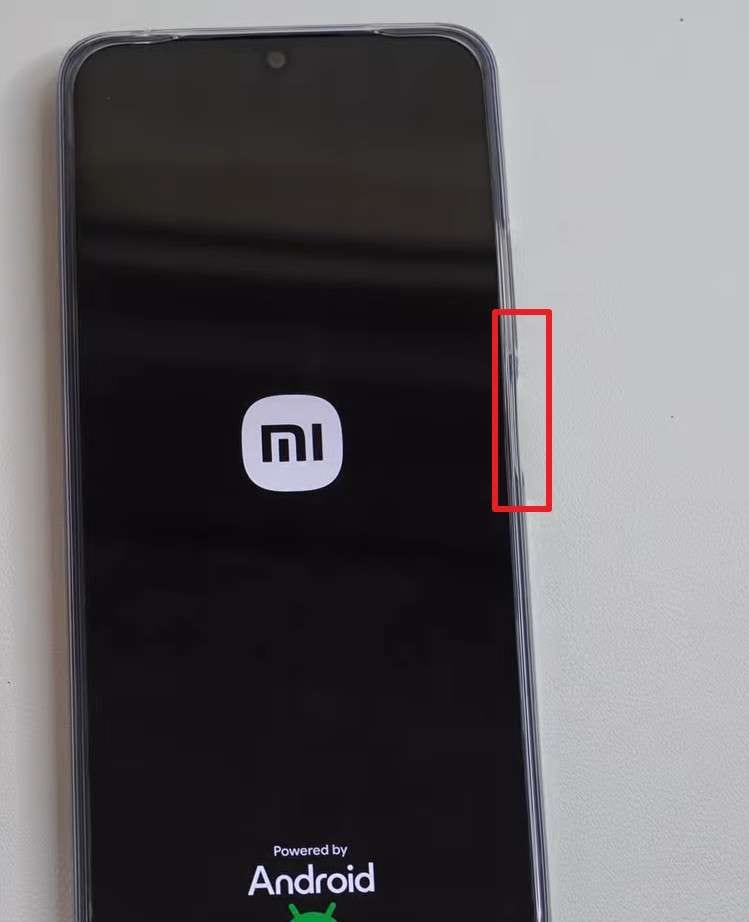
Method 1: Most Common
Instructions: Press and hold the "Power" button and the "Volume Down" buttons together for about 10 seconds until the phone restarts.
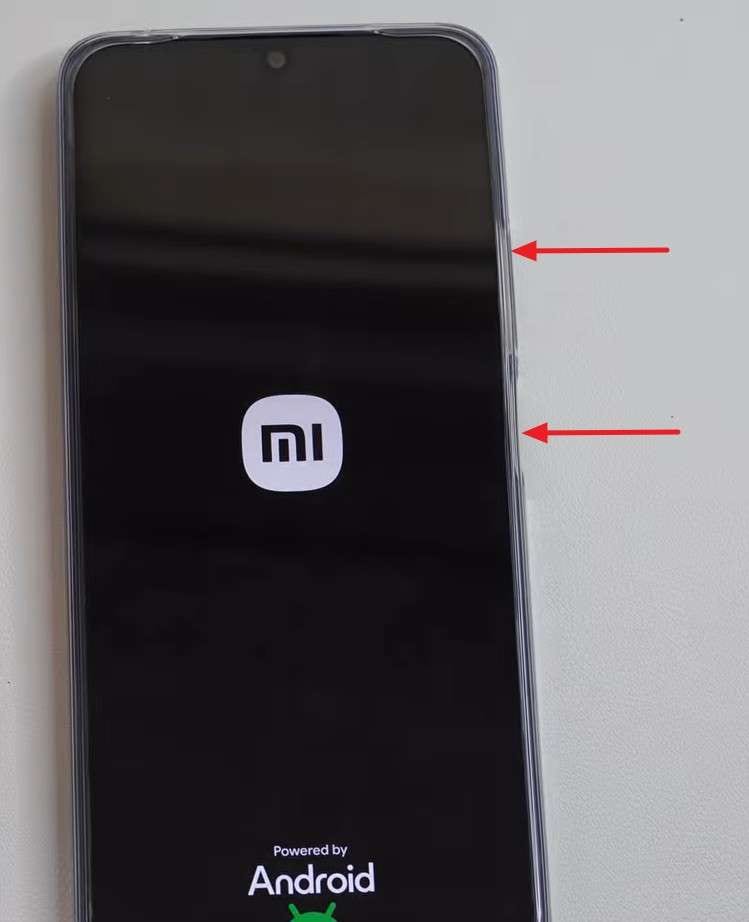
Method 2: For Some Models/Situations
Instructions: Hold the "Power" button and "Volume Up" button together until the screen goes black and the phone restarts.
2. For a Normal Restart (Touchscreen Works)
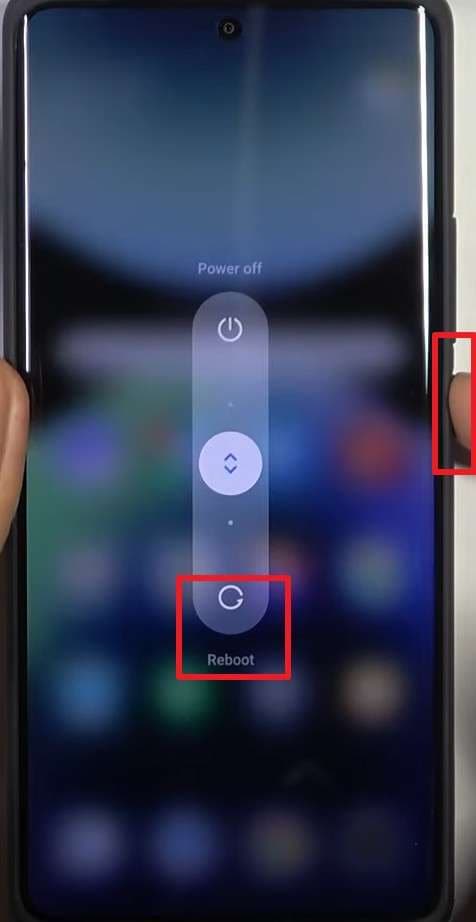
Aside from a force restart, you can use this method, which closes apps and system services in order, then reloads MIUI/HyperOS and drivers to clear minor bugs and lag. To fast reboot Xiaomi, this method uses on-screen controls instead of button combinations, which is easier on the hardware than repeated force restarts. Additionally, it frees RAM and background processes, and improves performance and battery life, as instructed below:
Instructions: Press and hold the "Power" button until the power menu appears, then select the "Restart" or "Reboot" option.
3. Using Recovery Mode (If Power Button Fails)
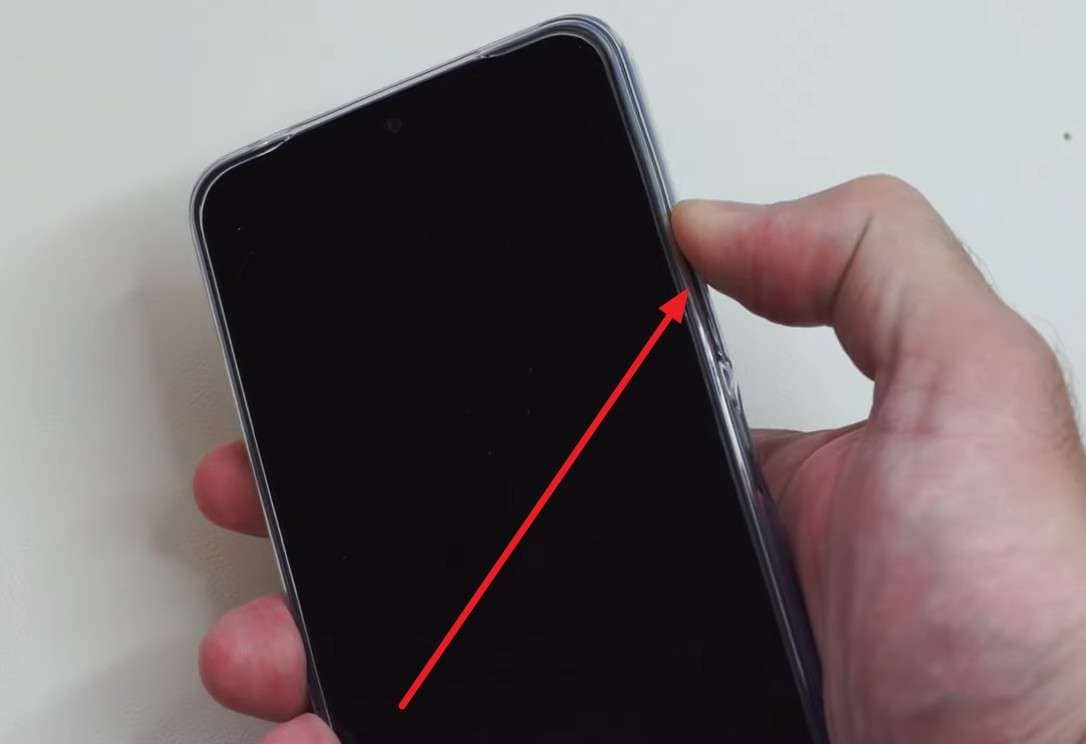
For the Mi phone reboot, Recovery Mode lets you restart a Xiaomi, Redmi, or POCO phone when the power button does not respond. It offers a system option such as "Reboot system now" that restarts the phone without a long press of the power button. Hence, this method helps fix freezes or boot problems without a service visit. It also gives tools like cache clear or system checks, once accessed via the listed steps:
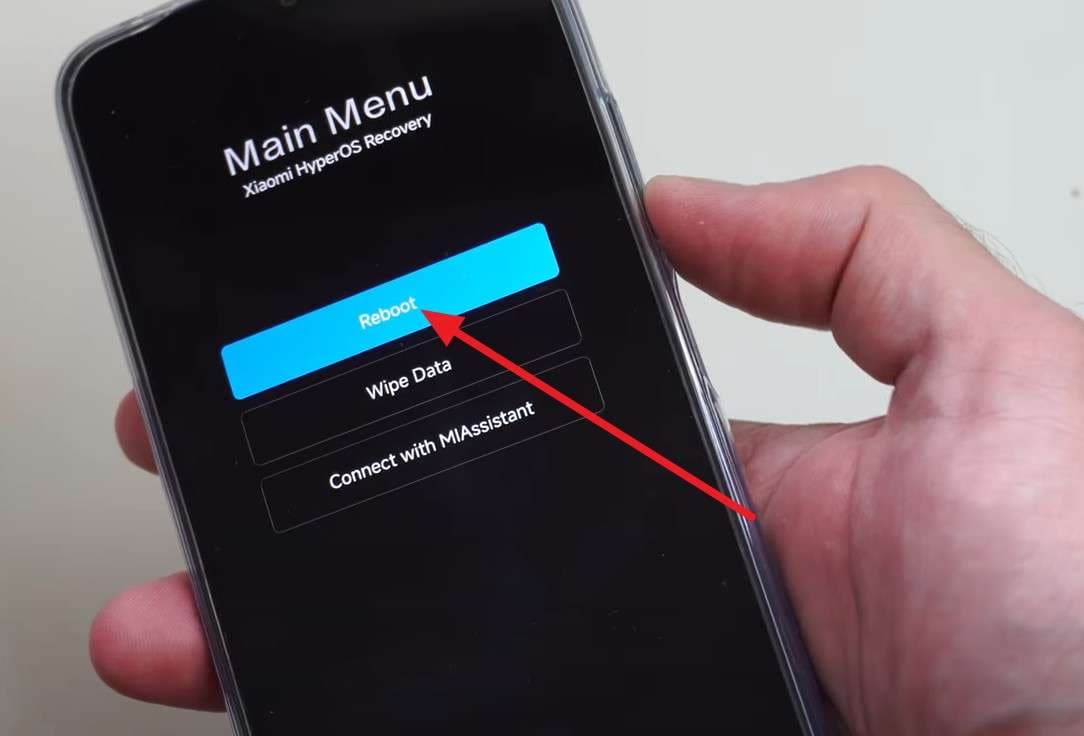
- Step 1. With the phone powered off, plug in the charging cable and press and hold the "Volume Up" button until the phone enters "Recovery Mode."
- Step 2. Use the "Volume" buttons to navigate to the "Reboot" option, then press the "Power" button to select it.
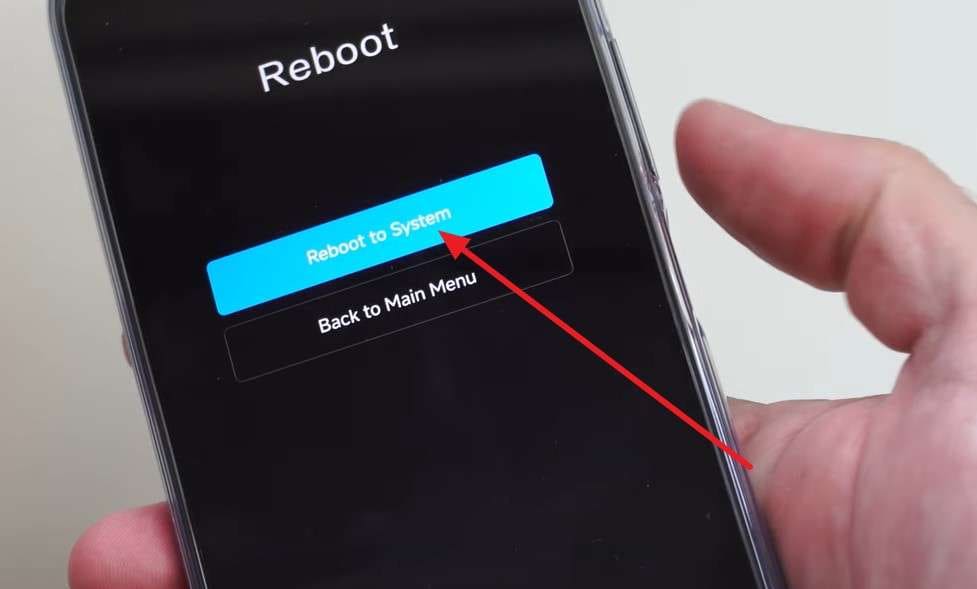
- Step 3. On the new interface, select the "Reboot to System" option with the "Power" button to continue.

Part 3. Xiaomi Keeps Rebooting? How to Fix Continuous Mi Reboot Issues
In situations where you get stuck in a fast reboot Redmi loop, try the 6 solutions given ahead to end this repetitive process:
Fix 1: Use Dr.Fone to Resolve Persistent Boot Issues
If the Xiaomi, Redmi, or POCO phone remains stuck in a reboot loop after basic checks, Dr.Fone - System Repair provides a guided workflow for supported system issues such as boot loops, black screens, startup failures, and devices that will not turn on normally. For eligible Xiaomi, Redmi, and POCO devices, the repair process is designed to retain user data, helping users avoid beginning with a factory reset or full data wipe. Compatibility and the available repair option should be confirmed in the software before starting.Dr.Fone also provides free tools for entering or exiting Recovery Mode, Fastboot Mode, and Download Mode. These mode tools can help users reach the required maintenance environment or exit a phone that is stuck in one of these modes.

Dr.Fone - System Repair (Android)
Repair Android System Errors without Any Trouble.
- Fix your Android to normal, no skills required.
- Fix various Android system issues, stuck in boot loop, black screen, or won't turn on, looping on start, etc.
- The high success rate in resolving Android system issues.
- Compatible with a wide range of Android devices and OS versions
- User-friendly interface with easy-to-follow steps.


Detailed Guide to Resolve the Mi Boot Loop with Dr.Fone
To resolve the Xiaomi or reboot Redmi loop, follow the given guide for Dr.Fone - System Repair and see how it helps:
- Step 1. Access the System Repair Tool & Choose the Mi Model
Access the "System Repair" tool for Android from the "Toolbox" tab and choose the "Android Repair" feature. Afterward, connect your Mi smartphone, confirm your device brand, and press the "Start" button.

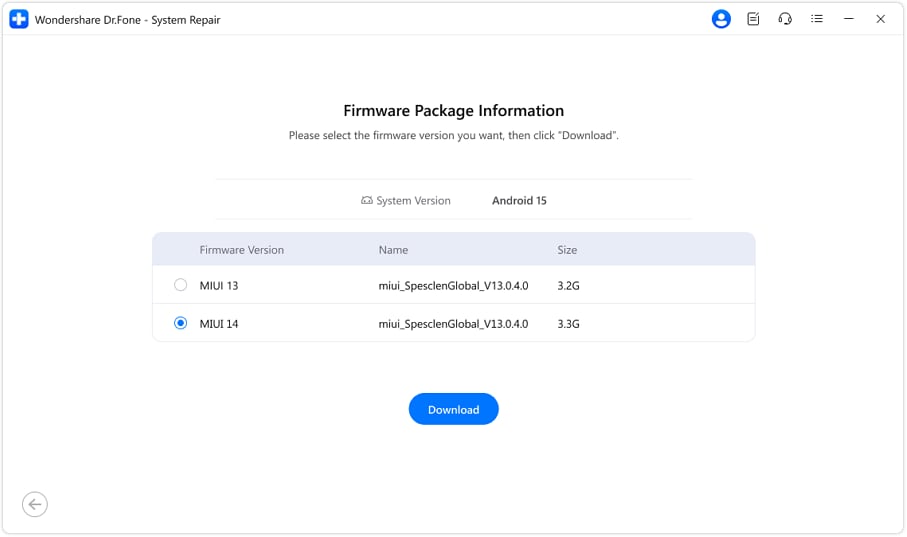
- Step 2. Pick the Download Button to Install Firmware Packages
When the tool presents you with firmware packages, select the one that matches the phone's model and press the Download" button.
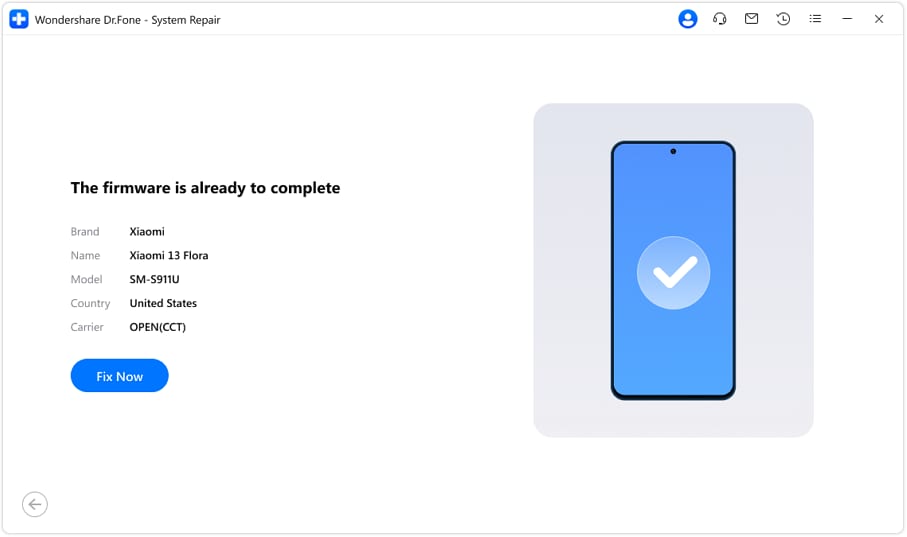
- Step 3. Review the Process as You Choose to Fix Now
When the installation completes, click the "Fix Now" button to run the repair and view real-time progress.
 safe & secure
4,624,541 people have downloaded it
Fix 2: Remove and Reattach the Battery Carefully
This solution can also stop constant reboot MI issues on some Xiaomi, Redmi, or POCO phones when the power is unstable. It entirely cuts power to the main board and clears stuck power states that restarts cannot fix. Moreover, reconnecting the battery can improve contact if the connector feels loose and can stop random reboots.
Fix 3: Remove the SD Card to Isolate Issues
It helps check if reboot issues on Xiaomi, Redmi, or POCO phones come from a faulty card or bad data. A damaged SD card can cause system crashes during startup, especially when apps or files rely on external storage. So, remove the SD card to let the phone start from internal memory only. If the reboot loop stops, the SD card is the likely cause.
Fix 4: Flash the Device Firmware
If the reboot POCO or Xiaomi loop exists, flash the firmware to replace broken system files, boot images, or MIUI or HyperOS files that cause restarts at the logo. It can fix issues caused by bad updates, corrupted ROM files, or failed custom changes. Additionally, firmware flash often restores the phone to a clean and usable state without hardware repair, as illustrated below:
Prerequisites:
- Charge the phone to at least 50% before flashing.
- Unlock the Mi bootloader before flashing Fastboot ROM with the Mi Flash tool.
- A Windows computer is required to run Mi Flash Tool.
- Use a good-quality USB cable for a stable flashing connection process.
- Download and install the latest Mi Flash tool on the computer system.
- Download the correct Fastboot ROM for your Mi device model.
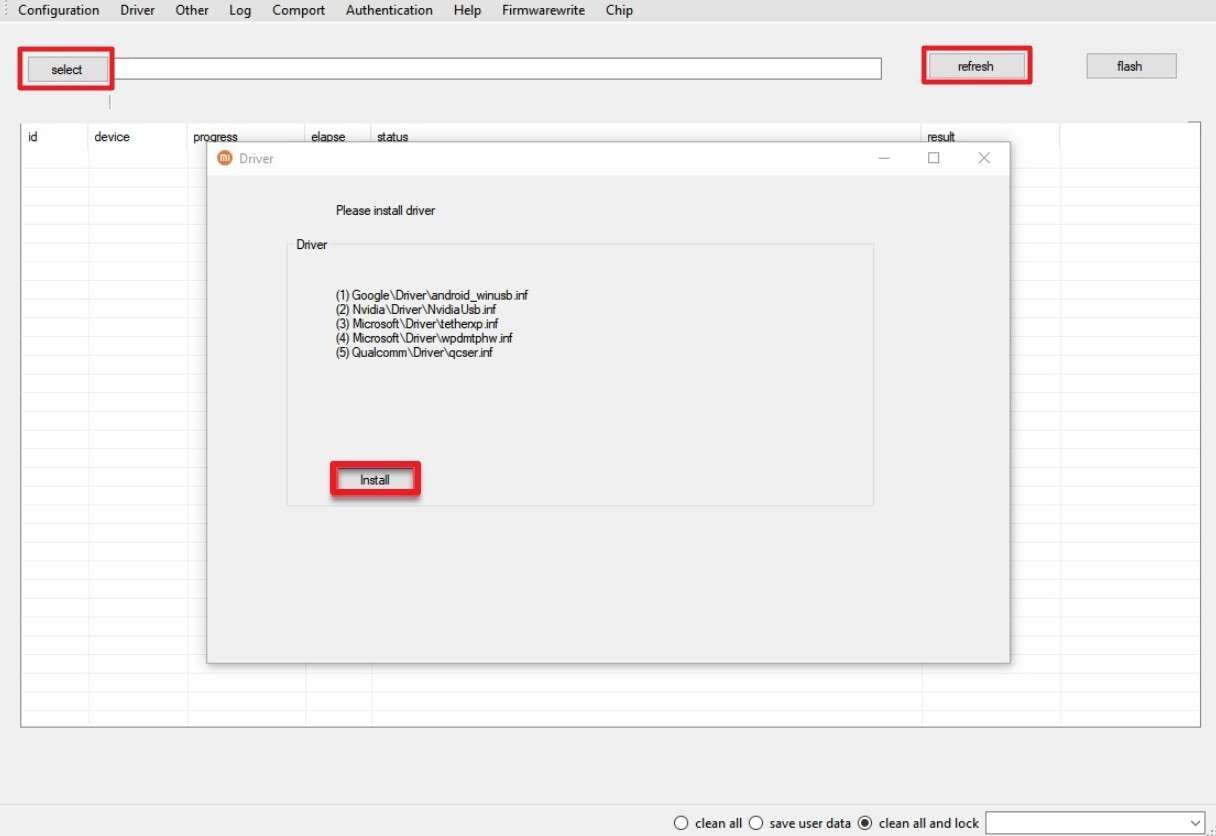
- Step 1. Install the Mi Flash tool and allow any driver installations for proper device detection. Now, extract the downloaded Fastboot ROM twice to get the folder containing all firmware files, including the "flash_all.bat script." Power off your Mi device, then connect it to your PC using the USB cable. Run the Mi Flash tool as an administrator, then click the "Select" button and choose the folder you extracted.
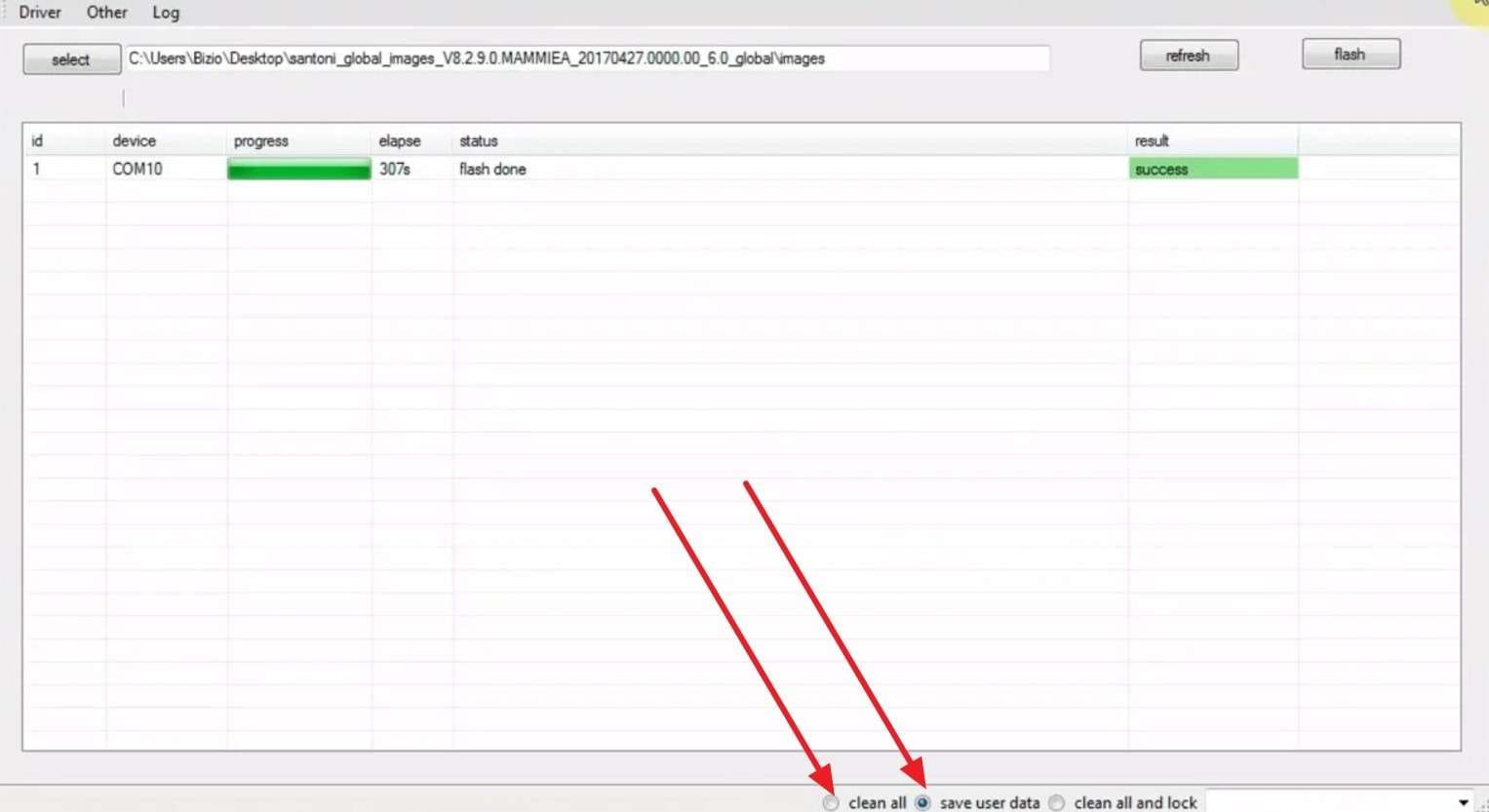
- Step 2. Click the "Refresh" button to detect your device, then choose a flashing option. There, you can select options such as "Clean All, Save User Data, Or Clean All and Lock." Finally, click the "Flash" button in the top-right to start the process. The flashing process takes several minutes; do not disconnect until the "Success" bar appears.
Fix 5: Perform a Factory Reset
To get out of the Mi reboot loop, this step erases apps, files, and settings and returns the phone to its original software state. Moreover, it removes unstable apps and clears system conflicts that cause crashes during startup. If reboot issues persist after a complete reset, the problem likely stems from battery, storage, or board faults that require repair. So, to perform a reset, adhere to these simple steps:
Before You Start:
- Charge your phone fully; a low battery may cause flashing issues.
- Check for stuck buttons; a jammed power button may cause loops.
- Remember, Factory Reset deletes all data, including apps and photos.
Instructions:
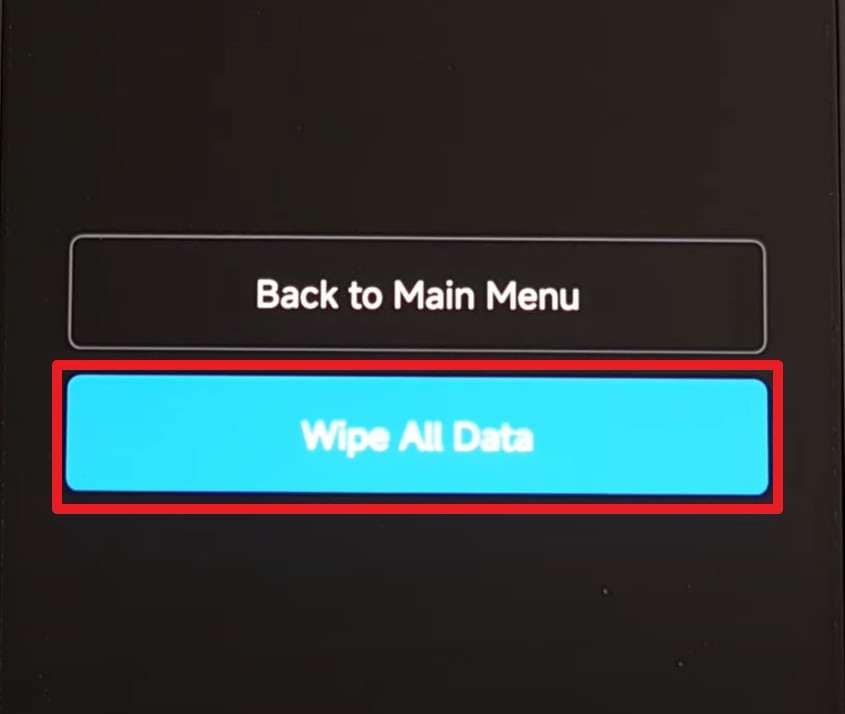
Press and hold the "Volume Up" and "Power" buttons together until the Mi logo appears. Now, release the "Power" button but keep holding "Volume Up" until the Recovery menu shows. There, select "Wipe Data," then "Wipe All Data" to confirm.
Part 4. Helpful Tips – Safe Practices for Xiaomi/Redmi/Poco Users
To ensure you don't get stuck in a bootloop as you try the given ways for the Mi phone reboot, follow the given simple and practical tips:
| Tip / Practice | Why Does It Help Prevent Reboots |
|---|---|
| Keep MIUI/HyperOS updated | Fixes known bugs and stability issues that can cause random reboots or bootloop |
| Avoid unofficial/custom ROMs unless you are an expert | Reduces the risk of flashing wrong or unstable builds that can brick or loop the phone |
| Install apps only from trusted sources | Lowers the chance of malware or poorly coded apps that crash the system at startup |
| Do not fill the internal storage to 100% | Leaves space for system caches and updates, preventing crashes from low storage |
| Use quality SD cards and format them in the phone | Prevents boot issues from corrupt or slow cards used for apps and data |
| Reboot occasionally instead of never | Clears temporary glitches and memory leaks before they cause severe instability |
Conclusion
To sum up, this guide explains how to restart Xiaomi, Redmi, and POCO devices and what to do when a phone becomes trapped in a continuous reboot loop. Start with lower-risk checks before moving to firmware flashing or a factory reset. For supported Xiaomi devices, Dr.Fone - System Repair provides a guided repair workflow designed to retain user data, while its free tools can help users enter or exit Recovery Mode, Fastboot Mode, and Download Mode.
safe & secure4,624,541 people have downloaded it
FAQs
 Q1. Can restarting help with network issues?Q2. Does a restart remove cached data?Q3. Is a restart useful for Wi-Fi or Bluetooth problems?Q4. Can I restart my Xiaomi device while charging?


Xiaomi Topics Series
- Xiaomi Screen & FRP Unlock
- 1. Unlock Xiaomi Bootloader
- 2. Mi Account Unlock Tools
- 3. Redmi Note 8 FRP Unlock Tool
- 4. Redmi Note 9 FRP Bypass Tool
- 5. Redmi 9A FRP Bypass
- 6. Remove FRP on Xiaomi/Redmi
- Xiaomi Repair
- Xiaomi Recover
- Xiaomi Reset
- Xiaomi Tips & News
- 1. Xiaomi HyperOS 3.0
- 2. Screen Mirror Xiaomi to PC
- 3. Run Hardware Tests on Xiaomi
- 4. Conduct battery test on Xiaomi
- 5. How Do I Obtain the Security Code Xiaomi
- 6. DND Mode Xiaomi
- Xiaomi Transfer & Backup
- ● Manage/transfer/recover data
- ● Unlock screen/activate/FRP lock
- ● Fix most iOS and Android issues
- Free Download Free Download Free Download


 > How-to > Phone Repair Solutions > Mi Reboot Tips & Tricks: Fast and Advanced Restarts for Xiaomi/Redmi/POCO Devices
James Davis
staff Editor
Generally rated4.5(105participated)