 Resolve common problems and system crashes on both iPhone and Android devices.

 100% Security Verified | No Subscription Required | No Malware

 :
: 
 ChatGPT
 Perplexity
 Gemini
 Claude
 Grok
Grok
Imagine you're running late, get in your car, plug in your phone, and expect your maps and music to appear with Android Auto, but nothing happens. Maybe it worked yesterday, but today it won't connect. That's frustrating.
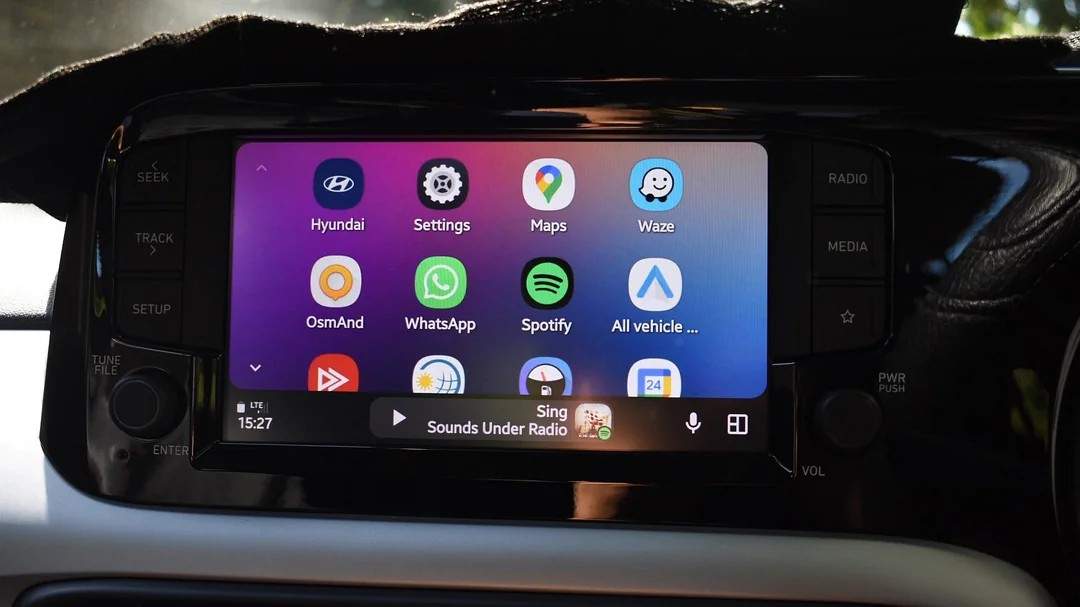
Android Auto is now the dashboard companion for millions, available on the Google Play Store and built into many new cars. As more people use it, problems like Android Auto not working or Android Auto can't connect are becoming more common. If you're dealing with issues after an update, trouble connecting wirelessly, or random disconnects, this guide will help you troubleshoot with both quick and advanced solutions.
In this article

Part 1. Quick Fixes for Android Auto Not Working (Try First)
Begin with these basic steps. They fix most problems quickly.
1. Restart Your Phone and Car
- Power off your Android device and your vehicle's infotainment system.
- Wait 30 seconds, then restart them both.
- Reconnect and check if Android Auto works.
2. Check Your USB Cable or Wireless Compatibility
Use the original, good-quality USB cable. Damaged cables often cause problems.
If you want to use wireless Android Auto, make sure both your car and phone support it. Some older models do not.
3. Reconnect Bluetooth
- Go to Bluetooth settings on your phone and car.
- Forget the existing connection, then pair again.
- Re-open Android Auto.
4. Update Android Auto & Google Play Services
Open the Google Play Store and update both apps.
Updating often solves problems that show up after a recent update.
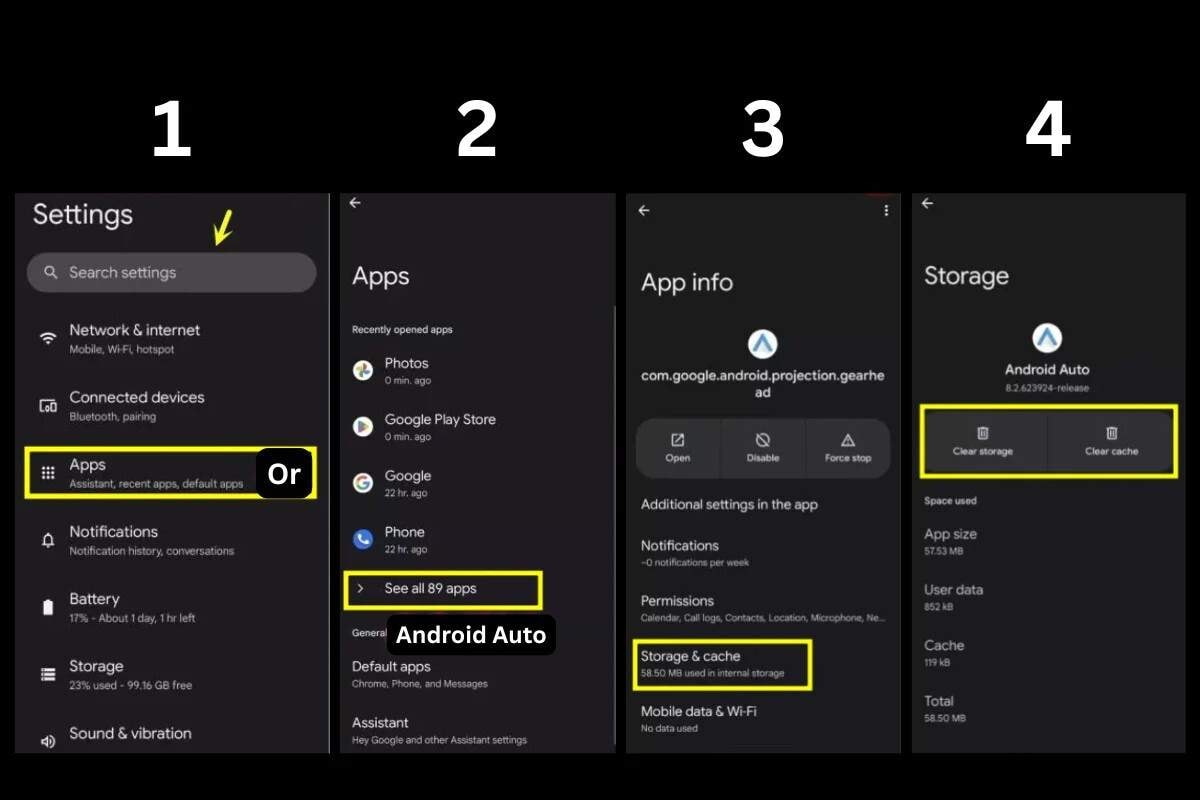
5. Clear Cache for Android Auto
Go to Settings > Apps > Android Auto > Storage > Clear Cache.
Do the same steps for Google Play Services.
Part 2: Why Do Android Auto Connection Issues Happen?
Compatibility Limits Many Users Miss
- Android Version: Android Auto requires Android 8.0 or higher. Some features need Android 11+ (Google Support, 2026).
- Car Head Unit: Not every car stereo works with Android Auto or its wireless version.
- Wireless Limits: Only some models and regions allow wireless Android Auto. For example, some European models do not support wireless because of local rules.
Software Conflicts Between Apps and System
Background apps can cause problems with Android Auto, especially those that control USB, Bluetooth, or permissions.
Google Play Services and Android Auto need to be compatible. Different versions are a common reason for "Android Auto is not working" reports.
Cache Corruption and System Glitches
Temporary bugs can cause Android Auto connection problems.
Deeper system glitches or corrupted files often cause ongoing problems.

Android fragmentation across hundreds of devices and car models is a major reason why Android Auto not connecting remains so common.
tech Analyst Dana L (Mobile OS Trends, 2026)
Part 3. How to Fix Android Auto Not Working (Advanced Solutions)
If you have tried all the quick fixes and Android Auto still will not work, your device might have system errors or firmware conflicts.
Deeper Android OS Bugs & Firmware-Level Conflicts
System errors, broken firmware, or buggy updates can stop Android Auto from working.
You cannot fix these problems with just app updates or clearing the cache.
Real-World Example
I've tried every fix—new cables, updates, resets—but only a full system repair finally made Android Auto work again.
A Reddit user
Fix Android Auto Not Working with Dr.Fone – System Repair
A dedicated repair tool addresses Android Auto connection issues at the system level. Dr.Fone - System Repair is designed to fix glitches that basic troubleshooting cannot reach.
 Fix Android
instantly – no skills needed.
Fix Android
instantly – no skills needed.- Solve boot loop,
black screen, won’t turn on, etc.
- High success
rate for all system issues.
- User-friendly
interface with easy-to-follow steps.

How to Fix Android Auto Connection Issues
Follow these steps to repair system-level problems with Dr.Fone:
-
Step 1 Launch Dr.Fone and Choose System Repair
Open Dr.Fone and select System Repair.

-
Step 2 Connect Your Android Device
Use a USB cable to connect your phone to your computer. Choose Android Repair.

-
Step 3 Confirm Device Details and Repair Your System
Follow the on-screen steps provided by Dr.Fone to complete the process.





Part 4: Comparison Table: Which Android Auto Not Working Fix Should You Try?
| Fix | Difficulty | Effectiveness | Best For |
|---|---|---|---|
| Restart | Easy | Low | Temporary glitches |
| Cable/Wireless Check | Easy | Medium | Hardware issues |
| Update Apps | Easy | Medium | Software conflicts |
| Clear Cache | Easy | Medium | App glitches |
| Bluetooth Reset | Easy | Medium | Pairing issues |
| Dr.Fone - System Repair | Medium | High | System-level problems |
Conclusion
Most Android Auto not working complaints come down to three causes:
- Compatibility limitations
- Software/app bugs
- Core system errors
If Android Auto is not connecting, start with the basics: restart, check cables, update apps, and clear cache. For persistent issues, advanced system repair is the most reliable solution. It's recommended to use Dr.Fone - System Repair for Android Auto not connecting issues that you can't solve with quick fixes.
FAQs
-
1. Why is Android Auto not working after an update?
App and OS updates sometimes create compatibility issues. Check for updates to Android Auto and Google Play Services, and clear the cache if problems persist. -
2. Why is Android Auto not connecting wirelessly?
Wireless Android Auto requires a supported car model and a stable Wi-Fi connection. Not all vehicles or regions support it. -
3. How do I fix Android Auto connection issues permanently?
If basic troubleshooting fails, use a system repair tool like Dr.Fone to address deeper OS problems. -
4. Why does Android Auto keep disconnecting?
Unstable Bluetooth connections, outdated apps, or system bugs usually cause this. Try resetting Bluetooth and updating your device. -
5. Why does Android Auto not work on some cars?
Not every car supports Android Auto or wireless Android Auto. Check your vehicle's compatibility and update its firmware if possible.
 Add Wondershare Dr.Fone as a preferred source on Google




