
How to Recover Data from a Broken Phone: Ultimate Guide for Safe Retrieval

Jun 11, 2026 • Filed to: Data Recovery Solutions • Proven solutions
 TL;DR:
You can retrieve data from a broken Android or iOS device using direct USB transfers, external hardware peripherals, pre-configured cloud backups, or specialized extraction software depending on the phone's power status and touch functionality.
● If the phone powers on but the touch screen is unresponsive, Android users can unlock the device using a mouse and a USB-C to HDMI dongle provided the phone supports USB-C video output, whereas iPhone users must connect to a previously trusted computer to access files via USB.
● Retrieving data through Google Backup or iCloud Backup requires the synchronization feature to be active before the device was damaged and dictates that the data must be restored onto a new or completely factory-reset smartphone.
● Dr.Fone - Data Recovery extracts over 35 data types directly from damaged iOS devices without a prior backup, and accesses over 6000 Android models via Download mode without requiring root access or USB debugging.
Ask AI for a summary
 ChatGPT
 Perplexity
 Gemini
 Claude
 Grok
Grok
When your phone is broken, you can be frightened and stressed, but your data does not have to vanish. This guide provides the easiest ways in which you can recover the lost photos, files, and memories without any risk. Each part offers simple methods that suit different damage levels. So, with the right steps and calm focus, review this guide to get answers on how to recover data from a broken phone.
- Part 1. How Phone Damage Type Affects Data Recovery Possibility
- Part 2. Pre-Checks Checks Before Data Recovery from Broken Phone
- Part 3. How to Recover Data from a Broken Android Phone [Top 6 Ways]
- Solution 1: Direct USB Access
- Solution 2. Restore Google Backup
- Solution 3: Cloud Sync with Third-Party Apps
- Solution 4: One-Click Data Recovery: Using Dr.Fone

- Solution 5: Restore Data from SD Card
- Solution 6. Utilize a USB-C Dongle & External Display
- Part 4. How to Get Data from a Broken iPhone [Top 6 Ways]
Part 1. How Phone Damage Type Affects Data Recovery Possibility
When you learn how to retrieve data from a broken phone, determine what type of damage can affect the data recovery process:
| Damage Type | Recovery Possibility | Recovery Details |
|---|---|---|
| Screen Crack | Very High | Data stays safe because only the display breaks. The phone still works, and you can move files with USB, SD card, or cloud. |
| Water Damage | Low to Moderate | Water harms internal parts and may kill the storage chip. Turn the device off immediately. In most cases, recovery requires professional tools unless a cloud backup is available. |
| Unresponsive Touch | Moderate | If the phone turns on, you can still get data with USB, OTG mouse, or an external screen. But access becomes hard if you cannot unlock the device. |
Part 2. Pre-Checks Checks Before Data Recovery from Broken Phone
To know how to get data from a broken phone, perform the listed checks, and determine the device condition:
Check 1: Check If the Device Powers On
When you power on the device and it turns on, your choices may stay limited to expert help or advanced methods. If the device vibrates or shows light, you can recover data through USB, cloud, or other software methods.
Check 2: Confirm Screen and Touch Functionality
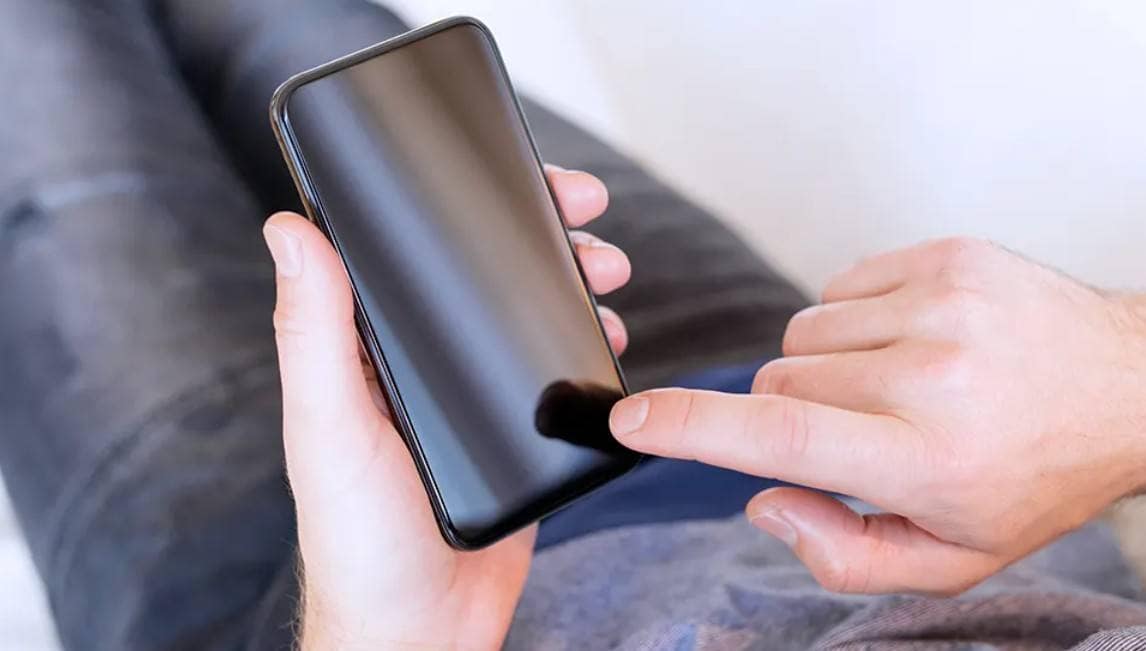
Check if the screen shows any output and if touch works, because this will help you determine if simple tools or extra devices may give control of the phone.
Check 3: SIM Card and SD Card Removal
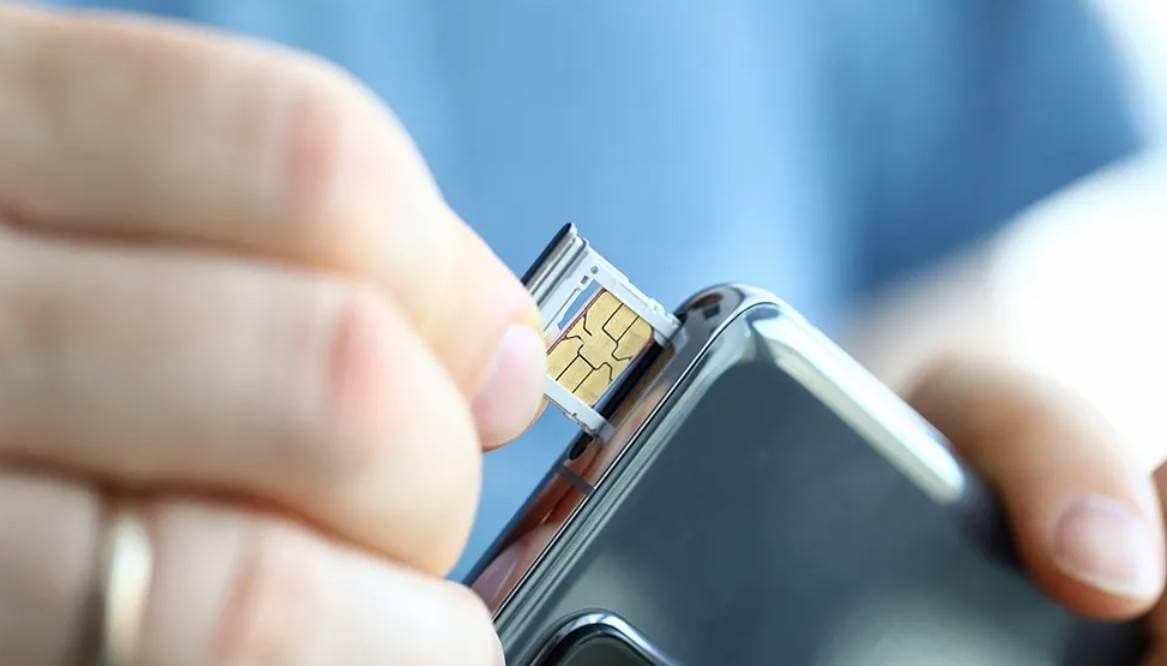
Remove your SIM and SD cards first, since the SD card stores media, and you can view it on any computer or another phone with a card reader.
Check 4: Test USB Connection to Computer
Plug the phone into a computer through a USB, and if it shows up as a storage device, it is possible to navigate through folders and copy information. In case the computer fails to see the device, you might require specific software or a professional data recovery service.
Part 3. How to Recover Data from a Broken Android Phone [Top 6 Ways]
To know how to get data off a broken phone as an Android user, review the 6 step-by-step solutions given below:
Solution 1: Direct USB Access
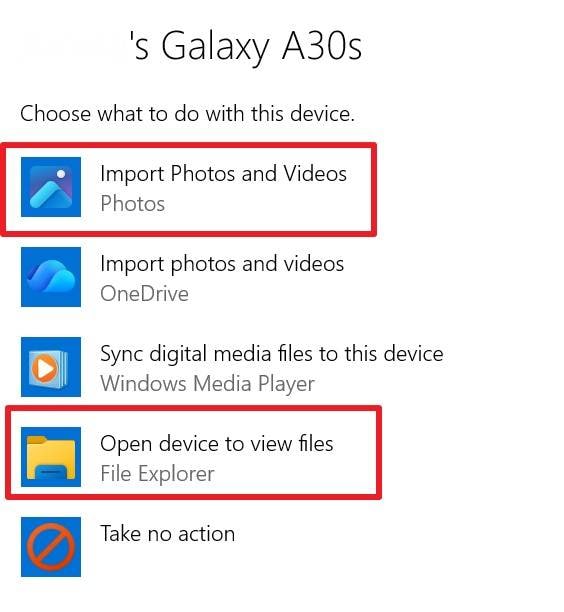
Direct USB access is an easy and quick method to extract data from an Android phone that has broken down, provided it has power and is connected to a computer. You do not need an internet connection or extra software to copy the data because a simple USB cable is enough, as shown in the steps below.
Instructions: On your Windows PC, go to Settings > Bluetooth & devices > AutoPlay and turn the feature on. Link the broken phone to the PC and choose "Import Photos and Videos" or "Open Device to View Files."
Solution 2. Restore Google Backup
For the data retrieval from a broken phone, you can also restore the Google Backup on another device if the automatic backup feature was active. Google Backup saves data automatically, stores it securely in the cloud, and works with all Android devices. Even if the phone is completely unusable, you can quickly and safely retrieve all essential files, as illustrated:
Instructions: Turn on a new or factory-reset Android device to start the initial setup process. Connect to Wi-Fi and choose the recent backup as you press "Next" on the "Copy Apps & Data" screen and sign in with the Google account used on your broken phone. Here, choose the data types and pick the "Restore" button to access the data.
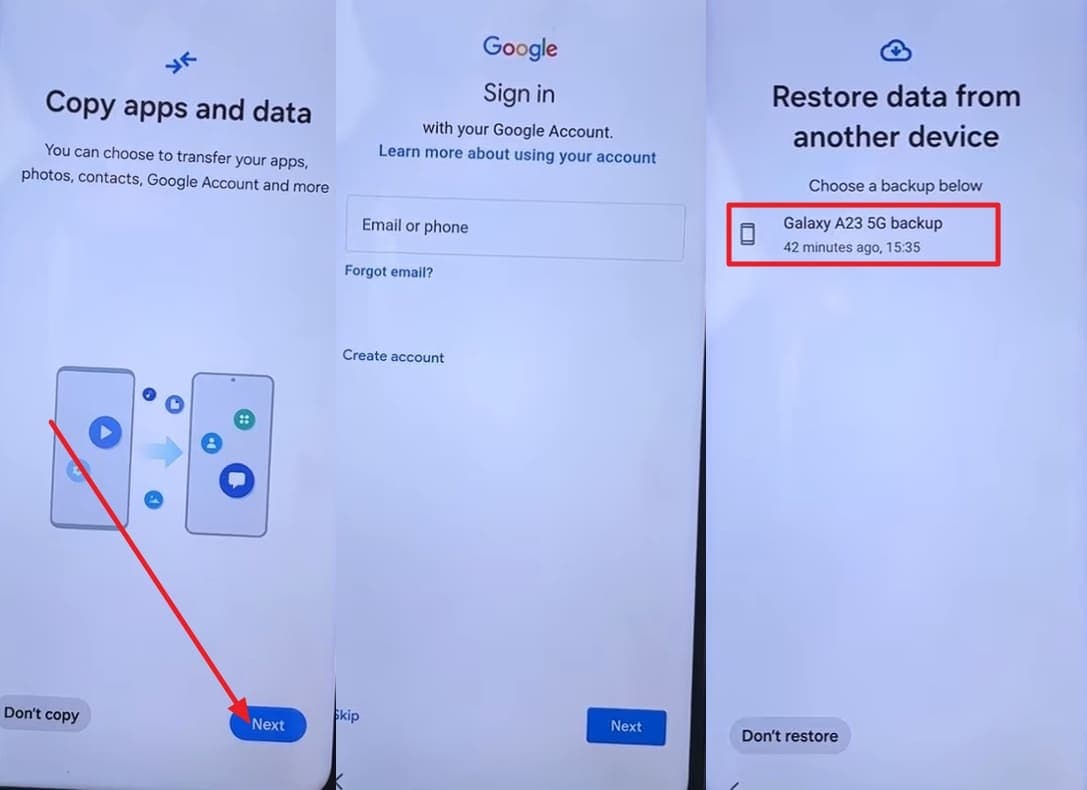
Note: Only data backed up before the phone broke will be restored, so check your Google account settings to see what was included. For photos and videos, make sure Google Photos backup was enabled on the old device.
Solution 3: Cloud Sync with Third-Party Apps
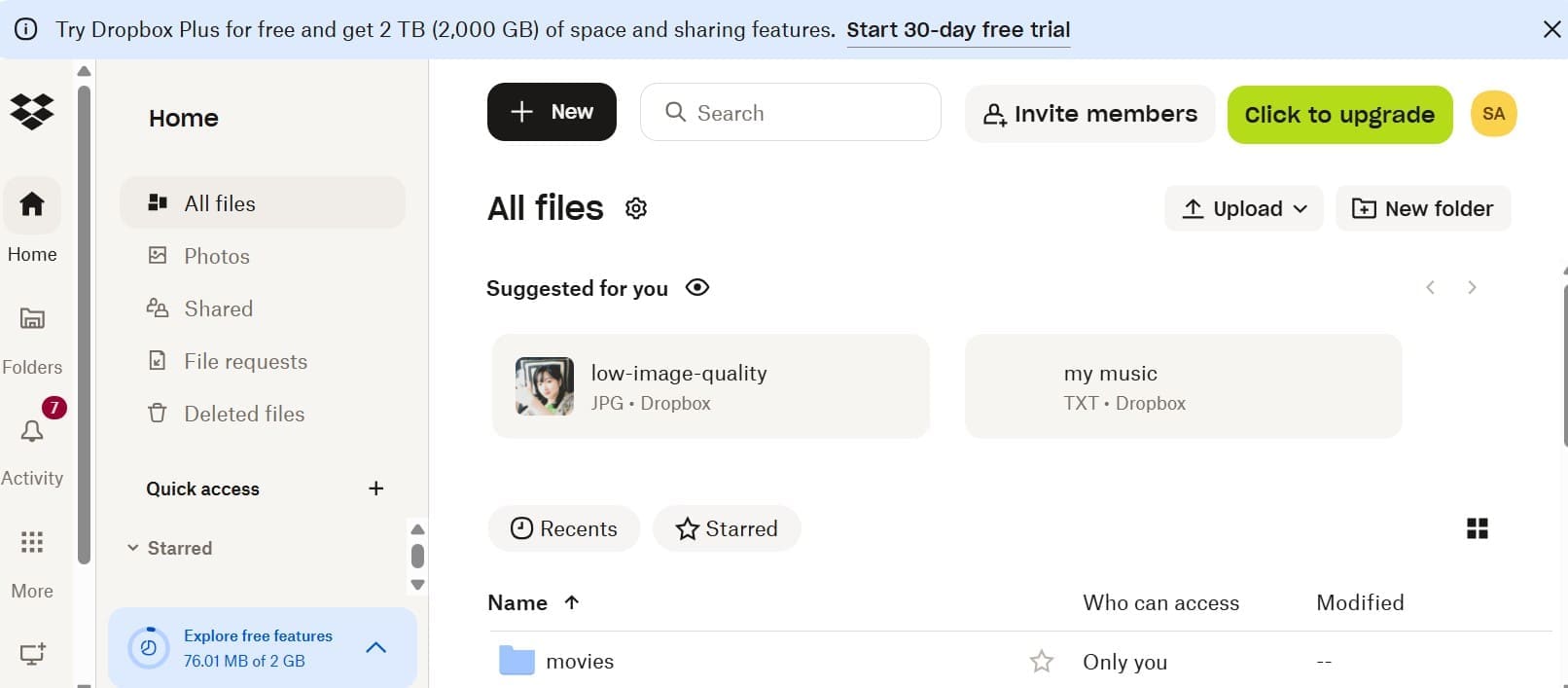
If files were regularly saved to services like Dropbox, OneDrive, or Box, try this solution. You can access documents, contacts, and other important data from any device by logging into the web version of these cloud storage apps.
Solution 4: One-Click Data Recovery: Using Dr.Fone
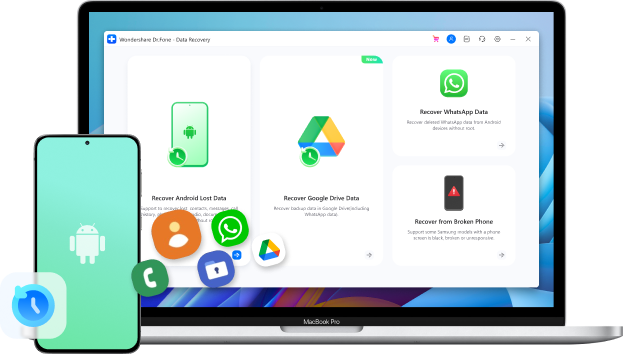
With the facility to restore 14+ file types, Dr.Fone - Data Recovery (Android) is another effective solution. Using this software, you can easily restore any kind of data from over 6000 Android models. The tool needs no skills and offers the highest success rate, which makes it the best choice for amateurs. Additionally, you can choose the data types that you want to retrieve data from a broken phone.
Plus, you can preview the data type as you save it to a device or computer and determine the accuracy. Unlike other methods, you can just enter the Download mode, and Dr.Fone will handle the rest. This not only makes the data restoration process seamless, as it doesn't require you to root or put the phone in USB debugging mode.

Dr.Fone - Data Recovery (Android)
Recover WhatsApp/contacts/messages/call history saved in Google Drive to your computer.
- Recover Android data by scanning your Android phone & tablet directly.
- Preview and selectively recover what you want from your Android phone & tablet.
- Supports various file types, including WhatsApp, Messages & Contacts & Photos & Videos & Audio & Document.
- Supports 6000+ Android Device Models & Various Android OS.


Straightforward Tutorial to Restore Data from a Broken Android Phone via Dr.Fone
To know how you can use this innovative broken data recovery software to retrieve data from a broken phone, here is a simple guide:
- Step 1. Confirm the Device Condition for Broken Data Recovery
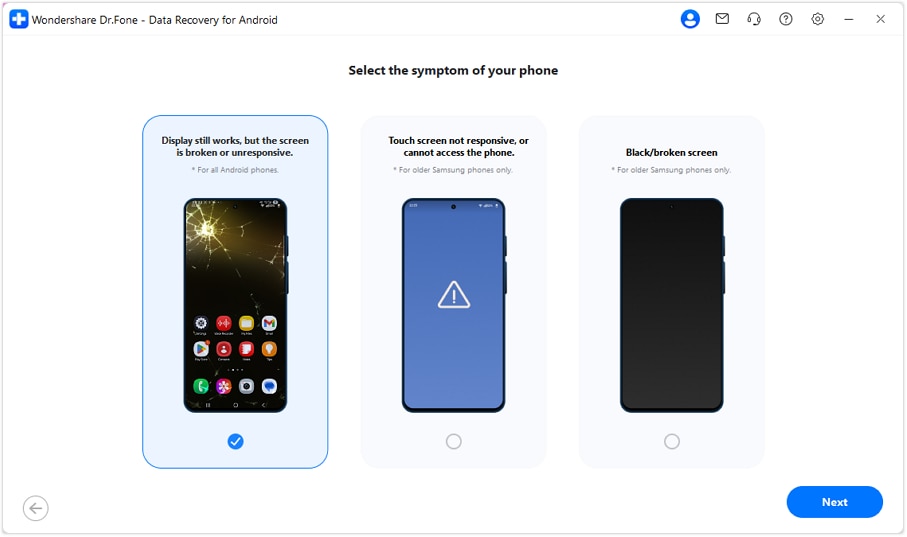
After accessing the "Recover from Broken Phone" feature from the Data Recovery tool of Android, you have to confirm the device condition. Here, choose the "Screen On But Unresponsive" option if your phone can still show the display. Moreover, this scenario can work with all Android brands and versions.
- Step 2. Attach the Broken Android Smartphone
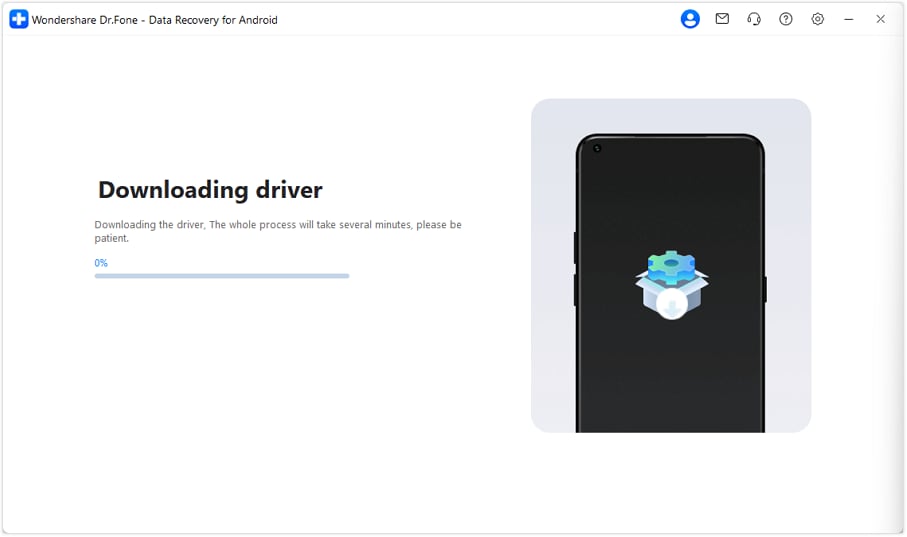
Dr.Fone will prompt you to attach your broken phone so it can detect the phone model and Android version. Afterward, it will download the necessary drivers so you can control your device using a mouse. If you can do it, press the "Yes, it works" button.
- Step 3. Opt for the Desired Recovery Mode
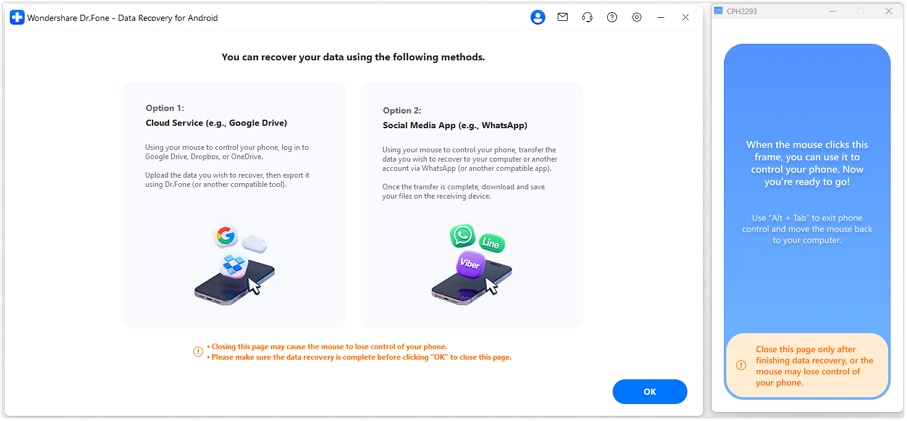
Following this, Dr.Fone will offer you 2 recovery techniques: Cloud Service or Social Media App. You need to proceed with the required method according to the data you want to retrieve from your broken Android phone.
 safe & secure
Solution 5: Restore Data from SD Card
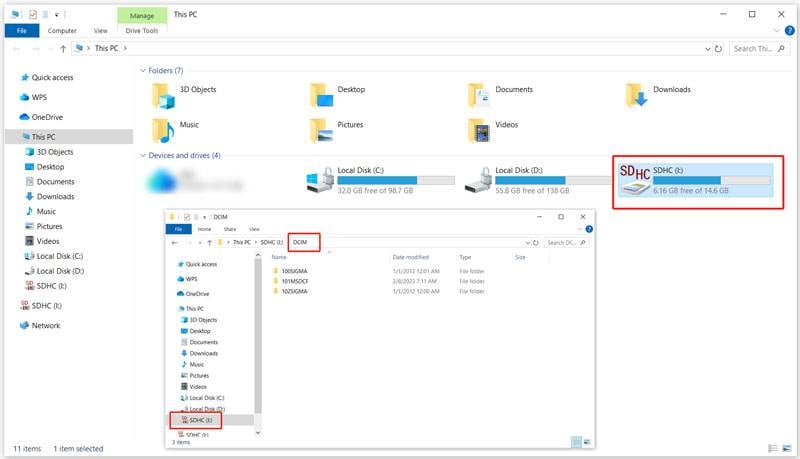
It is a reliable way to recover files from a broken Android phone if the card is intact. You can remove the card and access it on a computer or another phone without using the broken device. Files can be copied directly without extra software, and it avoids further phone damage.
Solution 6. Utilize a USB-C Dongle & External Display
When the phone is switched on, but you cannot see the screen or touch screen, try this solution to retrieve data from a broken phone. The phone can be linked to a monitor or TV to view the interface and unlock the device with a mouse or keyboard. The files may then be securely copied to a computer or a USB drive with the following instructions:
Instructions: Gather a USB-C to HDMI dongle, an HDMI cable, an external monitor/TV, and a mouse/keyboard if touch fails. Connect the dongle to your phone and display, and switch the monitor to the correct HDMI input to mirror the phone. Use the mouse to unlock the phone and select "File Transfer" or "MTP" mode. Afterward, you can safely recover the desired data from your broken smartphone.
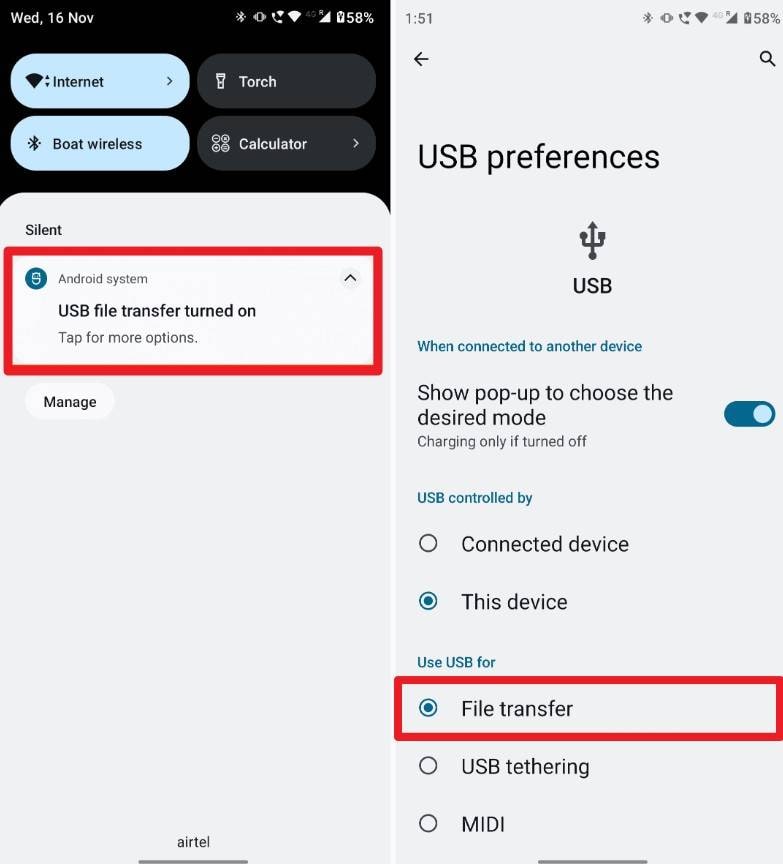
Note: This method works only if your phone supports USB-C video output and powers on. If the screen and touch still stay unresponsive, use cloud backups or contact professional data recovery services.
Part 4. How to Get Data from a Broken iPhone [Top 6 Ways]
As an iPhone user, if you want to recover data from a broken phone, here are some solutions you can try:
Solution 1: Via USB
This is a reliable method if the iPhone powers on and the computer recognizes it. Connect your iPhone to a trusted computer using an Apple-certified USB cable. On Windows, open This PC > Internal Storage > DCIM to copy photos/videos; on Mac, use Photos, Image Capture, or Finder to import pictures or videos.
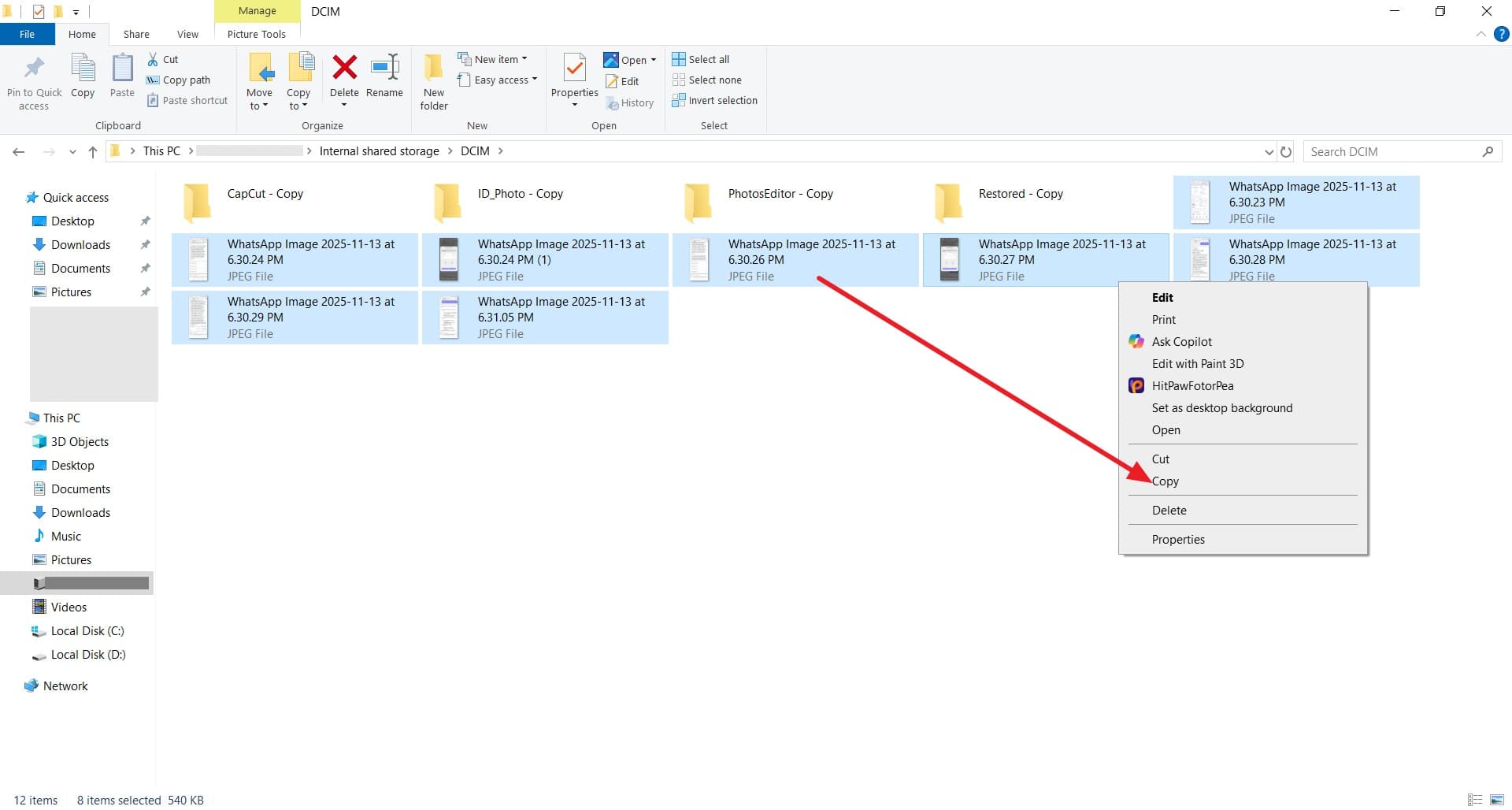
Solution 2: Restore iCloud Backup
To recover data from a phone with a broken screen, restore your iCloud backup using this simplified method. Even without the broken iOS device, you can set up a new one and access your information and settings. Moreover, iCloud works automatically over Wi-Fi and keeps your data securely encrypted.
Instructions: Use a new, repaired, or factory-reset iPhone and follow setup until you reach the "Transfer Apps & Data" screen. Select "From iCloud Backup," sign in with your Apple ID, choose the correct backup, stay on Wi-Fi, and complete setup to recover your data.
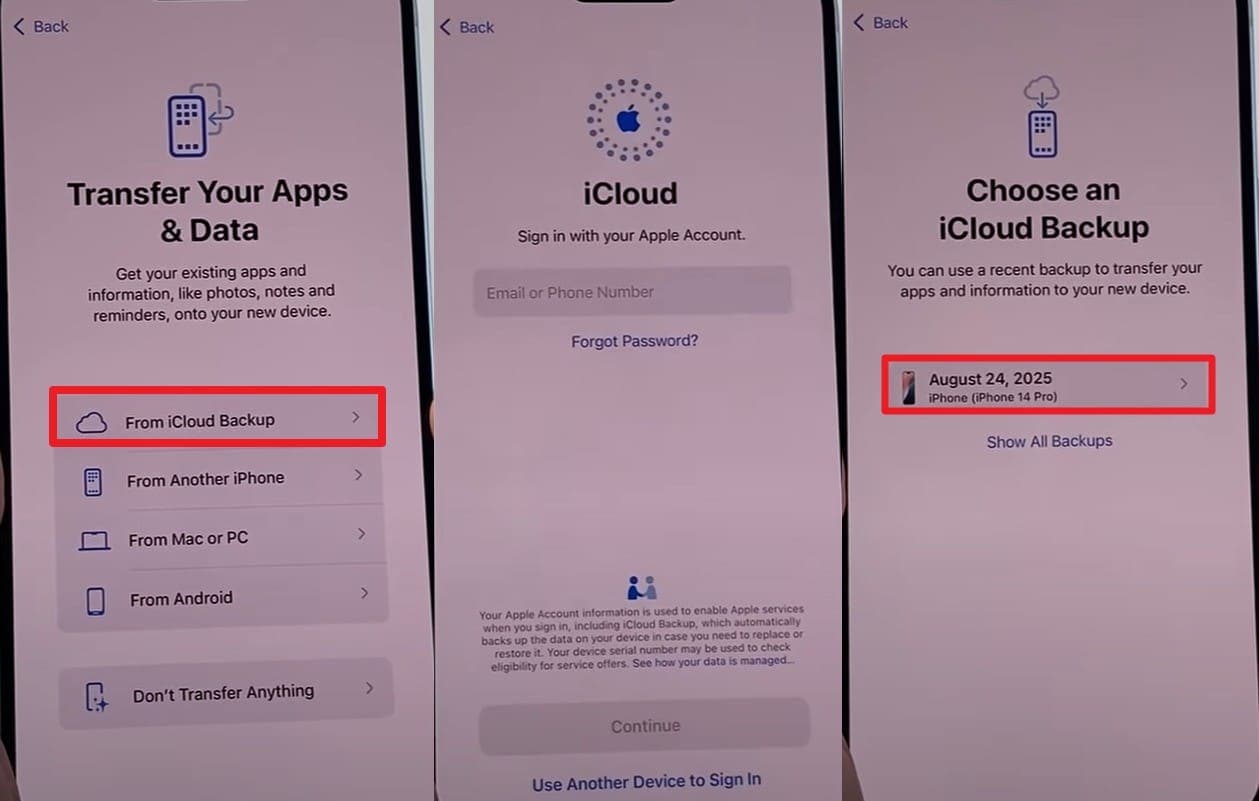
Note: Make sure an iCloud backup exists from the broken iPhone. Restoring will erase all current data, so use only on a new or factory-reset device.
Solution 3: Create & Restore iTunes/Finder Backup
Create and restore the iTunes or Finder backup to recover data from a phone with a broken screen. Backups save any type of data and allow complete restoration to a new or old iOS device, as shown in the following guide:
Step 1. Connect your iPhone to a trusted computer using an original Apple cable, then open iTunes or Finder. Click "Back Up Now" under Summary (iTunes) or General (Finder) to create a backup.
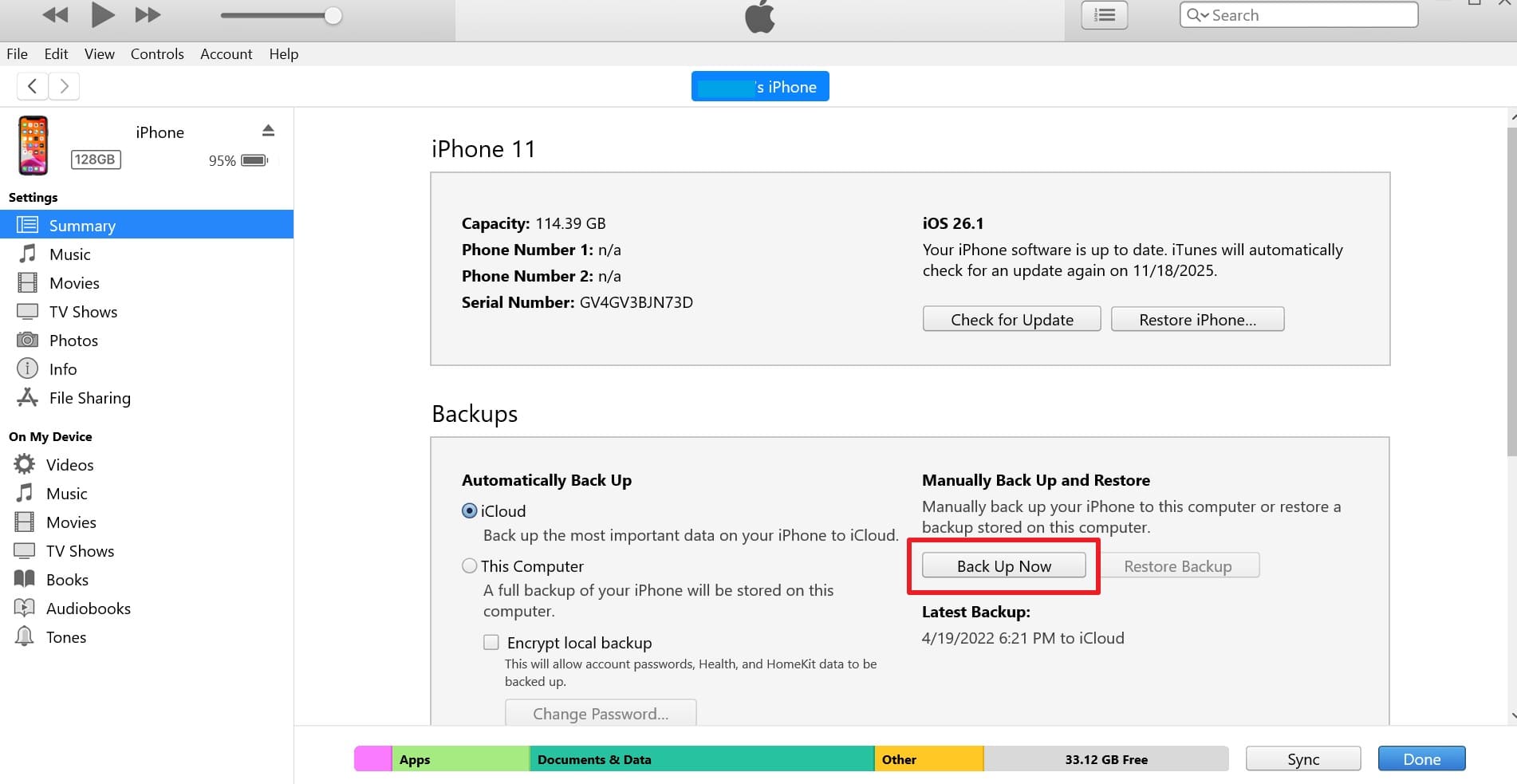
Step 2. Turn on your new iPhone, then follow the setup prompts until you reach the "Apps & Data" screen, or use your already running iPhone. Connect the iPhone to your computer, open iTunes or Finder, select "Restore Backup," choose the desired backup, and wait for the restore to complete.
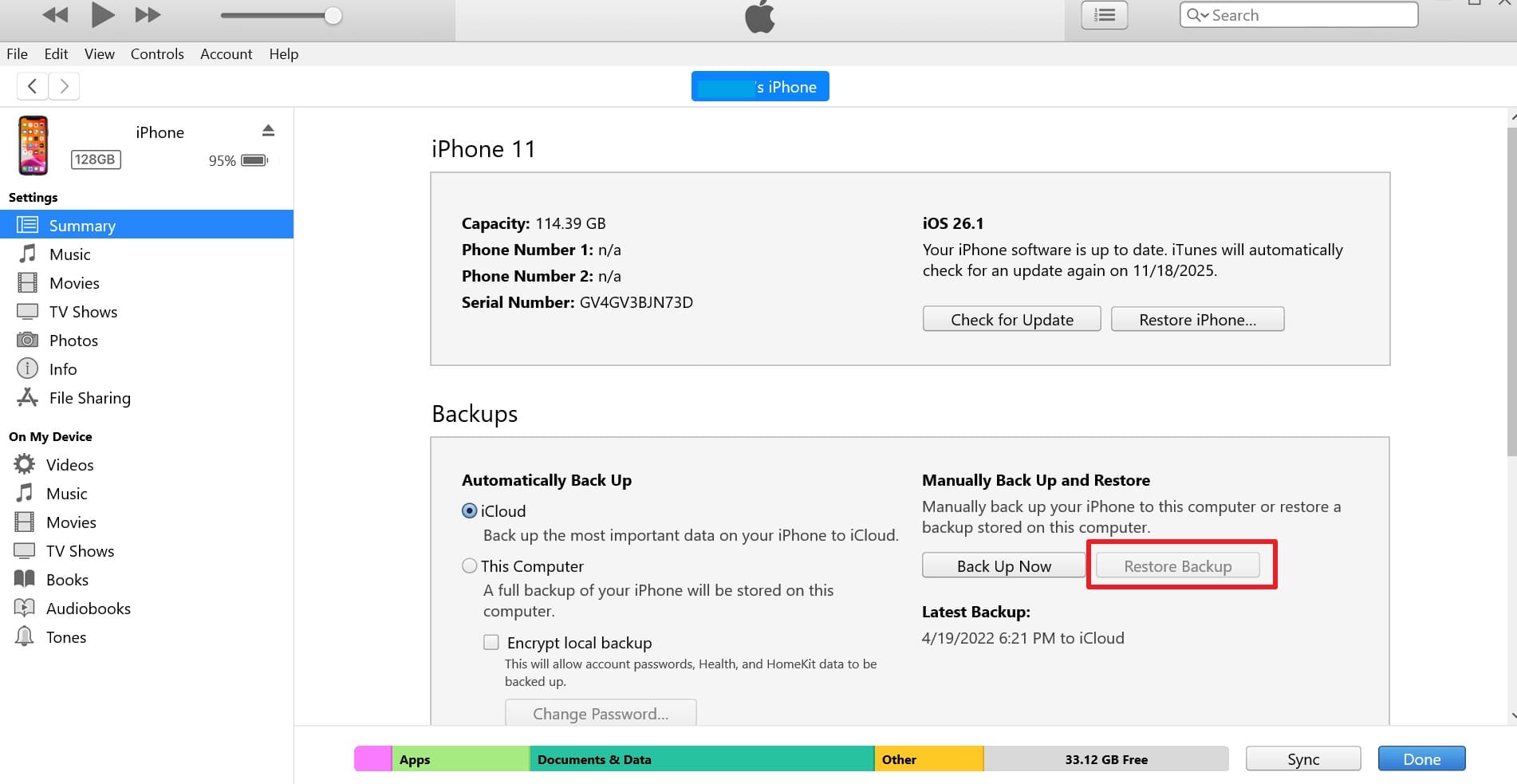
Solution 4: Access iCloud Web Portal
This option lets you view and recover different iCloud data types when the iPhone cannot be used. After signing into iCloud.com with your Apple ID, you can access items like media, contacts, notes, calendars, and files. For example, selecting "Photos" lets you view your backed-up images and download the ones you need.
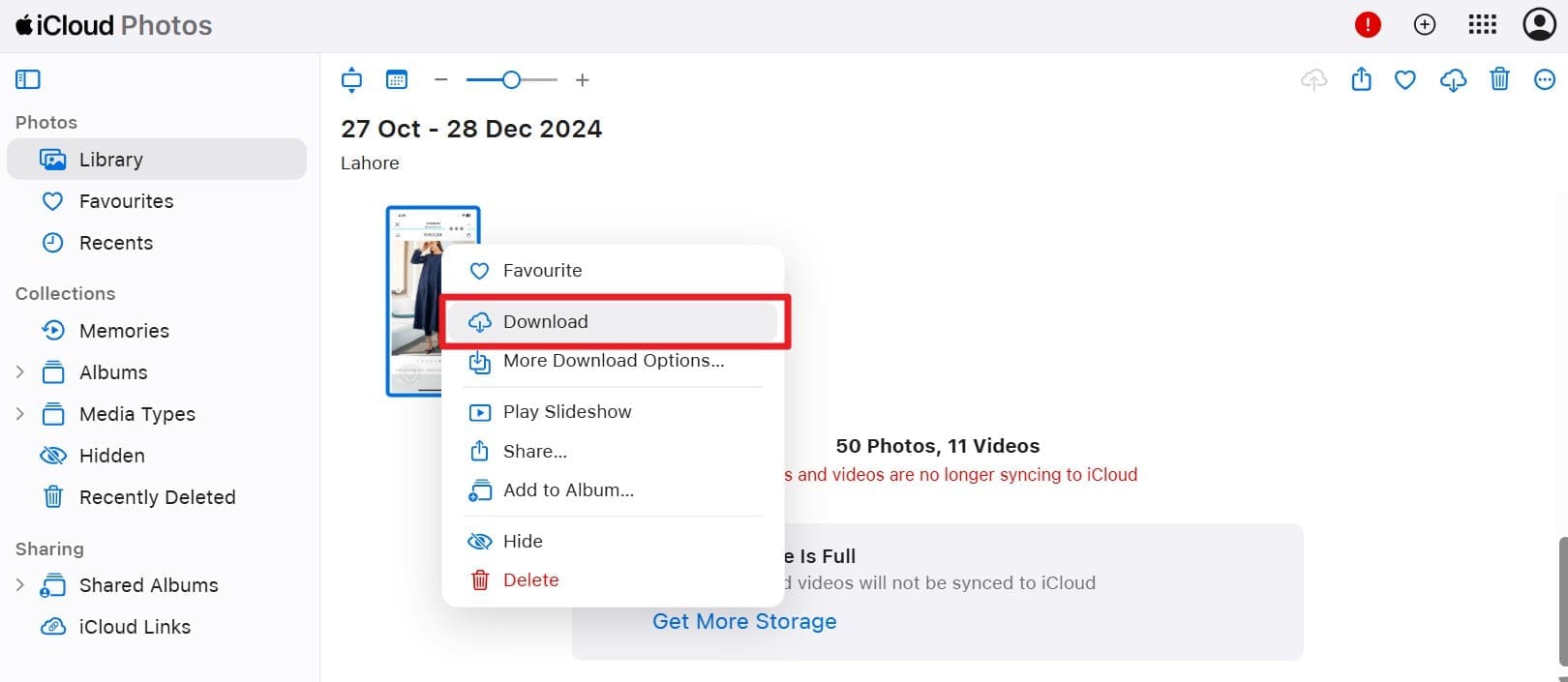
Note: This method works only if the relevant iCloud sync or backup was enabled before the phone broke.
Solution 5: Dr.Fone - Data Recovery
To know how to get data from a broken phone, Dr.Fone - Data Recovery (iOS) is another effective solution. With this tool, you can easily recover data directly from iOS devices without a backup. Besides that, it can also be used to retrieve data from iTunes & iCloud backups quickly and securely since it's versatile.
From photos, messages, WhatsApp, iWork files & more, you can choose from 35+ data types to have complete control over the process. Users can also use it to recover WhatsApp View Once messages & restore social app data in just 3 simple steps.
Dr.Fone - Data Recovery (iOS)
The Best Tool to Recover From Any iOS Devices!
- Designed with the technology of recovering files from iTunes, iCloud or phone directly.
- Capable of recovering data in serious scenarios like device damage, system crash or accidental deletion of files.
- Fully supports all the popular forms of iOS devices.
- Provision of exporting the files recovered from Dr.Fone - Data Recovery (iOS) to your computer easily.
- Users can speedily recover selective data types without having to load the entire chunk of data altogether.
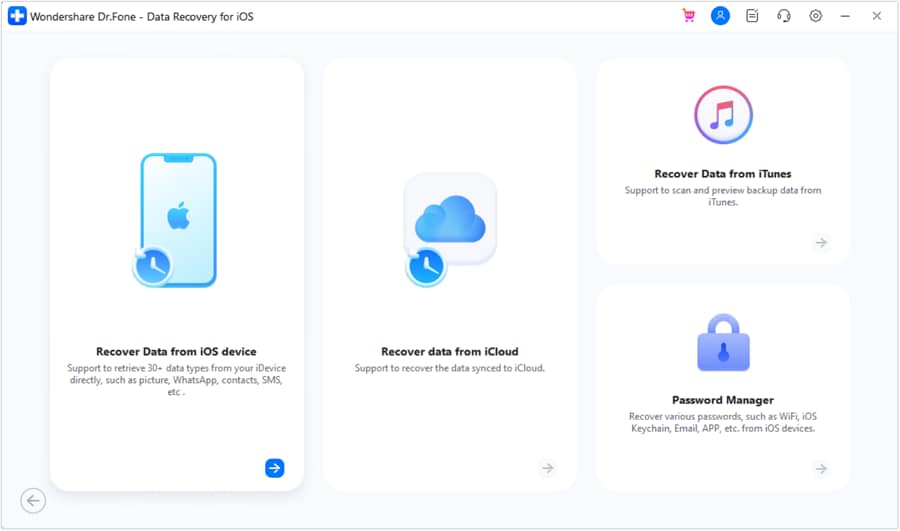
Note: Follow these straightforward tutorials to easily recover data from iTunes & recover data from iCloud backups with Dr.Fone.
safe & secureSolution 6. Contact Customer Support Service
As a last resort, contact Apple Support or a professional data recovery service to recover data from a broken phone. Experts can diagnose the problem, use specialized tools, and increase recovery chances even for major hardware issues. Besides, data is handled securely, and guidance on backups, repairs, or replacements is provided.
Conclusion
Summing up, if you want to know how to recover data from a broken phone, this guide has explored simple solutions for Android and iOS. So, review the listed ways and determine which one becomes effective for you. However, if you look for simple ways with no complex setup or skill needed, rely on Dr.Fone - Data Recovery tool for Android and iOS.
safe & secureFAQs
 1. Is professional recovery guaranteed for severely damaged phones?2. Can I recover only specific files instead of all data?3. Can SD card recovery work if the phone does not turn on?


Android Recover
- Recover Apps
- 1. Data Recovery Software for Android
- 2. Top 4 Android Data Recovery Tools
- 3. Restore Deleted Files on Android
- 4. Coolmuster Android Data Recovery
- 5. Guide of Disk Drill for Android
- 6. Android Data Recovery Software
- 7. Gihosoft Android Data Recovery
- 8. Jihosoft Android Phone Recovery
- 9. Minitool Android Mobile Recovery
- 10. Recover Android Data from Fucosoft
- 11. Best Mobile Forensics Tools to Recover Data
- 12. PhotoRec Review
- 13. FoneDog Toolkit
- 14. TWRP Recovery
- Contacts Recover
- 1. Recover Contacts from Stolen phone
- 2. Recover Contacts from Android
- 3. Retrieve Contacts Without Backup
- Files Recover
- 1. Recover Files from Internal Memory
- 2. Recover Miscellaneous Files
- 3. Recover Android's Hidden Files
- 4. Recover Deleted Files from Android
- 4. Recover Deleted Files Without Root
- 5. Recover Files from SD Card
- 6. Undelete Files on Android
- Messages Recover
- Music/Videos Recover
- Photos Recover
- 1. DiskDigger Photo Recover Review
- 2. Recover Deleted Photos from Android
- 3. Recover Photo from Internal Storage
- 4. Recover Photos from Lost Phone
- 5. Restore Android Deleted Photos
- Broken Android Recover
- 1. View Files from Broken Phone Screen
- 2. Recover Data from Dead Phone
- 3. Recover Contacts with Broken Screen
- 4. Recover Text Messages from Android
- 5. Recover Data from Internal Memory
- Social Apps Recover
- 1. Recover Facebook Messages
- 2. Recover WhatsApp Messages
- 3. Recover WhatsApp Messages
- 4. Restore Deleted WhatsApp Messages
- Android Recover Tips
- 1. SD Card Recovery Tools
- 2. Fix Recovery Mode Not Working
- 3. Enter Recovery Mode on Android
- 4. Recover Calendar from Android
- 5. Recover Deleted Call Log on Android
- 6. Clear Cache Partition
- 7. Repair a USB Stick
- 8. USB Repair Tools
- Cloud Storage Tips
- ● Manage/transfer/recover data
- ● Unlock screen/activate/FRP lock
- ● Fix most iOS and Android issues
- Free Download Free Download Free Download

 > How-to > Data Recovery Solutions > How to Recover Data from a Broken Phone: Ultimate Guide for Safe Retrieval
Daisy Raines
staff Editor