

2026 Motorola Phone Restore Guide: Step-by-Step Fixes
Motorola Manage
- Motorola Transfer
- 1. Download Pictures to PC
- 2. Transfer Motorola to Mac
- 3. Transfer Whatsapp from Moto to iOS
- 4. Transfer Music from Mac to Moto
- 5. Transfer WhatsApp from iOS to Moto
- Motorola Unlock
- 1. Unlock Motorola Without Factory Reset
- 2. Network Unlock Motorola One 5G Ace
- 3. Sim Unlock Moto G Phone
- 4. Unlock Moto Without Factory Reset
- 5. Unlock Motorola Bootloader
- 6. Bypass FRP Lock on Motorola
- 7. Reset Motorola Phone When Locked
- Motorola Repair
- 1. Motorola Won't Power On
- 2. Android App Not Installed Error
- 3. Black Screen of Death Error
- 4. Unbrick Android Phone
- 5. Encryption Unsuccessful Error
- 6. Stuck at Android System Recovery
- 7. Android Won't Turn On
- 8. Android Stuck on Boot Screen
- Motorola Tips
- 1. Turn Off a Motorola Phone
- 2. Mirror Motorola Screen to PC
- 3. Back up Motorola to PC
- 4. Control Motorola from PC
- 5. Format Motorola Phone in 2026
- 6. Reboot Any Motorola Phone
- 7. How to Screenshot on Motorola
- 8. Restart Any Motorola Phone
- 9. Motorola Phone Restore Guide
- 10. Set Up Voicemail on Motorola
- ● Manage/transfer/recover data
- ● Unlock screen/activate/FRP lock
- ● Fix most iOS and Android issues
- Free Download Free Download Free Download


Sep 23, 2026 • Filed to: Backup & Restore Solutions • Proven solutions
 TL;DR:
A factory reset on a Motorola phone permanently erases all data to resolve software glitches, requiring you to restore your files using a prior Google Account sync, a local SD card, a PC connection, or a third-party tool like Wondershare Dr.Fone.
● Restoring from a Google backup requires an active Wi-Fi connection during the initial setup phase to retrieve synced app data and settings, whereas PC and local methods require manually transferring existing files via an SD card or a USB cable set to MTP mode.
● If you choose Wondershare Dr.Fone for data management, you must temporarily set the Dr.Fone Link app as your default SMS application to successfully back up and restore text messages.
● A factory reset requires your current device password to initiate, and it will only clear software bugs without downgrading your current Android version or fixing internal hardware damage.
Ask AI for a summary
 ChatGPT
 Perplexity
 Gemini
 Claude
 Grok
Grok
Dr.Fone Basic:
Better Control for Your Phone
Manage, transfer, back up, restore, and mirror your device
Sometimes a quick restart clears minor glitches and bugs. But bigger issues need a full reset. It takes the phone back to its original state. It removes bugs, glitches, and all extra clutter. But remember, this step also wipes your data, so a backup is important.
If you don't know how to restore Motorola phone, don't worry! This guide shows you how to perform a factory reset and how to restore it fully.
We will also walk you through the simple ways to bring your data back after the reset. And if you need some tips to recover the data after a format, read 5 ways to restore the data after a reset.
Let's begin!

Part 1. How to Restore a Motorola Phone to Factory Settings
This big step removes everything from your device completely. Your photos, media, and all applications will be deleted from the phone. The process only takes a few minutes for the cleaning to finish. It handles those tough issues and makes your phone super fast again. Plus, it is the perfect way to get the phone ready for a new owner.
Here is how to restore a Motorola phone to factory settings:
- Open "Settings" on your Motorola.
- Tap "System" on the menu.
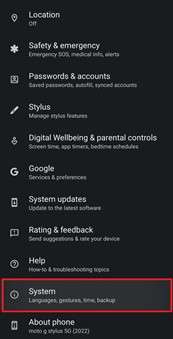
- Select "Reset options."
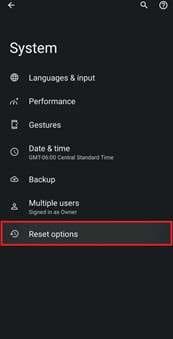
- Tap "Erase all data (factory reset)."
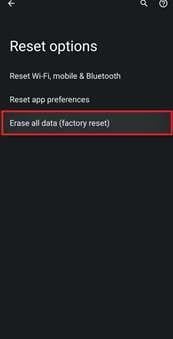
- Confirm the action on the screen.
Mind that you won’t be able to restore your Motorola without the password. For this, you may need help from a third-party tool like Dr. Fone.
If you have already performed the factory reset and want to know how to restore your Motorola phone, keep reading.
Part 2. How to Restore a Motorola Phone from Google Backup
Restoring a Motorola from Google backup brings your data and settings back after a reset. The process stays easy as long as your data was synced before. You just sign in and let Google handle the rest.
Here is how to restore a Motorola phone from Google backup:
- Turn on your Motorola after the reset.
- Connect the phone to Wi-Fi.
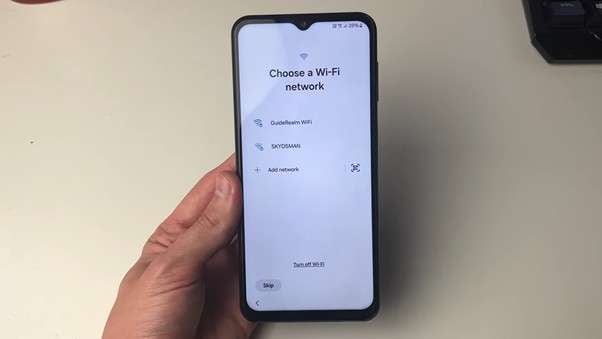
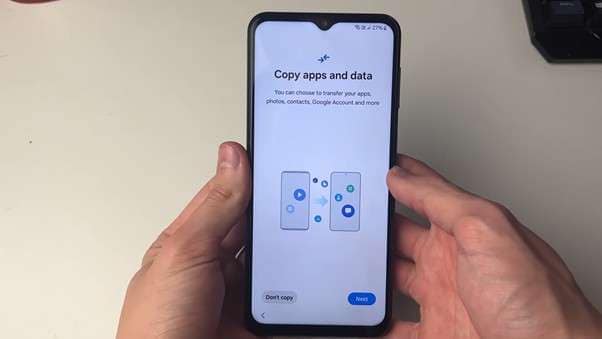
- When asked to "Copy apps & data," tap the "Next" button.
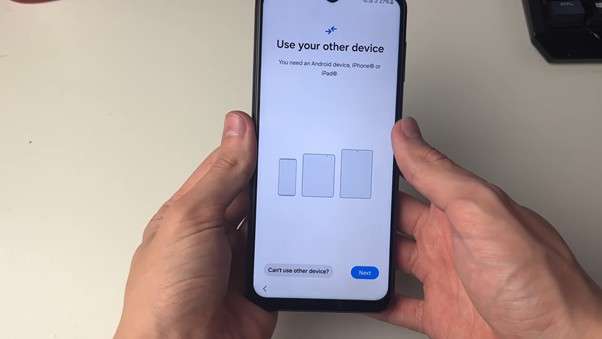
- On the next screen, choose "Can't use old device?" in the corner.
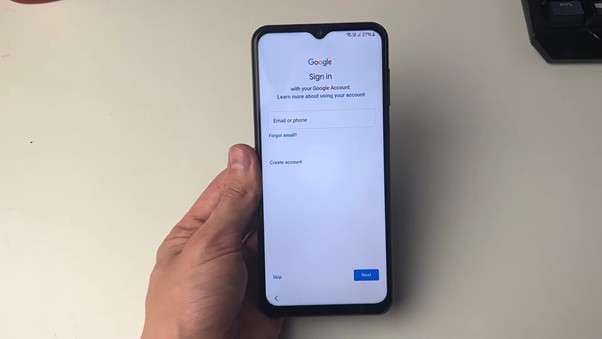
- Sign in with the same Google account you used before.
- Select the backup you want to restore.
- Tap "Restore" to start bringing your data back.
- Wait as the phone completes the setup and loads your information.
What Data Can Be Restored from Google?
Google Backup can restore most of your important data. This includes contacts, calendar events, and app data. Photos and videos saved in Google Photos also come back.
Wi-Fi settings, call history, and some device preferences can be restored, too. It makes switching or resetting your Motorola much easier.
Part 3. How to Restore a Motorola Phone from Local Backup
Not all of your data may be stored on your Google Account in the cloud. This method works well if you already have an SD card inserted in the phone and have manually made a backup. Using this option lets you keep control of your important files yourself.
(Note: This method only works if you have a backup in your local storage.)
Here is how to restore a Motorola phone from local backup:
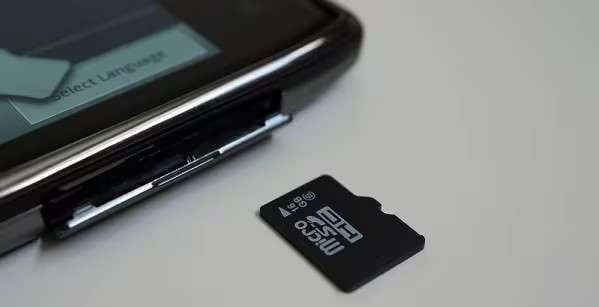
- First, confirm the memory card containing your backup is safely in the phone.
- After setup, go ahead and download a reliable file manager app.
- Open that file manager and look for the folder labelled Backup or Local.
- Find the backup file that you want to restore.
- Click the file and move it to your phone's storage to finish the whole process.
Part 4. How to Restore a Motorola Phone Using a Computer
This method is for manually moving specific saved files back to your device, and it will only work if you have already saved files on your PC. You will need a simple USB cable and your personal computer to do this process. You will manually drag your backup files right into the correct phone folders yourself. This simple method works well for just restoring your photos and favourite music files.
(Note: This method only works if you have a backup on your computer.)
Here is how to restore a Motorola phone from a computer backup.
- Connect your Motorola phone to the computer via USB cable.
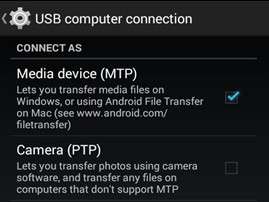
- Swipe down the notification bar and tap the USB option. Select the "MTP" mode.
- Next, open the File Explorer program on your Windows computer.
- Locate your phone's internal storage area inside the computer program.
- Find the backup files saved on your computer that you want to move.
- Drag and drop these files into the phone's corresponding folders manually.
Part 5. How to Back Up and Restore a Motorola Phone Using Dr.Fone
Manual backups can be slow and spread across different places. You also risk missing essential files when you move everything by hand. That's why many users prefer a single tool that handles the full backup for them.
Wondershare Dr.Fone gives you that simple path. It consolidates your Motorola data into a single location, simplifying backups and recoveries. It also supports images, contacts, messages, and other things that you want to safeguard.
First, download and install the Dr.Fone software on your system. Then follow the methods below with their steps.
Steps to Back Up Motorola with Dr.Fone
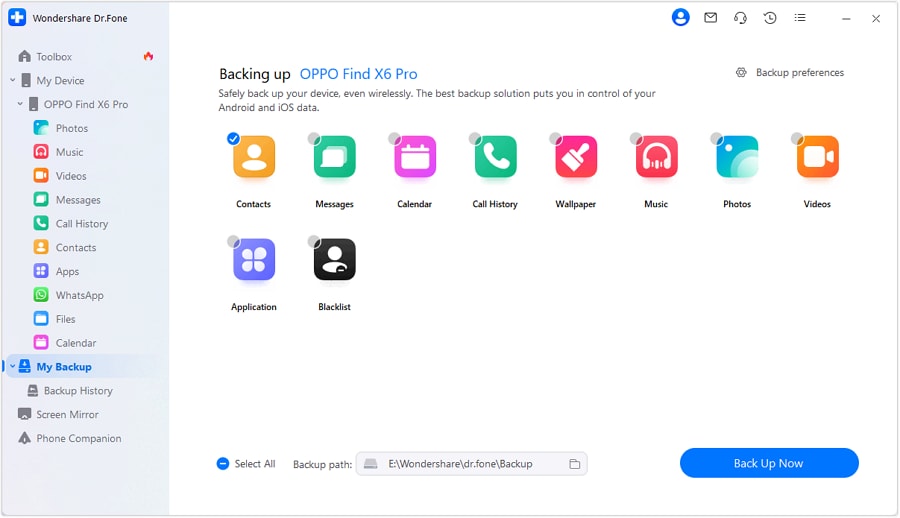
Step 1. Launch the Dr.Fone program on your system and connect your Motorola device to it via a USB cable. Go to "My Backups" and click the "Back Up Now" button.
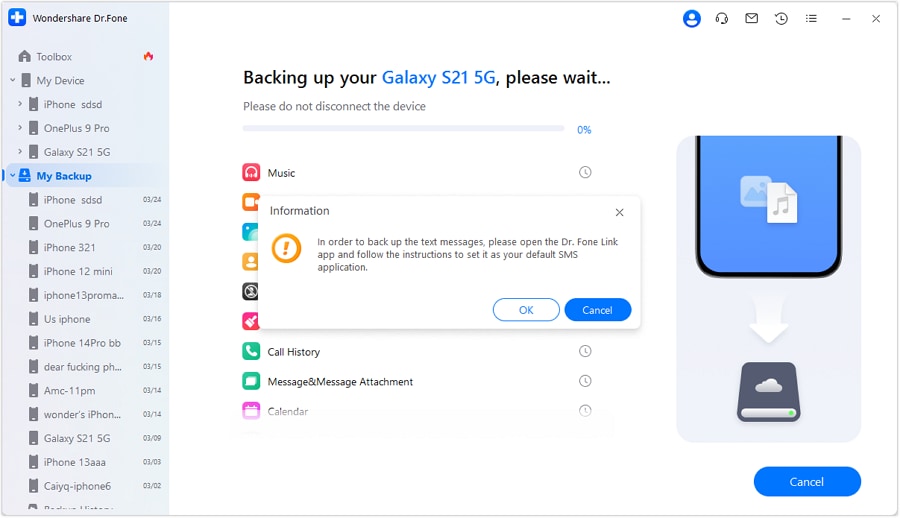
Step 2. Remember, if you want to back up text messages on your phone, you need to set up the Dr.Fone Link app as a default SMS application. Once you have done this, click "OK" on the pop-up window.
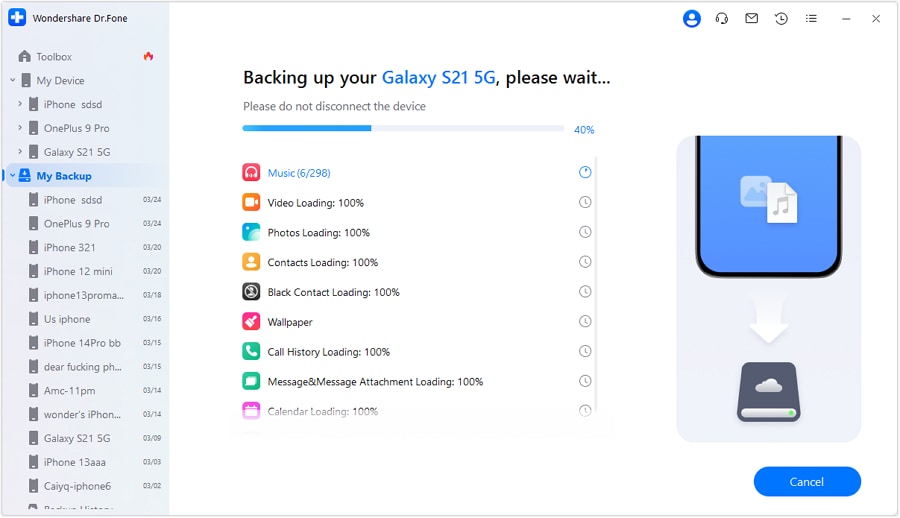
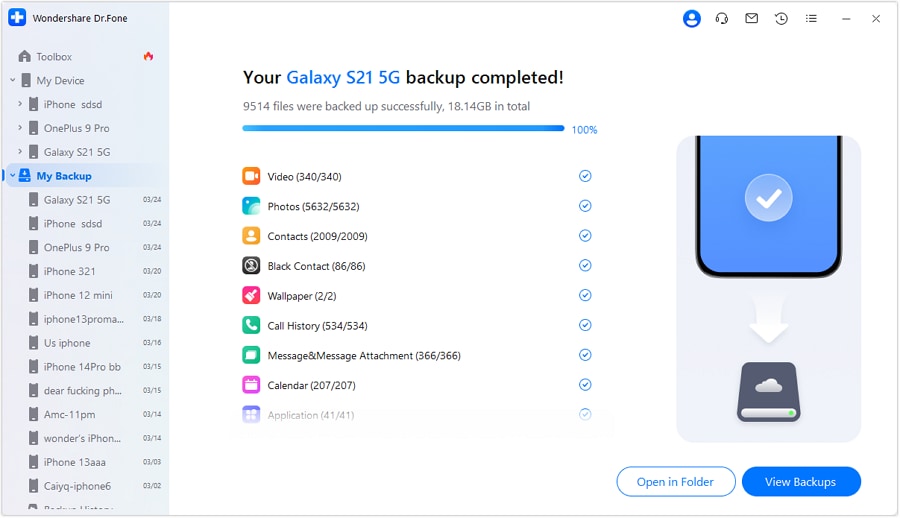
Step 3. After clicking ok, Dr.Fone will start the backup process. It will back up all the selected data, including SMS. You can see the progress in the Dr.Fone screen.
Step 4. A pop-up will display again, asking you to choose the default SMS app when the backup is almost done. Follow the instructions and click "OK."

Step 5. When the process is complete, it will be displayed in the Dr.Fonw window. You can click "Open in Folder" to see the final backup file now. To view all the backups made across the platform, click "View Backups."
Now, let's move forward and explore how to restore a Motorola phone using Dr.Fone!
Steps to Restore Motorola from Dr.Fone Backup
Step 1. You can also restore your data using Dr.Fone. Right in the "My Backup" section, select the backup file you want to restore. Then click "Restore to Device" if you want data on your connected Motorola phone. Or click "Export to PC" to save it on your desktop.
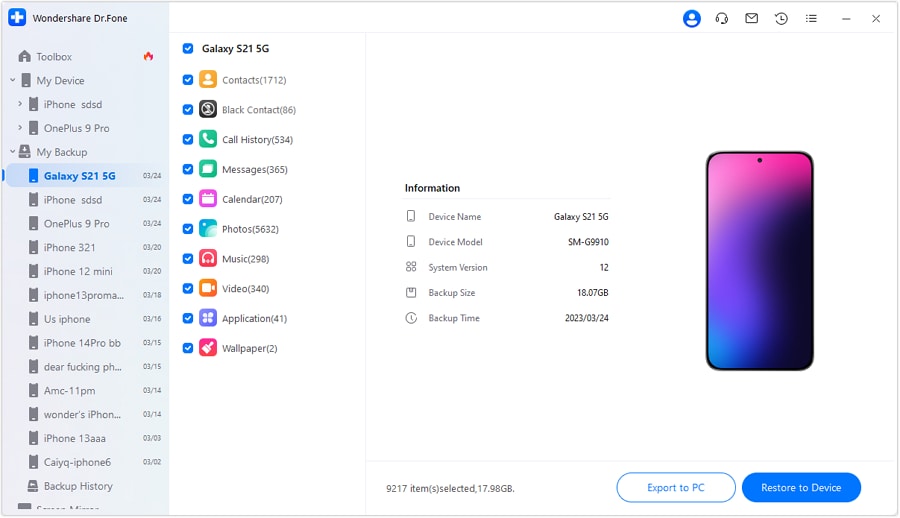
Step 2. Next, you will see a window displaying what can and cannot be restored. The list of data types could be different for Android and iOS devices. Once you have seen it, click "Continue."

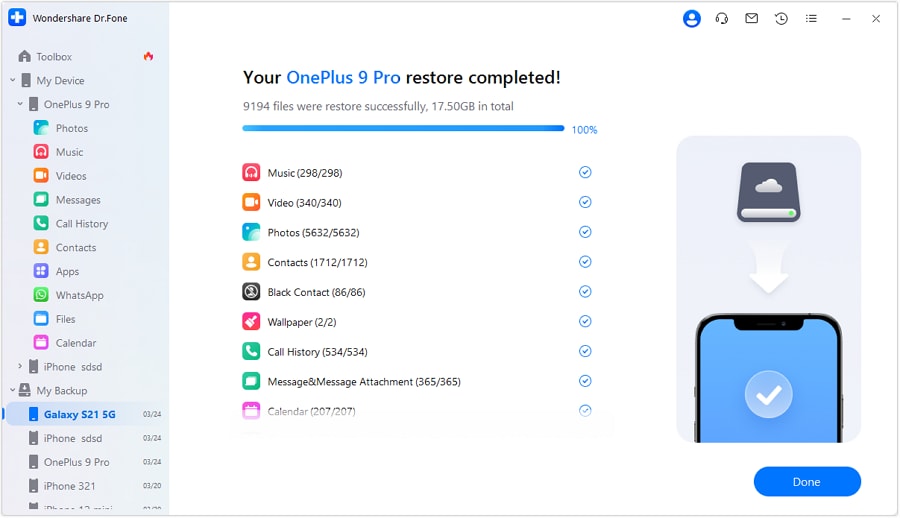
Step 3. When the restoration starts, you can view the progress. Once it's completed, a completion prompt will appear. Click "Done."
Conclusion
How to restore Motorola phone in 2026 is easy when you pick the right method. In this guide, we have explored various methods to do so. Each method helps you fix issues and recover important files. For a steady and safe option, Dr.Fone gives you full control over backup and restore in one place. It keeps your data protected and ready when you need it. Want the smoothest path? Install Dr.Fone and secure your Motorola today.
 safe & secure
4,624,541 people have downloaded it
FAQs
 Q1. Can I restore my Motorola without losing current data?Q2. How long does it take to restore a Motorola phone?Q3. Will restoring fix software issues on Motorola?Q4. Can I restore Motorola to a previous Android version?
Dr.Fone Basic:
Better Control for Your Phone
Manage, transfer, back up, restore, and mirror your device



Daisy Raines
staff Editor