

A Complete Guide on How to Turn Off a Motorola Phone

Oct 10, 2026 • Filed to: Screen Lock Removal • Proven solutions
 TL;DR:
Turn off a Motorola phone by simultaneously pressing the Power and Volume Up keys to open the power menu, or by swiping down twice from the top of the screen to tap the Quick Settings power icon.
● To force shut down a frozen device, hold Power and Volume Up until the screen goes blank, re-hold the buttons to access Recovery Mode, bypass the "No command" screen by pressing Power and Volume Up together, and select the "Power off" option.
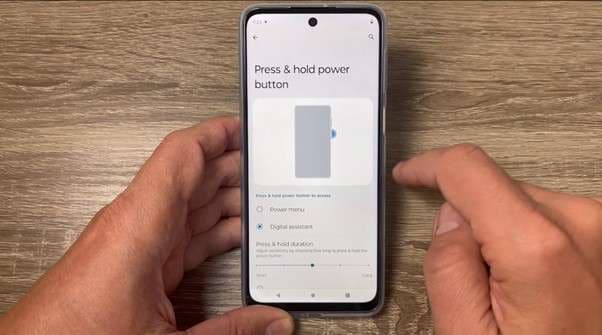
● If holding the power button launches Google Assistant, restore standard functionality by navigating to Settings, selecting Gestures, tapping Power key, and changing the "Press & hold" behavior to "Power menu".
● For devices with malfunctioning physical buttons, activate the Accessibility Menu in Settings for on-screen power controls, or connect to a computer with USB debugging enabled and execute the "adb shell reboot -p" terminal command.
Ask AI for a summary
 ChatGPT
 Perplexity
 Gemini
 Claude
 Grok
Grok
Are you looking for how to turn off a Motorola phone? Well, the answer is quite simple.
You can shut down any Motorola phone through the power menu in Quick Settings. If it freezes, use a hard reset, and if the power button fails, rely on the on-screen Accessibility Menu.
To learn more about how to turn off your Motorola phone, this guide has a complete answer. It covers 5 methods so you can successfully shut down your phone with no hassle. Read more.
Quick reminder: Turning off your Motorola phone won’t help with a bricked phone. To fix a bricked Motorola phone, you have to either update the software or recover it.
- Part 1. How Do I Manually Turn Off My Motorola Phone?
- Method 1: Using the Power Button
- Method 2: Using Quick Settings Pane
- Method 3: Turn Off Using Settings Menu
- Method 4: Force Shutdown Motorola Phone
- Method 5: USE ADB
- Part 2. How to Turn Off Safe Mode on Motorola
- Part 3. How to Turn Off Flashlight on a Motorola Phone
- Part 4. Bonus: How to Bypass FRP on Motorola Phone Using Dr.Fone Screen Unlock Android

Part 1. How Do I Manually Turn Off My Motorola Phone?
Manually turning off is one of the best ways to shut down your Motorola phone. In fact, it is one of the ways to fix a stuck Motorola device. Here is a complete guide on how to turn off your Motorola phone:
Method 1: Using the Power Button
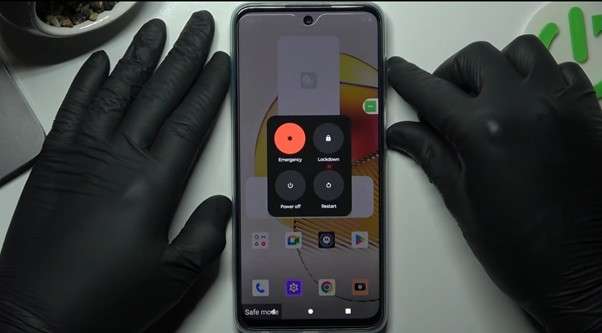
Step 1: Until the power screen appears, keep the power and volume up keys pressed.

Step 2: Select the “Power Off” option to turn off, or “Restart” for rebooting.
If long-pressing the power button opens the assistant, go to “Settings”, choose “Gestures”, then “Power key”, and change “Press & hold” to “Power menu”.
Method 2: Using Quick Settings Pane
Step 1: Swipe down twice from the top of the screen for the control center.
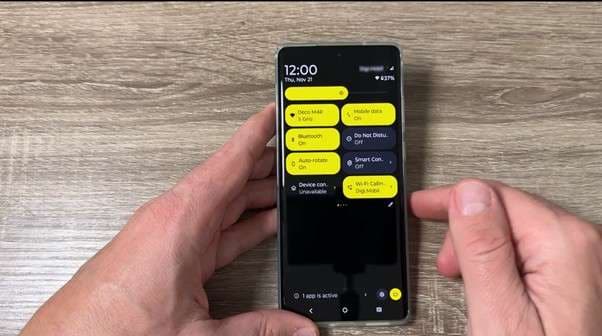
Step 2: Tap the power icon at the bottom right.

Step 3: Choose “Power off” to turn off or “Restart” to reboot, after the power menu appears

If you can’t locate this power icon, tap the pencil or edit button to add it to Quick Settings
Method 3: Turn Off Using Settings Menu
Step 1: Open Settings, then Accessibility, and then Accessibility Menu.

Step 2: Turn it on, and then use the floating button to open the power menu.

Step 3: Tap Power, and then from the menu choose “Power off” or “restart”.

This method also helps if your power button is broken or not responding.
Method 4: Force Shutdown Motorola Phone
Step 1: Keep holding the power and volume up keys until the screen goes blank.

Step 2: Once the screen shuts off, release the buttons for a moment, then hold them again.

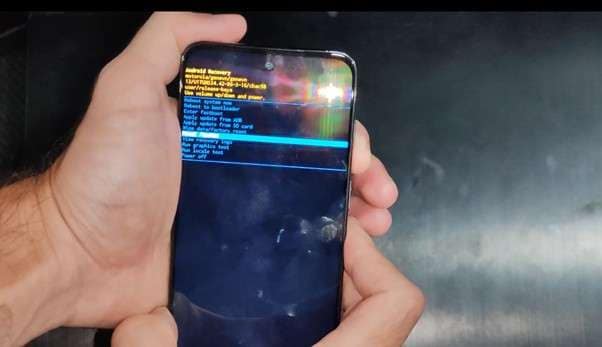
Step 3: When the device displays the menu, move through it with the volume keys and pick options with the power key. Select “Recovery Mode.”
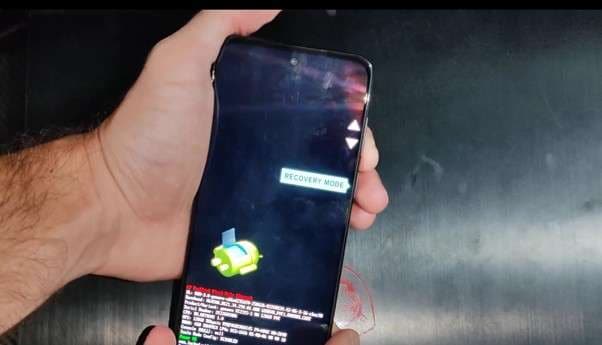
Step 4: A “No command” screen will show up. Press Power + Volume Up together to continue into recovery mode.
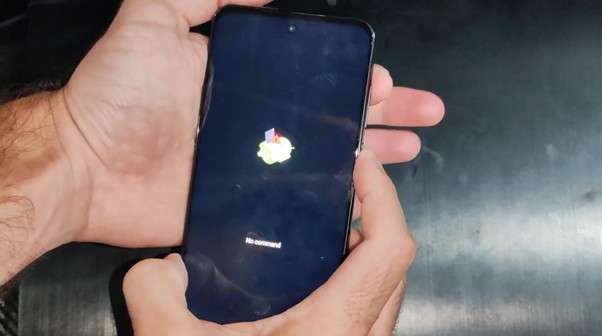
Step 5: Use the Volume keys again to scroll, and choose the “Power off” option using the power button.
Method 5: USE ADB
This only works if you have USB debugging enabled and Android platform tools available on your computer.
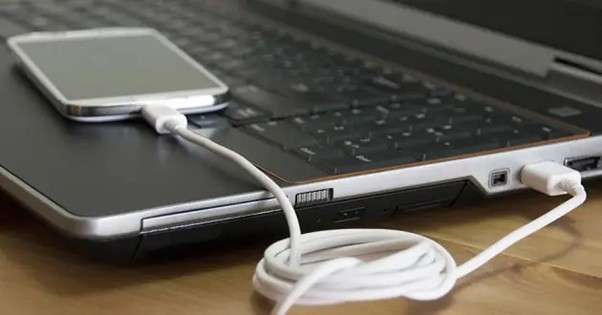
Step 1: Attach the phone to your computer through a USB cable.
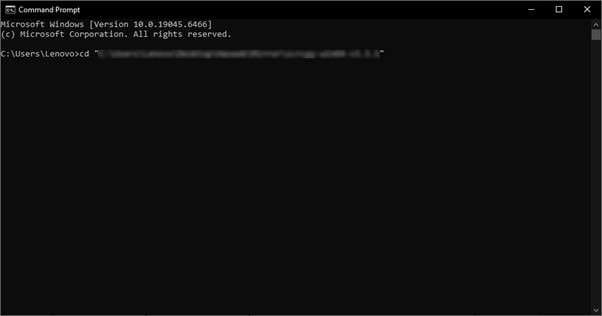
Step 2: Open a terminal or command prompt and change the directory to the point where you have the adb tools, using “cd”.
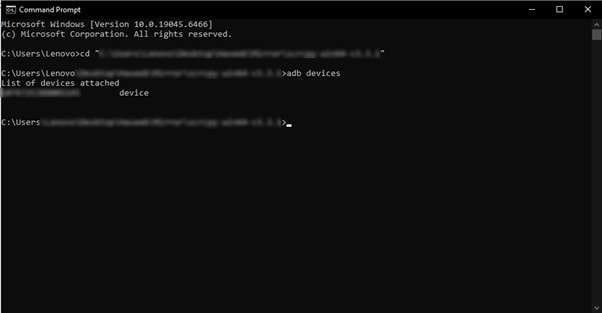
Step 3: Run the “adb devices” command to confirm your phone's connection with the computer.
Step 4: Run “adb shell reboot -p” to power off the phone, or “adb reboot” to just restart.
Android Shutdown Methods Comparison:
|
Situation |
Fastest way |
Steps |
| Standard Use | Power menu | Power + Volume Up → Power off. |
| Long‑press opens Google Assistant | Change the setting or use the combo | Settings ➝ Gestures ➝ Press & hold power button ➝ Power menu; or keep using Power + Volume Up. |
| The power button is broken | Quick Settings or Accessibility Menu | Swipe down twice → power icon; or enable Accessibility Menu and use on‑screen power. |
| Phone frozen (no touch response) | Force reboot | Boot into Recovery Mode by pressing Volume Up and Power Button, and then selecting the Power off option |
| You enabled USB debugging before | ADB | adb shell reboot -p (power off) or adb reboot (restart). |
Part 2. How to Turn Off Safe Mode on Motorola
Why Your Motorola Boots into Safe Mode
An Android device boots into safe mode when you want to troubleshoot something and don’t want the third-party apps to bother you. It is mostly used by technicians and is very similar to Windows Safe Boot.
Steps to Exit Safe Mode
It takes very few steps to switch from safe mode:
Step 1: Open the power menu by holding the power and volume up keys.
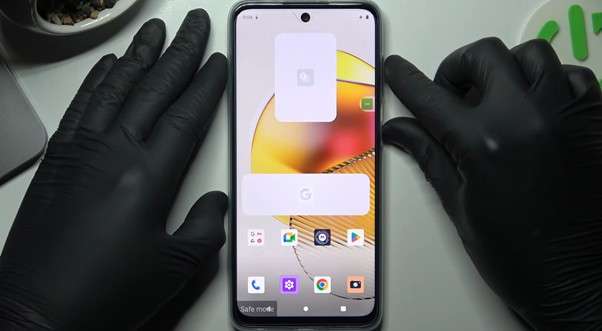
Step 2: From the power menu, hit “Restart”, and let the device reboot out of safe mode.
Part 3. How to Turn Off Flashlight on a Motorola Phone
The following are the two methods to turn off the flashlight on a Motorola:
Using Quick Settings Shortcut
Step 1: Swipe down to open the control center.
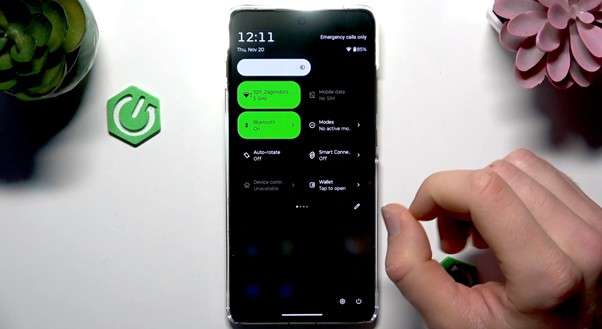
Step 2: Locate the Flashlight tile, then tap it to turn the light off.

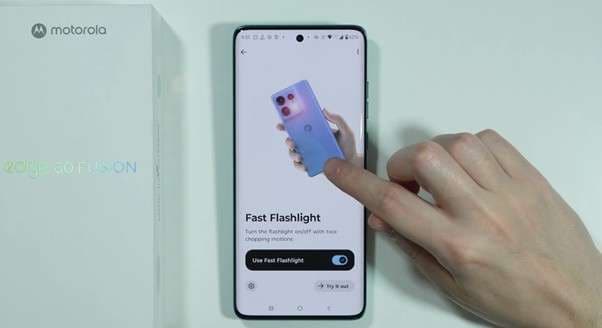
Using Two-Chopping Gesture
Step 1: Go to the Gestures section inside the Accessibility settings.

Step 2: Scroll down to the fast flashlight option.
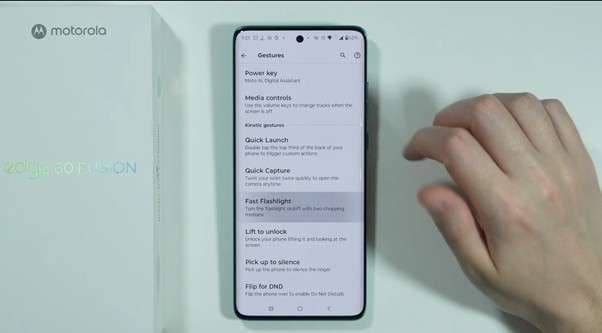
Step 3: Enable the fast flashlight option, which will allow you to turn your flashlight on and off by performing a two-chopping gesture
Part 4. Bonus: How to Bypass FRP on Motorola Phone Using Dr.Fone Screen Unlock Android
If none of your power-off methods work because the screen is frozen or you forgot the PIN, unlock the phone from a computer using adb, or use the recovery mode to factory restore the device. This will work, but your Motorola will be locked behind Google FRP. In that case, Dr.Fone - Screen Unlock (Android)'s simple on-screen guidance may help you proceed on supported devices.

Dr.Fone - Screen Unlock (Android)
The Best Unlock Tool to Bypass FRP and Solve Your Screen Locks
- Completely unlinked from the previous Google account, it won’t be traced or blocked by it anymore.
- Remove all Android screen locks (PIN/pattern/fingerprints/face ID) in minutes.
- Compatible with various Android models.
- Provide specific removal solutions to promise success rate.


Step 1: Download the Dr.Fone application, then install it.
Step 2: Open the application, and make sure to have a USB cable to connect your device to the computer.

Step 3: Head to the “toolbox” tab from the sidebar on the left, and choose “Android”

Step 4: Next, choose the option of “Remove Google FRP Lock”.

Step 5: Now select Motorola from the brands’ list.

Step 6: Next, select “General Unlocking Method” and press start, if you have a Mediatek CPU, and it fails to bypass.
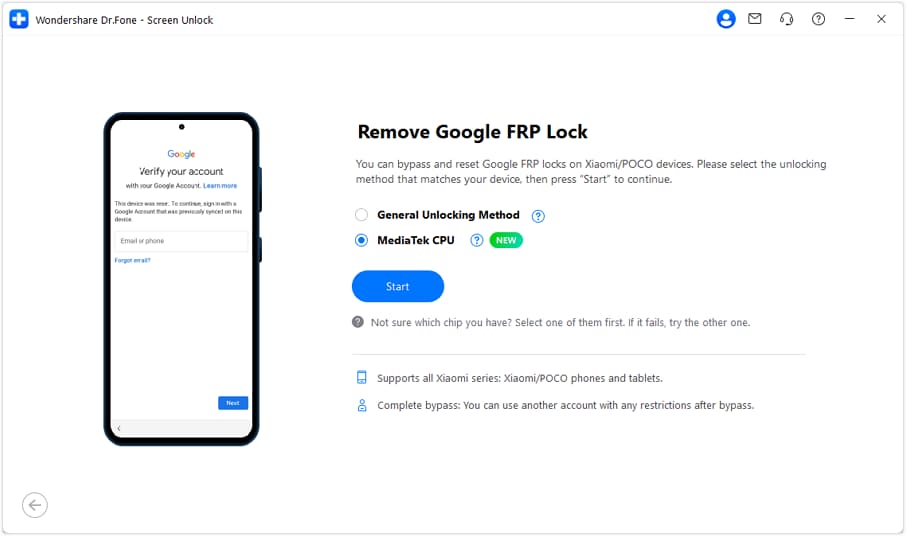
This will make Dr.Fone download all the drivers and dependencies required to bypass.
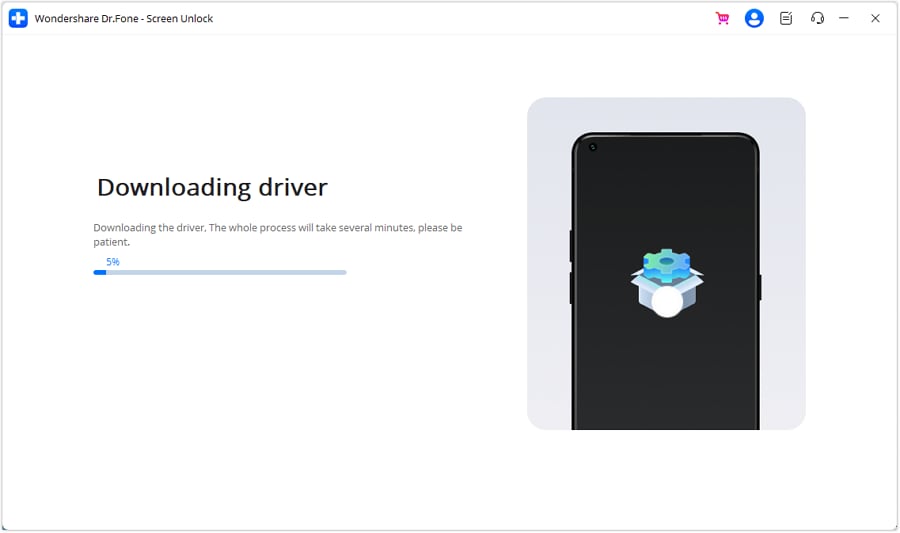
Step 7: Once the download is complete, power off your Motorola and connect it to the computer. While connecting, press the Volume Up and Volume Down buttons simultaneously for about 3 seconds.
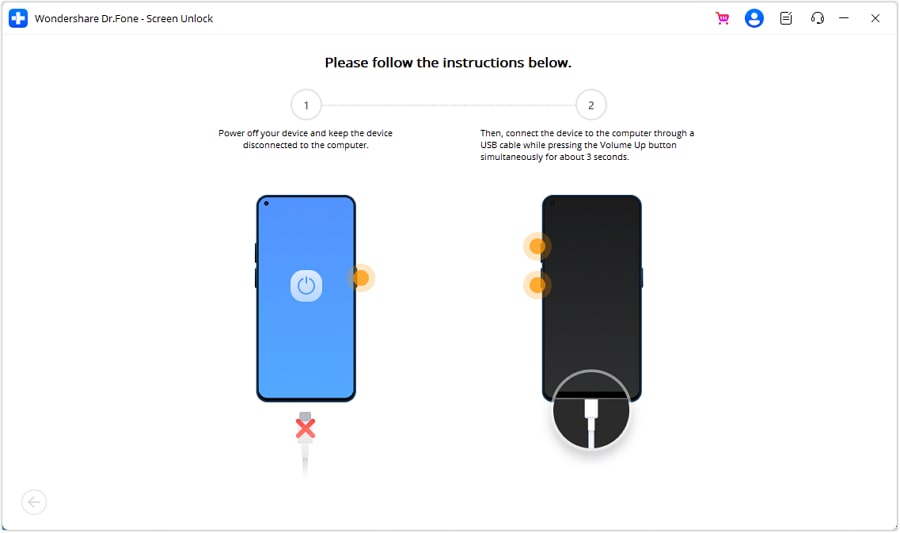
Step 8: Next, you will be displayed some instructions, follow them step by step to complete the bypass, and press continue.
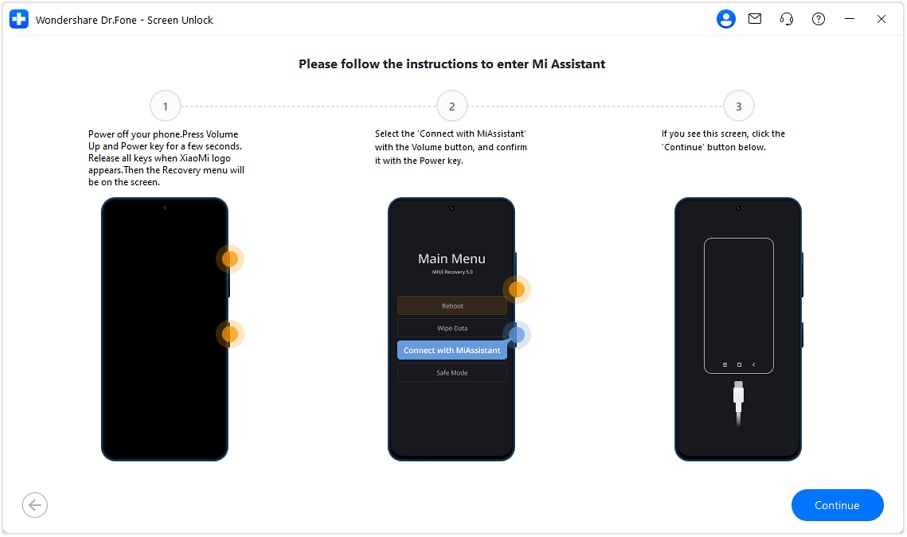
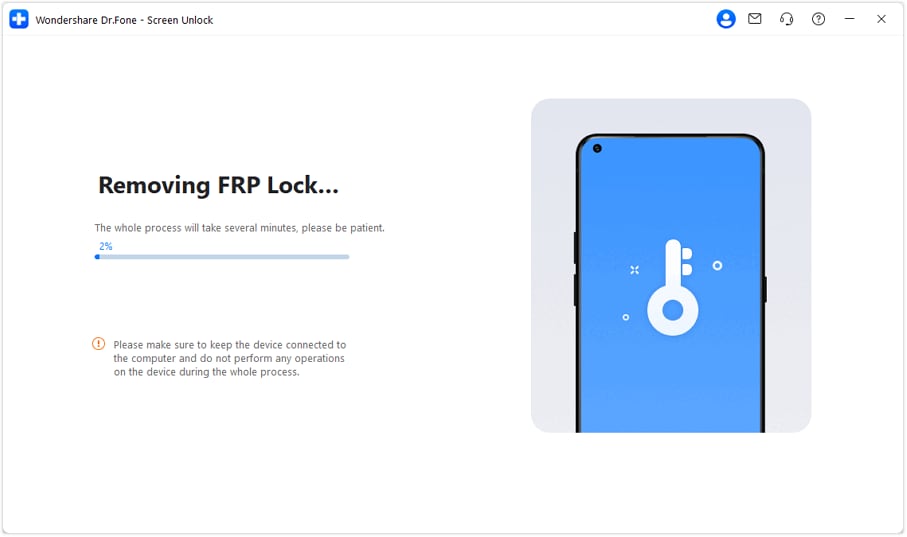
This will start the FRP Bypass procedure and will take a few minutes to complete.
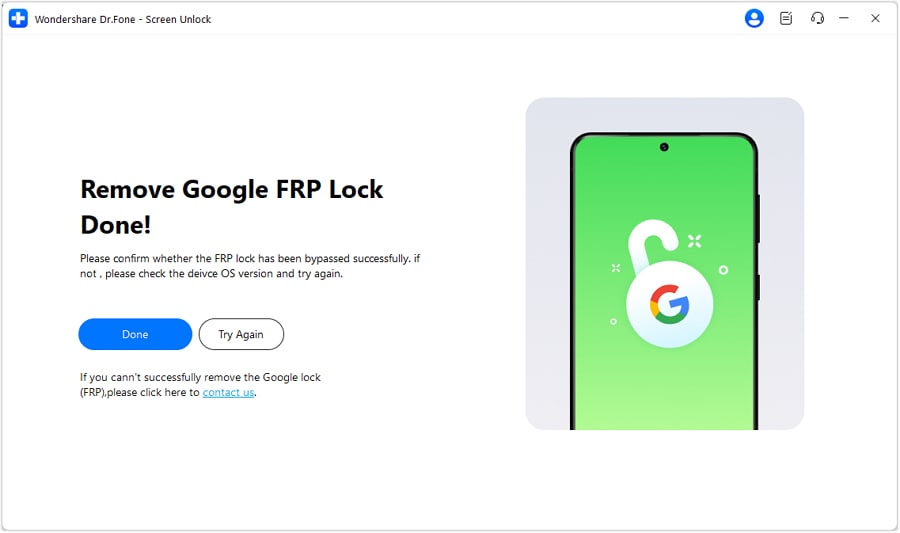
Step 9: Once it is completed, hit done.
Conclusion
The guide covers every reliable method to turn off a Motorola phone, whether the device is responding normally or completely frozen. From the Power menu and Quick Settings to Accessibility tools, force shutdown, and ADB, you always have a way to turn your phone off safely. If a reset leads to an FRP lock, Dr.Fone provides a simple path to regain access.
 safe & secure
4,624,541 people have downloaded it
FAQs
 Q1. Why is my Motorola not turning off with a long press?Q2. Where exactly is the power button on most Motorolas?Q3. What if my Motorola’s screen is blank and unresponsive?Q4. Can I shut down my Motorola phone without using any buttons?Q5. Can I power off my Motorola using a computer?


Motorola Manage
- Motorola Transfer
- 1. Download Pictures to PC
- 2. Transfer Motorola to Mac
- 3. Transfer Whatsapp from Moto to iOS
- 4. Transfer Music from Mac to Moto
- 5. Transfer WhatsApp from iOS to Moto
- Motorola Unlock
- 1. Unlock Motorola Without Factory Reset
- 2. Network Unlock Motorola One 5G Ace
- 3. Sim Unlock Moto G Phone
- 4. Unlock Moto Without Factory Reset
- 5. Unlock Motorola Bootloader
- 6. Bypass FRP Lock on Motorola
- 7. Reset Motorola Phone When Locked
- Motorola Repair
- 1. Motorola Won't Power On
- 2. Android App Not Installed Error
- 3. Black Screen of Death Error
- 4. Unbrick Android Phone
- 5. Encryption Unsuccessful Error
- 6. Stuck at Android System Recovery
- 7. Android Won't Turn On
- 8. Android Stuck on Boot Screen
- Motorola Tips
- 1. Turn Off a Motorola Phone
- 2. Mirror Motorola Screen to PC
- 3. Back up Motorola to PC
- 4. Control Motorola from PC
- 5. Format Motorola Phone in 2026
- 6. Reboot Any Motorola Phone
- 7. How to Screenshot on Motorola
- 8. Restart Any Motorola Phone
- 9. Motorola Phone Restore Guide
- 10. Set Up Voicemail on Motorola
- ● Manage/transfer/recover data
- ● Unlock screen/activate/FRP lock
- ● Fix most iOS and Android issues
- Free Download Free Download Free Download




Daisy Raines
staff Editor