 Permanently erase all iOS & Android data—completely unrecoverable.

 100% Security Verified | No Subscription Required | No Malware

 :
: 
 ChatGPT
 Perplexity
 Gemini
 Claude
 Grok
Grok
Are you trying to figure out how to format motorola phone devices efficiently in 2026? Whether you are dealing with a device that constantly freezes, preparing to sell your old handset, or simply wanting a fresh start for your operating system, formatting is a crucial troubleshooting step. While the process might seem intimidating, the answer is actually quite straightforward once you know the proper pathways.
You can format your phone through several distinct methods tailored to your specific situation. You might rely on the standard Settings app for a quick factory reset, use physical hardware buttons to access Recovery Mode when the screen is frozen, or trigger a wipe remotely using Google's Find My Device ecosystem.
Furthermore, if you happen to forget your screen password or face a persistent lock, professional solutions like Dr.Fone can help you wipe and recover access safely. In this comprehensive guide, we will break down five effective methods on how to format a Motorola phone step-by-step, ensuring your data is handled correctly and your device runs smoothly again.
In this article
Part 1. Does Formatting a Motorola Work the Same as Resetting a Phone?
To put it simply, formatting a phone generally achieves the same primary outcome as resetting it. When you initiate either process, you delete accumulated temporary files, residual app caches, and clear out the internal memory entirely. This effectively reverts your device's software back to its original out-of-the-box state. However, there are minor technical distinctions happening behind the scenes, especially when dealing with older generations of Android architecture.
An interesting capability to note is that you can even reset a Motorola phone that is locked. Be aware, however, that executing this bypass will result in total data loss on the local storage, functioning essentially as a hard reset.
Key Differences Between Format and Reset
A standard factory reset acts as Android's user-friendly interface to clear out app settings, user accounts, and personal files while cleaning up the software environment. In contrast, formatting is a more direct, low-level technical command applied to the storage partition itself to restructure the file system.
| Aspect | Factory Reset | Formatting (Data Partition) |
|---|---|---|
| What it actually is | Android's integrated, built-in system wipe tool | A low-level storage wipe directly targeting hardware |
| What data gets wiped | Third-party apps, personal data, connected accounts, system settings | The entire data partition and foundational file system |
| Impact on OS version | Remains exactly the same | Stays the same unless combined with custom ROM flashing |
| Secondary actions | Automatically signs out accounts and resets user preferences | No automated cleanup of linked accounts or cloud settings |
| Technical complexity | High-level software action; extremely user-friendly | Low-level execution requiring slightly more technical knowledge |
| Primary Use Cases | Cleaning up a sluggish phone, fixing minor glitches, preparing for sale | Fixing corrupted storage errors, preparing a device for custom ROM installations |
Part 2. How to Format a Motorola Phone?
When you are ready to learn how to format motorola android phone models, you have multiple pathways to choose from depending on your device's current state. You can utilize the built-in Settings, rely on Recovery Mode if the system is inaccessible, or trigger a wipe through Google's Find My Phone portal. Below is a detailed explanation of these practical methods.
Method 1: Format Motorola Through Settings
If your phone is functioning normally and you have access to the home screen, utilizing the internal settings is the most straightforward approach. Here is how you can format your Motorola using the native interface:
Detailed Steps to Factory Reset via Settings
-
Step 1 Access Device Settings
Open the Settings application by swiping down to reveal the control center and tapping the gear icon, or locate it directly from your main app drawer.
-
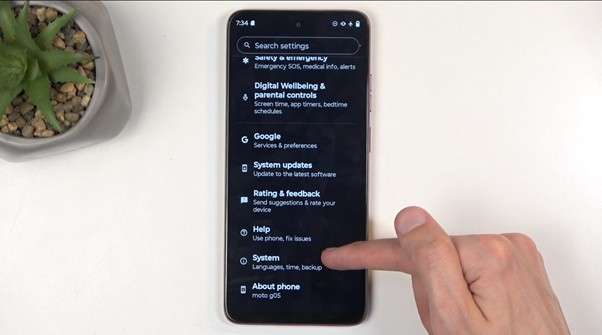
Step 2 Navigate to System Settings
Scroll down to the bottom of the Settings menu until you find the "System" configuration option. Tap on it to proceed.
-
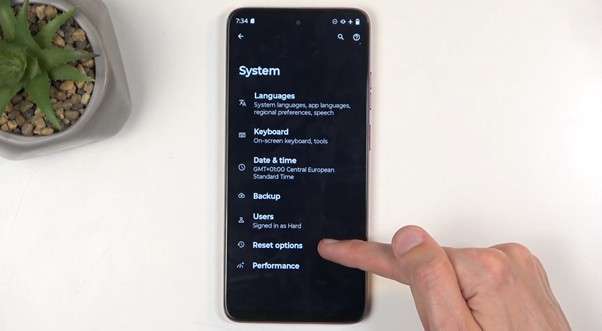
Step 3 Open Reset Options
Inside the System menu, locate and tap on "Reset Options" to view your wiping capabilities.
-
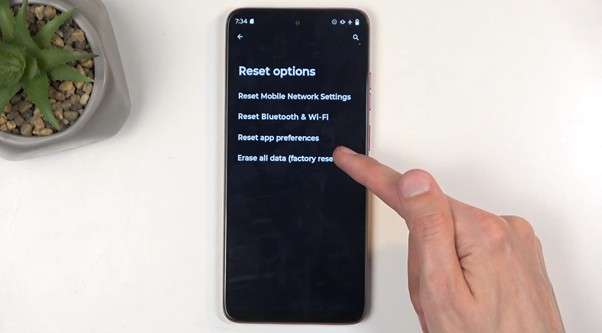
Step 4 Choose Factory Reset
Within the Reset Options panel, carefully select the "Erase all data (factory reset)" function.
-
Step 5 Confirm the Data Erasure
A detailed warning screen will pop up listing all the accounts and personal items that will be permanently cleared from the storage. Review this carefully. If everything looks correct, tap the "Erase all data" button at the bottom.
-
Step 6 Final Approval
For security purposes, the device will prompt for your approval one last time, reminding you that "You can't undo this action." Enter your PIN if asked, and tap on "Erase all data" again to finalize the command.
This sequence will immediately initiate the factory restoration procedure. Ensure your phone has enough battery life, as it will require a few uninterrupted minutes to complete.
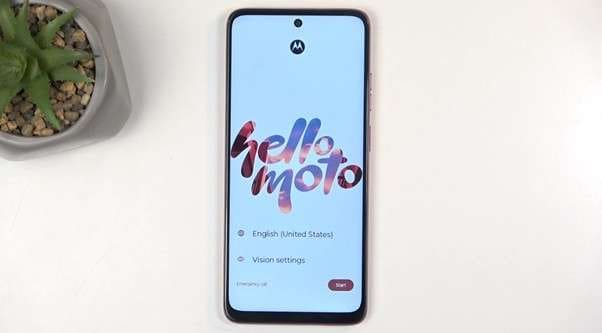
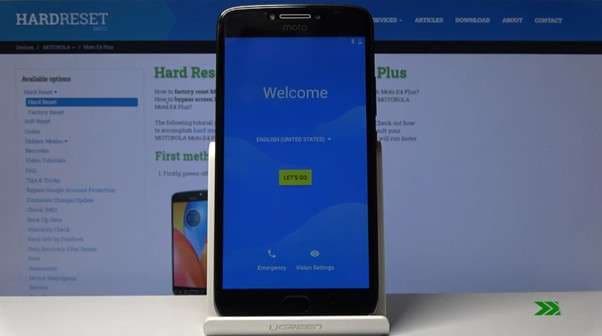
After a brief processing period, the device will reboot and display the welcome screen, allowing you to set it up as a brand new device.

What Gets Erased During This Format?
Performing a factory reset from the settings menu is highly destructive to local content. Here is precisely what is wiped:
- Your previously logged-in Google Account integrations
- Core System configurations and app data
- Customized network and display settings
- All third-party downloaded applications
- Media files including photos, videos, and music
- Other localized user data and hidden caches
Method 2: Format Motorola Using Recovery Mode
If your device is stuck in a boot loop, completely frozen, or you simply cannot get past the lock screen, formatting via Recovery Mode is your best alternative. Here is how you can format a Motorola phone using physical hardware buttons:
Steps to Access Recovery Mode
-
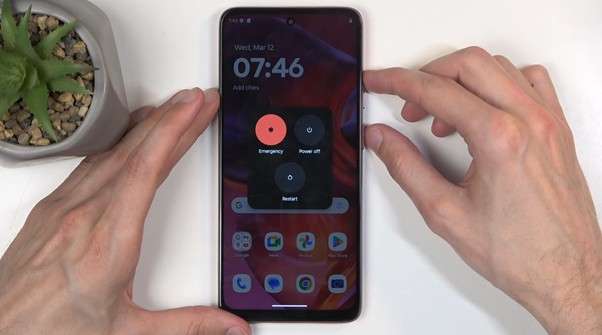
Step 1 Bring up the Power Menu
Press and hold down the physical power and volume up keys simultaneously until the system power menu appears on your screen.
-
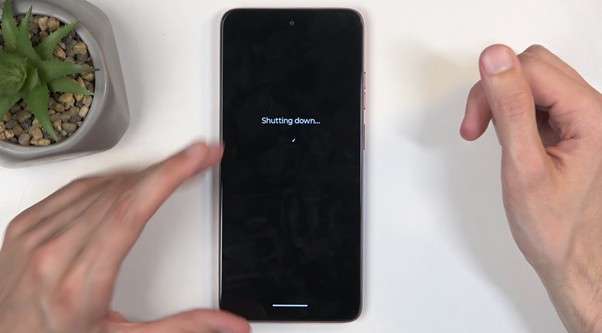
Step 2 Shut Down the Device
From the power menu overlay, select the "Power off" option to securely shut down the handset.
-
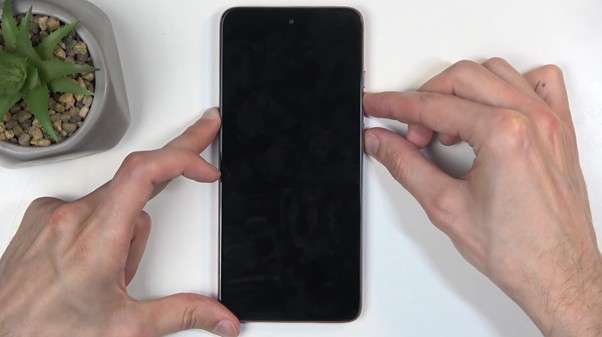
Step 3 Boot into Hardware Mode
Once the screen goes completely black and the phone is off, press and hold the Volume Down and Power keys simultaneously until you feel a vibration.
-
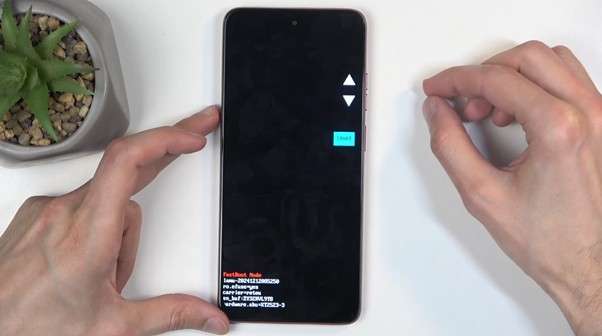
Step 4 Navigate Fastboot Mode
The device will launch into FastBoot Mode. In this environment, the touchscreen is disabled. You must use the Volume keys to navigate up and down, and the Power button to make a selection.
-
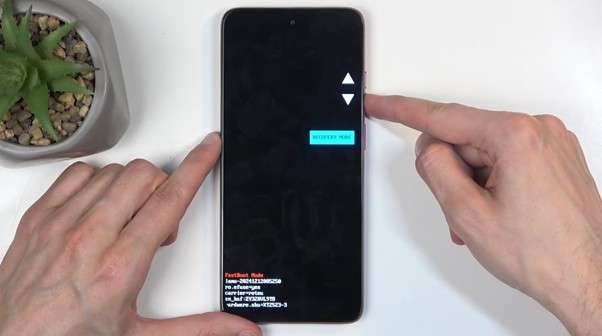
Step 5 Select Recovery Mode
Scroll using the volume buttons until "Recovery Mode" is highlighted, then press the power button to enter.
-
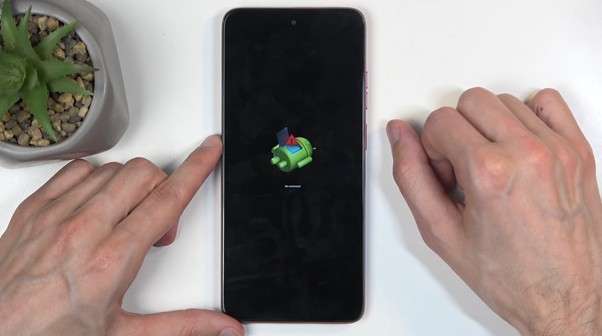
Step 6 Bypass the No Command Screen
The device will briefly reboot and display a dead Android robot with a "No command" warning. To bypass this, press and hold the Power button, then quickly press and release the Volume Up key. This sequence will direct you into the actual Android Recovery Mode menu.
How to Wipe Data Directly from Recovery Mode
Now that you have successfully entered the Recovery environment, follow these steps to format your file system:
-
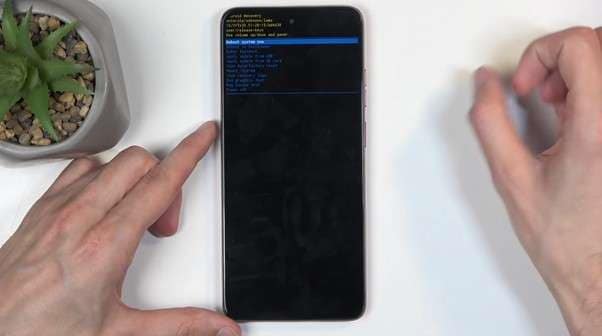
Step 1 Navigate the Recovery Menu
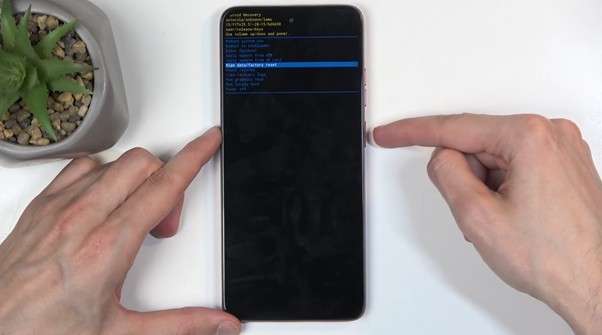
Just like in the FastBoot mode, your touch controls are disabled. Navigate strictly using the volume rockers and confirm actions with the power key.
-
Step 2 Select the Wipe Command
Scroll down the list until you highlight the "Wipe Data/ Factory Reset" option, then press the power button.
-
Step 3 Confirm Factory Data Reset
You will be asked to confirm this destructive action. Choose "Factory Data Reset" and select it.
-
Step 4 Reboot the System
Wait patiently as the system runs the formatting script. Once the bottom corner of the screen indicates "Data Wipe Complete", scroll back up to "Reboot System now" and press the power key.
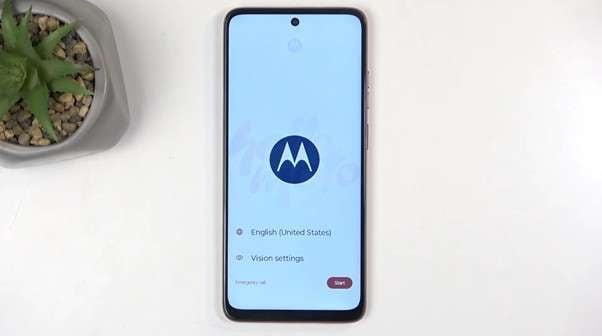
Following a slightly longer than normal boot process, the device will be fully factory restored and ready for fresh setup.
Method 3: Format Motorola Remotely Using Find My Device
If your phone has been misplaced, stolen, or the screen is completely shattered, Google Find My Device allows you to execute a wipe remotely. Though primarily designed to help users track lost electronics, its remote formatting capability is highly effective.
Prerequisites for a Remote Format
Before you can erase a phone from afar, ensure the following conditions are met:
- The target Motorola phone must still be powered on.
- The correct Google account login credentials must be actively linked to the device.
- The device must maintain an active internet connection (Wi-Fi or Mobile Data).
- You must have access to a laptop, browser, or the standalone Find My app on an alternate smartphone.
Steps to Erase Your Motorola Remotely
-
Step 1 Access the Google Portal
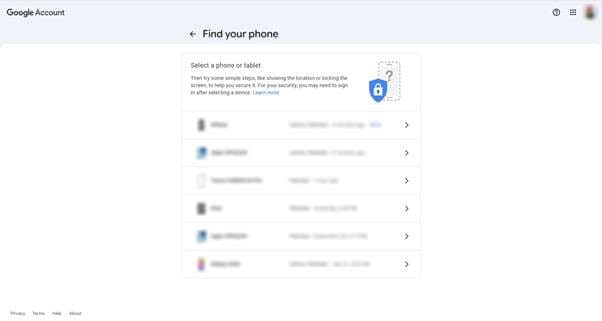
Open any web browser, navigate to the Google Find My Device webpage, and securely sign in using your synced Google account credentials. If your account is attached to multiple Androids, click the corresponding Motorola icon from the top device list.
-
Step 2 Initiate the Erase Sequence
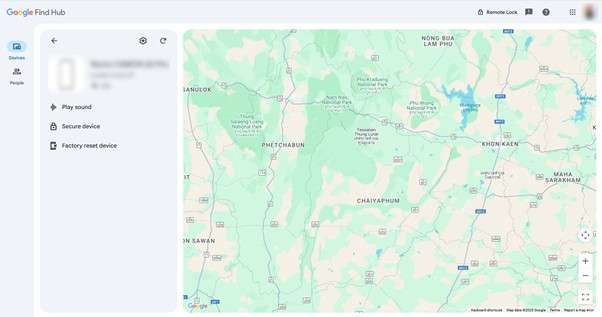
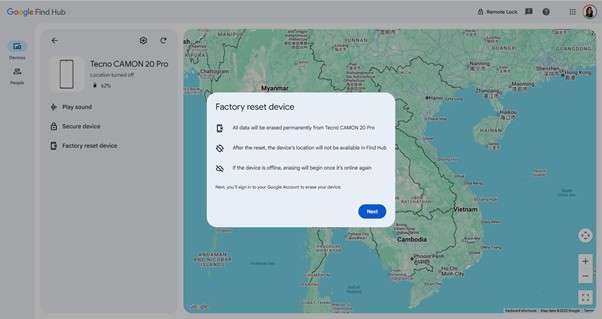
Look at the informational sidebar on the left side of the screen. Locate and click on the "Factory reset device" or "Erase Device" option.
-
Step 3 Proceed with the Command
A new warning window will emerge detailing the consequences of a remote wipe. Click on the "Next" or "Erase Device" button to move forward.
-
Step 4 Final Authorization
As a final security checkpoint, Google will likely ask you to re-enter your password to authorize this severe action.
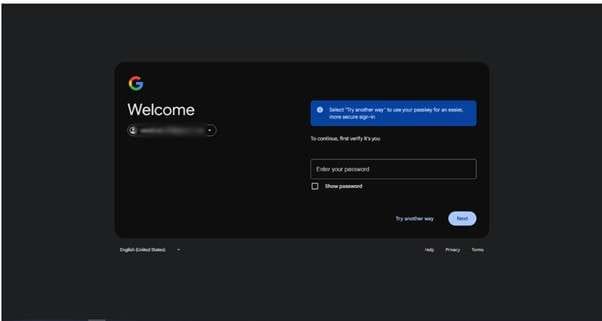
Simply enter the credentials, confirm the prompt, and Find My Device will command the Motorola to factory restore the moment it connects to the internet.
Method 4: Format Specific Motorola Models
Sometimes, older models have slightly nuanced key combinations. Below are the precise, verified steps required to format specific popular Motorola iterations:
How to Format Moto E4 Plus
-
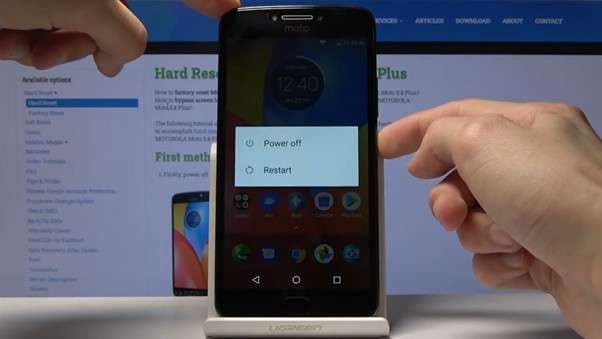
Step 1 Power Down the Moto E4 Plus
Keep the main power button firmly pressed until the software power menu appears on screen, then confidently tap "Power off".
-
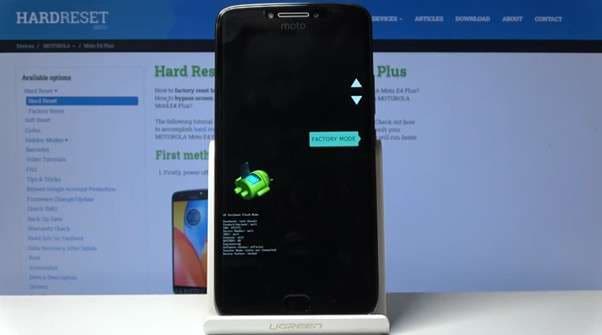
Step 2 Launch FastBoot
Boot the device into the hardware FastBoot mode by holding Power and Volume Down. Next, using the side volume keys, navigate precisely to the "Factory Mode" label.
-
Step 3 Execute the Wipe
Once in the recovery screen, use the volume keys again to highlight the "Wipe Data/Factory Reset" (usually the third last option depending on OS version) and lock it in by pressing the power button.
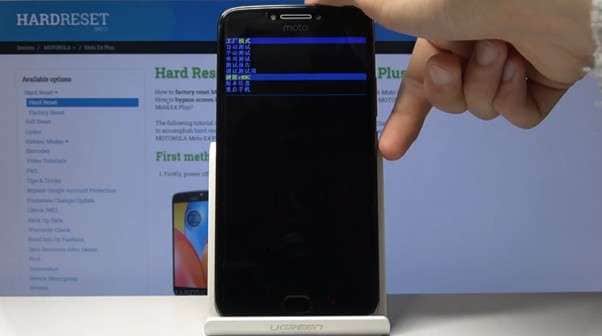
Give the hardware a few moments to overwrite the directories. Once complete, your E4 Plus will be thoroughly formatted.
How to Format Moto G5S Plus
-
Step 1 Trigger Fastboot
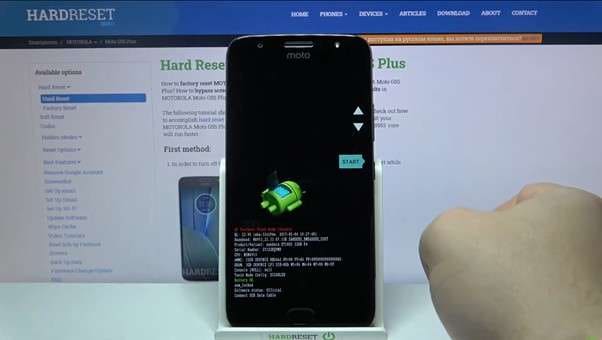
Securely power off your Moto G5S Plus. Then, hold Volume Down and Power to launch the foundational Fastboot mode.
-
Step 2 Enter Recovery
Tap the volume keys sequentially to highlight "Recovery Mode" and actuate it with a quick press of the power button.
-
Step 3 Bypass and Wipe
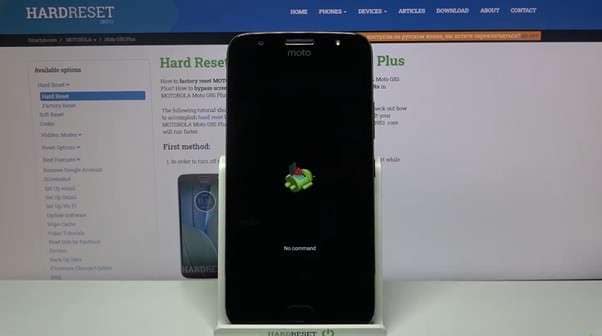
Upon seeing the dead Android icon (no command), hold the Power key, press Volume Up once, and release both. Inside the revealed recovery menu, head straight down to the "Wipe data/ factory reset" line.
-
Step 4 Finalize Erasure
On specific G5S models, you will need to select "User data + personalized content" to ensure a deep wipe. Wait patiently until the log text states "Data Wipe Complete", then finally press the power button over the "Reboot now" option.
It is important to acknowledge that utilizing hardware keys to reset a modern phone will highly likely trigger Google's Factory Reset Protection (FRP) lock. If you suddenly find yourself facing this frustrating roadblock and don't remember the previous Google credentials, tools like Dr.Fone FRP Bypass can swiftly dismantle the lock and completely restore your access.
Part 3. How to Wipe Your Android Completely Using Dr.Fone Data Eraser Android
 Permanently erase all data on iOS & Android — completely unrecoverable.
- Military-grade wiping to fully protect your privacy.
- Generate verified erasure reports to boost device resale value.
- Selectively erase private data and remove junk & large files.
While the standard settings or hardware formatting methods might seem sufficient, they only perform a superficial deletion. A normal Android reset simply clears the operating system's logical access pathway to your files, not the actual binary data sitting on the memory chips. This severe vulnerability means that widely available third-party data recovery programs can easily dredge up your deleted photos, private messages, and financial login details long after you have handed the phone off to a buyer.
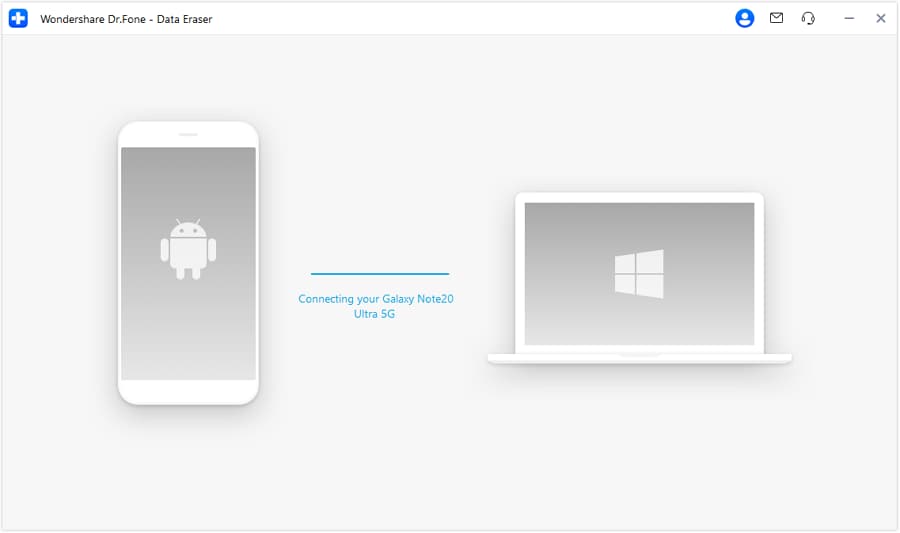
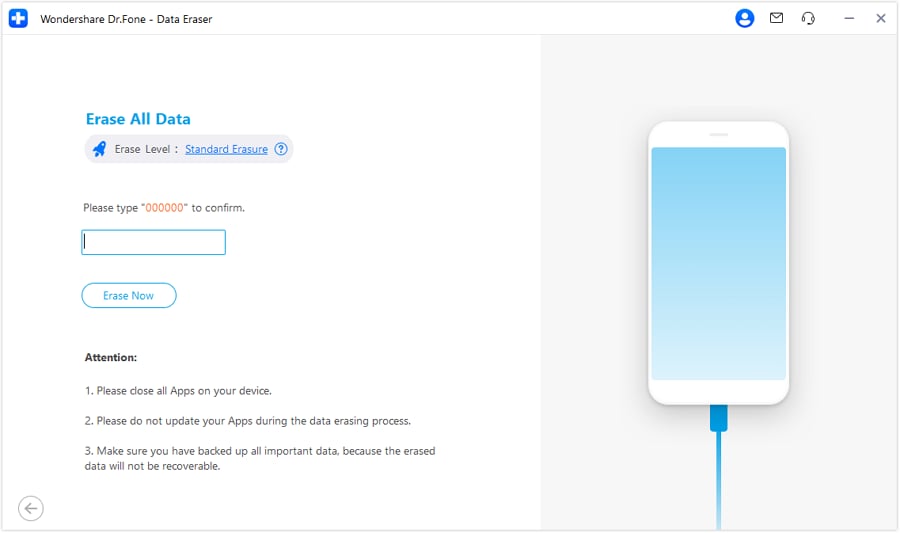
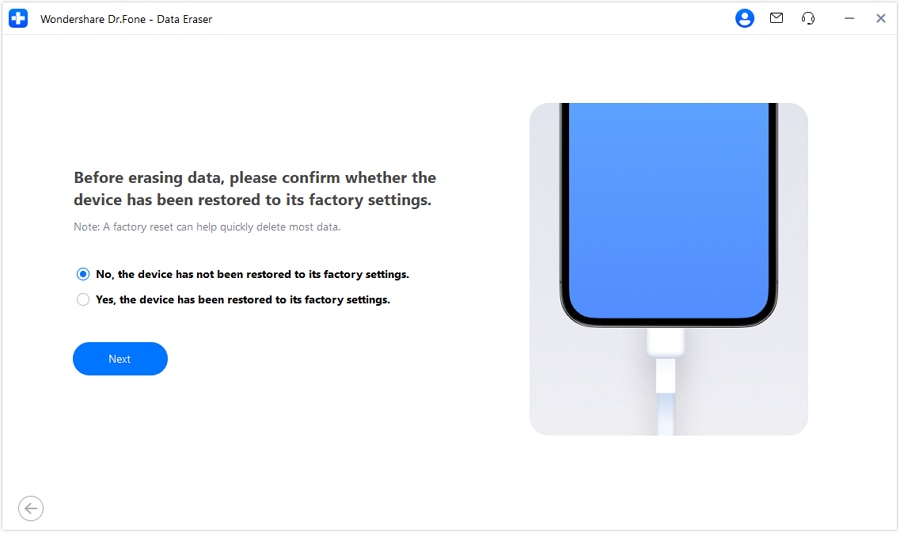
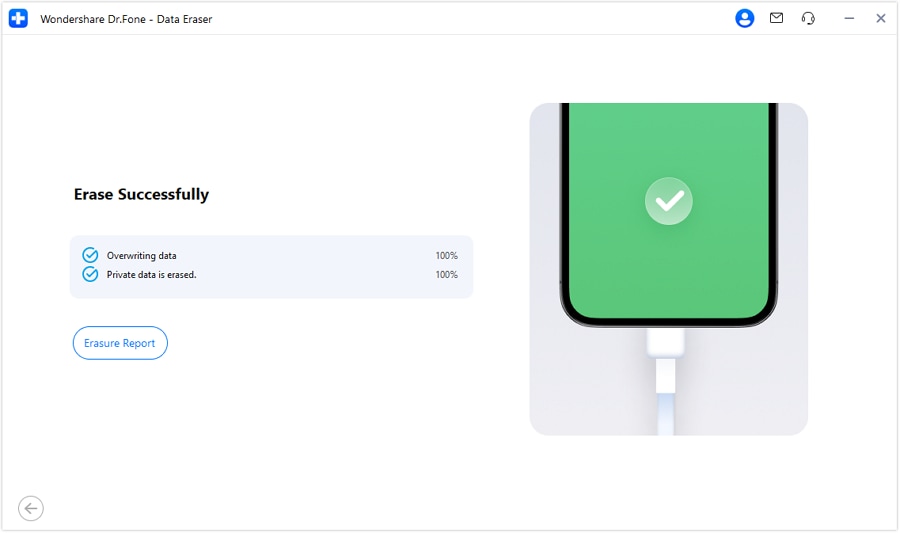
If your ultimate goal is to erase everything with zero chance of recovery, Dr.Fone - Data Eraser is your most reliable solution. This advanced desktop utility overwrites your old storage sectors with randomized gibberish patterns, guaranteeing that your personal footprints are physically shredded and rendered completely inaccessible, even to high-end forensic recovery software.






 Add Wondershare Dr.Fone as a preferred source on Google




