
How to Restart Any Motorola Phone in 2026 (Soft & Hard Reset Methods Included)

Oct 10, 2026 • Filed to: Screen Lock Removal • Proven solutions
 TL;DR:
To resolve a frozen Motorola phone without data loss, force a reboot by holding the Power and Volume Down buttons until the screen goes black, or use specialized boot modes for persistent software errors.
● If physical hardware buttons malfunction, trigger a standard restart using the Power icon located in the Quick Settings notification panel.
● To isolate third-party app crashes, long-press the on-screen "Power off" prompt to enter Safe Mode; for continuous restart loops, hold Power and Volume Down while powered off to access Recovery Mode via the Fastboot menu.
● Bypassing forgotten PINs, patterns, or Google FRP locks cannot be resolved by restarting and requires connecting the device via USB to a PC running dedicated screen removal software like Dr.Fone.
Ask AI for a summary
 ChatGPT
 Perplexity
 Gemini
 Claude
 Grok
Grok
Fix your frozen screen today with this guide on how to restart a Motorola phone.
Many people still face this problem even in 2025, and the device stops responding without warning. The screen freezes, your taps fail, and you feel stuck.
But don't worry! You can fix it with various methods. There is no need to be a tech expert. Just clear steps that anyone can follow at home. This guide will walk you through all the possible methods. You will also learn about the methods that help you if your Motorola screen gets stuck on the boot screen.
Let's dive in!
- Part 1. How Do I Manually Restart My Phone
- Method 1. Standard Restart Using Power Button
- Method 2. Force Restart Motorola Phone
- Method 3. Restart Using Settings Menu
- Method 4. Restart Motorola into Safe Mode
- Method 5. Restart Motorola into Recovery Mode

- Part 2. How to Unlock Motorola Phone Screen Using Dr.Fone Screen Unlock Android
Part 1. How Do I Manually Restart My Phone
Initially, you can try restarting your Motorola phone with a simple button sequence. Here are some of the methods to do so:
Method 1. Standard Restart Using Power Button
This is the basic restart method when the phone still responds to touch. It works well for small glitches and slow performance. You can use it any time the device feels unresponsive but not fully frozen.
However, if your Motorola phone is not responding to the physical button, you can use the power shortcut from the notification panel to reboot your Motorola without the power button.
This is how to restart a Moto phone the usual way:
- Hold down the "Power" button.
- The menu will show up on the screen soon.
- To restart your phone, click "Restart."

Method 2. Force Restart Motorola Phone
Use this method when the screen freezes, and the phone stops reacting to any tap. You will need to use a special, slightly different trick called a force restart. This safe action is like removing the battery and quickly putting it back in.
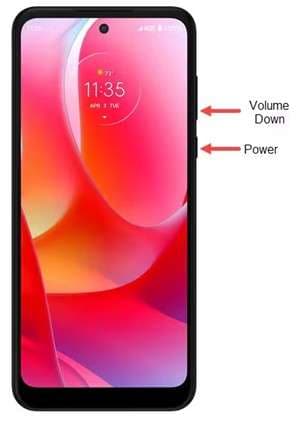
Here is how to force restart a Motorola phone:
- Press and hold the "Power" + "Volume Down" button until the screen goes black.
(Note: It might trigger the screenshot, but continue holding the buttons) - The phone will turn off, and the Motorola logo will show up in a few seconds.
- Your device will reboot and restart, and then you can use it.
Method 3. Restart Using Settings Menu
Sometimes the Quick Settings menu is the easiest place to restart your phone. This is a very easy and clean way to turn off the computer. Using the menu is a perfect option when your buttons are not working correctly.
Here is how to restart a Moto phone using the settings menu:
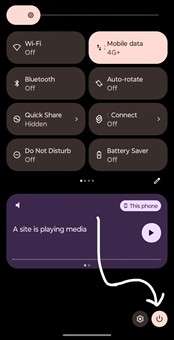
- Unlock your Motorola phone and swipe down the notification bar.
- Click the "Power" icon in the bottom right corner. A pop-up will appear.
- Select "Restart" and confirm to reboot your device.
Method 4. Restart Motorola into Safe Mode
You can also restart your phone in safe mode. But it only runs the apps that are necessary. It basically checks to see if a third-party app is the source of the problem.
To restart a Motorola phone in safe mode, do the following:
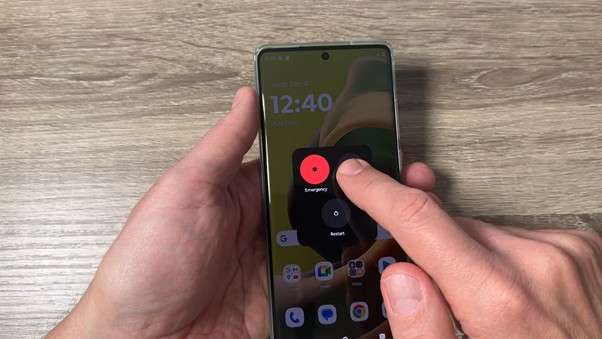
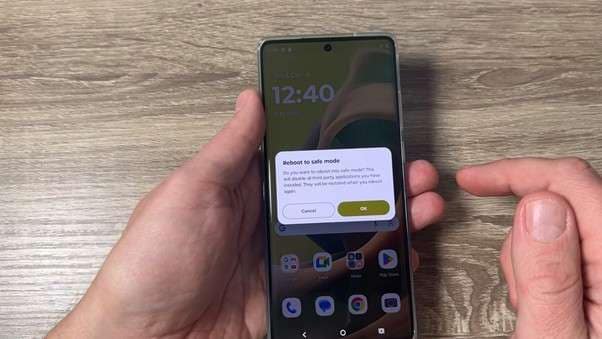
- Press the "Power" button on your unlocked Motorola phone.
- Long-press the power off button on the screen when a menu comes up.
- A small window will pop up asking "Reboot to Safe Mode." Click "Ok" and proceed.
Method 5. Restart Motorola into Recovery Mode
Recovery Mode is a place where you can fix deeper software issues on your phone. It is helpful for doing a full factory reset if needed. Only use this powerful mode if the other simple restarts did not work.
Here is how to restart a Motorola phone:
- Power off your phone.
- Hold down the "Power" + "Volume down" button until you see a Fastboot menu. Volume to select “Recovery mode.”
- Then, again, use volume buttons to move to "Reboot system now."
- Select it using the "Power" button and proceed.

Part 2. How to Unlock Motorola Phone Screen Using Dr.Fone Screen Unlock Android
Sometimes a simple restart is just not enough to get back to your device. What if you suddenly forgot your password or lock pattern this time? You need a powerful and easy tool to get you back inside the device.
The Dr.Fone - Screen Unlock (Android) tool is a popular, helpful choice for this problem. This advanced tool safely removes all of those forgotten screen locks for you. It works quickly on many different Motorola devices to restore access without losing data.
Here are some of the key features of Dr.Fone's unlock feature:
- It easily removes many screen locks, including the pattern, PIN, and password.
- This tool also supports unlocking the face recognition lock.
- It easily helps bypass the Google account screen after a quick factory reset.
- It is compatible with many different kinds of Android devices.
- You definitely do not need any special tech skills to easily unlock your phone.

Dr.Fone - Screen Unlock (Android)
The Best Tool to Unlock Motorola and Android Phone Screen
- Remove all Android screen locks (PIN/pattern/fingerprints/face ID) in minutes.
- Bypass the FRP lock of Samsung without a PIN or Google account.
- Everyone can handle the lock screen without any tech knowledge.
- Provide specific removal solutions to promise good success rate.


Steps to Unlock Motorola with Dr.Fone
First, get the Dr.Fone software for your PC or laptop and install it. Then follow these steps:
Step 1. Connect your Motorola device to your PC/laptop via a USB cable. Open the Dr.Fone program, go to "Toolbox" and click "Screen Unlock."

Step 2. Next, select "Android" as your device type. It will open a new window. Here, select "Unlock Android Screen" and proceed.

Step 3. In the next window, you need to choose your device brand. Select "Motorola" and Dr.Fone will take you to the next window. Here select "100% Remove Screen Lock."

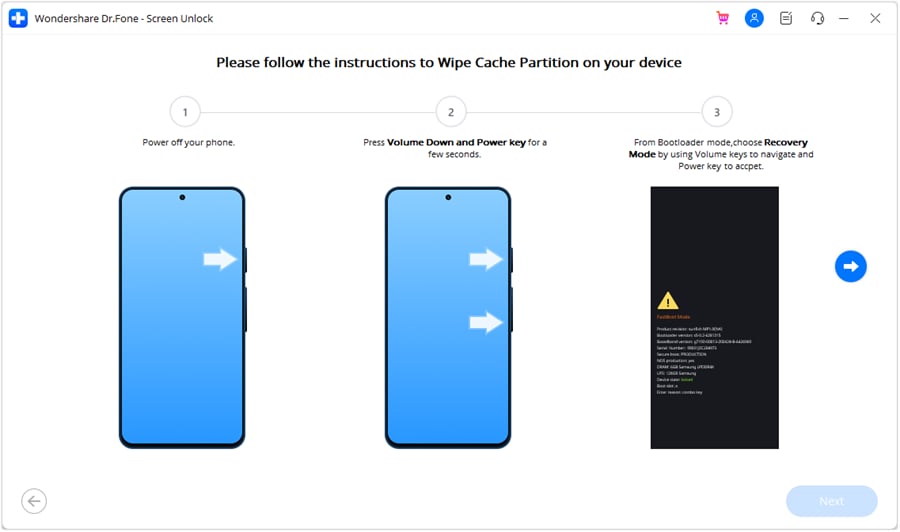
Step 4. Now the device brand will lead you to enter the specific mode. Follow the instructions given on screen. After you enter that specific mode, the tool will start unlocking your phone automatically.
(Note: The instructions to enter specific modes vary according to different device brands. The picture below shows the Google device as an example.)
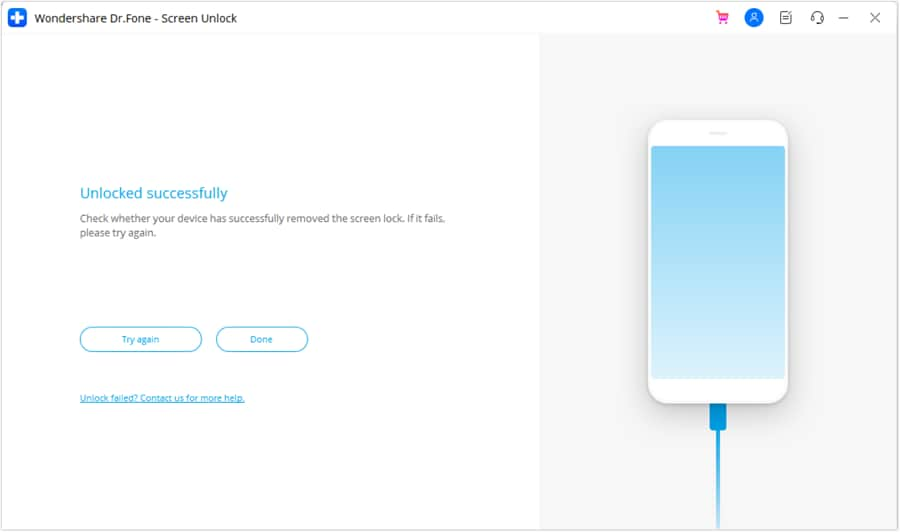
Step 5. Wait until the process finishes. Once done, the interface below will be shown on your desktop screen. Click "Done" and exit the tool.
Conclusion
That's all for how to restart a Motorola phone. You have learned many different ways to handle frozen screens or unexpected glitches.
However, restarting is not enough if your phone is completely locked or frozen this time. That is where a helpful tool like Dr.Fone Screen Unlock comes in for you. It safely removes your forgotten PINs, patterns, passwords, and fingerprints. This powerful tool even works if your phone screen is damaged or broken.
Download Dr.Fone today to easily regain full access to your device right now.
 safe & secure
4,624,541 people have downloaded it
FAQs
 Q1. Will restarting my Motorola delete anything?Q2. How often should I restart my Motorola?Q3. What is the difference between a restart and a reboot?Q4. My Motorola is stuck in a restart loop. What should I do?


Motorola Manage
- Motorola Transfer
- 1. Download Pictures to PC
- 2. Transfer Motorola to Mac
- 3. Transfer Whatsapp from Moto to iOS
- 4. Transfer Music from Mac to Moto
- 5. Transfer WhatsApp from iOS to Moto
- Motorola Unlock
- 1. Unlock Motorola Without Factory Reset
- 2. Network Unlock Motorola One 5G Ace
- 3. Sim Unlock Moto G Phone
- 4. Unlock Moto Without Factory Reset
- 5. Unlock Motorola Bootloader
- 6. Bypass FRP Lock on Motorola
- 7. Reset Motorola Phone When Locked
- Motorola Repair
- 1. Motorola Won't Power On
- 2. Android App Not Installed Error
- 3. Black Screen of Death Error
- 4. Unbrick Android Phone
- 5. Encryption Unsuccessful Error
- 6. Stuck at Android System Recovery
- 7. Android Won't Turn On
- 8. Android Stuck on Boot Screen
- Motorola Tips
- 1. Turn Off a Motorola Phone
- 2. Mirror Motorola Screen to PC
- 3. Back up Motorola to PC
- 4. Control Motorola from PC
- 5. Format Motorola Phone in 2026
- 6. Reboot Any Motorola Phone
- 7. How to Screenshot on Motorola
- 8. Restart Any Motorola Phone
- 9. Motorola Phone Restore Guide
- 10. Set Up Voicemail on Motorola
- ● Manage/transfer/recover data
- ● Unlock screen/activate/FRP lock
- ● Fix most iOS and Android issues
- Free Download Free Download Free Download


 > How-to > Screen Lock Removal > How to Restart Any Motorola Phone in 2026 (Soft & Hard Reset Methods Included)
James Davis
staff Editor