 Permanently erase all iOS & Android data—completely unrecoverable.

 100% Security Verified | No Subscription Required | No Malware

 :
: 
 ChatGPT
 Perplexity
 Gemini
 Claude
 Grok
Grok
Are you wondering "how do I reboot my Motorola phone" when the screen becomes unresponsive, apps start crashing, or the system feels unusually sluggish? You are not alone. Rebooting your Motorola device is widely considered the most straightforward and effective troubleshooting technique to resolve slow performance, freeze-ups, or uncooperative touch displays without putting your personal data at risk.
In this comprehensive guide updated for 2026, we will walk you through exactly how to reboot a Motorola phone, regardless of the model you own. Whether you need to execute a simple soft reboot on a Moto G phone, force restart a completely frozen screen, or figure out how to reboot your Motorola without a power button, we cover every working method.
We will also clarify the crucial differences between restarting and factory resetting your device. Moreover, if your device is beyond quick fixes and you plan to pass it on, we will show you how to securely wipe your Android device using Dr.Fone Data Eraser. Continue reading to restore your phone’s optimal performance.
In this article
Part 1. Does Rebooting a Phone Work the Same as Resetting a Phone?
No, rebooting a phone is fundamentally different from resetting it. A reboot (often referred to as a soft reset) simply turns the device's power off and immediately back on. This action refreshes the operating system, clears out active RAM, and shuts down background processes without deleting any of your personal data, photos, or downloaded apps.
Conversely, a factory reset is a permanent, destructive process that completely erases all user data. It reverts your Motorola smartphone to its original out-of-the-box factory state. This method should only be used as a last resort for deeply rooted software corruption or when preparing to sell the device.
Soft resetting or clearing temporary memory is your best first defense against minor technical glitches. However, if your screen got stuck on reboot for Motorola and standard restarts fail, professional system repair tools like Dr.Fone might be necessary to break the boot loop and get your device running normally again.
Key Differences Between Reboot and Reset
| Feature | Reboot (Soft Reset) | Factory Reset (Hard Reset) |
|---|---|---|
| Primary Function | Restarts the device and reloads the OS. | Erases everything and restores factory state. |
| Data Loss | None. Files, apps, and accounts remain intact. | Complete loss of all stored data and settings. |
| Best Use Case | Fixing minor glitches, lag, and temporary freezes. | Fixing corrupted software or preparing for resale. |
| Time Required | Very quick (1–2 minutes). | Takes longer due to data wiping and setup. |
Part 2. How Can I Reboot My Motorola?
Method 1. Soft Reboot Using Power Button
A soft reboot on the Motorola is the most common way to renew the system architecture without losing your valuable information. It effectively unfreezes mildly unresponsive applications, dumps cluttered temporary memory (RAM), and restarts stalled background services that may be hogging your battery life.
Steps to Soft Reboot Motorola
-
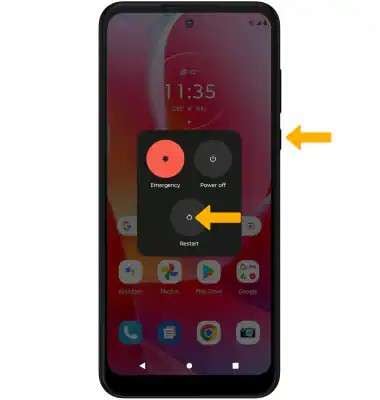
Step 1 Access the Power Menu
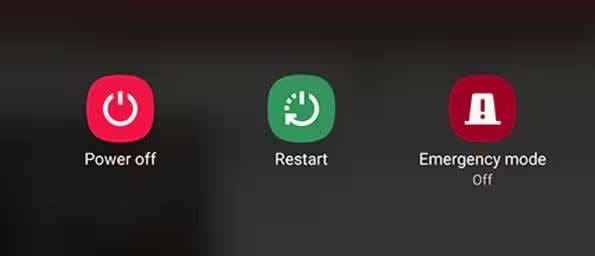
Simply press and hold the physical Power button on the side of your Motorola device for a few seconds until the on-screen power menu appears.
-
Step 2 Initiate the Restart
Tap the "Restart" option on your screen and patiently wait for the phone to power down and load up the Android operating system again.
When to Use a Soft Reboot?
This standard soft reboot is perfect for clearing up touchscreen sluggishness, non-responsive third-party applications, and general network connectivity hiccups.
Method 2. Force Reboot Motorola Phone
If you are wondering how to reboot moto g phone when the screen is completely frozen and touch inputs do not register, a force reboot (also known as a hard reboot) is the safest hardware-level override to recover your smartphone.
Steps to Force Restart
-
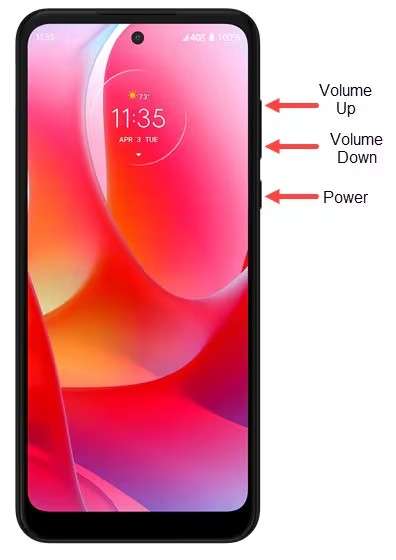
Step 1 Press the Button Combination
Firmly press and hold the Power button and the Volume Down button simultaneously. Keep them held for roughly 10 to 20 seconds.
-
Step 2 Wait for the Screen to Go Black
Continue pressing both buttons until you feel a slight vibration and the display goes completely black. Once this happens, release both buttons immediately.
-
Step 3 Power On Your Device
If the device does not boot up automatically, press the Power button once to turn your Motorola phone back on. This process bypasses the frozen software and forces the hardware to reboot.
When is a Force Reboot Necessary?
A force reboot becomes essential when standard touch controls fail. If the display is completely frozen, apps crash without closing, or the screen turns black but the phone remains on, this hardware command cuts power temporarily and forces a clean restart without risking file deletion.
Method 3. Reboot Motorola Using Quick Settings
Rebooting through the Quick Settings panel gives you a fast, software-based way to refresh your Motorola phone. It is particularly handy when you want a clean restart but prefer not to wear down the physical hardware buttons.
Steps to Restart from Quick Settings
-
Step 1 Open the Notification Shade
Swipe down with one finger from the very top edge of your phone’s screen to reveal your recent notifications.
-
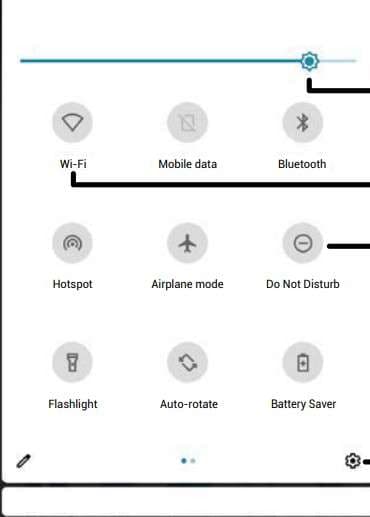
Step 2 Expand Quick Settings
Swipe down a second time to fully expand the Quick Settings control panel. Look for the small power icon (a circle with a vertical line), which is usually located at the bottom right of the panel on modern Motorola devices running Android 12 or newer.
-
Step 3 Select the Restart Option
Tap the power icon to instantly bring up the digital power menu on your screen. From there, choose "Restart" to securely reboot your phone.
Method 4. Reboot Motorola Without the Power Button
Have a broken power key and wondering how do I reboot my Motorola phone without it? The built-in "Scheduled Power On/Off" utility serves as an excellent automated workaround, allowing your device to turn off and back on at specific times.
Steps to Reboot Automatically
-
Step 1 Navigate to System Settings
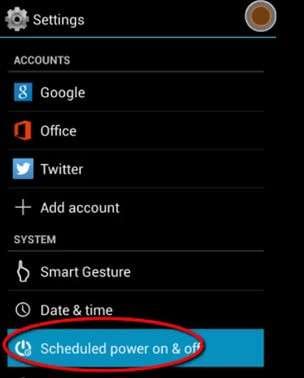
Open the Settings app on your Motorola phone and scroll down to select "System." From there, tap on the "Scheduled Power On/Off" option.
-
Step 2 Configure the Timers
Set a specific time for the phone to shut down (e.g., 2 minutes from now). Then, configure a time for the device to automatically power back on (e.g., 5 minutes from now).
-
Step 3 Save and Wait
Save your preferred schedule. Set your phone down; it will automatically power down and boot back up without requiring any physical button presses.
Important Requirements:
- Your battery capacity should remain above 10% to prevent boot failures.
- This exact feature name might vary slightly depending on your specific Motorola model and Android version.
- If you cannot find it, simply use the search bar at the top of the Settings app and look for keywords like "schedule," "auto power," or "on/off."
Method 5. Reboot Motorola into Safe Mode
Booting into Safe Mode provides a diagnostic environment that starts your Motorola phone using only the factory-installed system apps. This is incredibly useful for isolating whether a third-party application downloaded from the Play Store is causing system instability.
How to Enter Safe Mode:
-
Step 1 Trigger the Power Menu
Press and hold the physical Power button to bring up the standard on-screen power options.
-
Step 2 Long-Press Power Off
Instead of tapping it once, press and hold the digital "Power off" icon directly on your touchscreen.
-
Step 3 Confirm Safe Mode Reboot
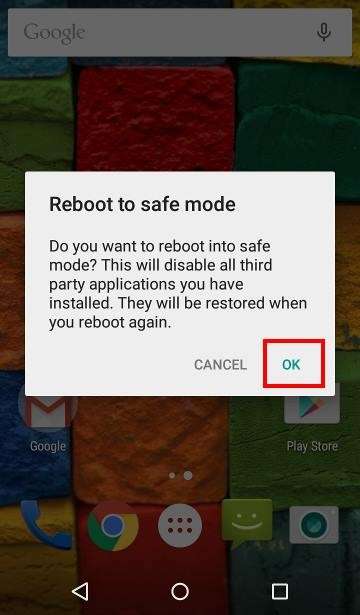
A secondary prompt will pop up asking if you wish to reboot into Safe Mode.
-
Step 4 Tap OK
Select "OK" to proceed. The phone will restart, and you will see a watermark reading "Safe mode" displayed in the bottom-left corner of your screen.
Why Reboot into Safe Mode?
Safe Mode disables all third-party apps and widgets. If your phone stops crashing, freezing, or draining its battery rapidly while in Safe Mode, you can confidently conclude that a recently installed app is the culprit. You can then uninstall suspicious apps one by one before rebooting normally.
Method 6. Reboot Motorola into Recovery Mode
The Android Recovery Mode is an advanced, hidden menu that loads basic system tools independently of the primary operating system. You should boot into this mode when your phone refuses to start normally, remains trapped in a boot loop, or requires a cache partition wipe.
Steps to Access Recovery Mode
- Turn the phone off completely. Once it is off, hold down the Volume Down and Power buttons simultaneously until the bootloader screen appears.
- The touchscreen will be disabled. Use the Volume keys to navigate through the list until "Recovery Mode" is highlighted.
- Press the Power button once to select it and enter the mode.
- If you are greeted by an Android mascot with a "No Command" warning, press and hold the Power button, quickly tap the Volume Up button once, and release both to reveal the actual recovery menu.
What Can You Do in Recovery Mode?
- Reboot the system normally without applying changes.
- Wipe the cache partition to resolve sluggish UI performance.
- Perform a complete factory data reset if the operating system is corrupted beyond repair.
- Manually flash system updates via ADB or SD card storage.
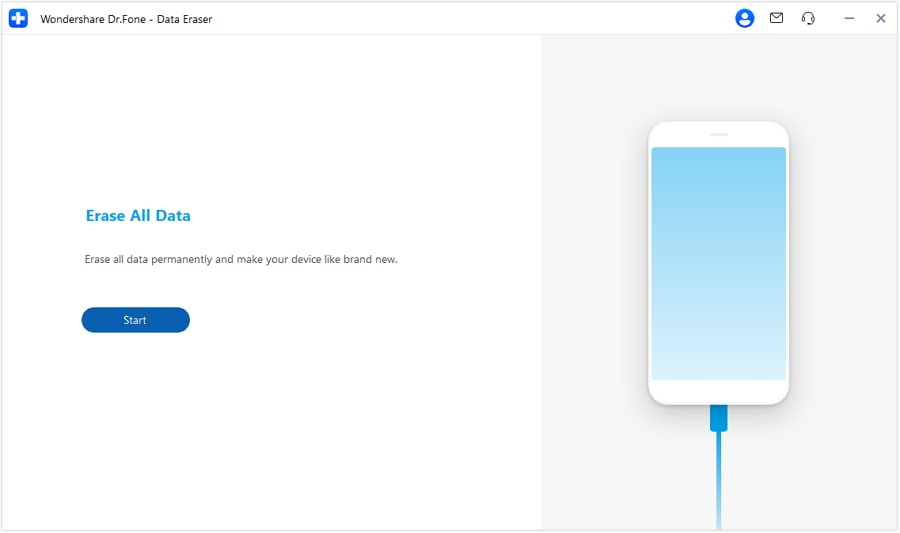
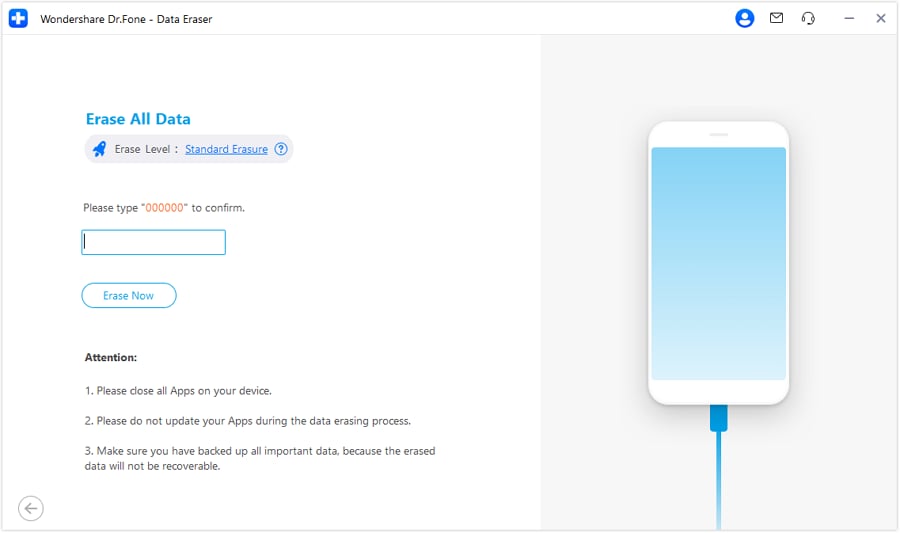
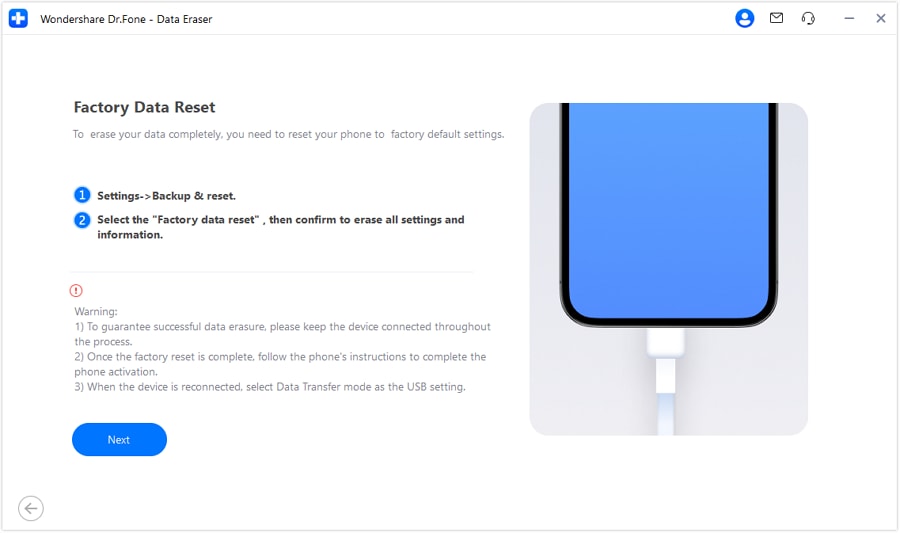
Part 3. How to Wipe Your Android Completely Using Dr.Fone Data Eraser Android?
If your Motorola device continues to suffer from irreparable glitches, or if you plan to sell or donate it, a standard factory reset may not be enough. Sophisticated software can still recover fragmented data from a standard reset. If you want to wipe your Android phone permanently and ensure total privacy, Dr.Fone - Data Eraser is the industry-standard solution.
 Permanently erase all data on iOS & Android — completely unrecoverable.
- Military-grade wiping to fully protect your privacy.
- Generate verified erasure reports to boost device resale value.
- Selectively erase private data and remove junk & large files.
By utilizing military-grade data sanitization protocols, Dr.Fone guarantees that your text messages, private photos, app data, and browsing history are irretrievably overwritten. The software offers various security thresholds, including a rigorous algorithm modeled on the USA DoD 5220.22-M standard, effectively blocking even the most advanced data recovery attempts. Once the wipe is finished, it generates a comprehensive erasure report, giving you absolute peace of mind.






 Add Wondershare Dr.Fone as a preferred source on Google




