
Top 5 Methods to Perform Motorola FRP Bypass With or Without PC

Oct 24, 2026 • Filed to: Screen Lock Removal • Proven solutions
 TL;DR:
Bypassing Factory Reset Protection (FRP) on a Motorola device requires either using PC software like Dr.Fone and MotoReaper or applying specific standalone mobile workarounds that exploit accessibility menus to disable Google Play Services.
● PC-based tools offer the most predictable bypass paths; Dr.Fone - Screen Unlock (Android) provides guided removal for current devices, whereas MotoReaper is strictly limited to older Motorola phones running Android 5.1 to 7.1 using USB Fastboot or EDL mode.
● PC-free methods require exploiting the UI—such as enabling the TalkBack Braille keyboard on Android 12, dialing 112 on models like the Moto G73 5G, or using a Bluetooth keyboard—to access Settings, force stop Android Setup, and disable Google Play Services to trigger an offline setup.
● Because standalone mobile bypass tricks are unreliable and restricted by newer Android version limits, users should prevent FRP lock entirely by manually removing the linked Google account in the device settings prior to initiating a factory reset.
Ask AI for a summary
 ChatGPT
 Perplexity
 Gemini
 Claude
 Grok
Grok
Picture a moment when a Motorola phone asks for a Google account after a reset, and the old details stay lost. The phone feels locked, stress is high, and this is where this guide fills that need. It shares the top 5 methods to perform Motorola FRP bypass, with or without a PC.
Each method aims to help lawful owners regain access with clear ideas and calm steps. So, while learning about Motorola FRP bypass without a PC, learn how a PC solution like Dr.Fone can be more helpful and easier.
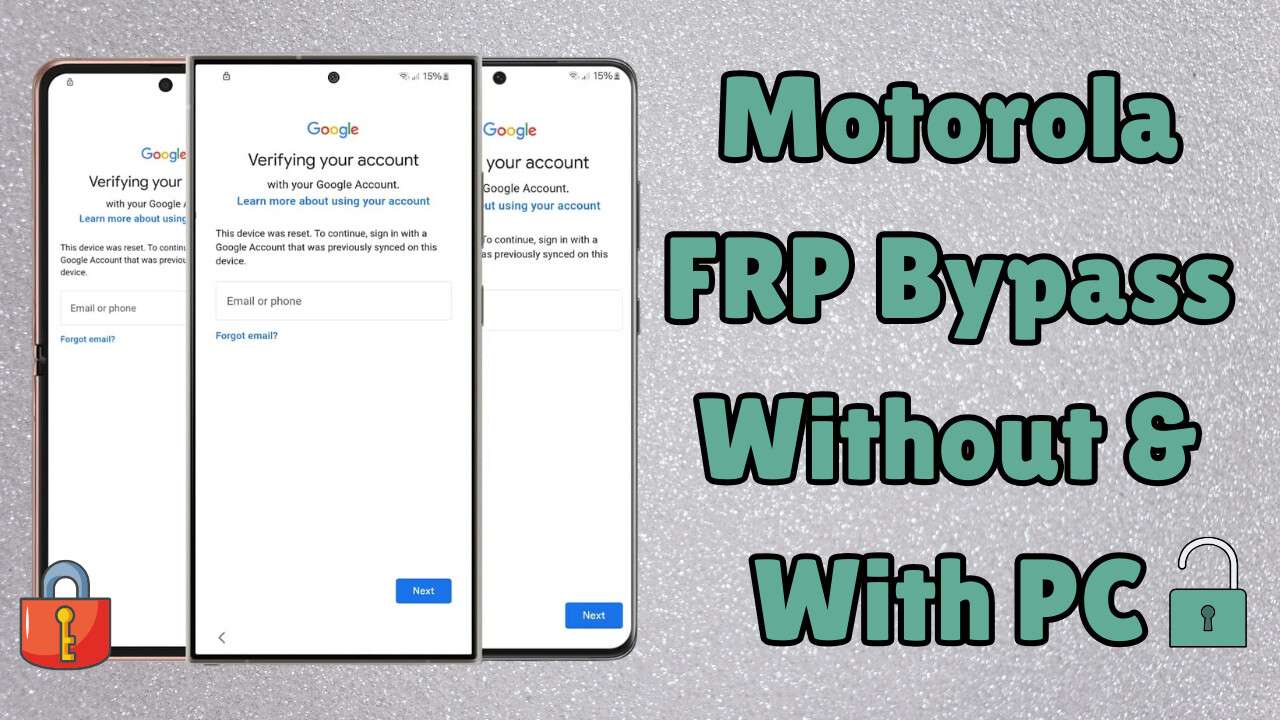

Part 1. What Is Android FRP on Motorola Phones
Before you learn the ways for Moto G FRP bypass without PC, know that Android FRP on Motorola phones is a Google safety feature called Factory Reset Protection. FRP works on Motorola phones with Android 5.1 or later, such as Moto G, E, and Edge models. Thus, it blocks phone access after a factory reset unless the same Google account is used to sign in.
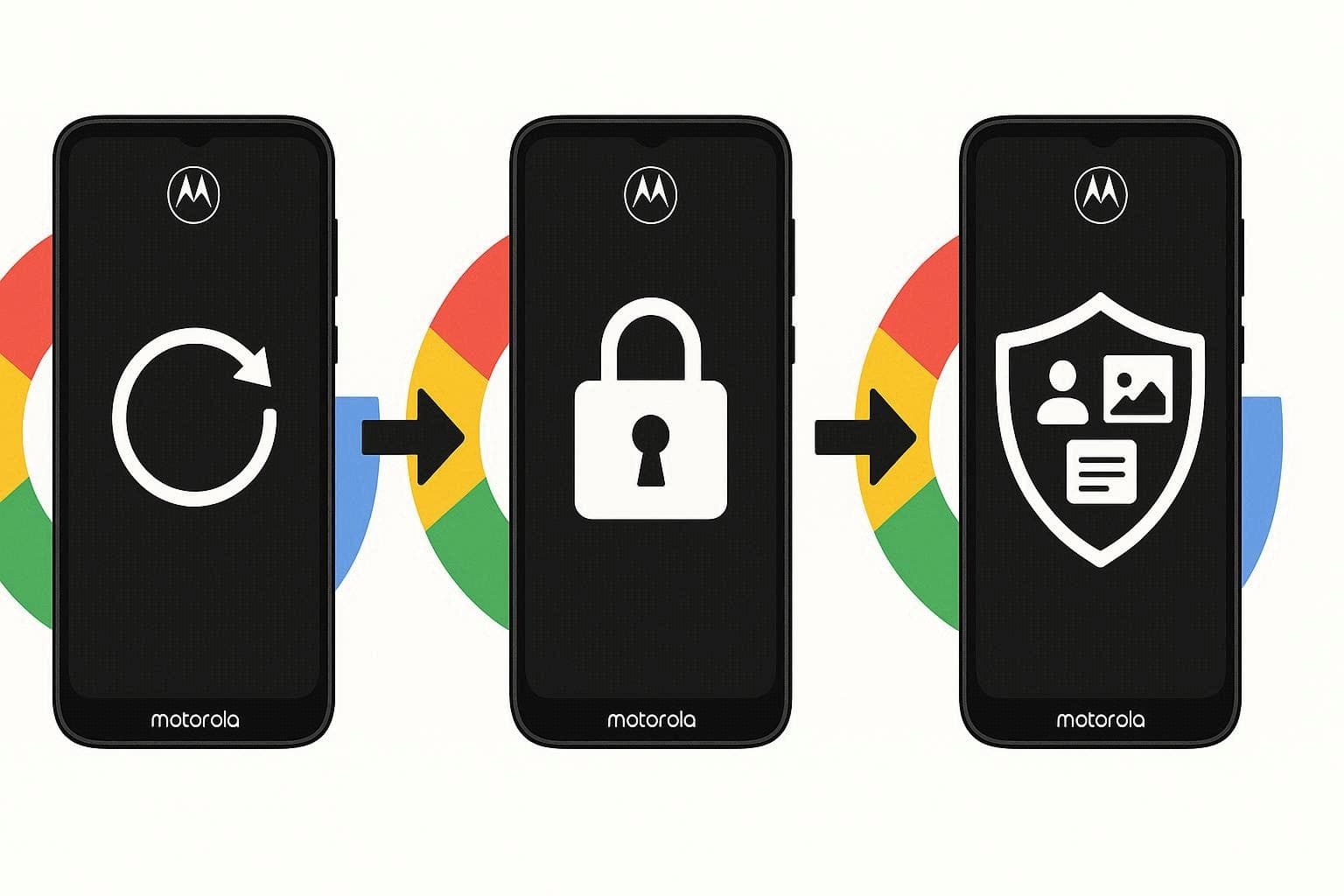
Additionally, this feature keeps personal data safe and makes it harder for lost or stolen phones to be reused or sold. When FRP stays active, and a reset happens without Google account removal, the phone asks for the last Google email and password during setup. Without correct details, the phone stays locked on the account check screen.
Common Causes of the Motorola FRP Lock Appears
So, while learning about the Motorola FRP bypass with a computer, review the reasons for its appearance first:
|
Cause |
Brief Explanation |
| Factory Reset With Google Account Still Signed In | The phone was reset without removing the Google account first, so verification is now required. |
| Forgotten Google Email or Password | The owner cannot remember the exact Google credentials previously synced to the device. |
| Buying a Second‑hand Phone is Still Linked to the Old Owner | The previous owner did not remove their Google account, so FRP prompts them to log in at setup. |
| Multiple Google Accounts Confusion | The user has several accounts and does not know which one was last used on the phone. |
| Remote or Forced Reset After Lock Or Issue | The phone was wiped from recovery/Find My Device while the account remained on it, triggering FRP. |
Part 2. Why You Might Need to Bypass FRP on Your Motorola?
On the quest for Moto G Stylus 5 G FRP bypass without PC, here are some situations where you might need to bypass the FRP:
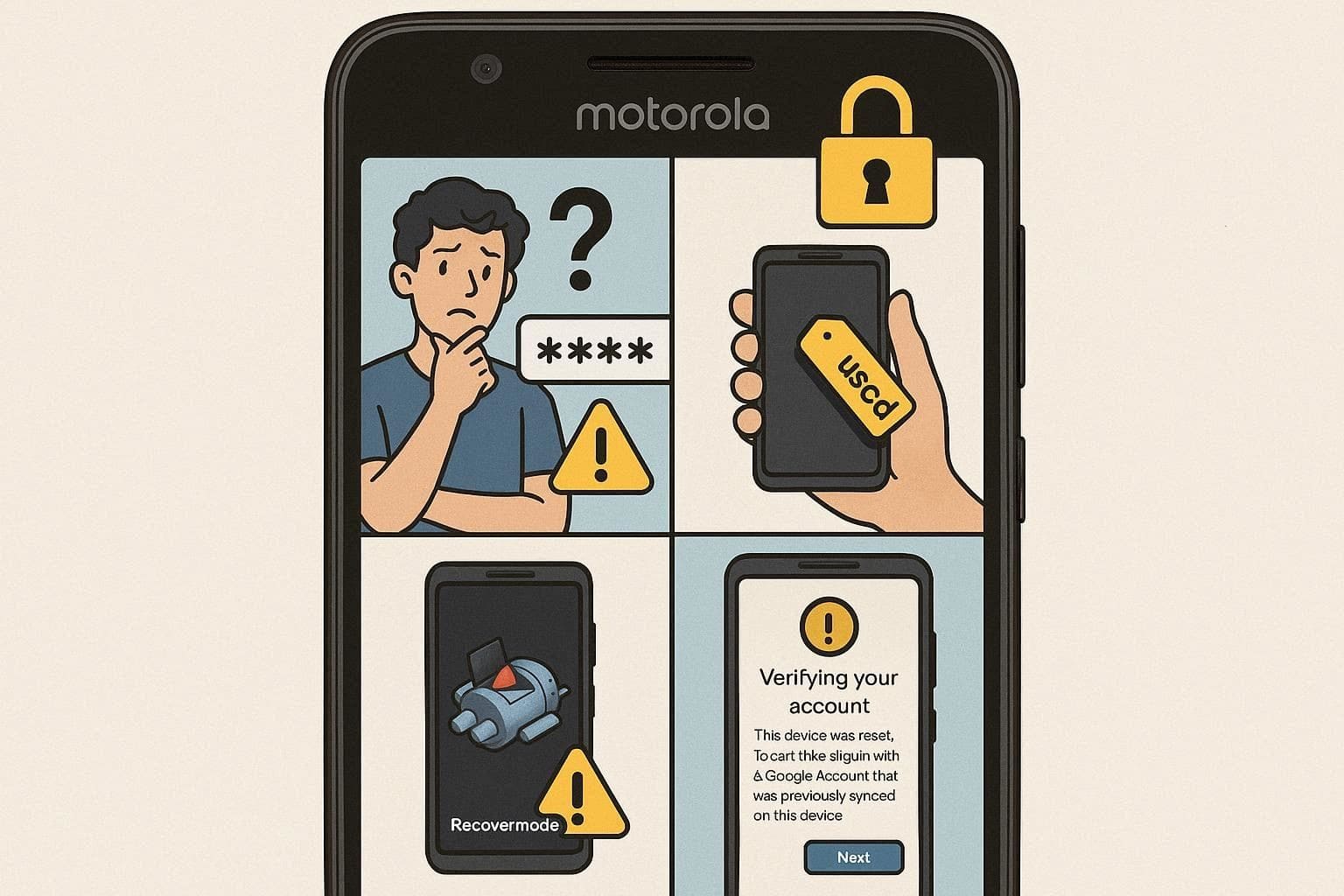
- You reset the phone, but do not recall the exact Google email or password.
- You buy or receive a Motorola phone, but the previous owner forgets to remove their account.
- A reset happens from recovery or Find My Device while a Google account stays linked.
- You try Google recovery, but the old email or phone number blocks access.
Part 3. How to Perform Motorola FRP Bypass with a Computer [Top Ways]
As the ways for Moto G Stylus FRP bypass without a computer are just tricks, it's important that you seek the legitimate ways. In this regard, this section introduces 2 PC based solutions that you can consider to easily bypass FRP:
Way 1. Dr.Fone - Screen Unlock (Android) - One-Click Solution
Dr.Fone - Screen Unlock (Android) is a practical solution for users who need to remove FRP lock from Motorola phones after a factory reset. If your Moto device is stuck on the Google account verification screen and you cannot continue the setup, this tool can guide you through the unlocking process without requiring the previously synced Google account.
With a clear desktop workflow, Dr.Fone helps users choose the correct device brand, connect the phone, prepare the required driver, and complete the FRP removal process step by step. It also supports Motorola phones with MTK chips, offering a more suitable unlocking option and a higher success rate for compatible devices.

Dr.Fone - Screen Unlock (Android)
The Best Unlock Tool to Bypass FRP and Solve Your Screen Locks
- Remove Google FRP lock from Motorola phones after factory reset.
- Support Moto devices with MTK chips for a higher unlocking success rate.
- Unlock Android screen locks, including PIN, pattern, password, fingerprint, and face lock.
- Provide guided removal solutions for different Android phone brands and models.


Guide to Bypass FRP on Motorola With a Computer Using Dr.Fone
To bypass Google lock on Motorola, follow the steps below and keep your phone connected with a stable USB cable during the process:
Step 1. Open the FRP Removal Tool
Launch Dr.Fone on your computer and choose Screen Unlock from the Toolbox. Select Android, then click Remove Google FRP Lock to enter the FRP bypass workflow.

Step 2. Choose Motorola and Select the Suitable Unlocking Option
From the brand list, choose Motorola and click Start. If your Moto phone uses an MTK chip, select the MediaTek GPU option when it appears to continue with the matching removal method.
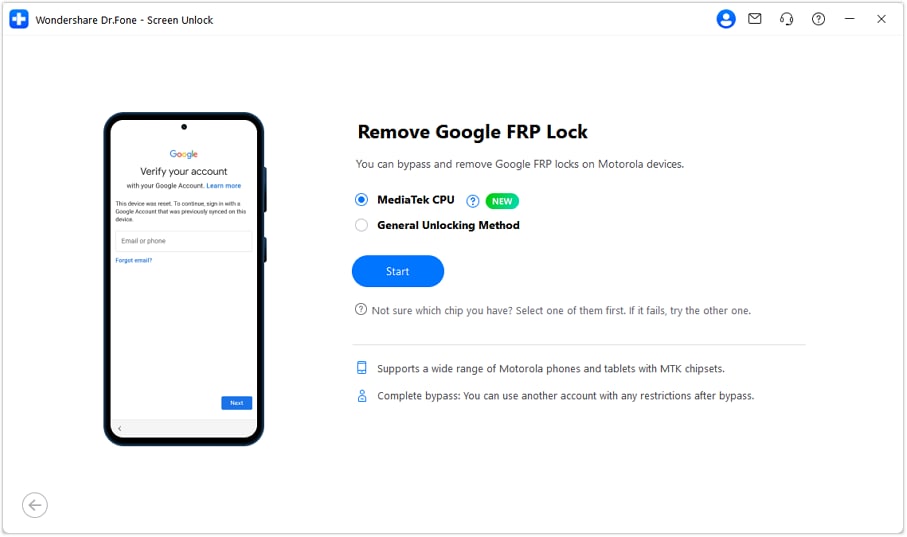
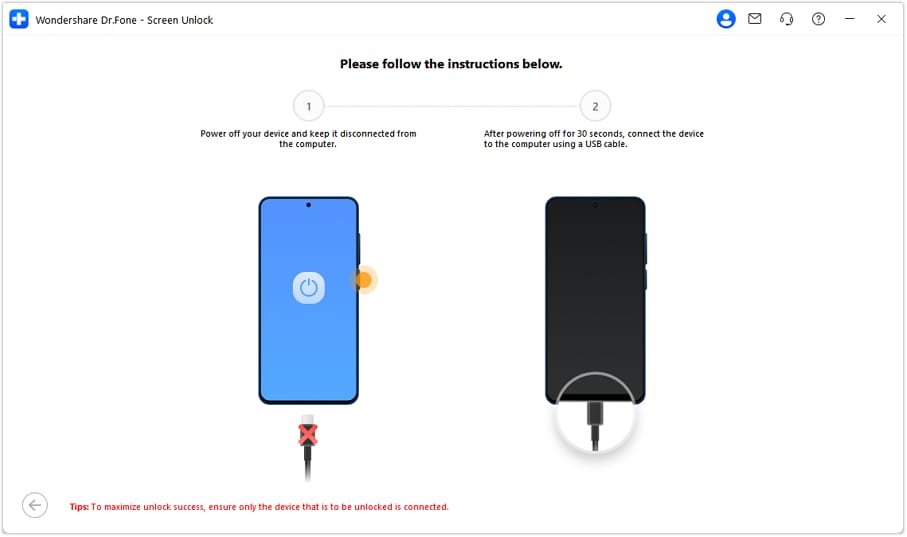
Step 3. Prepare the Driver and Reconnect Your Phone
Dr.Fone will prepare the required USB driver for the connected device. After the driver is ready, disconnect your Motorola phone, power it off completely, wait for about 30 seconds, and connect it to the computer again.
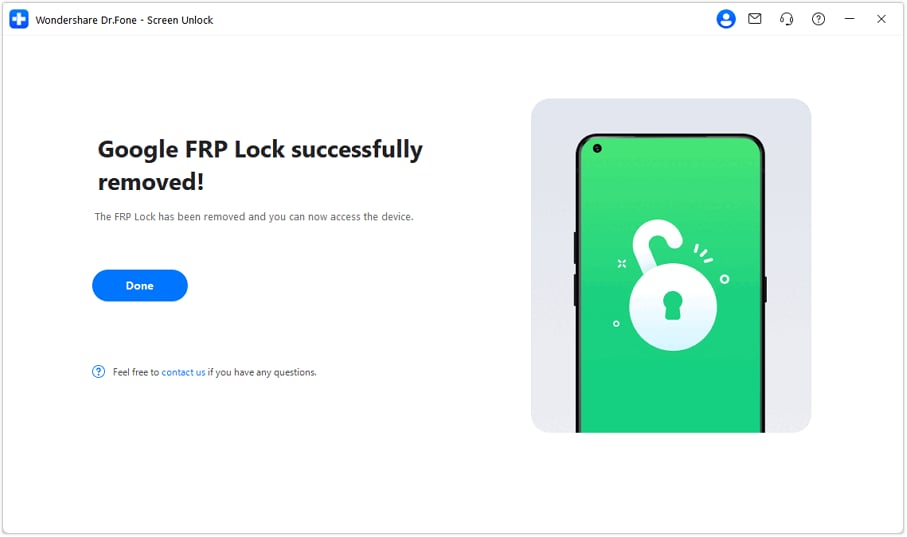
Step 4. Remove the FRP Lock Successfully
Once the phone is detected again, Dr.Fone will start removing the Google FRP lock. Keep the device connected and avoid operating it during the process. When the success message appears, you can restart the phone and continue setting it up normally.
Way 2. MotoReaper
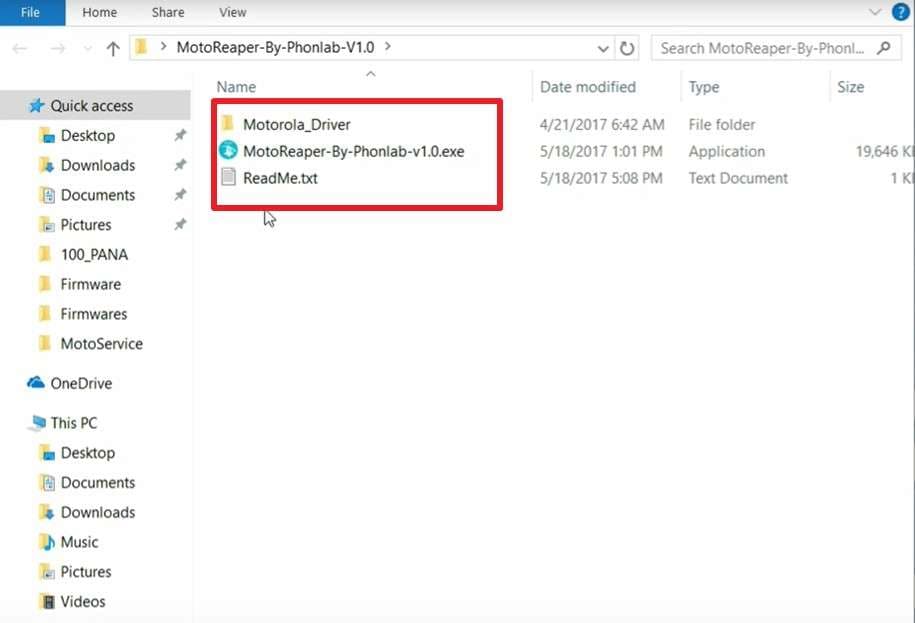
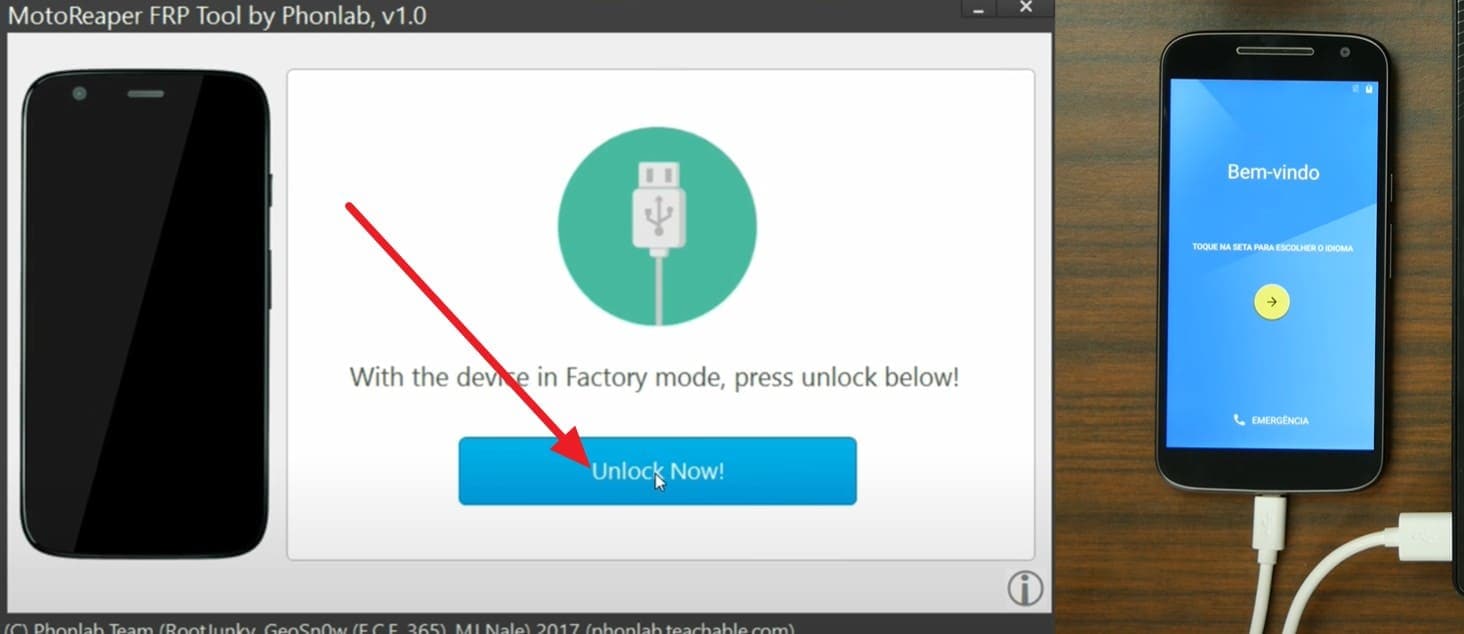
Another option to bypass the Google lock on Motorola with a PC is MotoReaper, a bypass tool for older Moto phones. The tool suits many Moto models, mainly on Android 5.1 to 7.1, and some Qualcomm or MTK chips. It works through USB with Fastboot or EDL mode and skips manual ADB or Fastboot commands. Moreover, clear buttons guide each step, so even new users feel at ease, as illustrated below:
Note: Support stays limited to older Android versions, and use must stay lawful with owner consent only.
Before You Start:
- A high-quality data-transfer cable with no damage.
- Ensure the latest Motorola Device Manager and drivers are installed on your PC.
Step 1. Download MotoReaper and extract the files into a separate folder on your computer. After that, plug your phone into the computer using the USB cable, and open the MotoReaper executable from the extracted folder.
Step 2. Press the “How to Connect My Device” and “I’ve Done That” options if already connected. Now, turn off your Motorola phone, then hold down the “Volume Down + Power” buttons together until the bootloader screen appears. Scroll down on that interface to pick and enter the “Factory Mode.”
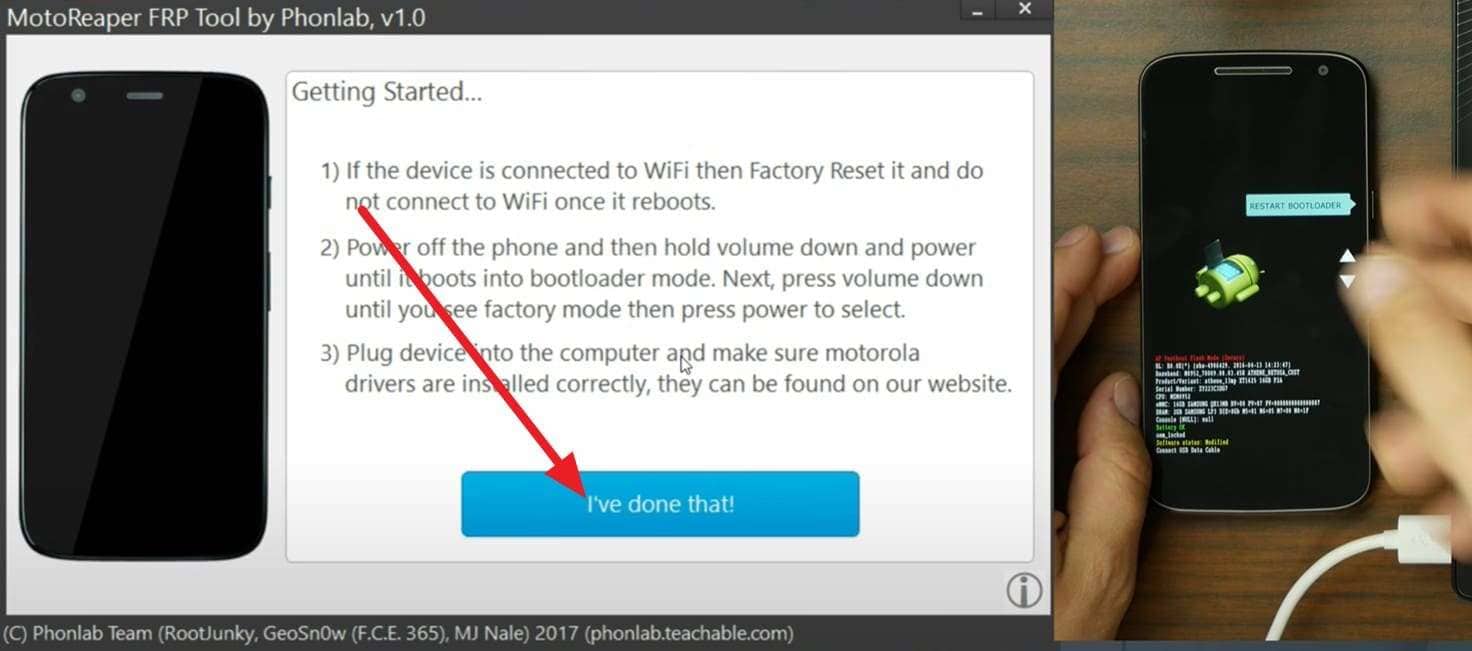
Step 3. Choose the “I’ve Connected My Device” and “Inject Exploit!” option after the successful connection.
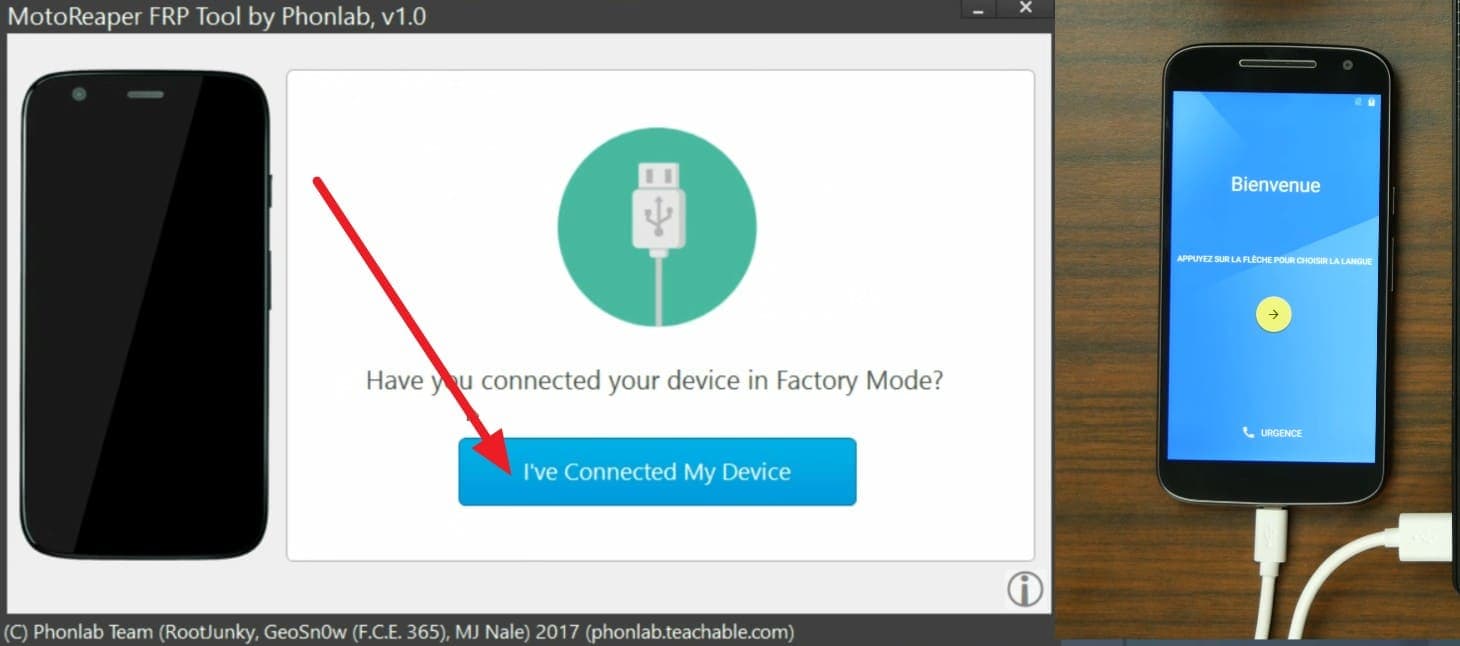
Step 4. Disconnect the phone, access the bootloader interface and factory mode again, then connect again. When the tool ends the detection process, choose the “I’ve Done That” and “I Confirm” options.
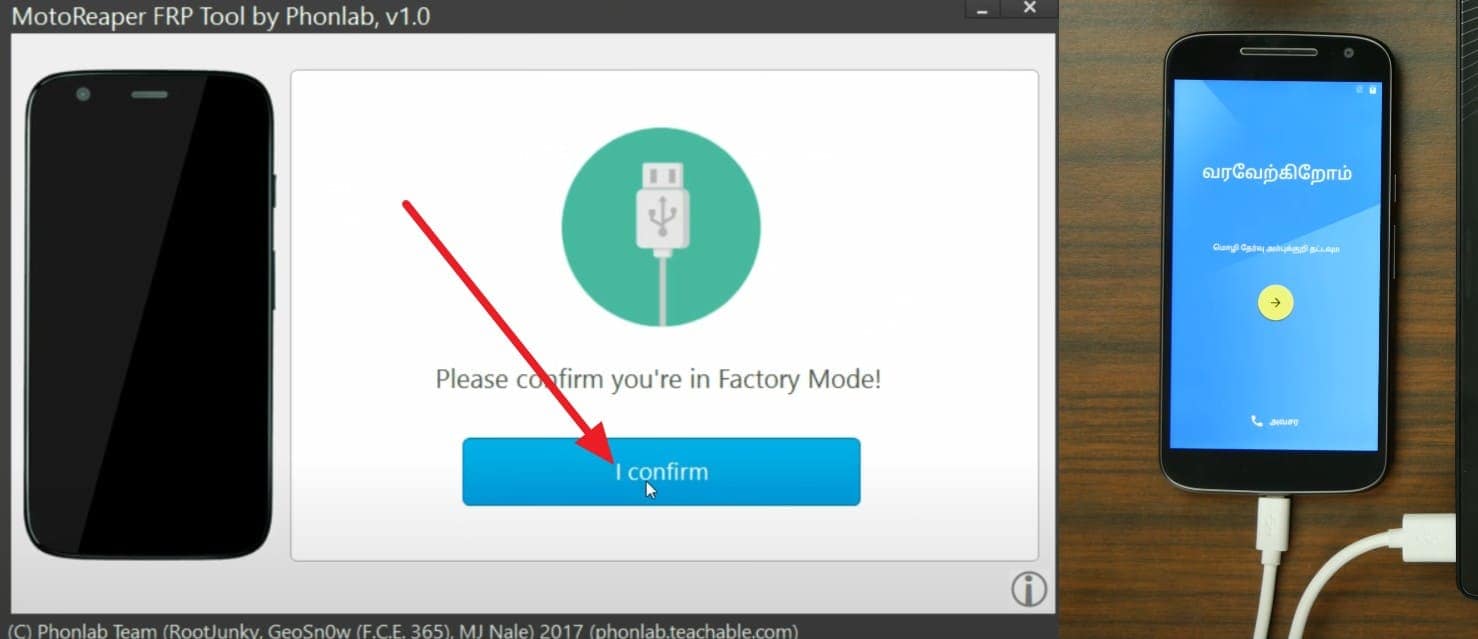
Step 5. Now, press “OK” to allow ADB on the device by picking the “Always Allow From This Computer” option.
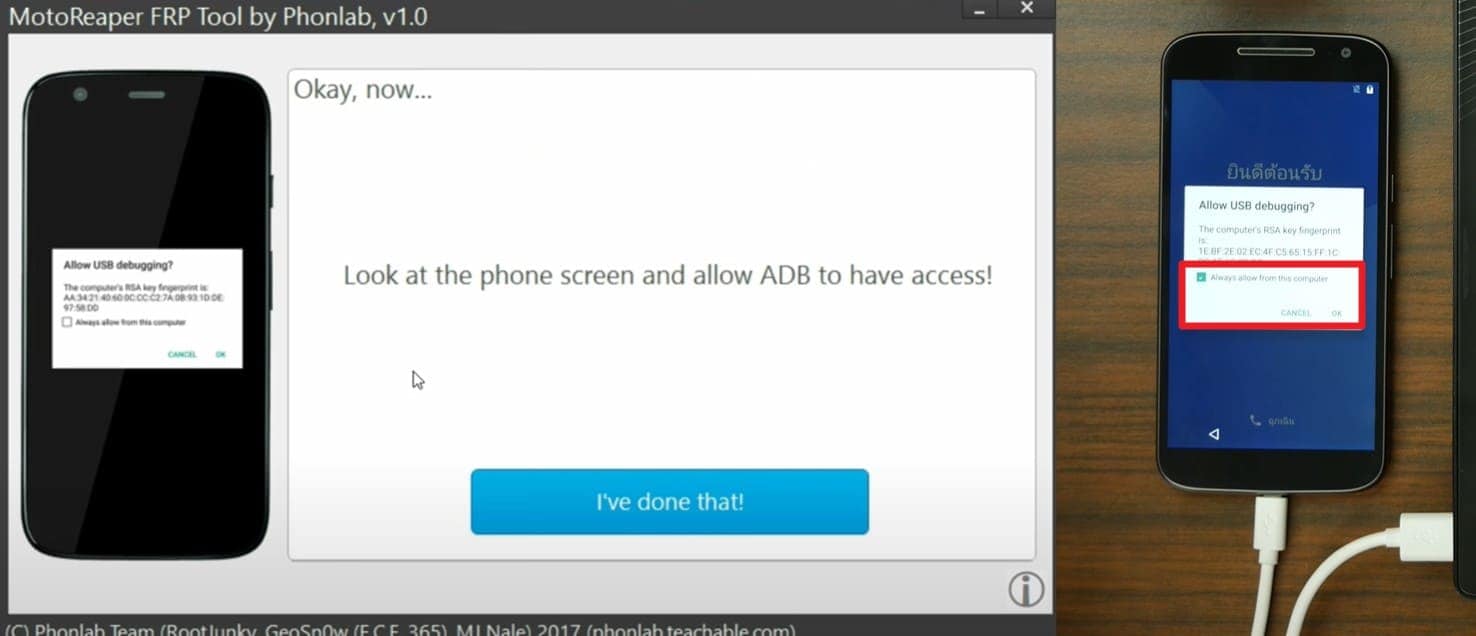
Step 6. Once done, pick the “Unlock Now” button on the tool to continue the FRP unlock process.
Part 3. Motorola FRP Bypass Without PC: What Works (Step‑by‑Step)
Besides PC, if you want to know ways for Moto G Play FRP bypass without PC, adhere to the listed 3 options:
Option 1. Using Device Accessibility & Internet Trick
This method lets a rightful owner unlock a Motorola phone without a PC. It uses only phone options such as TalkBack, Braille keyboard, accessibility menu, and internet access. Besides, it suits newer Android versions, such as Android 12 on Moto models, where old PC tools may fail, as guided:
Step 1. On the home screen, choose the “Vision Settings” option to choose the “TalkBack” option. After that, toggle on the “TalkBack” option on the new interface.
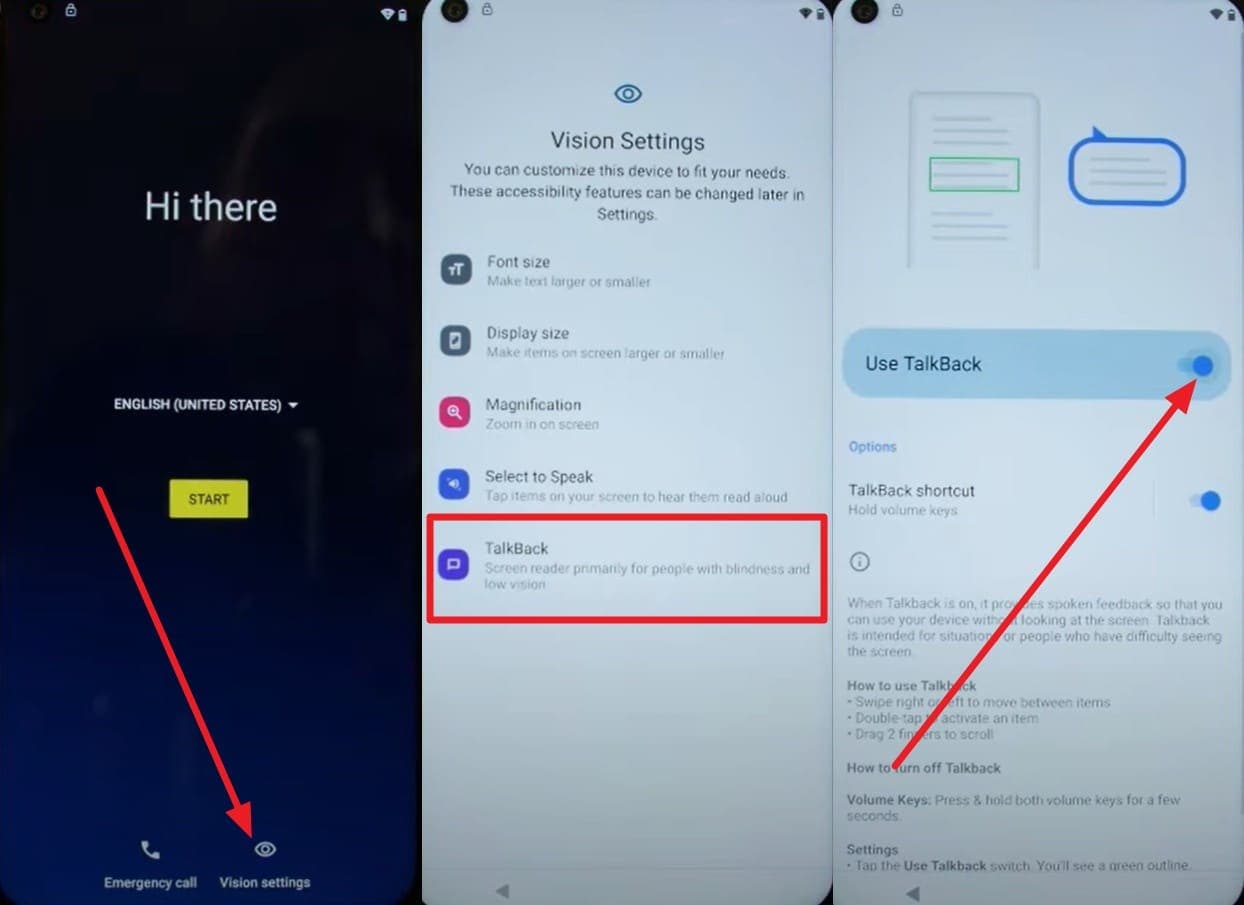
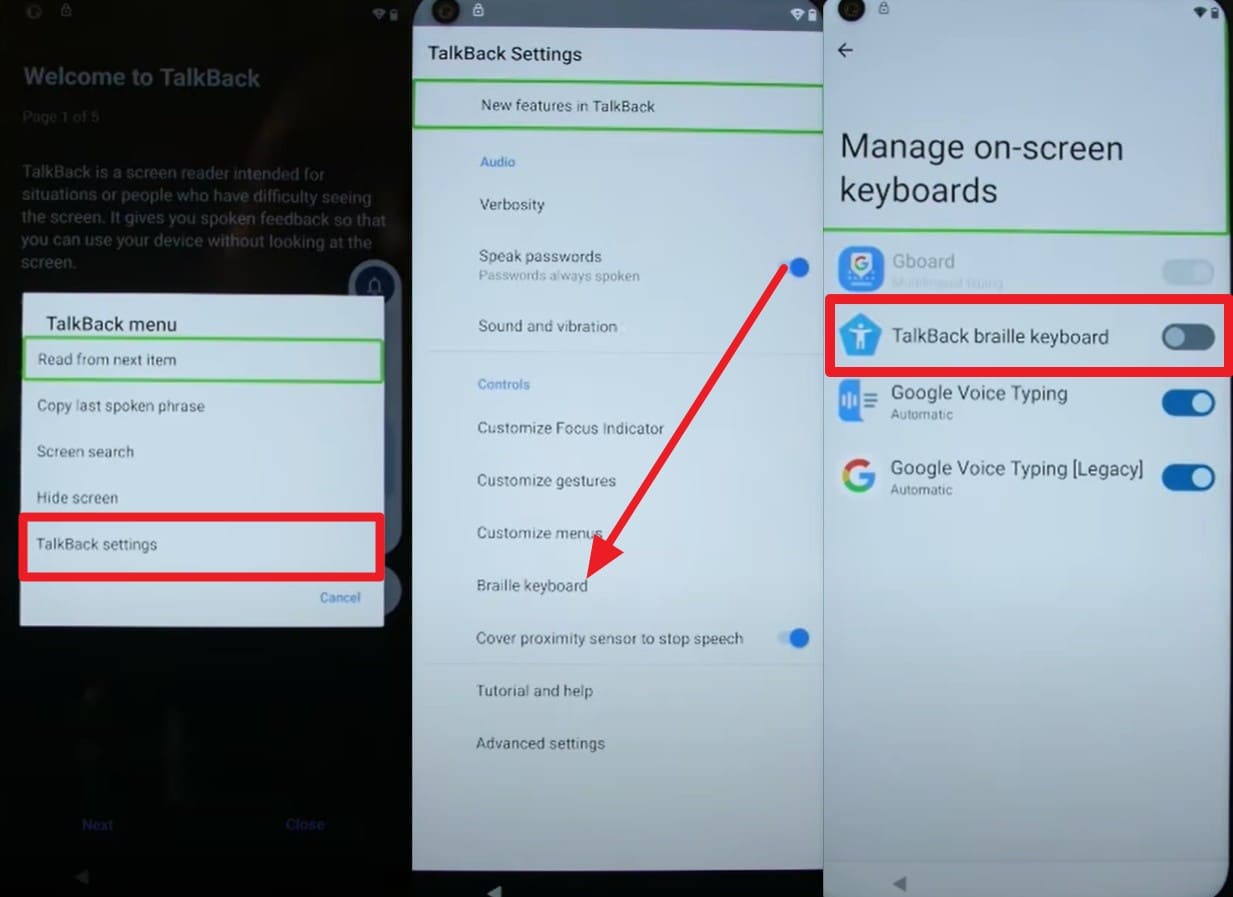
Step 2. Once enabled, draw “L” on the screen and choose the “TalkBack Settings” option in the pop-up menu. Tap the “Braille Keyboard” option on the new interface, select “Set Up Braille Keyboard,” and in the “Settings,” choose the “TalkBack Braille Keyboard” option.
Step 3. Now, head back, toggle off TalkBack, and press the “Start” button to connect to the Wi-Fi network. Press the “Globe” icon on the typing pad and choose the “Braille Keyboard” option on the menu that appears. After that, choose the “Turn On in Accessibility Settings” option to access the “Accessibility” menu.
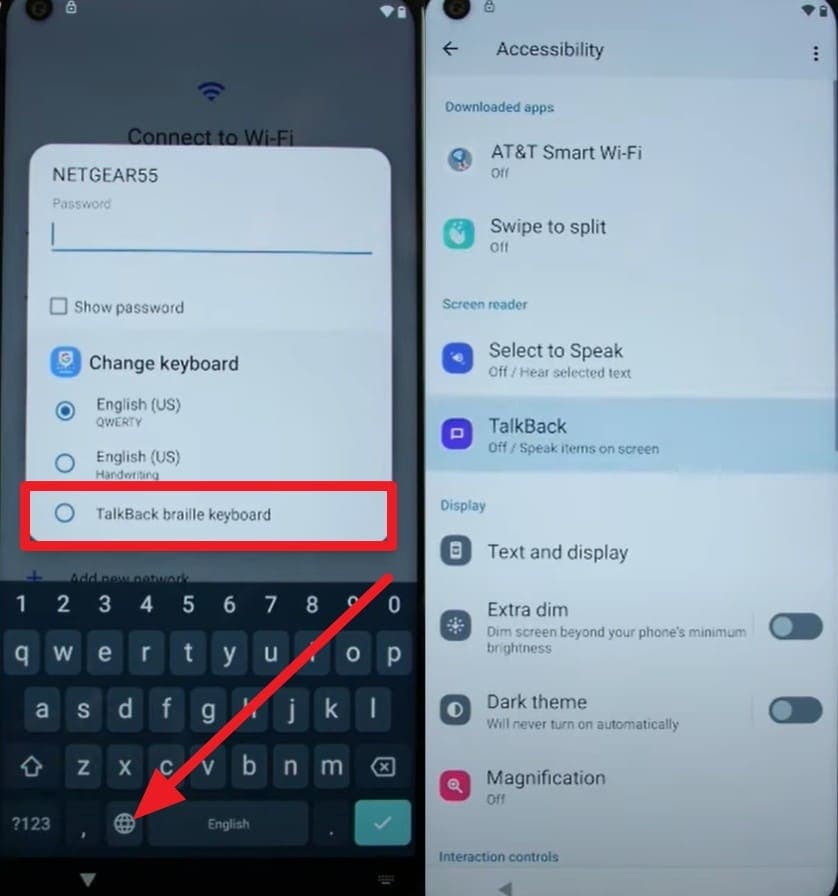
Step 4. Tap “Assistant” in the menu and speak “Settings” to choose the “Open Settings” option. Within settings, choose “Apps,” choose “Android Setup,” and force stop it. Force stop and disable “Google Play Services” too.
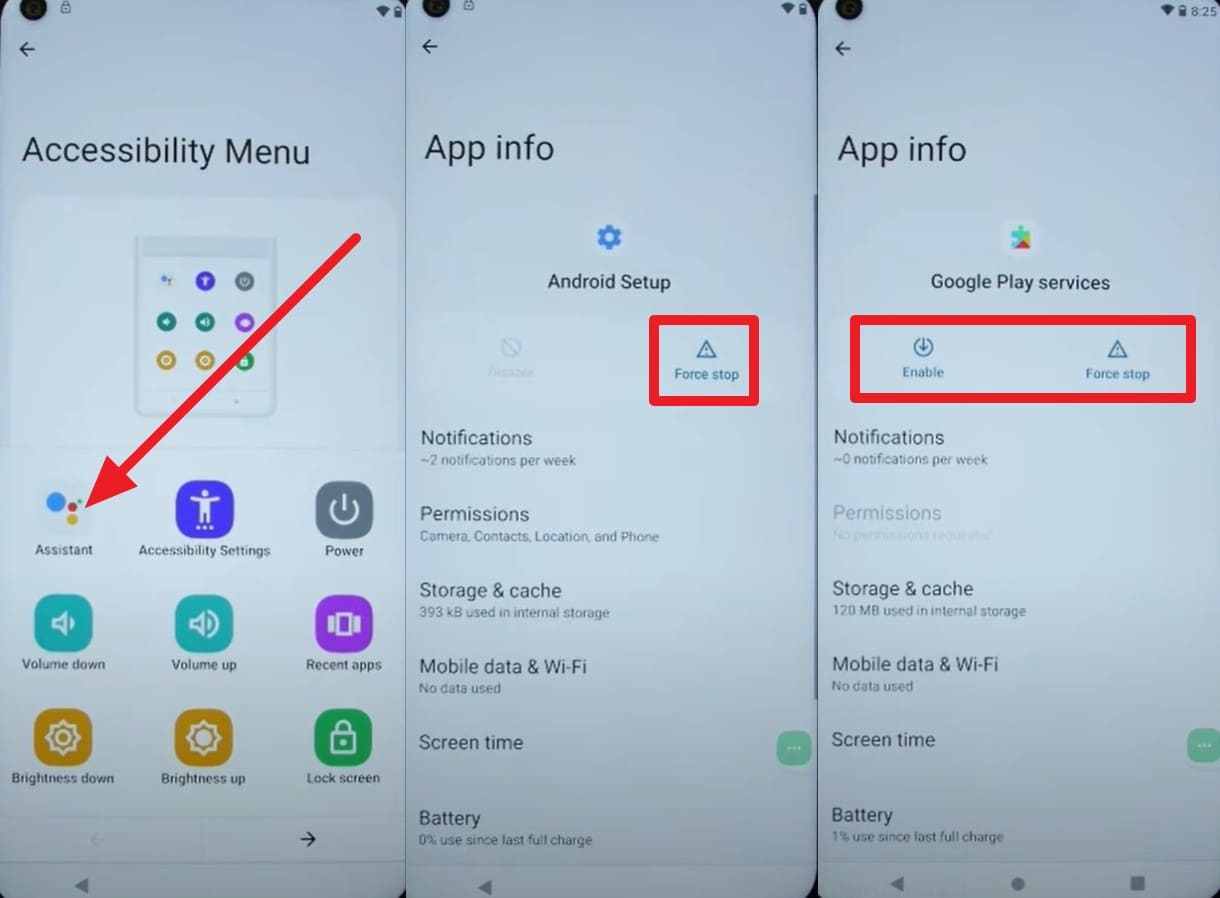
Step 5. Head back to the setup screen and, as the “Just A Moment” loop ends, press the “Don’t Copy” option. Tap the enabled Accessibility menu during this process to pick the “Assistant” option to “Enable” the Google Play Services. Go back to choose the “More > Accept” option, then skip the password entry interface to bypass the FRP.
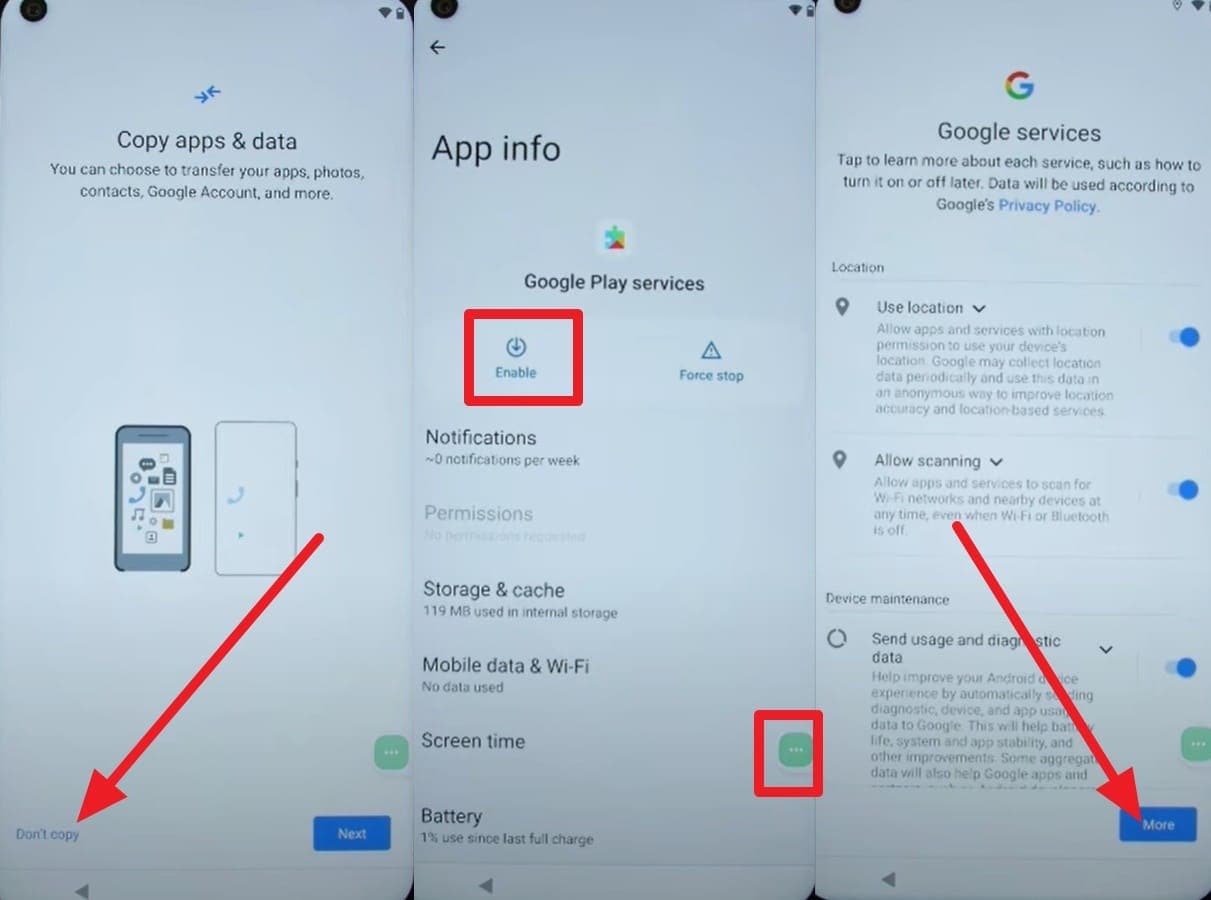
Note: Once FRP is bypassed, you can choose to perform a Factory Reset to start fresh.
Option 2. Using SIM Card and Emergency Call Workarounds
For Moto G FRP bypass without PC, this method uses the emergency call path to reach Maps, Messages, YouTube, and Chrome. No PC, USB tools, or flash steps are needed, and the trick works on newer Moto models, such as the Moto G73 5G, as illustrated below:
Step 1. On the “Start” screen, press the “Emergency Call” option, dial “112”, and call the emergency number.
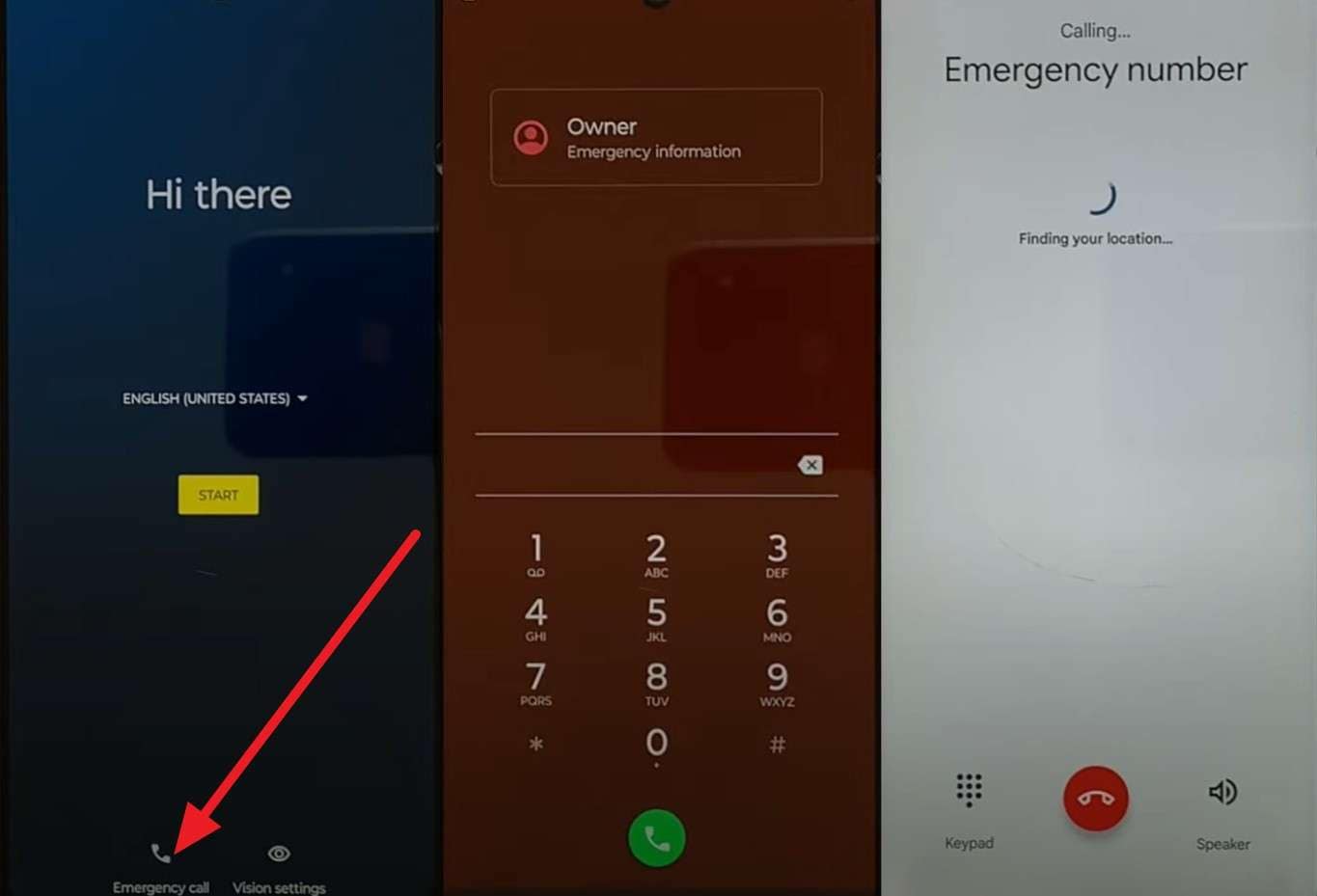
Step 2. Again, call the same number and press the “Google Map Location” as it appears. Now, press “Skip” on the following interface and tap the “Share” option to choose “Messages.”
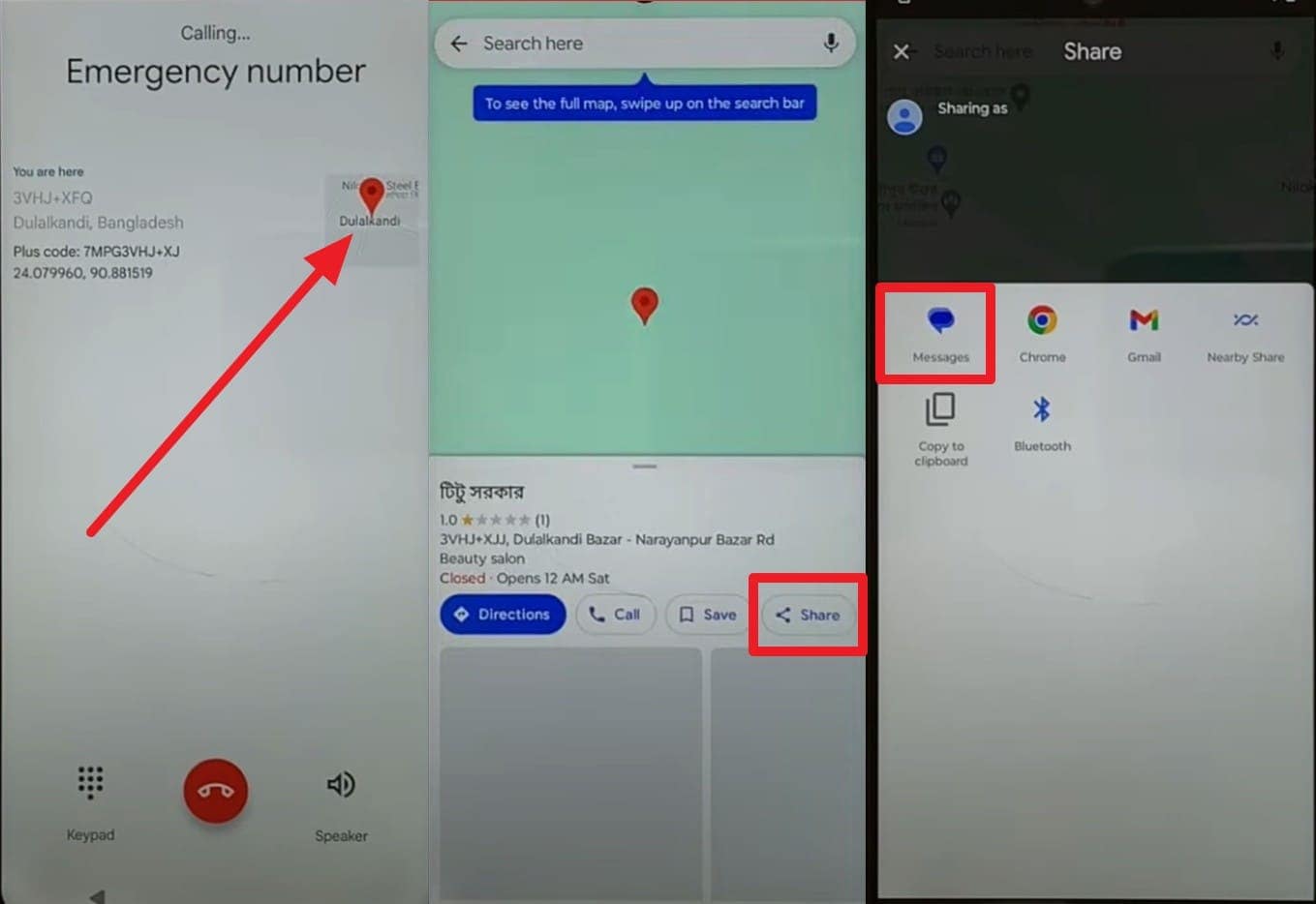
Step 3. Press the “New Message” option on the pop-up and type any random number to send it. As you access the textbox, type YouTube.com and tap on the YouTube preview logo.
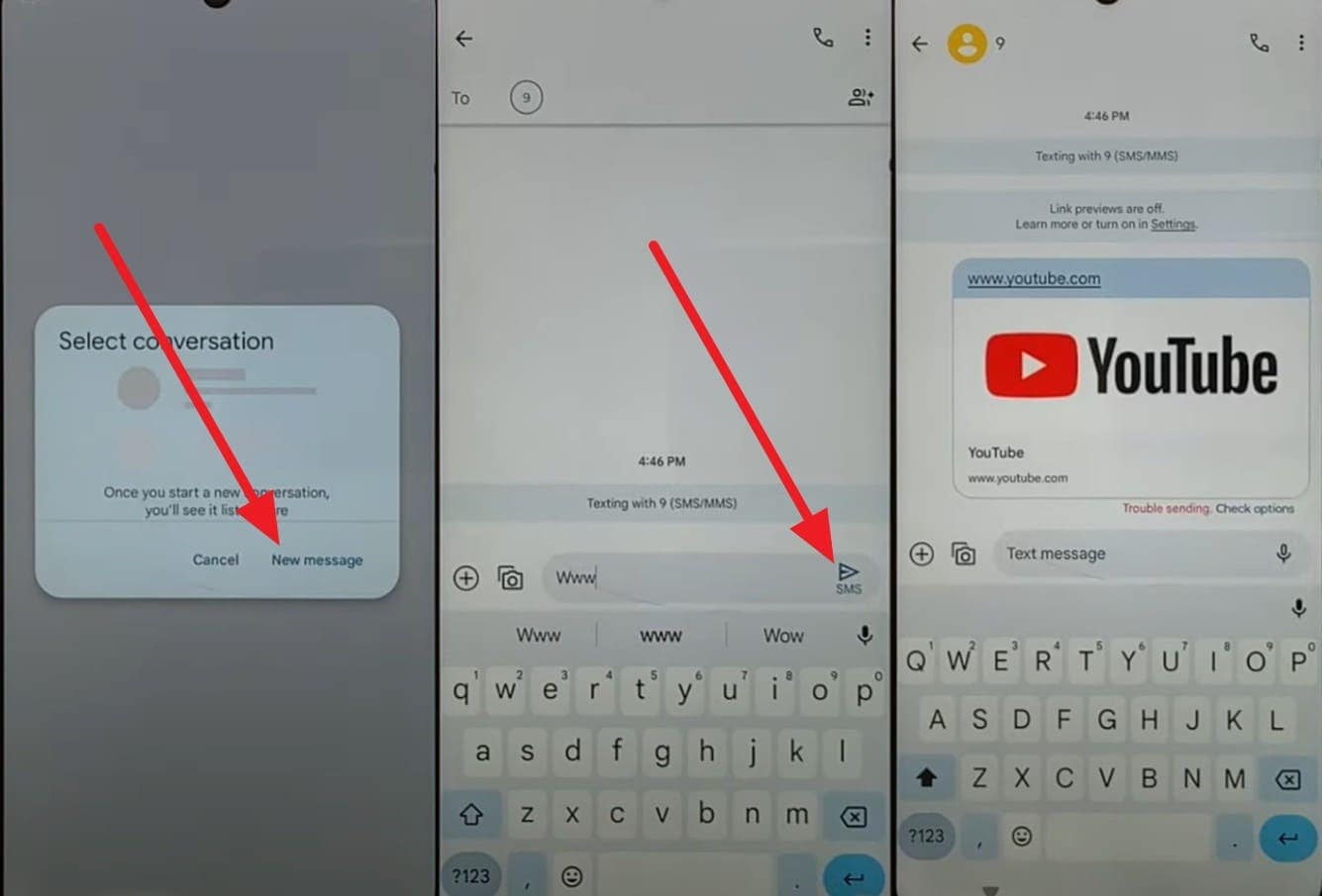
Step 4. Press the “Account” icon to pick “Settings” and “About > YouTube Terms of Service” option. As you open the browser, type Gsmfavor.com, and choose the “Google Search App” option.
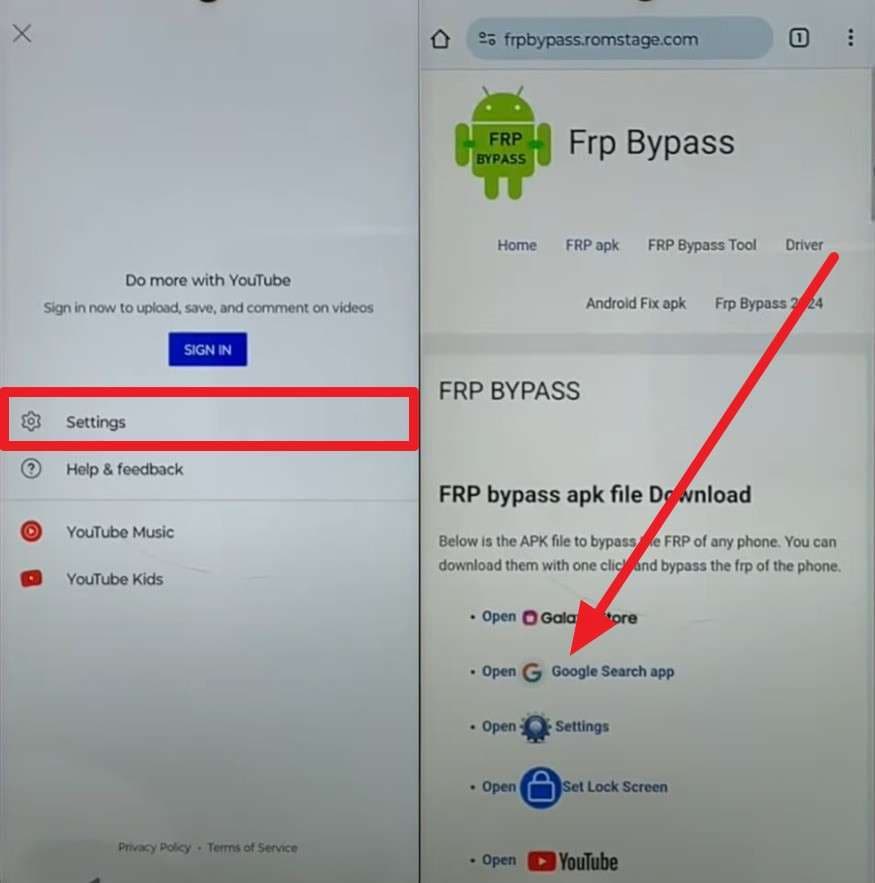
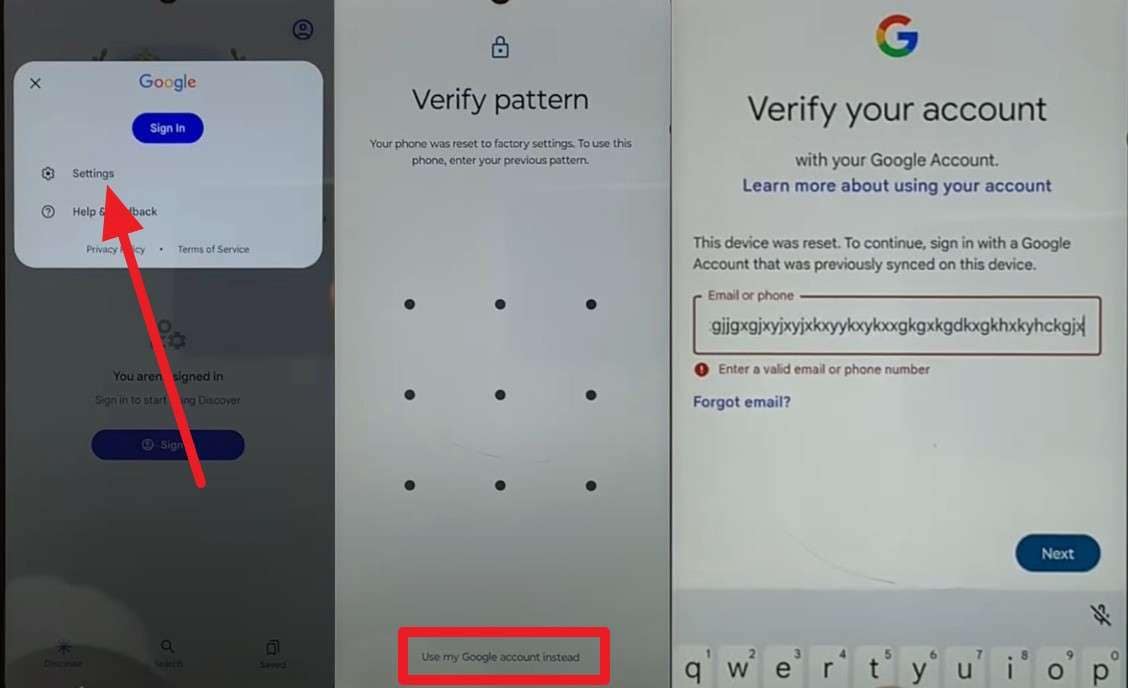
Step 5. Tap the “Account” icon to head to the “Settings,” and on the pattern lock screen, pick the “Use My Google Account Instead” option. Now, type random text into the sign-in interface multiple times, then reboot the phone by pressing the “Power” button.
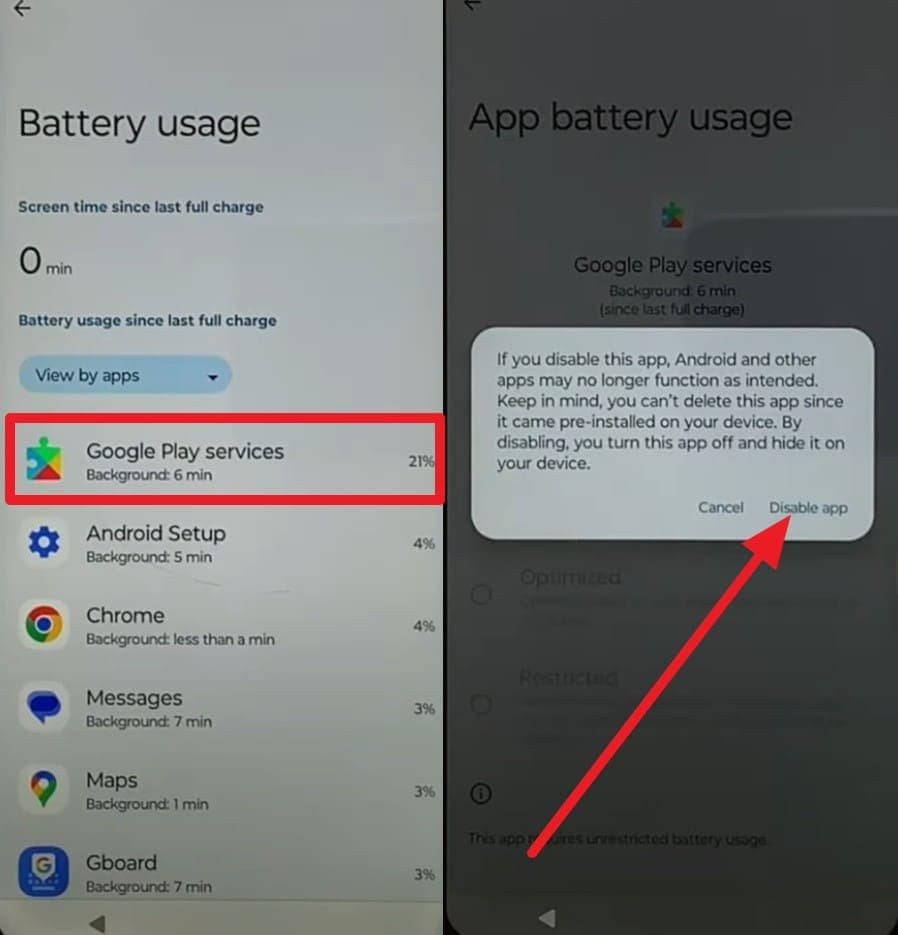
Step 6. If this fails, redial “112,” access location, share it, and type “GSMfavor.com” to pick the “Settings” option. Choose “Battery” and “Battery Usage” to choose the “Google Play Services” option to disable it.
Step 7. Force stop “Android Setup” too, restart the phone, and press the “Start” button on the home screen to see if the “Set Up Offline” option is enabled on the “Connect to Wi-Fi” screen. Tap on it, press “Accept & Continue,” skip the setup pin screen, and choose “Not Now” and "More” options on the following interface to bypass the FRP.
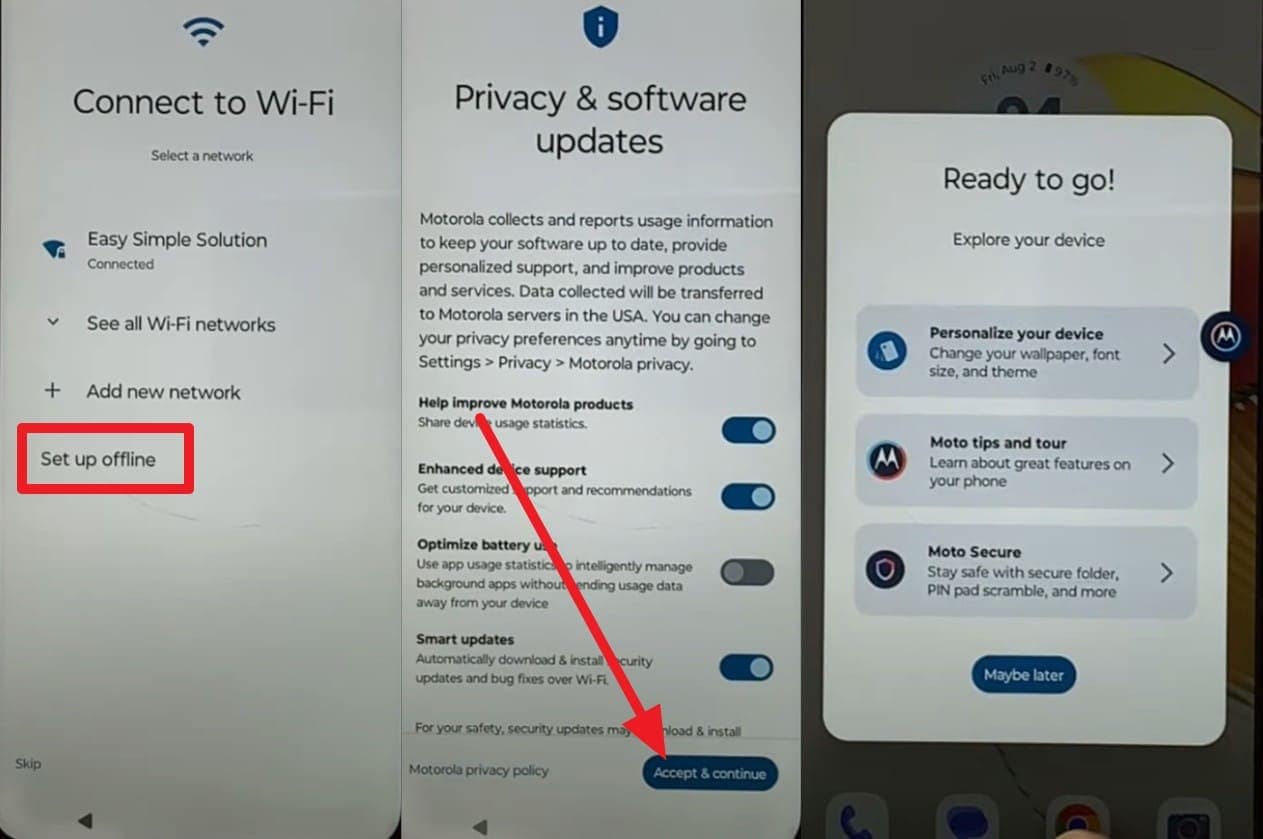
Option 3. Using a Bluetooth Keyboard
To make the Motorola FRP bypass with a computer possible, this solution uses a Bluetooth keyboard to help a rightful owner unlock a Moto phone. It works on the device with Wi‑Fi and a keyboard, so no PC, cable, or flash tool is needed. Hence, keyboard keys give better control on small screens and help open hidden options, as guided:
Step 1. Go to the Connect to Wi-Fi interface to choose the “See All Wi-Fi Networks” option and scroll down to pick the “Add Network” option.
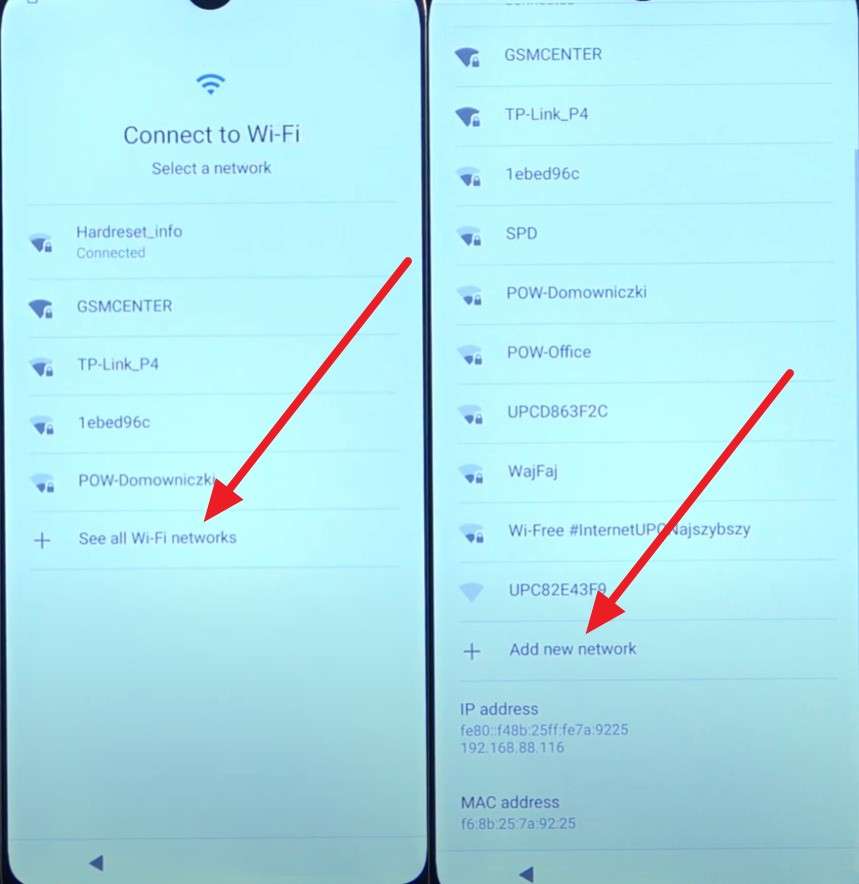
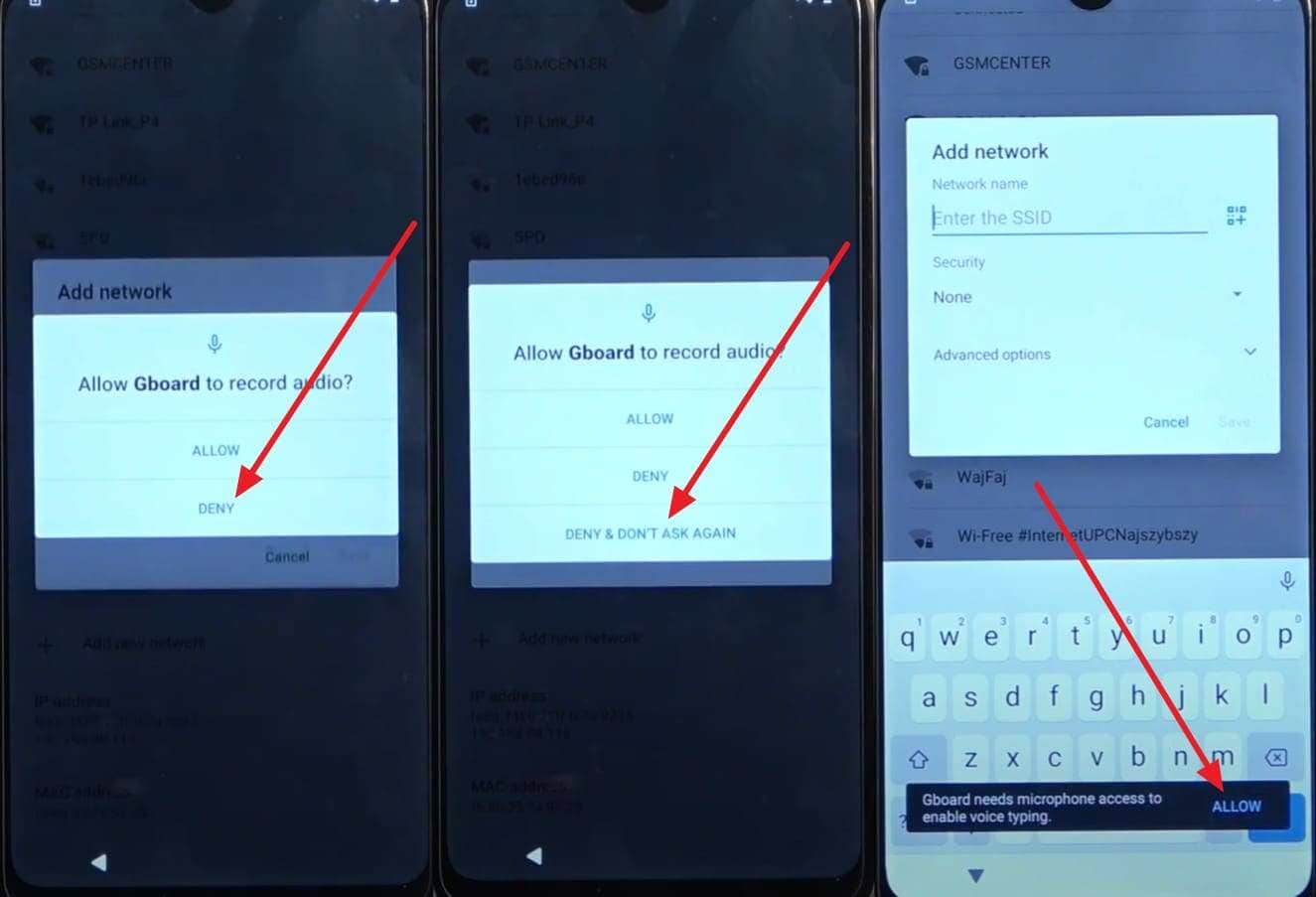
Step 2. Press the “Microphone” on the textbox now and choose the “Deny” option. Do the same action multiple times until you get the “Deny and Don’t Ask Again” option in the same pop-up menu. Press the microphone again and choose the “Allow” option in the popup.
Step 3. Go to “Permission” on the App Info screen, press the "Search" icon, and type “Settings.” Choose the “Open” option as you pick settings and navigate to the “App and Notifications > App Info” screen. Locate Google Play Services and choose to “Disable” and “Force Stop” the app.
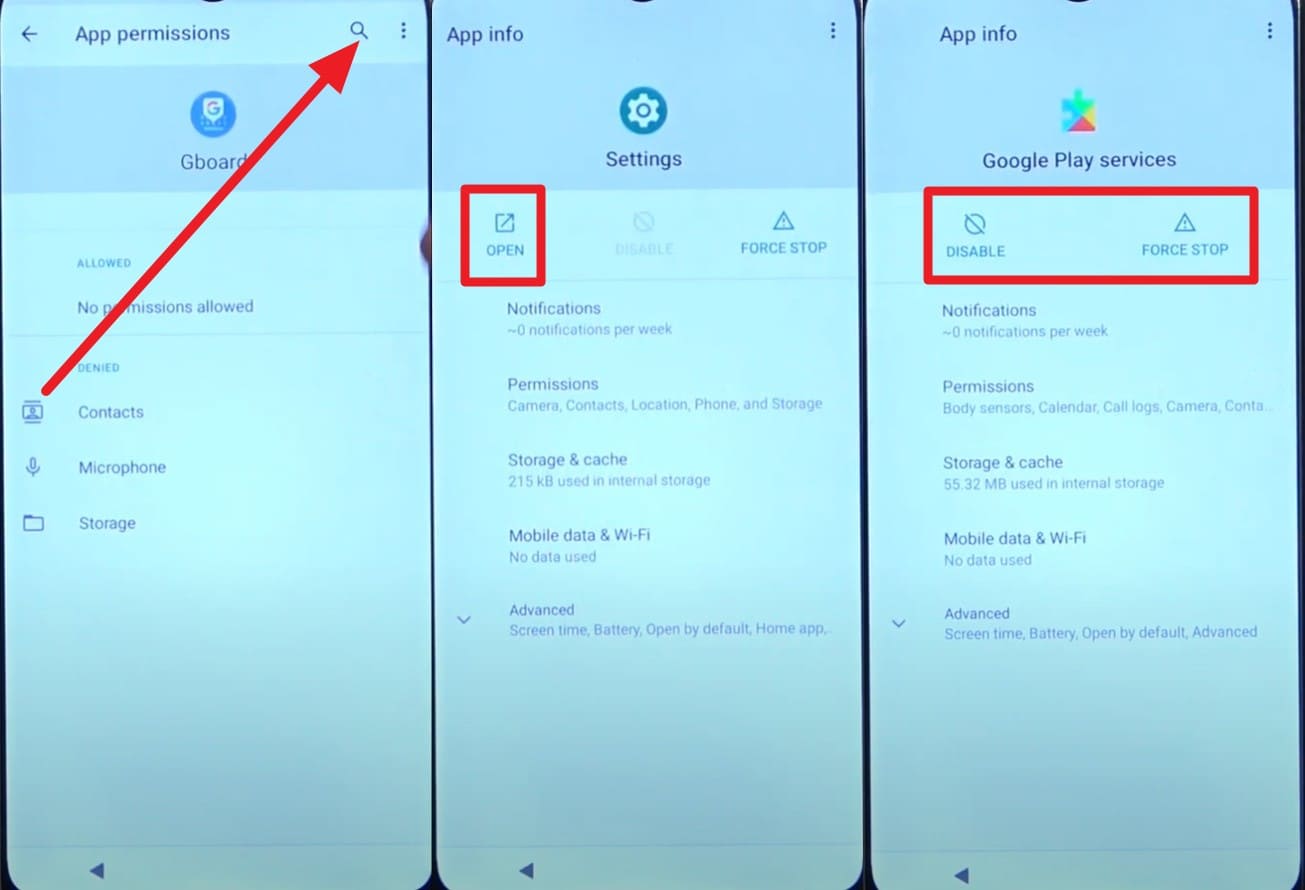
Step 4. Restart the phone now, and see if you have the “Set Up Offline” option enabled on the Wi-Fi connection interface. Now enable the Google Play Services by following the same directions and press the “Set Up Offline” option to choose “Continue.”
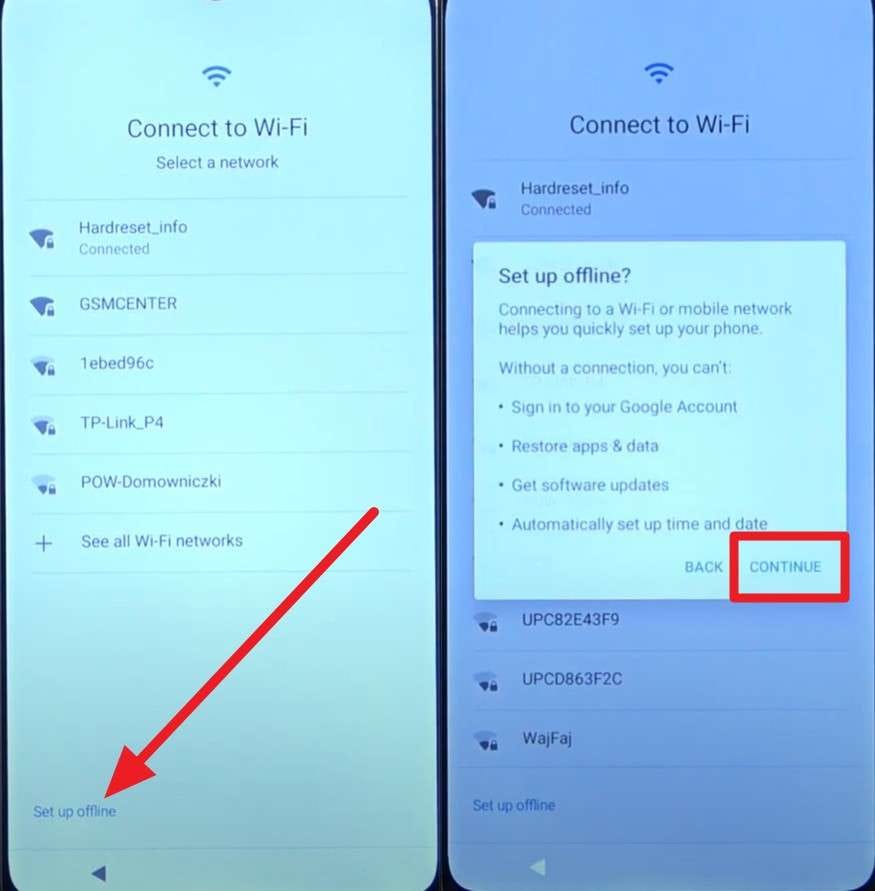
Step 5. As the progress bar ends, choose “More” and “Accept” options on the following screens and skip the PIN setup interface. Now choose the “Accept and Continue > Next > Next > Deny > Next” option to bypass FRP.
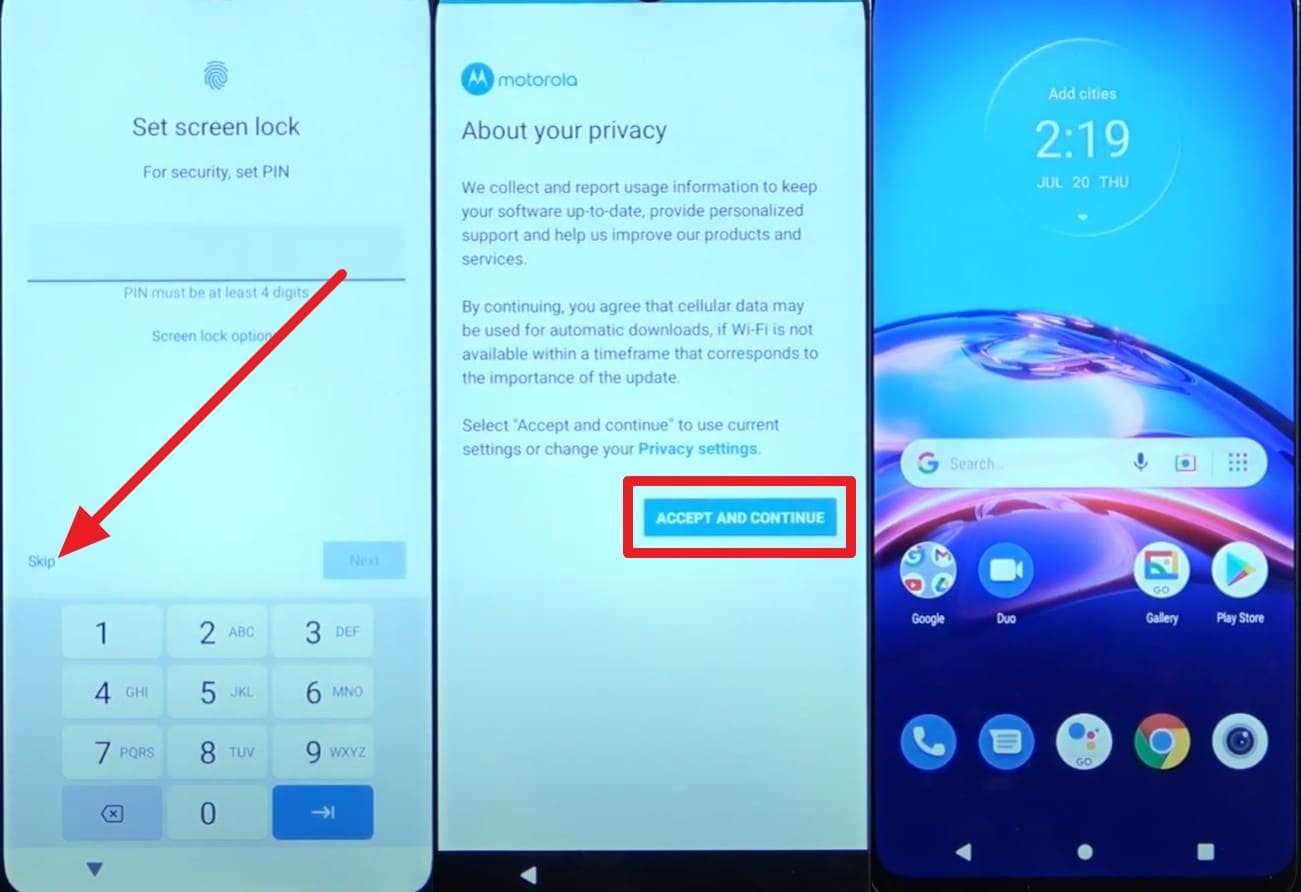
Note: Choose to erase all data as you bypass the FRP on Moto.
Part 4. How to Deactivate FRP Lock on Your Motorola
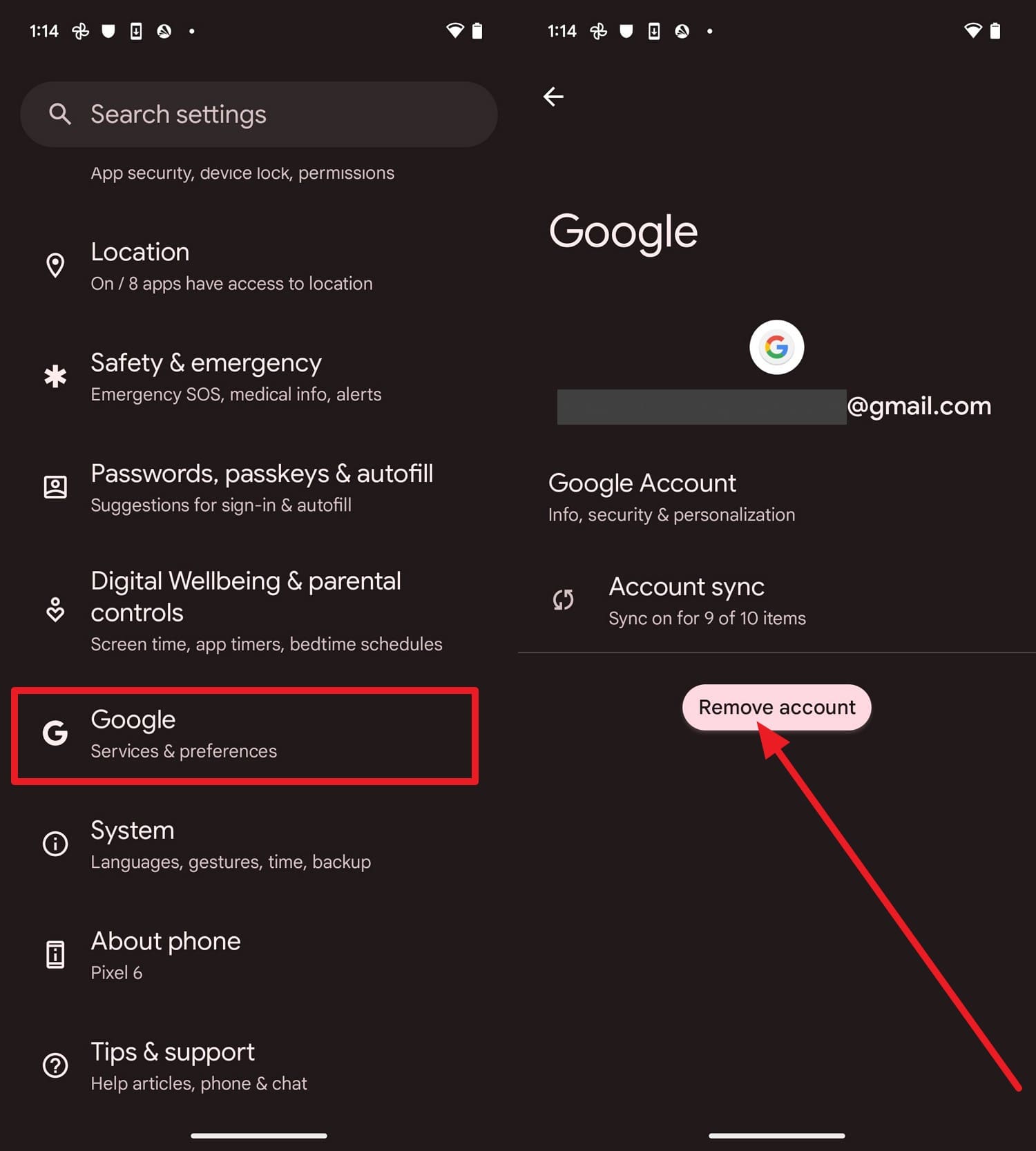
If you want to save the hassle of considering the ways for Moto G FRP bypass without PC, it's better to deactivate the FRP via the listed steps:
Instructions: In the “Accounts” settings, select the “Google” account, then choose the “Remove Account” option to confirm.
Conclusion
To sum up, this guide has introduced you to various ways for Motorola FRP bypass without a PC. Since these methods are just tricks and unreliable, usage of Dr.Fone - Screen Unlock (Android) solution is suggested as being safe and easier. It offers guided steps that help lawful owners complete FRP removal with fewer errors and more predictable results.
 safe & secure
4,624,541 people have downloaded it
FAQs
 Q1. Will my phone lose its warranty?Q2. Can FRP bypass damage the phone?Q3. Does mobile-based FRP bypass work on all Motorola models?


Motorola Manage
- Motorola Transfer
- 1. Download Pictures to PC
- 2. Transfer Motorola to Mac
- 3. Transfer Whatsapp from Moto to iOS
- 4. Transfer Music from Mac to Moto
- 5. Transfer WhatsApp from iOS to Moto
- Motorola Unlock
- 1. Unlock Motorola Without Factory Reset
- 2. Network Unlock Motorola One 5G Ace
- 3. Sim Unlock Moto G Phone
- 4. Unlock Moto Without Factory Reset
- 5. Unlock Motorola Bootloader
- 6. Bypass FRP Lock on Motorola
- 7. Reset Motorola Phone When Locked
- Motorola Repair
- 1. Motorola Won't Power On
- 2. Android App Not Installed Error
- 3. Black Screen of Death Error
- 4. Unbrick Android Phone
- 5. Encryption Unsuccessful Error
- 6. Stuck at Android System Recovery
- 7. Android Won't Turn On
- 8. Android Stuck on Boot Screen
- Motorola Tips
- 1. Turn Off a Motorola Phone
- 2. Mirror Motorola Screen to PC
- 3. Back up Motorola to PC
- 4. Control Motorola from PC
- 5. Format Motorola Phone in 2026
- 6. Reboot Any Motorola Phone
- 7. How to Screenshot on Motorola
- 8. Restart Any Motorola Phone
- 9. Motorola Phone Restore Guide
- 10. Set Up Voicemail on Motorola
- ● Manage/transfer/recover data
- ● Unlock screen/activate/FRP lock
- ● Fix most iOS and Android issues
- Free Download Free Download Free Download




James Davis
staff Editor