 Recover photos, messages, WhatsApp, and more — no backup
needed.
Recover photos, messages, WhatsApp, and more — no backup
needed.

 100% Security Verified | No Subscription Required | No Malware

 :
: 
 ChatGPT
 Perplexity
 Gemini
 Claude
 Grok
Grok
It happens to the best of us: you use Facebook normally for weeks, but suddenly you get logged out, switch to a new device, and realize you cannot remember your credentials. This moment hits millions of users and instantly triggers stress, prompting the urgent question: how do I find my Facebook password? The good news is that your smartphone, tablet, or web browser likely has a built-in vault that already stores your password securely.
Even if your device hasn't saved it, Facebook offers several trusted recovery and verification steps. In this comprehensive guide, we will explore exactly where to find saved passwords across different platforms. Furthermore, if you are an Apple user wondering how to seamlessly manage these logins, Dr.Fone - Password Manager (iOS) can securely scan, view, and export your saved Facebook credentials.
In this article
- Part 1. Can You Actually See Your Facebook Password? (Quick Clarification)
- Part 2. How to Check Your Facebook Password on Devices You've Used Before?
- Part 3. How to Log In to Facebook Without a Password?
- Part 4. Last Resort: Safely Reset Your Facebook Password
- Part 5. When to Contact Facebook Support
Part 1. Can You Actually See Your Facebook Password? (Quick Clarification)
To put it directly: Facebook does not show your actual password anywhere within its app or website once you set it. The social network stores your password in a protected, hashed format, meaning even Facebook administrators do not store a plain, readable copy of your credentials. You will only see options to enter your current password to create a new one. Therefore, there is no magical button to reveal the one you already set, nor is there a menu in Facebook settings that displays it.
However, if you are asking how to find my Facebook password, the answer lies within your hardware. Your phone or browser may store a saved copy and display it in your device's dedicated password manager. It is essential to understand that this copy comes strictly from your device's memory, not from Facebook's servers. If neither your browser nor your device saved it, you must reset it through Facebook's official recovery protocol.
Part 2. How to Check Your Facebook Password on Devices You've Used Before?
If you regularly question how do I find out my Facebook password, this section will provide clarity. Here, you will learn exactly how to access your passcode on Android, iOS, and computer platforms using both built-in features and innovative third-party methods.
2-1. On Android
Google Password Manager is an Android user's best friend. It can display the passwords you saved earlier after you unlock your device, allowing you to sign in on new phones, laptops, or browsers without resetting. Because Google handles complex passwords for you, it can autofill your Facebook details across apps. The saved password remains linked to your Google account.
Via Chrome App Settings
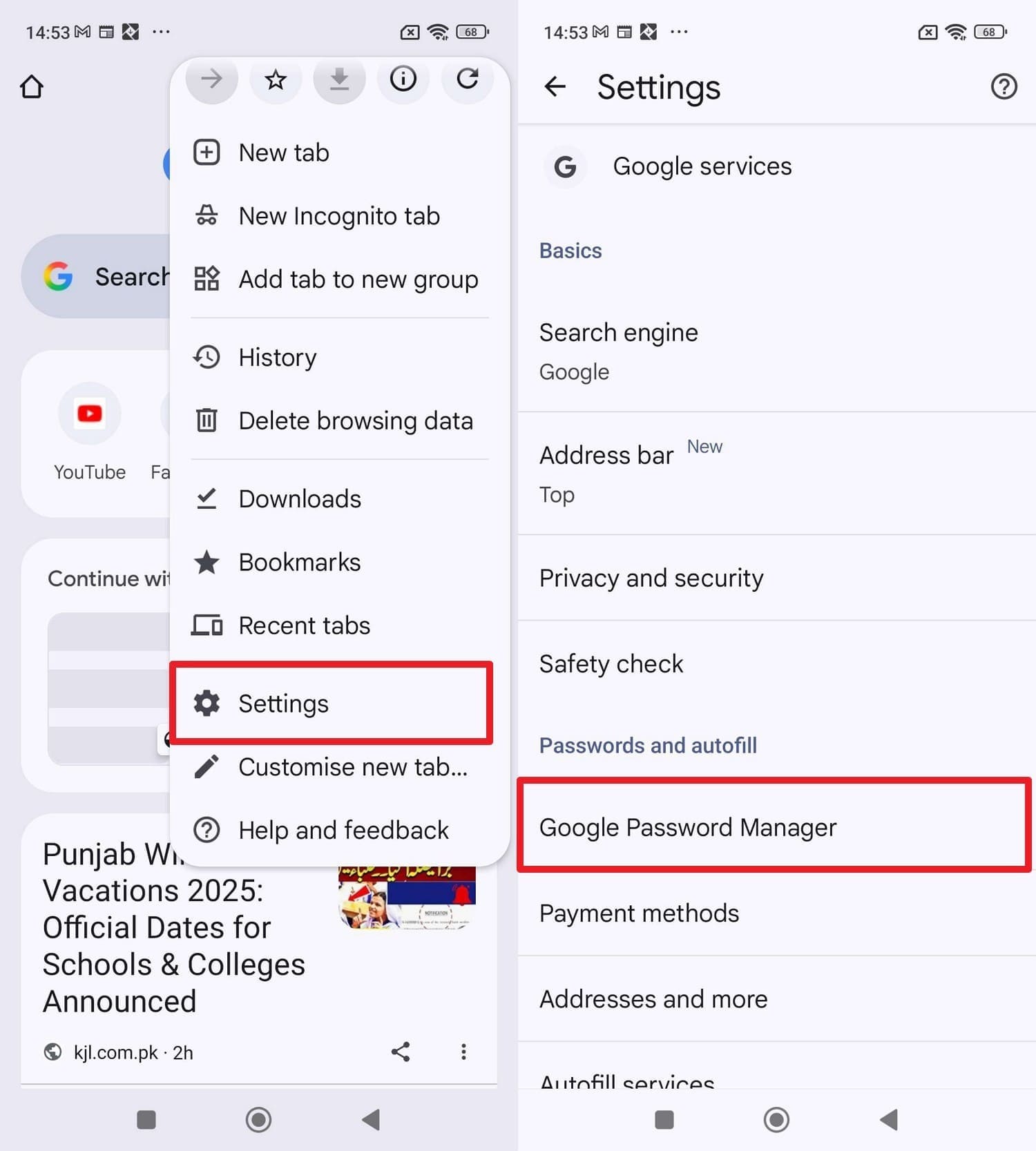
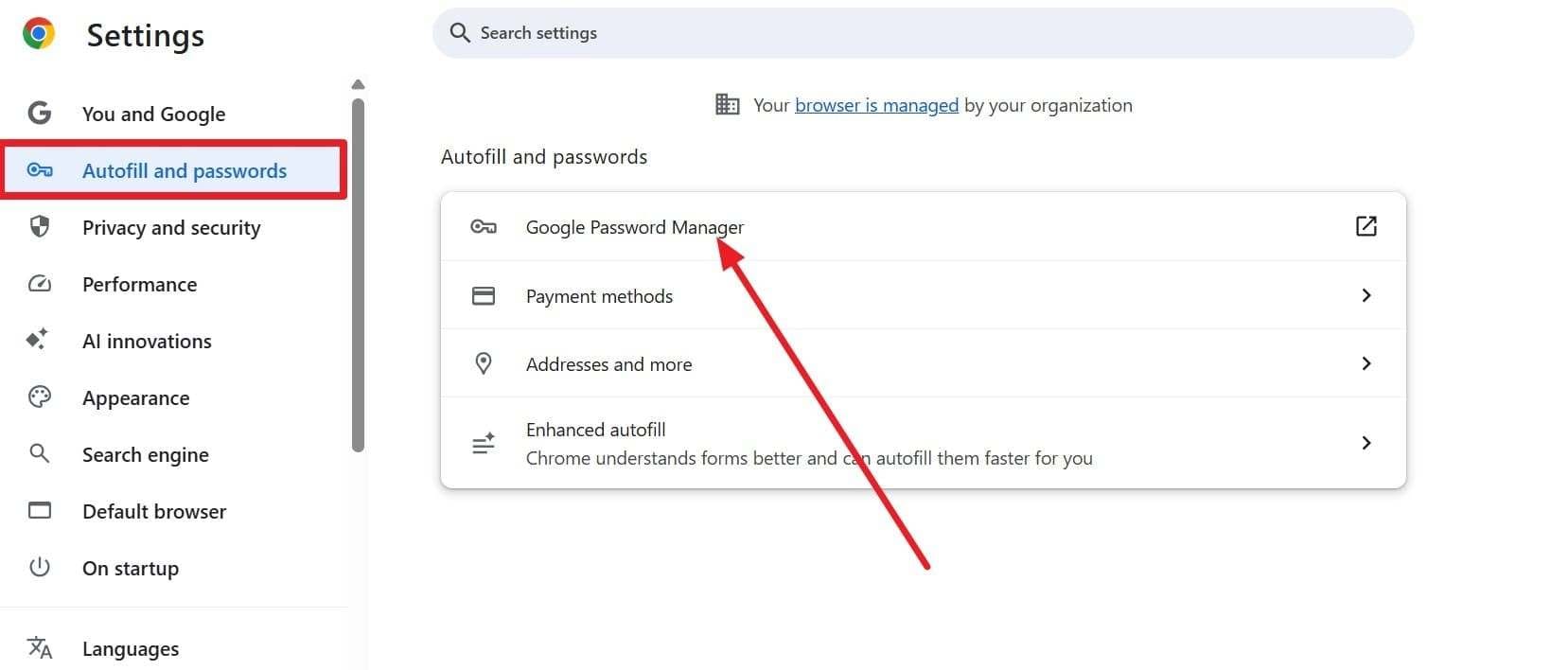
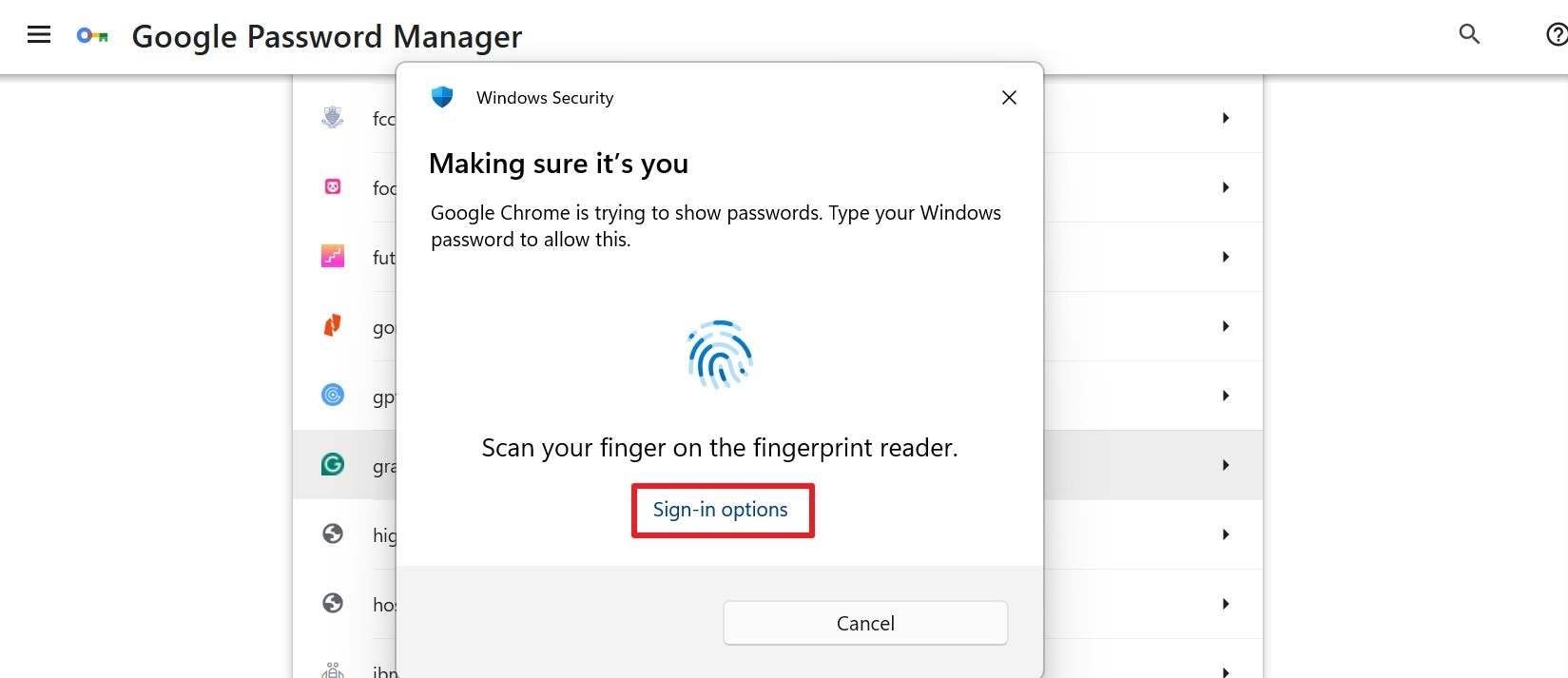
Tap the "Three Dots" icon in the Chrome app to choose the "Settings" option and pick "Google Password Manager." Find your Facebook credentials, tap to view them, and verify your identity using your PIN, pattern, or fingerprint.
Via Phone Settings
-
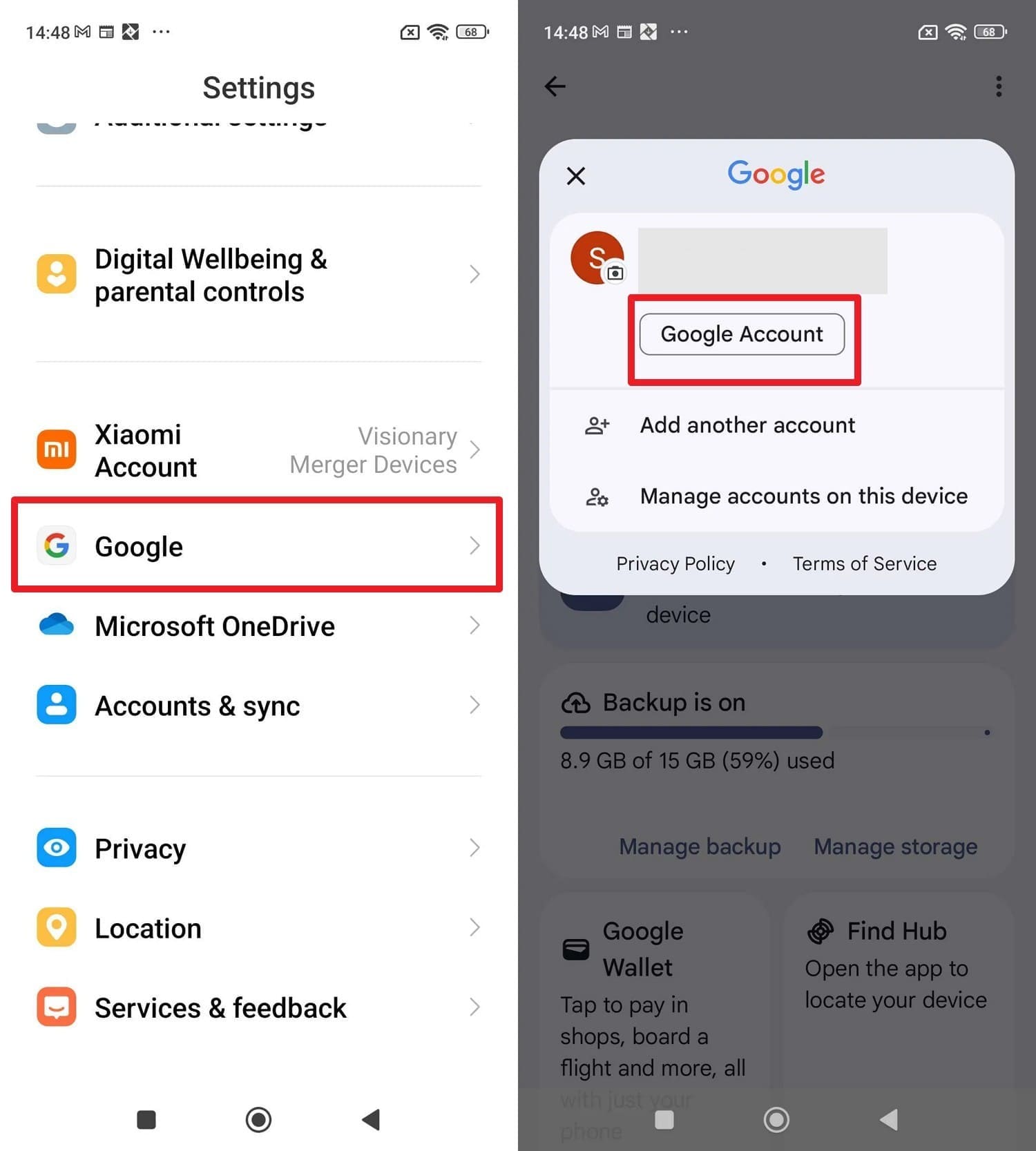
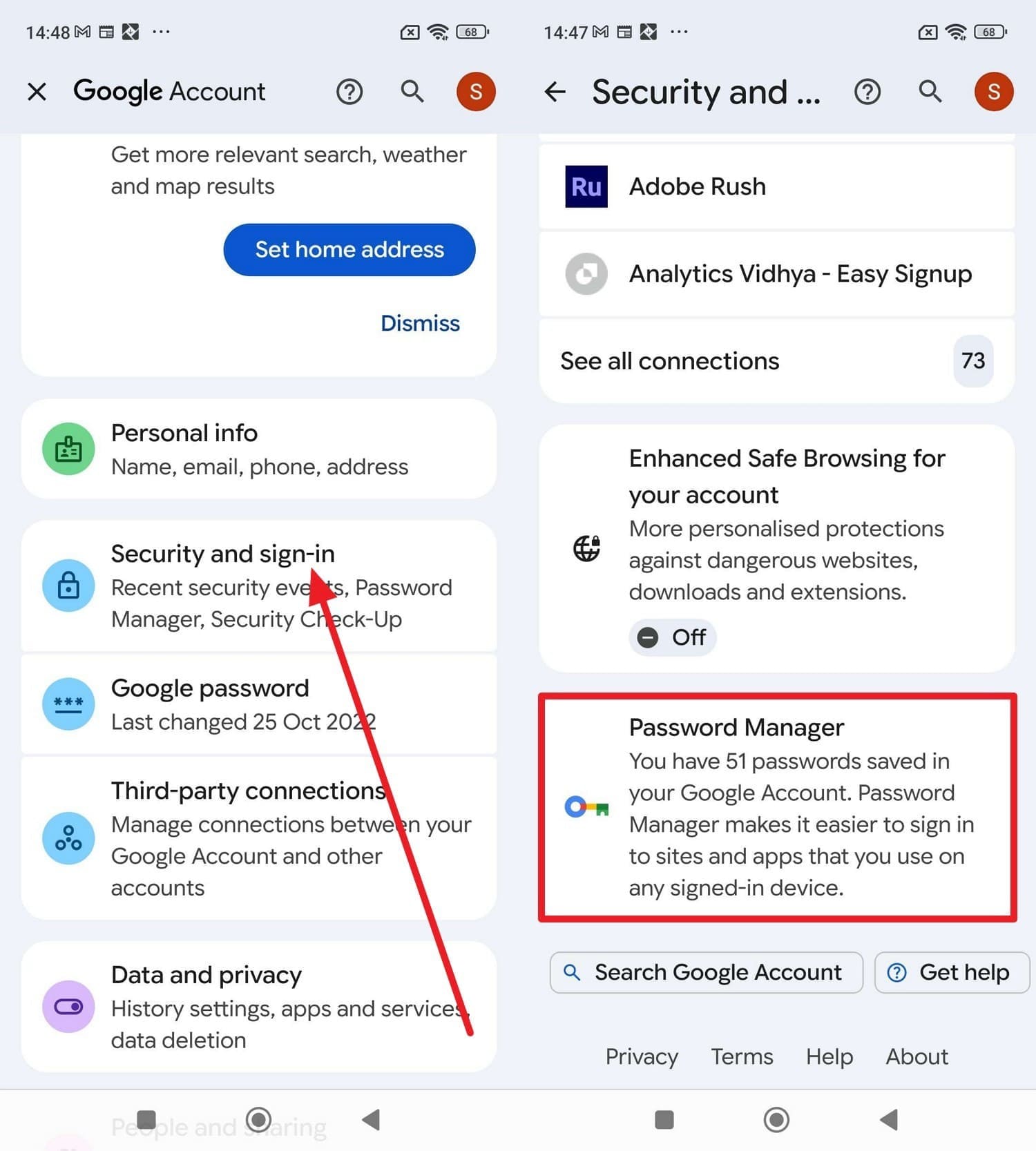
Step 1 Access Google Account
Go to your phone settings, choose "Google," and tap on the profile menu to select the "Manage your Google Account" option.
-
Step 2 Navigate to Password Manager
Locate the "Security" tab, scroll down to the bottom, and pick the "Password Manager" option.
-
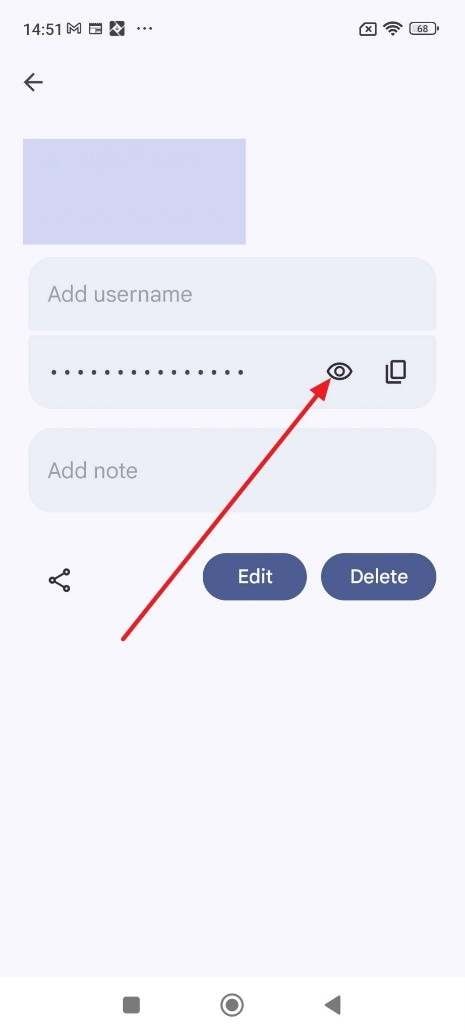
Step 3 Reveal Your Password
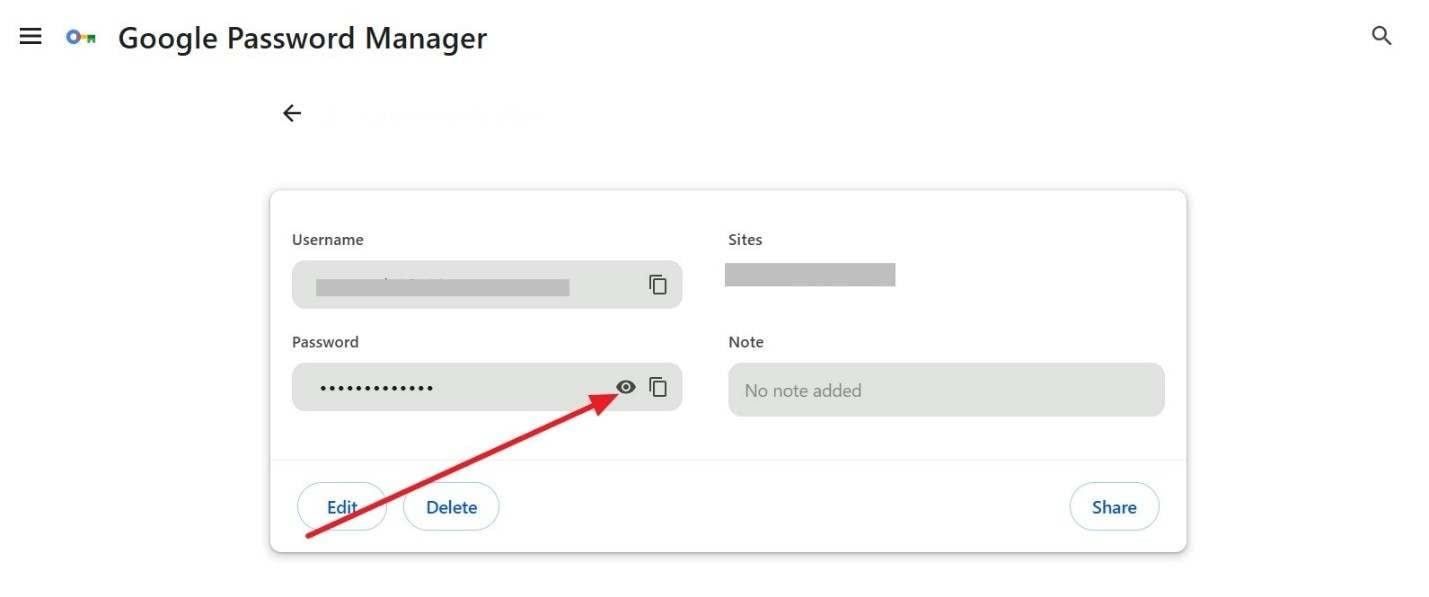
In the search list, tap Facebook.com. You will be prompted to enter your phone's PIN or use your fingerprint to unlock. Once accessed, tap the "Eye" icon to view your passcode so you can log into Facebook again.
2-2. On iPhone/iPad
Way 1. iCloud Keychain
For users wondering how can I find my Facebook password on an iPhone, iCloud Keychain provides a remarkably safe and integrated solution. This service securely syncs your login credentials across all Apple devices signed in with the same Apple ID.
-
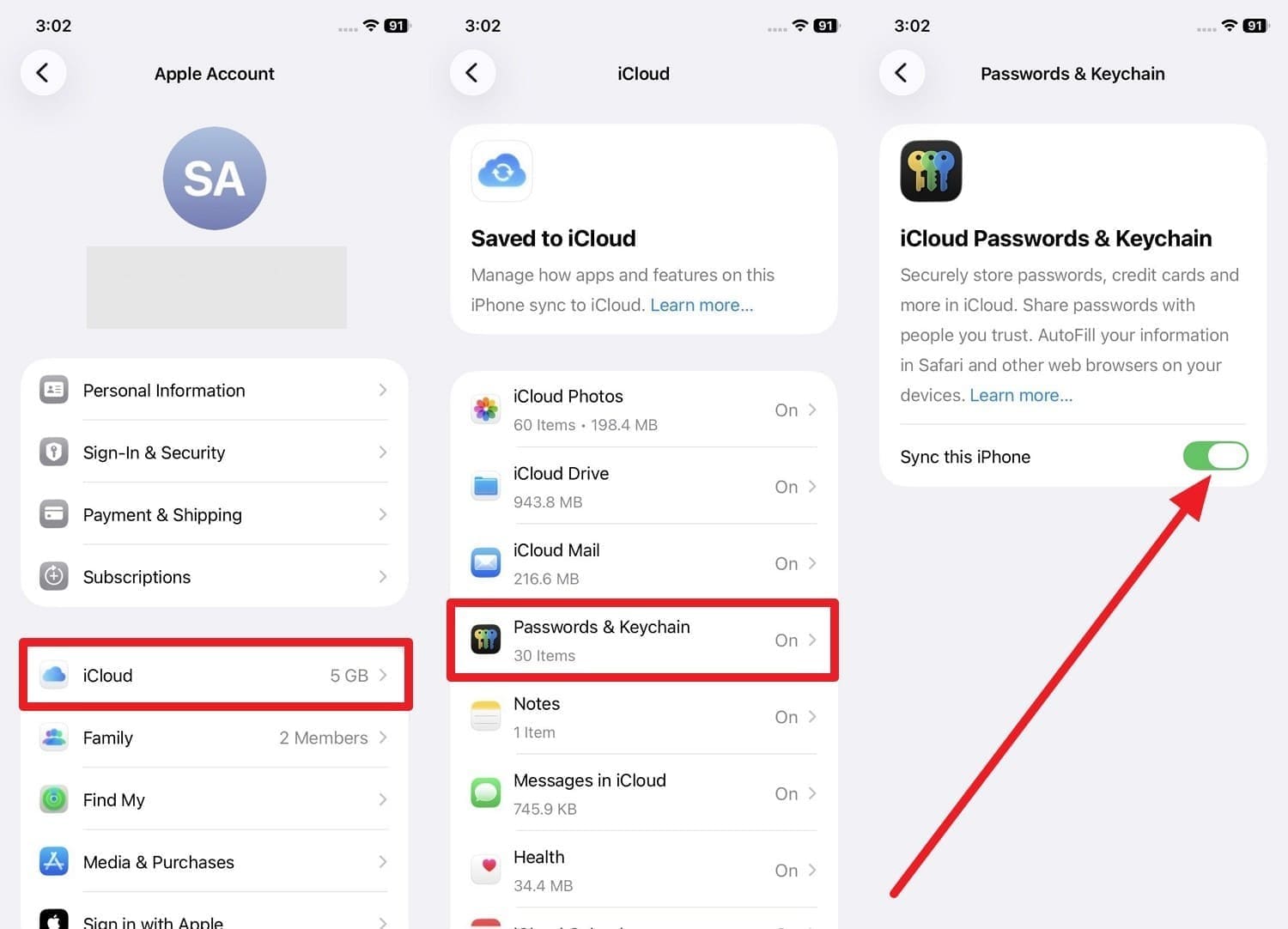
Step 1 Open iCloud Settings
Tap your "Profile" menu in the Settings app, choose the "iCloud" option, and press "Passwords & Keychain." Ensure "Sync This iPhone" is toggled on.
-
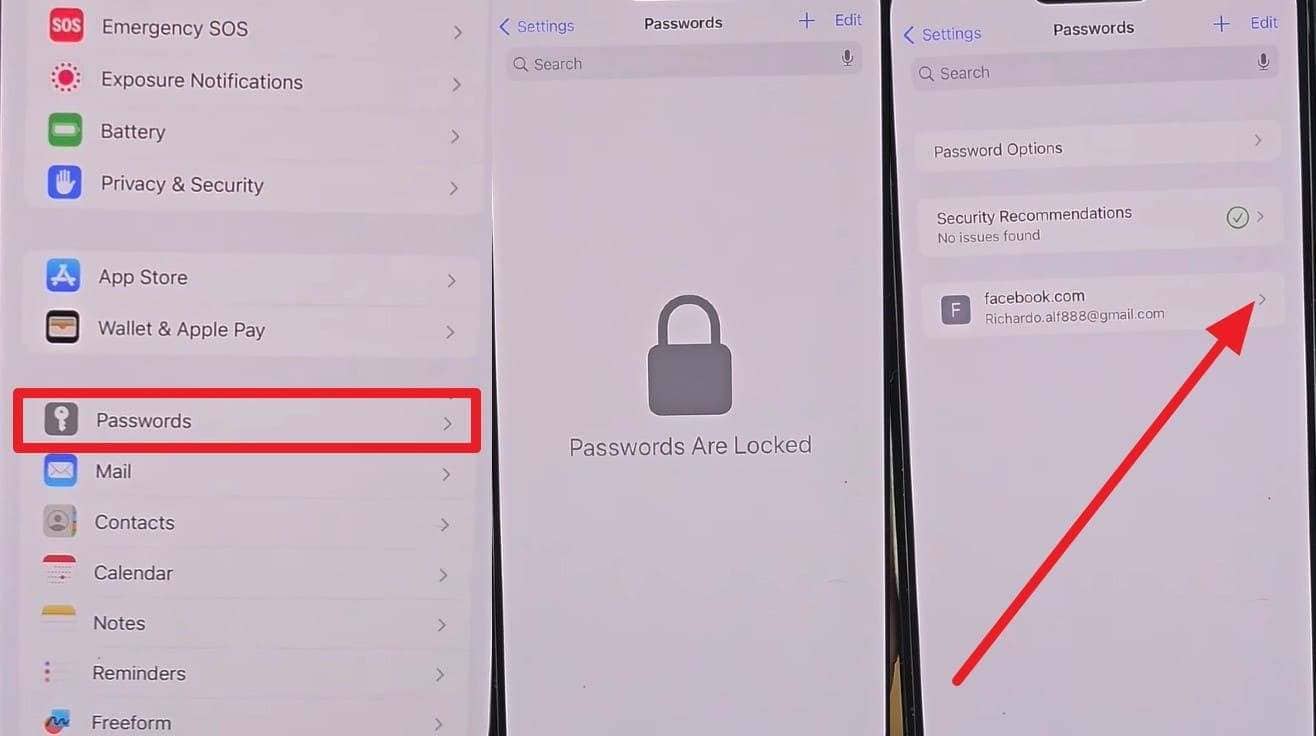
Step 2 View the Passcode
Navigate back to the main Settings menu, choose "Passwords," and confirm your Face ID or Touch ID. Locate the Facebook entry from the list and tap it to reveal the password.
Way 2. Safari Saved Passwords
This is a fast answer to how can I find my FB password. When you log into Facebook via Safari and opt to save the password, it deposits straight into iCloud Keychain. Thus, accessing it follows the exact same path (Settings > Passwords). Safari primarily acts as the auto-fill engine while Keychain acts as the vault.
Way 3. The New Passwords App (iOS 18+)
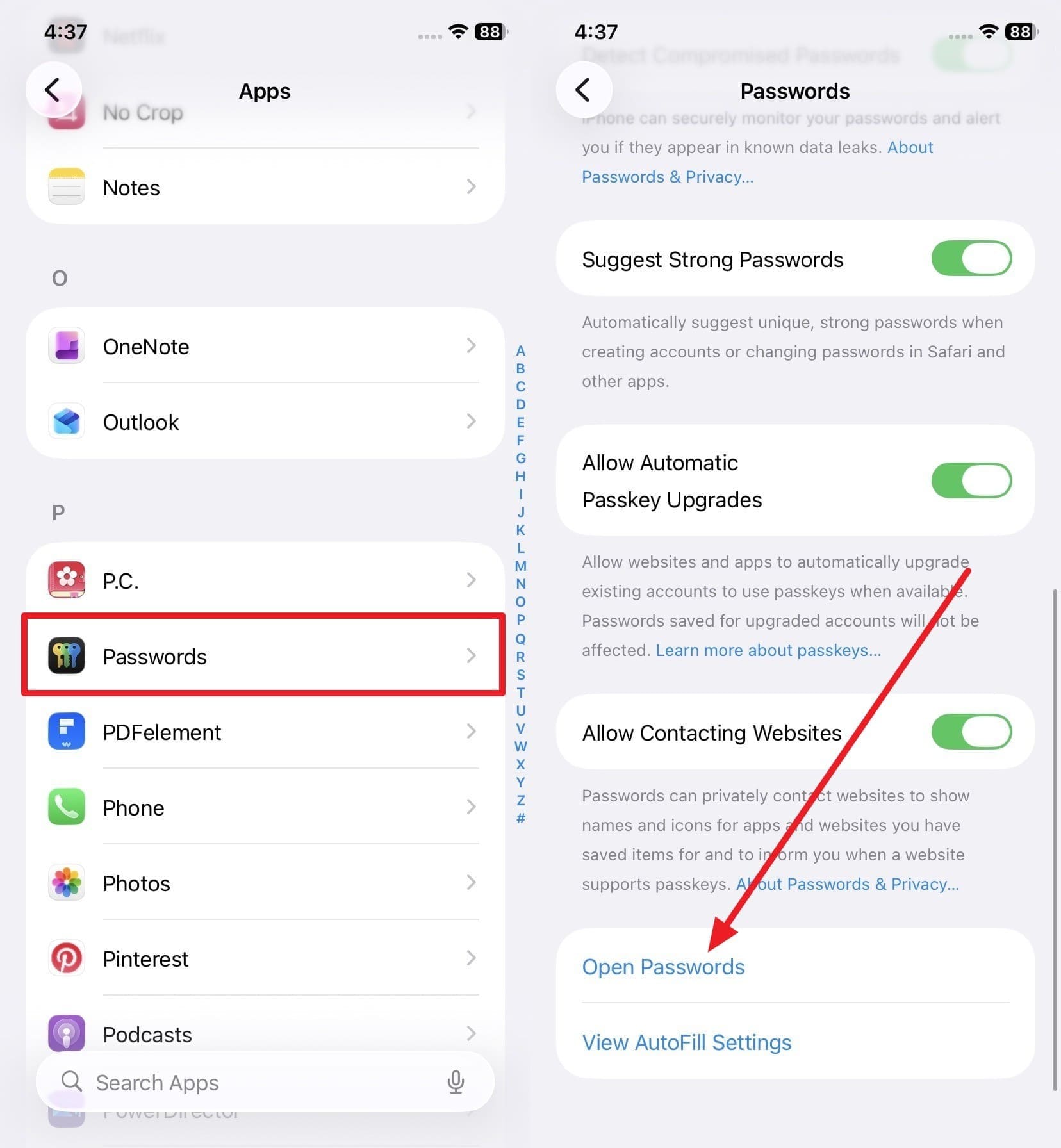
If you have upgraded and want to know how can I check my Facebook password on iOS 18 or later, Apple has introduced a standalone "Passwords" app. It displays the same Keychain data but organizes it much more intuitively.
-
Step 1 Open the App
Locate the "Passwords" app on your Home screen or App Library. Tap to open it.
-
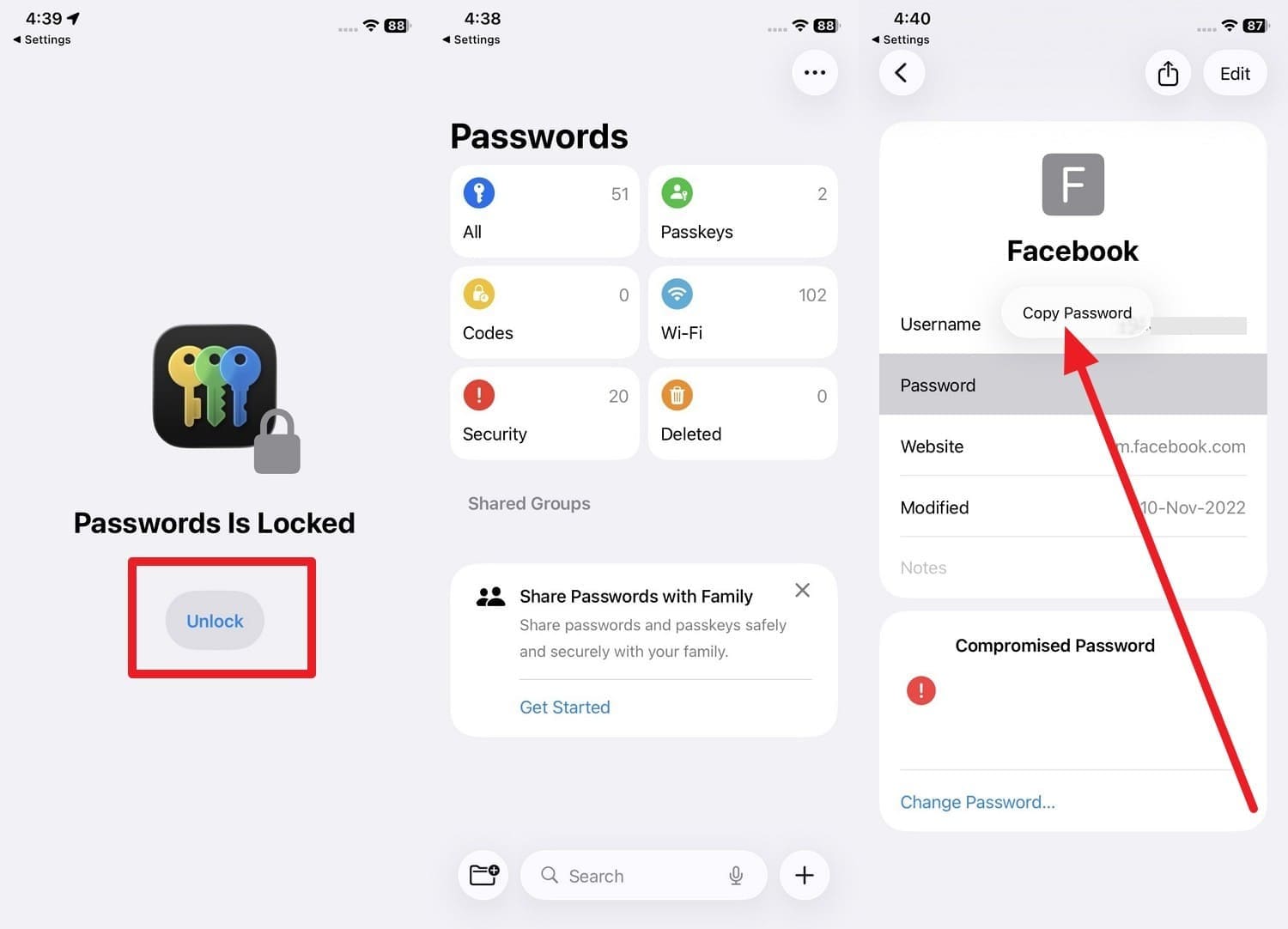
Step 2 Copy Your Credentials
Authenticate with Face ID, then select the "All" category. Scroll to find Facebook, tap the hidden password to reveal it, select "Copy Password," and paste it into your Facebook login screen.
Way 4. Dr.Fone - Password Manager (iOS)
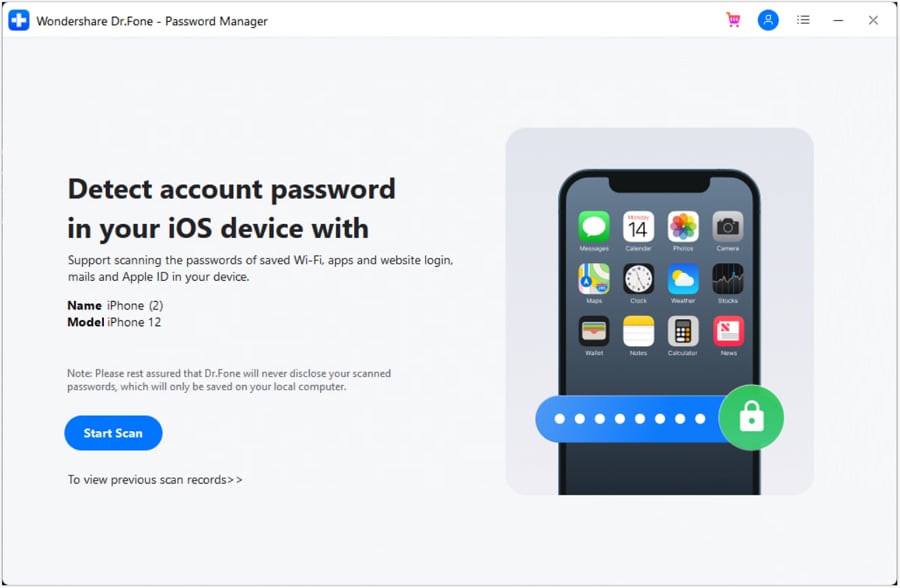
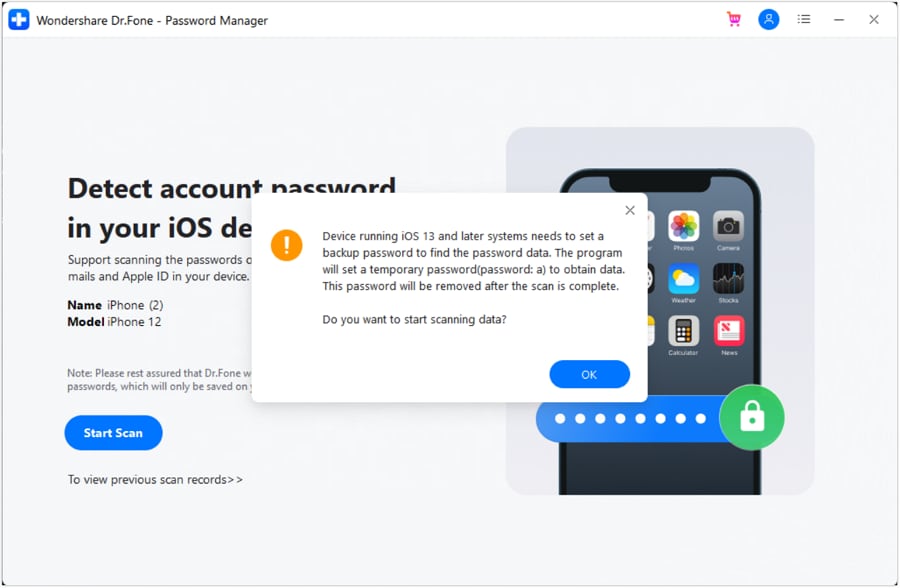
To avoid constantly asking how can I see my Facebook password when native methods act up, you can rely on Dr.Fone - Password Manager (iOS). This professional tool performs a rapid, secure scan of your iPhone or iPad when connected to a PC, comprehensively mapping out saved passwords that might be buried.
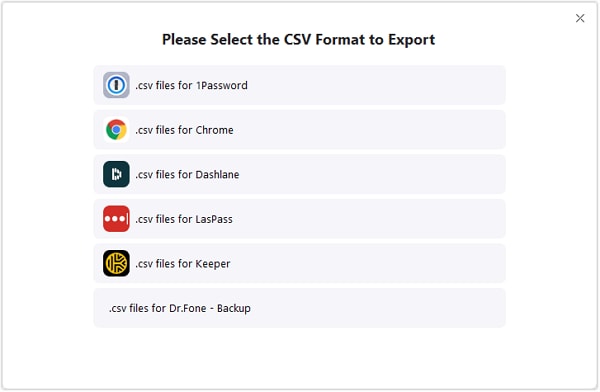
It easily categorizes website logins, Apple IDs, Wi-Fi connections, and application passcodes. More importantly, it allows you to export these credentials into a pristine CSV format, making it effortless to migrate your data to dedicated tools like 1Password, LastPass, or Keeper without losing a single account detail.
- Safely unlock and manage website passcodes, PINs, Apple IDs, and screen time passcodes.
- Operates strictly as a read-only scanner, ensuring zero data leakage or harm to your device.
- Streamlines password management for users with multiple social media and email accounts.
- Requires minimal storage space and operates without disruptive advertisements.




 Add Wondershare Dr.Fone as a preferred source on Google



