 Recover photos, messages, WhatsApp, and more — no backup
needed.
Recover photos, messages, WhatsApp, and more — no backup
needed.

 100% Security Verified | No Subscription Required | No Malware

 :
: 
 ChatGPT
 Perplexity
 Gemini
 Claude
 Grok
Grok
You open Instagram to scroll through your feed, reply to a direct message, or post a new Story, but instead of seeing your timeline, the app abruptly logs you out. There is no warning, and you are left wondering exactly what went wrong. Even worse, after logging back in, the issue happens again. A massive number of users are constantly searching, "why does Instagram keep logging me out?" This frustrating loop can completely disrupt your daily communication or workflow.
In 2026, due to Meta's increasingly strict security algorithms, software bugs, unstable network connectivity, or automatic background security checks, Instagram may sign you out immediately to protect your data. If you are tired of facing multiple logouts, we have compiled the most effective troubleshooting steps.

This comprehensive guide will cover the most common reasons why Instagram logs you out and suggest powerful, simple solutions—like using Dr.Fone - Password Manager (iOS) to keep your credentials safe. Follow our step-by-step checklist to permanently fix the issue.
In this article
- Part 1. Quick Troubleshooting Checklist: The "First Aid" Kit
- Part 2. Why Does Instagram Keep Logging Me Out? Detailed Diagnosis & Fixes
- Reason 1. You're Logged In on Too Many Devices
- Reason 2. Corrupted App Cache or Software Bug
- Reason 3. Unstable or Changing Internet Connection
- Reason 4. VPN or Proxy Confuses Instagram's Security
- Reason 5. Third-Party Apps Connected to Your Account
- Reason 6. Instagram Detected Suspicious Activity
- Reason 7. Your Instagram Account May Be Compromised
- Reason 8. Global Instagram Server Issues or Outages
- Reason 9. Violations of Instagram's Terms of Service
- Part 3. Summary: Quick-Reference Fix Table
- Bonus Tip: Stop Getting Locked Out of Instagram — Use Dr.Fone
- FAQs
Part 1. Quick Troubleshooting Checklist: The "First Aid" Kit
Before diving into complex settings, start by trying these fundamental fixes. Often, the answer to "why did Instagram log me out" is a minor, temporary software glitch that can be solved in seconds.
1. Force close and reopen the app
Apps running in the background for too long can freeze or accumulate broken session data. It is always best to force close and completely reopen Instagram. This hard reset often clears random login glitches and syncs the app properly.
2. Restart Your Phone
A simple restart resolves deeper temporary system issues that heavily affect mobile apps. Quick reboots clear the device's RAM, update background processing modules, and force your phone to reconnect to network services seamlessly.
3. Check for App Updates
Using older, deprecated Instagram versions frequently creates incompatibility bugs with Meta's new servers. Open the App Store (for iPhone) or Google Play Store (for Android) and check for pending updates. Installing the newest version patches known bugs causing random logouts.
4. Verify the Instagram Server Status
The problem isn't always on your personal device. To troubleshoot what is causing Instagram to force close repeatedly, make sure to check platforms like Downdetector to see if there is widespread Instagram downtime globally.
Part 2. Why Does Instagram Keep Logging Me Out? Detailed Diagnosis & Fixes
If quick troubleshooting fails, the issue is likely tied to deeper security algorithms or corrupted data. Let's break down the most prominent answers to the question "why does my Instagram keep logging me out" and explore dedicated fixes for each scenario.
Reason 1. You're Logged In on Too Many Devices
Instagram actively prevents misuse by heavily monitoring concurrent logins. Having active sessions on an iPhone, an iPad, a desktop browser, and potentially a friend's phone simultaneously can easily trigger an automatic logout. Instagram does this to secure accounts and instantly prevent unauthorized access from overlapping locations.
-
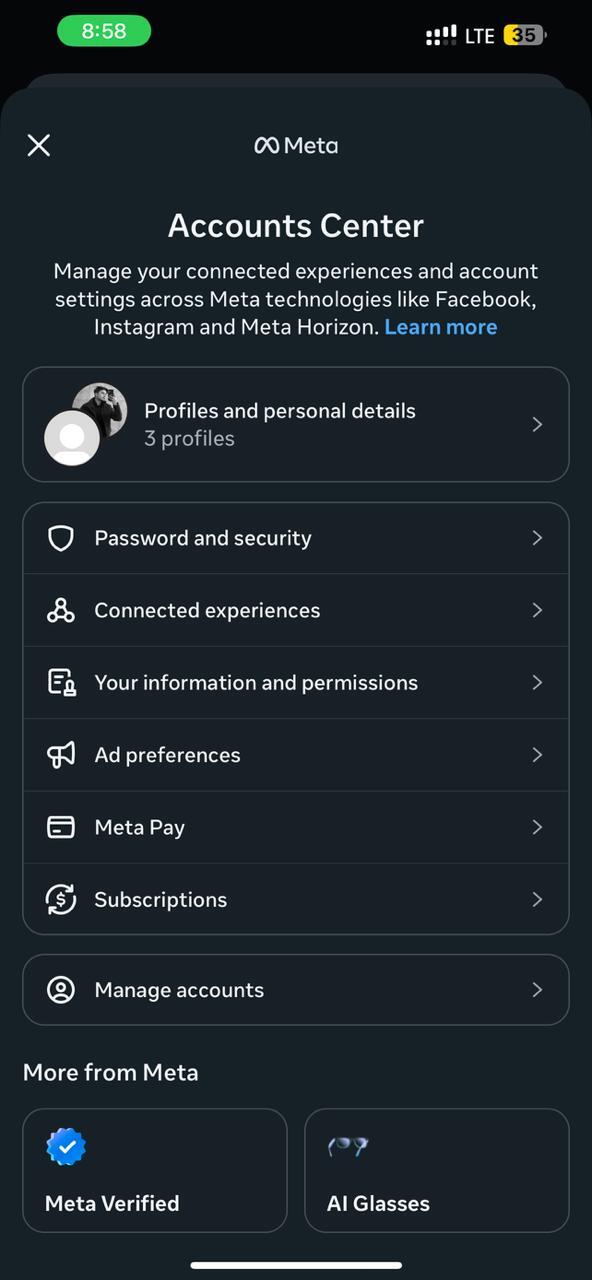
Step 1 Access the Accounts Center
Open the Instagram app and navigate to your Profile. Tap the Menu (three horizontal lines) in the top right corner. Go to Settings and Activity, then tap on Accounts Center.
-
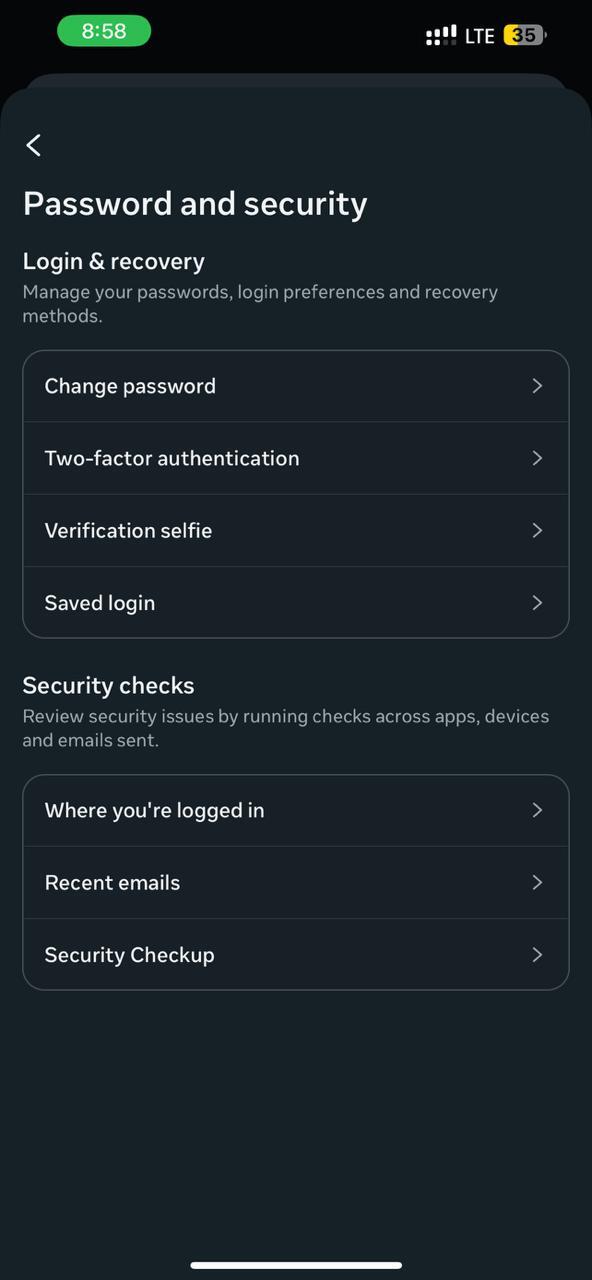
Step 2 Locate Active Logins
Inside Accounts Center, select Password and Security, followed by the "Where You're Logged In" option.
-
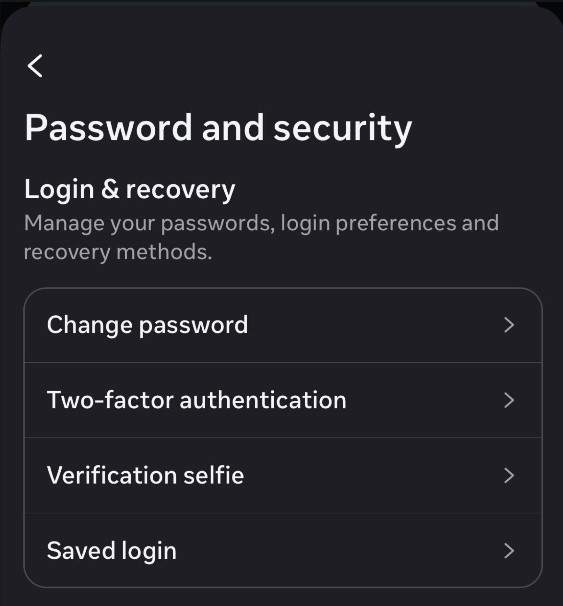
Step 3 Remove Unused Devices
Carefully review all active sessions listed. Remove any devices you no longer recognize or use. After cleaning this list, log in again only on your primary smartphone.

Reason 2. Corrupted App Cache or Software Bug
A damaged, bloated app cache or a transitory software problem is one of the most popular technical responses to "Instagram keeps logging me out." Cache data helps apps load high-resolution content faster, but files may become outdated or corrupted over time. Furthermore, a lingering bug in a specific Instagram version upgrade might reset login session tokens unexpectedly.
Fix for Android
-
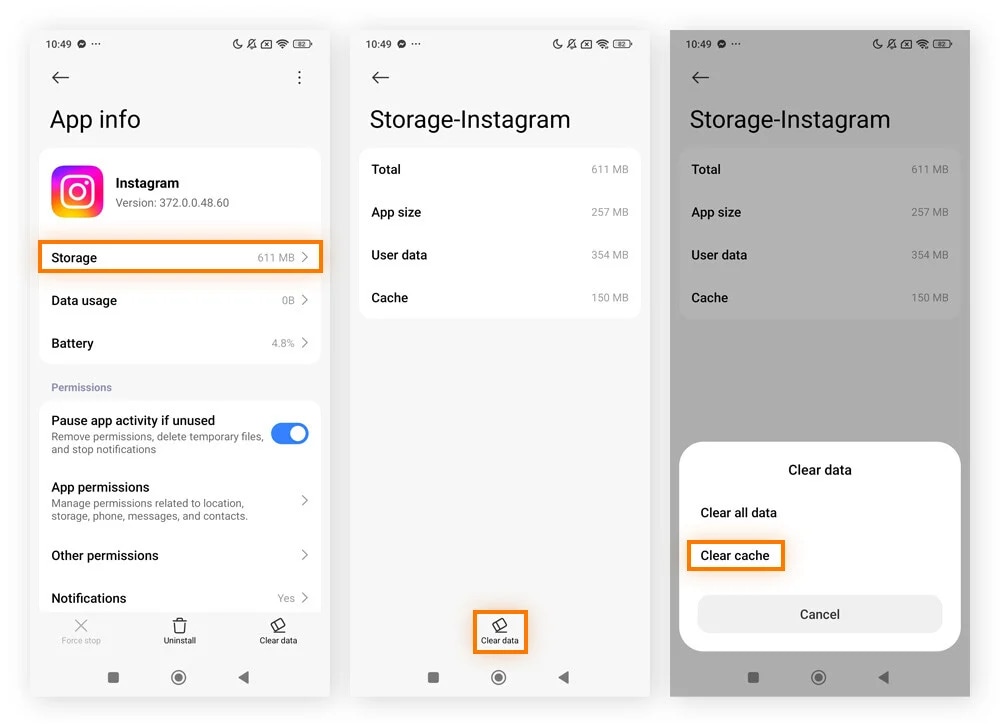
Step 1 Open App Settings
Navigate to Settings on your Android phone and tap on Apps.
-
Step 2 Find Instagram Storage
Select Instagram from the list of applications, then tap on Storage.
-
Step 3 Clear Data Cache
Choose Clear Cache at the bottom of the screen. This safely removes temporary junk files without deleting your personal account data. Restart the app.
Fix for iPhone
Because iOS natively restricts direct app cache clearing from settings, the ultimate solution is to perform a fresh installation.
-
Step 1 Delete the App
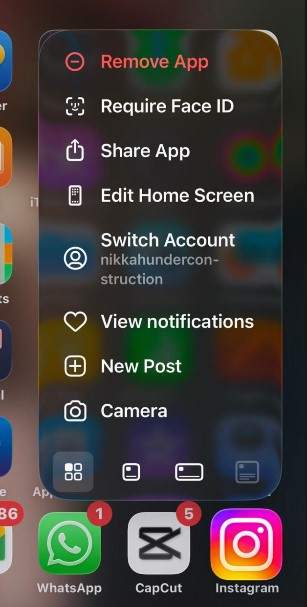
Press and hold the Instagram app icon on your iOS home screen, then tap Remove App and confirm deletion.
-
Step 2 Reinstall from App Store
Navigate to the Apple App Store, search for Instagram, and download the latest secure version.
Reason 3. Unstable or Changing Internet Connection
A severely poor or highly fluctuating internet connection can force the app to abruptly drop your active session. Instagram constantly communicates with backend servers. If your IP address changes frequently (for example, constantly switching between Wi-Fi and 5G), the security protocol may terminate the session assuming your connection is being hijacked.
- Switch to a stable, single network connection (preferably a strong Wi-Fi network).
- Restart your home router to clear any localized ISP caching issues.
- Toggle Airplane Mode on for 10 seconds, then turn it off to refresh your cellular towers.
- Log back into the Instagram app carefully.
Reason 4. VPN or Proxy Confuses Instagram's Security
VPNs and proxy servers are designed to mask your real IP address and digital location. Because your device might bounce between different server locations rapidly while a VPN is active, Instagram's rigid security system immediately flags this as a potential brute-force attack. Consequently, this causes strict login verifications and random account logouts.
To resolve this: Turn off your active VPN application completely, log out of Instagram, force close the app, and then reopen it using your default internet service provider.
Reason 5. Third-Party Apps Connected to Your Account
Many Instagram users link third-party tools for content scheduling, analytics tracking, and automated follower growth. However, some of these tools abuse Instagram's API limit. If a connected app overloads Meta's servers with rapid requests, the core system will deliberately lock you out to protect database integrity. This is notoriously common with free follower bots or auto-liking services.
-
Step 1 Access Website Permissions
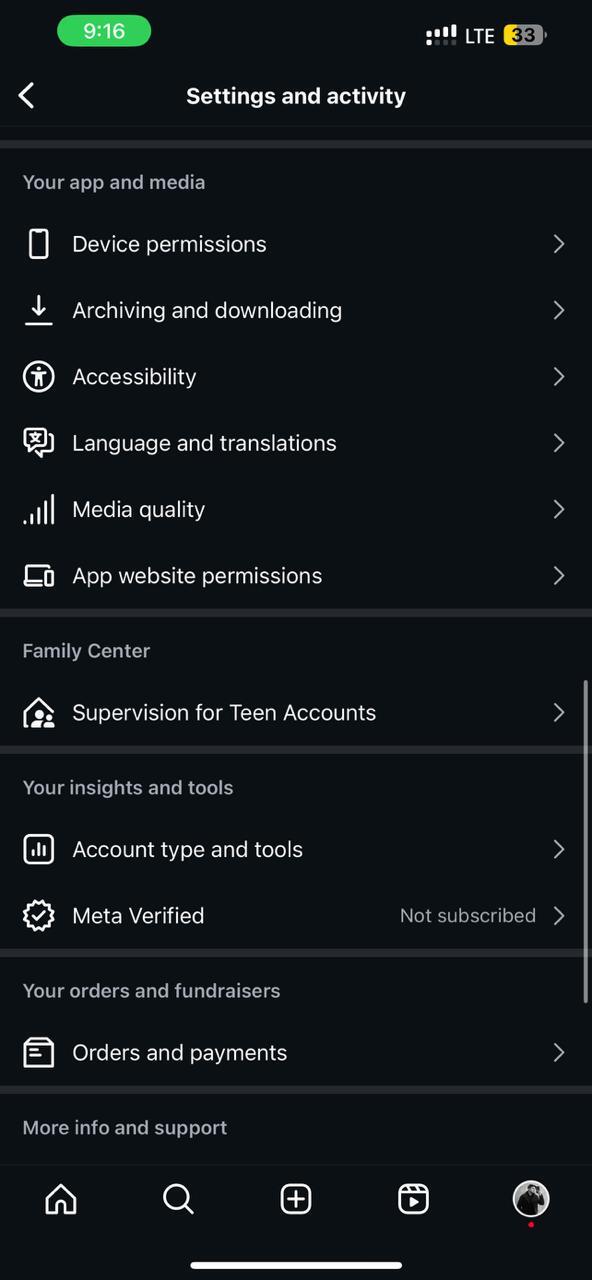
Open Instagram Settings and Activity, then scroll down to the "Your app and media" section. Tap on "Apps website permission."
-
Step 2 Revoke Unauthorized Access
Review the list of connected services. Tap to remove any suspicious apps or tools you no longer use.
-
Step 3 Secure the Account
Immediately change your Instagram password to permanently invalidate those third-party access tokens, then log back in.
Reason 6. Instagram Detected Suspicious Activity
Instagram deploys AI-driven bots to scan accounts for anomalous behavior continuously. Sudden rapid logins, drastic geographical IP shifts, or spamming comments will inevitably trigger automated security mechanisms. To verify account ownership and prevent spam, Instagram temporarily locks you out.
You can identify this if you receive a login verification text, a security email alert directly from Meta, or an in-app prompt demanding identity confirmation. Simply check your registered email address, comply strictly with the on-screen verification instructions, change your password, and activate 2FA.
Reason 7. Your Instagram Account May Be Compromised
If a malicious actor has unfortunately gained access to your credentials, Instagram might log you out simultaneously to protect your private data once competing logins clash.
-
Step 1 Initiate Recovery
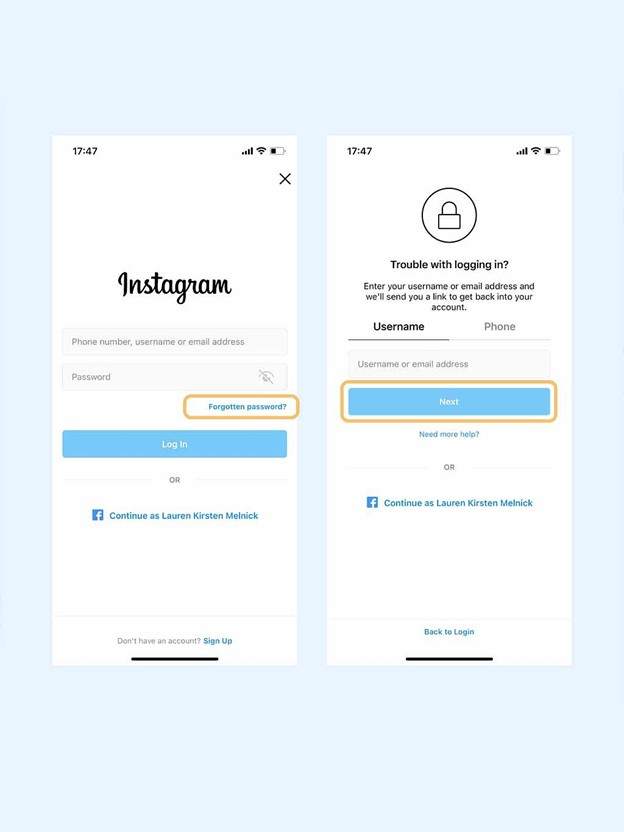
Go directly to the Instagram login page and tap "Forgot Password."
-
Step 2 Reset Credentials
Reset your password securely using your trusted recovery email or linked phone number.
-
Step 3 Purge Attackers
Once logged in, navigate to Login Activity, remove any completely unknown device sessions, and immediately set up 2FA.
Reason 8. Global Instagram Server Issues or Outages
Sometimes, the "why did Instagram log me out" dilemma has absolutely nothing to do with your device. Meta's massive cloud servers can occasionally malfunction or go offline for emergency maintenance. Widespread, unexpected logouts happen frequently during these regional or global outages. Check Downdetector to see if thousands of other users are reporting the same issue. If it's a server crash, you must patiently wait a few hours until the engineering team resolves it.
Reason 9. Violations of Instagram's Terms of Service
Instagram actively shadowbans and restricts users who blatantly violate community guidelines. Utilizing prohibited automation scripts, engaging in aggressive comment spamming, or adopting artificial growth tactics will trigger account penalties. This forces a hard logout and requires you to re-authenticate and acknowledge a restriction warning.
Stop using any automation extensions, carefully review the community guidelines, and submit a manual appeal via the Help Center if you believe the restriction was a false positive.
Part 3. Summary: Quick-Reference Fix Table
To help you rapidly diagnose and fix your specific issue, use this quick-reference troubleshooting table below.
| Core Cause | Key Identifying Symptom | Recommended Quick Fix |
|---|---|---|
| Too many device sessions | Logged out instantly when switching devices | Review and purge inactive sessions in Login Activity |
| App cache error or software bug | Random logouts with absolutely no clear pattern | Clear cache (Android) or fresh reinstall the app (iPhone) |
| Unstable internet connection | Logouts strictly when Wi-Fi/Cellular connection drops | Switch to a stable, single network or reset network settings |
| Active VPN or proxy masking | Logouts happen only when the VPN app is actively running | Disable the VPN service and utilize a direct ISP server |
| Unauthorized Third-party apps | Logouts follow aggressive bot or automation activity | Remove all unrecognized app access in Website Permissions |
| Flagged Suspicious activity | Received an automated security email from Instagram | Update password immediately and enable 2FA verification |
| Account compromised/Hacked | Completely unable to log back in using old passwords | Use the official "Forgot Password" recovery pipeline |
| Global Instagram server outage | Thousands of users report the issue simultaneously | Wait patiently and monitor Downdetector status |
| TOS / Policy violation | Received an in-app restriction or warning notice | Halt automation and request a review via the Help Center |
Bonus Tip: Stop Getting Locked Out of Instagram — Use Dr.Fone Password Manager
Many users frantically ask, "why does Instagram keep logging me out?" when the root problem actually stems from persistent password input mistakes. If you frequently forget your credentials or repeatedly type the wrong password, Instagram's security firewall will deliberately lock you out to block brute-force attacks.
Managing dozens of distinct passwords for various apps, banking portals, and social media is incredibly difficult. Relying on the same generic password everywhere creates a severe security vulnerability. A dedicated password manager permanently fixes this issue by securely encrypting and seamlessly auto-filling your exact credentials.
Dr.Fone - Password Manager (iOS) is one of the most reliable and trusted solutions available. This powerful software scans and extracts deeply hidden iPhone and iPad passwords securely onto your computer. It perfectly retrieves Wi-Fi passwords, app logins, website credentials, email accounts, screen time passcodes, and Apple ID data. With everything consolidated in one highly secure vault, you can easily pull up your exact Instagram password, preventing login loops entirely.
Additionally, the utility allows you to export your credentials cleanly as a CSV file, enabling you to back up your data or migrate to other platforms. This absolutely ensures secure account access and permanently prevents you from getting locked out of your favorite platforms due to memory lapses.
How to Export and Manage Passwords on iOS
- Download and install Wondershare Dr.Fone on your computer.
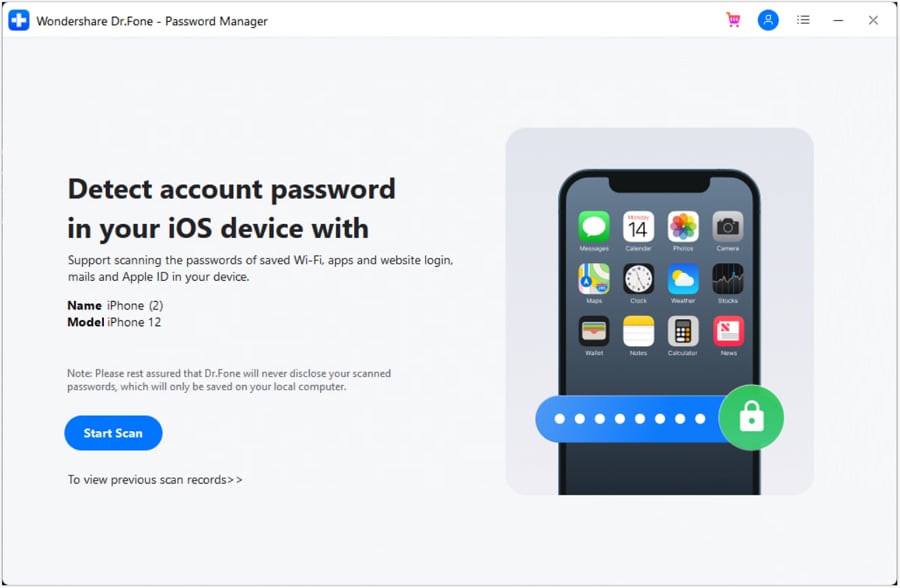
- Connect your iPhone and navigate to the "Toolbox > Password Manager" module.
- Click "Start Scan" and allow the software to safely analyze the device.
- Once the scan finishes, your saved Instagram passwords (along with others) will be categorized clearly on the screen.
- Click "Export" at the bottom right corner to save your critical credentials as a secure CSV file.




Conclusion
Experiencing sudden and unexpected logouts on Instagram is highly disruptive, but it generally traces back to rigorous security checks, outdated app bugs, network inconsistencies, or overloaded multi-device sessions. In most minor instances, users can resolve the issue within minutes by manually clearing the app's cache, deleting unknown active sessions, or simply restarting their network hardware.
However, if these foundational methods remain ineffective and the app continues to force close, applying advanced solutions like purging third-party apps, changing passwords, and enabling two-factor authentication will deeply secure your account. To effectively avoid persistent login barriers and safely manage all your platform credentials, adopting an encrypted tool like Dr.Fone - Password Manager (iOS) provides unparalleled peace of mind.
FAQ
-
1. How to stop Instagram from logging out automatically?
To stop abrupt logouts, ensure you install the newest Instagram update, verify your internet stability, and erase unauthorized active login sessions via the Accounts Center. For Android devices, manually cleaning the system cache helps significantly, while iOS users should consider a complete app uninstallation and reinstallation to resolve lingering system bugs. -
2. Why does Instagram keep logging me out on my iPhone but not my Android?
This stark discrepancy is almost always caused by specific iOS app bugs or corrupted cache data unique to Apple's operating system framework. While Android allows granular cache clearing, iOS does not. Fully reinstalling the Instagram app on your iPhone is generally the most reliable method to synchronize it with Meta's servers and fix platform-specific logouts. -
3. Will clearing the Instagram app cache delete my messages or posts?
No, safely clearing your app cache will only erase temporary junk files utilized for faster image loading. Your actual photos, direct messages, followers, and core account data remain completely safeguarded on Instagram's backend cloud servers. -
4. Why does Instagram keep logging me out randomly without warning?
Totally random logouts usually occur when your device connects to an unstable internet network that rapidly shifts IP addresses. Furthermore, utilizing active background VPNs or exhibiting suspicious login activity prompts Instagram's AI to trigger emergency security checks, resulting in instant session termination.
 Add Wondershare Dr.Fone as a preferred source on Google



