 Recover photos, messages, WhatsApp, and more — no backup
needed.
Recover photos, messages, WhatsApp, and more — no backup
needed.

 100% Security Verified | No Subscription Required | No Malware

 :
: 
 ChatGPT
 Perplexity
 Gemini
 Claude
 Grok
Grok
Are you locked out because you forgot amazon password credentials? You are not alone. Countless users run into this frustrating scenario when upgrading to a new device, logging in from an unfamiliar browser, or simply juggling too many different online accounts. When you lose access to your Amazon profile, you are instantly cut off from your purchase history, saved payment methods, delivery addresses, and premium subscriptions like Prime Video.
Thankfully, Amazon's security system is designed to help you regain access securely. Whether you are wondering how to find amazon password details saved on your device, or you need a complete reset, there are multiple built-in recovery routes. In this comprehensive guide, you will discover reliable strategies to recover your account, update your security settings, and permanently solve the issue even if you forgot amazon password and email details.

In this article
- Part 1. How to Find Amazon Password (If You Need to View It, Not Reset It)
- Part 2. How to Reset Amazon Password If You Forgot Your Amazon Password
- Part 3. How to Change Amazon Password (If You Still Have Account Access)
- Part 4. How to Recover Your Account If You Forgot Your Amazon Password and Email
- Part 5. How to Avoid "Forgot Amazon Password" Problems — Use a Password Manager
Part 1. How to Find Amazon Password (If You Need to View It, Not Reset It)
Many users immediately try to reset their account, but if you only want to view your existing login details, you might not need to reset anything at all. Your browser or mobile device's keychain likely stored your password during a previous session. Accessing these hidden vaults is the quickest solution.
1-1. Check Saved Passwords on Browsers or Devices
Before deploying any third-party recovery software, you should thoroughly investigate the built-in password managers on your daily devices. Most people enable autofill and completely forget that Google Chrome, Microsoft Edge, Safari, or their iPhone iOS settings hold their sensitive information.
1. Google Chrome (Windows/Mac/Android)
If Google Chrome is your primary browser, it might have saved your credentials:
-
Step 1 Open Browser Settings
Launch Google Chrome on your computer or smartphone.
-
Step 2 Navigate to Passwords
Go to "Settings", then locate "Passwords and Autofill" and select "Google Password Manager".
-
Step 3 Search and Reveal
Type "Amazon" into the search bar. Click the eye icon next to the result. You will be prompted to enter your device's PIN or biometric scan to view the saved password.

2. Microsoft Edge
-
Step 1 Access Edge Settings
Open Microsoft Edge, click the three dots in the corner, and open "Settings".
-
Step 2 Locate Wallet/Passwords
Navigate to "Profiles" or "Password and Autofill", then open the "Microsoft Passwords Manager".
-
Step 3 Find Amazon
Search for "amazon.com" and click the reveal button to view your stored login.

3. Safari (Mac)
-
Step 1 Open Safari Settings
Open the Safari browser on your Mac, click "Safari" in the top menu bar, and select "Settings".
-
Step 2 View Passwords
Click the "Passwords" tab. You will need to enter your Mac user password or use Touch ID to proceed.
-
Step 3 Reveal Credentials
Search for Amazon in the list, then click on the hidden dots to copy or view the stored password.

4. On iPhone (iOS Passwords)
If you mostly shop using the Amazon app on your iPhone, iOS may have synced your login to iCloud Keychain:
-
Step 1 Open iOS Settings
Unlock your iPhone and open the main "Settings" app.
-
Step 2 Access Password Vault
Scroll down and tap on "Passwords". Authenticate using Face ID, Touch ID, or your device passcode.
-
Step 3 Retrieve the Password
Search for "Amazon". Tap on the entry to reveal your username and password.

1-2. Use Dr.Fone – Password Manager (Primary & Most Reliable Method)
If your browsers or iOS settings come up empty, you will need a deeper diagnostic tool. Dr.Fone - Password Manager (iOS) is the most highly recommended software for this task. It meticulously scans your connected iPhone or iPad to uncover securely hidden passwords that aren't readily visible in standard settings.
Beyond just your Amazon credentials, this robust tool can extract Wi-Fi passwords, Apple ID logins, screen time passcodes, and hidden details for email accounts and social media platforms. It guarantees a fast, read-only scan that safely retrieves your login without compromising your device's data.
- Finds hidden passwords securely without causing any data leakage.
- Recovers Apple ID, Wi-Fi networks, email logins, and app passwords seamlessly.
- User-friendly interface that requires zero technical background.
- Exports all recovered passwords directly to compatible management software.
Here is how to extract your Amazon credentials using this software:
-
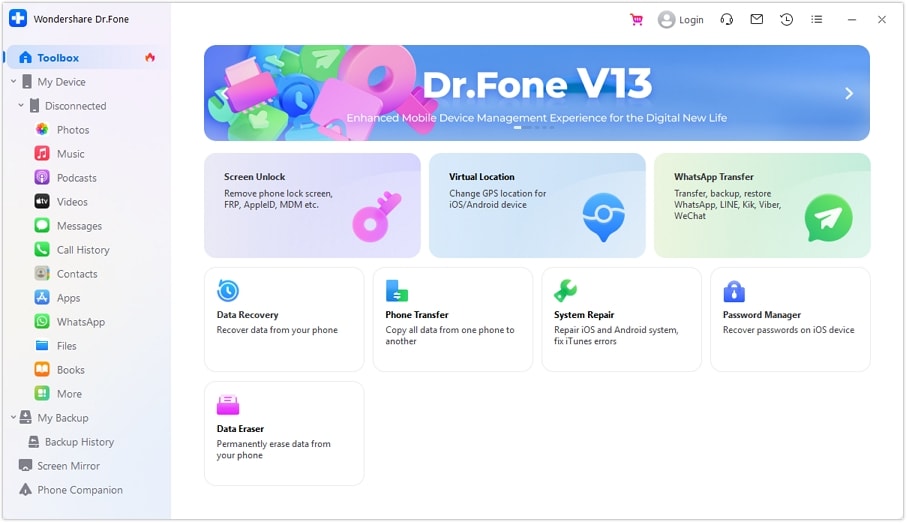
Step 1 Launch the Password Manager
Download and install Dr.Fone on your computer. Select the "Password Manager" module from the main interface and connect your iOS device via a reliable USB cable.
-
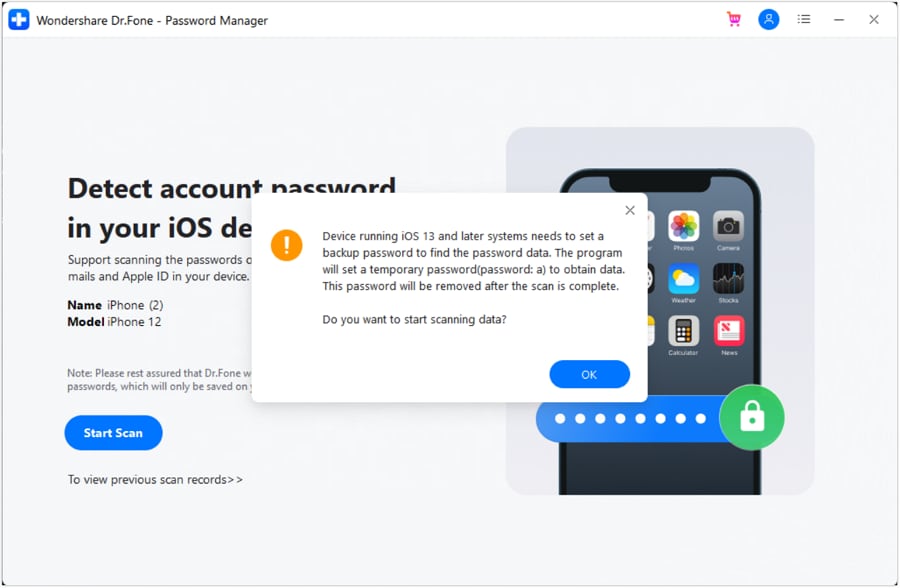
Step 2 Initiate the Deep Scan
Click "Start Scan". The software will carefully analyze your device's memory for all stored login credentials.
-
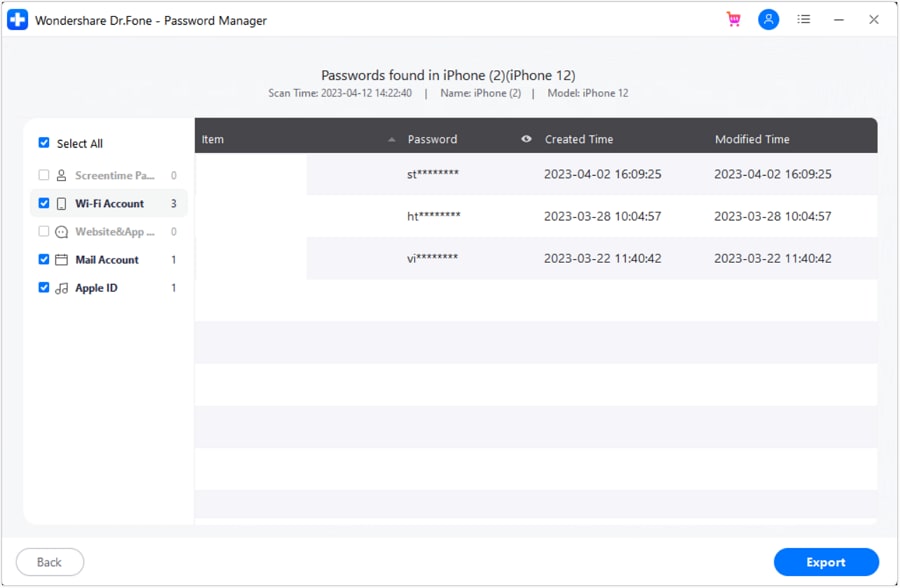
Step 3 View and Export Passwords
Once the scanning finishes, browse the "App & Website" category. Locate your Amazon account, reveal the password, and optionally export the data to your computer for safekeeping.




1-3. Look Through Old Amazon Order Emails (Last Resort)
If you've forgotten not only your password but also which email you used, retrieving your account becomes slightly more difficult. The smartest manual workaround is checking your email inboxes for past Amazon receipts.
Use the search bar in Gmail, Outlook, or Yahoo to look up terms like "Amazon order", "Your Amazon account", or "Amazon login". Discovering these automated emails confirms which email address is linked to your account, giving you the necessary ID to initiate a password reset.
Part 2. How to Reset Amazon Password If You Forgot Your Amazon Password
If you cannot find your stored login anywhere and you repeatedly think, "i forgot my amazon password and need immediate access", your best option is to execute a full account reset. Amazon's official recovery process handles this seamlessly.
-
Step 1 Trigger the Forgot Password Tool
Navigate to the Amazon sign-in portal. Instead of typing random passwords, click the "Forgot your password?" link. You will be prompted to enter your registered email address or mobile phone number.

-
Step 2 Verify Your Identity via OTP
To prevent unauthorized access, Amazon will immediately dispatch a One-Time Password (OTP) to your email or SMS. Retrieve this security code and input it into the verification screen. If you cannot access your inbox, you can select "Try a different way" to answer security questions.

-
Step 3 Create Your New Amazon Password
After successful verification, Amazon will allow you to generate a new password. Ensure this new code is robust—mix uppercase letters, numbers, and symbols. Never recycle an old password that you've used on other platforms.

Once updated, you'll receive an email confirmation. This reset process restores access across all connected Amazon services instantly.
Part 3. How to Change Amazon Password (If You Still Have Account Access)
For users who can still successfully log in but feel their account security might be compromised, it is vital to know how to change amazon password settings proactively. Changing your password periodically is a primary defense against hacking attempts.
Where and How to Execute the Password Change
-
Step 1 Access Account Settings
Log in to Amazon on your desktop browser or mobile app. Hover over "Account & Lists" and select "Account".
-
Step 2 Enter Login & Security
Click on the "Login & Security" panel. You may be asked to re-enter your current password or pass an OTP verification to access this sensitive page.

-
Step 3 Edit Password
Scroll down to the "Password" field and click "Edit".
-
Step 4 Save New Credentials
Input your existing password in the designated box, then type your new, secure password twice to confirm. Click "Save changes" to finalize.

If you are frequently asking yourself, "how do i change my amazon password efficiently?", navigating directly to the "Login & Security" dashboard is the universally correct method.
Updating Linked Services: Prime Video
Many users don't realize that their Amazon shopping account and streaming services are identical. If you are learning how to change amazon prime video login credentials, the process is exactly the same as updating your main Amazon password. Changing one automatically overrides the other.
After successfully updating your credentials, you will likely be logged out of your smart TVs and mobile apps. You simply need to grab your remote, open the Prime Video app, and sign back in using the newly established password.

Part 4. How to Recover Your Account If You Forgot Your Amazon Password and Email
The most stressful scenario is when you forgot amazon password and email details simultaneously. Without your email, standard recovery links won't work. However, Amazon has specialized recovery frameworks to assist you.
- Search for Digital Receipts: Dig through every alternative email inbox you own for an Amazon order confirmation. These receipts will expose the exact email address you used to register.
- Utilize Password Recovery Tools: As demonstrated in Part 1, scanning your iOS device with Dr.Fone – Password Manager can instantly extract the forgotten email and password pairing right from your phone's memory.
- Contact Amazon Identity Recovery: If digital footprints fail, you must contact Amazon Customer Support. They will ask you to undergo an Identity Recovery process.
During a manual account recovery, a support agent will verify your identity. You will be asked to provide your billing address, specific details about recent purchases, the last four digits of the credit card linked to the account, and any phone numbers you might have attached. Once Amazon confirms your identity, they will manually assist you in binding a new email and resetting your password.
Part 5. How to Avoid "Forgot Amazon Password" Problems — Use a Password Manager
Continuously looking up ways on how can i change my amazon password because you constantly forget it is a drain on your time. The average person manages dozens of online accounts, making it virtually impossible to memorize every unique, complex password. Relying on memory or scribbling passwords on paper inevitably leads to being locked out.
The definitive solution is adopting a secure password management system. Dr.Fone - Password Manager (iOS) serves as a localized, highly encrypted vault for your credentials. By keeping all your passwords, from Amazon shopping and Prime Video to your social media and email accounts, in one secure hub, you bypass the anxiety of forgetting. You only need to authenticate via your device to access every login you'll ever need.
Conclusion
Getting locked out because you forgot amazon password details does not mean you have to abandon your account or lose your purchase history. From checking built-in browser autofill settings and leveraging powerful iOS password scanners to utilizing Amazon's official recovery OTP system, there are plenty of avenues to regain access.
Whether you need to entirely change my amazon password or merely verify what email you used, following the step-by-step methodologies outlined in this guide ensures a swift resolution. Moving forward, the most effective preventative measure is integrating a reliable tool like Dr.Fone Password Manager. By safely encrypting and storing your logins, you will never have to go through the frustrating process of resetting an account again.
FAQ
-
1. What should I do if I forgot my Amazon password?
If you cannot remember your credentials, go directly to the Amazon login page and click on the "Forgot your password?" link. You will need to enter your registered email address or phone number, retrieve the security OTP code sent to you, and create a brand new password to regain access. -
2. Can I find my Amazon password without resetting it?
Yes, you can often retrieve it without a reset. If you previously saved your login details on your device, check the password managers built into Google Chrome, Microsoft Edge, Safari, or your iPhone's iOS password settings to view your stored Amazon credentials. -
3. How can I reset my Amazon password if I forgot the email?
If you have lost your email, try searching all your alternate inboxes for old Amazon order confirmation emails to identify the account. If this fails, you can contact Amazon customer support by phone or chat. They will ask you identity verification questions (like billing address and past order details) to locate and recover the account. -
4. Is Amazon Prime Video password the same as Amazon password?
Yes. Your Amazon shopping account and your Amazon Prime Video streaming account utilize the exact same universal login credentials. When you change or reset your main Amazon password, your Prime Video password is automatically updated across all your connected devices.
 Add Wondershare Dr.Fone as a preferred source on Google



