
PFF Mock Draft Simulator Review: Features, Steps, Tips & Tricks

Oct 22, 2026 • Filed to: Phone Mirroring Solutions • Proven solutions
 TL;DR:
The PFF Mock Draft Simulator is a web-based evaluation tool that provides a realistic NFL drafting experience by combining Pro Football Focus analytics with AI-driven opponent behavior, making it ideal for fantasy football preparation and testing team-building strategies.
● To generate the most realistic simulation outcomes, users should set the AI randomness to normal, reduce the draft speed to allow time for prospect evaluation, and strictly consult PFF value charts before executing trades.
● Although the basic drafting functionality is free across all mobile and desktop browsers, crucial decision-making features like complete player data, in-draft trade evaluations, and final performance grades require a paid PFF subscription.
● Users opting to project their mobile draft sessions onto a PC or Mac using the supplementary Wondershare Dr.Fone software must use a device running Android 5.0 or higher and connect via USB or Wi-Fi.
Ask AI for a summary
 ChatGPT
 Perplexity
 Gemini
 Claude
 Grok
Grok
Dr.Fone Basic:
Better Control for Your Phone
Manage, transfer, back up, restore, and mirror your device
Have you ever wanted to make draft decisions for your favorite NFL teams? Not just any draft. But the one based on real data and player statistics.
The PFF Mock Draft Simulator solves this problem. It combines PFF’s top-tier analytics with interactive gameplay. This setup lets you face real draft scenarios as a general manager.
But how exactly does this draft simulator work?
In this review, I will share the key features of the PFF NFL Mock Draft Simulator and detailed steps to use it. You will also learn tips to build more effective drafts and whether it is worth your investment.
- Part 1. What is the PFF Mock Draft Simulator?
- Part 2. Key Features of PFF Mock Draft Simulator
- Part 3. How to Use the PFF Mock Draft Simulator? Step-by-Step Guide
- Part 4. Tips & Tricks to Effectively Use the PFF Draft Simulator
- Part 5. Pros & Cons: Is the PFF Mock Draft Simulator Worth It?
- Part 6. Bonus Tip: Mirror Any Sports Game on a Bigger Screen Using Wondershare Dr.Fone

- Part 7. FAQs About PFF Mock Draft Simulator
Part 1. What is the PFF Mock Draft Simulator?
The PFF Mock Draft Simulator is an interactive online tool. It lets you experience the NFL draft process as a general manager. Pro Football Focus created this tool for NFL fans. Using it, you can make draft picks for your chosen team. Meanwhile, the simulator’s AI manages the other teams.
The tool uses PFF’s large player database. It includes scouting grades and league analytics. Together, these elements create realistic draft situations. As a result, you can practice your draft strategies. You can also test draft outcomes under different scenarios before the real NFL Draft and matches. Learn more about how to stream NFL games online.
Part 2. Key Features of PFF Mock Draft Simulator
The Pro Football Focus Mock Draft Simulator offers a complete set of tools for a realistic draft process. Let’s review its key features in detail.
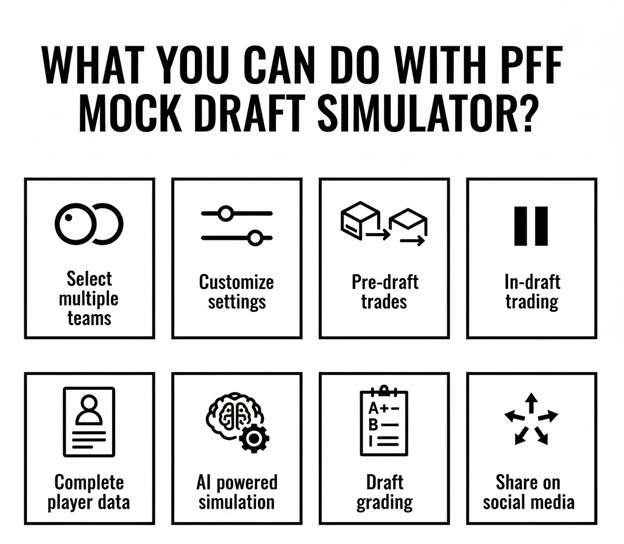
Select Multiple Teams
You can control more than one team in a single simulation. This lets you manage draft plans for multiple franchises at the same time. The system includes drag-and-drop tools to reorder draft slots. This gives you full control over draft preparation.
Customize Simulation Settings
The PFF simulator lets you adjust settings for draft rounds and AI algorithms to fit your preferences. You can also change draft speed, randomness, care of positional value, and draft for needs.
Pre-Draft Trade System
Before the draft starts, you can offer trades to AI teams. These trades can include players and draft picks. The PFF mathematical model reviews each proposal. It checks team needs and draft value charts. Then, it decides whether to accept or reject the trade.
In-Draft Trading
You can also make trades while the draft is happening. Between your picks, you can pause the draft. You can then offer trades for coming draft positions. This allows you to move up for a specific player or collect extra picks, just like decision-making in a real draft process.
Complete Player Data
Each player profile shows detailed PFF grades. These grades highlight strengths, weaknesses, and position ranks. The PFF NFL Mock Draft Simulator also displays draft trends from other users. Together, these features help you make smarter choices.
AI-Powered Draft Simulation
The PFF algorithm manages all the teams you don't control. These teams make decisions based on roster needs, player rankings, and previous draft behavior. AI teams also trade and adjust their strategy as the draft proceeds.
Draft Performance Grading
After the simulation ends, the PFF system grades your results. It reviews each pick and the full draft class. The report shows how well your selections match the team's needs. It also compares whether you got good value for your picks.
Share on Social Media
After completing a draft, the simulator generates shareable images. These include team logos, selected players, and PFF grades, along with a short link to the simulator. This makes it easy to post your draft results online. It’s a great way to engage with fellow fans before streaming football through online websites.
Part 3. How to Use the PFF Mock Draft Simulator? Step-by-Step Guide
Using the PFF draft simulator can feel overwhelming for new users. Therefore, use the steps below to complete a realistic NFL Draft simulation from start to finish.
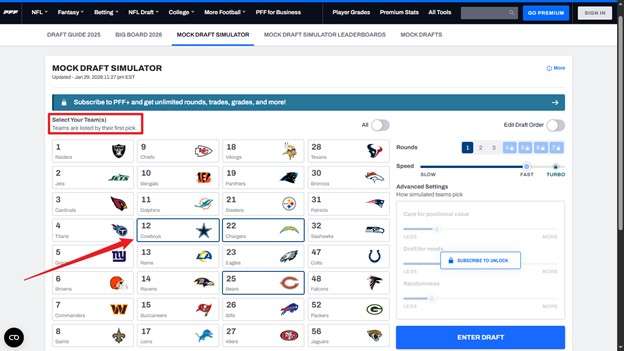
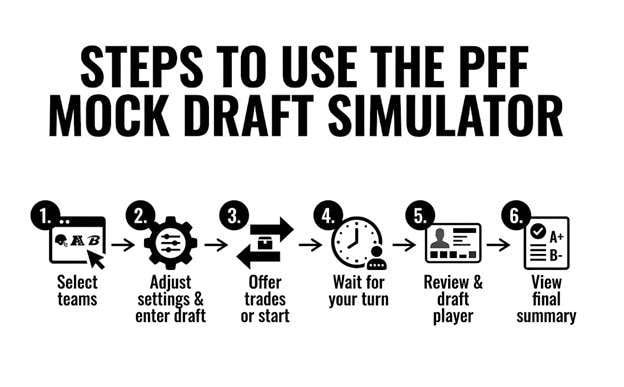
Step 1. Go to the Mock Draft Simulator page on PFF's official website. You will see a list of all the teams on the left. Select one or multiple teams to draft.
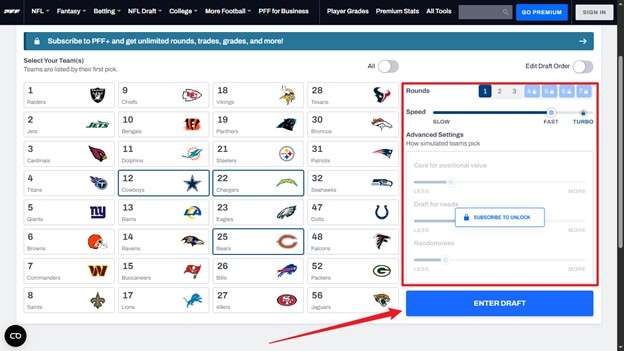
Step 2. Adjust draft settings from the right. Select the number of rounds you want to draft. Choose your preferred draft speed. Adjust care for positional value, draft for needs, and randomness. Then, click "Enter Draft."
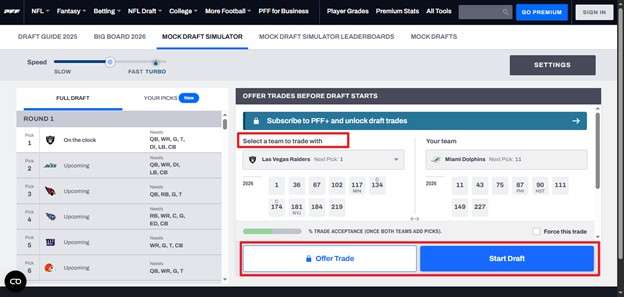
Step 3. Select if you want to offer trades before the draft begins. Choose the team to trade with and select "Offer Trade." Otherwise, click "Start Draft" to proceed.
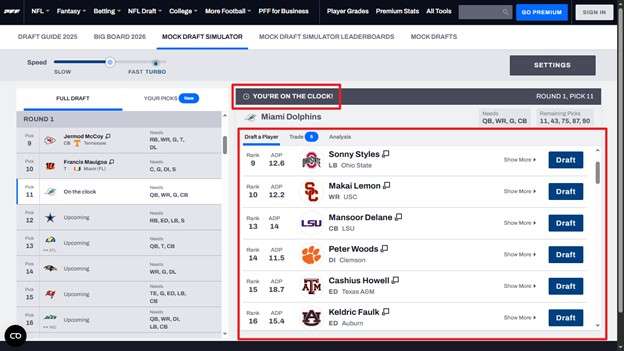
Step 4. Wait till the AI teams before you make their picks. You will see “You’re on the clock” when it’s your turn, along with a list of suggested players based on PFF's rankings and your team's positional needs.
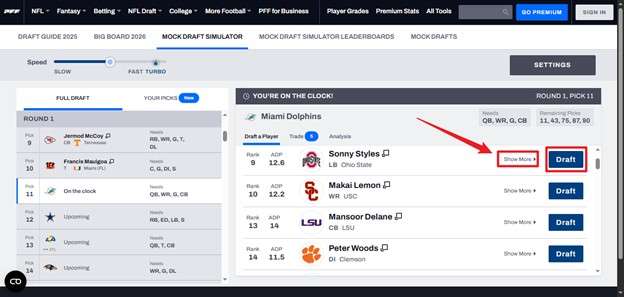
Step 5. Click "Show more" next to player names. A new window will open. It will show the player's detailed grades and statistics. Make a decision based on this data and click "Draft" for the player you like.
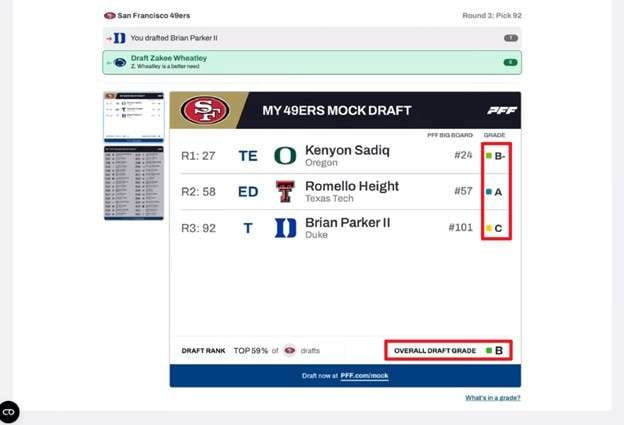
Step 6. Continue to draft players for all the 7 rounds. Once done, the PFF simulator will generate a summary of your draft. It will show a grade for each player and an overall draft grade.
Practicing with the PFF Mock Draft Simulator improves your draft strategy. At the same time, watching real NFL games gives you important insights into player performance in real situations. To follow every game and track player progress all season, definitely check out the best live streaming football TV apps.
Part 4. Tips & Tricks to Effectively Use the PFF Draft Simulator
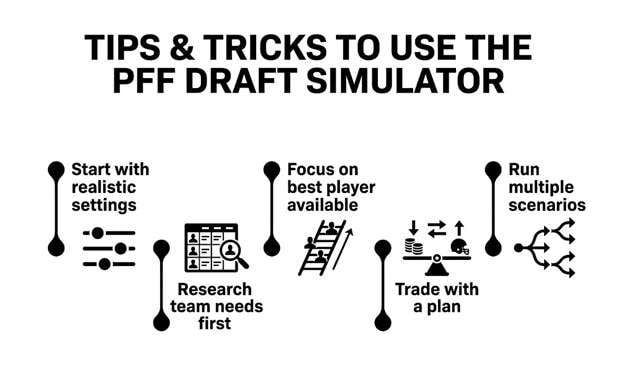
You can improve your results in the PFF Mock Draft Sim through proper preparation and clear strategy. The following tips will help you make better selections and build realistic draft plans.
Start With Realistic Settings
First, adjust the simulator to match a real NFL Draft environment. Set the randomness level to normal. This setting pushes teams to make logical and realistic choices. Next, select a slower draft speed. This gives you enough time to review prospects before each pick. Also, take advantage of the trades. This can help you practice realistic negotiations and moving up or down the board.
Research Team Needs First
Before you select any player, study each team in detail. Review roster depth across all positions. Check recent injuries and expiring contracts. Identify weak areas on the roster. Use official team websites. You can also use NFL news sources or PFF’s team needs tools. This research will show which positions your teams need now. It also helps you spot areas to develop for future seasons.
Focus on Best Player Available
Select the highest-rated player still on the board. Don’t force a pick just to fill a position. Many successful NFL teams use this strategy to build stronger rosters over time. Top talent can step in if injuries happen. They can also be useful in future trades.
Trade With a Plan
Review every trade offer using PFF draft value charts. These charts show whether a deal offers fair value. Trading down can give you extra draft picks while still allowing you to select good players later. Meanwhile, you should trade up only when a player is clearly worth the cost. Always think about team building and future draft picks when making trades.
Run Multiple Scenarios
Complete several draft simulations using different strategies. You can focus on defense, target offensive skill positions, or collect future draft picks. Afterward, compare the results. This helps you see how each strategy affects roster strength. You can also understand which approach fits your team’s goals better.
Part 5. Pros & Cons: Is the PFF Mock Draft Simulator Worth It?
The PFF Mock Simulator offers strong benefits for draft preparation. However, you should consider both the good and the bad before spending your time or money on it.
Here’s a look at its pros and cons.
Part 6. Bonus Tip: Mirror Any Sports Game on a Bigger Screen Using Wondershare Dr.Fone
When drafting or playing a sports game, you might want to record your screen or simply view the process on a larger display. A screen mirroring tool makes this possible by projecting your phone’s screen on your computer.
Dr.Fone - Screen Mirror (Android) allows you to mirror an Android phone to a PC or Mac. You can use a USB cable or Wi-Fi for the connection. From the computer, you can control the phone using a mouse. You can take screenshots with one click. You can also record the screen without extra steps. In addition, the software lets you access apps, SMS, and WhatsApp messages directly from the computer.
Dr.Fone supports Android smartphones and tablets running Android 5.0 or higher. The tool also works with major brands. These brands include Samsung, Xiaomi, OPPO, Huawei, and more.

Wondershare Dr.Fone
Mirror Any Sports Game on a Bigger Screen in Clicks
- Mirror Android screen to computers with cable or Wi-Fi.
- Extend your Android device screen with your PC or Mac.
- Record Android screen and take screenshots from PC or Mac.
- Control your Android phone/tablet on a PC.


Steps to Mirror Android Sports Games with Dr.Fone
Step 1. Install the Dr.Fone Link app on your smartphone. Then, download and install Wondershare Dr.Fone on your computer. Launch it and link your device through a USB connection.
Step 2. Allow the software to detect the device. Next, click “Screen Mirror” from the left menu. Locate the dropdown next to “Mirror your Device to computer.” Select the Android device from the list. Then, click the “Screen Mirror” button.

Step 3. Watch the progress bar as it loads. After completion, the Android screen appears on the PC. To stop the session, click “End Mirroring.”

Step 4. From the toolbar next to the display, click “Record” to capture video. Click “Screenshot” to take images. You can also control the device using a mouse or keyboard.

Conclusion
To sum up, the PFF mock draft simulator lets you experience the NFL draft process as a general manager. It offers a realistic experience with AI teams, detailed player data, and customizable settings. However, most features require a paid subscription.
You can also use it on your Android device. When you’re drafting or playing a sports game on your phone, Wondershare Dr.Fone helps you mirror your phone on your computer. The larger display makes it easier to view, record, and control your device. So, give it a try. Download and get started now!
 safe & secure
4,624,541 people have downloaded it
FAQs
 Q1. What devices support the PFF Mock Simulator?Q2. Do I need a subscription to use the PFF Mock Draft Simulator?Q3. Is the PFF Mock Draft Simulator good for fantasy football?
Dr.Fone Basic:
Better Control for Your Phone
Manage, transfer, back up, restore, and mirror your device
You Might Also Like


Android Mirror
- Access Android from PC
- 1. Access Android Phone from Mac
- 2. Access Android Files From PC
- 3. Access Android from PC over WiFi
- 4. Access Android from PC
- 5. Remote Access Android from PC
- Android Control
- 1. Control PowerPoint from Android
- 2. Control Android from iPhone
- 3. Control Android from a PC
- 4. Control Android with Broken Screen
- 5. Control PC on Android Devices
- 6. Remote Control iPhone from Android
- 7. Control Mac from Android with Apps
- Mirror Android
- 1. Mirror Your Android to PC/Mac
- 2. Mirror PC to Android with Apps
- 3. Mirror Android Screen to PC
- 4. Mirror Your Android to Android
- 5. Play Android Games on PC/Mac
- 6. Stream Anything to Apple TV
- 7. Aniwave Alternatives
- 8. Fmovies Alternatives
- 9. Mirror Android to Roku
- 10. Cast Android Screen to PC
- 11. Anime Websites
- 12. Sports Streaming Websites
- Android Recorder
- 1. Game Screen Recorders for Android
- 2. Best Free Android Voice Recorder
- 3. Download MP3 Voice Recorder
- 4. Android Screen Recording App
- 5. Use Screen Recorder With Audio
- 6. Record Screen on Android with Root
- 7. Use Call Recorder for Android
- 8. Record Screen With the Android SDK
- 9. Android Screen Recorder
- 10. Android Screen Recorder with Root
- Mirror Apps
- 1. Top 10 AirPlay Apps in Android
- 2. Best 3 Android Emulator for Mac
- 3. Screen Mirroring Apps for Android
- 4. Download Best Android Emulator
- 5. Top 7 Android Emulators for PC
- 6. Best Android Screen Mirroring App
- 7. Top 8 Apps to Mirror Android to PC
- 8. Citra Emulator
- 9. Download TV Series Website
- 10. Torrent Site for TV Show
- Mirror Tools
- ● Manage/transfer/recover data
- ● Unlock screen/activate/FRP lock
- ● Fix most iOS and Android issues
- Free Download Free Download Free Download


 > How-to > Phone Mirroring Solutions > PFF Mock Draft Simulator Review: Features, Steps, Tips & Tricks
James Davis
staff Editor