
Is Citra Emulator Still Worth Using in 2026? A Real-World Review

Oct 22, 2026 • Filed to: Phone Mirroring Solutions • Proven solutions
 TL;DR:
Citra Emulator remains a legitimate tool for playing Nintendo 3DS games on PC and Android, but because the official website is shut down, users face significant security risks if they download repackaged APKs from unofficial mirror sites.
● Emulation strictly requires fully decrypted, dumped 3DS ROM files rather than encrypted or modified versions, which frequently cause games to freeze during cutscenes or late-game events.
● Desktop PC builds generally provide better stability, whereas Citra Android and performance-focused Citra MMJ versions often experience overheating, rapid battery drain, and sudden crashes if users do not lower internal resolutions or disable advanced shaders on weaker devices.
● Android players experiencing touch-control fatigue can use Wondershare Dr.Fone - Screen Mirror via USB or Wi-Fi to cast gameplay to a larger monitor, though this setup only mirrors the screen and will not bypass the phone's native hardware limitations.
Ask AI for a summary
 ChatGPT
 Perplexity
 Gemini
 Claude
 Grok
Grok
Dr.Fone Basic:
Better Control for Your Phone
Manage, transfer, back up, restore, and mirror your device
Citra Emulator has been around long enough to move past the “experimental” label. For many users, it’s the first name that comes up when searching for a way to run Nintendo 3DS games on a PC or phone. Others arrive at it after seeing gameplay clips, performance tweaks, or claims that it can turn an Android device into a full handheld replacement.
What most don’t get upfront is a clear picture. Between safety questions, unofficial builds, performance gaps, and platform differences, the experience can vary a lot. This review takes a practical look at Citra Emulator as it exists today. This review looks at how safe it is, how it performs in regular use, what players are really saying, and whether it still has a place now.

Part 1. Is Citra Emulator Legit and Safe to Use?
Yes. Citra Emulator is legitimate software. It is open-source, with public code and a documented development history. There is no indication of hidden functions or system abuse in Citra 3DS itself.
Where Safety Concerns Come From
Citra Emulator does not include games, Citra ROM files, or system data. Safety issues usually come from:
- Downloading Citra APK files from unofficial sites
- Using modified builds like Citra MMJ APK from unknown sources
- Pairing the emulator with an unsafe 3DS ROM for Citra downloads
Using the official Citra emulator on PC or the Citra Android builds is the safest option.
Official builds vs modified versions
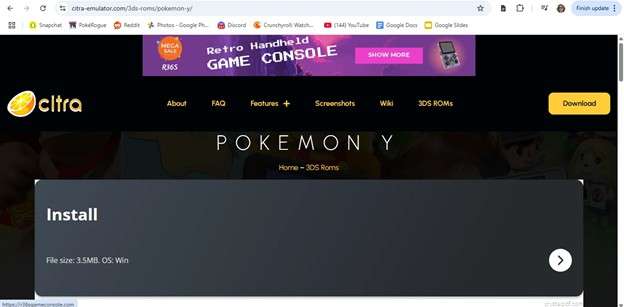
Official Citra emulator download versions are stable and widely reviewed. Some modified builds, such as Citra MMJ, focus on performance and are maintained by known developers. Others are repackaged uploads bundled with ads, installers, or unnecessary permissions. If a Citra Android download asks for access unrelated to emulation, that risk comes from the source, not the emulator.
Is Citra legal?
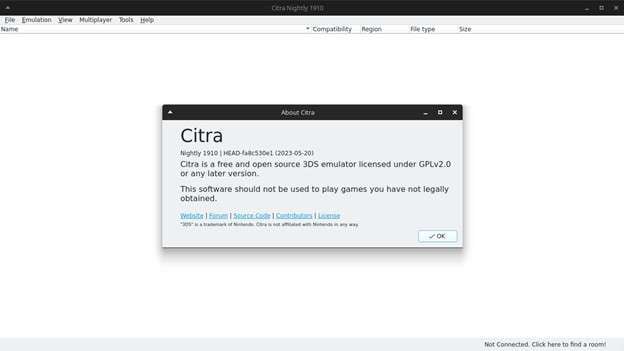
Using Citra Emulator is legal in many regions. Legal issues usually involve downloading games you do not own. Citra does not bypass DRM or break encryption. Users must provide their own game data, which is why many recommend dumping games from hardware they already own.
What Users Actually Report
Most complaints are about performance, not security. On Citra Android, users often mention overheating, battery drain, or unstable frame rates. On a Citra emulator PC, stability is generally better, though setup can be more complex. Serious safety complaints almost always involve unofficial Citra APK sources.
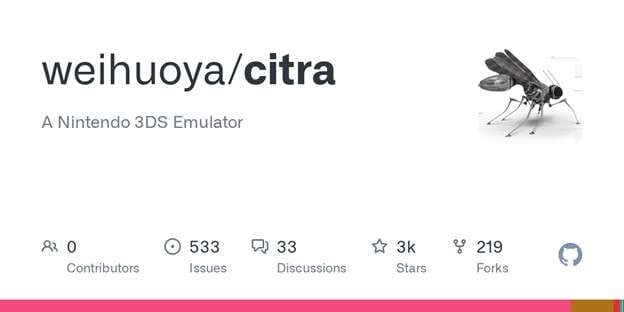
Part 2. How to Use Citra Emulator (And Where Most Users Go Wrong)
Once people decide to try Citra Emulator, the next question is usually simple: How do you actually use it without breaking something or wasting hours troubleshooting? This is also where many negative reviews start to make sense.
Features
- Runs Nintendo 3DS ROMs on PC and Android
- Supports high-resolution internal rendering
- Adjustable graphics, audio, and CPU settings
- External controller and keyboard mapping
- Save states and in-game save support
- Active variants like Citra MMJ focused on Android performance
For advanced users, these features offer flexibility. For casual players, it can feel overwhelming.
User Reviews:
- I didn’t even get to test games properly. I downloaded Citra from a site that looked official, and two days later, my PC started booting straight into BIOS. Had to reinstall everything. The emulator itself might be real, but fake download sites are dangerous. (Trust Pilot)
- I love the idea of running 3DS games on my phone, but some games just don’t finish properly. Pokémon stopped after the league, and Mario Party crashed mid-game. It’s powerful, but still inconsistent (Uptodown).
Using Citra Emulator isn’t difficult, but it’s less forgiving than most users expect. Small setup mistakes, incompatible files, or the wrong build can quickly turn a smooth experience into constant crashes.
Step 1. Choose the Right Version of Citra
Because the official Citra website is no longer active, this step matters more than it used to.
There are two main versions people encounter today:
- Desktop Citra (PC): generally more stable
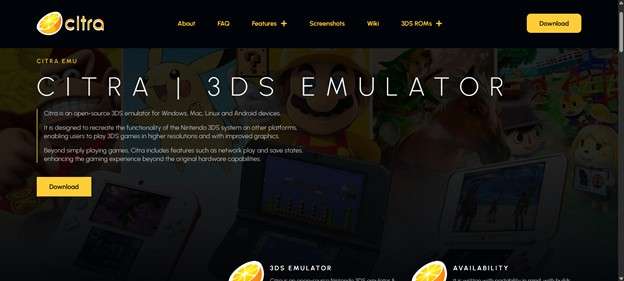
- Citra Android / Citra MMJ: better performance on some phones, but less predictable
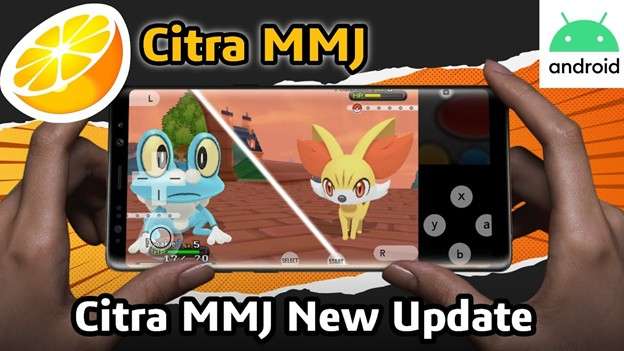
Many problems reported online come from fake or repackaged downloads, not the emulator itself. This is why users often describe sudden system crashes or suspicious behaviour after installation. Stability can be improved if you play Citra Emulator on PC, especially for longer play sessions.
Step 2. Prepare Your 3DS Game Files Correctly
Citra Emulator does not run physical cartridges. It requires 3DS ROM files that are already dumped and decrypted.
Common mistakes here include:
- Using incomplete ROMs
- Running encrypted files without keys
- Trying “Remix” or heavily modified game versions
This explains why some users report games stopping at specific points, such as Pokémon league completion or cutscenes.
If a game loads but freezes later, the issue is often file compatibility, not performance.
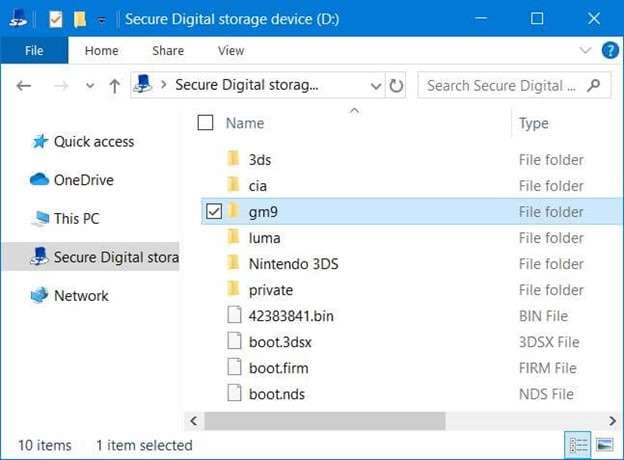
Step 3. Configure Graphics and Performance Settings
Out of the box, Citra Emulator uses default settings that may not suit your device.
Key adjustments most users overlook:
- Lower internal resolution on weaker devices
- Disable advanced shaders if crashes occur
- Adjust CPU and graphics backend settings
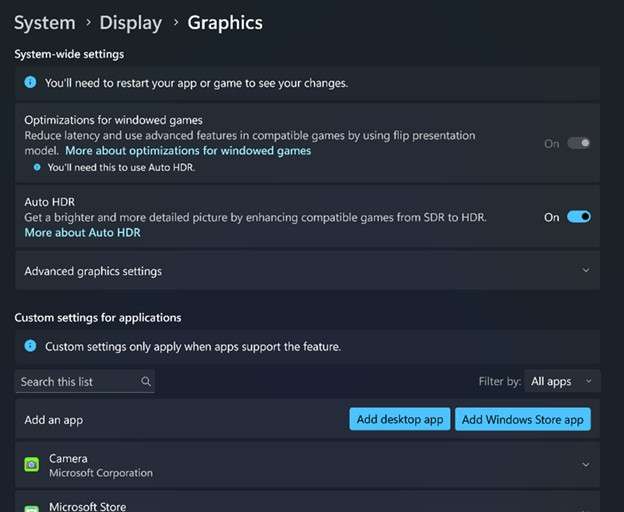
On Android, pushing high resolution too early is one of the main reasons users experience lag, overheating, or sudden shutdowns.
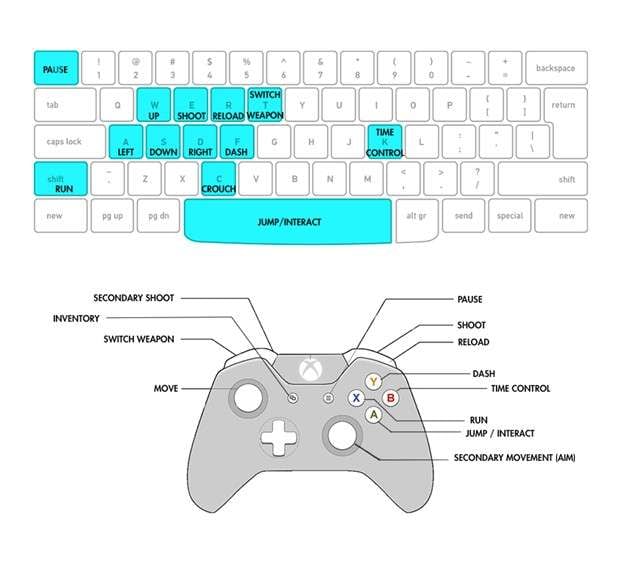
Step 4. Controller and Input Setup
Citra supports:
- Keyboard
- External controllers
- Touch controls (Android)
Mapping controls properly makes a noticeable difference, especially for racing and action-heavy games like Mario Kart 7. Poor input setup is often mistaken for emulator lag.
Part 3. A Smarter Way to Use Citra Emulator on a Bigger Screen
After spending time with Citra on different Android devices, one thing becomes clear quickly. Most frustrations don’t come from the emulator itself. They come from how and where it’s being used.
Small screens make menus harder to manage. Touch controls get tiring during longer sessions. And on mid-range phones, heat and performance dips show up faster than expected. At that point, the question is finding a more comfortable way to use the one you already have. Among the tools that support this setup, Dr.Fone - Screen Mirror (Android) is one option that consistently works without needing complicated setup or device tweaks.

Wondershare Dr.Fone
A Smarter Way to Use Citra Emulator on a Bigger Screen
- Mirror Android screen to computers with cable or Wi-Fi.
- Extend your Android device screen with your PC or Mac.
- Record Android screen and take screenshots from PC or Mac.
- Control your Android phone/tablet on a PC.


How to Use Screen Mirror on Android with Dr.Fone
Dr Fone offers both wireless and USB-based mirroring, which makes it flexible depending on your setup and performance needs.
Mirror Android to PC via Wi-Fi (Wireless)
This option is ideal for casual gameplay, demos, or testing performance.
Step 1. Install Dr.Fone Link on Android
Install the Dr.Fone Link app on your Android device. This handles the connection between your phone and PC.
Installation Link: https://play.google.com/store/apps/details?id=com.wondershare.drfone.link
Step 2. Open Screen Mirror in Dr.Fone
Open Wondershare Dr.Fone on your computer. Navigate to My Device → Wireless → Screen Mirror.

Step 3. Scan the QR Code
Use your phone to scan the on-screen QR code. Make sure both devices are on the same Wi-Fi network.

Step 4. Start Mirroring
Once connected, your Android screen appears instantly on the PC. You can disconnect anytime using the End Mirroring button.

Mirror Android to PC Using a USB Cable (Most Stable)
For gaming sessions, this is the recommended method.
Step 1. Connect Android via USB
Connect your phone to the PC using a USB cable. If Dr.Fone Link isn’t installed, it will prompt installation automatically.
Installation Link: https://play.google.com/store/apps/details?id=com.wondershare.drfone.link
Step 2. Launch Screen Mirror
Open Dr.Fone → select Screen Mirror from the left panel. Choose your Android device and click Screen Mirror.

Step 3. Start Playing
Once connected, your Android screen mirrors in real time with minimal lag, making it ideal for Citra gameplay.

It simply removes friction, which is often what makes the difference between quitting a game and actually enjoying it.
Part 4. Conclusion
Citra Emulator is legitimate, but it is no longer effortless. The emulator itself is safe and open-source. Most problems come from unofficial downloads, unstable builds, or poorly prepared game files. When set up correctly, it can still run many Nintendo 3DS games well, especially on PC.
On Citra Android, limits appear faster. Small screens, touch controls, heat, and battery drain affect longer sessions. Comfort becomes the bigger issue. This is where Wondershare Dr.Fone Screen Mirror fits naturally. It does not change emulation performance, but it makes gameplay easier to manage by moving it to a larger screen.
Citra works best with trusted sources, realistic expectations, and a setup that matches how you actually play.
 safe & secure
4,624,541 people have downloaded it
FAQs
 Q1. Is Citra Emulator still safe to use in 2025?Q2. Why does Citra Emulator work well for some games but crash on others?Q3. Does Citra Emulator harm your phone or PC?Q4. Can Citra Emulator run all Nintendo 3DS games?Q5. Is screen mirroring a replacement for native PC emulation?
Dr.Fone Basic:
Better Control for Your Phone
Manage, transfer, back up, restore, and mirror your device


Android Mirror
- Access Android from PC
- 1. Access Android Phone from Mac
- 2. Access Android Files From PC
- 3. Access Android from PC over WiFi
- 4. Access Android from PC
- 5. Remote Access Android from PC
- Android Control
- 1. Control PowerPoint from Android
- 2. Control Android from iPhone
- 3. Control Android from a PC
- 4. Control Android with Broken Screen
- 5. Control PC on Android Devices
- 6. Remote Control iPhone from Android
- 7. Control Mac from Android with Apps
- Mirror Android
- 1. Mirror Your Android to PC/Mac
- 2. Mirror PC to Android with Apps
- 3. Mirror Android Screen to PC
- 4. Mirror Your Android to Android
- 5. Play Android Games on PC/Mac
- 6. Stream Anything to Apple TV
- 7. Aniwave Alternatives
- 8. Fmovies Alternatives
- 9. Mirror Android to Roku
- 10. Cast Android Screen to PC
- 11. Anime Websites
- 12. Sports Streaming Websites
- Android Recorder
- 1. Game Screen Recorders for Android
- 2. Best Free Android Voice Recorder
- 3. Download MP3 Voice Recorder
- 4. Android Screen Recording App
- 5. Use Screen Recorder With Audio
- 6. Record Screen on Android with Root
- 7. Use Call Recorder for Android
- 8. Record Screen With the Android SDK
- 9. Android Screen Recorder
- 10. Android Screen Recorder with Root
- Mirror Apps
- 1. Top 10 AirPlay Apps in Android
- 2. Best 3 Android Emulator for Mac
- 3. Screen Mirroring Apps for Android
- 4. Download Best Android Emulator
- 5. Top 7 Android Emulators for PC
- 6. Best Android Screen Mirroring App
- 7. Top 8 Apps to Mirror Android to PC
- 8. Citra Emulator
- 9. Download TV Series Website
- 10. Torrent Site for TV Show
- Mirror Tools
- ● Manage/transfer/recover data
- ● Unlock screen/activate/FRP lock
- ● Fix most iOS and Android issues
- Free Download Free Download Free Download


 > How-to > Phone Mirroring Solutions > Is Citra Emulator Still Worth Using in 2026? A Real-World Review
Julia Becker
chief Editor