How to Control Android with Broken Screen from PC?

Nov 12, 2025 • Filed to: Phone Mirroring Solutions • Proven solutions
Dr.Fone Basic:
Better Control for Your Phone
Manage, transfer, back up, restore, and mirror your device
If you've encountered a smartphone with a shattered screen, you might think it's beyond repair. However, even if the screen is damaged, the device itself can still be utilized. Many users are unaware that they can access and control their Android phone from a PC, regardless of the screen's condition. This article looks forward to providing a detailed guide on how to control Android with broken screen from PC .
- Part 1. Can I Use an Android Phone with a Broken Screen?
- Part 2. Control an Android phone with broken screen? (All Android Brands and models)
- Part 3. Control Android with broken screen-Samsung SideSync (Samsung only)
You may be interested in 5 Ways to Access the Android Phone with Broken Screen and Get the Data Recovered.
Part 1. Can I Use an Android Phone with a Broken Screen?
If you've encountered an Android phone with a completely non-functional screen, you might think it's rendered useless. However, thanks to advancements in technology, there are mirroring platforms that enable you to control and access your Android device, even with a broken screen.
Mirroring platforms have become increasingly popular, offering a range of impressive features that enable users to manage their smartphones on a larger screen. While these platforms have various practical applications, they can also be used to mirror a broken Android screen to a PC, providing a convenient solution for users. Samsung users, in particular, can take advantage of a specialized platform designed specifically for their devices.
Part 2. How to Mirror Broken Screen Android to PC?
However, for users who have smartphones other than Android and have a broken screen that needs to be controlled with a mirroring application, this article considers one of the best options that could guide you on how to do the broken screen Android control from pc .
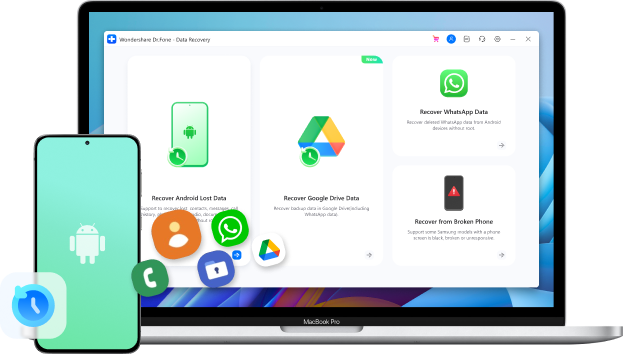
Wondershare Dr.Fone is one efficient platform designed by Wondershare that provides a high-definition result to its users. You can now simply operate anything across the platform with ease and serenity. While providing the option to control your smartphone's applications through a mouse and a keyboard, Dr.Fone allows you to record, capture, and share the screen of the smartphone on different platforms. Having this mirroring application specified for managing your Android smartphone, you can run through different errands without a functional screen of your smartphone. There are a series of different benefits that are to be considered while rampaging through the Internet in search of the most optimal mirroring application for your broken smartphone.

Wondershare Dr.Fone
Mirror your android device to your computer!
- Play mobile games on the big screen of the PC with Dr.Fone.
- Store screenshots taken from the phone to the PC.
- View multiple notifications simultaneously without picking up your phone.
- Use android apps on your PC for a full-screen experience.
The steps to use Wondershare Dr.Fone to mirror broken screen Android to PC are as follows:
- Step 1: Connect Android Phone with PC
Run Dr.Fone on the PC. At the same time, connect the broken phone with the PC to Wi-Fi by scanning the QR code.

- Step 2: Mirror Android to PC Successfully

- Step 3: Access the Broken Screen Android Phone through the PC
Access Dr.Fone from the PC again, and the broken Android phone’s contents will be available on the interface. You can view broken phone screen on computer.

Part 3. Control Android with broken screen-Samsung SideSync (Samsung only)
If you are a Samsung user and have a smartphone that is highly damaged and has no operable screen, you do not have to beat around the bush and find the best platform that would suit your needs. As we identify the fact that the number of mirroring applications in the market is beyond comprehension, the search for the application to control broken screen android from PC is made simple and straightforward for Samsung users.
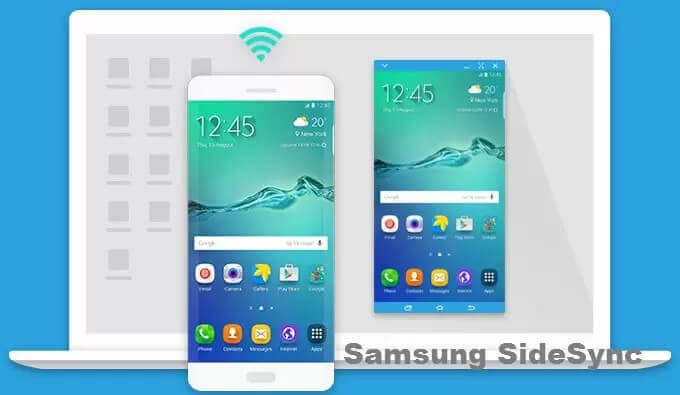
Samsung SideSync offers a seamless way to cast your Samsung smartphone onto a PC, streamlining the process of organizing and utilizing essential applications. With the ability to control your phone using a mouse and keyboard, this application makes it incredibly easy for Samsung users to mirror their mobile device onto a PC. To effectively manage your mobile through SideSync, simply enable USB debugging and follow the provided guidelines.
- Step 1: You need to search for the SideSync desktop application on the browser and have it installed on your PC.
- Step 2: After installing the platform, connect your Android device with the PC through a USB cable.
- Step 3: The PC will recognize the device in a while, and the SideSync will launch automatically.
- Step 4: A pop-up window will appear with the option of ‘Phone Screen Sharing’ for casting the screen of our smartphone.
Conclusion
This article has provided a detailed guide on how to control your Android with a broken screen from a PC. This has been successfully executed with the help of different mirroring applications that provide proficient features to mirror a broken screen onto a PC easily. You need to follow the guidelines to develop an understanding.
 safe & secure
Dr.Fone Basic:
Better Control for Your Phone
Manage, transfer, back up, restore, and mirror your device


Android Recover
- Recover Apps
- 1. Data Recovery Software for Android
- 2. Top 4 Android Data Recovery Tools
- 3. Restore Deleted Files on Android
- 4. Coolmuster Android Data Recovery
- 5. Guide of Disk Drill for Android
- 6. Android Data Recovery Software
- 7. Gihosoft Android Data Recovery
- 8. Jihosoft Android Phone Recovery
- 9. Minitool Android Mobile Recovery
- 10. Recover Android Data from Fucosoft
- 11. Best Mobile Forensics Tools to Recover Data
- 12. PhotoRec Review
- 13. FoneDog Toolkit
- 14. TWRP Recovery
- Contacts Recover
- 1. Recover Contacts from Stolen phone
- 2. Recover Contacts from Android
- 3. Retrieve Contacts Without Backup
- Files Recover
- 1. Recover Files from Internal Memory
- 2. Recover Miscellaneous Files
- 3. Recover Android's Hidden Files
- 4. Recover Deleted Files from Android
- 4. Recover Deleted Files Without Root
- 5. Recover Files from SD Card
- 6. Undelete Files on Android
- Messages Recover
- Music/Videos Recover
- Photos Recover
- 1. DiskDigger Photo Recover Review
- 2. Recover Deleted Photos from Android
- 3. Recover Photo from Internal Storage
- 4. Recover Photos from Lost Phone
- 5. Restore Android Deleted Photos
- Broken Android Recover
- 1. View Files from Broken Phone Screen
- 2. Recover Data from Dead Phone
- 3. Recover Contacts with Broken Screen
- 4. Recover Text Messages from Android
- 5. Recover Data from Internal Memory
- Social Apps Recover
- 1. Recover Facebook Messages
- 2. Recover WhatsApp Messages
- 3. Recover WhatsApp Messages
- 4. Restore Deleted WhatsApp Messages
- Android Recover Tips
- 1. SD Card Recovery Tools
- 2. Fix Recovery Mode Not Working
- 3. Enter Recovery Mode on Android
- 4. Recover Calendar from Android
- 5. Recover Deleted Call Log on Android
- 6. Clear Cache Partition
- 7. Repair a USB Stick
- 8. USB Repair Tools
- Cloud Storage Tips
- ● Manage/transfer/recover data
- ● Unlock screen/activate/FRP lock
- ● Fix most iOS and Android issues
- Recover Now Recover Now Recover Now




James Davis
staff Editor