Recover photos, messages, WhatsApp, and more — no backup
needed.
Recover photos, messages, WhatsApp, and more — no backup
needed.

 100% Security Verified | No Subscription Required | No Malware

 :
: 
 ChatGPT
 Perplexity
 Gemini
 Claude
 Grok
Grok
Experiencing a moment of panic when essential Gmail messages are missing from your inbox is completely normal. Whether it is an urgent work file, personal correspondence, or critical banking details, having a Gmail message disappeared can bring your productivity to a sudden halt. In 2026, as email providers become more aggressive with automated sorting and spam filtering, the chances of losing track of your emails have increased.
If you are wondering what went wrong and how to retrieve your data, you are in the right place. This comprehensive guide details the exact reasons why your gmail mail disappeared and provides actionable, step-by-step methods to recover them swiftly and securely.
1. Standard Inbox Recovery
Most missing messages in Gmail are simply hidden in the Trash, Spam, Archived, or auto-sorted tabs (like Promotions). A quick advanced search can usually locate them immediately.
2. Advanced & Permanent Recovery
For permanently deleted emails, Google Workspace users can rely on the Admin Console or Google Vault. Alternatively, third-party data recovery tools can help extract lost email data from connected devices.
In this article
Part 1. Why Are My Gmail Messages Missing?
It can instantly trigger anxiety and confusion when a crucial Gmail message disappears. Before jumping into recovery methods, it is vital to understand the root causes. Below, we explore the primary reasons why you might be experiencing missing messages in Gmail today:
- Aggressive Spam Filtering: Email algorithms frequently redirect legitimate messages to the Spam folder if they originate from unrecognized senders or contain specific trigger keywords.
- Syncing Delays: A weak internet connection or outdated app version can disrupt email synchronization across your devices, making it appear as if your gmail mail disappeared out of nowhere.
- Accidental Archiving: A simple, unintended swipe on your mobile screen can send an email straight to the Archive. These messages vanish from your primary inbox but remain stored securely in your account.
- Unintentional Deletion: While clearing out clutter, you might inadvertently delete essential emails. Most users only notice these missing messages in Gmail days later when the information is needed.
- Exhausted Storage Limits: Google offers a shared storage pool across Drive, Photos, and Gmail. Once this limit is reached, your account will temporarily stop receiving new emails.
Part 2. How Do I Get My Gmail Messages Back? Standard Recovery for Deleted Emails
When you discover that Gmail messages are missing, there are several straightforward methods to locate them. Before assuming your data is permanently destroyed, run through these standard recovery techniques to restore order to your inbox.
Fix 1. Search Trash/Spam Folder
The very first step to resolving the issue when a Gmail message disappeared is to inspect your Spam and Trash directories. Often, missing emails are automatically filtered here by mistake.
-
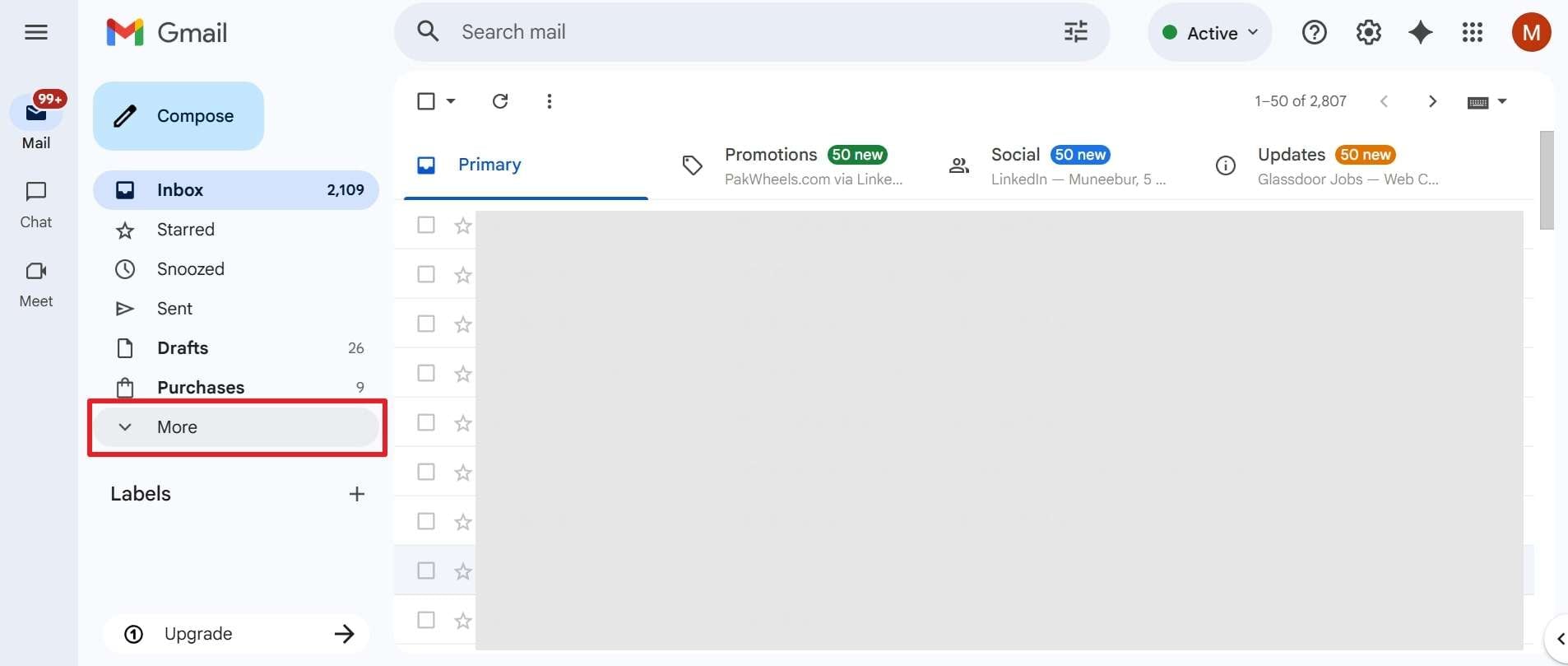
Step 1 Access the Hidden Menu
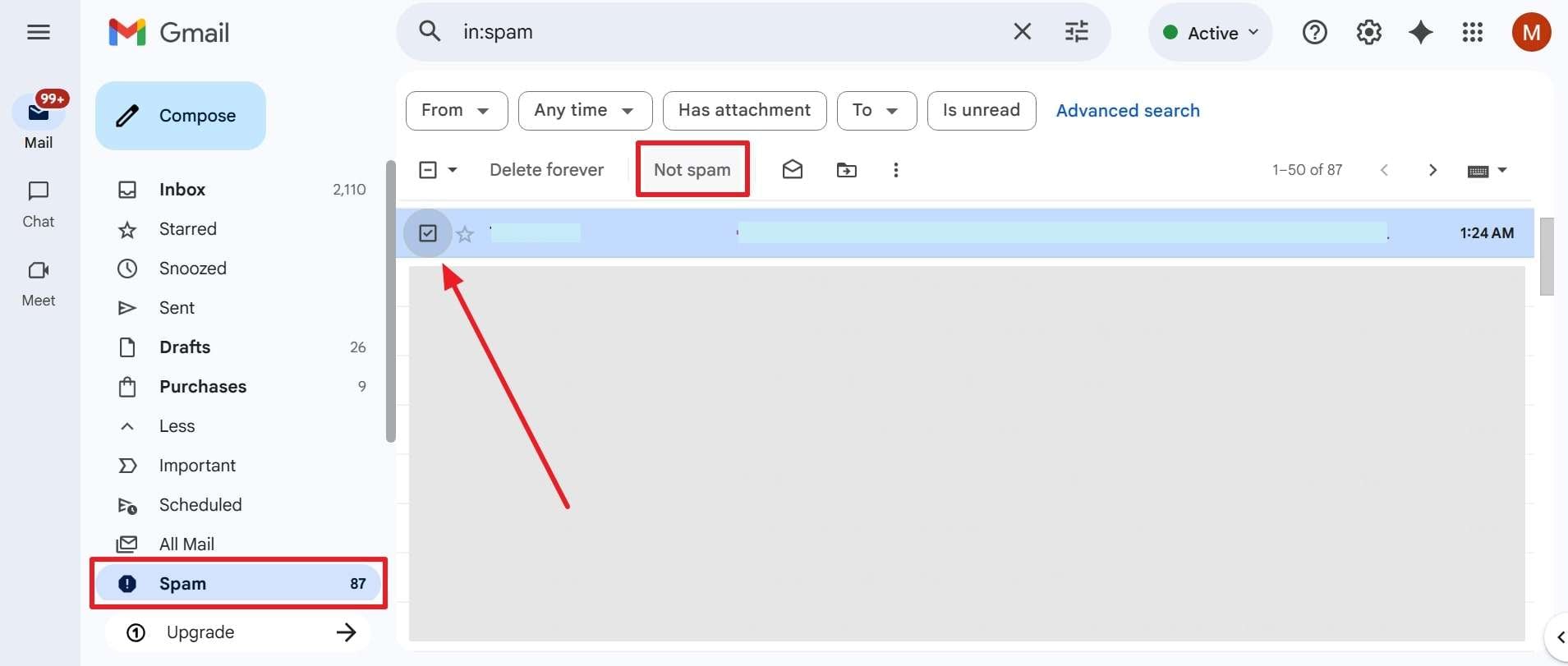
Open Gmail on your browser. On the left-hand navigation pane, scroll down and click the "More" tab to reveal hidden folders.
-
Step 2 Unmark as Spam
Navigate to the "Spam" (or "Trash") section. Locate your disappeared message, select it, and click "Not Spam" at the top to return it to your primary inbox.
Fix 2. Check the Archived or All Mail Folder
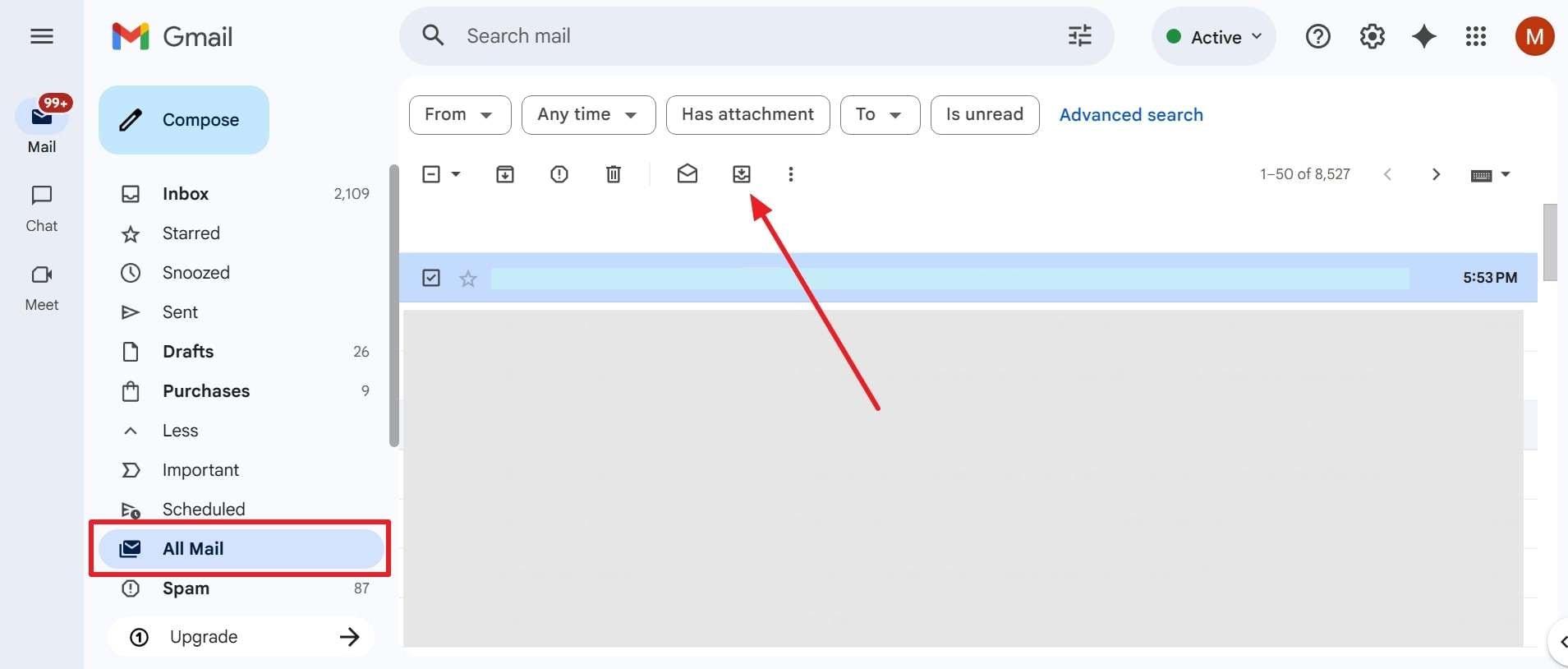
Archiving is a common culprit for missing messages in Gmail. The "All Mail" directory houses every single email associated with your account, excluding those in Trash or Spam, making it the perfect place to hunt for archived content.
-
Instructions Move Emails Back to Inbox
Head to the "All Mail" tab from the expanded left menu. Browse or search for your disappeared message, select the checkbox next to it, and click the "Move To Inbox" icon situated on the top toolbar.
Fix 3. Check the Emails in Promotions and Social Labels
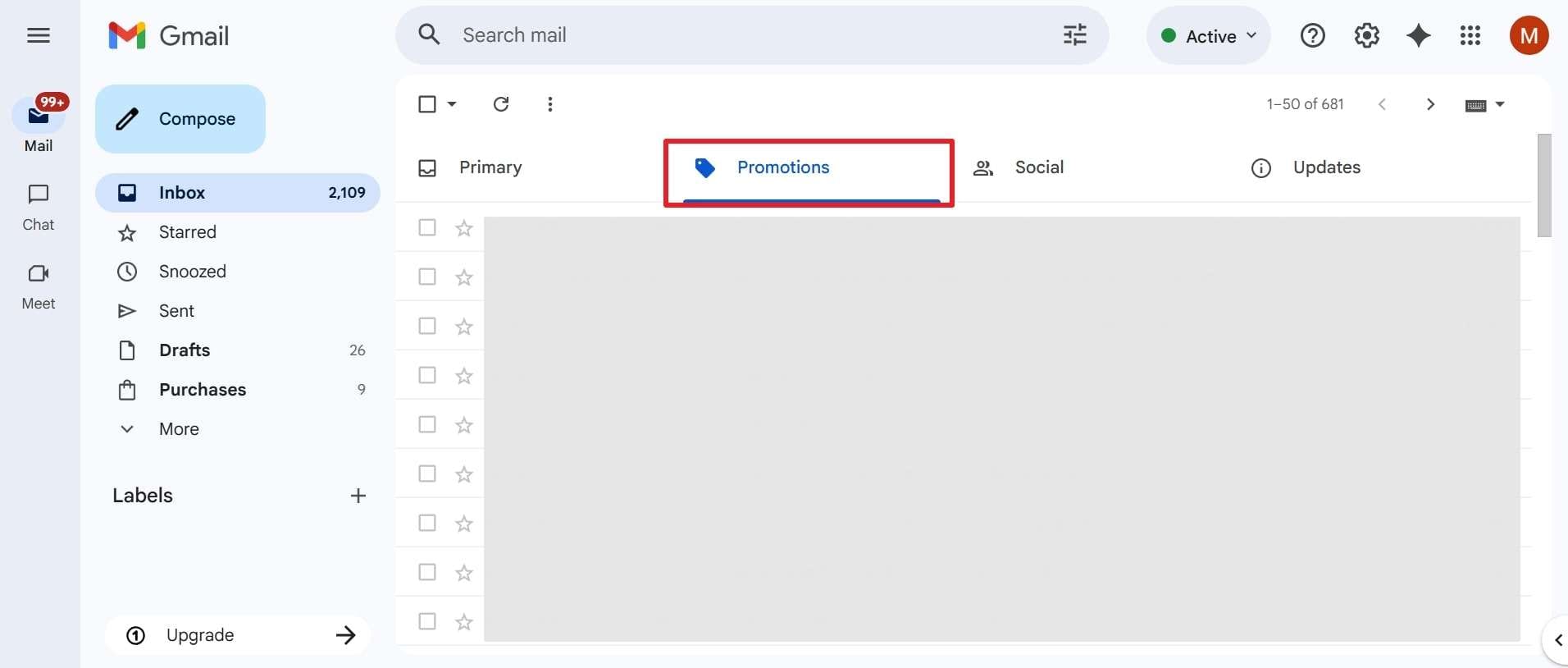
Sometimes, your emails are not actually missing; they have just been intelligently sorted by Gmail into alternate tabs like Promotions, Social, or Updates. If a gmail mail disappeared, it could easily be hiding in plain sight within these categories.
-
Instructions Review Categorized Tabs
From your primary Gmail dashboard, click on the "Promotions" or "Social" tabs located just above your message list. Look for the missing message and drag it to the "Primary" tab to teach Gmail your preferences.
Fix 4. Use the Advanced Search of Gmail
If manual browsing fails to uncover your missing messages in Gmail, the platform's advanced search feature is your best ally. This functionality filters through every corner of your account using specific parameters.
-
Step 1 Open Search Options
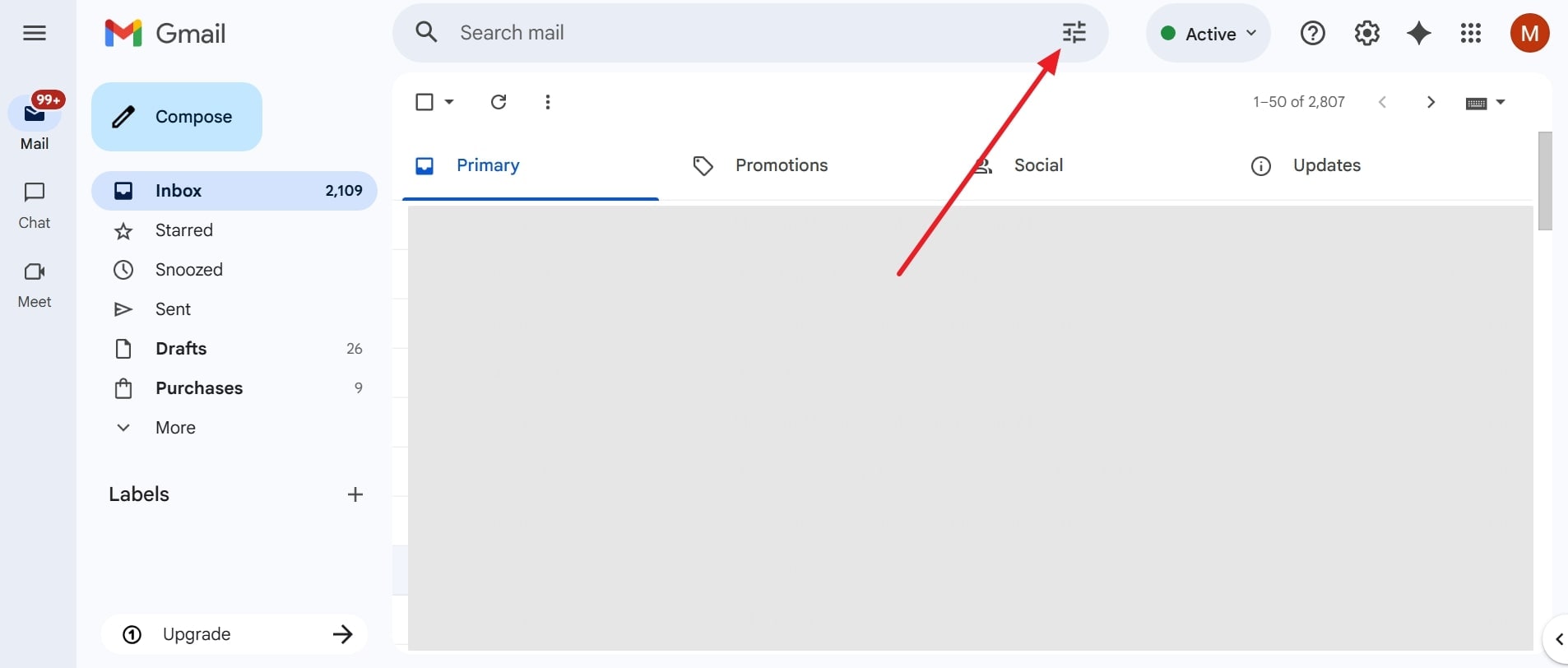
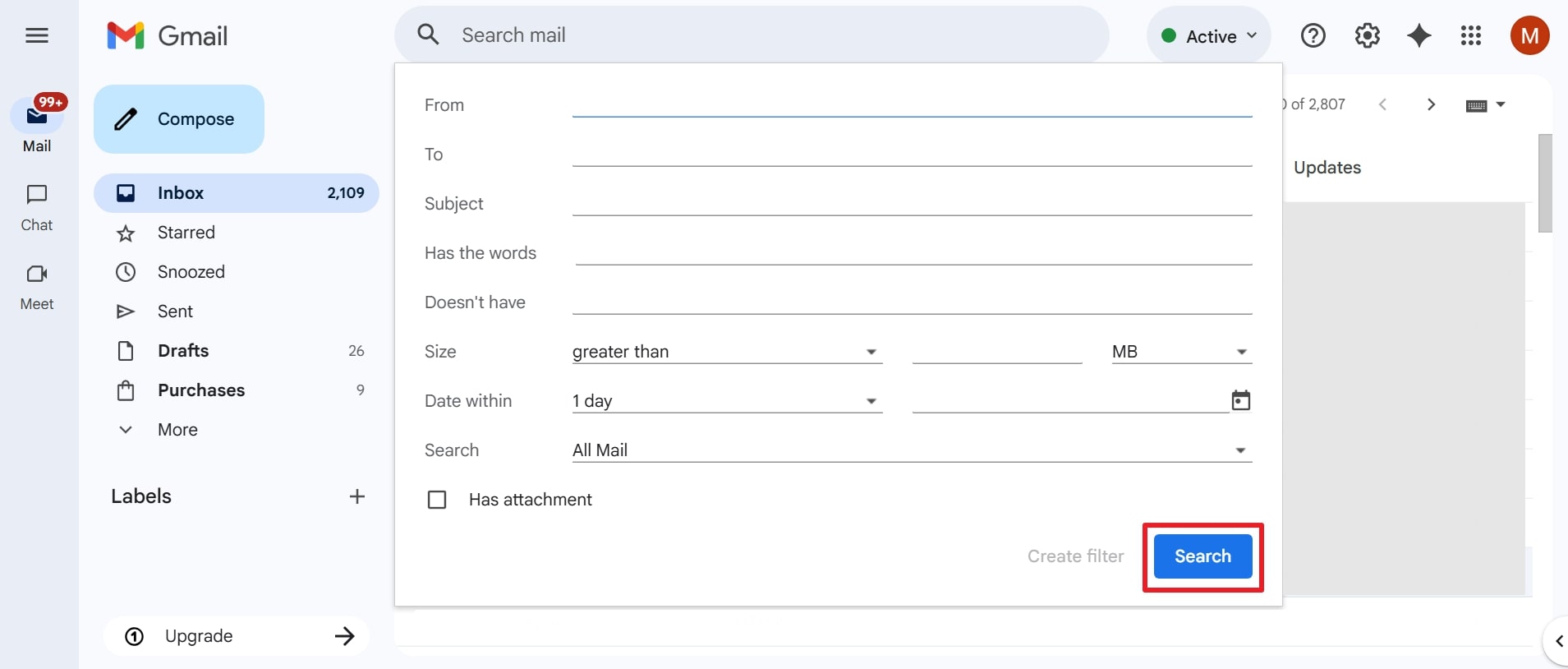
Click the "Show Search Options" icon (which looks like sliders) located on the right side of the main search bar at the top of the interface.
-
Step 2 Apply Precise Filters
Fill in any known details about your missing message—such as the sender's email, date range, keywords, or subject line. Finally, hit the "Search" button to perform a deep scan.
Part 3. Recovery for Permanently Deleted Emails: How Do I Fix My Emails Not Showing Up?
If you have emptied your Trash or 30 days have passed, your Gmail messages are missing permanently under standard circumstances. Fortunately, for certain users and Workspace accounts, Google offers advanced recovery protocols.
Fix 1. Gmail Message Recovery Tool
This is an official Google utility designed for users whose gmail mail disappeared due to unauthorized access or server glitches. While it does not guarantee the retrieval of permanently erased user-deleted data, it is a crucial step.
-
Instructions Initiate the Recovery Process
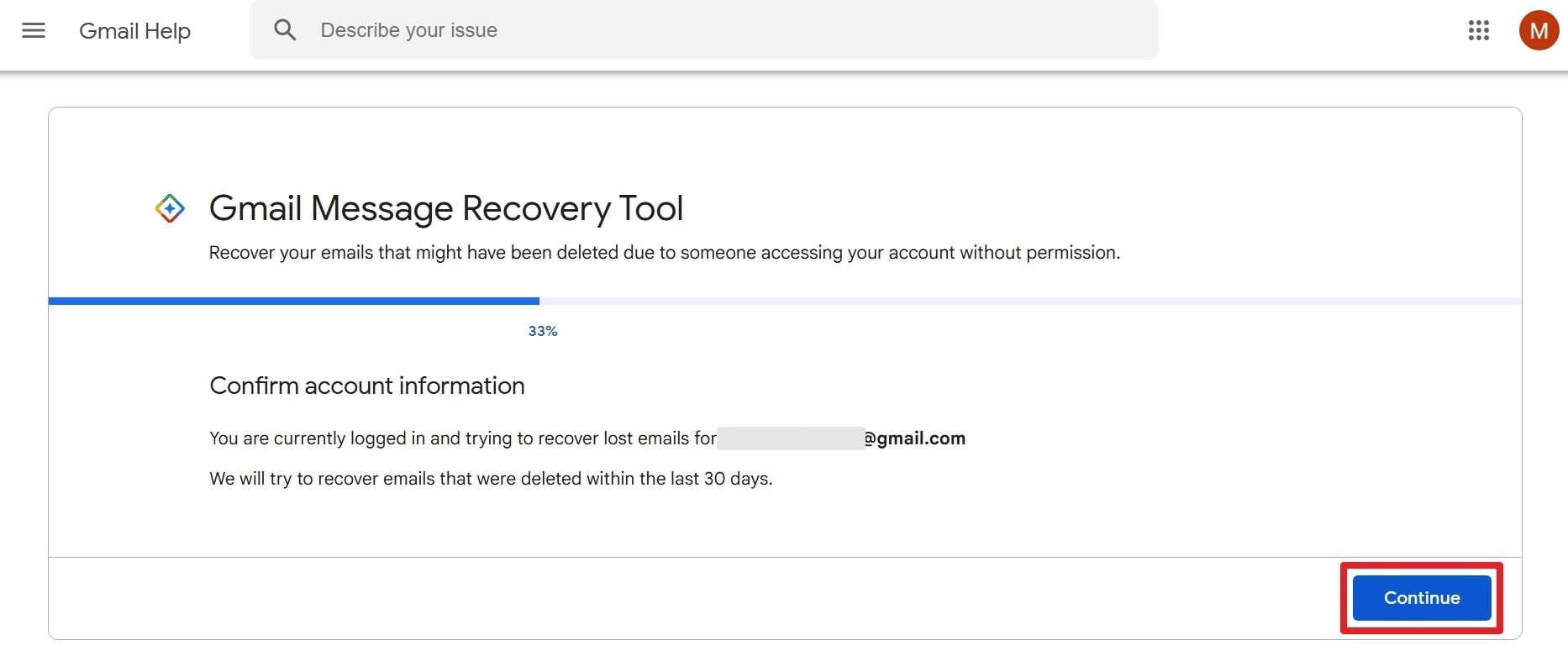
Navigate to the official Google "Gmail Message Recovery Tool" page on your web browser. Ensure you are signed into the correct Gmail account. Follow the on-screen prompts, hit "Continue," and allow Google to scan its servers for recoverable data.
Fix 2. Admin Console (Google Workspace)
If you are using a professional Google Workspace account and find that all my emails are gone Gmail, an administrator can often salvage them. Admins have a 25-day grace period to restore permanently deleted data.
-
Step 1 Access User Directory
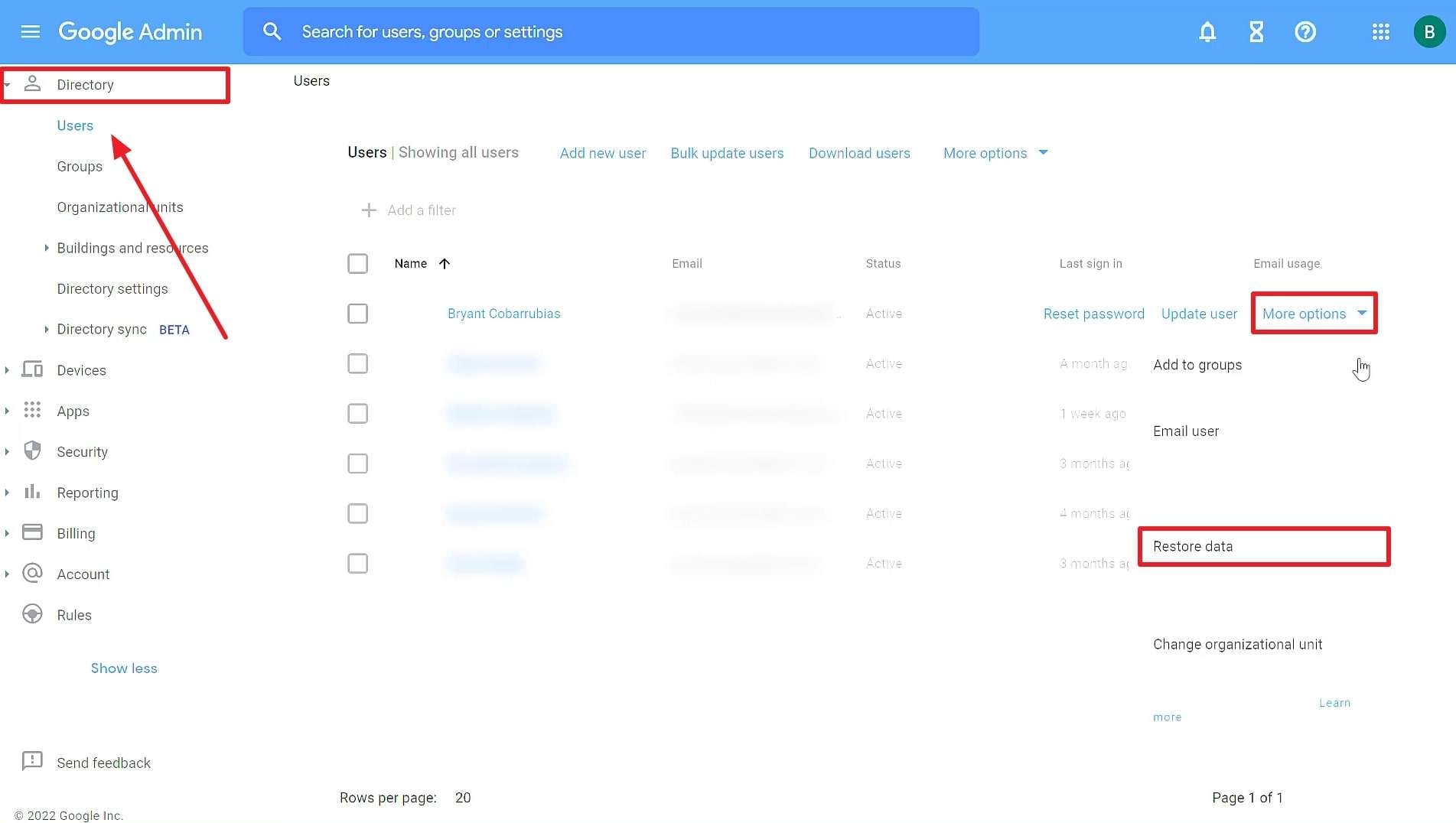
Sign in to the Google Admin Console. Navigate to "Directory" and select "Users." Find the affected user's account, click "More Options" next to their name, and click "Restore Data."
-
Step 2 Configure Restoration Settings
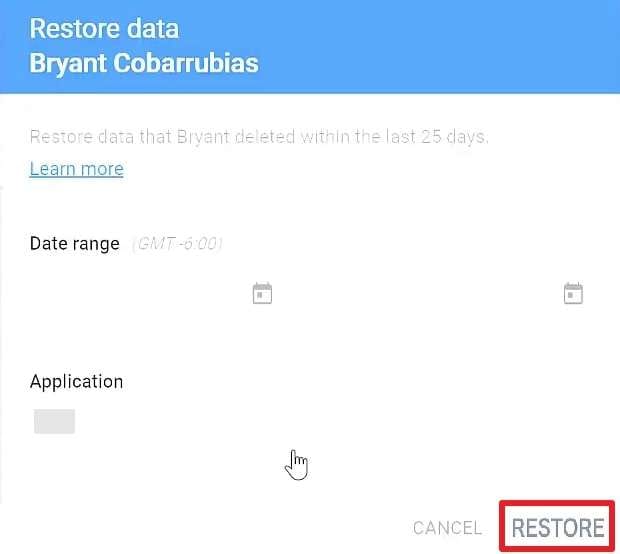
In the prompt, specify the date range for the missing emails, select "Gmail" under the application dropdown, and click "Restore" to push the messages back to the user's inbox.
Fix 3. Google Vault (Business/Enterprise)
Google Vault acts as an archiving and eDiscovery hub for enterprise communications. If a Gmail message disappeared, an administrator can search the Vault to export the retained records, adhering strictly to company data policies.
-
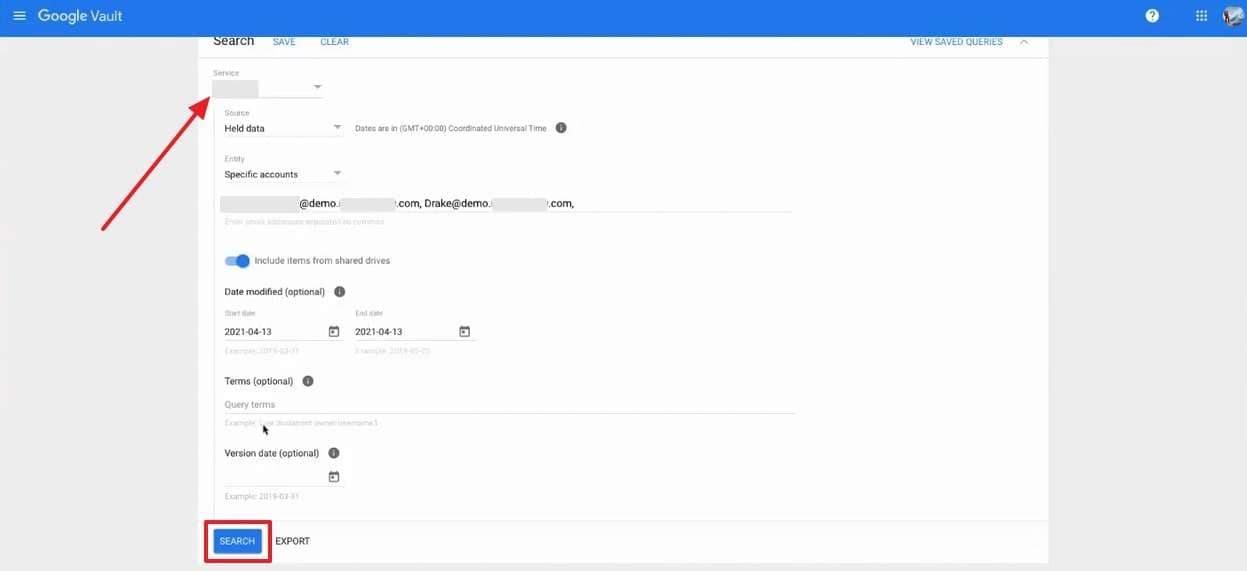
Step 1 Search the Vault
Log in to Google Vault, go to "Matters," and open an existing Hold or create a new one. Select "Gmail" as the service, define the specific accounts to search, and execute the query.
-
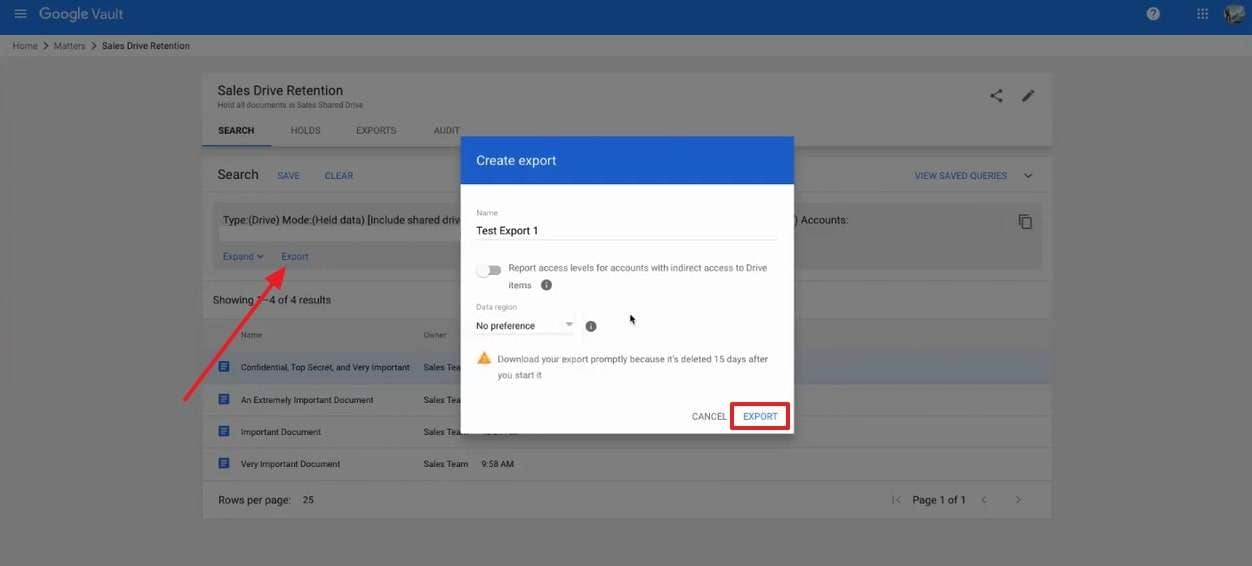
Step 2 Export Data
Identify the missing messages in the search results and click "Export." Assign a recognizable name to the file bundle and download it to regain access to the lost correspondence.
Pro Tip. Use Dr.Fone - Data Recovery (Android) to Recover Lost Gmail Messages
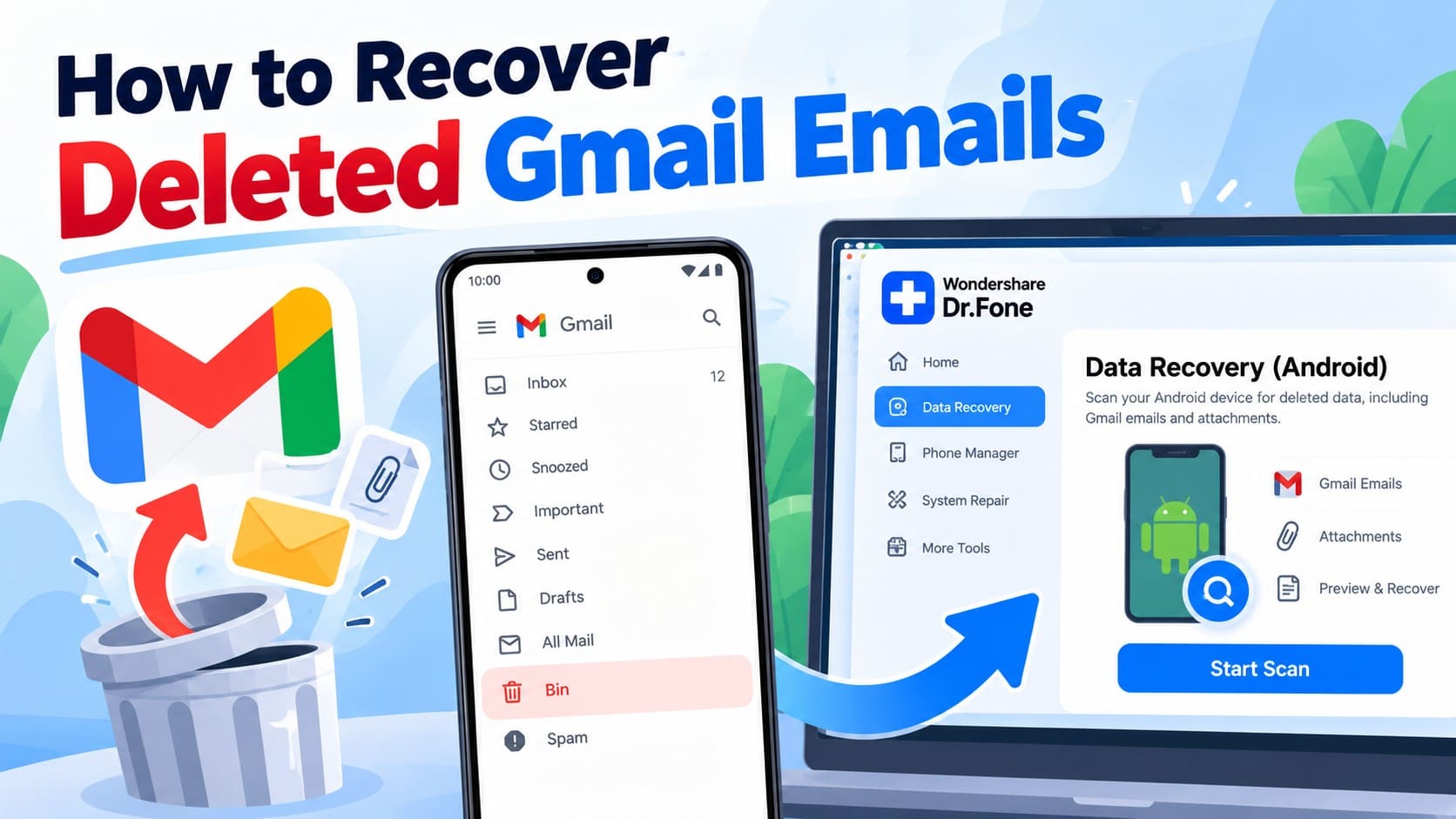
If you have exhausted all Google-based solutions and your Gmail disappeared, you require a robust alternative. Dr.Fone - Data Recovery (Android) serves as a powerful utility to extract and restore Gmail data, especially from broken, locked, or unresponsive Android devices. It can even pull data directly from Google Drive backups effortlessly.
Dr.Fone empowers users to retrieve an extensive array of file types, including messages, media attachments, and documents. With its intuitive preview function, you can selectively verify your recovered Gmail data prior to restoration, ensuring you only retrieve exactly what you need.
 Scan Android phones and tablets directly.
- Preview and recover only what you want.
- Supports WhatsApp, photos, videos, contacts, and more.
- Works with 6000+ Android devices.

Detailed Guide on Using Dr.Fone - Data Recovery (Android)
Follow these steps to leverage this dedicated data recovery framework and salvage your critical information:
-
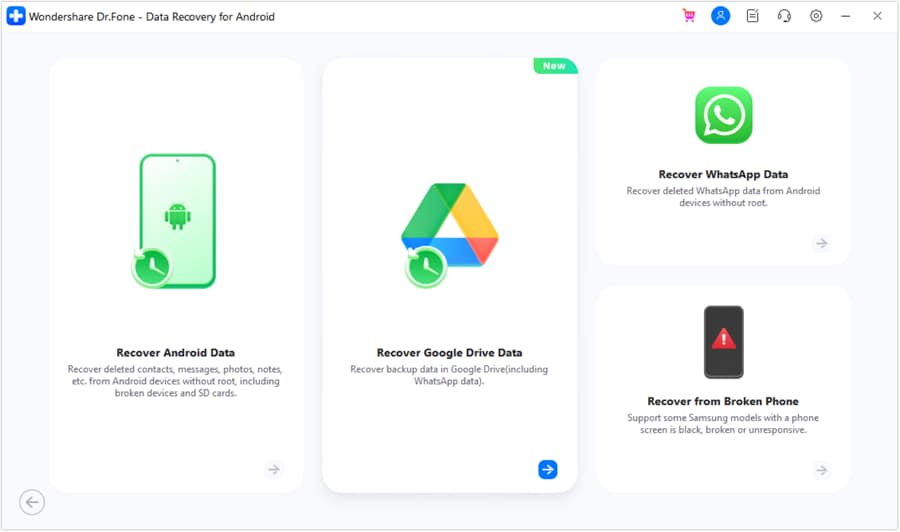
Step 1 Launch the Recovery Module
Open Dr.Fone and navigate to the "Data Recovery" tool. Select "Android" as the target operating system, and then opt for the "Recover Google Drive Data" functionality.
-
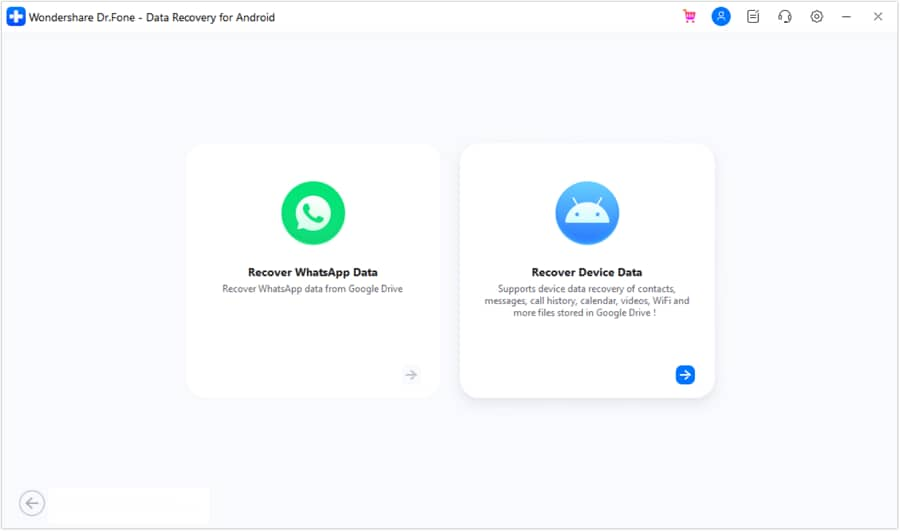
Step 2 Authenticate Your Account
Click "Sign In" to securely access your Google Drive credentials. Once authenticated, proceed by clicking "Recover Device Data" to initiate the scanning phase.
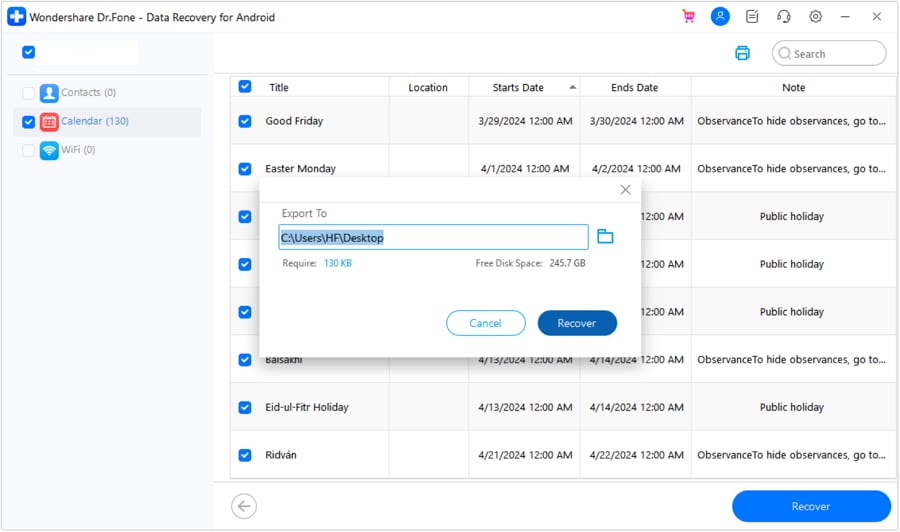
-
Step 3 Restore Missing Emails
Choose "Messages" and any other relevant data types, then click "Download." Browse the retrieved files, check the specific items you wish to save, hit "Recover," designate an output folder, and complete the process.




Conclusion
Experiencing a situation where Gmail messages are missing can disrupt your essential workflow and cause unnecessary stress. By exploring standard recovery avenues—such as the Spam folder, Advanced Search, and Archive—you can resolve the majority of instances when a Gmail message disappeared.
However, if standard methods fall short, enterprise tools like the Admin Console or third-party solutions like Dr.Fone - Data Recovery (Android) offer robust safety nets, ensuring you maintain a tight grip on your digital communications in 2026.
FAQ
-
1. Why did my Gmail messages suddenly disappear from my inbox?
Your messages may disappear due to syncing issues, accidental archiving, or aggressive spam filters automatically moving important messages out of your primary inbox. Checking the Spam, Trash, and All Mail folders usually helps locate these missing messages in Gmail quickly. -
2. How long does Gmail keep deleted emails in the Trash folder?
Google stores deleted mail in the Trash folder for precisely 30 days before permanently purging them from its servers. You must manually recover messages during this window to prevent irreversible data loss. -
3. Can I recover missing Gmail emails directly on my Android phone?
Yes, you can recover missing emails by searching synced folders or applying advanced filters on the mobile app. If native tools fail, specialized software like Dr.Fone - Data Recovery (Android) can securely extract Gmail-related data directly from your device storage. -
4. What happens if I run out of Google storage space?
If your unified Google storage (Gmail, Drive, Photos) reaches its maximum capacity, your account will temporarily reject incoming emails. This often creates the illusion that a gmail mail disappeared. You will need to free up space to resume normal operations.
 Add Wondershare Dr.Fone as a preferred source on Google